
In this article
Reality Check: DeepSeek Is Not a Native Video Renderer
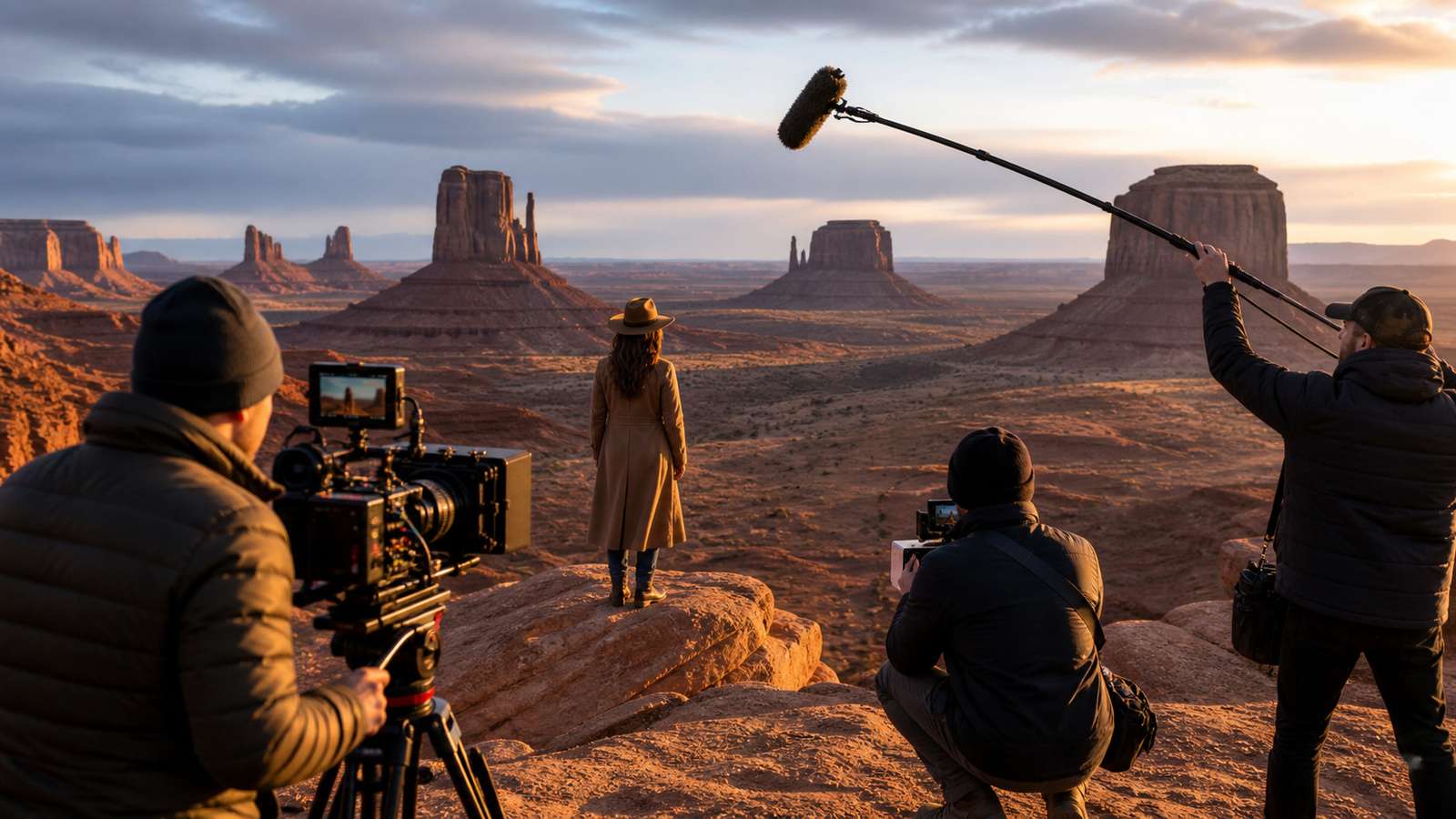
Searches for a DeepSeek AI video generator often mix two different jobs: planning a video and rendering the actual moving frames. DeepSeek is very useful for the first job. It can help turn an idea into a script, shot list, scene description, dialogue plan, camera brief, or structured prompt. But the current DeepSeek API model lineup is centered on language and vision-capable reasoning rather than a dedicated text-to-video renderer. That means a practical workflow uses DeepSeek as the planning brain and a separate video model as the renderer.
This distinction matters because it changes what you should ask for. If you type “make me a 10-second cinematic video,” a language model can describe the video brilliantly, but it cannot by itself create temporal frames unless it is connected to a video-generation tool. Treating the two stages separately gives you more control: one model plans the creative direction, another synthesizes motion, and an editor handles assembly, captions, timing, audio, and export.
| Task | DeepSeek role | Video model or editor role |
|---|---|---|
| Idea development | Expand the concept, audience, hook, tone, and story logic | Not required yet |
| Script and shot list | Write narration, scene beats, camera notes, and timing | Render each planned shot |
| Prompt engineering | Convert prose into model-ready scene prompts | Interpret prompts as moving images |
| Character continuity | Create a reusable character sheet and locked visual descriptors | Try to preserve identity across shots |
| Final video | Plan sequencing and revisions | Generate, trim, combine, caption, mix, and export |
Where DeepSeek Is Useful in an AI Video Workflow
DeepSeek becomes most valuable before you spend generation credits. AI video models can produce impressive clips, but they are expensive to iterate blindly. A planning pass helps reduce random prompting and forces you to make decisions about subject, location, action, camera, duration, and continuity before you generate anything.
Turn a vague idea into a production brief
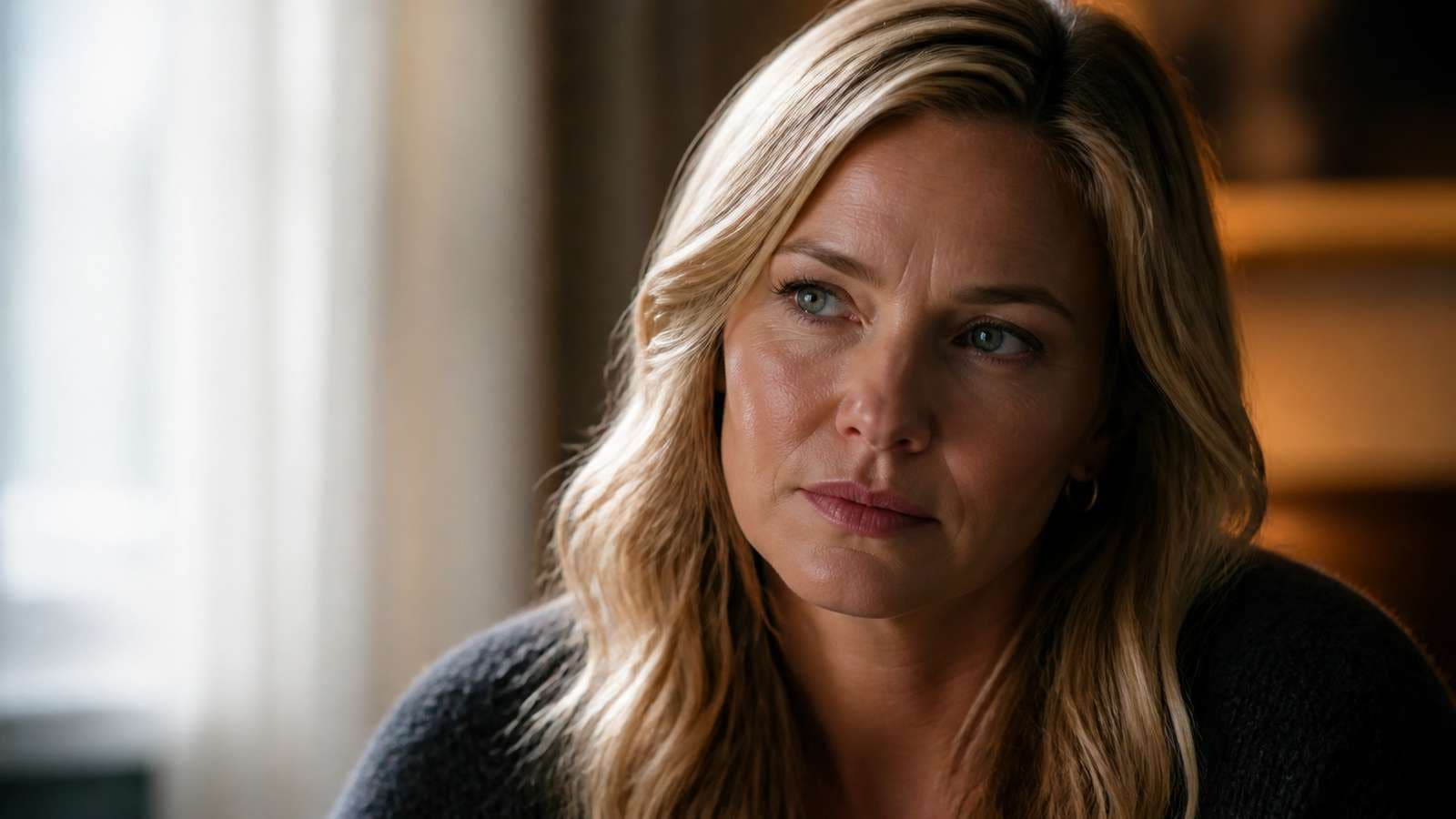
A prompt such as “make a futuristic coffee ad” is not yet a useful production plan. Ask DeepSeek to convert it into a short creative brief: target audience, visual mood, product hero moment, opening hook, number of shots, call to action, and platform format. For a six-second social ad, the answer may be one continuous camera move. For a 30-second explainer, you may need five or six distinct shots.
Create a shot list with constraints
The most useful shot lists describe only what must be different from shot to shot while locking everything that must stay the same. For example, the character, wardrobe, product packaging, time of day, lens character, and color palette may remain fixed, while action and camera angle change. This is much more helpful than asking a model to “be consistent” without defining what consistency means.
Generate alternatives before rendering
Language-model iteration is cheap compared with repeated video rendering. Ask for three hook options, two endings, or alternate camera approaches before generation. You can also have DeepSeek score a draft prompt against a checklist: subject clarity, action clarity, camera direction, environment detail, lighting, duration realism, and contradictory instructions. The goal is not to make the prompt longer; it is to remove ambiguity.
A Practical DeepSeek-to-Video Workflow
The workflow below works for social clips, ads, explainers, story scenes, product concepts, and B-roll. The exact video model can change, but the planning logic stays useful.
- Define the deliverable. Specify platform, aspect ratio, approximate duration, audience, and the single thing the viewer should remember.
- Ask DeepSeek for the creative brief. Request a compact concept, visual style, narrative beats, and what must remain consistent.
- Convert the brief into shots. Give each shot one primary action. Avoid packing several actions, camera moves, and scene changes into a single short generation.
- Write one prompt per shot. Include subject, setting, action, camera, lighting, composition, and mood. Add negative constraints only when they solve a repeated problem.
- Render short clips. Generate the shots separately so failures are isolated and easier to replace.
- Review continuity. Check face, clothing, product geometry, direction of movement, lighting, and spatial logic between adjacent clips.
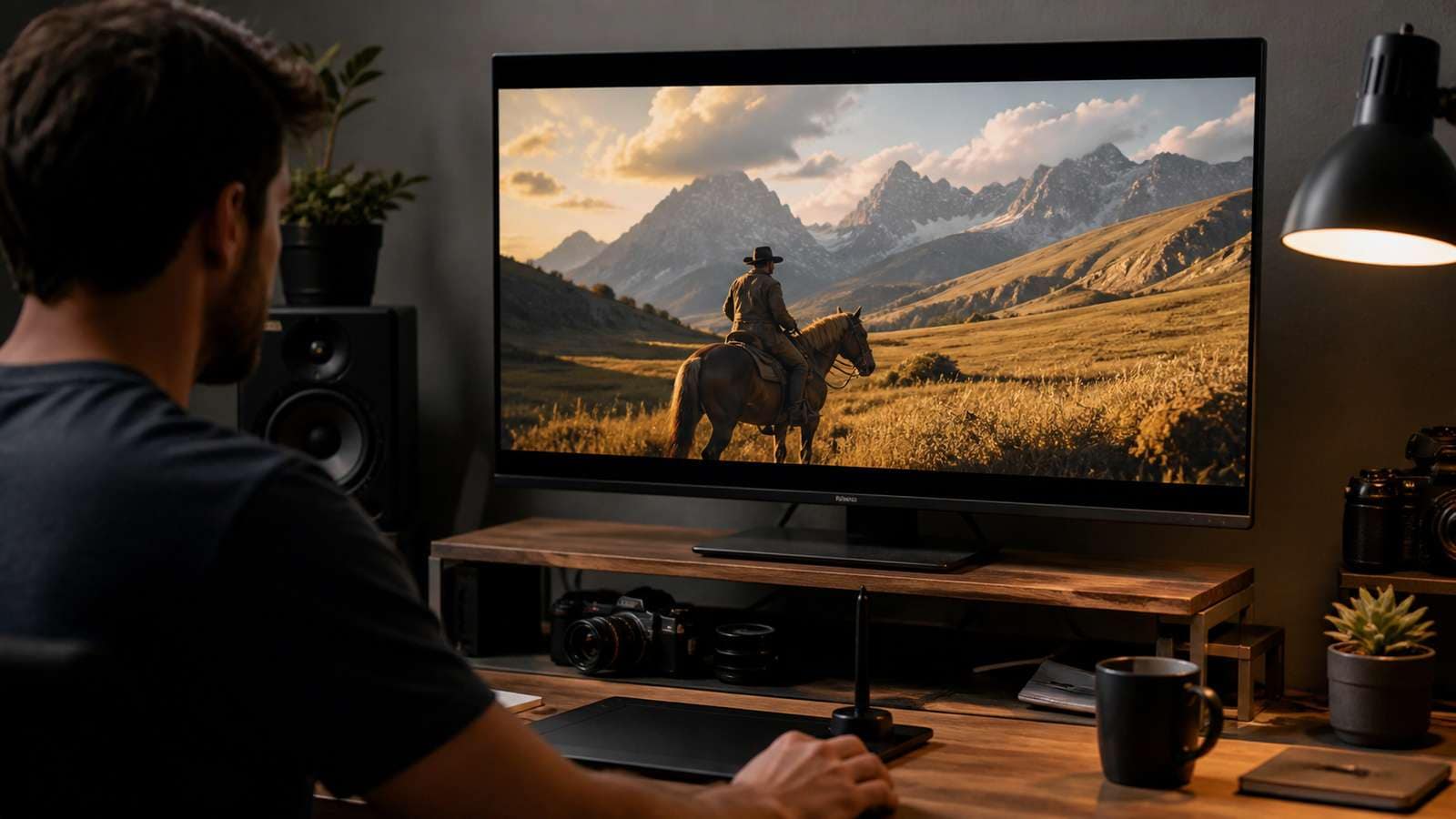
- Assemble and polish. Trim weak starts or endings, add narration, sound design, music, captions, and final pacing.
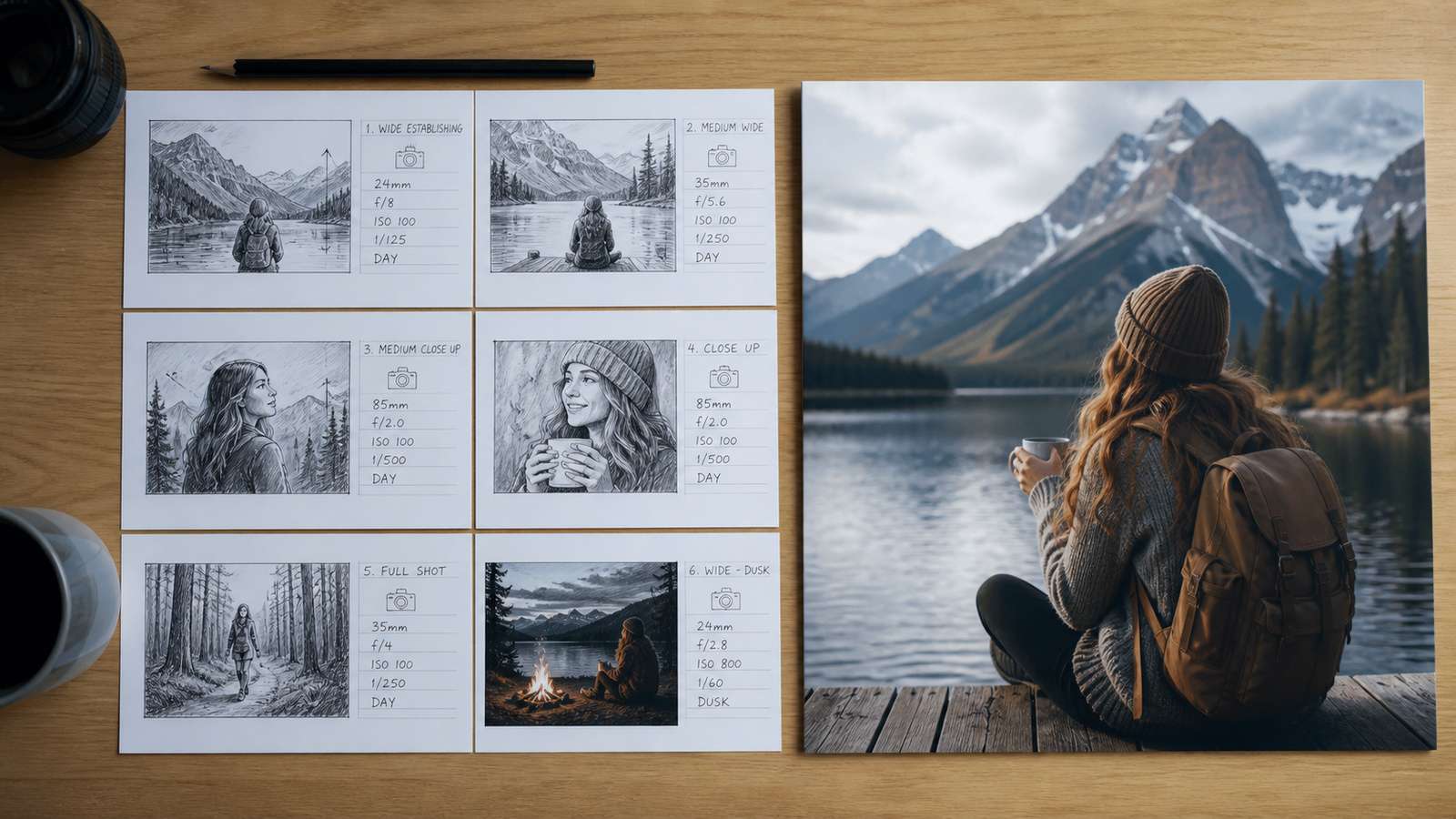
This modular approach is especially important when a single long generation is unreliable. If shot three fails, you replace shot three instead of regenerating the entire sequence. It also gives you room to mix tools: one model may be stronger for cinematic people, another for product motion, and a conventional editor may still be the best place to handle timing and audio.
Write Video Prompts That a Rendering Model Can Actually Use
A good video prompt behaves more like a compact shot direction than a paragraph of marketing copy. Long adjectives do not compensate for unclear motion. The renderer needs to understand who or what is in the frame, what changes during the shot, how the camera behaves, and what visual constraints matter.
| Prompt component | Weak version | Stronger version |
|---|---|---|
| Subject | A stylish woman | Same short-haired woman in a charcoal trench coat |
| Action | She moves dramatically | She turns from the shop window, takes three steps toward camera, then stops |
| Camera | Cinematic camera | Slow handheld push-in at chest height, 50mm look |
| Environment | Cool city | Rainy neon side street at night, wet pavement reflections |
| Lighting | Beautiful lighting | Soft magenta signage from camera left, cool storefront fill from right |
| Constraint | High quality | No scene cut, no wardrobe change, keep facial identity stable |
For a text-to-video model, use verbs that can be visualized in a few seconds. “Explains,” “feels,” and “represents” are abstract. “Turns,” “opens,” “walks,” “pours,” “looks up,” and “camera circles clockwise” describe visible events. When you need a complex sequence, split it. A five-second clip rarely needs four different actions and two camera transitions.
Avoid conflicting instructions
Contradictions are a common source of unstable output: “locked-off camera with dynamic orbit,” “bright daylight noir,” or “close-up full-body shot.” DeepSeek is useful as a prompt editor because you can ask it to identify contradictions and rewrite the prompt without changing the creative intent. Also remove decorative language that does not affect pixels. A shorter, internally consistent prompt usually gives the renderer more room to follow the important instructions.
Keep Characters and Shots Consistent Across a Longer Video
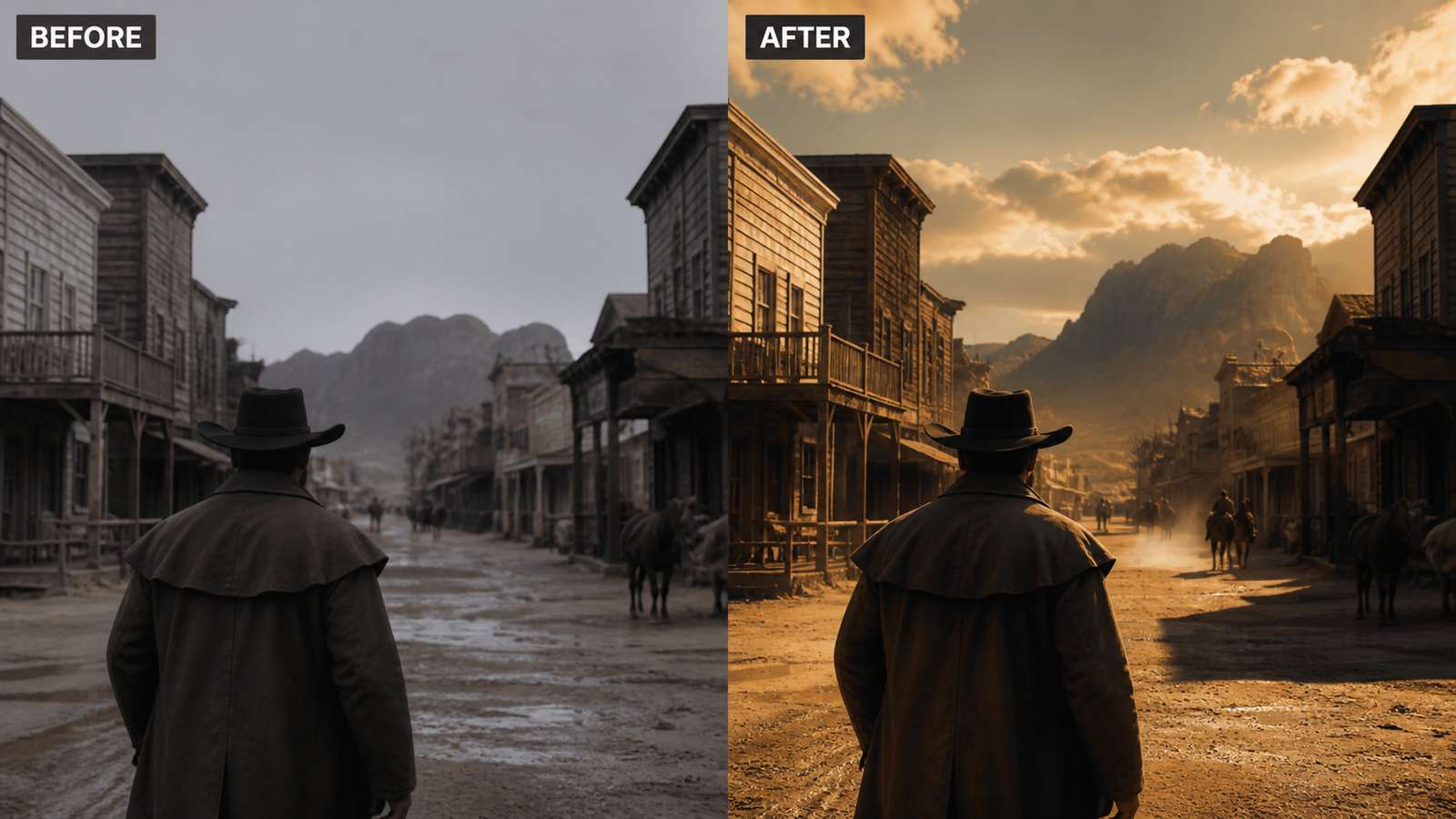
Continuity is one of the hardest parts of AI video creation. A sequence can look impressive shot by shot but still feel unusable when a character changes hair, jacket color, age, facial structure, or even handedness between cuts. Planning helps because you can define a continuity sheet before generation.
- Lock character descriptors: age range, hairstyle, hair color, skin tone, wardrobe, accessories, and one or two distinctive details.
- Lock product descriptors: package color, label position, material, dimensions, and visible logo placement when you have rights to use it.
- Lock visual language: time of day, lens feel, camera height, contrast, and color palette.
- Track screen direction: if a person exits frame right in one shot, the next shot should usually preserve believable geography.
- Reuse references: when the video model supports image or frame references, use the cleanest approved frame instead of relying only on text.
Do not try to solve continuity by repeating an entire paragraph verbatim in every prompt. Separate the reusable identity block from the shot-specific action block. DeepSeek can maintain that structure for you: one locked character specification plus a table of variable actions and camera directions. This also makes later revisions easier because a wardrobe change can be updated once across the plan.
Use Media.io as the Video Generation and Editing Layer
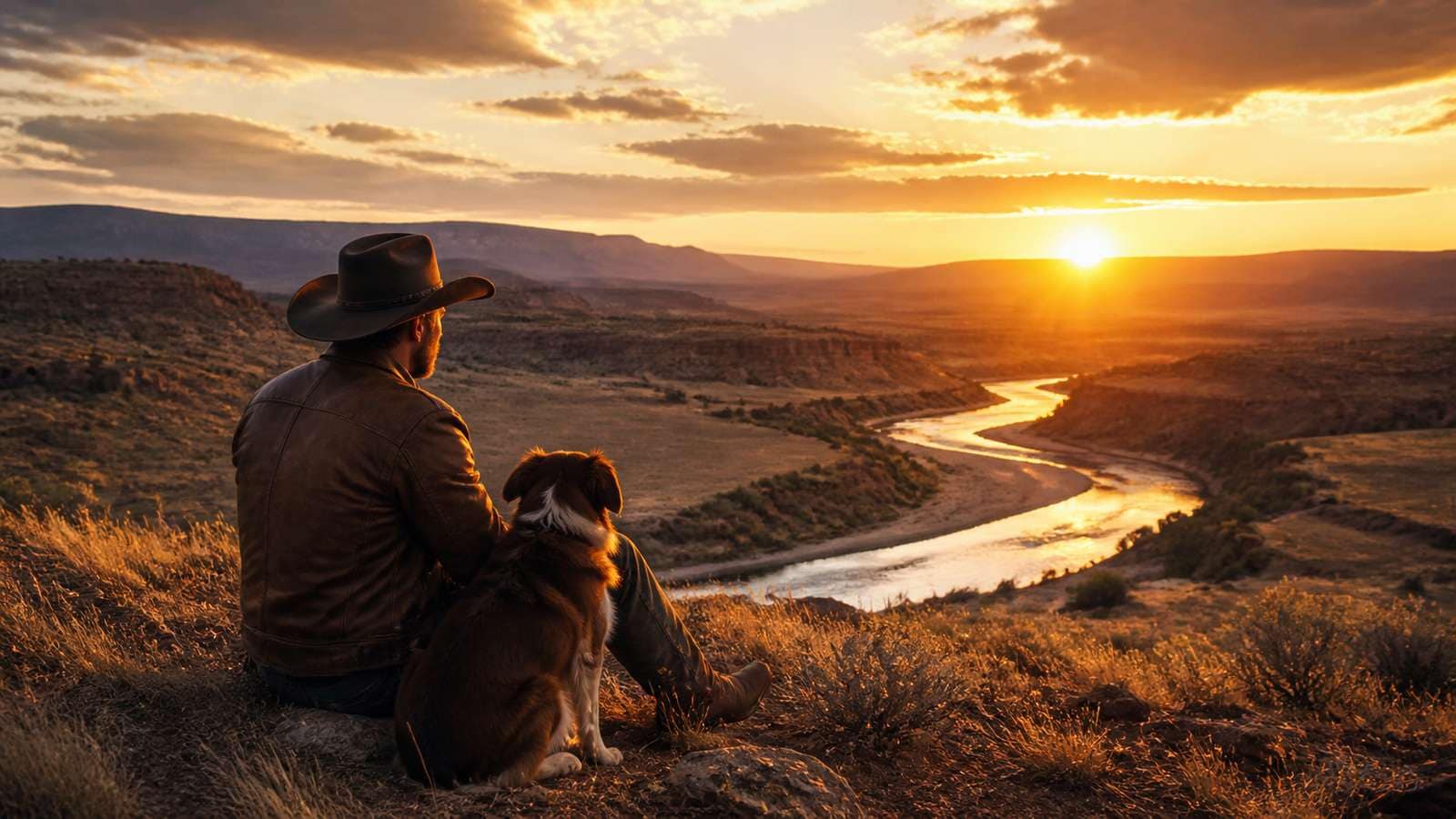
Once the planning is ready, you need a tool that actually renders and finishes the video. Media.io provides AI video-generation and editing workflows that can sit after the DeepSeek planning stage. The related DeepSeek and AI video workflow is useful when you want to move from script or prompt planning into visual generation without pretending that the language model itself is producing the frames.
A practical handoff is simple: paste one shot prompt at a time, choose an appropriate generation mode or model, render a short result, and save only the takes that match your continuity rules. Then assemble those approved shots in order. If the article or campaign includes several styles, keep a small prompt log so you know which wording, aspect ratio, and reference image created each usable result.
The strongest use of Media.io here is not “one click makes the whole film.” It is the ability to combine generation with downstream work such as trimming, arranging, adding text, and preparing social-ready outputs. That makes the DeepSeek-to-video workflow easier to manage than copying prompts into unrelated tools and losing track of which take belongs to which scene.
Common Failure Modes and How to Fix Them
| Problem | Likely cause | Better response |
|---|---|---|
| The clip ignores the main action | Too many simultaneous instructions | Give the shot one primary action and one camera move |
| Character identity drifts | Descriptors change or references are weak | Lock a character sheet and reuse image references |
| Motion looks floaty | Action has no physical anchors | Describe contact, direction, speed, and start/end state |
| Product shape changes | Model is inventing geometry frame to frame | Use stronger reference imagery and shorter shots |
| Sequence feels random | Each clip was prompted independently | Plan transitions, screen direction, and continuity before rendering |
| Credits disappear quickly | Too much blind trial and error | Generate alternatives in text first, then render only shortlisted shots |
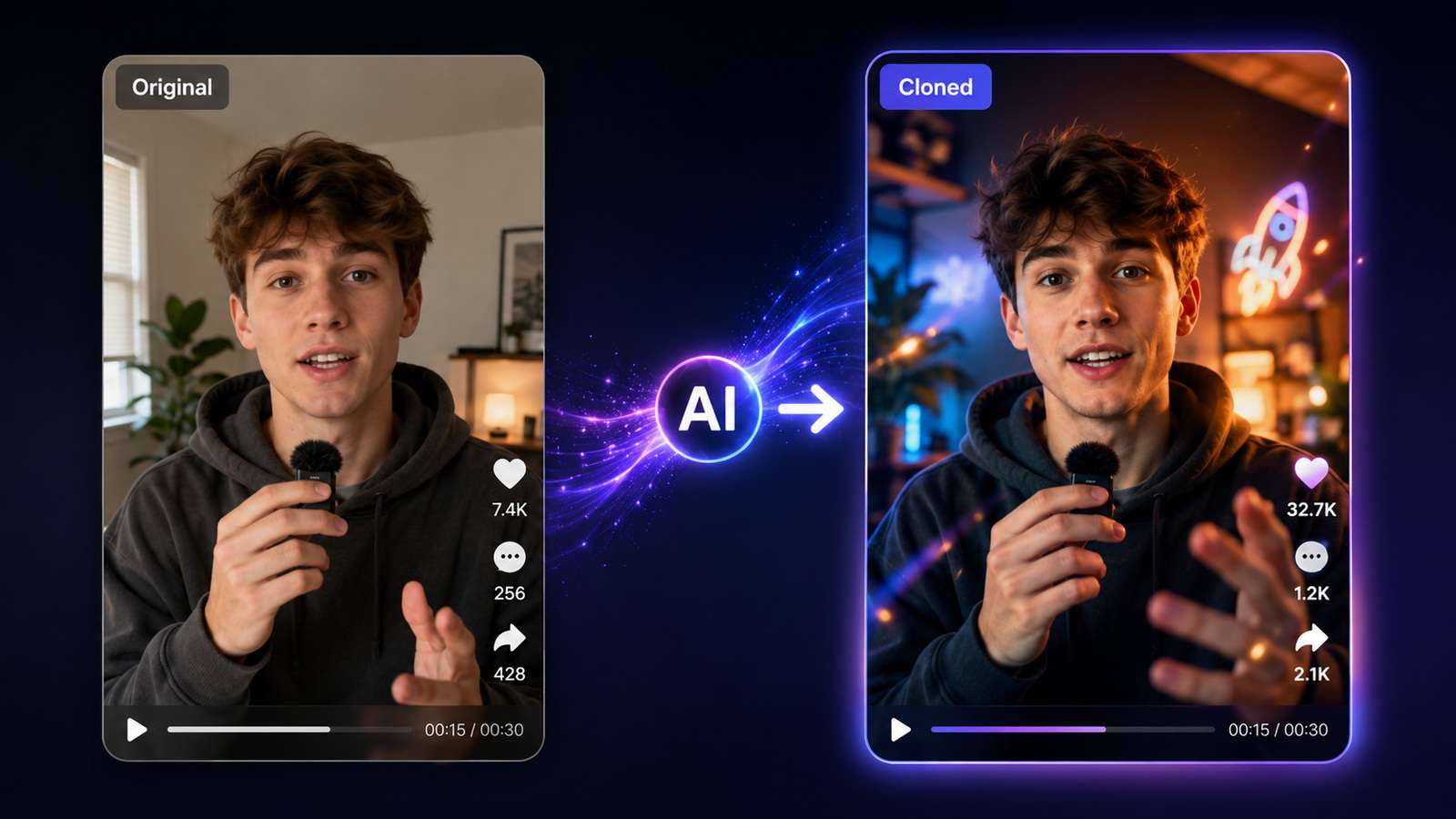
The key principle is to debug the workflow at the correct layer. If the story logic is weak, fix the script. If the shot prompt is ambiguous, fix the prompt. If a renderer struggles with a specific motion, simplify the shot or try another model. If the generated clips are good but the video feels slow, fix the edit. Calling every problem a “prompt problem” wastes time because many video issues happen after prompting.
FAQ About DeepSeek AI Video Generation
-
Does DeepSeek generate videos directly?
DeepSeek is best treated as the planning and reasoning layer for scripts, shot lists, prompt development, and visual analysis. Use a dedicated video-generation model or platform to render moving frames. -
Can I use DeepSeek to write text-to-video prompts?
Yes. Give it a clear target model, duration, aspect ratio, subject, and style requirements, then ask it to produce one concise prompt per shot rather than one oversized prompt for the entire video. -
What is the best way to keep the same character across AI video shots?
Create a locked character description, reuse the same reference image when supported, keep wardrobe and lighting consistent, and change only the action and camera instructions needed for each shot. -
Should I generate one long video or several short clips?
For most multi-scene projects, short clips are easier to control. You can replace a failed shot without regenerating the whole sequence and you get more control over pacing and continuity. -
Can DeepSeek help reduce AI video generation cost?
It can reduce waste by helping you test story options, prompts, and shot structures before you spend credits on rendering. It does not reduce the renderer price itself. -
What should I do when a video model ignores part of my prompt?
Remove nonessential adjectives, eliminate contradictions, shorten the action, and make the subject-camera relationship explicit. If the shot still fails, split it into two simpler clips.


