















AI Background Remover:
Remove Image Backgrounds Online
Remove distracting backgrounds from photos while keeping the main subject in focus. Media.io AI Image Background Remover isolates people, products, pets, vehicles, and logos without manual tracing. For replacing a scene or changing its look, explore the separate AI Image to Image workflow.
Key Takeaways:
- What it does: Remove unwanted photo backgrounds automatically and keep the main subject.
- One-click workflow: Upload a photo, remove its original background, review the result, and download the processed image.
- For complex edits: Use Media.io AI Image to Image when you need prompt-based changes.
- Typical uses: Headshots, product listings, pet photos, vehicle images, and logos.
- Getting started: Available free credits let you try the tool. Free-user downloads include a watermark; check your plan for other export options.
Remove a Background or Redesign the Scene?
Start with one-click background removal. For selective or creative edits, use Media.io AI Image to Image as a separate workflow.
RECOMMENDED FOR QUICK CUTOUTS
Method 1: One-Click AI Removal
Separate the main subject from its original background in a few steps.
Upload a photo and let Media.io identify its main subject and remove the surrounding scene. Use this workflow for portraits, product shots, pets, vehicles, and simple graphics. Review the finished edges before downloading.
- Automatic removal with no manual tracing
- Can separate subjects with fine details; inspect hair, fur, glass, and reflective edges
- Produces a background-removed result for preview and download; a transparent alpha channel is not guaranteed
- Works for portraits, products, pets, cars, logos
ALTERNATIVE METHOD
Method 2: Prompt-Based Scene Editing
For scene replacement, object-level changes, or creative edits.
Want to redesign a background rather than simply isolate a subject? Open the separate Media.io AI Image to Image workflow and describe the scene you want. A background-editing prompt can help you specify what should change.
- Describe removal with plain-English prompts
- Useful when your goal is to edit or replace the surrounding scene
- Generates a newly edited image rather than a guaranteed transparent cutout
- Powered by AI Image to Image
How to Remove an Image Background Online
Upload a photo, let AI separate the subject from its original background, then preview and download the processed result. No manual tracing required.
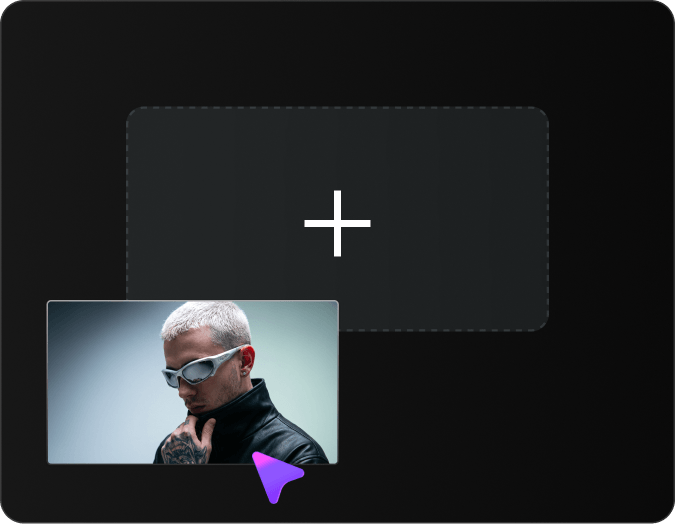
Upload Your Image
Upload the photo whose background you want to remove.
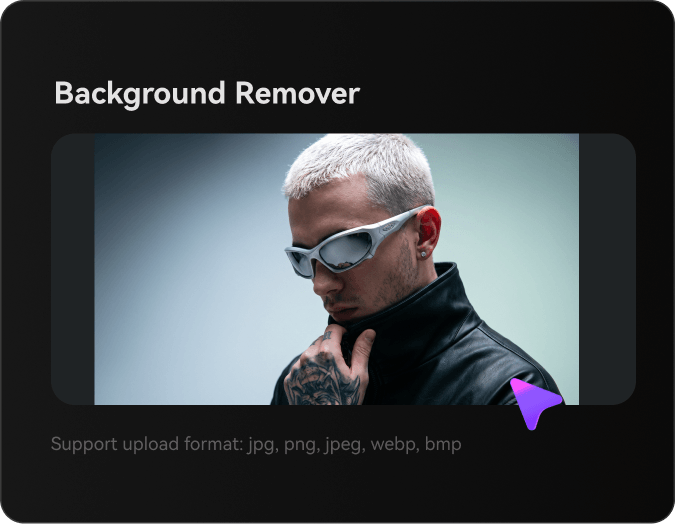
Remove the Background
Let Media.io automatically detect the subject and remove the original background.
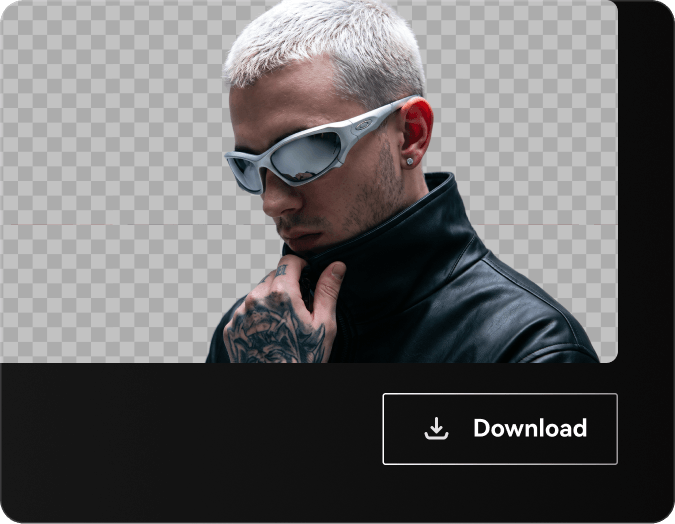
Preview & Download
Review the result, especially the edges, and download the processed image. Check the actual export if you need transparency for another design tool.
Remove Photo Backgrounds from People, Products, Pets, Cars, and Logos
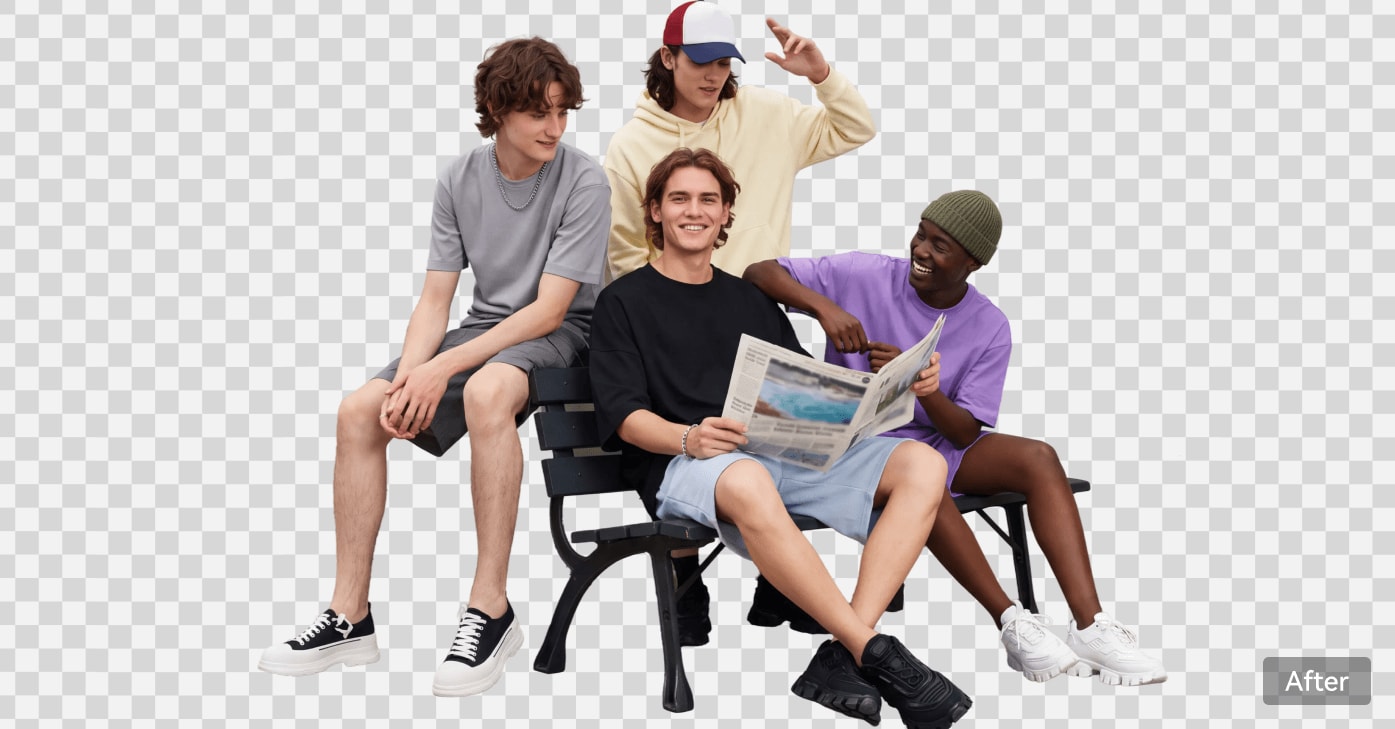
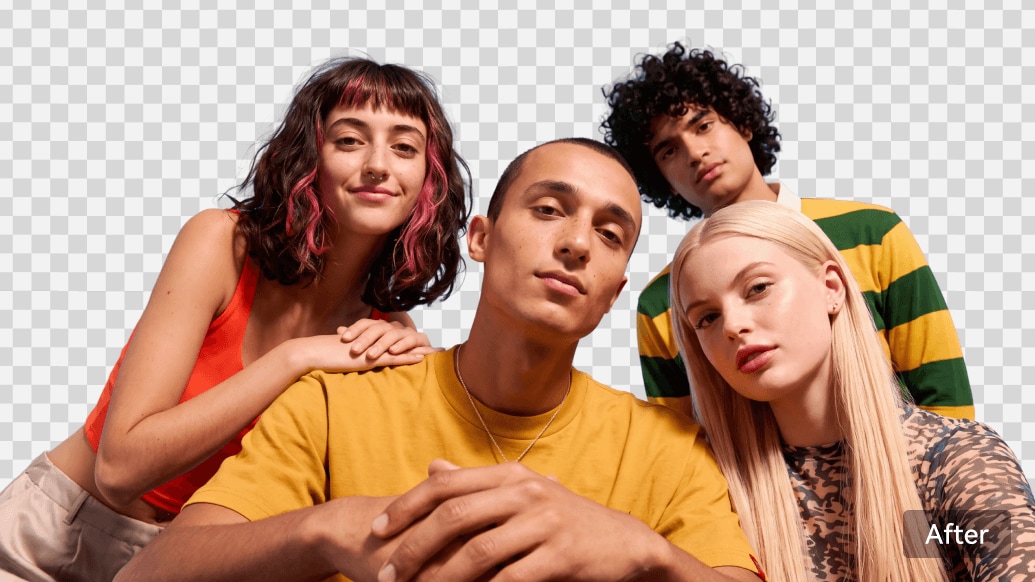
Different subjects call for different checks: hair on portraits, fur on pets, reflections on cars, and lettering on logos. Use the before-and-after examples to see how the original scene is separated from the subject.
Remove Background from Portrait Photos & Headshots
Separate people from distracting surroundings. Media.io's portrait background remover helps isolate a person in selfies, headshots, and group photos. Check fine edges around hair, glasses, and accessories before using the result in profile graphics, presentations, or social content.
- Check flyaway hair and narrow gaps around the subject
- Preview glasses, earrings, and other fine accessories carefully
- Use well-separated subjects for easier edge detection
- Download the background-removed result for further creative work
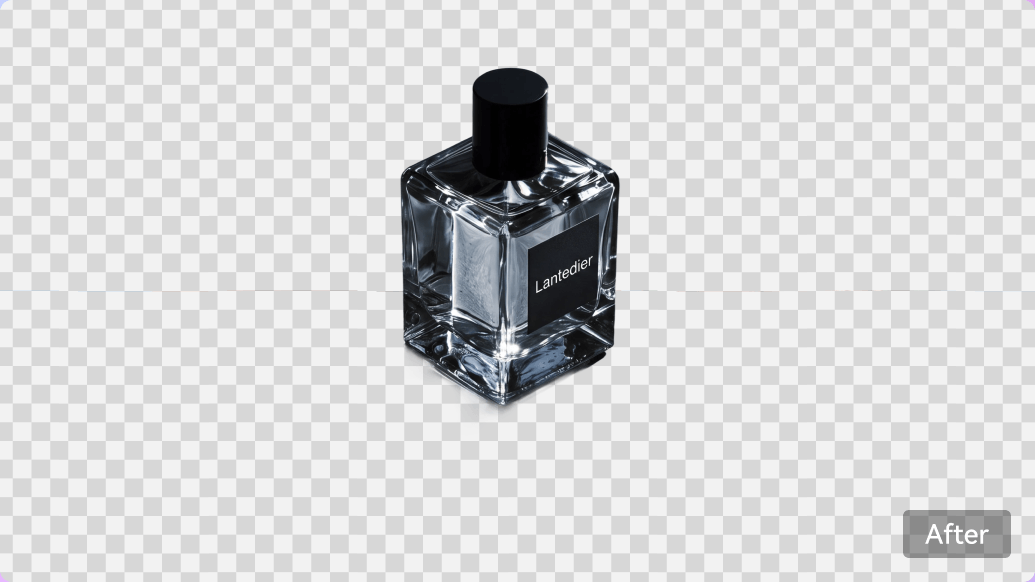
Remove Backgrounds from Product Photos for E-commerce
Help the product stand out from a busy shooting environment. Use Media.io's product photo background remover to separate an item from shelves, desks, or studio clutter. It can be a useful preparation step for catalogs and promotional graphics. If your marketplace requires a pure-white image, verify the output and complete that step separately.
- Keep attention on the product instead of the original surroundings
- Inspect glass, reflective surfaces, packaging, and product shadows
- Review fine details on lace, jewelry, and textured fabrics
- Check marketplace rules before publishing listing images
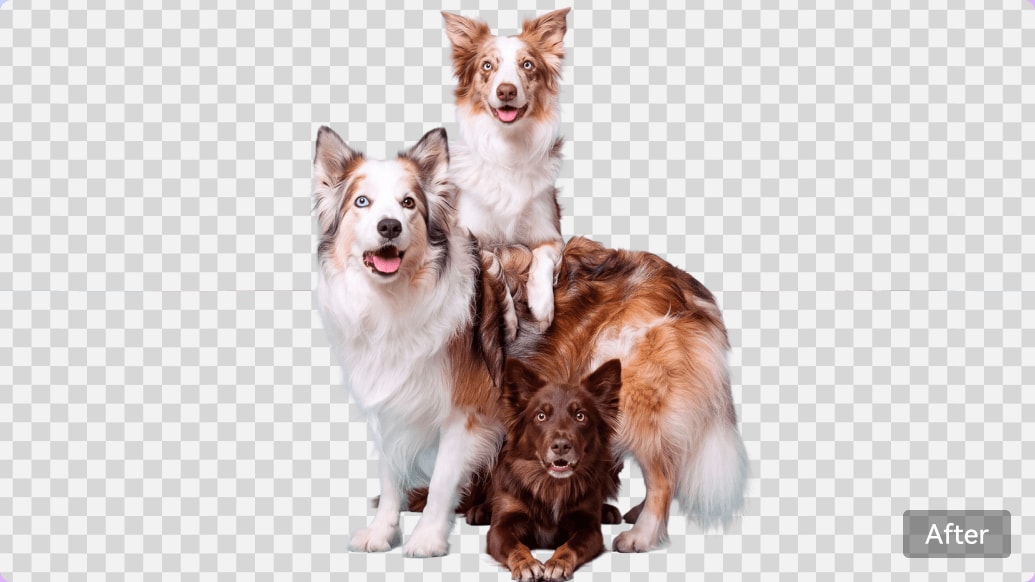
Remove Backgrounds from Pet Photos While Keeping the Pet in Focus
Bring the attention back to the pet. Media.io's pet photo background remover helps separate animals from busy rooms, yards, or other surroundings. Fur and whiskers can be difficult for automated tools, so inspect the outline, especially around long-haired pets and low-contrast backgrounds.
- Inspect fine fur strands, whiskers, and paws in the preview
- Choose photos where the animal stands apart from the background
- Use clear, well-lit animal photos for easier subject detection
- Use the processed image in pet-related creative projects
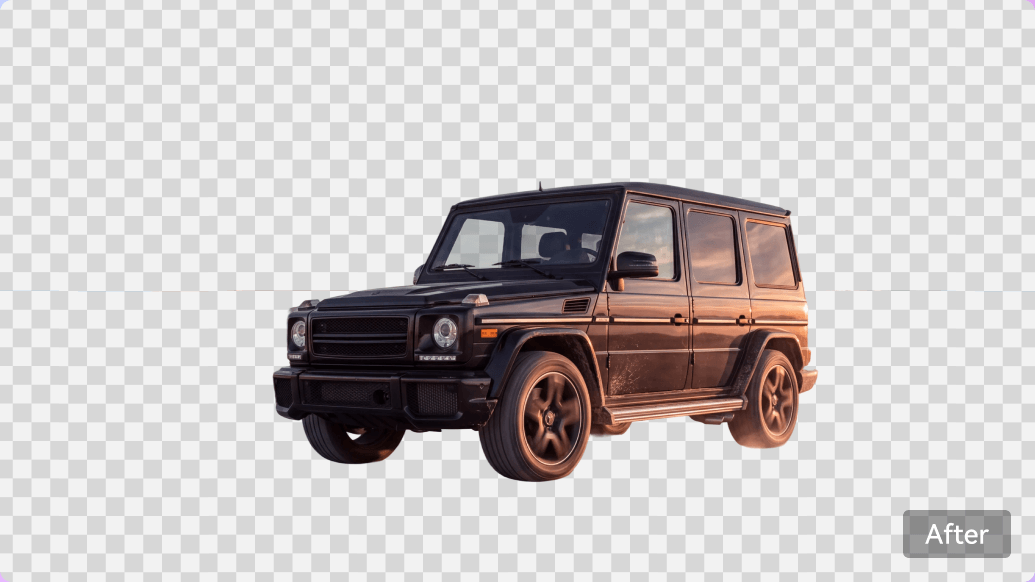
Remove Background from Car Photos for Dealership Listings
Separate vehicles from distracting parking lots and street scenes. Use Media.io's car background remover to isolate the vehicle as a starting point for marketplace visuals and automotive graphics. Check mirrors, windows, wheel spokes, and reflections in the result. Creating a new showroom or lifestyle scene requires a separate editing workflow.
- Inspect glass, chrome, side mirrors, and wheel spokes after processing
- Try photos of cars, SUVs, trucks, and motorcycles with clear outlines
- Use AI Image to Image separately if you need a new setting
- Remove the original scene to keep attention on the vehicle
Remove Backgrounds from Logos and Simple Graphics
Separate a logo or graphic from the surrounding image. Try Media.io's logo background remover on images containing a distinct logo, icon, or graphic. Inspect lettering, thin strokes, and enclosed spaces after processing. If your project requires a true transparent logo file, check the export for an alpha channel before placing it in another design.
- Inspect thin lines, lettering, and intricate shapes in the result
- Check gradients, shadows, and low-contrast logo elements
- Remove the original surrounding scene without manual tracing
- Confirm the output format and transparency before reuse in design software
Why Use Media.io AI Background Remover
An online workflow for removing distracting photo backgrounds. Here is what to expect from the tool, and what to check before using the result in another project.
Two Related Editing Workflows
Use AI Background Remover to isolate the subject. If you want to redesign the surroundings, open the separate AI Image to Image tool and describe your new scene.
Useful Across Photo Subjects
Remove the original backdrop around portraits, products, pets, vehicles, and logos. Results vary with lighting, motion blur, and the complexity of the outline.
Subject Isolation Without Manual Tracing
Separate the foreground subject from its original background with AI. Preview the processed image and verify the export properties needed by your next editing tool.
Fast AI Processing
Remove backgrounds online without manual tracing. Processing time varies with image size and scene complexity.
Download and Verify Your Result
Download the processed image and inspect its file properties before reuse. Free-user downloads include a watermark; check your plan for other export options.
Browser-Based Background Removal
Upload a photo and remove its original background in a compatible browser without installing a desktop editor.
One-Click Background Removal vs Prompt-Based Editing
Choose the Media.io workflow that fits your photo, instead of comparing unsupported benchmark claims.
| Decision | AI Background Remover | AI Image to Image |
|---|---|---|
| Best for | Quick subject cutouts | Selective or creative edits |
| How it works | Upload and remove automatically | Describe the desired change in a text prompt |
| Typical outcome | Processed image with the original background removed | Edited or replaced background scene |
| When to choose | You want the original subject isolated | You need additional control over the scene |
| Open tool | Try background removal | Open AI Image to Image |
FAQs on AI Background Remover
What is an AI background remover?
An AI background remover identifies the main subject in a photo and separates it from the original background. Media.io automates this process so you can prepare subject-focused images without manually tracing their outlines.
How do I remove a background from an image online?
Upload a photo to Media.io AI Background Remover, let the AI process the image, then review and download the result. Pay attention to fine edges before using the image in another project.
Can I remove image backgrounds for free?
You can try Media.io AI Background Remover with available free credits. Free-user downloads include a watermark; check the current plan details for other export options.
Do free downloads include a watermark?
Yes. Images downloaded by free users include a watermark. Review the available plan options if you need a different export experience.
Does removing the background create a transparent PNG?
Not necessarily. Separating a subject from its original background and exporting a file with a transparent alpha channel are different outcomes. If you need true transparency, check the downloaded file in an image editor before using it as an overlay.
Can I make a product photo with a pure-white background?
The one-click workflow focuses on removing the original background and does not promise a custom white replacement. If you need a white or styled scene, use a separate background-editing workflow and check marketplace image requirements before publishing.
Can the AI handle hair, fur, or reflective surfaces?
It can help separate subjects with hair, fur, and other detailed outlines, but results depend on image quality and scene complexity. Zoom in to inspect strands, reflections, and gaps around the subject.
Can I use Media.io for e-commerce product photos?
Yes. You can remove distracting surroundings from product shots before preparing listings, catalogs, or promotional images. Confirm that the final picture meets the relevant marketplace requirements.
Can I replace the background using a text prompt?
For a new or creatively edited scene, use the separate Media.io AI Image to Image workflow and describe the change in a text prompt. One-click Background Remover is primarily for separating the subject from the original scene.
Does Media.io AI Background Remover work on mobile?
Media.io is a browser-based tool. You can try uploading and processing images on a compatible mobile browser; availability may depend on the device and browser.
How long does background removal take?
Processing time varies with image size, subject detail, scene complexity, and server demand. Preview the result before downloading.
How can I improve background removal results?
Choose a well-lit, sharp photo with a clearly visible subject, avoid heavy motion blur, and review delicate edges after processing. If you need a different background rather than a cutout, try AI Image to Image.
Explore More AI Image Editing Tools

 Remove Image Backgrounds