
In this article
First Check Whether Music Is Already on a Separate Track
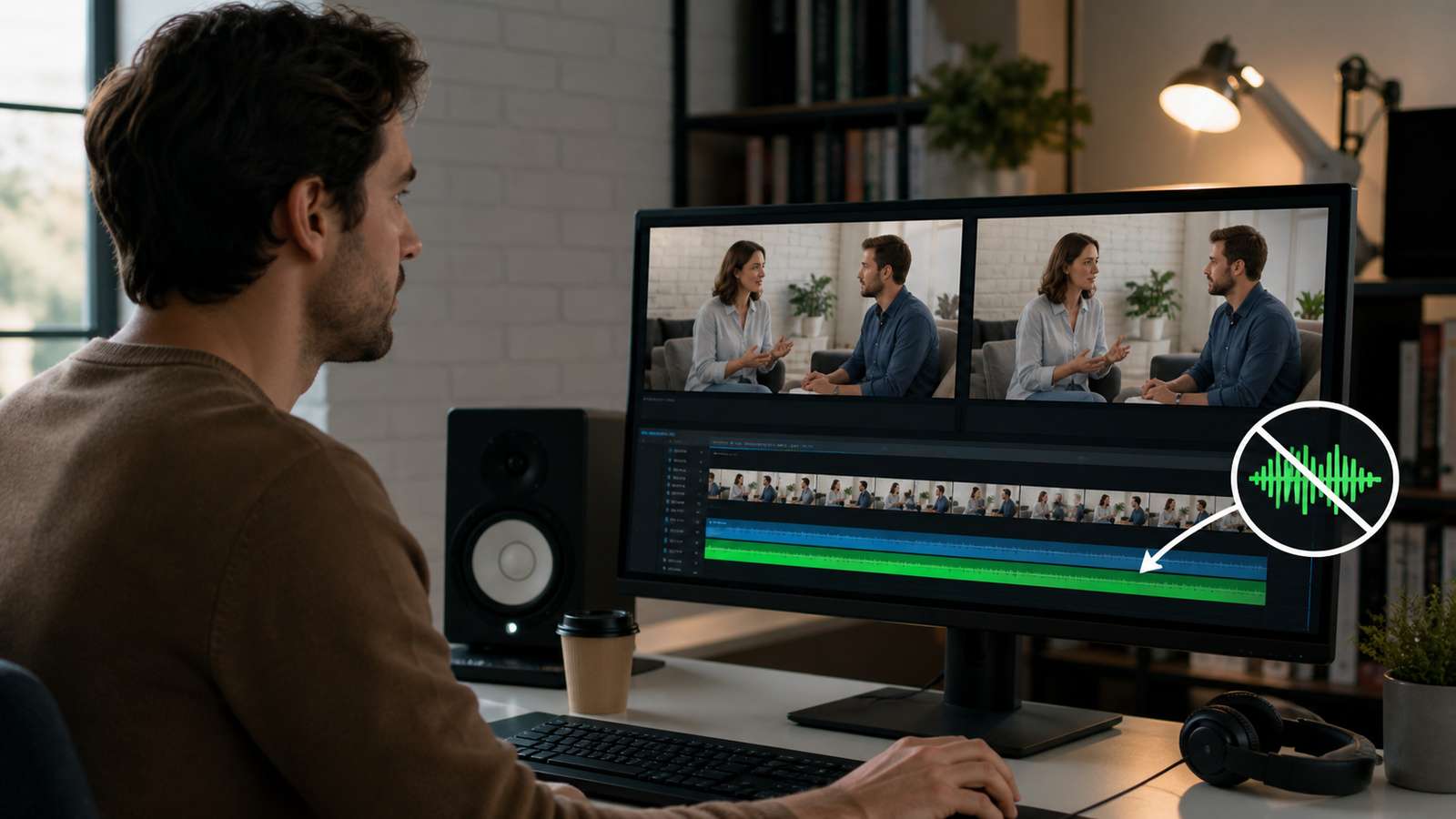
The cleanest way to remove music from video is not AI at all. If you still have the editing project and the music sits on its own timeline track, mute or delete that track and export again. The dialogue remains untouched because you are removing an independent audio source rather than trying to unmix a finished soundtrack.
The problem becomes harder after export. In a normal MP4, speech, music, room sound, sound effects, and reverb are often mixed into the same stereo track. The original stems are gone. An AI separator can estimate which parts sound like vocals or accompaniment, but it cannot perfectly reconstruct an isolated studio dialogue track if everything was mastered together.
| What you have | Best method | What to expect |
|---|---|---|
| Original project with separate music track | Mute/delete music track | Cleanest possible result |
| Multitrack recording | Disable music bus or stem | Near-original dialogue quality |
| Finished video with mixed music and voice | AI stem separation | Usually useful, but artifacts are possible |
| Music only, no wanted speech | Mute audio or replace soundtrack | No separation needed |
| Dialogue plus loud song with vocals | Stem separation plus manual cleanup | Most difficult because two vocal-like sources overlap |
Use AI Stem Separation When the Soundtrack Is Mixed
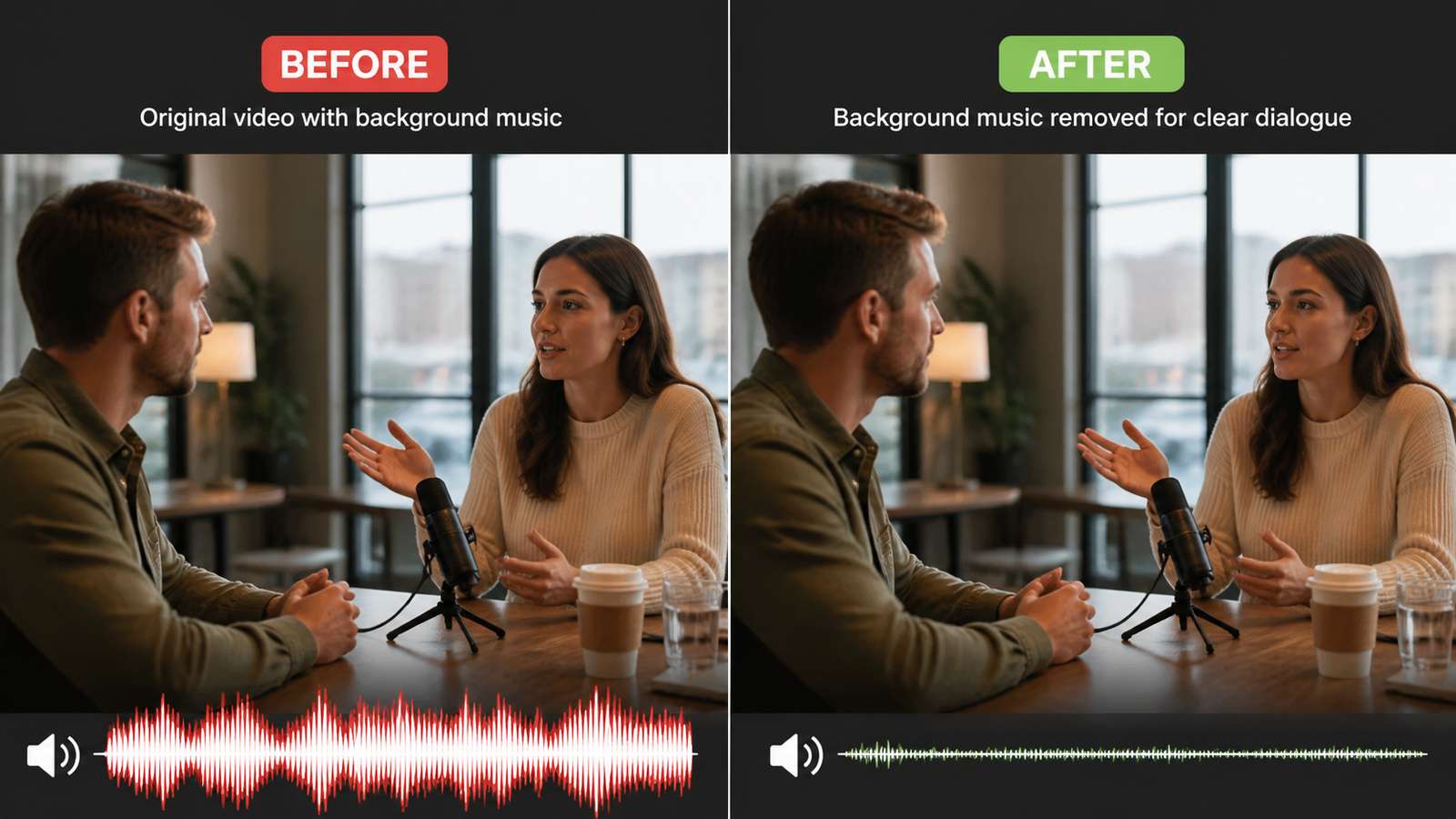
Stem separation uses machine learning to estimate sources inside a mixed waveform. Depending on the tool, the output may be split into voice and accompaniment or into more detailed stems such as vocals, drums, bass, and other instruments. For video work, the useful question is usually simpler: can the dialogue or lead voice remain intelligible after the music is reduced?
The separator looks at spectral and temporal patterns. Speech has formants, consonants, pitch movement, and pauses that differ from many instruments. Music has rhythmic and harmonic structures. Modern models can separate these surprisingly well, but the categories are not absolute. A choir, lead singer, heavily processed synth, or reverb tail can resemble speech. A noisy voice recorded in a crowded room can resemble background texture.
Why center-panned tricks are not enough
Older “vocal remover” methods often relied on stereo cancellation, assuming the lead vocal was centered while instruments were spread left and right. That can work on specific music masters, but it is unreliable for dialogue in modern video. AI separation is more flexible because it analyzes content rather than only channel position. Even so, phase effects, stereo ambience, and overlapping frequency content can leave musical residue.

How to Keep Voice Without Accidentally Deleting Sound Effects
Many users say “remove background music but keep the voice,” yet they also want footsteps, applause, traffic, game sounds, or room ambience. A two-stem separator may classify some of those effects with the accompaniment, so removing the entire music stem can make the video feel unnaturally empty. The better workflow is to decide what the final audio should contain before you separate anything.
- Listen to the mix first. Mark sections where speech overlaps music, where speech is alone, and where sound effects matter.
- Create stems from the highest-quality audio. Avoid repeatedly converting a compressed MP3 because artifacts become harder for the separator to classify.
- Solo the voice stem. Check consonants, breaths, room tone, and whether musical harmonics remain around the speech.
- Bring back useful ambience. If the accompaniment stem contains important environment sound, reduce it rather than muting it completely, or rebuild ambience from another source you have rights to use.
- Automate by section. A clip may need strong music reduction during dialogue and more original sound during pauses or transitions.
- Match loudness after separation. Removing music changes perceived energy. Rebalance dialogue level before judging the result.
For interviews, tutorials, and talking-head videos, intelligibility is usually more important than perfectly preserving every background sound. For film or event footage, ambience may be part of the story, so a more careful mix is worth the extra work.
Why “Remove Music, Keep Voice” Is Sometimes Impossible to Perfect
The hardest cases are not simply “loud music.” They are cases where the unwanted music and wanted voice share similar acoustic features. A singer in the background can be mistaken for speech. Reverb from a narrator can spread across the same frequency-time regions as pads and strings. Compression can glue sources together. If the soundtrack was aggressively mastered, the separator has fewer clean clues about what belonged to each original track.
- Heavy reverb: the direct voice may separate while the reverb tail remains in the music stem, creating an unnaturally dry result.
- Background vocals: they may stay with the wanted voice or contaminate the dialogue stem.
- Distorted music: guitar or synth harmonics can leak into speech-like frequency bands.
- Low-bitrate audio: codec smearing can make consonants and instruments harder to distinguish.
- Dialogue under very loud music: parts of the speech may simply be masked in the original mix and cannot be reconstructed faithfully.
- Fast edits: different scenes can have different acoustic profiles, so one global setting may not sound equally good everywhere.
The practical standard should be “clean enough for the purpose,” not “mathematically restore the original isolated dialogue.” For a social clip, mild musical residue may be acceptable. For transcription, you may prioritize speech clarity even if the voice sounds processed. For a professional film mix, locating the original stems is almost always preferable to AI unmixing.

Remove Music from Video with Media.io AI Vocal Remover
Media.io AI Vocal Remover provides a browser-based way to remove vocals from songs or separate mixed audio into vocal and instrumental components. For video, the useful workflow is to extract or upload the media, run separation, audition the resulting stems, and keep the stem that best matches your goal. If your goal is spoken dialogue, listen carefully because “vocal” models are usually trained broadly and may preserve both speech and singing.

- Use the cleanest source file available. A first-generation video export is better than audio ripped from a repeatedly compressed social post.
- Run the vocal separation and download or audition both outputs. Do not discard the accompaniment stem immediately; it may contain ambience you later want to mix back quietly.
- Listen with headphones to a section where music and speech overlap. Check for watery syllables, missing consonants, and music leakage.
- If the voice is usable, bring it into your editor and place it under the original video. Lower or remove the original mixed track.
- Add back only the ambience, effects, or replacement music you are allowed to use. Then normalize the final dialogue level and export.
Choose the Right Export Workflow for Your Goal
| Goal | Recommended output | Extra step |
|---|---|---|
| Interview with clean speech | Voice stem under original video | Add light room tone if result feels too dry |
| Tutorial narration | Voice stem plus subtle replacement music | Use ducking so new music stays below speech |
| Podcast clip from video | Voice stem as WAV or high-quality audio | Noise reduction and loudness normalization |
| Meme/social remix | Voice stem plus new beat | Confirm rights for both source and replacement audio |
| Transcript generation | Voice-focused stem | Clarity matters more than musical residue |
| Archival footage | Preserve original plus edited copy | Never destroy the source mix |
Export quality matters because stem separation already introduces processing. If you separate from a compressed file, save the working result to a lossless format such as WAV before additional editing when your tool allows it. Repeatedly converting between low-bitrate formats can exaggerate metallic artifacts and weaken consonants.
Common Artifacts and Troubleshooting
| Artifact | What it sounds like | What to try |
|---|---|---|
| Music leakage | Faint drums, synth, or chords under speech | Reduce the stem selectively instead of over-processing the whole clip |
| Watery voice | Swirling or phasey syllables | Start from a better source; use less aggressive cleanup |
| Missing consonants | Speech becomes dull or hard to understand | Mix a tiny amount of original track back under the stem |
| Too-dry dialogue | Voice sounds detached from room | Add clean room tone or subtle reverb |
| Pumping level | Voice changes loudness around music hits | Use volume automation and gentle compression after separation |
| Background vocals remain | Singing is classified with wanted speech | Try another separation mode/model or edit the problem section manually |
Always compare against the original. It is easy to become focused on removing the music and accidentally accept a voice that is much less natural. For AI-generated videos, natural sound is also an important part of realism—see our AI video looks real guide for tips on matching sound with the scene and motion. If the separated voice is technically “clean” but exhausting to listen to, a controlled reduction of the original music may sound better than total removal.
Three practical mixing scenarios
Talking-head video with low background music. Do not assume full stem separation is necessary. If the music is already much quieter than the speaker, conventional EQ, dialogue enhancement, and gentle music reduction may sound more natural than aggressive source separation. Use AI when the music competes with intelligibility or when you truly need a voice-only version.
Event footage with speech, applause, and music. A two-stem separator may put applause and crowd sound into the accompaniment. If you mute that stem completely, the result can sound like the speaker was recorded in a vacuum. A better mix may keep a quiet amount of the original or accompaniment stem under the cleaned voice. Use volume automation around applause and transitions instead of one fixed level for the whole clip.
Song playing under narration. This is difficult when the song itself contains vocals. The separator may treat both the narrator and singer as “voice.” If the narration is the only element you want, isolate the time ranges where the narrator speaks, try another separation model, or rebuild the soundtrack with licensed instrumental music. Do not keep increasing processing strength if it begins destroying the narrator.
How to judge the result objectively
Use the same ten- to twenty-second test segment for every attempt. Include a quiet speech phrase, a loud consonant, and a section where music and voice overlap. Match playback volume before comparing versions; louder audio often sounds “better” even when it contains more artifacts. Listen once on headphones for leakage and once on ordinary phone or laptop speakers for intelligibility. The version that sounds most natural across both systems is usually the better practical edit.

FAQ About Removing Music from Video
-
Can I remove background music from a video and keep talking?
Yes, especially when speech is prominent and the music is not too dense. AI stem separation estimates a voice stem, but the result can contain artifacts when the sources overlap strongly. -
What if I still have the original editing project?
Mute or delete the music track there. That is cleaner than separating a finished mix because the speech and music are already independent. -
Will a vocal remover keep sound effects?
Not always. Many tools separate broadly into vocal and accompaniment. Some desired ambience or effects can end up in the accompaniment stem, so audition both outputs before mixing. -
Why is my voice metallic after removing music?
The separator may be reconstructing speech from heavily overlapped or compressed audio. Better source quality, lighter processing, and a small blend of the original can sometimes sound more natural. -
Can I remove only the music in one section?
Yes. Separate the audio, then automate or edit the stems by time range. You do not have to apply the same amount of removal to the entire video. -
Is it better to replace the music instead of removing it?
For many social or tutorial videos, yes. Keep the cleaned voice, add a new licensed track, and control its level with ducking or volume automation.


