

 ChatGPT
 Perplexity
 Gemini
 Claude
 Grok
Grok
Google Flow is one of the most searched AI video tools in 2026 because it combines Google's Veo 3.1 video model, Gemini Omni Flash, Nano Banana Pro image workflows, reference assets, scene building, native audio, and video editing inside one creative studio. This Google Flow review focuses on what creators actually need to know: video quality, prompt control, pricing, credits, limitations, and whether Flow is better than alternatives like Sora, Runway, Kling, Luma, or Pika.
To make this review more useful than a basic feature summary, we evaluated Flow as a real AI video workflow: text-to-video, image-to-video, Frames to Video, Ingredients to Video, camera movement, audio prompts, retries, upscaling, and final publishing prep. If you already have a generated clip that needs polishing, Media.io can help enhance, resize, compress, convert, and export the final video for TikTok, Instagram Reels, YouTube Shorts, ads, or client review.
Google Flow review workflow: prompt writing, reference assets, model settings, Veo 3.1 generation, and short cinematic output preview.
- Best for: Cinematic AI video concepts, short-form social clips, film storyboards, music visuals, product mood boards, and reference-based video generation.
- Main strength: Google Flow is more than a one-box AI video generator. It supports text-to-video, image-to-video, Ingredients to Video, Frames to Video, video extension, scene building, and natural-language edits.
- Main weakness: Flow credits can disappear quickly when you test multiple prompts, generate multiple outputs, upscale, or retry complex scenes.
- Best model fit: Veo 3.1 is strong for cinematic realism, physics, audio, and prompt adherence, while Gemini Omni Flash is useful for multimodal input and editing workflows.
- Publishing note: Flow can create impressive clips, but most outputs still need checking, trimming, enhancement, resizing, compression, or format conversion before publishing.
In this article
Part 1. Quick Verdict: Is Google Flow Worth It?
Google Flow is worth trying if you want cinematic short videos, AI film concepts, visual storyboards, social clips, product mood boards, or reference-based image-to-video scenes. Its biggest advantage is workflow depth. You can create or upload assets, use them as ingredients, generate a shot, guide camera movement, add audio cues, extend scenes, and refine the clip inside one creative workspace.
However, Google Flow is not the simplest or cheapest AI video generator for every creator. It can be credit-intensive, feature access varies by region and subscription tier, and complex prompts often need multiple generations before one result feels publishable. It is also not ideal when you need exact packaging text, perfect logo accuracy, strict UI details, or long multi-shot continuity without manual review.
| Review Item | Verdict |
| Overall Rating | 8.4/10 for cinematic concepting and short-form AI video workflows |
| Best For | AI film scenes, cinematic social clips, storyboards, music visuals, product concepts, reference-based video creation |
| Not Ideal For | Exact product demos, long narratives, low-cost bulk generation, strict character continuity across many scenes |
| Main Strength | Strong Google model stack plus scene, camera, reference, audio, and iteration tools in one workspace |
| Main Weakness | Credit costs, regional limits, detail drift, and the need to inspect outputs before publishing |
- Pros: Cinematic look, strong prompt adherence, native audio support, useful reference workflows, scene extension, and flexible aspect ratios.
- Pros: More practical for creative direction than a basic one-prompt text-to-video generator.
- Cons: Credit use can rise quickly when you generate multiple outputs, upscale, edit, or retry complex scenes.
- Cons: Faces, hands, text, logos, packaging, small props, and long continuity still need careful review.
Cinematic Google Flow test clip comparing prompt direction, reference input, camera movement, and final generated motion.
Part 2. What Is Google Flow?
Google Flow is an AI creative studio for video, image, scene, asset, and tool creation. Searchers may call it the Google Flow AI video generator, Flow AI video generator, Flow Veo 3.1 AI video generator, Flow AI video maker, or Google AI video generator. In practice, Flow is not just a single text-to-video box. It combines Google's generative models with tools for text-to-video, Frames to Video, Ingredients to Video, video extension, scene building, image editing, video-to-video editing, and prompt-based refinement.
The key difference is direction. A basic AI video generator usually asks for one prompt and returns one clip. Flow is designed around a more iterative filmmaking process: create or upload assets, reference those assets, generate a shot, refine the result, extend the scene, and build a more coherent project. That makes it useful for creators who think in subjects, shots, camera moves, continuity, lighting, sound, and mood.
If your main goal is to animate a still photo into a short video without learning a full creative studio, compare Flow with an AI image-to-video generator. A simpler workflow can be faster when you only need photo upload, prompt input, quick preview, and export.
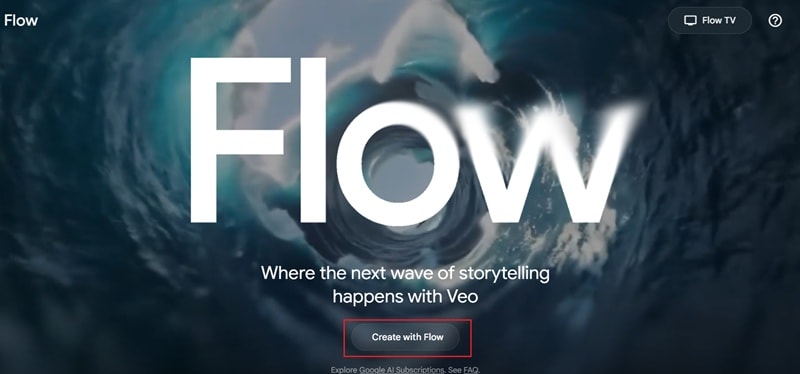
Google Flow interface elements to review: prompt input, video model, reference ingredients, aspect ratio, length, camera direction, and output preview.
| Common Search Term | What It Usually Means | Best Matching Workflow |
| Google Flow AI video generator | Google Flow used as an AI video creation studio | Text-to-video, reference-to-video, scene building |
| Flow Veo 3.1 AI video generator | Searchers looking for Flow powered by Google's Veo video model | Use current Veo 3.1 Lite, Fast, or Quality options when available |
| Google Flow image to video | Animating a starting image or creating transitions from frames | Frames to Video or Ingredients to Video |
| Flow AI video maker with audio | AI video generation with sound effects, ambience, voices, or dialogue cues | Use supported models and include audio direction in the prompt |
Part 3. Google Flow vs Veo 3.1 vs Gemini Omni Flash
One common confusion in a Google Flow review is whether Flow and Veo are the same thing. They are related, but not identical. Google Flow is the creative studio. Veo 3.1 is a video generation model option inside Flow. Gemini Omni Flash is another model path for certain video and editing workflows. Your final result depends on the model, generation length, input type, reference assets, prompt clarity, and credit settings you choose.
| Term | Role in the Workflow | Why It Matters |
| Google Flow | AI creative studio | Organizes projects, prompts, ingredients, frames, generated clips, edits, tools, and scene building. |
| Veo 3.1 Lite / Fast / Quality | Video generation model options | Different modes affect speed, quality, supported lengths, native audio, and credit cost. |
| Gemini Omni Flash | Multimodal video and editing model path | Supports 4s, 6s, 8s, and 10s clips in supported workflows and is important for certain edit features. |
| Nano Banana Pro | Image generation and editing support | Useful for making characters, product references, style frames, and ingredients before generating video. |
Part 4. Hands-On Test Setup
A useful Google Flow review should not stop at feature names. We reviewed Flow as a creator workflow: how many usable clips it can produce, how well it follows direction, how often details drift, and how much post-production is needed before publishing on TikTok, Instagram Reels, YouTube Shorts, ads, landing pages, or client decks.
| Test Detail | Setup Used for This Review |
| Review date | Updated and source-checked on July 7, 2026 |
| Core workflows reviewed | Text-to-video, image-to-video, Frames to Video, Ingredients to Video, video extension, video-to-video editing, and upscaling |
| Evaluation focus | Realism, lighting, motion, prompt adherence, audio alignment, reference consistency, editability, credit cost, and publishing readiness |
| Output use cases | Cinematic scene, social clip, product mood board, character reference, camera-control prompt, and complex multi-action stress test |
| Post-production check | Enhancement, trimming, resizing, compression, conversion, captions, and platform fit using Media.io tools |
| Test Area | What We Looked For | Why It Matters |
| Visual realism | Lighting, textures, physics, camera motion, reflections, faces, and hands | Determines whether the clip feels cinematic or visibly AI-generated. |
| Prompt adherence | Subject, action, environment, shot type, lighting, style, audio cue, and negative constraints | Shows whether Flow follows creative direction instead of inventing a different scene. |
| Reference consistency | Character identity, product shape, outfit, color palette, and object placement | Important for brand concepts, recurring characters, and image-to-video workflows. |
| Editability | Extension, video-to-video editing, variations, scene building, and prompt history | Measures whether Flow works as a creative workspace rather than a one-shot generator. |
| Publishing readiness | Sharpness, compression artifacts, captions, crop, file size, format, and platform fit | Most AI clips still need a final production pass before upload or delivery. |
Part 5. Test Results and Scores
Google Flow performs best when the scene is cinematic but not overloaded. The strongest prompts usually include one main subject, one clear action, a specific setting, a single camera direction, lighting style, and an audio cue. The weakest results appear when the prompt asks for too many people, multiple simultaneous actions, exact text, strict product packaging, or long continuity.
| Test Scenario | What We Checked | Result Summary | Score |
| Cinematic text-to-video | Lighting, motion, physics, atmosphere, audio alignment | One of Flow's strongest areas. A single subject with clear movement and cinematic lighting can look polished, especially when the prompt includes camera and audio cues. | 8.8/10 |
| Frames to Video / image-to-video | Starting-frame fidelity, subject stability, natural motion | Strong for short clips and transitions, but faces, hands, fabric, reflections, and background details still need frame-by-frame review. | 8.3/10 |
| Ingredients to Video | Character, object, and scene consistency from reference assets | Better than one-off prompting for keeping a subject recognizable, though exact commercial packaging, logos, and small text may still shift. | 8.2/10 |
| Camera-control prompt | Pan, zoom, tracking, handheld motion, first-person movement | Works best when the prompt asks for one clear camera move. Complicated multi-camera direction can produce mixed results. | 8.0/10 |
| Product promo video | Brand accuracy, object shape, product texture, ad-style polish | Useful for mood boards and ad concepts, but not reliable enough for final product ads if exact labels, UI text, or packaging must stay unchanged. | 7.1/10 |
| Complex multi-action scene | Multiple people, long motion, emotional nuance, continuity | Flow can create impressive drafts, but complex prompts are more likely to simplify details, drift in motion, or require several generations. | 6.7/10 |
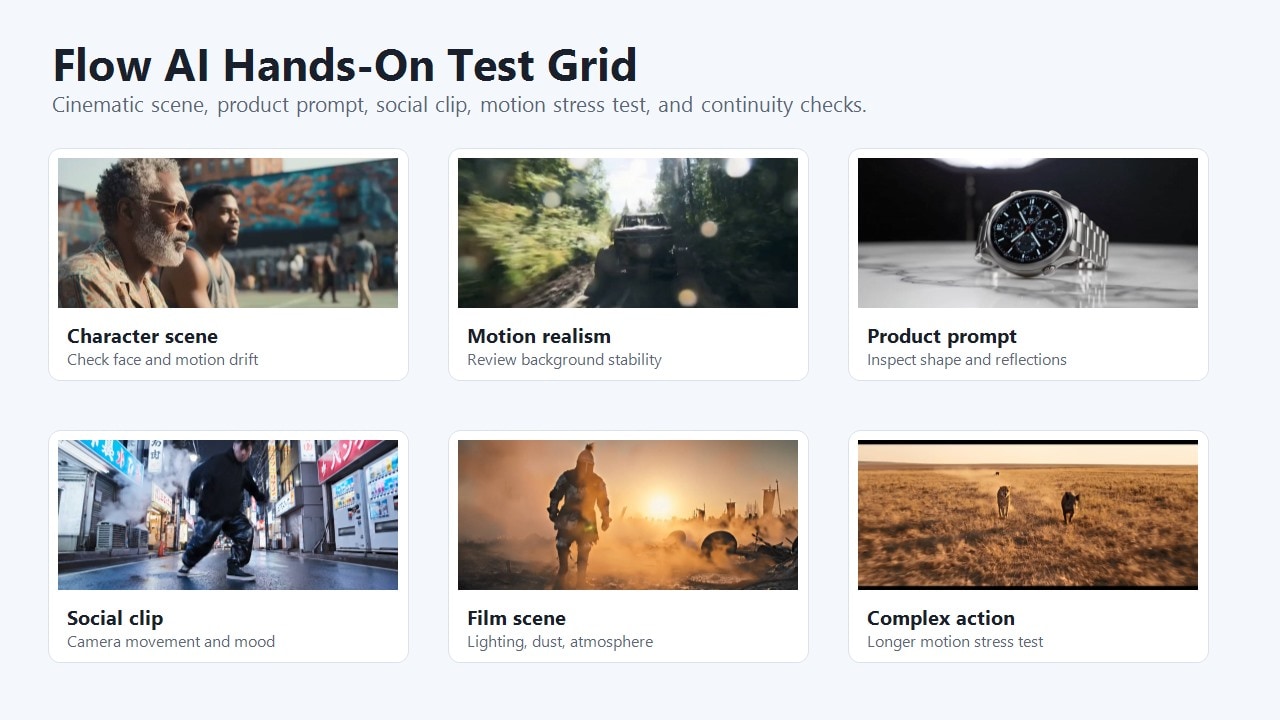
Google Flow test grid: cinematic prompt, image-to-video scene, reference ingredient test, product prompt, and complex motion stress test.
If the video is visually strong but slightly soft, compressed, or noisy, Media.io AI Video Enhancer can be used as a separate polishing step. This is especially useful when the generated clip already has the right motion and composition, but needs better clarity before publishing.
Part 6. Failure Cases and Workarounds
Google Flow can produce excellent AI video drafts, but it still behaves like a generative model. The most useful way to judge it is not only by its best outputs, but also by the kinds of prompts that fail and how easy those failures are to fix.
| Failure Case | What Usually Happens | Better Prompt or Workflow Fix |
| Exact product packaging | Labels, tiny text, logos, and product proportions may shift during motion. | Use Flow for mood boards. For final ads, add verified product shots or overlays in post-production. |
| Many people in one scene | Faces, hands, body positions, and interactions may become inconsistent. | Split the idea into shorter shots with one main subject or one clear action per shot. |
| Long multi-shot continuity | Character identity, clothing, background objects, and camera logic may drift. | Use reference ingredients, shorter clips, consistent style frames, and manual scene assembly. |
| On-screen text | Generated text can be misspelled, distorted, or unstable. | Prompt "no text" during generation, then add captions, titles, or product copy in a video editor. |
| Overloaded cinematic prompts | The model may follow the style but ignore smaller instructions. | Use one subject, one location, one camera move, one lighting style, and one audio cue. |
| Audio mismatch | Sound effects or ambience may not match the exact timing of the action. | Keep audio cues simple, then replace or mix final audio during post-production when precision matters. |
Part 7. Best Google Flow Prompts
A good Google Flow prompt should read like a short shot direction, not a vague idea. The most reliable formula is:
| Use Case | Google Flow Prompt Example | Why It Works |
| E-commerce concept video | Luxury smartwatch rotating on a marble table, slow cinematic push-in, soft studio spotlight, clean reflections, subtle ticking sound, no extra text. | Clear subject, simple motion, controlled environment, and a constraint that reduces unwanted text. |
| Short-form social clip | Street dancer performing in a rainy Tokyo alley at night, handheld tracking shot, neon reflections, energetic movement, city ambience and distant traffic SFX. | Strong mood, one subject, one camera style, and audio cues that match the scene. |
| Film scene | Medieval knight walking through a foggy battlefield at sunrise, low tracking camera, golden rim light, cinematic color grading, distant drums and wind. | Combines character, environment, camera, lighting, and sound into one coherent shot. |
| Product mood board | Minimal white sneaker placed on wet black stone, slow orbit camera, dramatic side light, realistic water droplets, premium fashion commercial style, no logo text. | Keeps the object simple and controls the ad look without forcing exact brand text. |
| Image-to-video scene | Animate the uploaded portrait into a subtle cinematic close-up, gentle hair movement, soft window light, shallow depth of field, calm room tone, preserve face identity. | Gives Flow a realistic motion target and tells it which details must stay consistent. |
| Food video | Close-up of a chef pouring glossy chocolate over a small cake, slow macro camera move, warm kitchen light, realistic texture, soft pouring sound, no hands distortion. | Works because the scene is tactile, focused, and built around one visually satisfying action. |
- Use English prompts when possible: Flow supports many languages, but English prompts are often safer for complex shot direction.
- Limit the scene: One subject, one main action, and one camera move usually beat a crowded prompt.
- Add constraints: Use phrases like "no extra text", "preserve the product shape", or "keep the same outfit".
- Reference clean assets: Product and character ingredients work better with plain backgrounds, sharp edges, and clear subject separation.
- Plan for retries: Generate short candidates first, then upscale or extend only the strongest clip.
Part 8. Google Flow Pricing, Credits, and Hidden Costs
Pricing is one of the most important parts of any Google Flow review because the real cost depends on subscription tier, model choice, generation length, number of outputs, retries, editing, and upscaling. As checked on July 7, 2026, Google's public Flow pages list a free option and paid Google AI Plus, Pro, and Ultra tiers. Prices and features may vary by market, platform, region, and future updates.
| Plan / Access | Listed Google Flow Credits | Important Notes |
| Without Google AI subscription | 50 daily Google Flow credits | Free credits do not roll over. Google states these free credits are for Veo 3.1 Lite, Fast, and Quality generations. |
| Google AI Plus | 200 monthly Google Flow credits | Listed at $4.99/mo on the Flow page, with Flow tool creation, 1080p video upscaling, and video-to-video editing access. |
| Google AI Pro | 1,000 monthly Google Flow credits | Listed at $19.99/mo, with higher usage and AI credit top-up availability in supported regions. |
| Google AI Ultra $99.99 | 10,000 monthly Google Flow credits | Includes higher limits and 4K image and video upscaling access. |
| Google AI Ultra $199.99 | 25,000 monthly Google Flow credits | Aimed at heavier creators and teams needing more monthly Flow credits. |
The hidden cost is that credits are charged per generation, not always per request. Some settings can create multiple generations from one request, so a request that outputs two videos can cost twice as much as a single generation.
| Model / Action | Supported Length or Action | Credit Cost Listed by Google |
| Veo 3.1 Lite | 4s, 6s, 8s videos and Extend | 10 credits per generation for non-Ultra users; 5 credits for Ultra users |
| Veo 3.1 Fast | 4s, 6s, 8s videos and Extend | 20 credits per generation for non-Ultra users; 10 credits for Ultra users |
| Veo 3.1 Quality | 8s videos and Extend | 100 credits per generation for all users |
| Gemini Omni Flash | 4s, 6s, 8s, 10s videos | 15, 20, 25, or 30 credits depending on clip length |
| Gemini Omni Flash Edit | Edit uploaded and generated videos | 40 credits per edit generation |
| 1080p upscaling | Paid plan upscaling | 0 credits for Plus, Pro, and Ultra subscribers; unavailable for non-subscribers |
| 4K upscaling | Ultra-only upscaling | 50 credits for Ultra subscribers; unavailable for non-Ultra users |
| Cost Factor | What to Check | Why It Matters |
| Generation mode | Text-to-video, Frames to Video, Ingredients to Video, Gemini Omni Flash, or Veo 3.1 mode | Different models and modes consume credits differently. |
| Number of outputs | Whether one request creates one video or multiple videos | Credit use is calculated per generation, so multiple outputs can multiply the cost. |
| Retries | How many attempts are needed before one clip is usable | AI video quality often improves through iteration, not one generation. |
| Upscaling | 1080p or 4K access and credit cost | High-resolution output may require a paid tier or extra credits. |
| Post-production | Enhancement, trimming, captions, compression, resizing, and format conversion | Generated clips usually need finishing before delivery. |
If your final clip needs a different upload format, you may need to change AI video format online before sending it to a campaign system, client deck, YouTube Shorts, TikTok, or Instagram Reels.
Part 9. Google Flow Alternatives
Google Flow is one of the strongest options for cinematic concepting, reference-based scene creation, and Google-model workflows. But it is not always the best fit. The right alternative depends on whether you care most about model realism, access, cost, speed, prompt control, image-to-video simplicity, or final publishing tools.
| Tool / Workflow | Best For | How It Compares with Google Flow |
| Google Flow | Cinematic AI scenes, Veo 3.1 generation, ingredients, scene building, and audio-aware prompts | Best fit when you want a deeper creative workspace instead of a one-shot AI video generator. |
| Sora | High-end AI video experiments and broad text-to-video exploration | Worth comparing for visual realism and creative range, depending on access and usage limits. |
| Runway | Creator-friendly AI video generation and editing workflows | Often strong for creators who want web-based video generation plus editing-style controls. |
| Kling | Motion-heavy AI video and social-style visual clips | Useful to test when movement, character action, or regional access matters more than the Google Flow workspace. |
| Luma | Fast visual exploration and stylized AI motion | Good for creative experiments, but workflow depth and pricing should be compared case by case. |
| Pika | Quick AI video effects and social-ready concepts | Useful for playful or effect-driven clips, especially when speed matters. |
| Media.io AI Image to Video | Simple photo-to-video generation and publishing prep | Better fit when your task starts from a still image and you want a simpler upload-prompt-export workflow. |
Part 10. Media.io Workflow for Google Flow Videos
Flow may generate the core video, but a finished social clip or client-ready asset usually needs a final production step. Media.io is useful when a Google Flow clip has strong motion and composition but still needs enhancement, trimming, captions, resizing, compression, conversion, or platform-specific export settings.
Media.io workflow for improving, compressing, converting, resizing, and exporting a Google Flow-generated AI video.
- Step 1: Generate cinematic clips in Google Flow using clear prompts, clean references, and short test outputs.
- Step 2: Choose the most stable clip and review hands, faces, product shape, text, background details, audio, and motion.
- Step 3: Use Media.io AI Video Enhancer to improve clarity when the generated clip looks soft or compressed.
- Step 4: Use Media.io Video Editor to trim, add captions, adjust audio, or prepare multiple social versions.
- Step 5: Use Media.io Video Compressor or Media.io Video Converter to meet TikTok, Reels, Shorts, ads, or client delivery specs.
- Inspect every frame: Look for distorted hands, faces, reflections, background text, and product details.
- Check brand safety: Avoid generated logos, fake claims, misleading product packaging, or unlicensed likenesses.
- Verify platform specs: Confirm aspect ratio, file size, duration, captions, and audio requirements.
- Keep source assets organized: Save prompts, ingredients, generated versions, and final exports for client review.
- Polish the final file: Enhance quality, resize, convert, and compress AI videos before publishing when needed.
Part 11. FAQs
-
Is Google Flow free?
Google Flow currently lists free-of-charge access with 50 daily Google Flow credits for users without a Google AI subscription. Free credits do not roll over, and supported models or regions can change, so check the latest Flow settings before planning a project. -
Is Google Flow the same as Veo 3.1?
No. Google Flow is the creative studio, while Veo 3.1 is one of the video generation model options used inside the workflow. That is why people search for terms like Flow Veo 3.1 AI video generator, Google Flow AI video generator, and Flow AI video maker. -
Does Google Flow generate video with audio?
Yes, supported Flow models can generate videos with audio cues, ambience, sound effects, or dialogue depending on the selected model, plan, and feature availability. For best results, include sound direction inside the prompt. -
What is the best Google Flow prompt formula?
Use this structure: subject, action, environment, camera movement, lighting or style, audio cue, and constraint. For example, describe who or what appears, what happens, where it happens, how the camera moves, what the scene feels like, and what should be avoided. -
Can Google Flow create 4K AI videos?
Google's public Flow pricing page lists 4K image and video upscaling for Google AI Ultra users, while other tiers may have different upscaling access. Treat 4K as a plan-dependent finishing option rather than assuming every generation exports in 4K by default. -
What are Google Flow's biggest limitations?
The biggest limitations are credit cost, output unpredictability, detail drift, complex prompt failure, limited exact product accuracy, regional feature differences, and the need to review generated clips carefully before commercial use. -
What is the best Google Flow alternative?
The best alternative depends on the workflow. Sora, Runway, Kling, Luma, and Pika are worth comparing for model-specific video quality, while Media.io is useful when you need to animate an image quickly or polish a generated video for publishing. -
Do I still need a video editor after using Google Flow?
In many cases, yes. AI-generated clips often need enhancement, trimming, captions, resizing, compression, format conversion, or final cleanup before they are ready for TikTok, Instagram Reels, YouTube Shorts, ads, or client delivery.


