Cover the Shadow Too
Brush over both the unwanted object and its visible shadow. Leaving the shadow behind can make the removal look incomplete, especially when deleting people, cars, furniture, or other objects under direct light.
 Unlock your creative potential and experience the magic of Media AI right away!














Use our AI object remover to erase people, text, watermarks, logos, and background clutter from any photo in seconds. Brush over what you want to remove, let AI rebuild the area, and download the cleaned image online.
Upload your photo, brush over the unwanted element, generate the cleanup, and download the result.
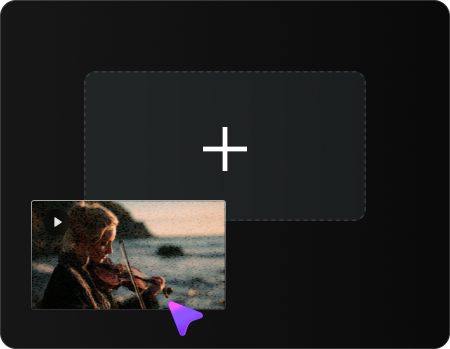
Upload a JPG, PNG, JPEG, or WEBP image up to 50 MB and 3840×2160 resolution.
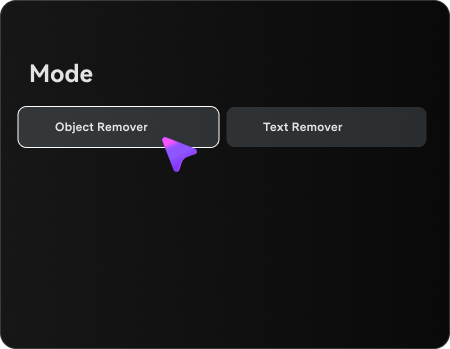
Select the object remover or text remover, paint over the object, person, text, watermark, or logo you want gone. Adjust the brush size and cover the object's shadow when needed.
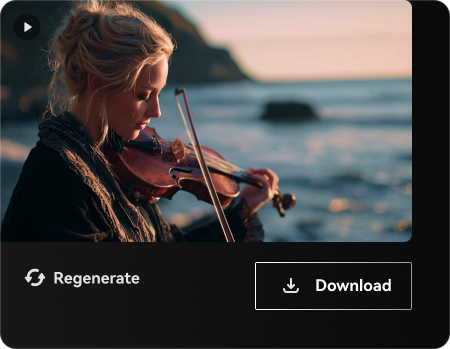
Click Generate. AI reconstructs the selected area, then you can preview and download the cleaned image.
One AI object remover, six common cleanup tasks — remove people, text, watermarks, logos, background objects, and blemishes from photos with the same brush-based workflow.
Erase strangers, tourists, photobombers, or crowds behind your subject. The AI object remover rebuilds sky, wall, street, or other surrounding areas after the selected person is removed.
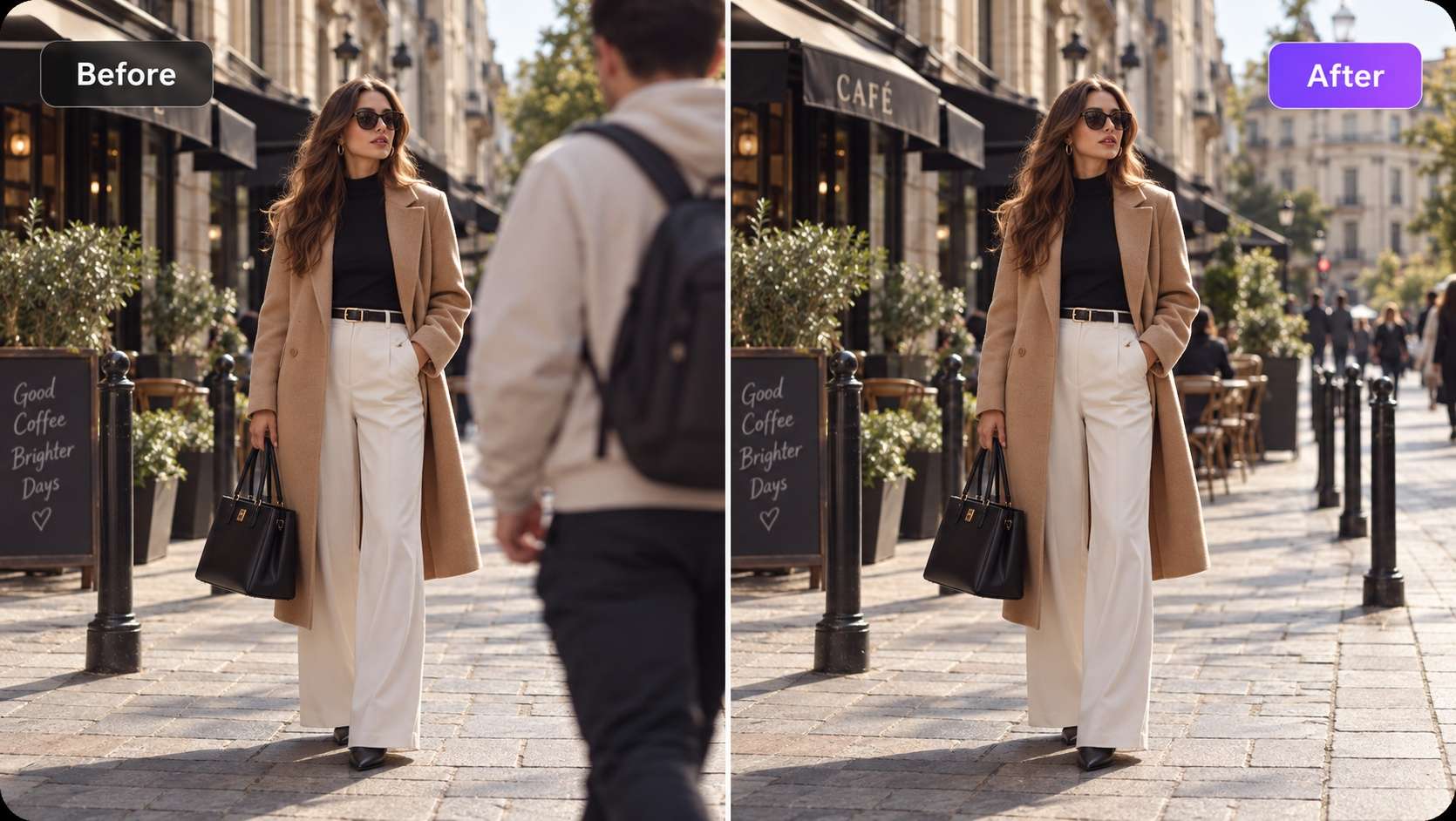
Wipe camera date stamps, subtitles, meme captions, burned-in text, and other unwanted lettering while keeping the surrounding image intact.
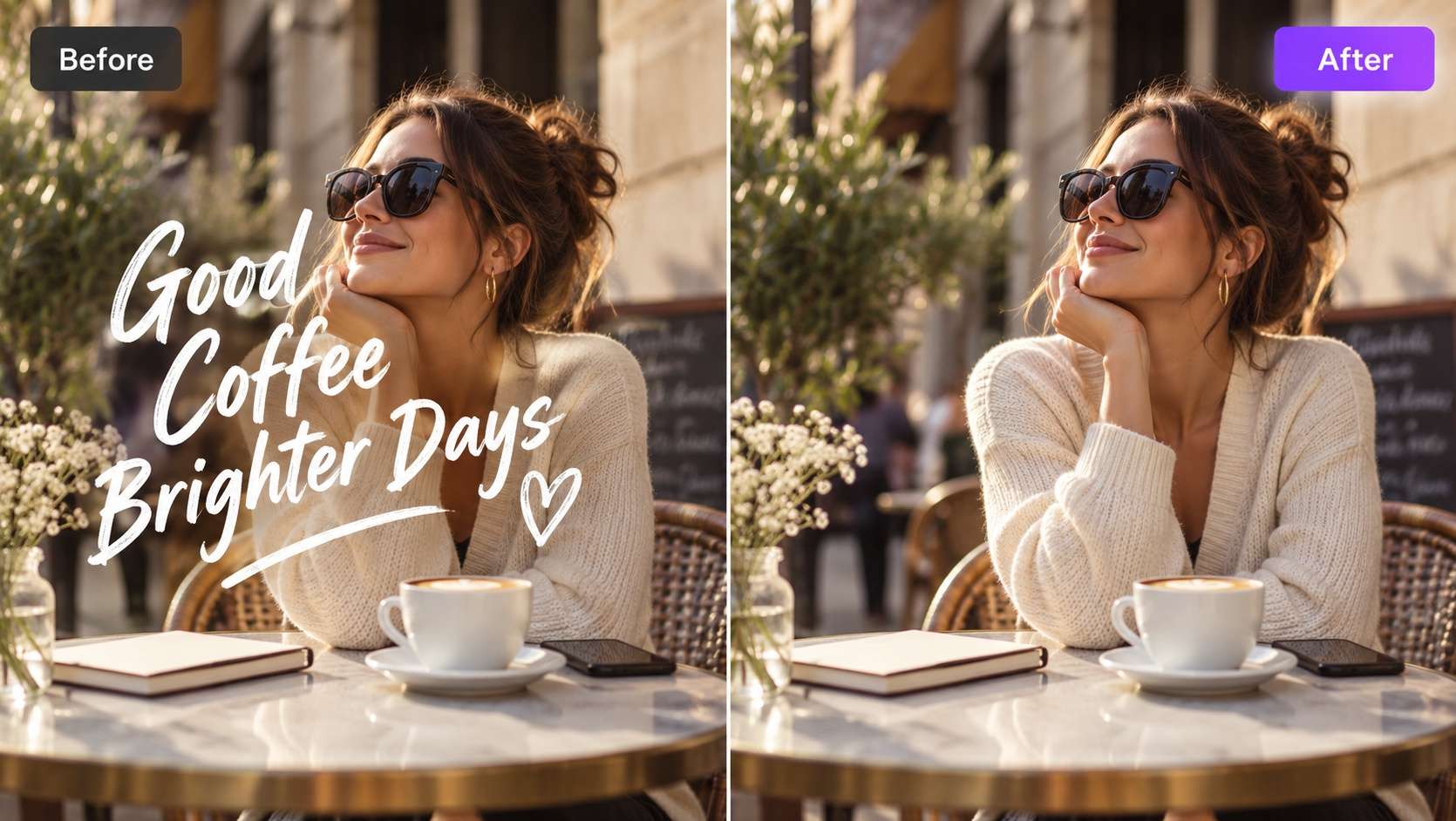
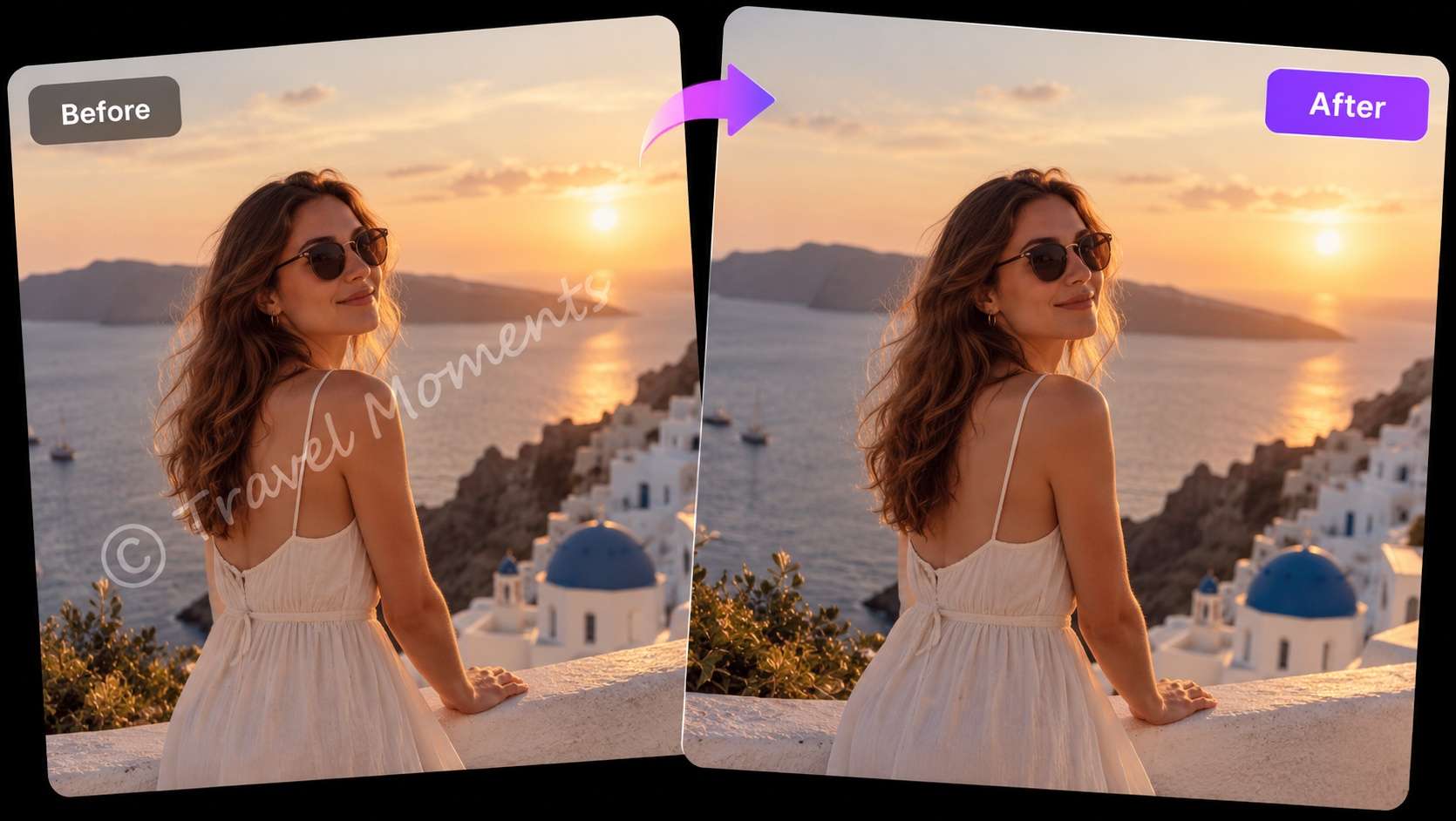
Remove visible watermark overlays from images you own or have permission to edit. Brush only the unwanted mark so the AI has more surrounding context to rebuild the area.
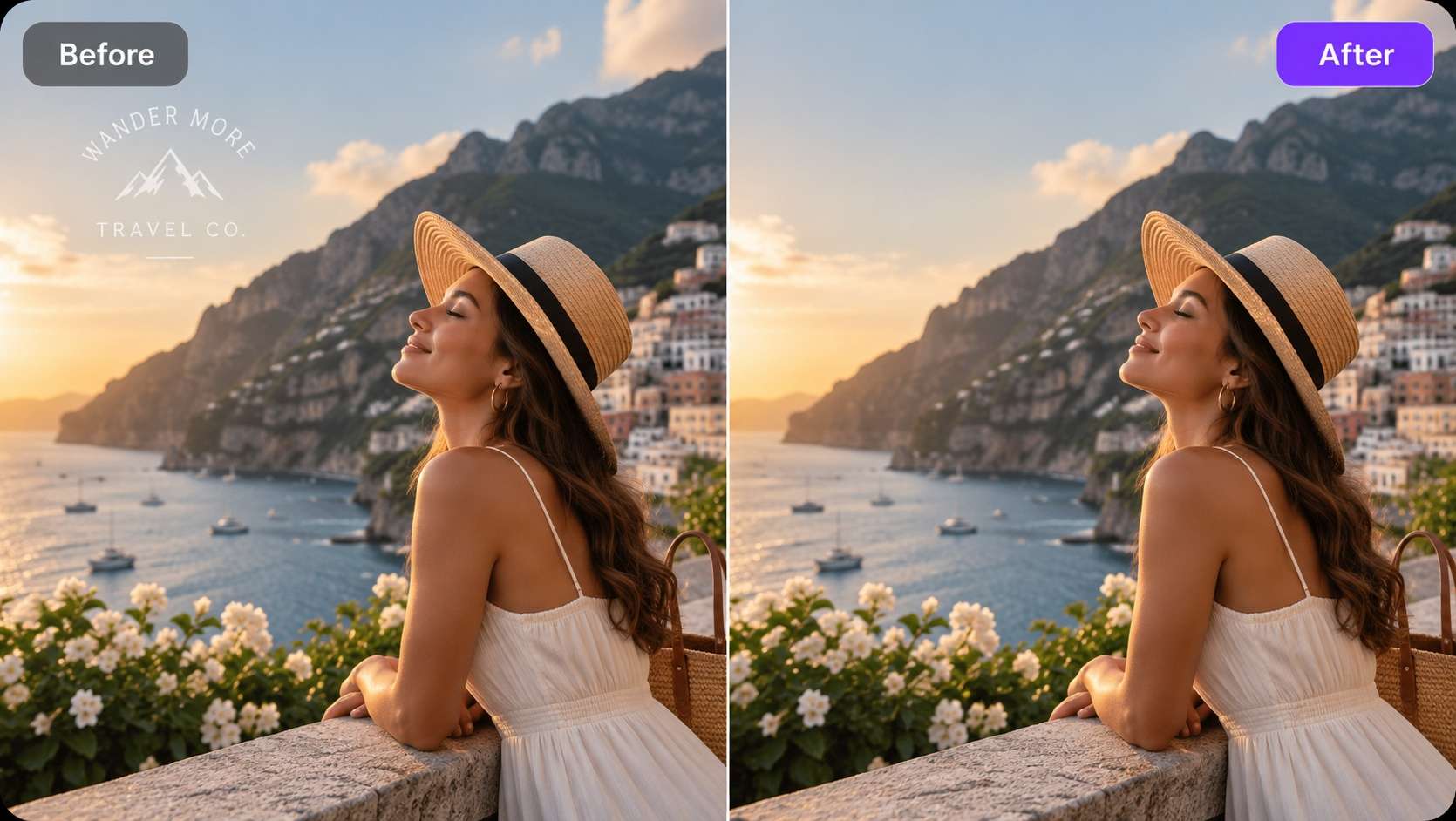
Clean brand logos, TV bugs, sponsor patches, signs, and similar visual distractions from product photos, storefront images, or broadcast stills.
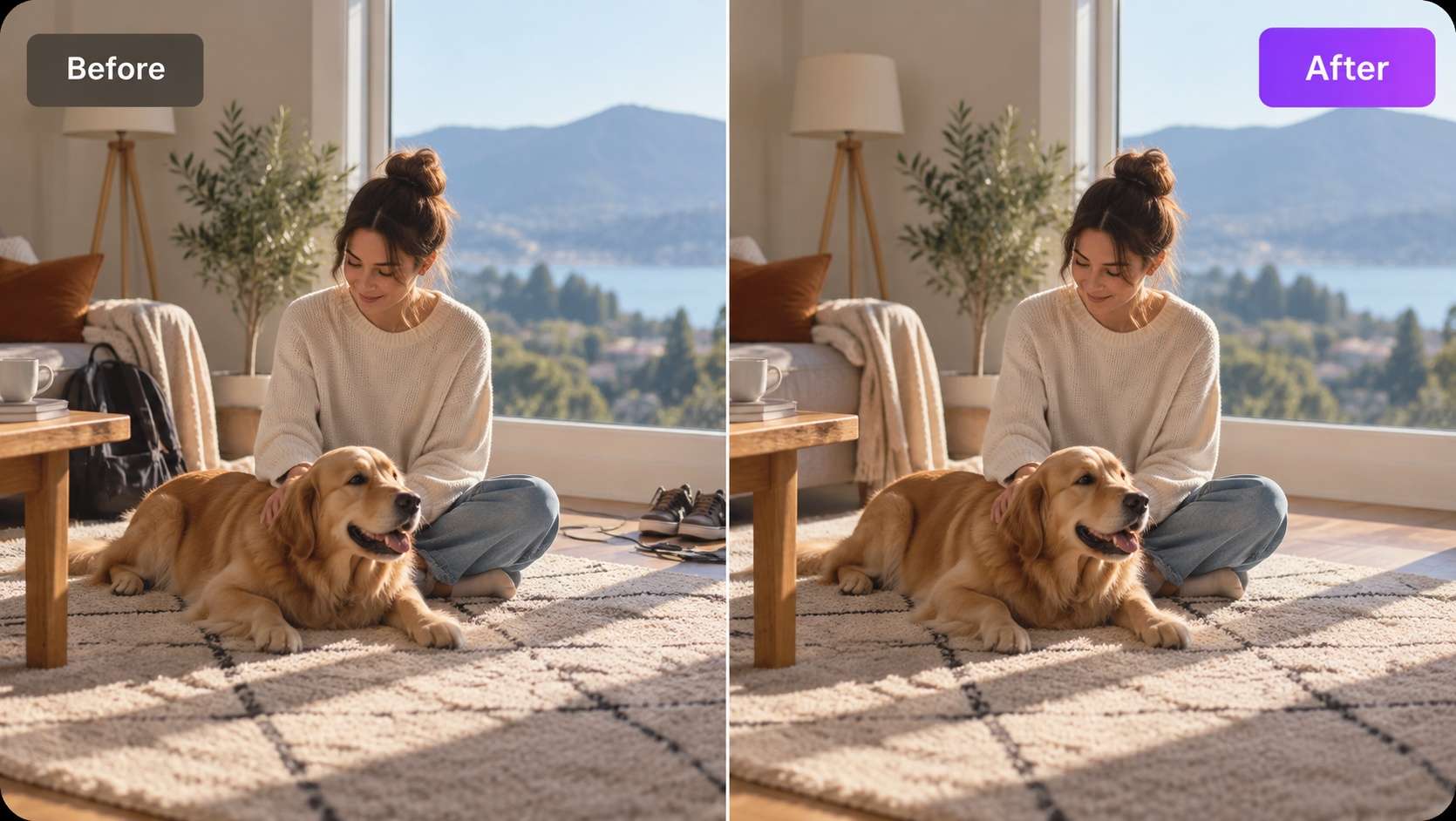
Trash cans, power lines, wires, signs, traffic cones, props, and other background clutter can be selected and removed without cropping the whole photo.
Use the same AI photo eraser workflow to clear cracks, dust, glare, small reflections, or blemishes from portraits and old scans without editing the full image manually.
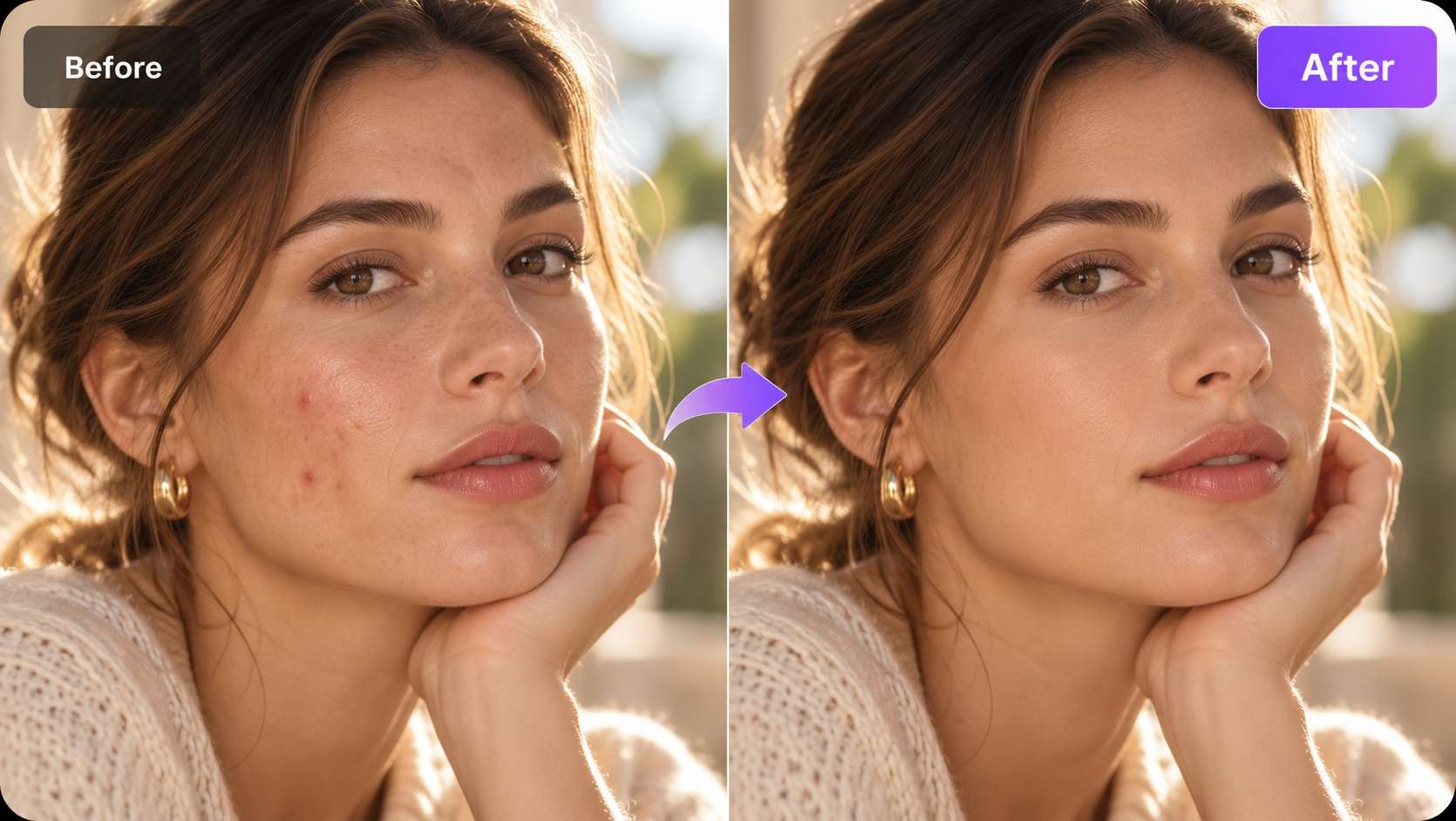
From travel photos and ecommerce shots to real-estate listings and old family scans, Media.io AI Object Remover supports everyday cleanup tasks without a desktop editor.
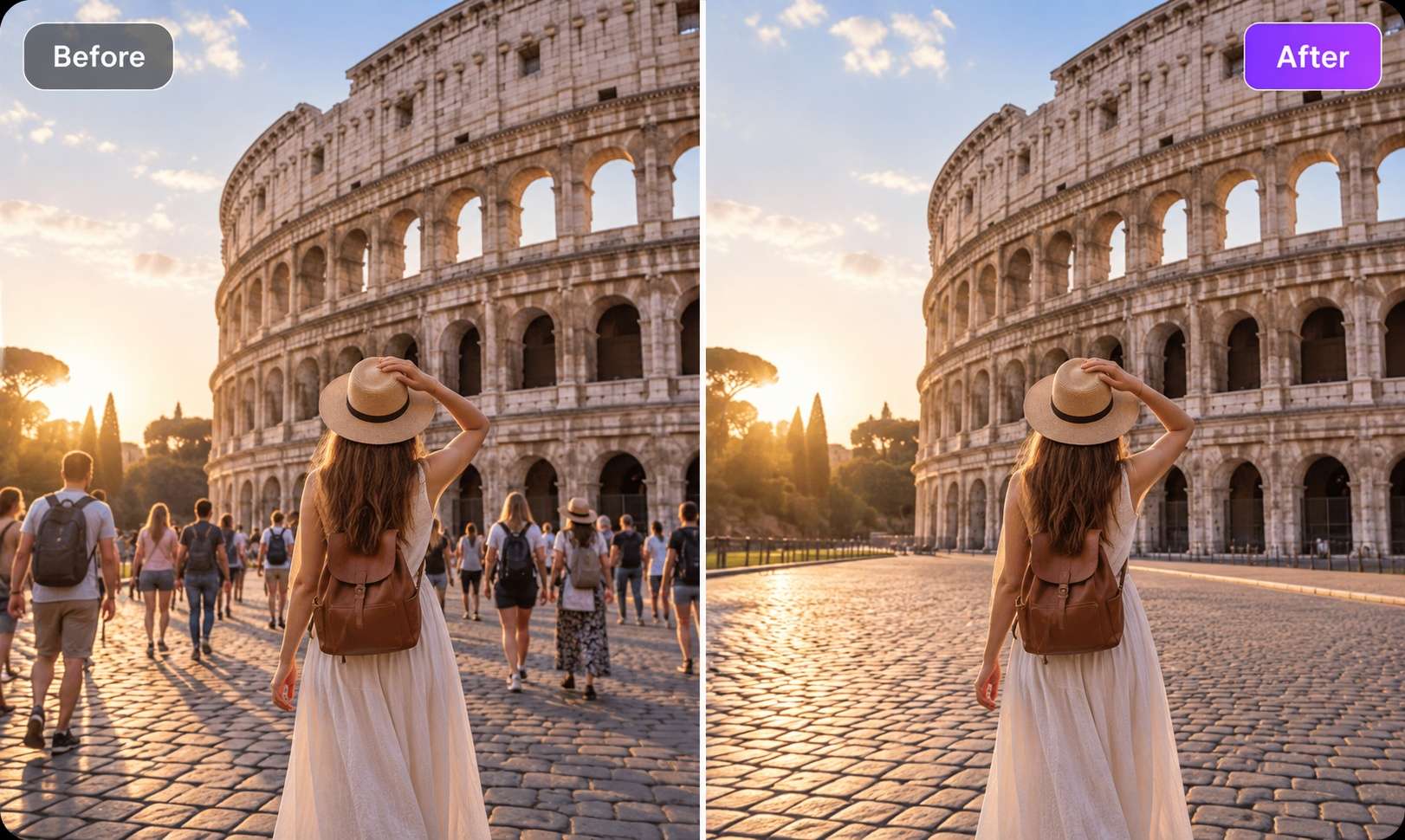
Get the landmark shot without the crowd. Remove strangers and tourists while preserving surrounding sky, paving, architecture, or water.
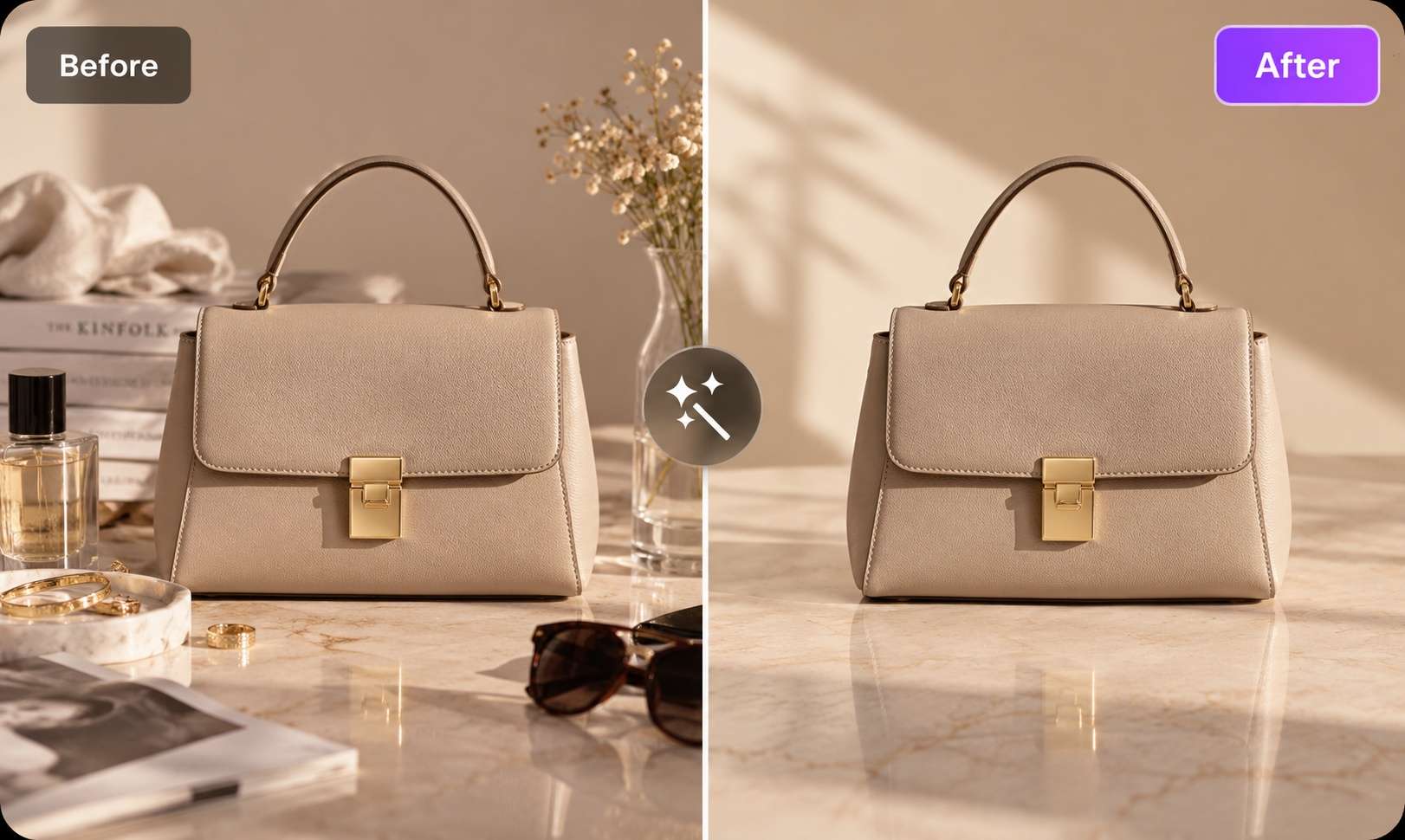
Wipe props, wires, hangers, reflections, and distracting background items from ecommerce product shots so the product stays central.
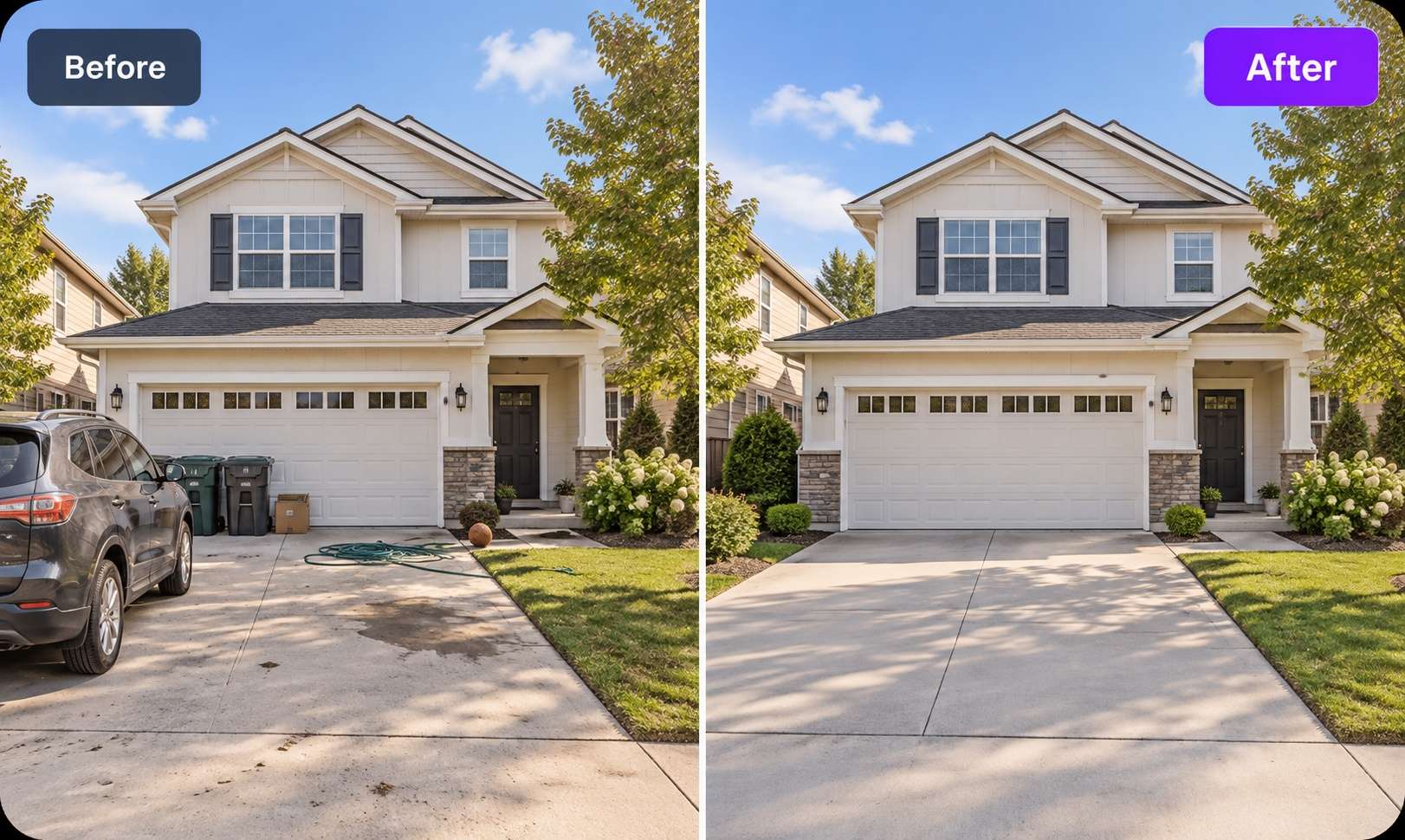
Remove personal items, cars in the driveway, hoses, signs, or other clutter from listing photos when a cleaner frame helps the room or property read more clearly.
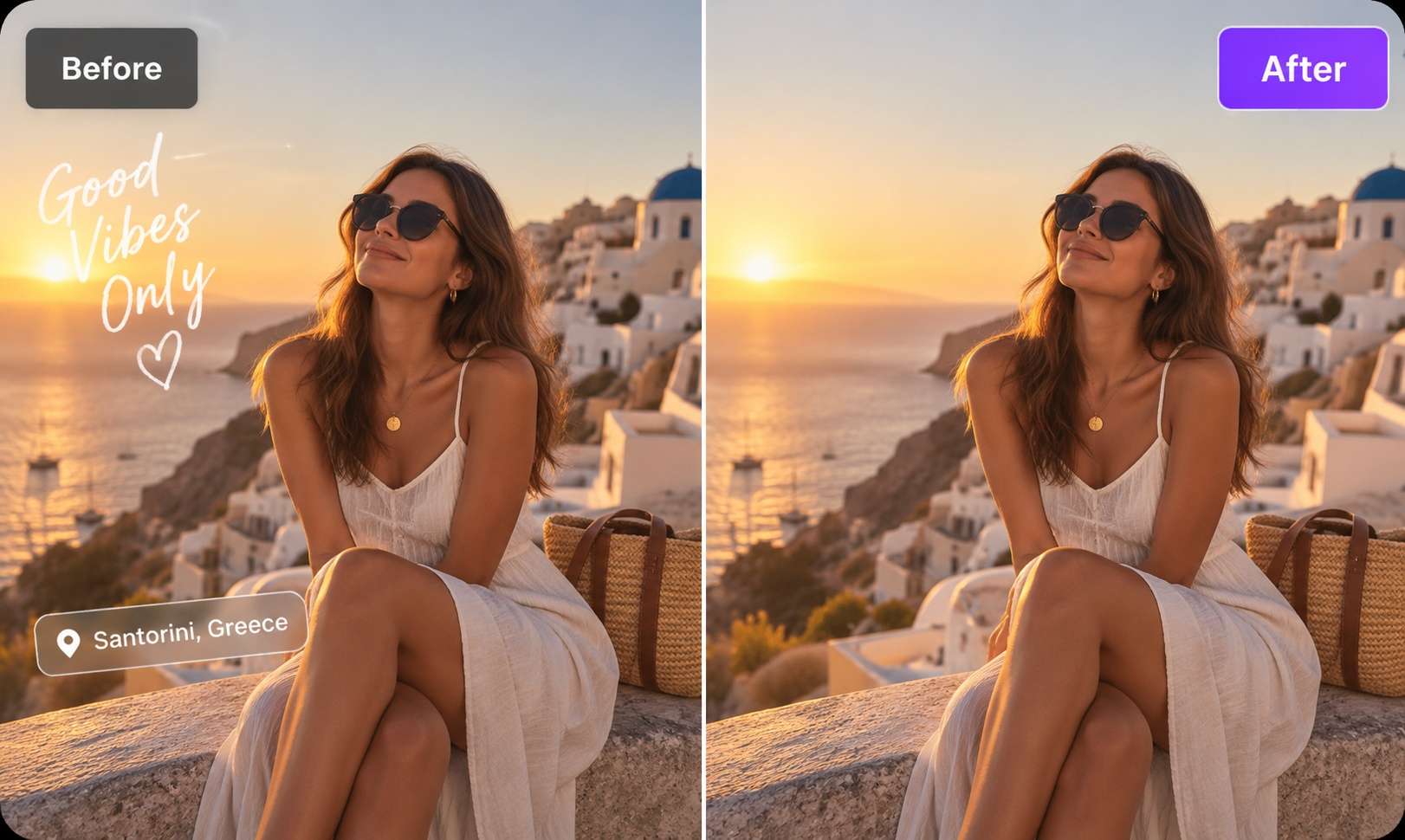
Clean old captions, stickers, subtitles, labels, or platform badges from photos you own before reusing them in a new campaign or layout.
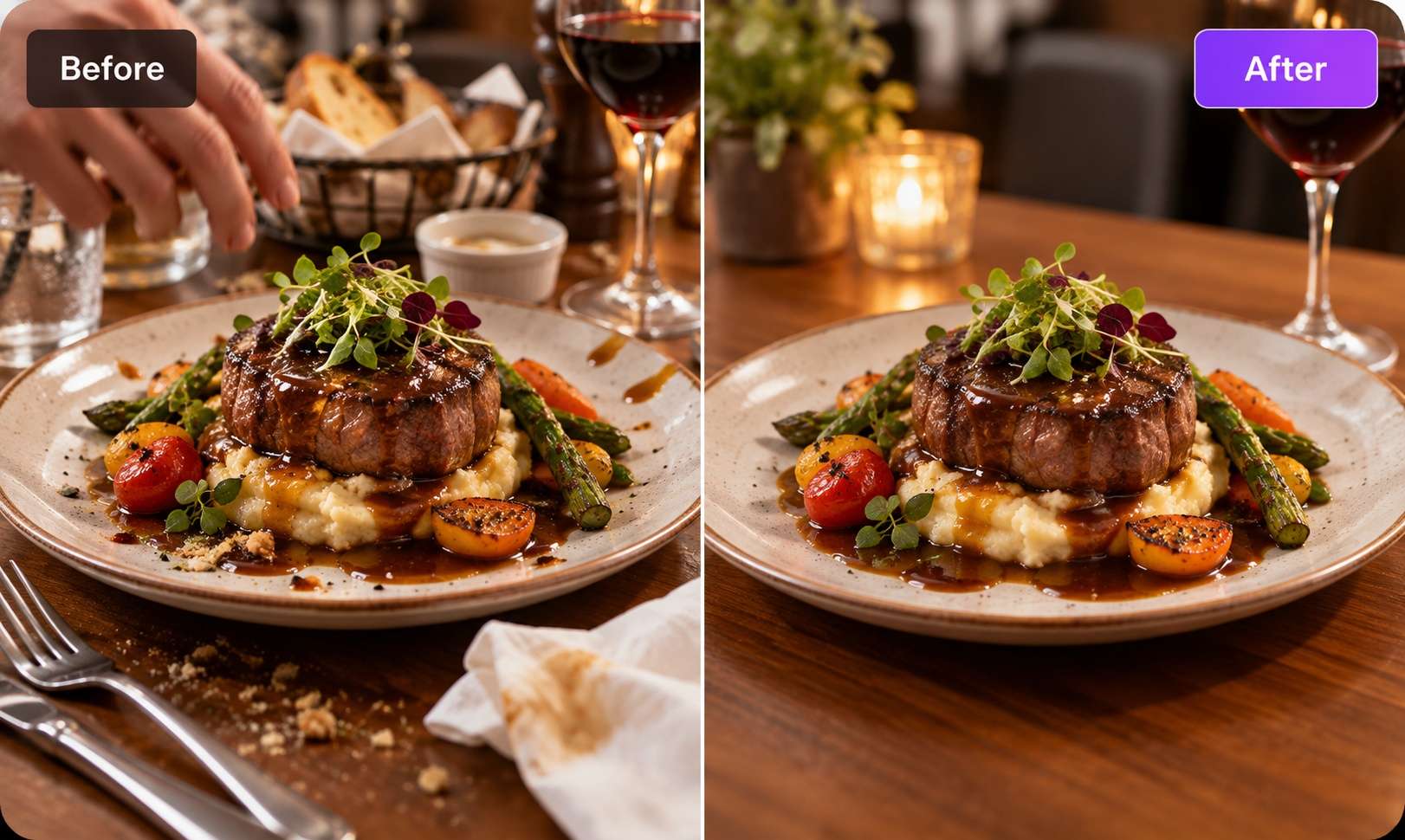
Remove spills, stray hands, utensils, or background diners so the plated dish carries the frame.
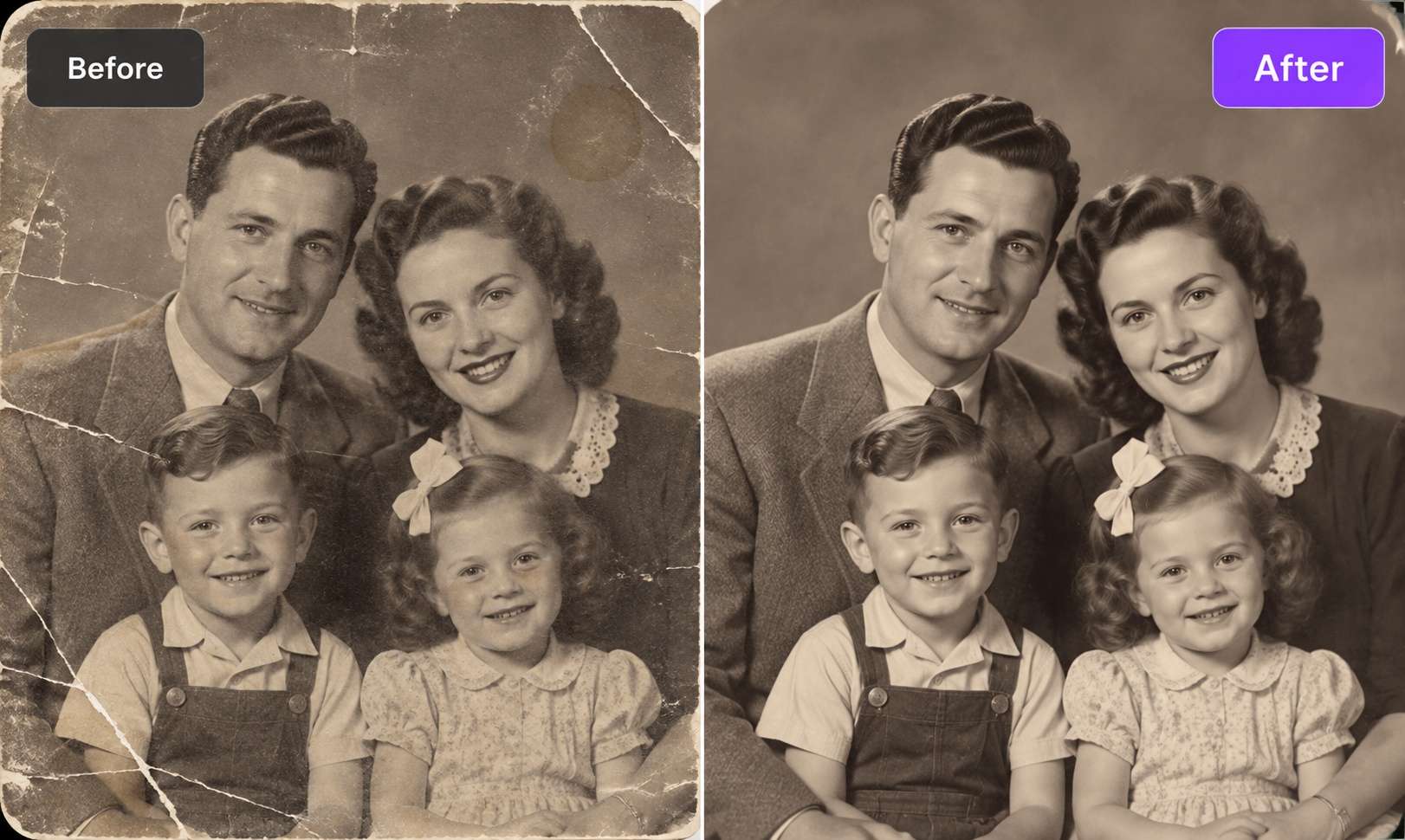
Clear cracks, scratches, dust, and small damaged areas from scanned family photos while leaving the rest of the image untouched.
Media.io combines brush-based removal, optional prompt editing, browser access, and straightforward export in one photo-cleanup workflow.
Paint directly over the person, object, text, watermark, or logo you want to remove for a precise cleanup workflow.
For larger or more complex scene edits, switch to Media.io AI Image to Image and describe what you want removed in natural language. Explore more AI photo editing prompts for removing objects from photos.
Download cleaned images up to 3840×2160 without adding a Media.io watermark to the exported result.
Open the tool in a modern browser on desktop, tablet, or mobile without installing Photoshop, an APK, or a desktop app.
Upload JPG, PNG, JPEG, or WEBP files up to 50 MB and 3840×2160 resolution.
The same brush workflow can remove date stamps, captions, labels, usernames, logos, and other embedded text elements.
If an area does not look natural, brush the region again to generate a fresh reconstruction instead of rebuilding the whole edit.
Both can remove unwanted objects from photos, but they use different kinds of input and solve different photo cleanup jobs.
| Capability | Brush AI Object Remover | AI Prompt Removal |
|---|---|---|
| Typical input | √ Brush over the exact person, text, watermark, logo, or object you want to remove | Natural-language prompt describing what you want removed or changed |
| Best for | √ Precise removal of clearly defined objects and smaller unwanted areas | Broader scene edits and objects that are easier to describe than manually select |
| Selection control | √ Lets you manually mark the exact area the AI should remove | AI interprets the prompt and identifies the object or area to change |
| Object workflow | √ Works well for people, text, logos, watermarks, blemishes, reflections, wires, and other visible distractions | Better suited to larger objects, multiple related elements, or more complex scene-level cleanup |
| File support | √ JPG, PNG, JPEG, and WEBP up to 50MB and 3840×2160 | Depends on the supported inputs of the Media.io Image to Image workflow |
| Use Media.io when... | √ You know exactly what you want to erase and need direct control over the removal area | You prefer to describe the cleanup task instead of brushing over each unwanted area |
Prefer a prompt-based workflow instead? Explore Media.io Image to Image.
Small selection habits can give the AI more context and make the reconstructed area easier to blend with the rest of the image.
Brush over both the unwanted object and its visible shadow. Leaving the shadow behind can make the removal look incomplete, especially when deleting people, cars, furniture, or other objects under direct light.
For long, wide, or irregular objects, use several smaller overlapping removals instead of one oversized selection. This gives the AI more surrounding visual context for each pass and can make the reconstructed background easier to blend.
If part of the generated area looks unnatural, brush over only that section again. Each pass creates a fresh result, so you can refine small patches without restarting the entire photo cleanup process.
For thin wires, small text, freckles, scratches, dust, or other tiny distractions, zoom in and reduce the brush size. A more controlled selection helps avoid removing nearby details you want to keep.
When an unwanted subject covers a large part of the frame or sits against a highly textured background, try Media.io Image to Image instead. Describe the edit in plain language, such as “remove the red car,” and let AI interpret the broader scene change.
All three options can help remove unwanted objects from photos, but they differ in workflow, editing control, learning curve, and supported cleanup tasks.
| Capability | Media.io AI Object Remover | Adobe Photoshop | Typical Free Web Tools |
|---|---|---|---|
| Best for | √ Fast online removal of people, text, logos, watermarks, background clutter, and other unwanted objects | Advanced retouching, layered editing, masking, compositing, and detailed manual corrections | Simple one-off object removal and basic photo cleanup |
| Editing workflow | √ Upload a photo, brush over the unwanted object, generate the result, and download the cleaned image | Open the image in a desktop editor and use Remove Tool, Generative Fill, Content-Aware Fill, or other retouching tools | Usually upload, mark or detect an unwanted area, process the image, and download the result |
| Removal methods | √ Brush-based AI object removal plus AI prompt editing for more complex cleanup tasks | Multiple manual and AI-assisted selection, retouching, cloning, and generative editing workflows | Usually basic brush removal or automatic object detection, depending on the tool |
| Supported cleanup tasks | √ Remove people, text, logos, watermarks, background objects, blemishes, reflections, and visual distractions | Supports object removal plus broader professional photo editing and retouching tasks | Supported cleanup types vary by service and may be limited to specific object-removal workflows |
| Supported image files | √ JPG, JPEG, PNG, and WEBP, up to 50MB and 3840 × 2160 | Supports a broad range of common and professional image formats | File formats, file-size limits, and resolution limits vary by tool |
| Software installation | √ No installation required — edit photos directly in your browser | Primarily designed around a desktop application workflow | Usually browser-based with no software installation required |
| Learning curve | √ Designed for a simple upload, brush, generate, and download workflow | More advanced controls provide greater flexibility but require more editing knowledge | Usually easy to start, although editing controls may be more limited |
| Use Media.io when... | √ You want to remove unwanted objects quickly online without opening a full desktop photo editor | You need detailed manual control, layered editing, or complex professional retouching | You only need a simple cleanup and do not require consistent advanced editing controls |
Need a fast browser-based photo cleanup workflow? Try Media.io AI Object Remover.
Examples of how creators use Media.io to clean travel, product, and real-estate photos.


"I brushed out four tourists from a photo of the Trevi Fountain and it looked like they were never there. Faster than opening Photoshop."

"We list 200+ products a week. The brush plus batch export cut our editing time roughly in half — and the outputs stay HD."

"I use it to clean up MLS photos — power lines, garden hoses, the neighbour's car. Selling agents don't need to know Photoshop anymore."
Upload your image to Media.io AI Object Remover, brush over the object you want to erase, and click Generate. New users can use welcome credits to try the workflow before deciding whether to continue with paid credits.
JPG, PNG, JPEG, and WEBP files up to 50 MB and 3840×2160 resolution.
Yes. Brush over the person you want removed and let AI reconstruct the surrounding sky, wall, ground, or other background. Cover the person and visible shadow in the same selection when possible.
Yes. The same brush can remove date stamps, subtitles, captions, usernames, or logos. For text-heavy cleanup, you can also use the dedicated Text Remover from Photo tool.
Yes, when you own the image or have permission to edit it. Select the watermark area and preview the reconstructed result before export.
No. The object-removal workflow does not add a Media.io watermark to the exported image.
New users receive welcome credits to try the tool. Additional HD processing may require credits, depending on the current product plan and account status.
The brush method is best when you want to specify the exact person, object, text, or watermark to remove. The AI-prompt method, via Media.io AI Image to Image, is better for broader scene edits described in natural language.
Yes. Media.io works in modern mobile browsers. For very small objects or busy scenes, a larger screen can make precise brushing easier.
Up to 50 MB and up to 3840×2160 resolution. Supported formats include JPG, PNG, JPEG, and WEBP.
The page states that uploads and results are automatically deleted from Media.io servers within hours. Review the current product privacy information if you need the latest retention details.
Yes. Removing objects in several smaller passes can preserve more surrounding context and make each reconstruction easier to review.
AI object removal uses generative inpainting: the model analyzes the pixels around the selected area and generates a replacement that fits the surrounding scene.
Brush over the imperfect region again to generate another result. For very large or dominant subjects, consider switching to the AI-prompt workflow.
See what creators are making on TikTok, Reels & Shorts — watch the effects and try your next viral idea.
 4.7 (162,357 Votes)