
Did you know that echo and reverb are among the most frustrating audio problems to deal with in post-production? They make voices sound distant and hollow, as if the speaker is far away or recording inside a large, reflective space.
Echo happens when sound waves bounce off hard surfaces like walls, ceilings, and floors and return to the microphone slightly delayed. Unlike simple background noise, an echo becomes part of the recorded signal itself. That's why removing it is much harder than removing hiss or hum.
Audacity, a solid free tool, can help reduce the echo. In this guide, you'll learn how to remove echo in Audacity, which built-in tools help most, where its limits are, and when plugins or AI-based solutions make more sense.
In this article
Audacity: Echo Reduction Basics You Need to Know
Audacity echo reduction is not about perfectly removing the echo. Instead, it focuses on reducing room reflections and reverb so that speech sounds clearer and more direct.
It's also important to understand the difference between echo and simple background noise. Background noise sits underneath the audio and is often steady. Echo, on the other hand, is made up of delayed reflections of the original sound. This means the echo overlaps heavily with speech frequencies, so any aggressive removal could damage the entire audio track.
Audacity's tools work best when the Echo is light to moderate, the reflections are fairly consistent and speech has natural pauses. However, you will hit limits when the echo is very strong or uneven, the microphone was far from the speaker or the room was large, empty, or highly reflective.
Remove Echo in Audacity with Noise Reduction
Removing echo in Audacity often starts with the Noise Reduction effect. While it's traditionally used for hiss or hum, it can also help reduce constant room reflections if the echo is relatively consistent.
Noise Reduction works by giving Audacity a sample of the type of sound you want to remove. Audacity will then create a sound profile and try to remove it across the recording. When the echo is subtle and stable, this can soften the reverb tail and improve clarity.
Here's how you can do this correctly.
- Download and install Audacity, open it, and import the audio file where you want to remove the echo.
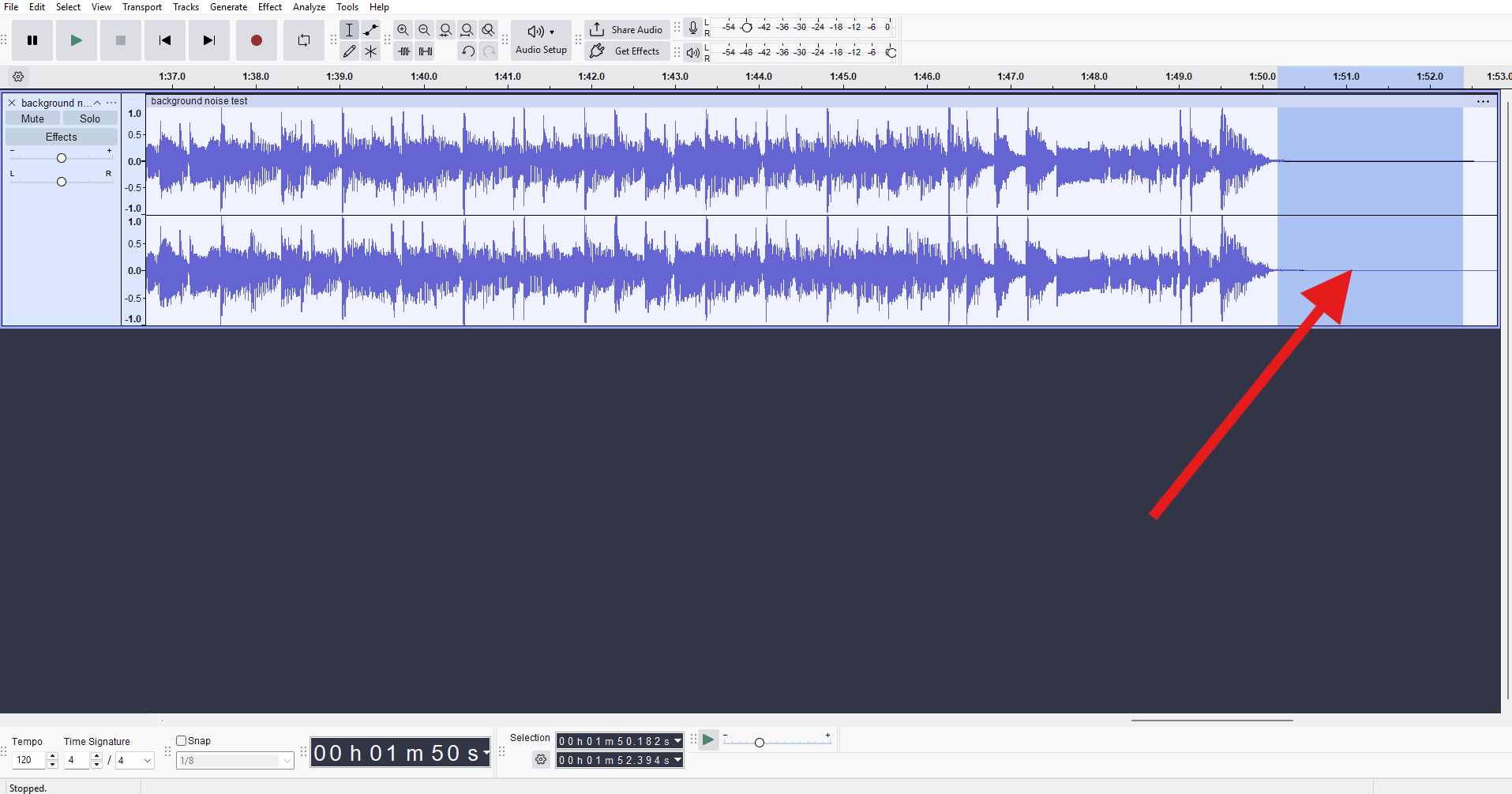
- Find a short section of audio with minimal speech, ideally where the room sound is most noticeable, and select it.
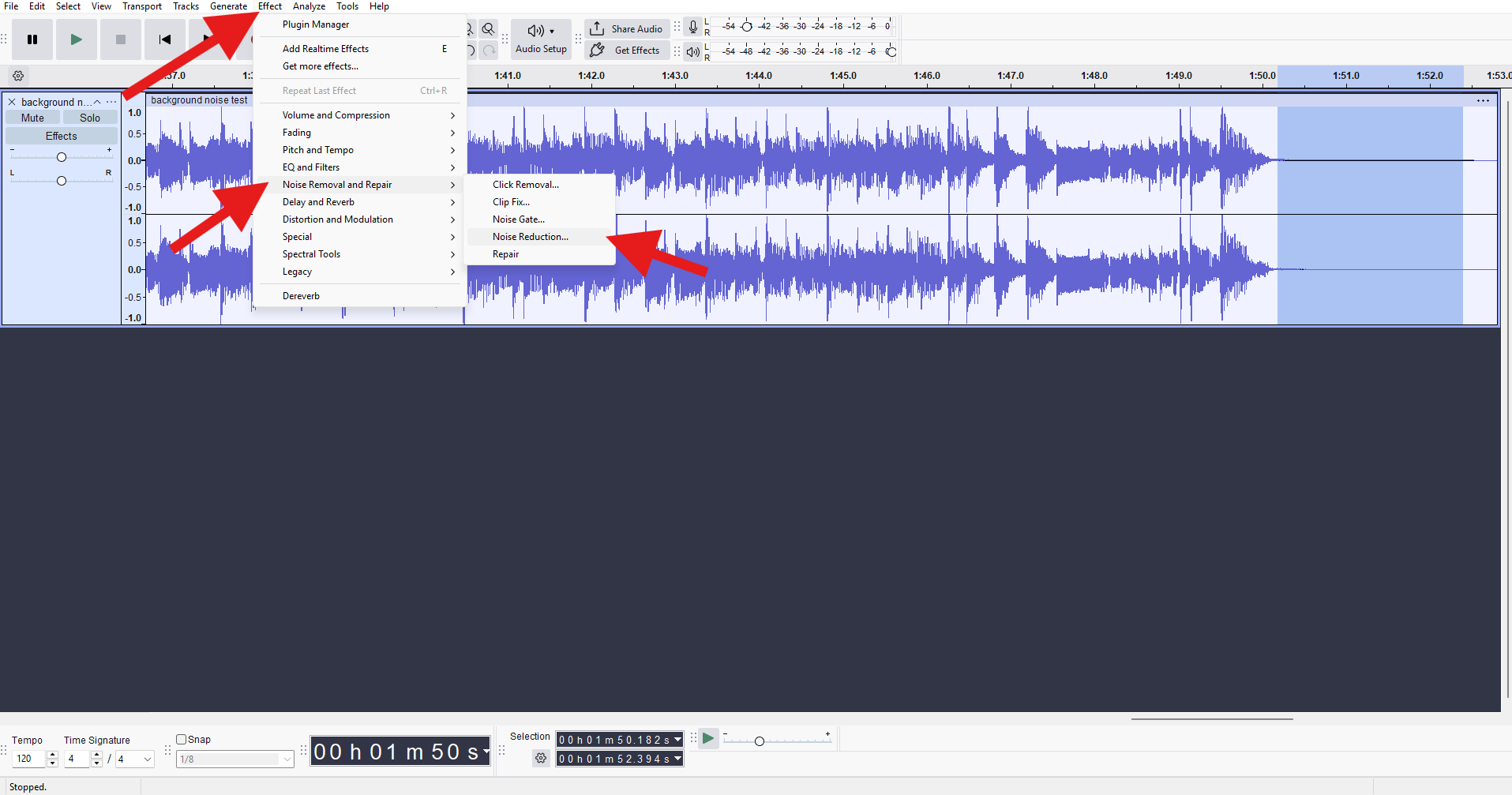
- Go to Effect → Noise Removal and Repair → Noise Reduction.
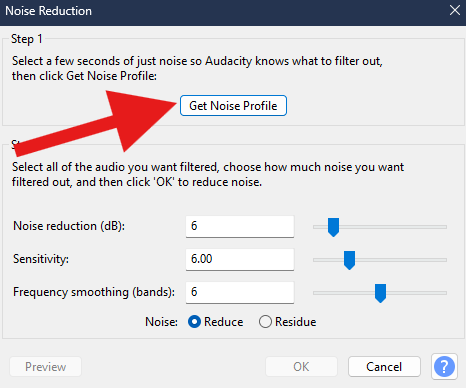
- Click Get Noise Profile.
- Select the entire track, reopen Noise Reduction, adjust the reduction settings conservatively, click on Preview before applying, and click OK if it works well.
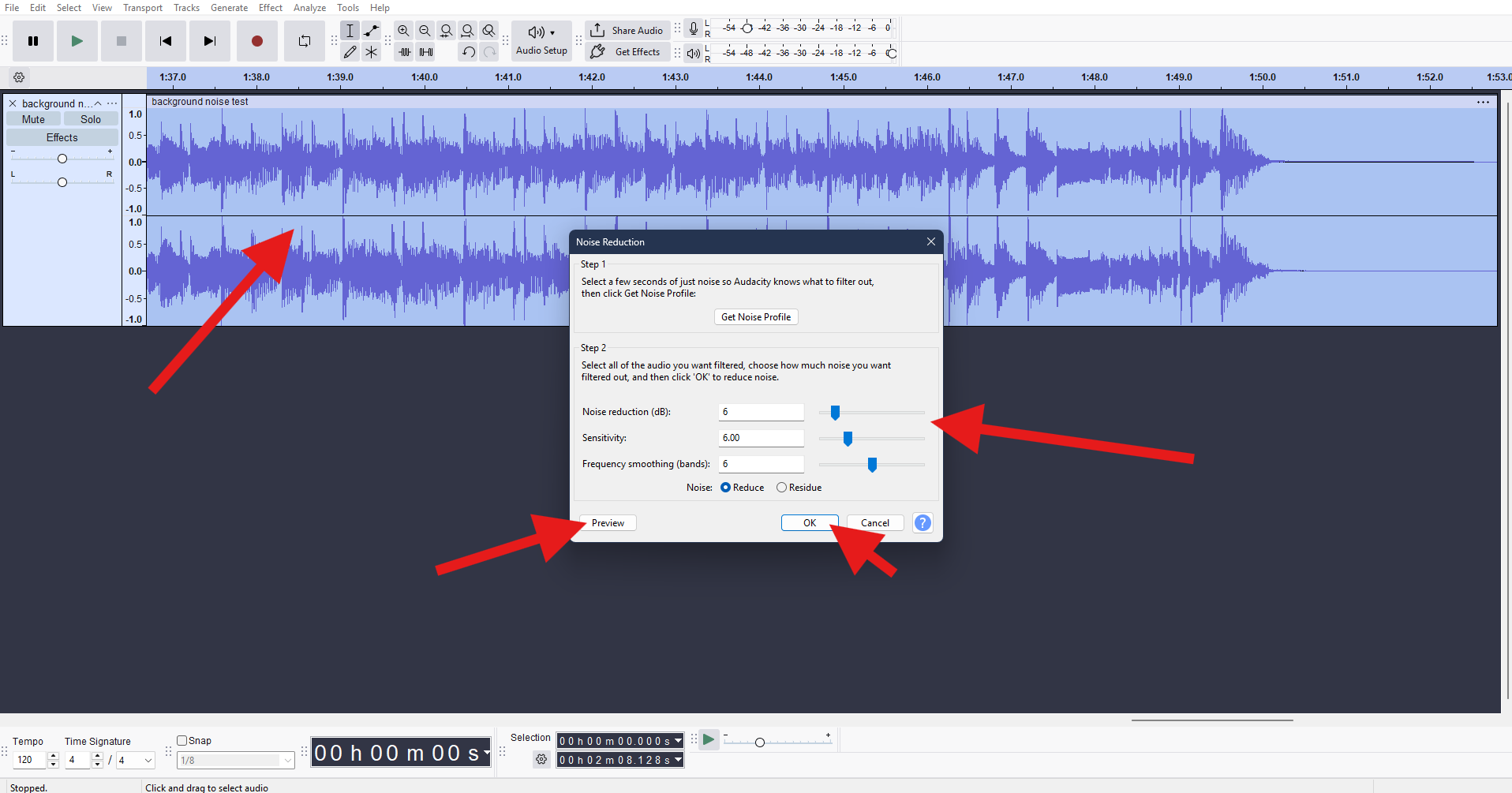
The key here is restraint. Too much reduction will introduce metallic artifacts or make speech sound hollow.
Audacity Echo Removal Using Noise Gate
A Noise Gate attenuates sound when it falls below a defined threshold. It does not remove echo during speech, but it reduces echo tails and room sound between words and sentences.
After using Noise Reduction, a Noise Gate can further clean up lingering reflections, especially in spoken content with natural pauses.
The Noise Gate helps when the echo trails off after speech, the background room sound is loud between phrases, and the recording is dialogue-focused.
Here's how to use it effectively.
- Select the entire audio clip and go to Effect → Noise Removal and Repair → Noise Gate.
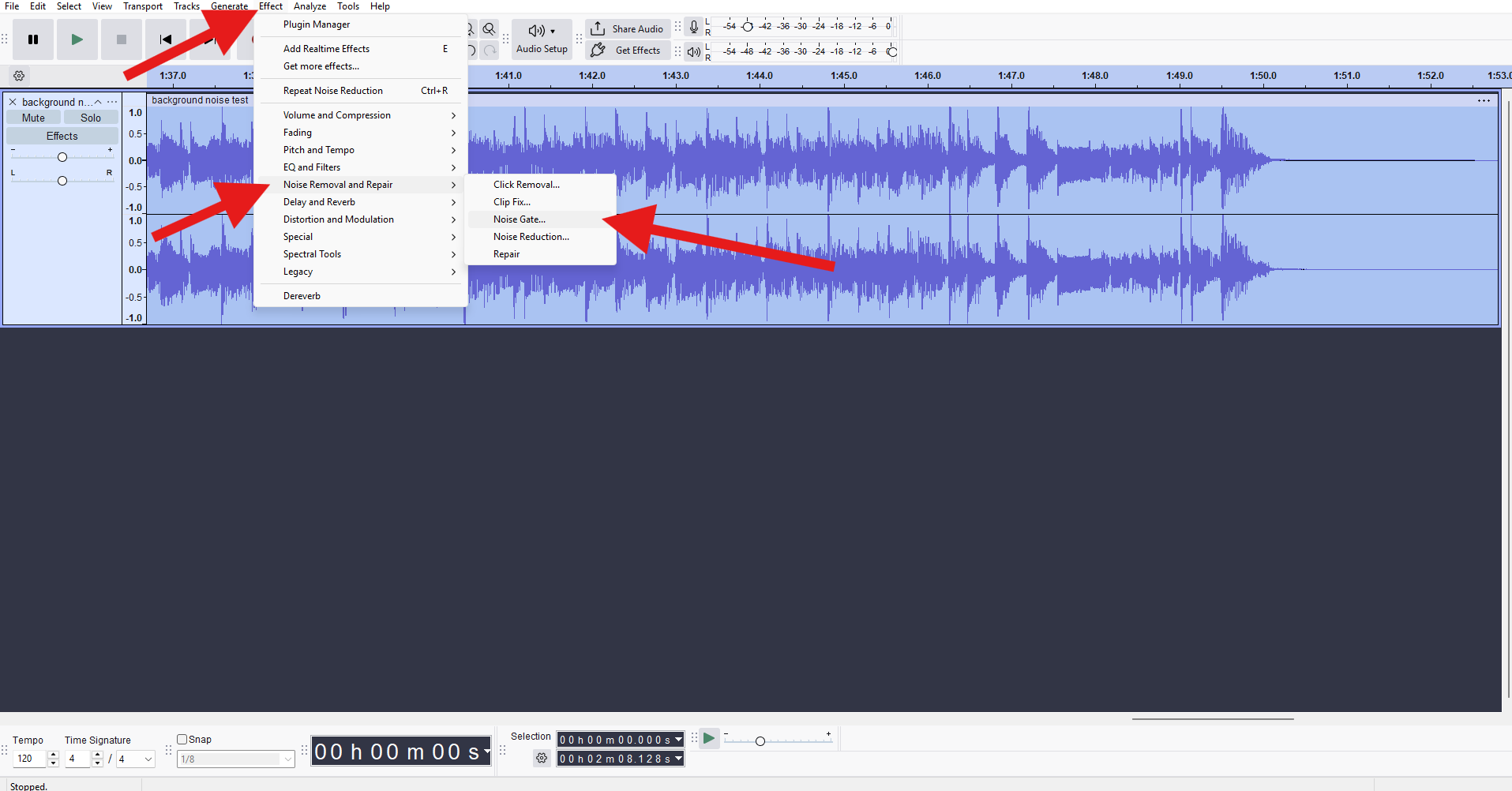
- Set the threshold so the gate closes during silence but stays open during speech, use gentle attack and release settings to avoid abrupt cutoffs, preview often to ensure words aren't being clipped, and click Apply when you are satisfied.
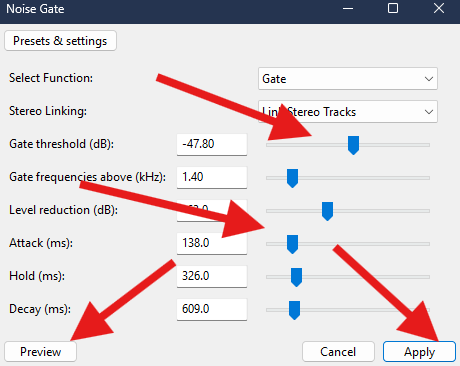
The recommended settings here are as follows.
- Gate threshold (dB): –45 dB to –55 dB
- Gate frequencies above (kHz): 1.0 to 2.0 kHz
- Level reduction (dB): –6 dB to –12 dB
- Attack (ms): 80 to 150 ms
- Hold (ms): 200 to 400 ms
- Decay (ms): 400 to 800 ms
The Echo Suppression Effect in Audacity + Filters
There is no single echo suppression button in Audacity. Instead, echo reduction relies on a combination of tools, particularly filters that target problematic frequency ranges.
Room echo often builds up in specific frequency areas, depending on room size and surface materials. Filters help reduce these resonances.
You can try:
High-pass filters
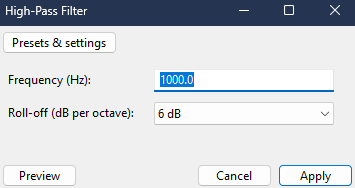
High-pass filters remove low-frequency buildup caused by room resonance and proximity effects. These low frequencies often exaggerate echo perception and make voices sound boomy or muddy.
A gentle high-pass filter can reduce low-end echo buildup, improve speech clarity, and prevent reverberant bass from masking vocals.
Find it like this: Effect → EQ and Filters → High-Pass Filter
Low-pass filters
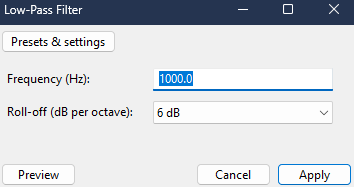
Low-pass filters are useful when echo reflections create harshness or ringing in higher frequencies. They can soften overly bright reverb tails without damaging intelligibility when used carefully.
Make small adjustments, always preview changes, and avoid extreme cutoffs.
Find it like this: Effect → EQ and Filters → Low-Pass Filter
Pro Tip: Combine filters with Noise Reduction rather than relying on them alone.
Audacity: Remove Echo from Audio with Third-Party Plugins
Built-in tools may not fully remove strong echo or reverb, especially in recordings made in large or untreated rooms. In these cases, third-party plugins designed specifically for dereverberation can deliver better results.
Popular plugins compatible with Audacity include DeReverb and EchoRemover. These plugins analyze reflections and suppress reverberant energy more intelligently than standard filters.
Below is a comparison of commonly used options:
| Plugin | Best For | Pros | Cons |
| iZotope RX De-reverb | Professional dialogue cleanup | Excellent quality, advanced control | Expensive, learning curve |
| Acon Digital DeVerberate | Speech and music | Natural-sounding results | Requires tuning |
| Waves DeReverb | Quick fixes | Easy to use | Less precise |
| SPL De-Verb Plus | Music and vocals | Simple interface | Limited control |
| CrumplePop EchoRemover | Content creators | Fast, intuitive | Less technical precision |
Tips to Minimize Echo in Future Recordings
Echo prevention is always more effective than post-processing.
To reduce echo at the source, make sure to:
- Record closer to the microphone
- Use soft furnishings (curtains, carpets, foam)
- Avoid empty rooms with hard surfaces
- Position the mic away from reflective walls
Good mic placement and basic room treatment dramatically reduce the need for heavy cleanup later.
AI-Powered Alternative: Media.io
AI-based processing can remove echo and reverb more effectively in many cases because it doesn't rely on manual profiling or static thresholds. Instead, it analyzes the entire recording and separates the voice from unwanted room sound.
Media.io's Noise Reducer uses intelligent algorithms to automatically target echo and background reflections. Some benefits over manual Audacity workflows include:
- Easy one-click clean-up
- Works well on recordings with inconsistent echo
- Preserves natural voice better for non-technical users
It works best for voiceovers, podcasts, interviews, and content recorded in untreated rooms.
Here's how it works.
- Go to Media.io's Noise Reducer feature.
- Upload your audio file.
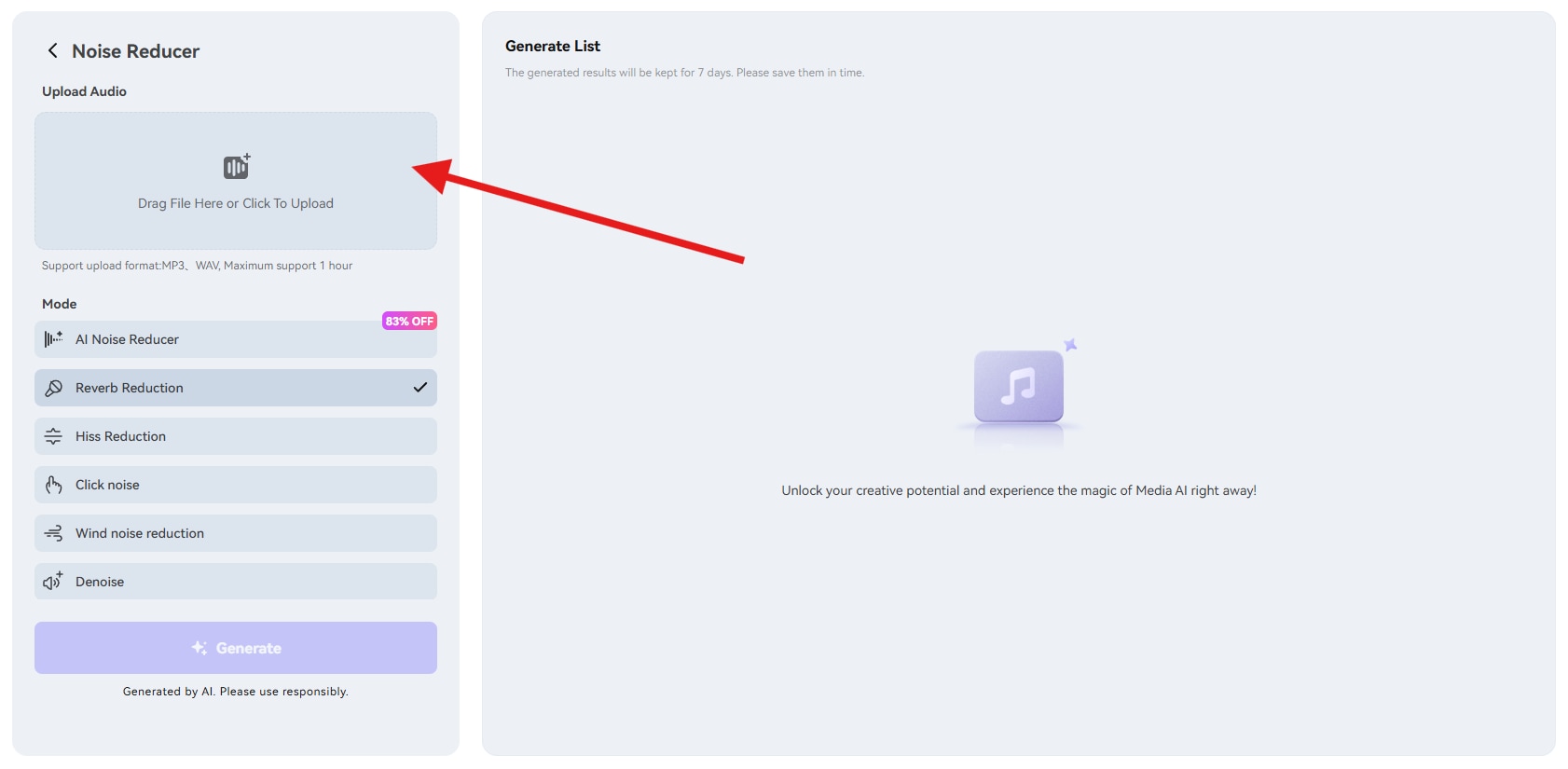
- Select the Reverb Reduction feature and click on Generate.
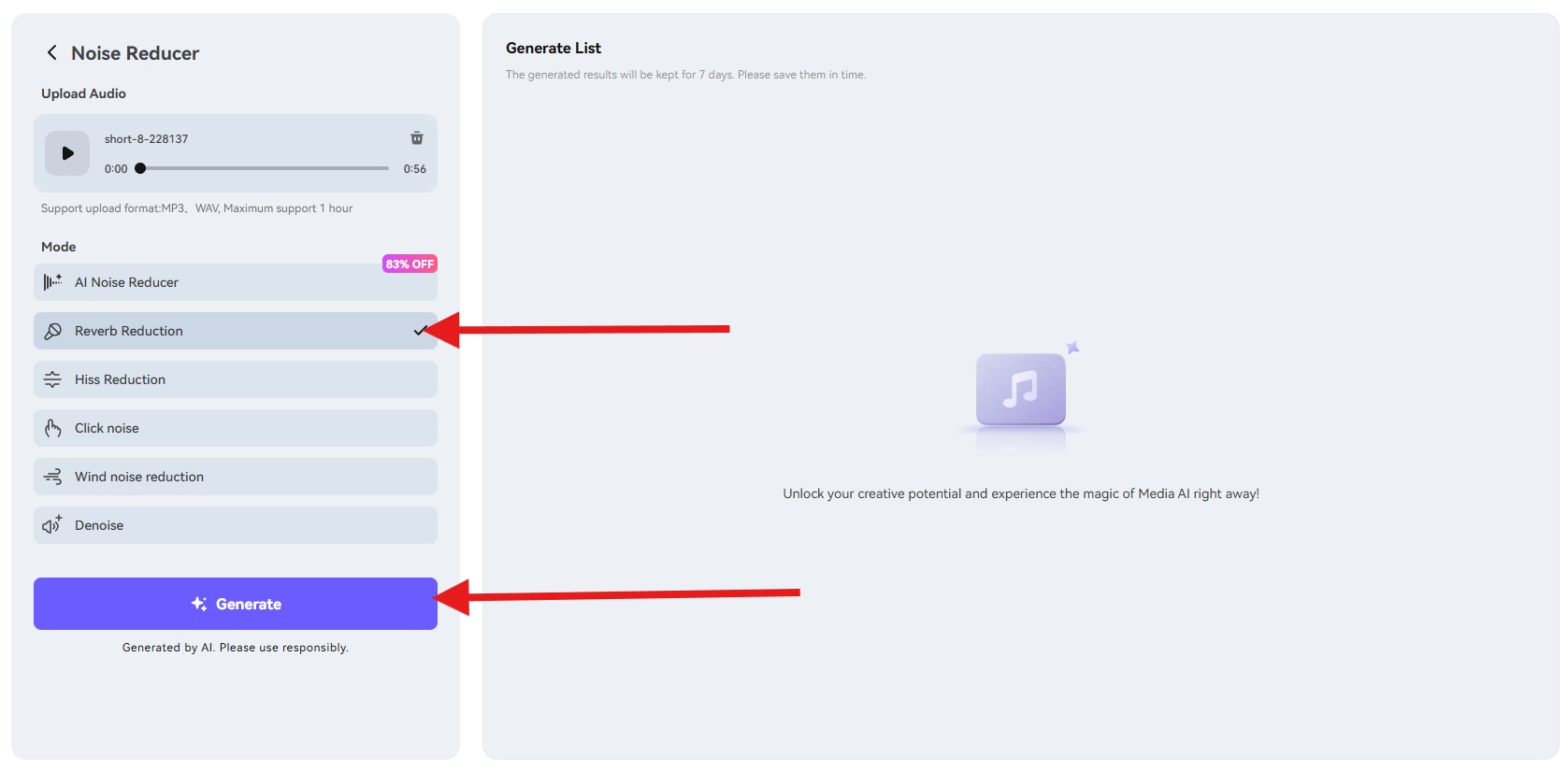
After you review the results and download the audio, you can then import that version into Audacity if further editing is needed.
Conclusion
Audacity can reduce echo, but it cannot fully eliminate it. Noise Reduction, Noise Gate, and filters work best together to soften room reflections and improve clarity. For a stronger echo, third-party plugins or AI-based tools often provide better results.
The key is balance. Overprocessing quickly damages voice quality, while subtle adjustments usually deliver the most natural sound. When choosing between built-in tools, plugins, or AI solutions, let the severity of the echo and the importance of audio quality guide your decision.


