
 Media.io


 ChatGPT
 Perplexity
 Gemini
 Claude
 Grok
Grok
If you use Logic Pro X for music production, you know how frustrating it can be to record the perfect vocal take—only to hear unwanted noise during playback. Maybe it's a faint hiss in your home studio, amp hum in a guitar track, or subtle room noise sitting underneath your mix.
For bedroom producers and independent artists, this is a common challenge. Even well-treated rooms can't eliminate every source of background noise.
The good news is that Logic Pro X includes powerful built-in tools to help reduce consistent, low-level interference directly inside your session. From Channel EQ to Noise Gate and other native processors, you can clean up tracks without leaving your workflow.
In this guide, you'll learn how to remove background noise in Logic Pro X using native tools, plus when it may be worth considering more advanced solutions.
In this article
How to Denoise Audio in Logic Pro X?
Logic Pro X offers several methods for cleaning audio, each suited to different types of interference. Before diving into the settings, use the table below to identify the right tool for your specific problem.
| Method | Ideal for | Limitations |
| Noise Gate | Silencing pauses in dialogue or rhythmic tracks. | Can sound unnatural; it does not remove noise during the active signal. |
| Expander | Subtle noise reduction while preserving natural tails. | Less effective for heavy or aggressive noise. |
| Automation | Precise controls and manual adjustments. | Takes some time. |
| Plugins | Flexible for specific occassions. | Requires more steps. |
| AI (Media.io) | Complex, dynamic, or heavily contaminated recordings. | Requires processing outside of the DAW. |
How to Denoise Audio in Logic Pro X Using Noise Gate?
The Noise Gate is the most common tool for noise management in Logic, but it is also the most frequently misused.
A Noise Gate works by "shutting off" the audio path when the signal falls below a certain threshold. It effectively removes background noise during pauses, such as the silence between spoken words or the gaps in a guitar riff. However, it cannot remove noise that occurs simultaneously with the active signal (e.g., a fan humming while a vocalist is singing).
Best scenarios for gate-based denoising
- Spoken Word: Cleaning up the "air" between sentences in a podcast.
- Sparse Vocals: Muting mic bleed during instrumental sections.
- Pauses: Eliminating amp hiss when a guitar is not being played.
To apply a Noise Gate to denoise audio in Logic Pro X, open the program, import the audio clip, select it, and activate the feature.
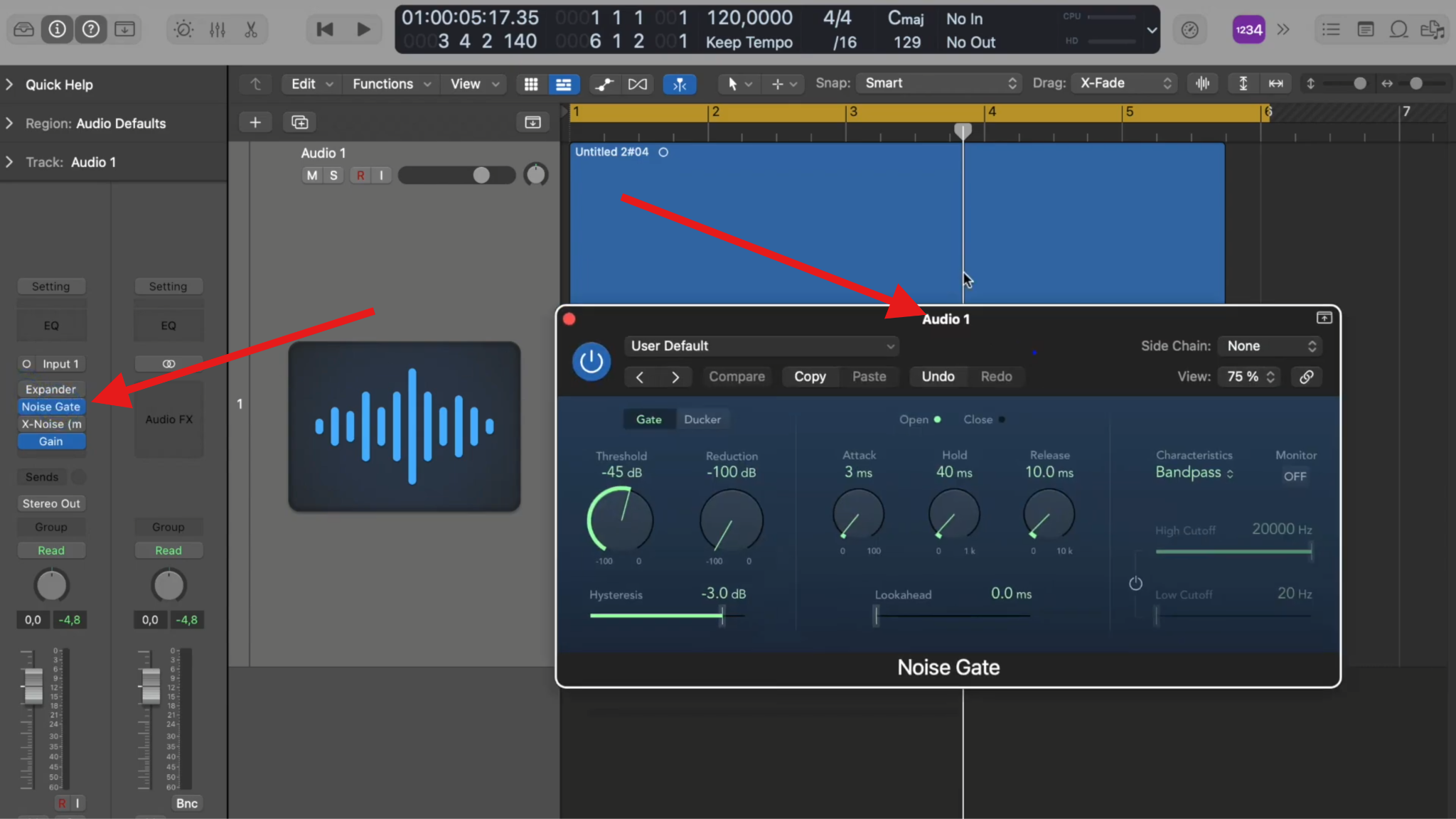
Play the audio and experiment with the knobs and settings until you find something that sounds good to you. There are a few presets you can try as well. Just click on User Default.
If you are new to this, all these knobs might be confusing, here are the specific parameters that control how the gate reacts to your audio.
Threshold: This determines the volume level at which the gate opens. If set too high, you will lose the quiet beginnings or endings of words.
Attack: Controls how fast the gate opens. For vocals, a fast attack is necessary to avoid clipping the first syllable.
Release: This is the most important setting. It controls how slowly the gate closes. A longer release prevents the audio from sounding chopped off.
Hold: This creates a gap between the opening and closing threshold, preventing the gate from rapidly flickering on and off when the noise level is right at the threshold.
Logic Pro Remove Background Noise with the Expander Feature
While the Noise Gate is a popular choice for beginners, professional editors often prefer the Expander as a subtler alternative. Think of a Noise Gate as a hard "on/off" switch (if the audio is below the threshold, it is cut completely). The Expander, conversely, acts like an automatic fader, gently turning the volume down. This creates a much more natural transition between sound and silence.
The Expander is particularly effective for preserving the tail of a vocal or the natural decay of an acoustic instrument.
You can activate it by simply clicking on Expander.
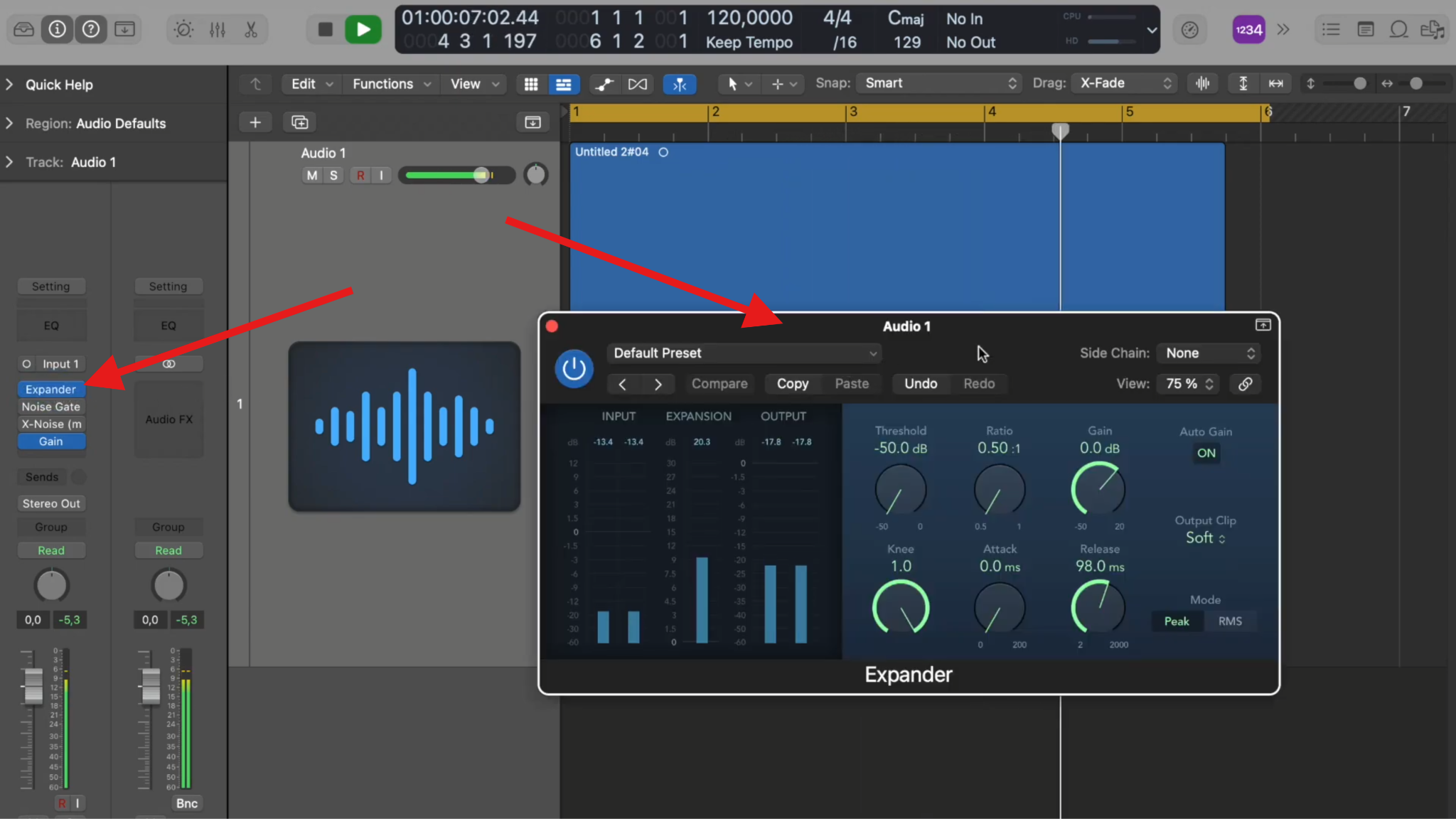
You'll notice an improvement immediately, but nothing prevents you from playing around with all the knobs to find the right balance. There are also good presets to check out. For example, by setting a gentle Ratio, you can reduce background hiss without making the track feel sterile.
Noise Reduction in Logic Pro Using Automation
Automation is a unique, advanced approach that offers the most precise control over your signal, but it also takes a while to learn. You need to manually reduce the volume in specific areas where a Noise Gate might be too aggressive or where a static EQ might fail to catch intermittent sounds.
Instead of relying on an algorithm to guess where the noise is, you can surgically remove mouth clicks, breaths, or distant background thumps that only occur in specific sections of your recording.
You can learn everything about these techniques by watching the video below:
Key Timestamps
[01:48] – Understanding "Touch" mode, which is ideal for manually ducking short, specific noises and having the level immediately return to normal.
[04:34] – How to use automation to precisely control the dynamics of a track when it becomes too overwhelming or noisy in the mix.
[06:58] – The "Pro Tip" of using a Gain stage plugin for automation to ensure your main faders remain freely adjustable during the mixing process.
Noise Reduction Logic Pro X Using Third-Party Plugins
External plugins integrate into the software just like any other effect, giving you deeper control, smarter algorithms (often AI-based), and better results when standard tools begin to struggle.
Integration into Logic Pro X is seamless. Just insert the plugin on your track's channel strip, adjust the settings, and monitor the changes in real time as you mix. If you are having issues adding plugins, you can always consult the official guide.
Below are three widely used plugins that offer cool features. Each one has strengths, trade-offs, and different learning curves, so choose based on your specific needs.
Part of the iZotope RX suite, Voice De-noise focuses on dialogue and vocals, offering real-time adaptive noise reduction that tracks changing noise floors while preserving voice quality. It's professional-grade and widely considered an industry standard for audio repair.
Clarity Vx Pro uses machine-learning-powered algorithms to reduce background noise with a simple control surface. It delivers real-time processing with minimal setup, making it appealing for dialogue, podcast, and music-track cleanup.
AudioDenoise is an AI-assisted plugin that removes hiss, hum, and constant background noise right inside Logic Pro X. It's designed for fast, intuitive cleanup with a drag-and-drop workflow that suits editors and musicians alike.
Here's a detailed comparison table to help you decide which of these is best for you.
| Feature | iZotope RX Voice De-noise | Waves Clarity Vx Pro | CrumplePop AudioDenoise |
| Speed | Moderate | Fast | Fast |
| Learning Curve | Medium | Easy | Easy |
| Quality | ⭐⭐⭐⭐ | ⭐⭐⭐⭐⭐ | ⭐⭐⭐⭐ |
| Best For | Dialogue & vocals, complex noise | Quick workflow & dialogue cleanup | General noise removal for audio/video |
| Pros | Professional quality, adaptive real-time, deep control | Real-time, simple UI, AI noise reduction | Easy drag-and-drop, AU/VST support |
| Cons | Higher cost, steeper learning curve | Pricier, fewer manual controls | Less clinical control than RX |
| Typical Price | ~$199–$299+ | ~$200–$300+ | Varies (subscription/perpetual) |
Tips for Logic Pro X Noise Removal for Specific Occasions

Denoise Vocals in Logic Pro X
Vocals are the most dynamic and sensitive element of any mix, which is why they expose background noise more than any other instrument. Also, modern vocal production often involves heavy compression, which raises quiet background noise to the same perceived level as the lead vocal.
When cleaning vocals, you must address three specific challenges:
- Mic Hiss: A constant high-frequency white noise often caused by high-gain settings on budget interfaces.
- Room Tone: The natural acoustic reflection of your recording space.
- Breath Noise: While some breaths are natural, overly loud gasps can distract the listener.
You should place your Noise Gate or Expander before any compressors or enhancement plugins. If you compress a noisy vocal first, the compressor will squash the peaks and raise the noise floor, making it significantly harder for the gate to distinguish between the voice and the background hiss.
Noise Removal Logic Pro X for Instruments

Denoising instruments requires a different philosophy. While a vocal is expected to sound pristine, many instruments, particularly guitars and vintage synths, rely on a certain amount of noise for their character.
For guitarists, it is important to distinguish between amp hiss and pedal noise. High-gain amplifiers naturally produce a hiss that is best managed with a Noise Gate at the very end of the signal chain. However, if the noise is coming from a specific pedal (like a vintage fuzz), gating it too aggressively can reduce the sustain of your notes, which is a bad thing.
In electronic music, synth noise floors and analog gear hum are often considered part of a track's warmth. Before you reach for a denoiser, consider if that noise is actually helping the mix feel more alive.
AI-Based Alternative to Logic Pro Noise Reduction: Media.io
We have discussed the different ways to denoise audio in Logic Pro X, however, It does take time for new beginners do that, if you don't want to spend so much time, you may look for an easier alternative. Media.io is such a perfect audio denoiser that allows to reduce reverbs, clicks, hiss and hum, wind, and more with one click. It uses AI models trained on real-world recordings to identify and isolate speech and primary audio content. Rather than reducing noise, it prioritizes the most important bits and suppresses everything else.
In addition to that, it is an all-in-one creative AI platform that allows you to make AI images, videos, audio. What's more, you can turn texts into music, lyrics into songs, and generate stunning sound effects.
Advantages Over Logic Pro X Workflows
- No frequency hunting: No sweeping EQ bands or guessing where noise lives
- No Noise Gate tuning: No clipped words or unnatural silence between phrases
- Faster pre-production cleanup: Clean audio before it ever touches Logic
Instead of stacking plugins and adjusting parameters, you start with a cleaner file.
How to Denoise Audio Online with Media.io?
Here are the simple steps to remove background noise from audio online with Media.io.
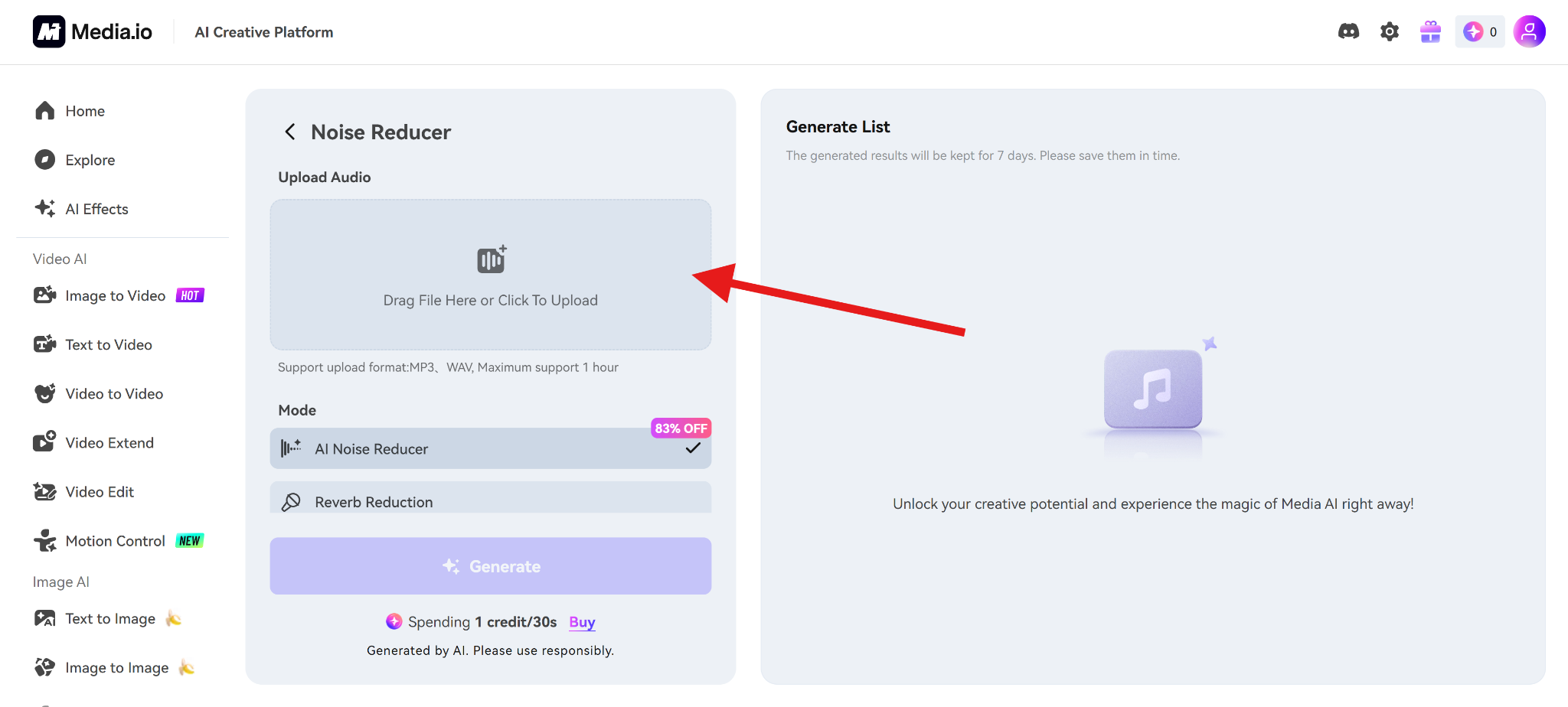
- Open the Noise Reducer online tool.
- Upload your file.
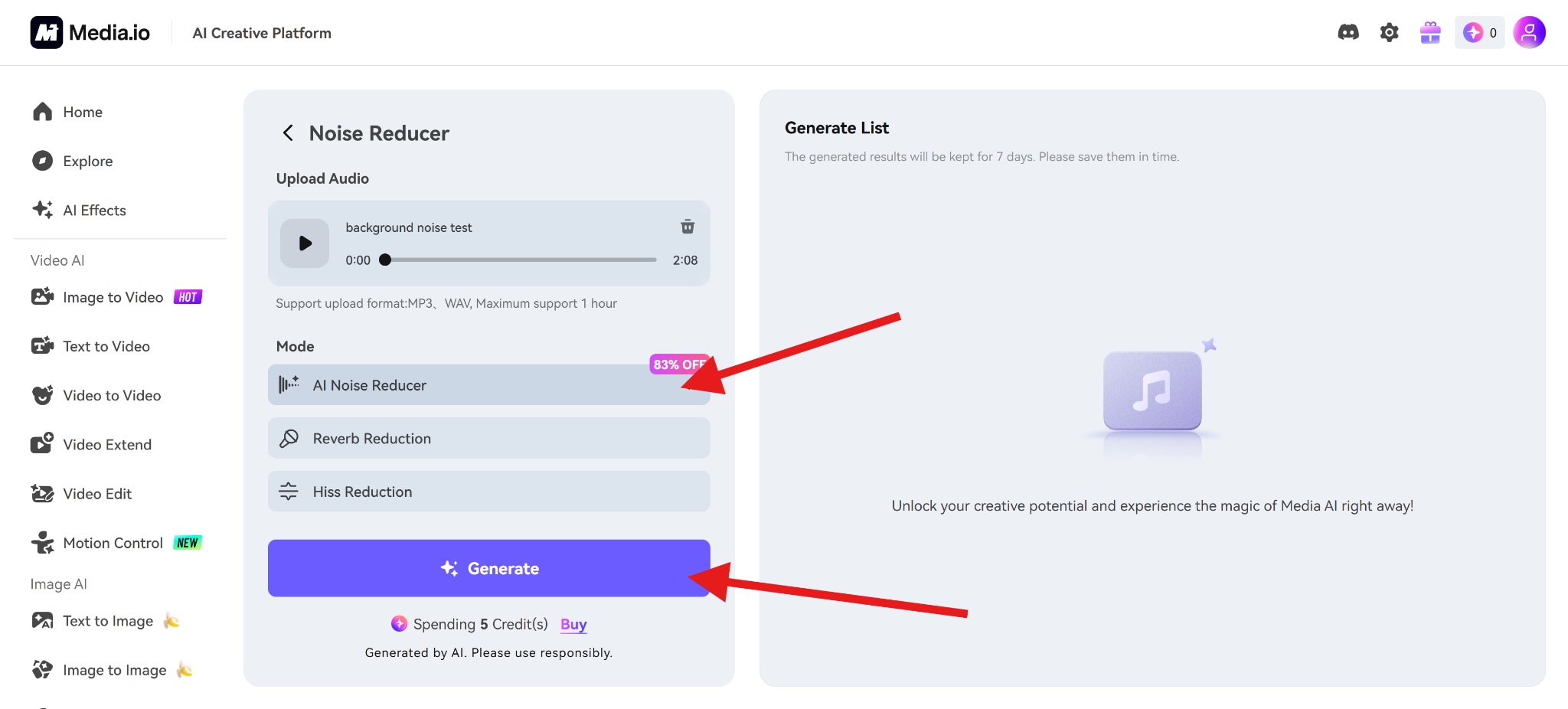
- Select AI Noise Reducer and click on Generate.
Conclusion
Logic Pro X gives you solid noise-reduction power as long as you use the right tool for the right problem. Noise Gates are great for silencing pauses, Expanders offer a more natural way to control noise without killing transients, and automation gives you surgical precision when nothing else quite fits. You can also look for an easier alternative like online audio denoiser Media.io to save time, if you don't want to manually adjust the sliders.


