Create a Viral STORM II-Inspired AI Crowd Dance Video
Recreate the viral STORM II crowd-dance aesthetic with your own lead and supporting cast. Use a reference clip to retain the synchronized choreography and cinematic pull-back, then replace the original performers with your character images for a consistent, share-ready AI dance video.
Free credits on signup/login.







Try More STORM II AI Dance Effects
Click a video to preview it in full size, then choose the effect below to create your own STORM II-inspired dance video.
How to Make a STORM II-Inspired AI Crowd Dance Video
Add a reference dance clip, one image for your lead, and one image for the supporting cast. Motion transfer keeps the choreography and camera path while AI Video Edit replaces the performers.
Reference Motion
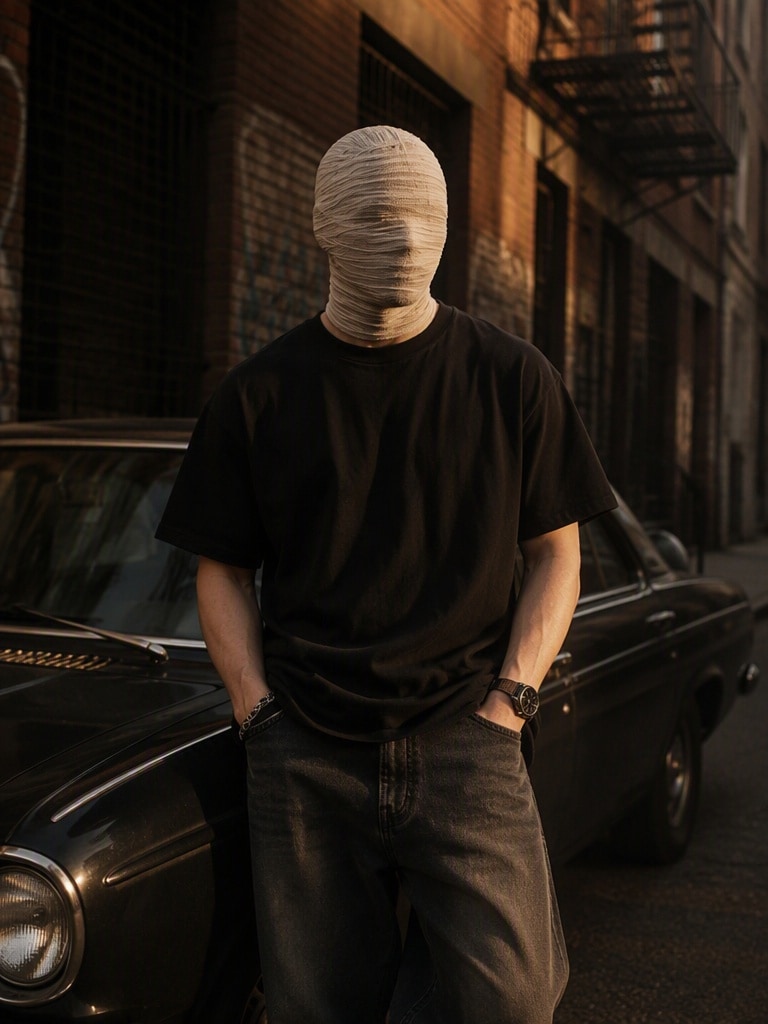
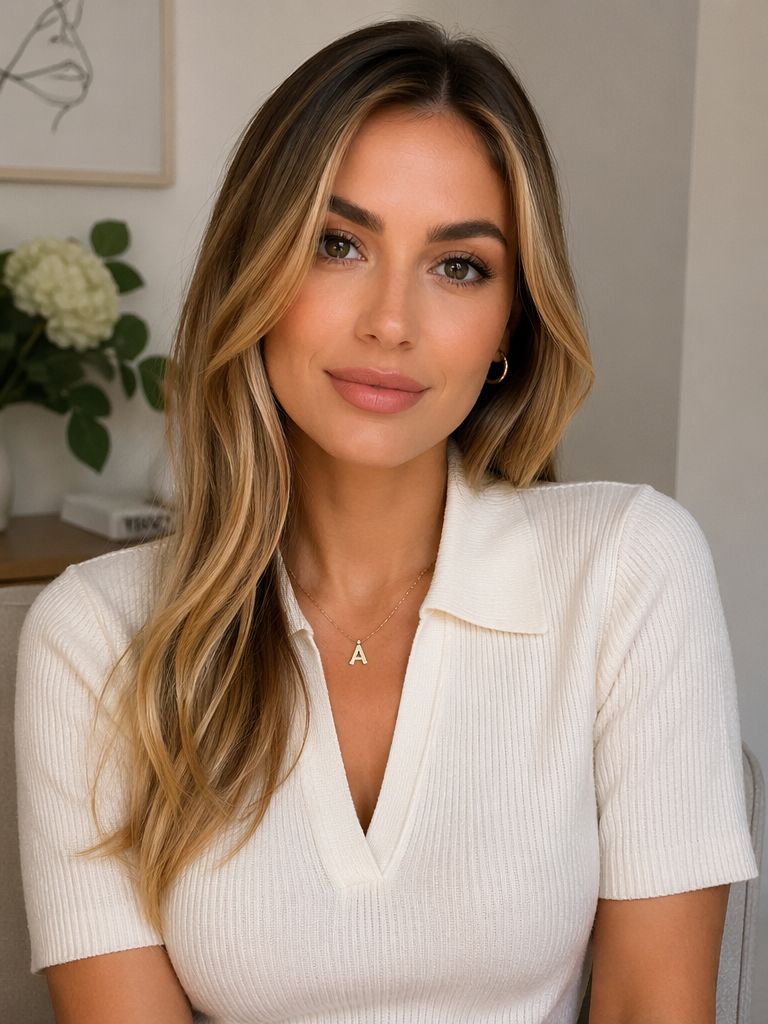
Lead & Cast References
Prepare the Reference Video and Character Images
- Choose a short crowd-dance reference clip whose movement, cuts, framing, and camera pull-back you want to retain.
- Prepare Image 1: a clear, well-lit image of the person who will replace the lead performer.
- Prepare Image 2: the character or costume that should replace every supporting performer. A full-body reference with a simple background works best.
- Use images you own or have permission to use; avoid celebrity impersonation and copyrighted costume logos.
Image 1 defines the lead character. Replace only the original lead with this person and track the same identity throughout every close-up, walk, turn, interaction, and dance movement. Preserve the reference video's screen position, action timing, apparent body scale, and choreography. Keep Image 1's facial features, body proportions, hairstyle, and wardrobe consistent. Ignore the image background and show the lead only once.
Image 2 defines the supporting cast. Replace every other performer with consistent copies of this character, including foreground, middle, background, side-facing, partially hidden, and motion-blurred figures. Preserve the original crowd count, formation, spacing, depth, and individual positions. Do not leave any original supporting performer unchanged or create extra copies of the lead.
Transfer the Crowd Dance and Replace the Cast
- Open Media.io AI Video Edit and select a reference-video or motion-transfer workflow.
- Upload the reference crowd-dance video, then add Image 1 for the lead and Image 2 for the supporting cast.
- Ask the video to control all movement, timing, cuts, camera trajectory, framing, focus changes, and character positions.
- Paste the prompt below, adapt the character descriptions, and generate a preview before exporting the final version.
CHARACTER AND CROWD REPLACEMENT TASK

The uploaded video is the sole reference for motion, choreography, timing, cuts, camera movement, framing, perspective, focus transitions, and shot duration.

MAIN CHARACTER: Image 1 defines the lead's identity. Replace only the original lead with the person from Image 1. Preserve the lead's position, body scale, gestures, head turns, walking speed, dance timing, interactions, and facial-expression timing. Keep the same face, hair, body proportions, and wardrobe throughout. Do not blend features from the source performer.

SUPPORTING CAST: Image 2 defines every supporting performer. Replace all other people with consistent copies of the Image 2 character, including foreground, middle, background, blurred, partially hidden, and interacting performers. Preserve the source crowd count, formation, spacing, depth, occlusion, and individual positions. Keep masks, costumes, and accessories stable.

MOTION AND CAMERA: Preserve every original action at its original timestamp. Keep the source camera angle, height, lens perspective, trajectory, pull-back, cropping, and composition unchanged. Do not add shots, widen the frame, reveal extra floor, retime the choreography, or change the camera path.

AVOID: identity drift, face blending, duplicate leads, unchanged source performers, missing or extra people, costume changes, warped faces, malformed hands, floating feet, flicker, added scenes, text, logos, or watermarks.
Review, Export & Share
- Check the lead's face, crowd consistency, hand contact, foot placement, and costume continuity frame by frame.
- Post it to TikTok / Instagram Reels / YouTube Shorts.
- Add audio you have permission to use and hashtags such as #stormiitrend, #aicrowddance, #aidancetrend, #motiontransfer, and #aivideo.
- Bonus: Post a before-and-after edit showing the reference setup, character images, and final result.
Why Create an AI Crowd Dance Video with Media.io
Lead Identity Replacement
Put yourself or an original character in the lead role while retaining the reference performance's position, scale, expressions, and movement timing.
Consistent Supporting Cast
Use one supporting-character reference across the entire crowd while preserving the source video's formation, depth, spacing, and interactions.
Synchronized Crowd Motion
Retain coordinated head turns, walking, gestures, contact, and dance choreography to capture the appeal of the STORM II AI crowd dance trend.
Reference-Led Camera Control
Let the reference clip guide the cuts, lens perspective, framing, focus, and cinematic pull-back instead of rebuilding every shot from text alone.