
Background noise can easily distract from an otherwise great video, especially when you're editing in iMovie. Whether it's wind, echo, or low hum in the background, unwanted noise makes your audio sound less polished. If you're wondering how to remove background noise from audio in iMovie, this guide will show you simple steps to clean up your sound and improve overall quality.
In this article
Remove Background Noise in iMovie: What You Should Know First
But before we jump in, it's important to understand what iMovie is actually doing behind the scenes. You can use it for basic background noise reduction. It's optimized for speed and simplicity, and it works best when the noise is light and consistent. So let's try to understand different types of noise so that you can adjust your expectations.
Here are the types of noises and what iMovie can handle. It is intentionally designed for beginners and fast edits. Its audio tools apply noise reduction per clip rather than globally and rely on simple algorithms rather than detailed frequency repair. This keeps the interface clean, but also limits precision.
| Audio Issue | What It Sounds Like | Can iMovie Help? | What to Expect |
| Background noise | Fan hum, room tone, light hiss | Yes (to a degree) | Improved clarity if the noise is subtle and steady |
| Wind noise | Low rumble, bursts, air hitting the mic | Partially | Light wind can be dealt with; strong gusts will be a challenge |
| Echo/reverb | Hollow, roomy, distant voice | No | iMovie can't remove echo reliably |
iMovie Remove Background Noise Using Audio Controls
Audio controls is the core workflow most people use to remove background noise in iMovie. Everything happens inside the Audio Inspector, and noise reduction is applied per clip, not to the entire project. That's an important distinction. Each video or audio clip must be adjusted individually.
Check out the step-by-step process.
- Download iMovie from Apple's official website or the Mac App Store. Once installed, open the program.
- Create a new project by clicking on Projects. Then, click Create New, then select Movie to start a standard editing project.
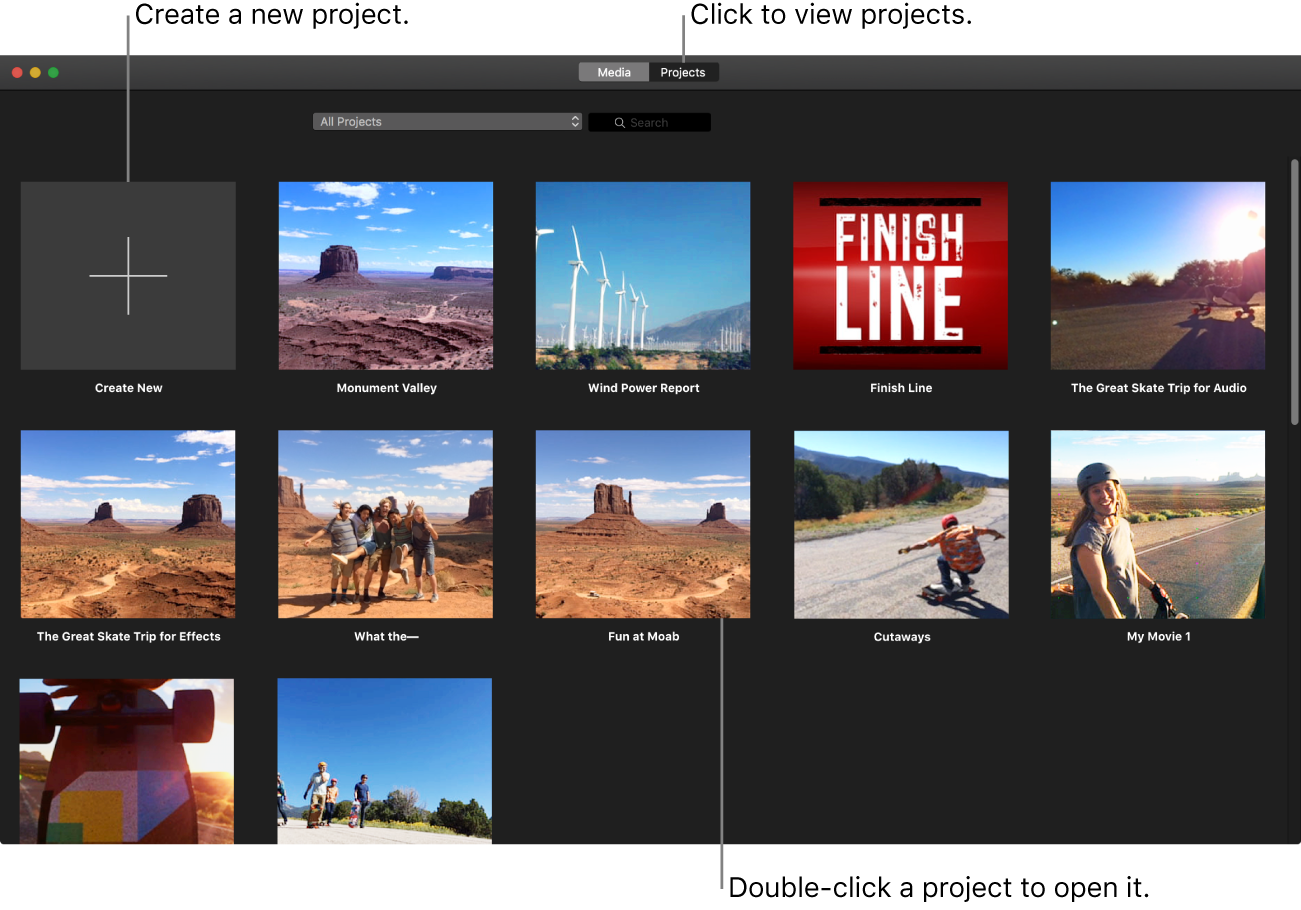
- Click the Import Media button and select the file you want to clean up. Once imported, drag the clip into the timeline. The button looks like this.

- Click directly on the video or audio clip you want to clean and click on the Noise Reduction and Equalizer button.

- Check the Reduce background noise box. iMovie will immediately apply noise reduction to the selected clip.

- Move the slider slowly to the right while listening to the audio. Stop as soon as the clarity improves, and always avoid pushing it to the maximum.
Reduce Wind Noise in iMovie Using Mute
Wind noise is one of the hardest problems for simple editors like iMovie. When strong gusts hit the microphone, it creates a rumbling, low-frequency sound that overwhelms and distorts the audio. A good tip is to split the clip around wind bursts. If only part of a clip contains wind noise, split the clip and apply noise reduction only to the noisy section.
You can also lower the volume during wind-heavy sections to make it less distracting. Sometimes, the only clean fix is removing the worst wind segments. You can do this by using the Mute button.

iMovie Clean Up Audio with EQ Adjustments
Noise reduction alone rarely delivers the best result. In iMovie, EQ presets and adjustments can noticeably improve the perceived clarity of speech. Specifically, after you click on the Noise Reduction and Equalizer button, you should pick the Voice Enhance preset.

You should avoid presets that aggressively cut low and high frequencies, as they can thin voices or emphasize artifacts.
From all above information, you may find iMovie can soften low-level background noise (e.g., mild room hum) using the noise reduction slider and improve clarity a bit if the voice is significantly louder than the noise.
However, it does have limits for voices in the background, transient or changing noises like kids talking, dogs barking, varying machinery hum, and those occasions that there are too much reduction makes voices thin or muffled.
If you want to reduce noise for dialogue, which requires clearer speech without damaging clarity. Here are some practical tips.
Practical Tips for Dialogue Background Noise Reduction in iMovie
- Start with gentle reduction: Move the noise slider just enough to soften ambient hiss; stop before voices sound unnatural.
- Use volume & EQ adjustments (covered later) to boost clarity after noise reduction.
- Capture silent sections: If you have any segments with only background noise, listen to them to gauge how much reduction is helpful for the rest of the clip.
- Consider detaching the audio if you want to manually trim away particularly noisy sections or replace them.
AI-Based Alternative to iMovie Audio Noise Reduction: Media.io
If you find yourself compensating too much with volume or EQ just to hide noise, that's a sign iMovie might have reached its limit. This online tool can outperform iMovie for complex noise because it handles changing noise, like traffic, wind shifts, crowd ambience, and so on, far better than static reduction. It works best as a preprocessing step, not as a replacement for editing.
It's very simple to use.
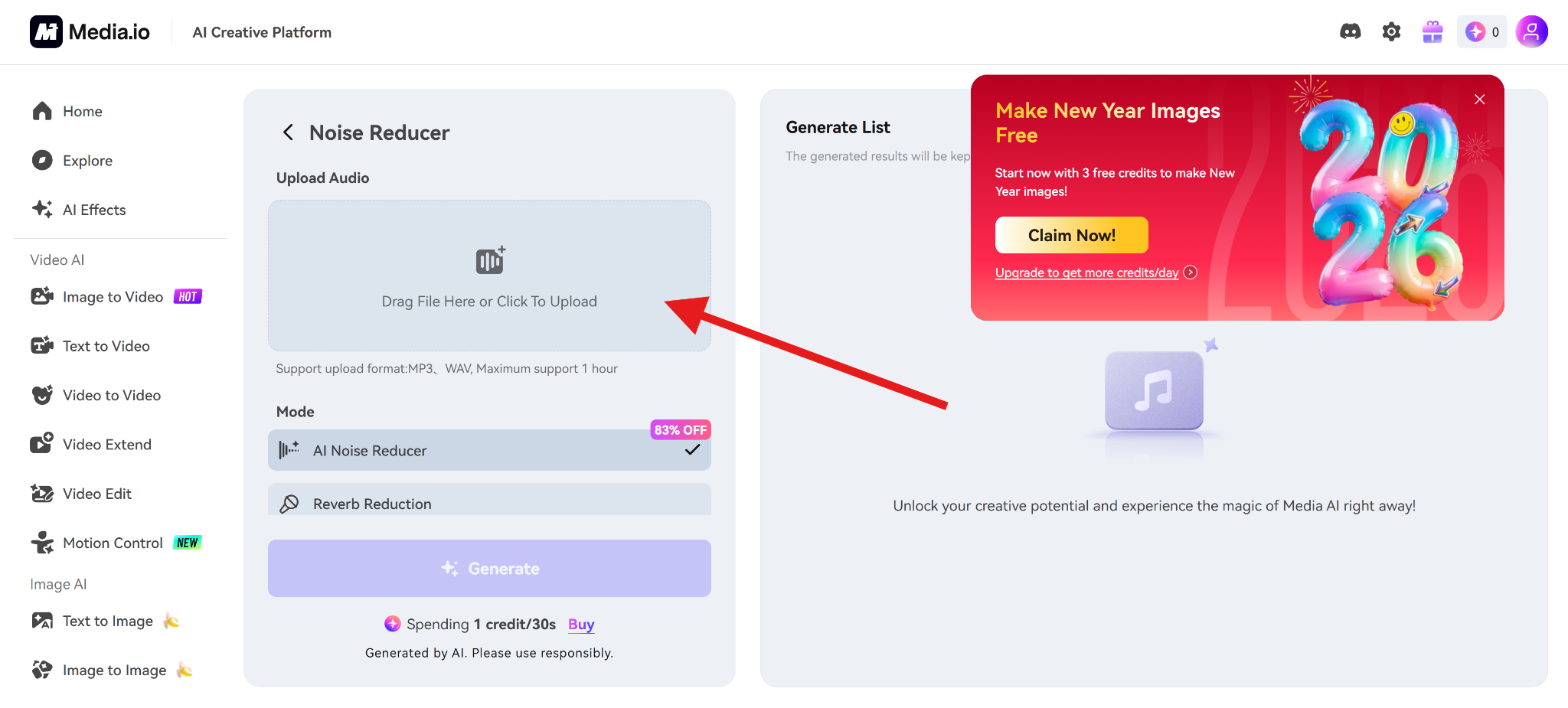
- Access the Media.io's Noise Reducer feature.
- Click to upload your audio file.
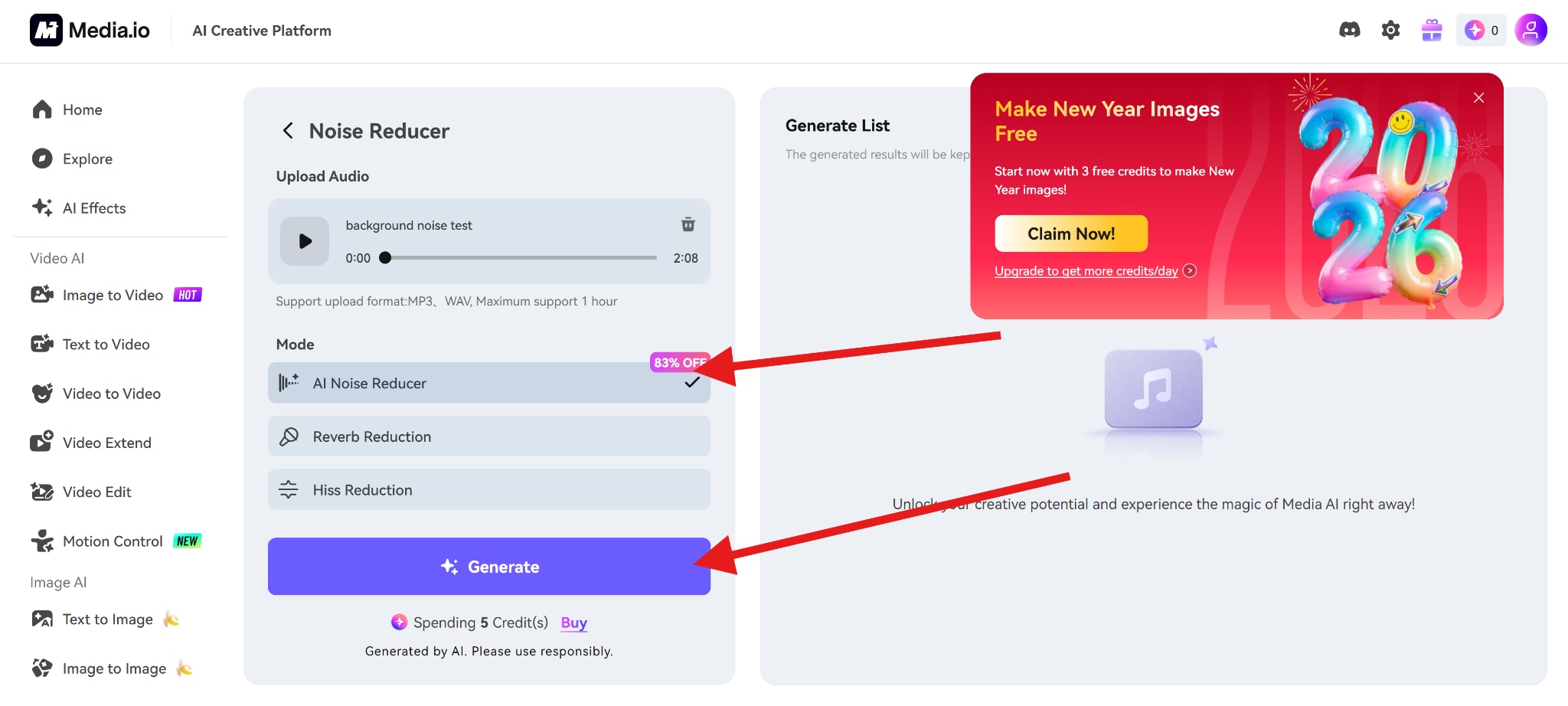
- Select the AI Noise Reducer and click on Generate.
Media.io Advantages Over iMovie's Built-In Tools
- Better results on inconsistent or layered noise
- Cleaner dialogue with less voice damage
- Faster cleanup for longer clips
- No Mac required (browser-based)
Conclusion
iMovie can remove background noise, but within clear limits. Its built-in tools work best for light, steady noise and simple dialogue cleanup. When used gently, they improve clarity without drawing attention to the processing.
For recordings with heavier or inconsistent noise, preparing the audio before importing it into iMovie saves time and preserves quality. AI-based tools like Media.io handle complex noise more effectively, reducing the need for aggressive fixes later.


