
Whether you're recording a podcast, streaming, or joining an online meeting, background noise from your microphone can quickly ruin audio quality. Hissing, buzzing, or room noise makes your voice sound unprofessional and hard to understand. If you're looking for practical ways to remove background noise on your microphone, this guide will walk you through simple fixes and effective solutions to get cleaner, clearer sound.
In this article
Pre-Step: Diagnose Your Mic Noise First
Before you head off and purchase tools and software, you need to identify what kind of noise you're dealing with.
Here's a quick table showing common noise types that appear as microphone background noise.
| Noise Type | Typical Scenarios | Priority Solutions |
| Room echo | Empty rooms, hard walls | Environment treatment, mic distance |
| Fan noise | Laptops, PCs | Mic repositioning, noise reduction |
| Electrical hiss | USB mics | Cable/port change, software cleanup |
| Keyboard clicks | Desk setups | Mic angle, shock mount, AI tools |
Once you know the source, the fix becomes much easier and more effective.
Free Fixes: Reduce Mic Noise with Environment & Placement

For the noises occurring by environment, here are a few tricks to reduce background noise without spending any money.
Environmental Adjustments
- Turn off fans, air conditioners, and unused electronics
- Close windows and doors during recording
- Add soft materials (curtains, carpets, bookshelves) to absorb sound reflections
- Record at quieter times during the day if possible
Mic Placement & Setup
- Position the microphone closer to your mouth (10 to 15 cm)
- Lower the mic gain and compensate with distance instead of amplification
- Angle the mic slightly off-axis to reduce popping and room noise
- Avoid placing the mic directly on the desk
Physical Tools: Low-Cost Hardware to Eliminate Noise
If you pursue high quality recordings, you can also buy some gear to improve your recording conditions depending on your budget.
Essential Basic Tool (Cost-Effective Choices)
- Pop Filter: Reduces plosive bursts, so you don't have to lower the gain unnecessarily.
- Shock Mount: Isolates the microphone from desk vibrations, keyboard impacts, and accidental bumps.
- Microphone Stand: Allows proper positioning and prevents desk noise.
Advanced Hardware (For Those Who Want More)
- Dynamic vs. Condenser Microphones: Dynamic microphones are less sensitive and better at rejecting background noise, making them ideal for untreated rooms.
- Audio Interface: You get cleaner gain control and reduced electrical noise compared to onboard sound cards.
All this can be very helpful, but hardware won't fix everything. However, it can certainly reduce noise at the source.
Software Solutions: Real-Time and Post-Processing Noise Reduction
You can also use noise-cancelling software to reduce background noise on your microphone, but there are two options here. You can do it before you start streaming and recording, or after. Different situations require different software approaches.
Real-Time Noise Cancellation with Built-in Tools
For real-time noise cancellation (for calls and live streams), you have options that came with your PC or laptop for free.
If you have Windows 10 or 11, follow this step-by-step guide.
- Open Sound Settings > Recording Devices
- Select your microphone > Properties
- Go to the Levels tab and adjust the mic volume
- Enable Noise Suppression (this is built-in on Windows 11, and it's available via Control Panel on Windows 10)
Here's a quick video guide:
These settings help reduce that constant background noise during calls.
If you have macOS, then follow these steps.
- Open System Preferences > Sound > Input
- Adjust input volume
- Enable Reduce Background Noise
- Use GarageBand for advanced real-time noise reduction settings
Here's another short video:
macOS handles noise suppression well for meetings and live recording.
Post-Processing Noise Reduction with Third-Party Software
There are many options here, from free tools to expensive editing software, but most people go with Audacity, mainly because it's free and it includes built-in noise reduction tools that are more than suitable for light post-processing. Here's how it works for background noise removal.
- Download and install Audacity.
- Open the program, import your audio, and select part of the waveform that features the type of background noise you want to eliminate.
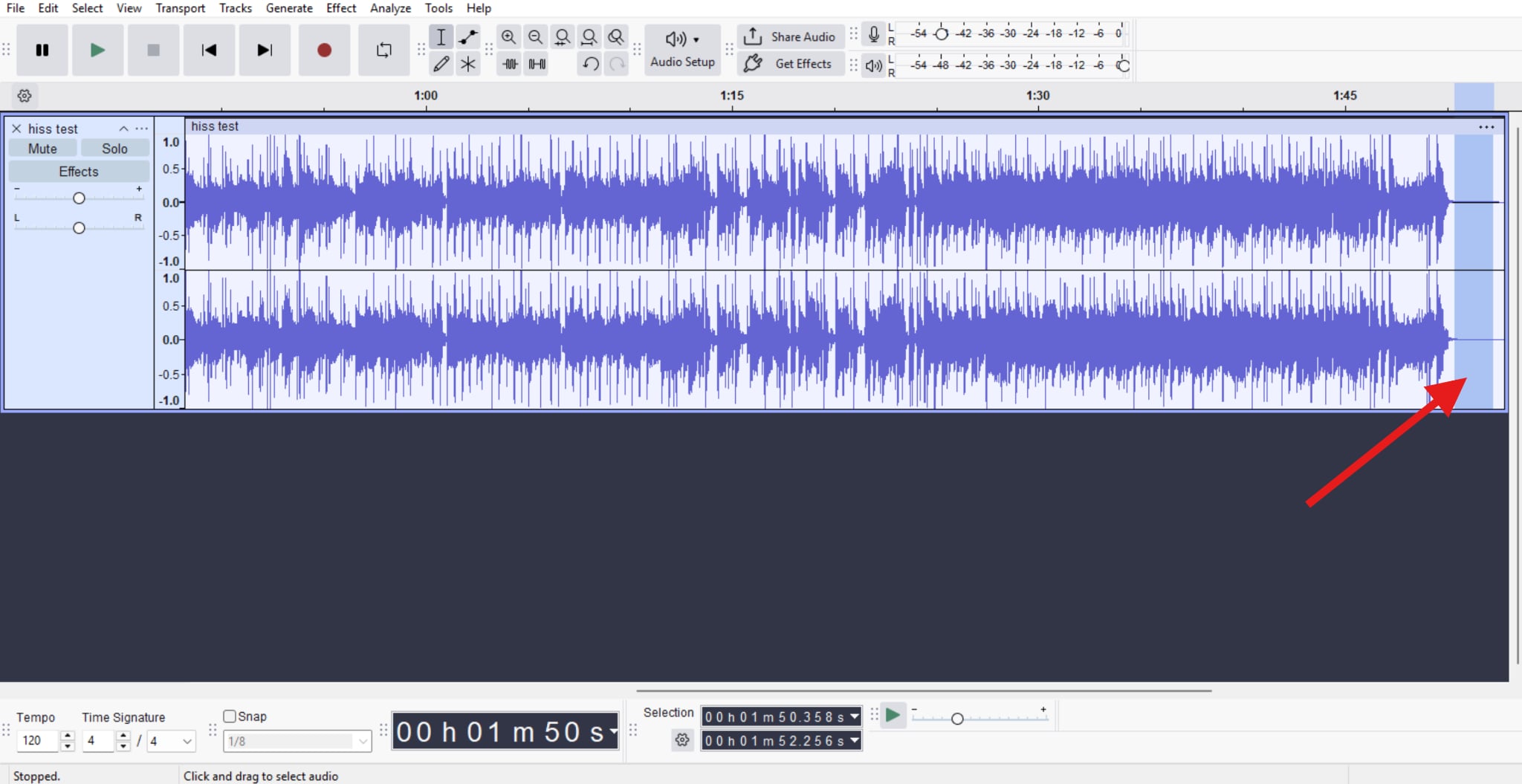
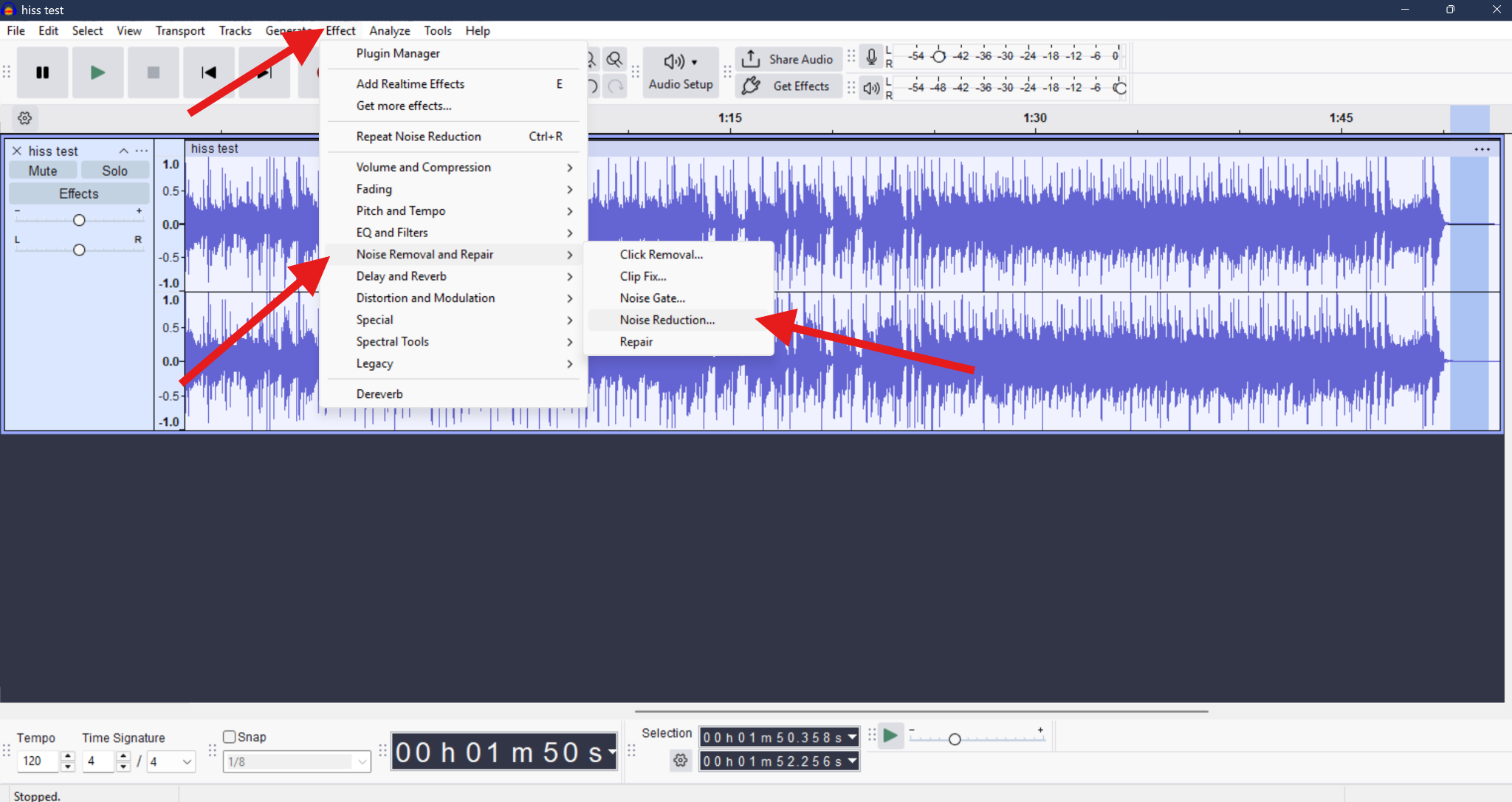
- Go to Effects > Noise Removal and Repair > Noise Reduction.
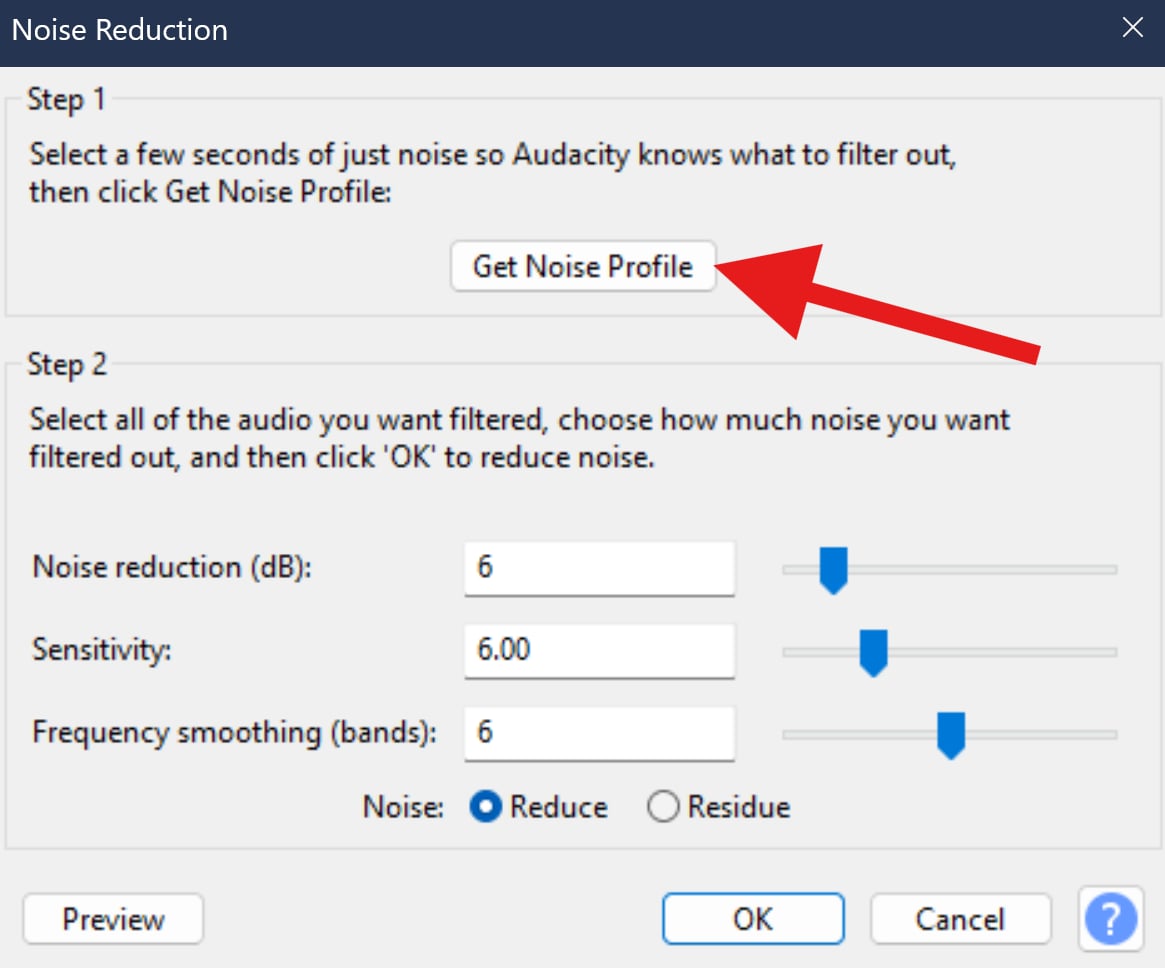
- Click on Get Noise Profile. This will give Audacity an idea of the type of background noise you want removed from your recording.
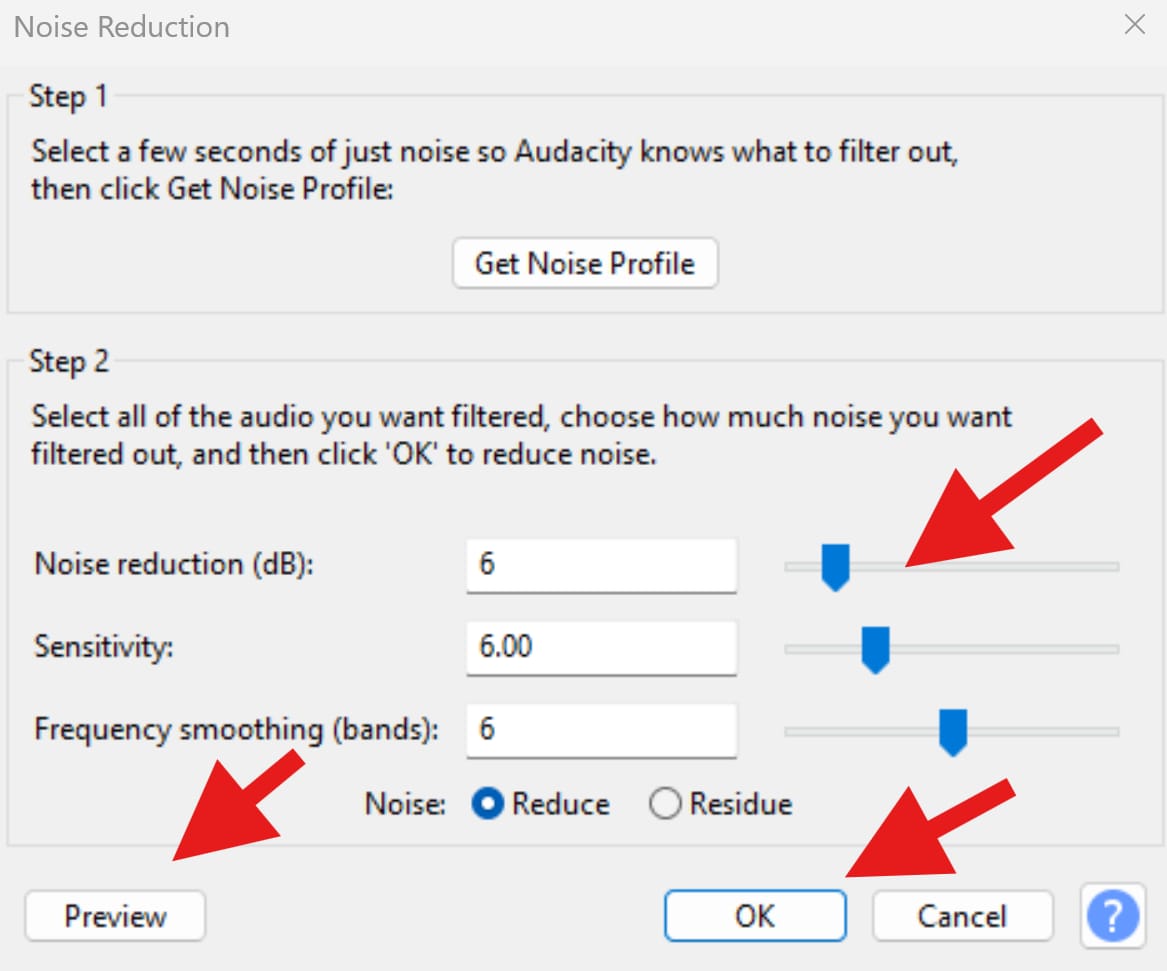
- Activate the Noise Reduction feature again with a defined noise profile, adjust the settings to your liking, click Preview to see how it turned out, and then click OK.
It's free and very easy, but it might not get the job done all the time. If these types of tools begin to struggle, you can turn to AI for help.
AI-Powered Noise Reduction: The Quickest Solution for Voice Recording Noises
Traditional noise cancellation relies on static profiles, but AI tools work differently. AI models analyze the entire recording, identifying speech patterns and separating them from all the other sounds. This makes them far more effective when you have a recording where noise fluctuates or overlaps with speech, or if the recording environment is inconsistent.
One of the top resources that you can try for this is Media.io. This online content editor includes a dedicated noise-reduction feature that lets you reduce specific background noise such as reverbs, hiss, clicks, wind, and more in one click. In addition to that, it works on already-recorded audio with maximum length for 1 hour, you can upload files in file formats like MP3, WAV, MP4, MOV, MKV, WebM, and AVI.
This type of AI tool is ideal for podcasts and interviews, voiceovers recorded in imperfect rooms, online courses, and several other forms of content creation. Check out how it works when removing background noise recorded with a microphone.
- Go to the Media.io's online noise reducer feature.
- Click to upload your audio file.
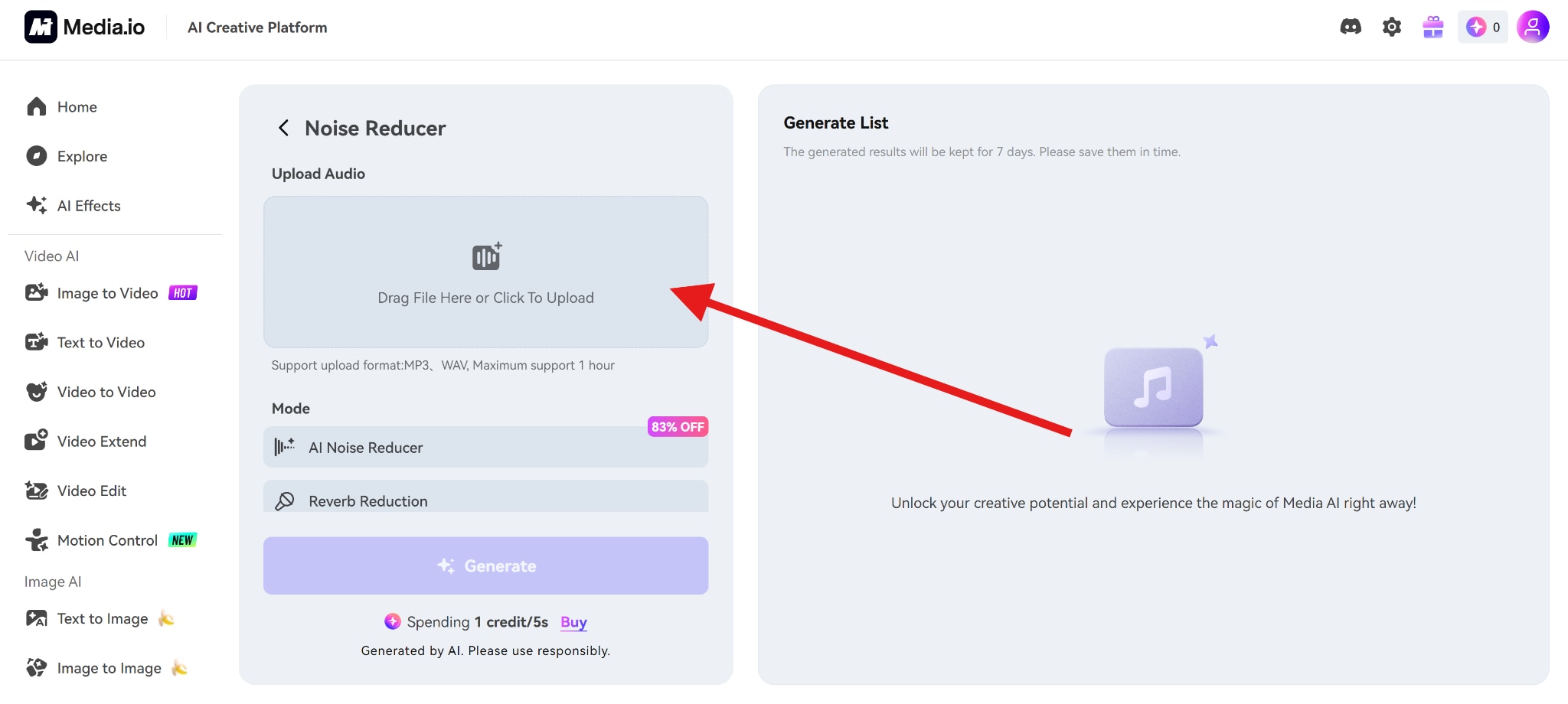
- Select AI Noise Reducer and click on Generate.
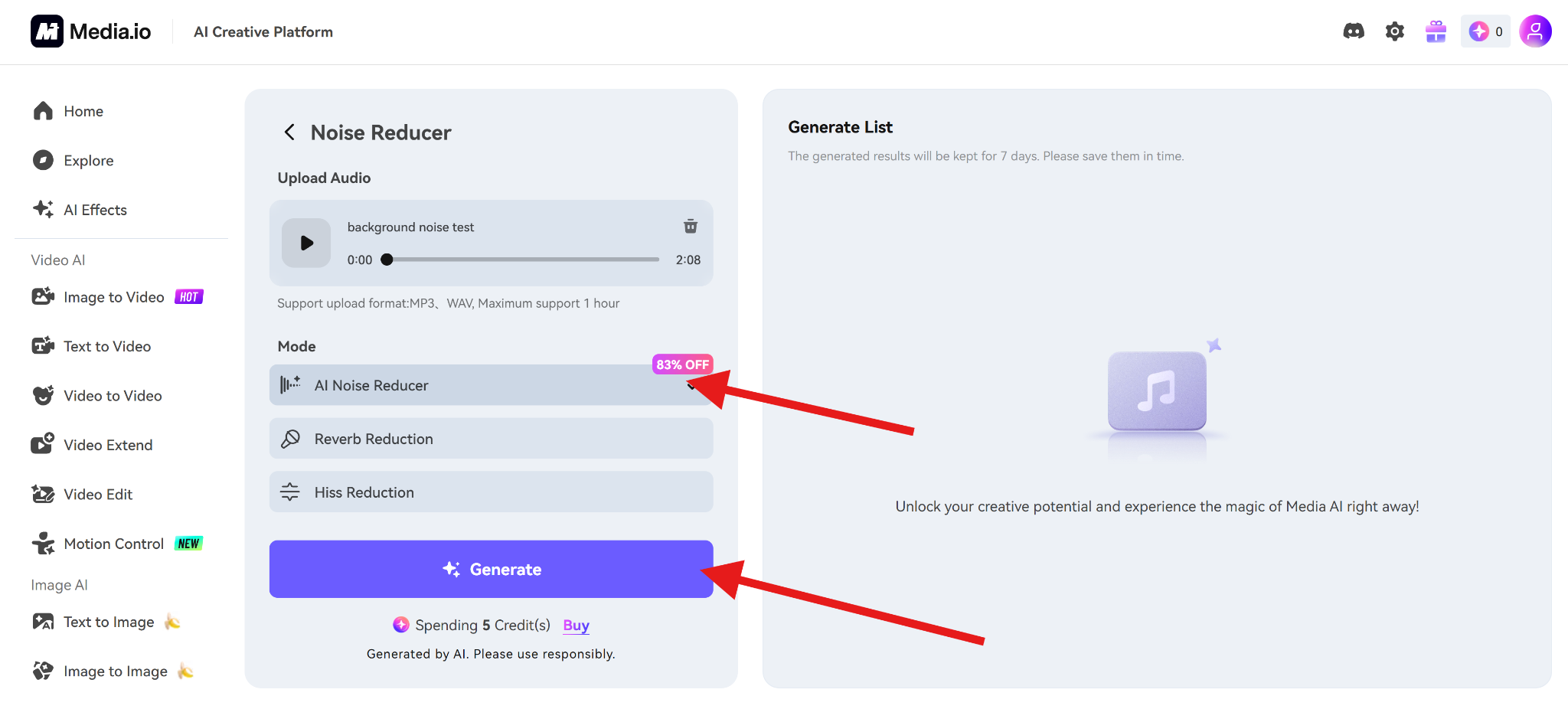
After a few seconds, you will receive a clip with clean vocals and near-zero background noise. This approach saves time and avoids sound artifacts common in manual processing.
Conclusion
Reducing background noise on your microphone is a process, not a single fix. The most effective approach follows a clear order. Set up the environment first; mic placement comes second; the software is next; and AI cleanup comes when needed. For post-recording background noise removal and specific noise types such as reverbs, wind, and click noises, you can try to use the one-click online AI noise reducer tool Media.io for a quick and stunning result.
FAQ
-
Why does my microphone have static noise even when I'm not speaking?
This usually comes from electrical interference, high-gain settings, or environmental noise amplified by compression. -
How to reduce background noise on a USB microphone (Windows 10/macOS)?
Lower the mic gain, improve placement, enable built-in noise suppression, and use light post-processing or AI tools. -
Can I eliminate keyboard clicks from my mic without moving the keyboard?
Yes. Adjust mic angle, use a shock mount, and apply AI noise reduction for best results. -
Does a pop filter help with background noise or just plosives?
Primarily plosives, but it allows closer mic placement, which indirectly reduces background noise. -
How to fix microphone background noise in Zoom, Teams, or Google Meet?
Enable built-in noise suppression and use system-level mic settings for real-time noise reduction. -
Is AI noise reduction better than built-in Windows/macOS noise suppression?
For complex or recorded audio, yes. AI tools preserve voice quality better and handle fluctuating noise more effectively.


