
Have you ever listened back to a recording in GarageBand and noticed background noise you didn't catch while recording? This is extremely common in home studio setups. Whether you're working on voiceovers, podcasts, vocals, guitar tracks, or simple demos, GarageBand often captures more than just the sound you intended.
If you're wondering how to denoise audio in GarageBand, the good news is that the software includes built-in tools that can help reduce light, consistent background noise. However, it's important to understand its limitations — GarageBand isn't designed for deep audio restoration or complex noise repair.
In this guide, you'll learn how to reduce background noise in GarageBand step by step, when its tools are enough, and how to clean up audio effectively without overprocessing.
In this article
GarageBand Reduce Background Noise: What You Should Know First

The first thing you should understand is what types of noise GarageBand can realistically handle. If the background noise in your recording is low in volume, steady in frequency, and clearly quieter than the main sound such as mild room tone, faint mic hiss, and low rumble from HVAC systems, you can address it.
GarageBand struggles when noise overlaps heavily with vocals, changes throughout the recording, or is baked deeply into the audio.
Remember, the goal is minimization and not elimination. Chasing total silence usually makes recordings sound a bit artificial.
How to Reduce Background Noise in GarageBand?
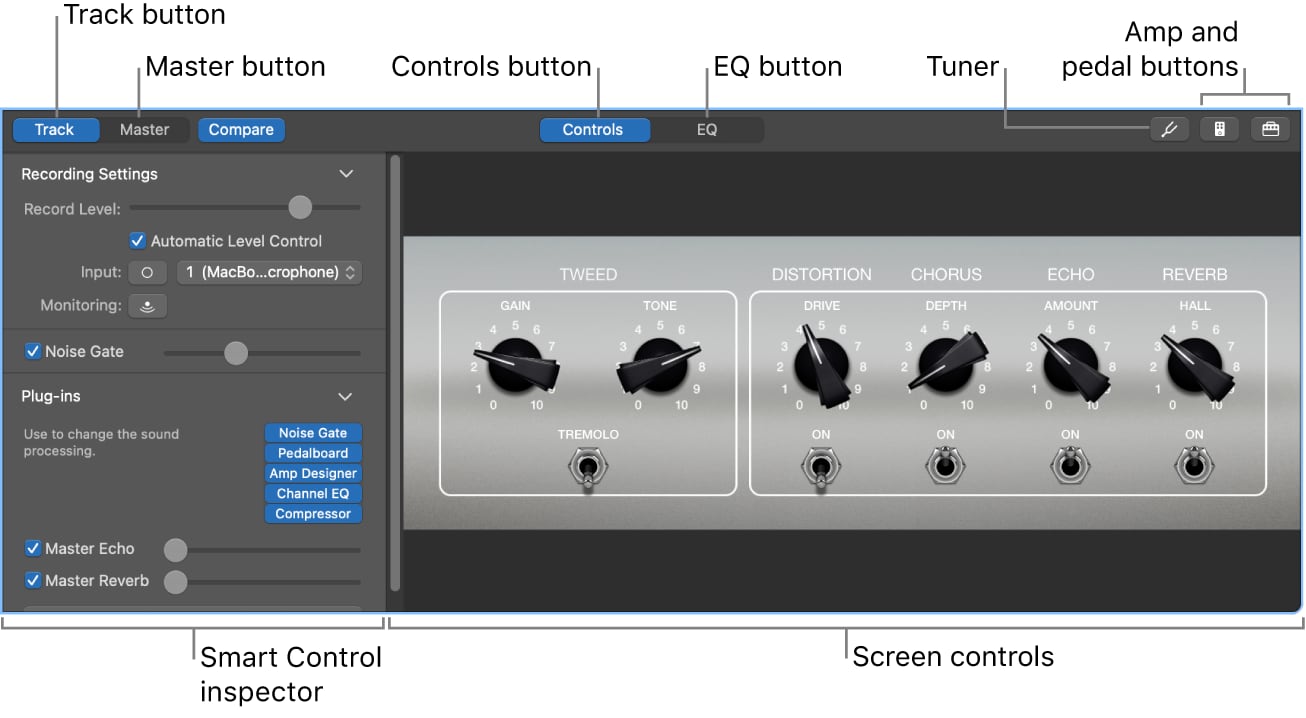
GarageBand doesn't have a direct noise reducer button for this task, but instead, it is achieved by combining track-level tools like Noise Gate and EQ, supported by careful listening and small adjustments.
- Noise Gate (time-based control)
- EQ (frequency-based control)
Reduce Noise in GarageBand with Noise Gate
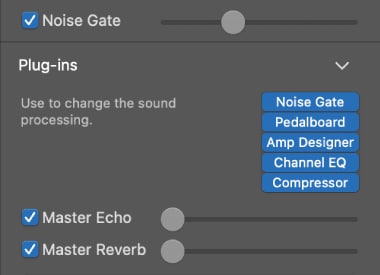
A Noise Gate does not remove noise while the sound is playing. Instead, it reduces or mutes noise during quiet moments, such as pauses between words or phrases. This makes it useful for spoken recordings but ineffective against noise beneath vocals or instruments.
The Noise Gate feature can make dialogue sound tighter, but it cannot remove noise under the audio, fix constant hisses or hums, or repair echoes or reverb.
You can activate the Noise Gate in the Plugins section of Smart Controls.
Reduce Background Noise in GarageBand with EQ
Once the Noise Gate is set to your liking, the EQ helps shape the frequencies typically associated with background noise. Low frequencies are for rumble and handling noises, while high frequencies are reserved for hiss and air noise. With GarageBand's EQ feature, you can try a high-pass filter to reduce low-frequency rumble, or apply some gentle high-frequency shaping to soften a hissing sound. In any case, keep your adjustments small to preserve a natural tone.
The EQ is right next to the Smart Controls.
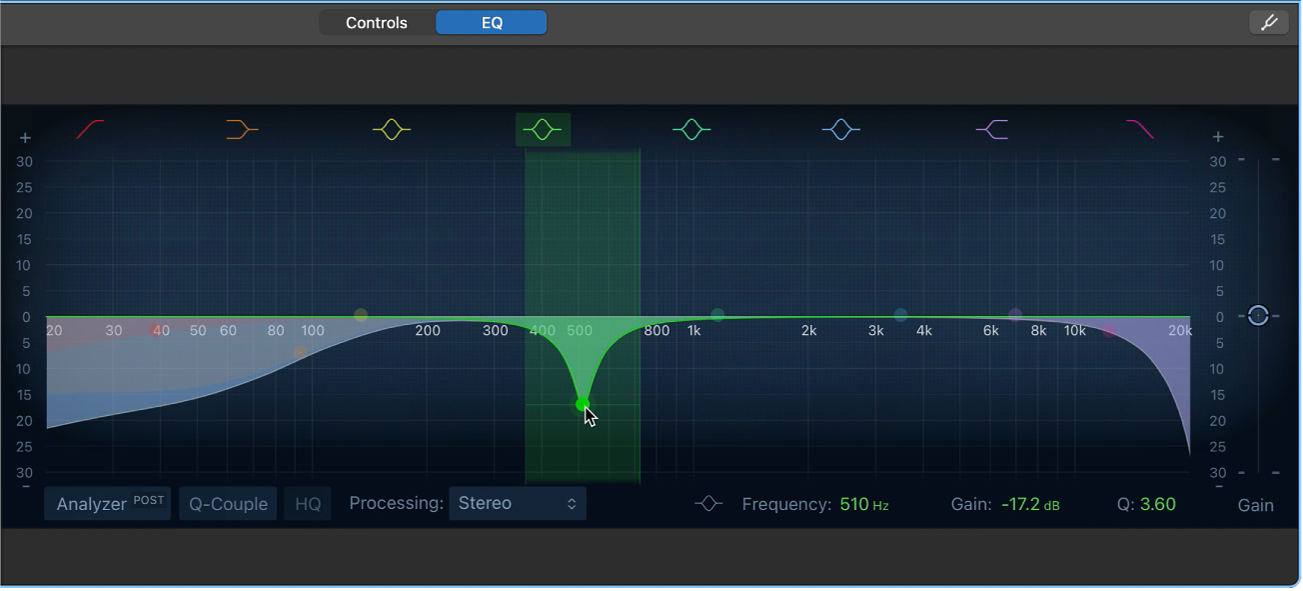
You can try using the Analyzer button located in the bottom-left corner of the EQ interface. This can help you decide which frequencies need adjustment.
Remove Echo in GarageBand: What's Possible and What Isn't

Echo and background noise are not the same thing. Background noise is unwanted sound beneath the audio, while echo is reflections baked into the recording.
Unfortunately, GarageBand cannot completely remove the echo. It can only reduce the perception of roominess using EQ and Noise Gate features.
You can try cutting the low-end buildup and using Noise Gate to shorten reflections with some gentle EQ shaping. However, if the room sound dominates the voice, and the echo is baked in, it is next to impossible to remove it.
At that point, further processing usually makes the audio worse, not better.
Common Mistakes in GarageBand Noise Removal
These mistakes lead to unnatural audio that just sounds bad.
- Overusing the Noise Gate: Never push the slider to the max.
- Cutting too much low-end: Always leave a little low-end frequencies.
- Trying to erase noise instead of minimizing it
- Ignoring recording quality at the source
Even when used carefully, GarageBand's noise removal tools depend heavily on manual tuning. Pushing settings too far often leads to thin, unnatural audio — and fixing complex noise problems can take significant time.
If you want a faster and more automated approach, AI-based noise reduction tools can handle complex or inconsistent background noise with far less effort.
AI-Based Alternative to GarageBand Noise Removal: Media.io
One of the best online tools that offers background noise removal is Media.io. This Noise Reducer works without manual tuning and is particularly interesting for non-technical users because there is no need for thresholds, EQ curves, or trial-and-error.
It has several clear advantages over GarageBand workflows.
- No Noise Gate tweaking
- Better handling of changing noise
- Stronger vocal preservation.
- Specific options for reverbs, clicks, wind, hiss and more.
The ideal use cases include home podcasts, voiceovers, and cleaning imported audio before mixing.
Take a look at how Media.io's Noise Reducer works.
- Access the Noise Reducer tool online.
- Upload your audio file.
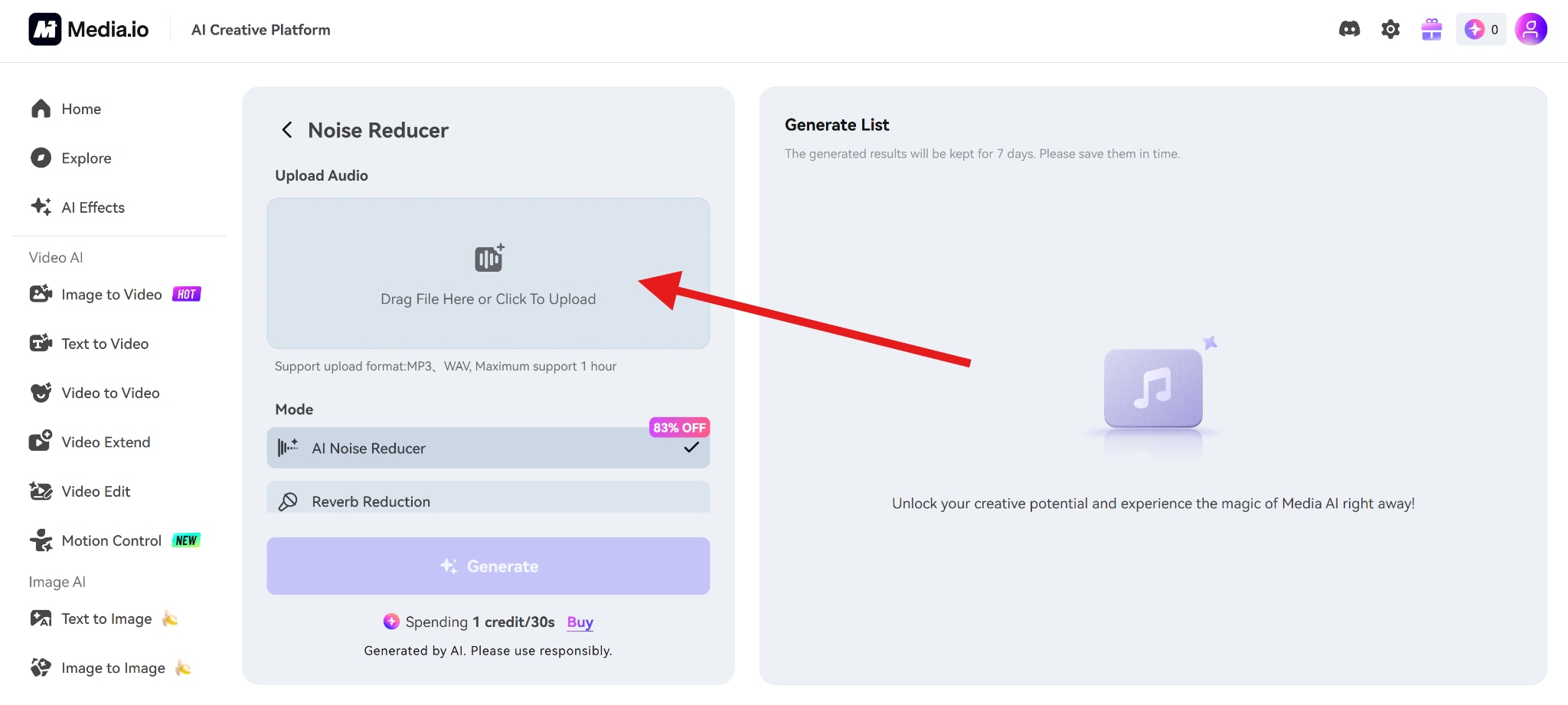
- Select the AI Noise Reducer and click Generate.
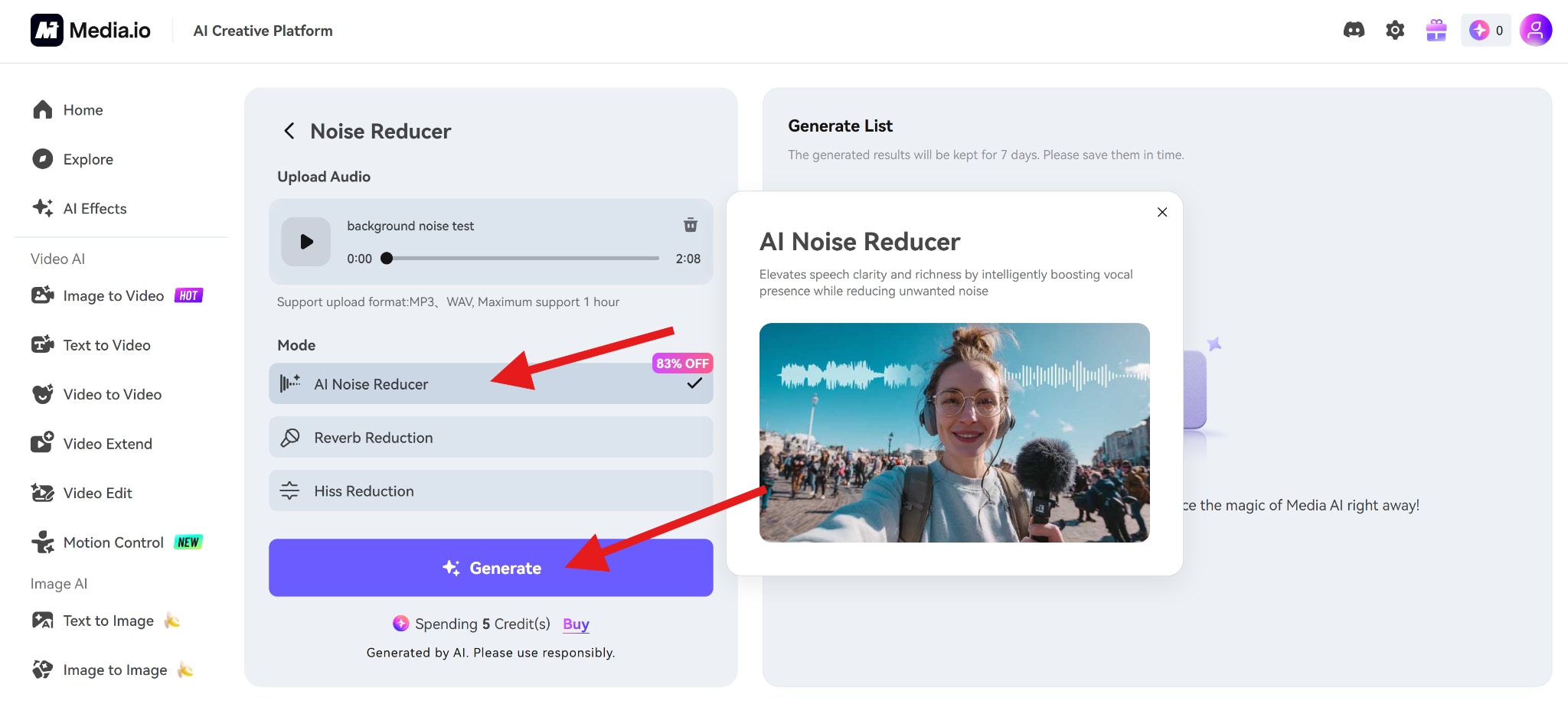
It's quick, simple, and efficient. After you use Media.io to remove background noise from your audio clip, you can then use that file version to continue your work in GarageBand.
Conclusion
GarageBand is more capable than many people realize, but it does have clear limitations. It works best for light, consistent background noise, and its built-in tools need to be used gently and thoughtfully to avoid affecting overall sound quality. Knowing when GarageBand is sufficient — and when it's time to switch to more advanced tools — is part of becoming a skilled audio editor.
AI noise reduction tools, on the other hand, offer greater convenience and efficiency. In most cases, they can remove background noise automatically without manual fine-tuning, delivering clean results in just a few clicks.


