
Have you noticed that background noise tends to stand out far more than we expect, especially in voice recordings? A faint hum, a subtle hiss, or even a distant environmental sound can go unnoticed while recording, but they become impossible to ignore once the audio is played back through headphones or speakers.
This problem is especially common in home-recorded voiceovers, podcasts recorded outside studio environments, online courses, explainer videos, interviews captured with basic microphones, and the list goes on. So, what can we do to remove background noise?
You may have heard of Audacity, a free audio editor. In this article, we will discuss the best ways to get rid of background noise in Audacity.
In this article
Reduce Background Noise Using the Audacity Noise Reduction Tool

Audacity's built-in Noise Reduction effect is the first thing you should try. It's the tool most users rely on among Audacity's background noise reduction features. It works by identifying unwanted sounds, such as hisses, hums, or room tones.
This method works best when the background noise is steady and consistent. Some examples include a constant room tone, electrical hum, fan, or air-conditioning noise. However, this feature is less effective when noise changes constantly or overlaps heavily with speech.
The Noise Reduction tool requires a short section of noise-only audio (often called "room tone") so that Audacity can learn what to remove. Here's how it works.
- Go to the Audacity website, download, and install the tool on your device.
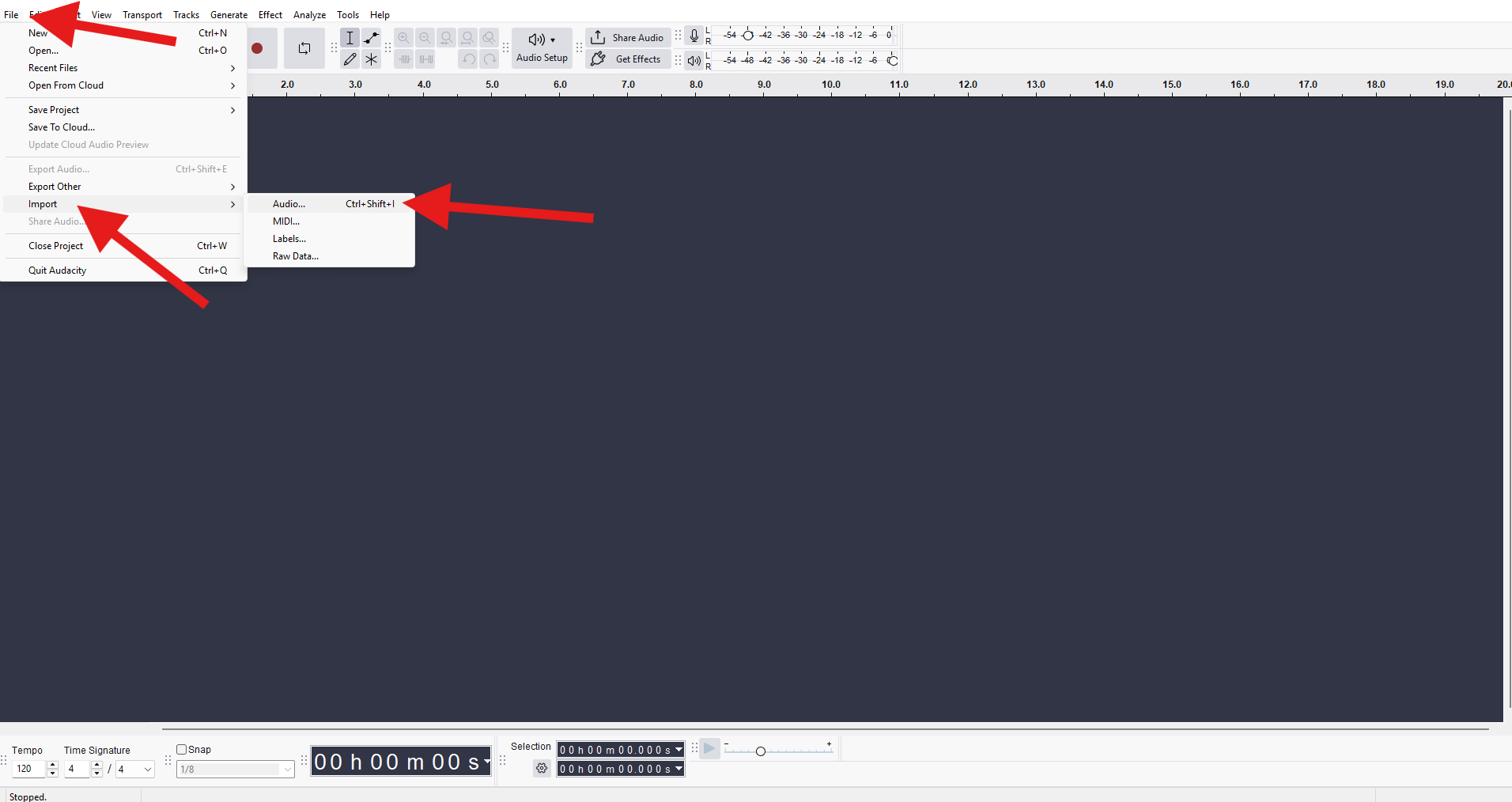
- Open Audacity, then click File > Import > Audio. After that, select and add the audio file you want to work.
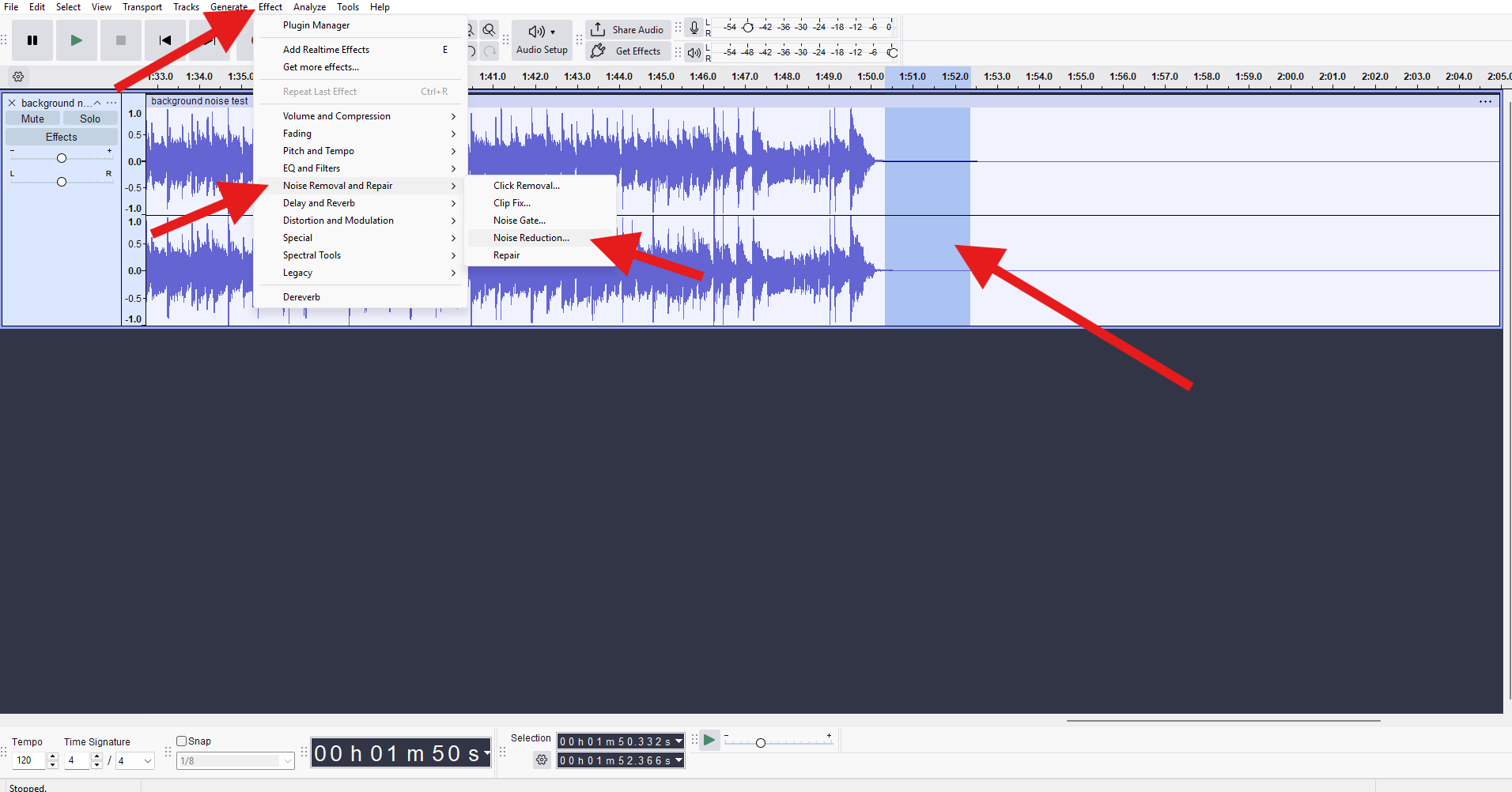
- Zoom in and select a clip from your audio recording that prominently features only background noise, then go to Effect > Noise Removal and Repair > Noise Reduction.
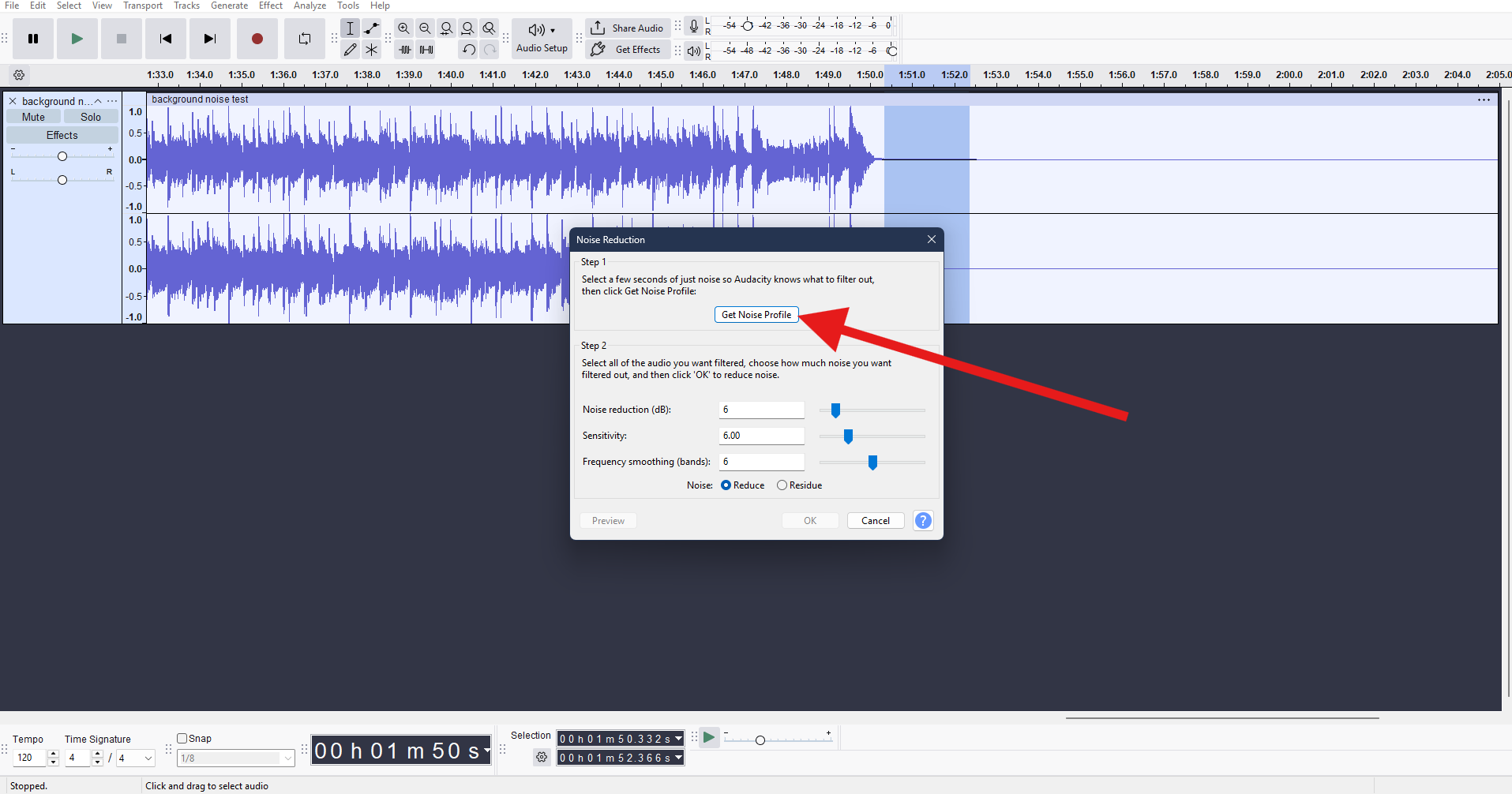
- Click on Get Noise Profile. This will let the software know which type of noise you want removed.
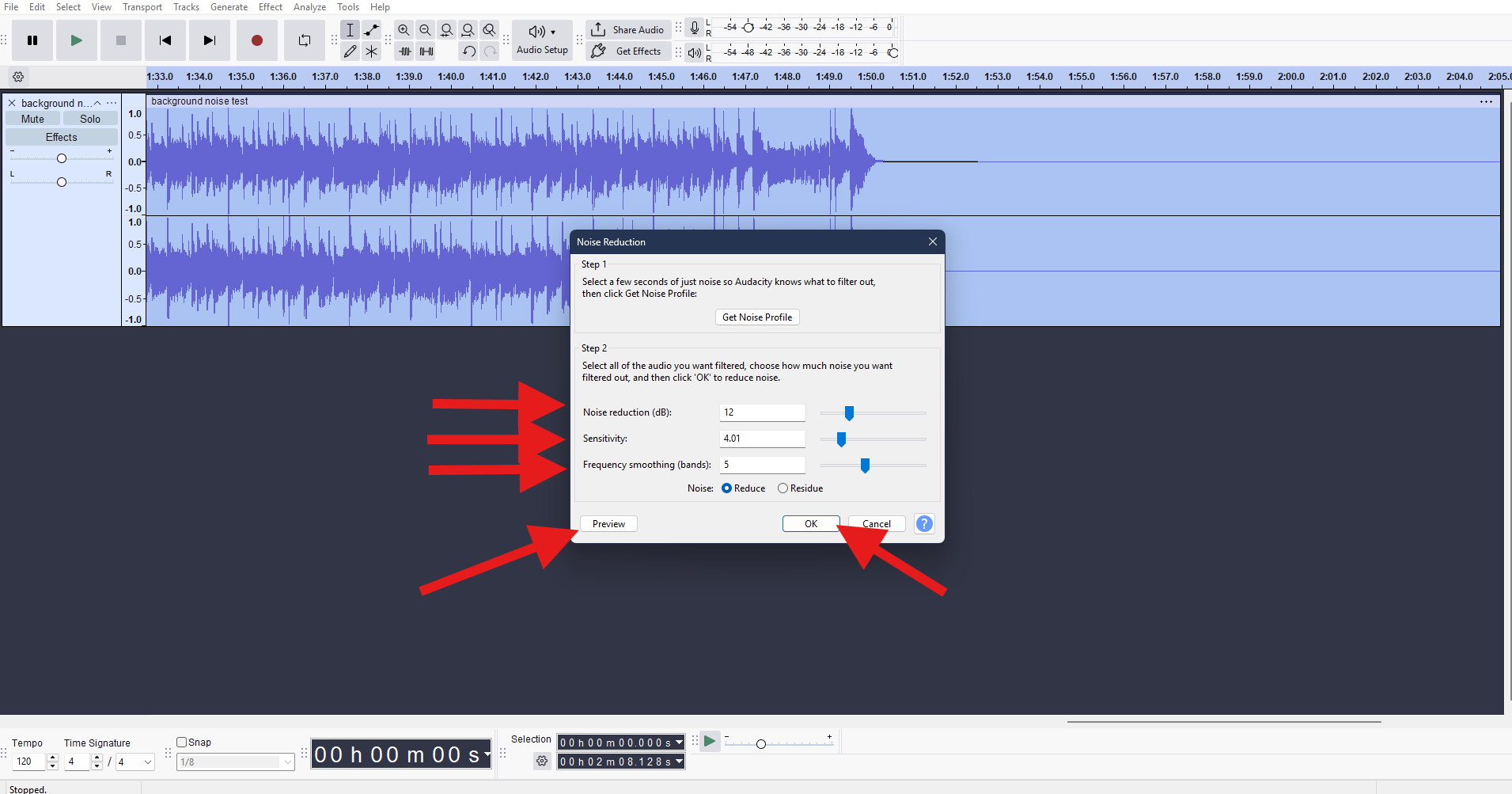
- Select the entire clip, then click Effect > Noise Removal and Repair > Noise Reduction again, and adjust the Noise Reduction, Sensitivity, and Frequency Smoothing sliders. Click on Preview to see how it sounds, and if it works for you, click OK.
Advanced Techniques for Specific Noises
In some cases, this might do the trick, but if you need to work on it further, Audacity has a few more noise-removal tricks up its sleeve.
Noise Gate
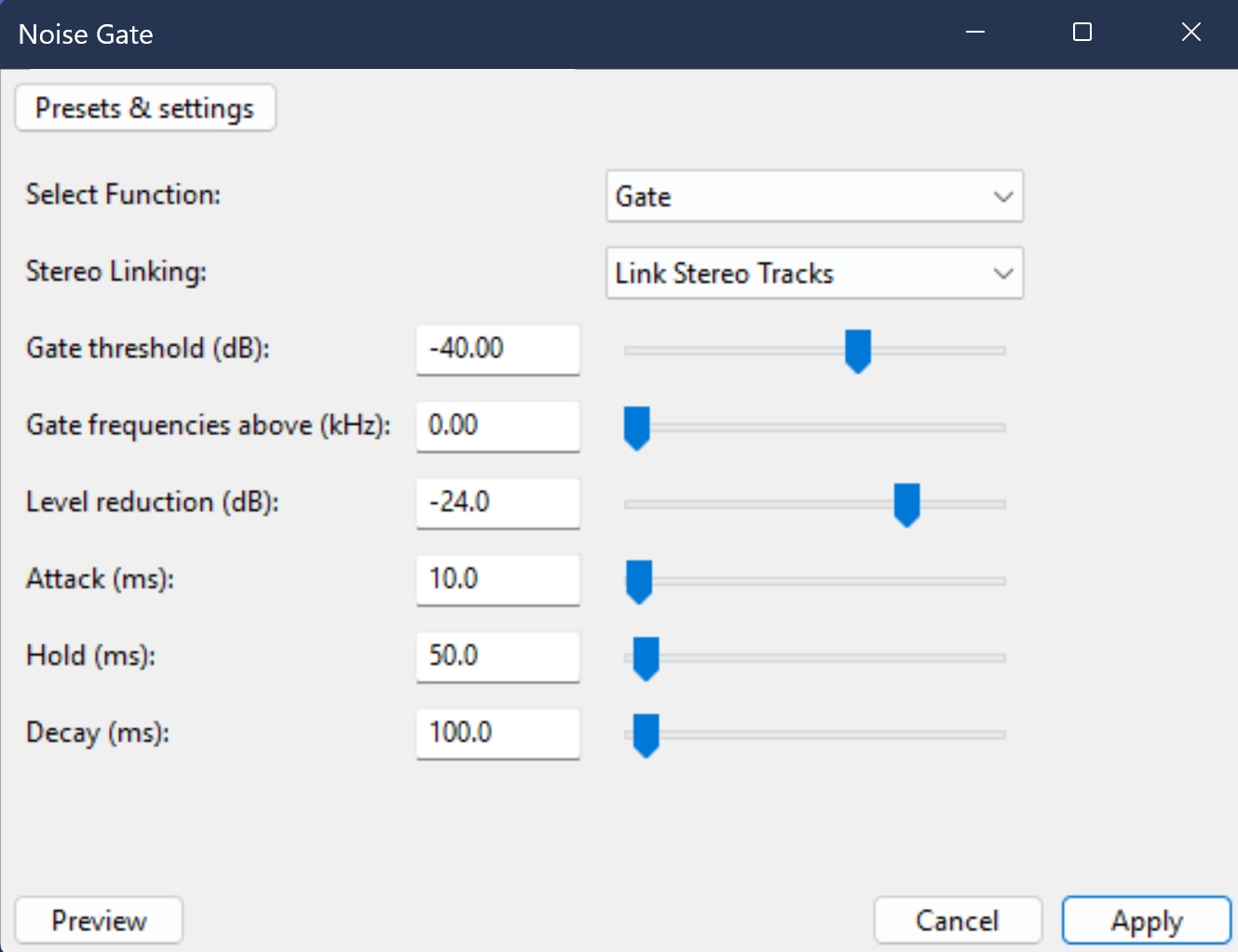
A Noise Gate reduces audio levels when sound drops below a defined threshold. Instead of removing noise completely, it mutes or lowers background sound during pauses between words or sentences. It's best used for intermittent noise, like breaths, gaps, and light traffic.
Best for: Reducing noise between vocal phrases.
To use it, go to Effect > Noise Removal and Repair > Noise Gate.
The best settings to start with:
- Threshold: -30 to -40 dB
- Attack: ~0.1 seconds
- Release: ~0.5 seconds
The gate closes when audio falls below the threshold, which helps silence background noise during gaps while leaving speech intact. If words are being cut off, the threshold is set too high.
Notch Filter
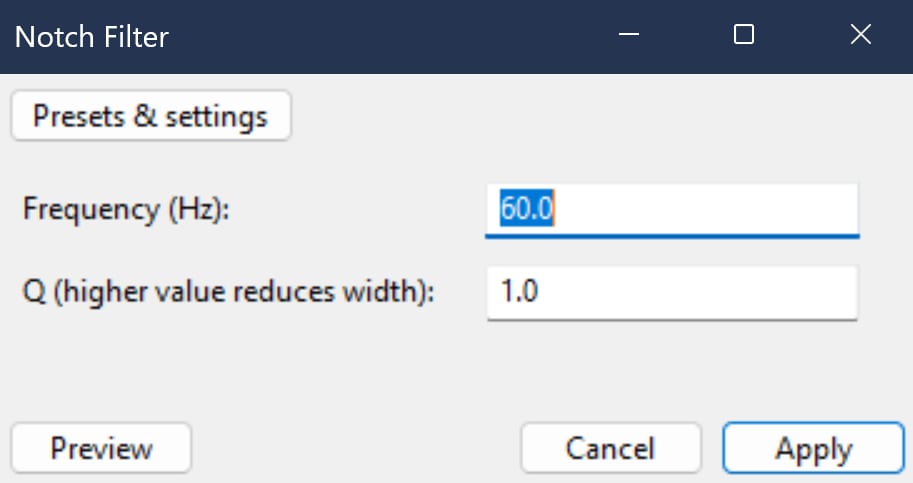
Some background noise appears at very specific frequencies. Here, we refer to electrical hums typically at 50 Hz or 60 Hz, depending on your region. It's an excellent feature for specific frequency noises like hums, whistling, ground loops, and similar sounds.
Best for: Eliminating a specific frequency hum.
You can find it under Effect > EQ and Filters > Notch Filter.
Recommended settings:
- Frequency: 50 Hz or 60 Hz
- Q-factor: 10–20 for a precise cut
This technique works best when the hum is clearly identifiable.
Post-Processing Tips:
After your background noise reduction task appears to be successful, you can try a few light post-processing tricks to restore balance and loudness.
- Normalize: Go to Effect > Volume and Compression > Normalize to bring the entire track to a consistent level.
- Amplify: If needed, go to Effect > Volume and Compression > Amplify and set the peaks to around -12 dB, which is a common target for voice recordings.
These steps will help compensate if you had any issues with volume caused by any noise-reduction feature Audacity has to offer, while keeping the audio within safe levels.
Remove Background Hum Without Damaging Voice in Audacity

A low-frequency hum often overlaps with the natural sound of the human voice, so if you try to remove it aggressively, you will also distort the voice in the recording. That's why you should use these features in moderation.
Using high-pass filters correctly: A gentle high-pass filter can reduce rumble without affecting speech clarity when used carefully.
Combining filters with noise reduction: Applying light filters before activating the noise reduction feature in Audacity produces cleaner results than relying on noise reduction alone.
Avoiding hollow or thin vocals: If the voices in your recording begin to sound empty or distant, take a step back. Reduce the intensity of all filters and noise reduction features you applied, and see how it sounds then.
Equalization as a cleanup tool: You can always try subtle EQ cuts for small adjustments. They are much safer than extreme adjustments and help maintain a natural tone.
Compression to mask the remaining noise: A subtle compression can make residual noise less noticeable. It does that by stabilizing vocal levels throughout the recording.
But you should never go overboard. Stacking effects can actually backfire. Using too many aggressive effects amplifies artificial sound artifacts and often makes the audio worse.
Audacity Noise Removal Limitations You Should Know
It's clear that Audacity is a powerful free tool, but it has clear limits. For example, if you have a recording with dynamic or changing noise, you will need some time to clean it up properly. Think of any noise that fluctuates over time. That's very difficult to capture accurately with a single noise profile.
Pushing noise reduction too far often sacrifices realism, and you have to learn when "good enough" is better than "perfect." Listeners tolerate mild background noise more easily than distorted or robotic voices.
AI-Based Alternative to Audacity Noise Reduction: Media.io

AI-based tools approach background noise differently. Instead of relying on noise profiles or fixed frequencies, they analyze speech patterns and automatically suppress non-speech elements. You can use them to remove all background noise from a recording with a single click.
AI handles complex background noise better because it is trained to adapt to changing noise and handle layered and inconsistent sounds. The biggest benefit, however, is that it reduces trial-and-error.
One of the best tools you can use directly from your browser is Media.io. It offers a very powerful noise-reduction feature, along with several other AI features for sound, photo, and video manipulation. It isolates speech and reduces background noise without requiring manual tuning.
The key advantages compared to traditional Audacity noise removal are:
- No noise profiling required
- Better results on inconsistent noise
- Faster workflow for non-technical users
If you are editing audio for podcasts and interviews, voiceovers recorded at home, or restoring older audio files, you should give this tool a shot. Here's how it works.
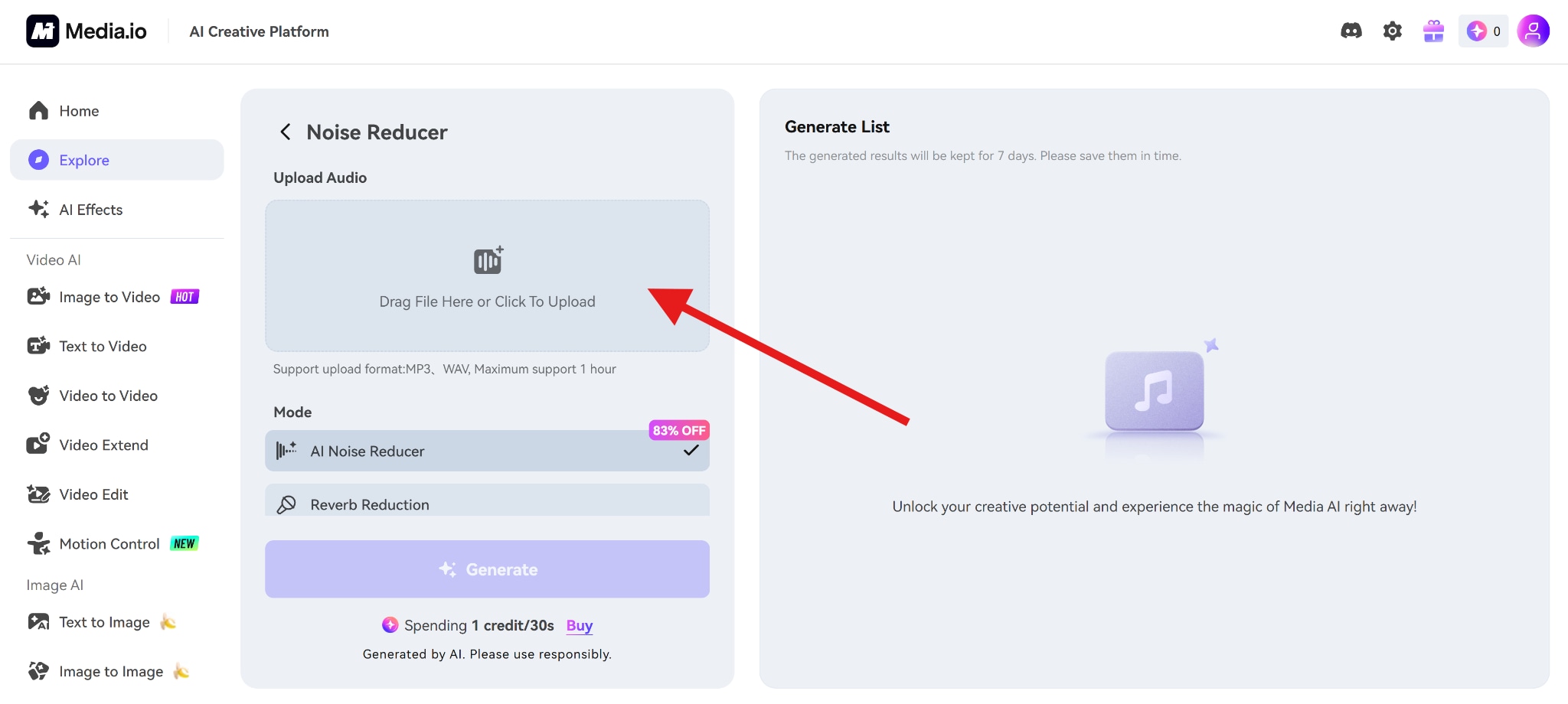
- Visit the Noise Reducer page and click to upload an audio file.
- Select the AI Noise Reducer and click on Generate.
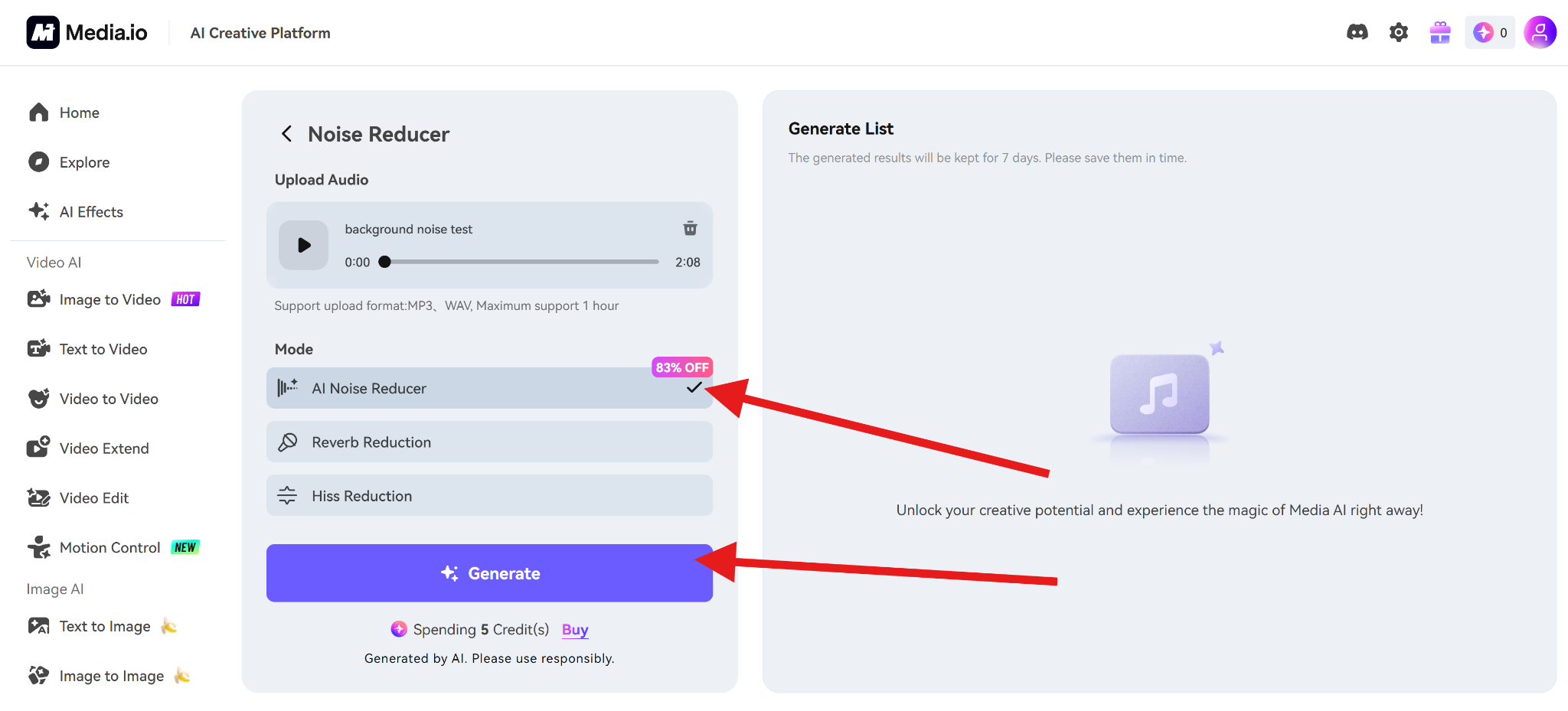
- In a few moments, the AI will generate a new audio file. You can listen to it and download it back to your device. If you want, you can upload that version to Audacity for a few more tweaks to make it perfect.
Conclusion
Audacity is an excellent choice for background noise reduction when the noise is steady and the recordings are reasonably clean. Its Noise Reduction, Noise Gate, and filtering tools can significantly improve clarity when used with restraint.
However, when noise is complex or constantly changing, AI-based cleanup often delivers better results with less effort. Knowing when to switch tools is just as important as knowing how to use them.
FAQ
-
Does Audacity work on Mac?
Yes. Audacity supports macOS, Windows, and Linux. -
Can Audacity remove wind noise?
It can reduce light wind noise, but strong gusts and distortion are difficult to fix. -
How to remove clicks and pops in Audacity?
Use the Click Removal effect or manual spectral editing. -
How to batch process multiple files?
Use Audacity's Macros feature to apply effects across files automatically.


