
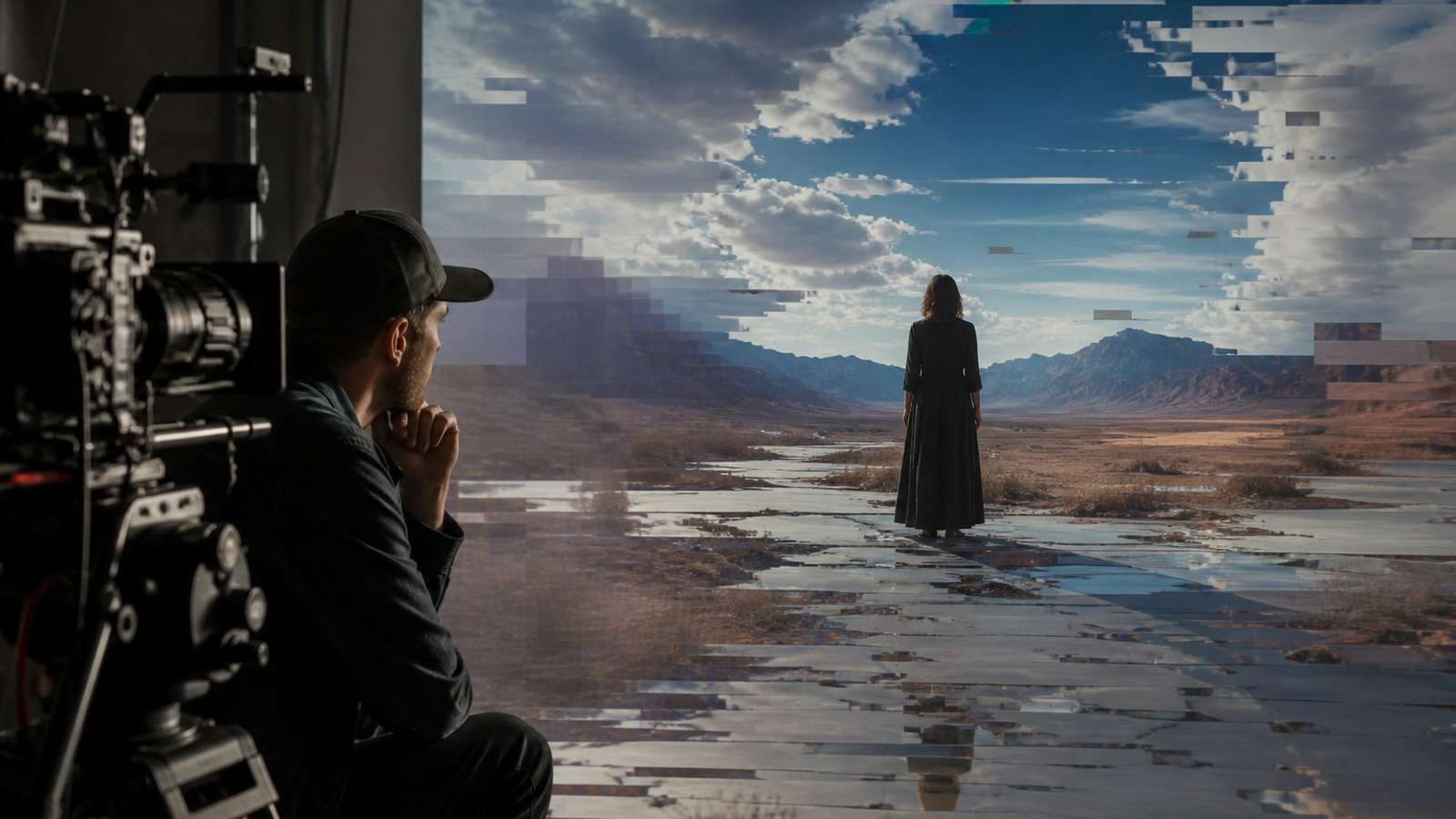
An AI video generation failure can mean two very different things. The service may fail technically—stuck in a queue, timing out, rejecting the prompt or returning no file—or it may complete successfully and produce an unusable clip with distorted anatomy, character drift, flicker, warped motion, ignored directions or broken audio.
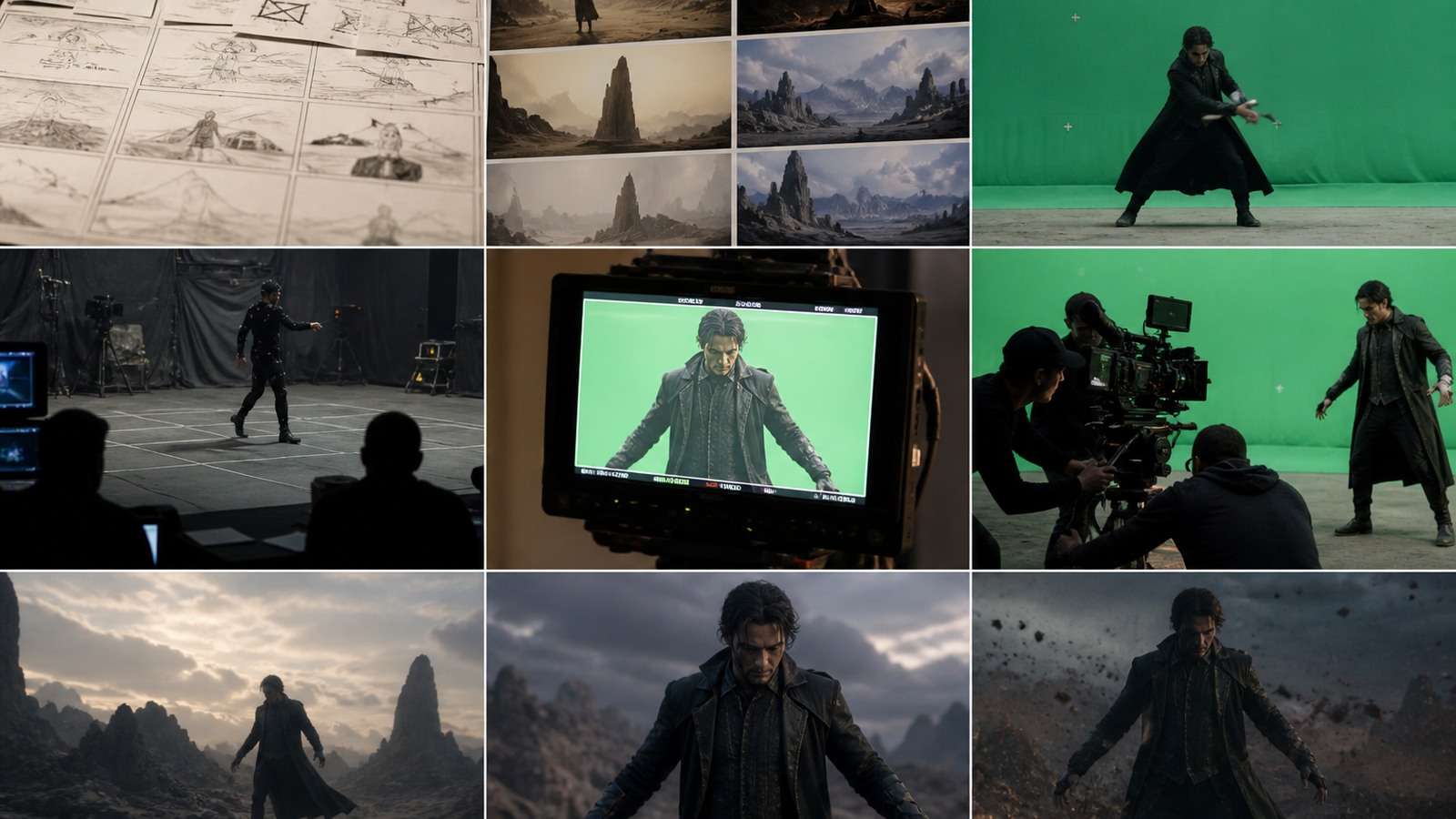
Fixing the problem starts with identifying the layer that failed. Rewriting a prompt will not repair an account timeout. Upscaling will not correct impossible hand contact. Regenerating an entire sequence is wasteful when only one frame region, spoken line or transition is defective. This guide provides a diagnostic workflow for both technical errors and visual failures.
In This Article
Classify the AI Video Generation Problem Before Fixing It
| Failure layer | Typical symptom | First diagnostic |
|---|---|---|
| Service | Queue never finishes, timeout or server error | Check platform status, job ID and retry policy |
| Input | Upload rejected or source produces poor motion | Inspect file format, resolution, crop and source defects |
| Prompt | Action, camera or style is ignored | Look for conflicts and too many priorities |
| Identity | Face, age, wardrobe or product changes | Audit reference roles and consistency |
| Motion | Warping, morphing, impossible contact or physics | Inspect start/end states and occlusion |
| Temporal | Flicker, texture crawl or unstable background | Compare neighboring frames and moving boundaries |
| Audio | Lip sync, voice, dialogue timing or ambience fails | Separate audio layers and inspect source track |
| Export | Corrupt file, wrong dimensions or playback issue | Test the master in another player before re-rendering |
Save the prompt, inputs, model, duration, aspect ratio, job ID and error message before attempting a fix. Without a record, each retry becomes a new experiment and it is impossible to know whether the platform recovered or the changed instruction solved the problem.
AI Video Generation Stuck, Timed Out or Failed to Start

When AI video generation is not working, begin outside the creative prompt. A queue may be delayed by platform load, a safety review, unsupported input, expired authentication, exhausted credits or a provider outage.
- Preserve the job identifier. Do not repeatedly click Generate and create duplicate paid jobs.
- Check service status and account state. Confirm credits, plan limits, authentication and current incidents.
- Validate the input locally. Open the image, audio or video and confirm it is not corrupt. Use a common codec and a supported file size.
- Remove external dependencies. Expired signed URLs and blocked cloud files can make a valid prompt fail.
- Run a minimal test. Use one simple input and a short duration. If it fails too, the issue is probably service or account related.
- Retry with backoff. Wait between attempts and keep the same controlled input so the result is diagnostically useful.
An AI video generation timeout does not prove that the model could not understand the scene. Do not rewrite a detailed prompt until a minimal known-good job succeeds. If a provider returns a technical error repeatedly, record the time, job ID, model and input type for support.
When the Prompt Is Rejected
Separate safety rejection from syntax or length limits. Remove personal data, unauthorized likeness requests and unnecessary sensitive wording. For a benign scene, simplify the description without disguising the intent. Do not attempt to bypass a platform’s safety system.
Why AI Video Faces, Hands and Bodies Break
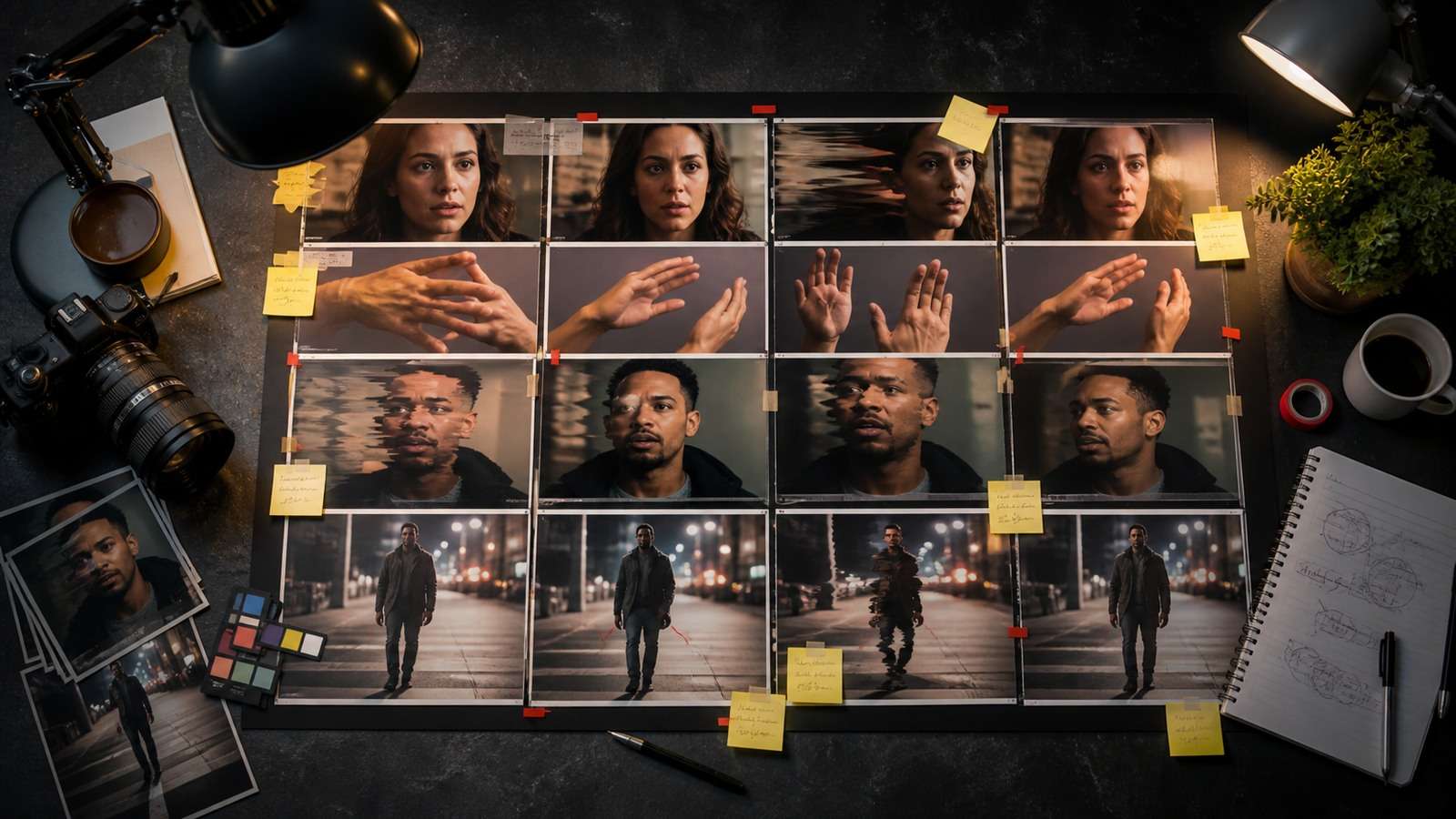
Hands compress many joints, overlaps and contact relationships into a small moving region. Faces combine identity, expression, speech and constantly changing geometry. These details become especially difficult when they are small in frame, motion-blurred, occluded or forced to interact with another person or object.
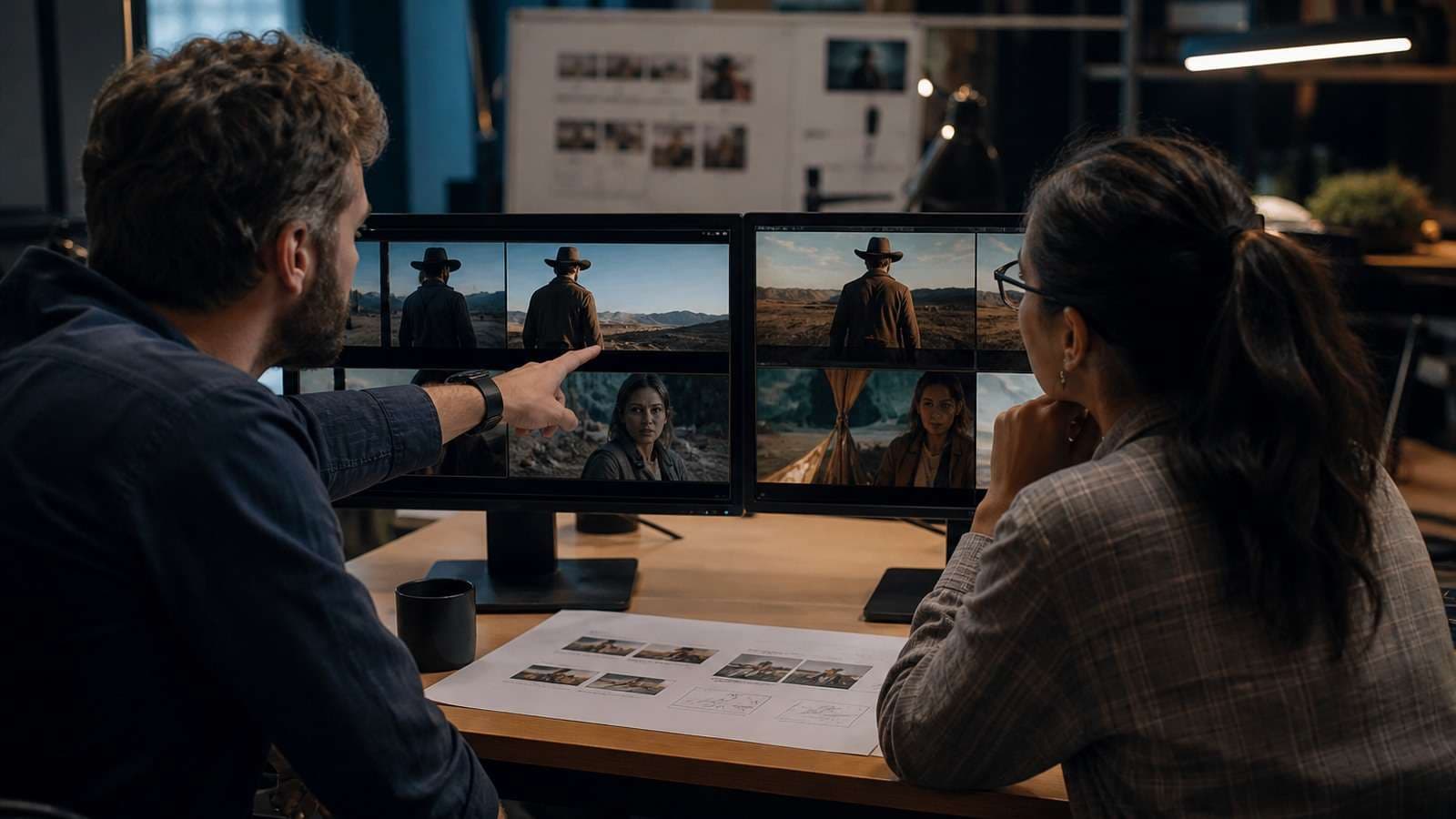
Practical creator tests and technical explainers converge on the same remedy: reduce ambiguity. A stable identity reference replaces a broad text description; a hand-pose reference replaces an invented gesture; start and end states constrain the motion path; and deliberate framing determines how much detail the model must resolve.
Fix AI Video Hand Distortion
- Show the complete hand when possible; avoid hiding critical fingers behind an object at the start.
- Describe the initial grip and final grip rather than only “she picks it up.”
- Use one object interaction per shot.
- Provide a pose or contact reference when the gesture is commercially important.
- Frame the hand large enough for the model to resolve, but not so close that tiny errors dominate.
- Generate the interaction as an isolated test before producing the full scene.
Start: her right hand is open beside the cup, palm facing inward, all five fingers visible. End: her thumb and first two fingers hold the cup handle while the remaining fingers rest naturally below it. The cup remains rigid and upright. Static medium close-up; no other hand enters the frame.
Fix AI Video Face Distortion and Identity Drift
A text phrase such as “a woman with dark hair” describes a category, not one person. Across shots, several different faces may satisfy it. Use coherent multi-angle references and explicitly assign them to facial identity. Media.io’s AI Character Turnaround Sheet can establish stable viewing angles before motion generation.
Do not mix photographs with different ages, heavy filters, major hairstyle changes and inconsistent facial proportions. Separate permanent identity from changeable wardrobe and environment. Test a close-up, profile and speaking shot early because easy wide shots can hide identity weakness.
How to Fix Character Drift, Flickering, Warping and Morphing

AI video character drift is a continuity problem. The model has several valid interpretations and no sufficiently strong source of truth. Repeating more facial adjectives in every prompt can make matters worse by introducing slightly different definitions.
Create a character bible containing approved reference files, identity-only descriptors, wardrobe, scale, hero props and forbidden changes. For each shot, describe what changes and explicitly preserve what does not.
Flickering and Texture Crawl
AI video flickering often appears on fine patterns, hair, foliage, reflections, text and moving edges. Upscaling a flickering clip may make the instability sharper rather than fixing it.
- Simplify high-frequency textures in the source image.
- Avoid tiny text or detailed repeating patterns on moving objects.
- Reduce simultaneous subject and camera motion.
- Use a cleaner, higher-resolution start frame.
- Check whether compression introduced block or banding artifacts after generation.
- Replace a short defective interval instead of smoothing the entire clip aggressively.
Warping and Morphing
AI video warping usually indicates that the model cannot maintain geometry through the requested motion. Common triggers include rotation beyond the information available in a single source image, body parts passing behind objects, two subjects touching, and camera moves that reveal unseen sides of a product or room.
Choose a movement the source can support. A frontal product image is suitable for a restrained push-in, not necessarily a complete rear reveal. For a broad rotation, supply multiple views and identify them as one object. If the scene must show complex physical action, divide it into shots around stable poses.
When the AI Video Prompt or Camera Direction Is Ignored
An AI video prompt ignored problem is frequently a priority conflict. The model is asked to preserve a face, invent a room, animate hands, change wardrobe, orbit the subject, add dialogue and show a product label in a few seconds. It completes the highest-probability parts and drops others.
Rewrite the scene as production layers:
- Reference roles: which file controls identity, product, environment, motion or voice?
- Starting state: where is every important subject and object?
- Primary change: what one action must happen?
- Camera: shot size, angle, movement, speed and end state.
- Lighting: source, direction and stability.
- Preservation: what must stay unchanged?
- Audio: speaker, dialogue, effects, ambience and music.
Wrong Camera Movement
An AI video camera movement wrong result may come from incompatible terms such as “locked camera” and “dramatic orbit,” or from a move that conflicts with the subject’s motion. Use conventional direction—slow tracking left, locked overhead, controlled half-orbit—and define where it ends. Avoid stacking dolly, crane, pan and zoom in one short beat.
Prototype a simpler shot with the Media.io AI Video Generator or animate a stable source using Image to Video. A controlled reference test helps separate an unclear visual concept from a model-specific limitation.
AI Video Lip-Sync and Audio-Sync Failures
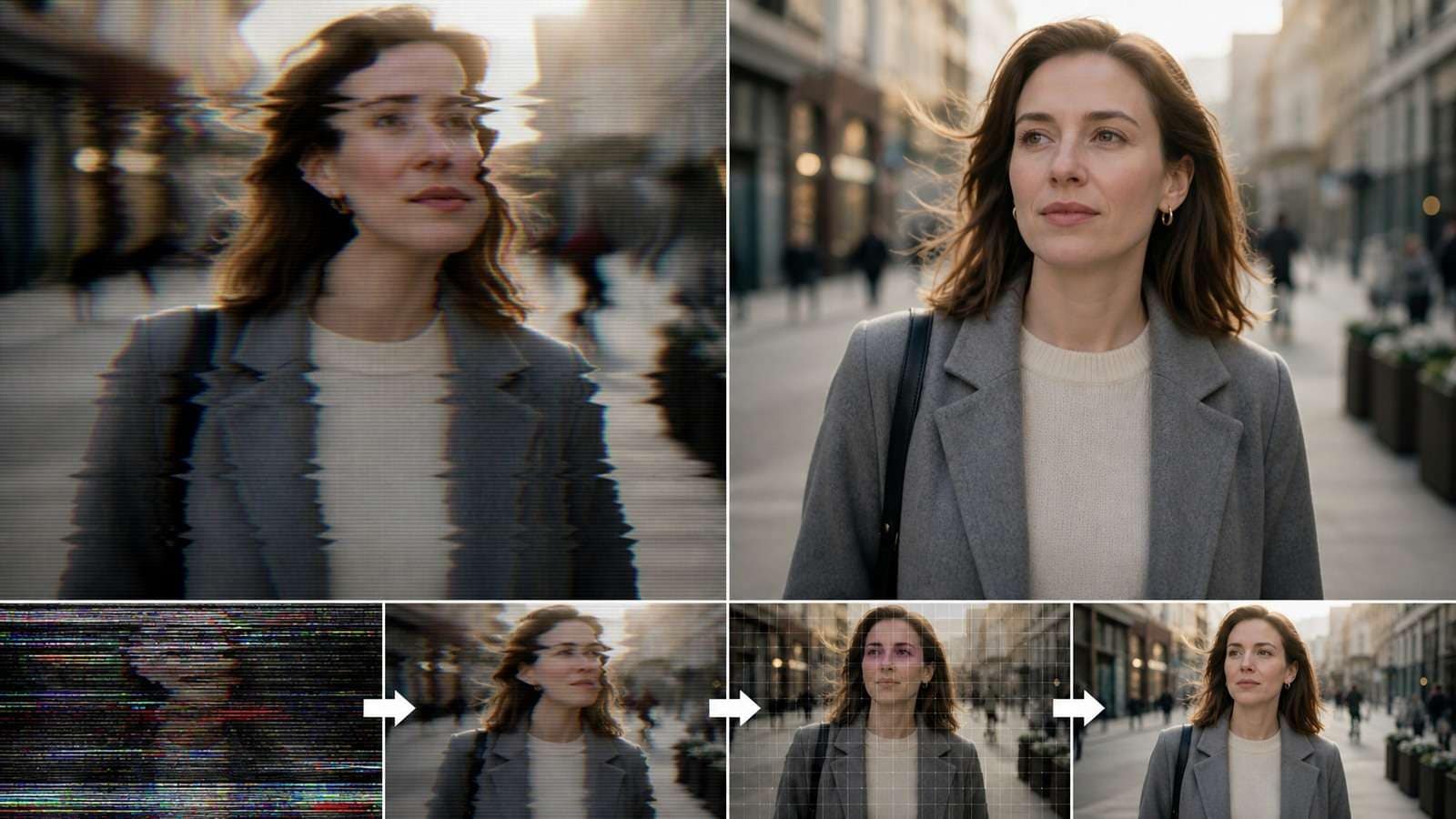
AI video lip sync failure is not always a mouth-animation problem. The audio may contain music, noise, overlapping speakers, long silences or speech that does not match the expected frame rate and clip duration.
- Use a clean voice track without background music when the model expects speech-driven animation.
- Assign one visible speaker per shot unless the model explicitly supports multi-speaker control.
- Keep the face large, unobstructed and oriented toward the camera.
- Match the emotional expression to the voice.
- Test unusual names and non-English pronunciation in a short segment.
- Do not stretch the final video independently after lip sync.
Extract and inspect the source speech with a video-to-audio converter. When necessary, follow a verified noise-reduction workflow before another lip-sync pass. Add music after the speech-driven render rather than mixing it into the control track.
Audio Drifts Gradually Out of Sync
Gradual AI video audio sync issues often point to timeline conversion, variable frame rate or separate duration changes. Confirm the master frame rate, do not independently time-stretch only one stream, and compare sync at the beginning, middle and end. If only one segment slips, replace that section rather than shifting the whole soundtrack.
A Cost-Efficient AI Video Troubleshooting Workflow
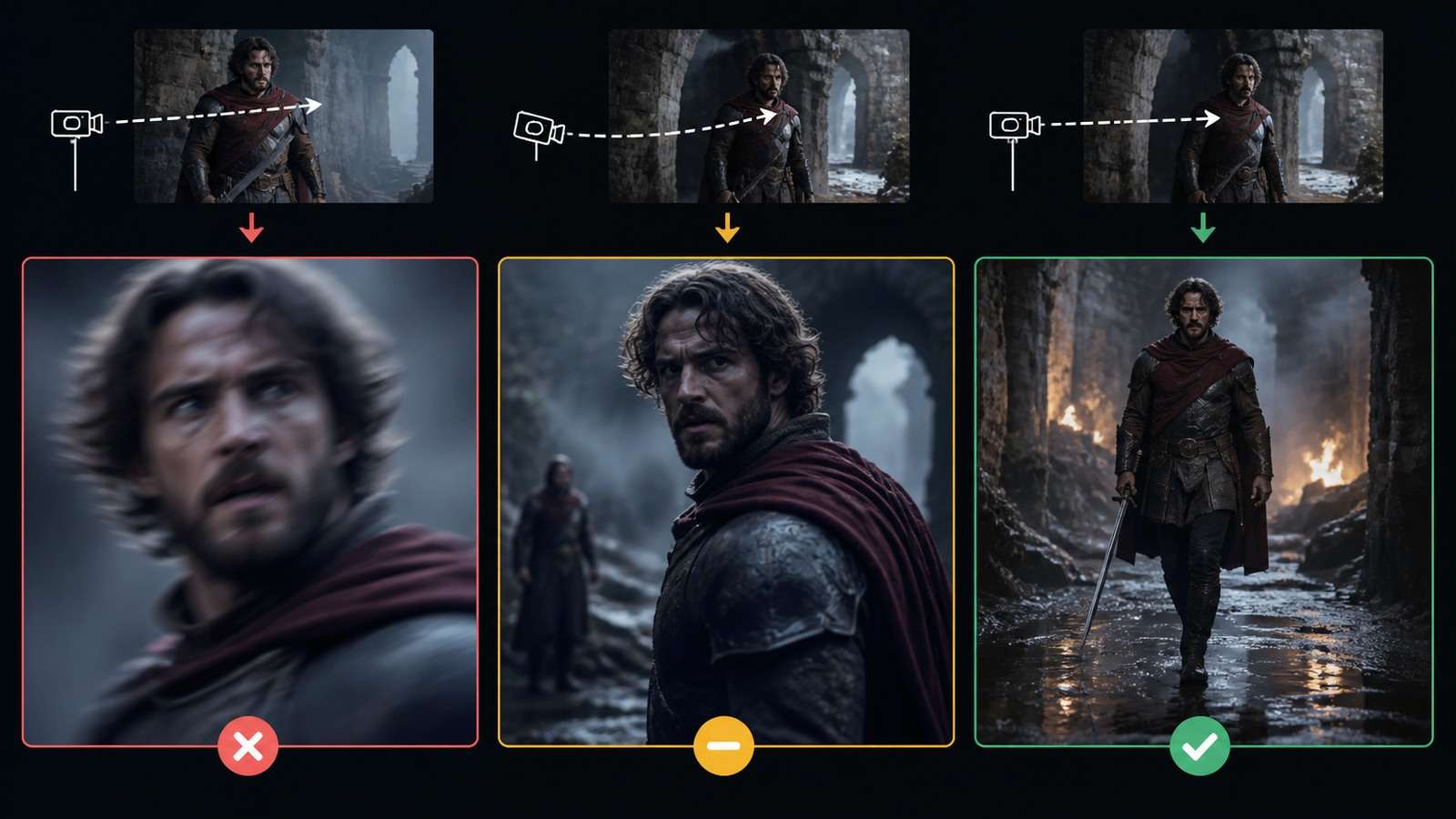
- Label the failure. Choose service, input, prompt, identity, motion, temporal, audio or export.
- Freeze everything that worked. Save the approved prompt, references, seed or settings where available.
- Crop the test to the failing behavior. Generate the shortest clip that can prove the correction.
- Change one variable. Replace the source, simplify the action or alter the camera—not all three.
- Review the hardest detail first. Inspect hands, identity, product shape, dialogue or contact before admiring lighting.
- Repair locally. Use inpainting, interval regeneration, cutaways or a replacement shot.
- Assemble and finish. Join approved sections in the Media.io online video editor.
- Export a clean master. Add proofread captions with the video caption generator and create platform copies separately.
Repair Versus Regenerate Decision Table
| Condition | Best action |
|---|---|
| One small background or product detail is wrong | Local edit or masked replacement |
| One short interval flickers | Replace the interval or hide it with a motivated cutaway |
| Identity is wrong from the first frame | Replace the reference and regenerate |
| Camera and action fundamentally conflict | Rewrite the shot before regenerating |
| Service returned no usable file | Resolve service/input issue before creative changes |
| Clip is good but soft after export | Check compression, then use a video enhancement workflow carefully |
Enhancement is a finishing tool, not a substitute for coherent generation. It may improve perceived sharpness and noise, but it cannot reliably rebuild broken anatomy, object permanence or causality.
If the final repair changes the crop or leaves inconsistent framing, use a controlled video cropper to standardize delivery versions without altering the approved master sequence.
Frequently Asked Questions
-
Why does AI video generation fail?
Failures may come from service outages, queue limits, unsupported inputs, prompt conflicts, weak references, difficult geometry, temporal inconsistency, audio problems or export errors. Identify the layer before changing the prompt. -
What should I do when AI video generation is stuck?
Save the job ID, check status and credits, validate the input, avoid duplicate submissions, run a minimal known-good test and retry with reasonable backoff. -
How can I prevent distorted hands?
Use a clear pose or contact reference, describe start and end states, keep one interaction per shot, show the hand clearly and test the difficult gesture first. -
How do I stop character drift?
Use coherent multi-angle identity references, separate face and wardrobe roles, preserve fixed traits explicitly and maintain a character and scene-state bible across shots. -
Can an AI video enhancer remove generation artifacts?
Enhancement can improve softness, noise or compression. It cannot reliably repair broken anatomy, impossible physics, identity changes or structural warping. -
Why is my AI video audio out of sync?
The source may contain noise or multiple speakers, or the audio and video may have been stretched or converted differently. Use a clean voice track and verify duration and frame rate through the timeline.


