
A free offline AI image generator gives you more than unlimited prompts. It gives you model choice, private source-image processing, reproducible workflows, custom LoRAs, and the ability to keep generating when a cloud service changes its limits. The trade-off is that you become responsible for the GPU, drivers, models, storage, extensions, and broken updates.
In this article
What Does an Offline AI Image Generator Actually Mean?
Offline means inference happens on your computer after required components are installed. It does not necessarily mean the installer, model manager, extension browser, update process, or optional nodes never connect to the internet.
| Benefit | What it enables | Hidden responsibility |
| Privacy | Local processing of portraits, product concepts, and unreleased assets | Audit extensions, telemetry, metadata, and cloud-connected nodes |
| Control | Choose checkpoints, LoRAs, samplers, ControlNet, resolution, and workflow | Manage compatibility between all components |
| Volume | Generate without per-image cloud credits | Pay through hardware, electricity, time, and failed runs |
| Reproducibility | Save seeds, parameters, graphs, and exact model versions | Preserve environments before updates break them |
Across the researched high-view tutorials, the strongest user insight is that the interface is only the orchestration layer. Image quality comes from the selected model, prompt, conditioning, sampling, reference inputs, and post-processing. Switching interfaces while keeping the same model may change usability more than visual capability.
Hardware Requirements for Local AI Image Generation
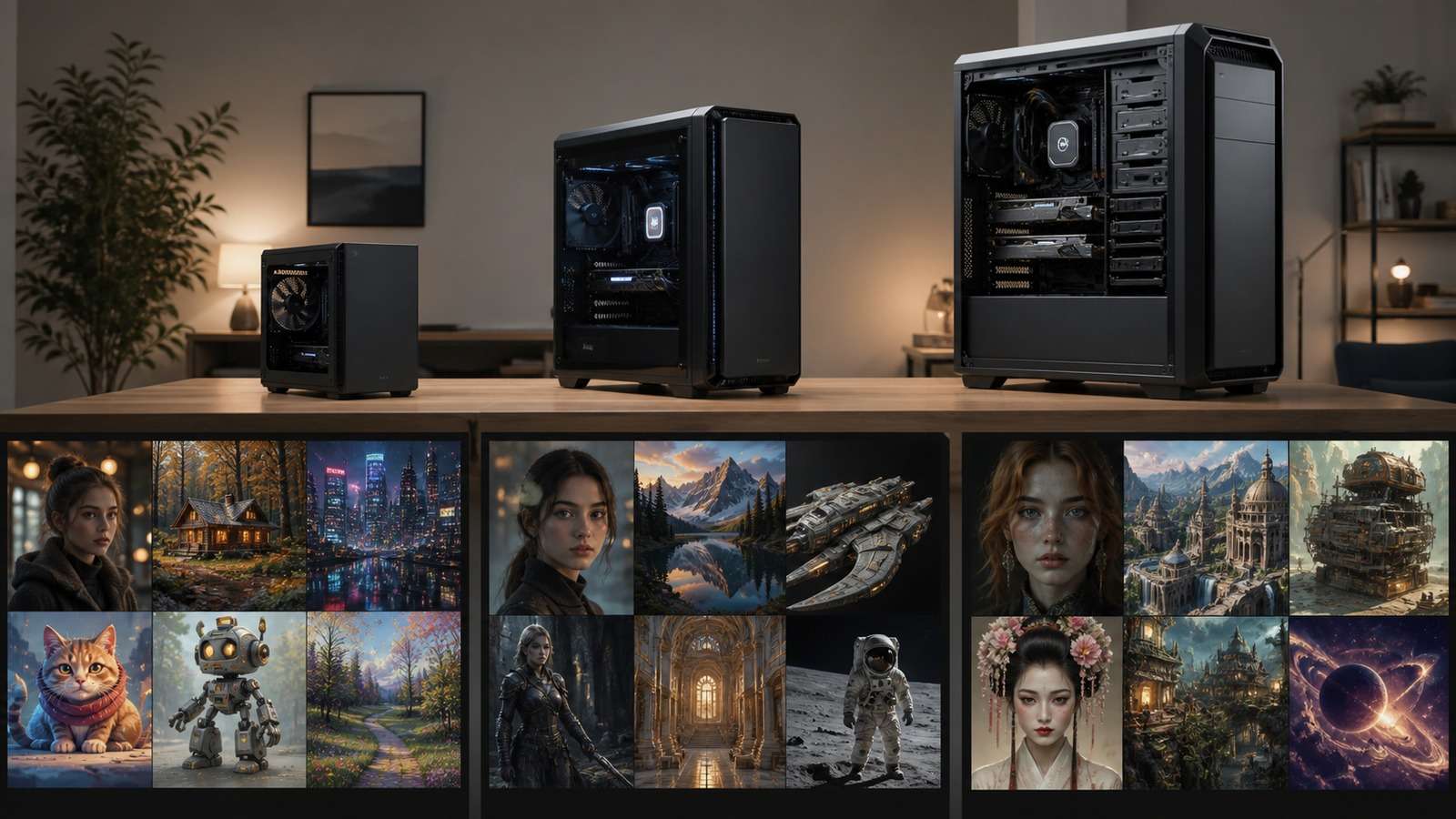
| Approximate VRAM | Practical expectation |
| 4-6GB | Older or lighter models, low resolution, aggressive optimization, and limited simultaneous controls |
| 8GB | Useful entry point for optimized Stable Diffusion workflows and moderate image sizes |
| 12-16GB | More comfortable larger-model use, ControlNet, higher resolution, LoRAs, and fewer offloading compromises |
| 24GB+ | Greater freedom for large models, training, multiple controls, batch work, and research workflows |
System RAM and storage also matter. Model collections grow quickly, and temporary files, VAEs, text encoders, LoRAs, upscalers, and duplicate checkpoints can consume hundreds of gigabytes. Prefer an SSD and leave enough free space for updates and generated assets.
Best Free Offline AI Image Generators Compared
1. ComfyUI: Best for Maximum Control
ComfyUI represents the workflow as a node graph. This makes every stage visible: model loading, text encoding, latent creation, conditioning, sampling, decoding, upscaling, masking, and saving.
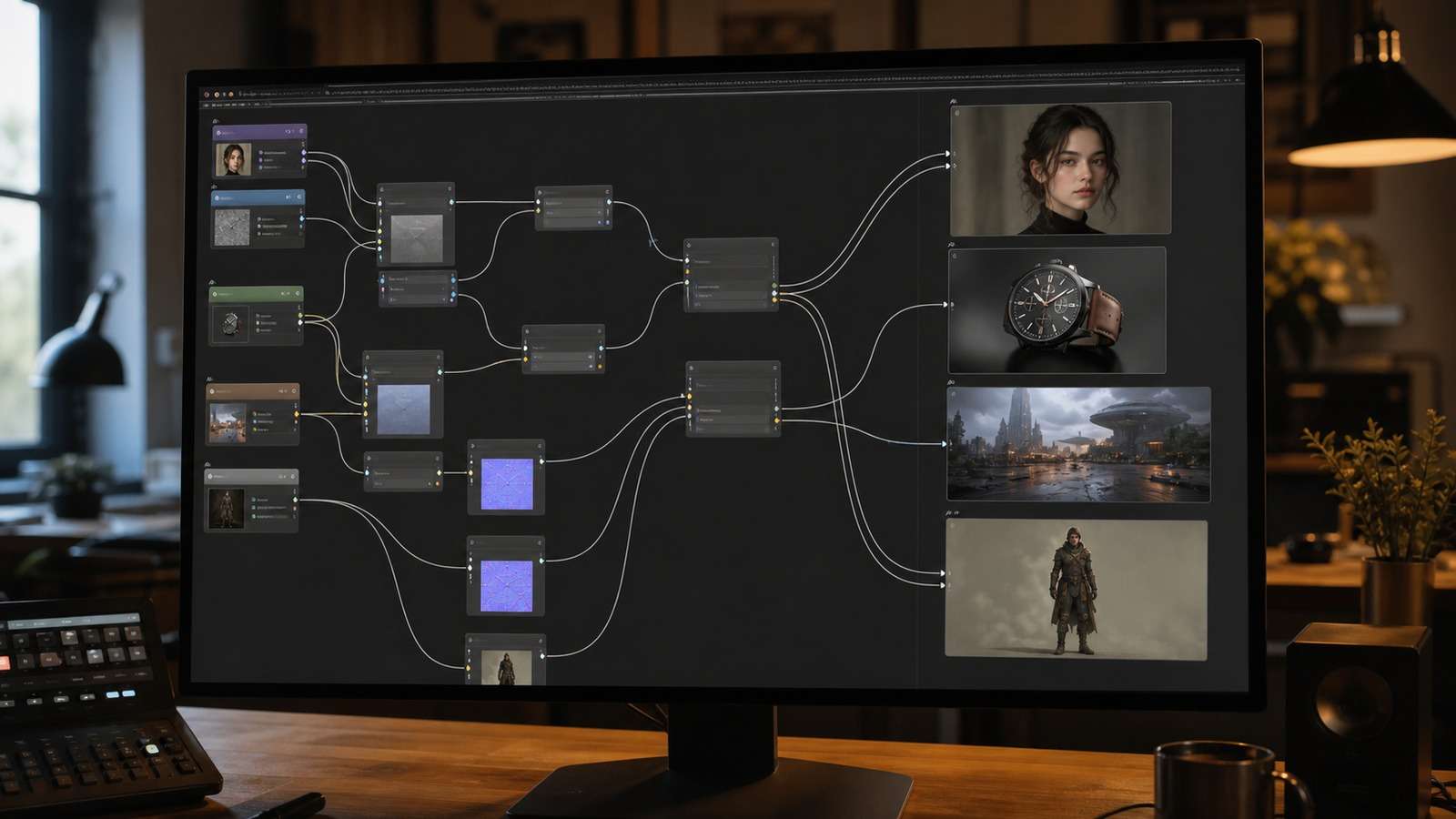
Choose it for: complex reference workflows, ControlNet, automation, batch variants, image-to-image, consistent characters, inpainting, video extensions, and reproducible graphs. Avoid it when: you want one simple prompt box and do not want to diagnose missing custom nodes.
The main lesson from the 730K-view and 660K-view tutorials is that ComfyUI becomes easier once users stop treating the graph as one intimidating system. Learn one minimal text-to-image graph, save it, then add one capability at a time.
2. Forge or Stable Diffusion Web UI: Best Familiar Interface
Forge-style and Stable Diffusion web interfaces organize generation through familiar panels for prompts, models, samplers, dimensions, image-to-image, inpainting, ControlNet, and extensions.
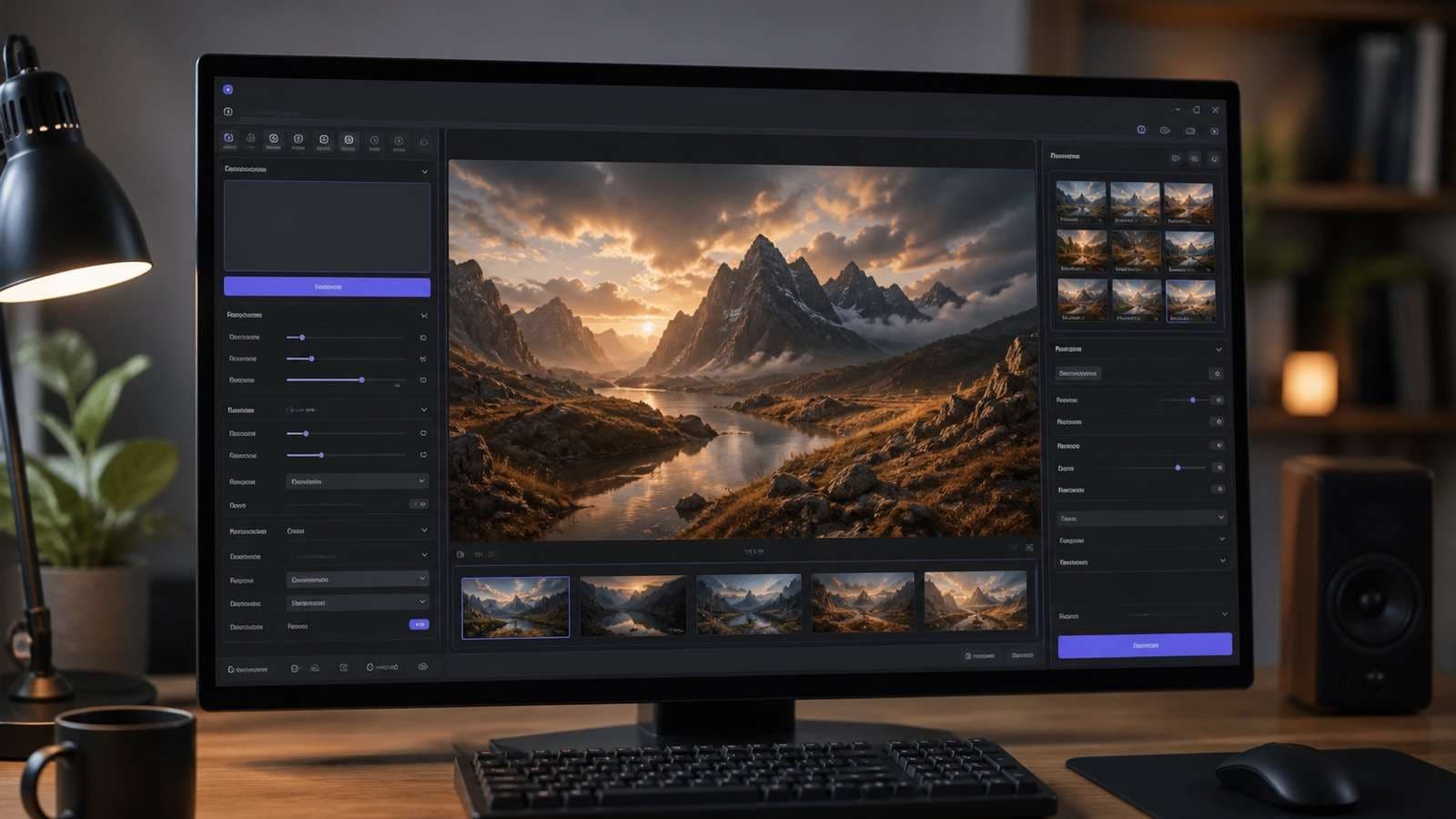
Choose it for: users who want broad Stable Diffusion functionality without manually connecting nodes. Trade-off: complex workflows can become hidden across tabs, extensions, and settings, making exact reproduction harder than a saved graph.
3. InvokeAI: Best for Canvas-Based Creation
InvokeAI is especially useful when generation and editing need to happen on a visual canvas. Rather than accepting a complete frame, creators can expand, mask, replace, and refine regions.
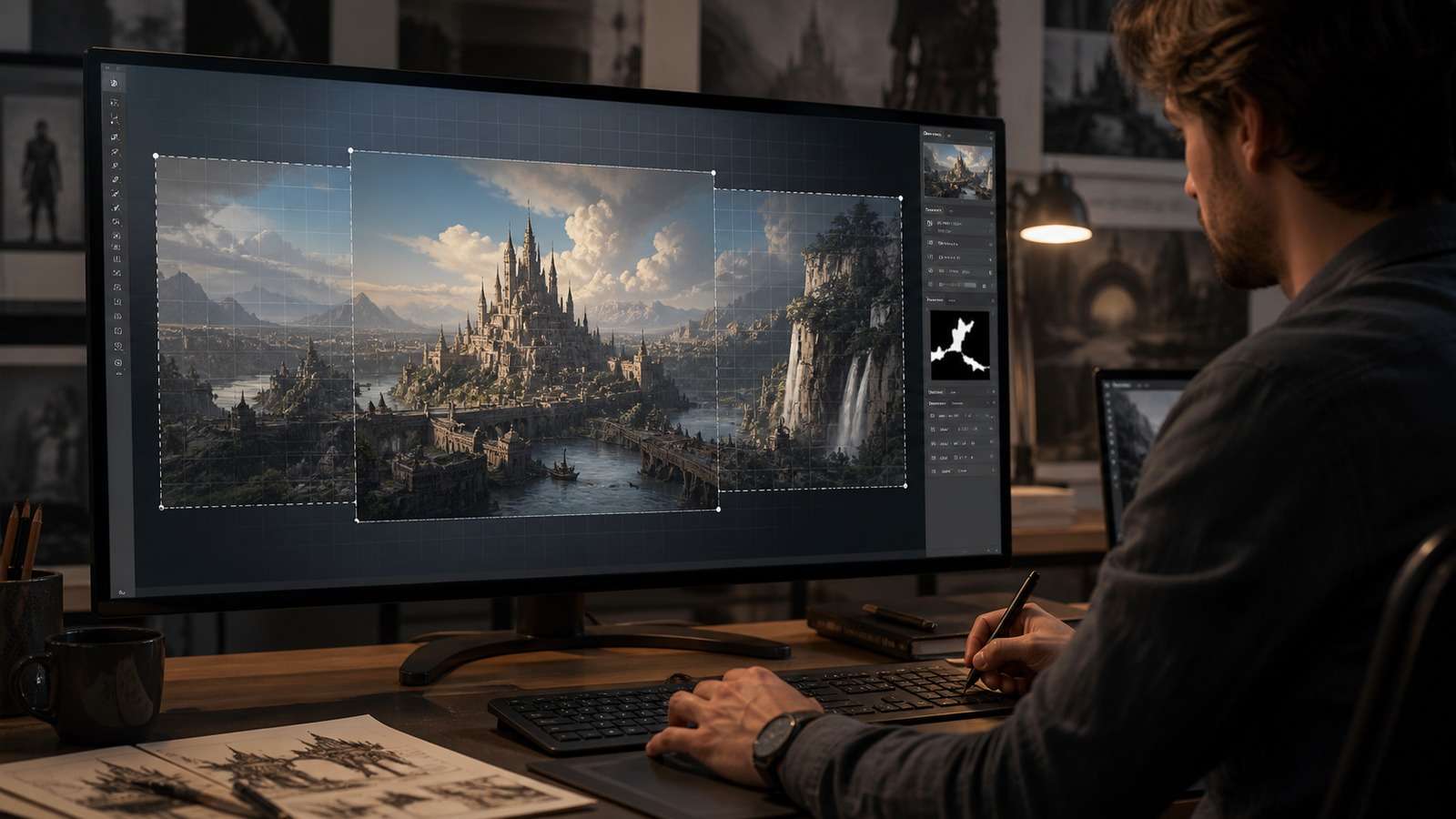
Choose it for: concept art, outpainting, iterative compositions, regional correction, and creators who think spatially. Trade-off: canvas workflows still require compatible models and enough hardware for repeated local edits.
4. Fooocus: Best Simple Local Starting Point
Fooocus is designed to reduce the number of visible technical decisions and produce strong results from simpler inputs.
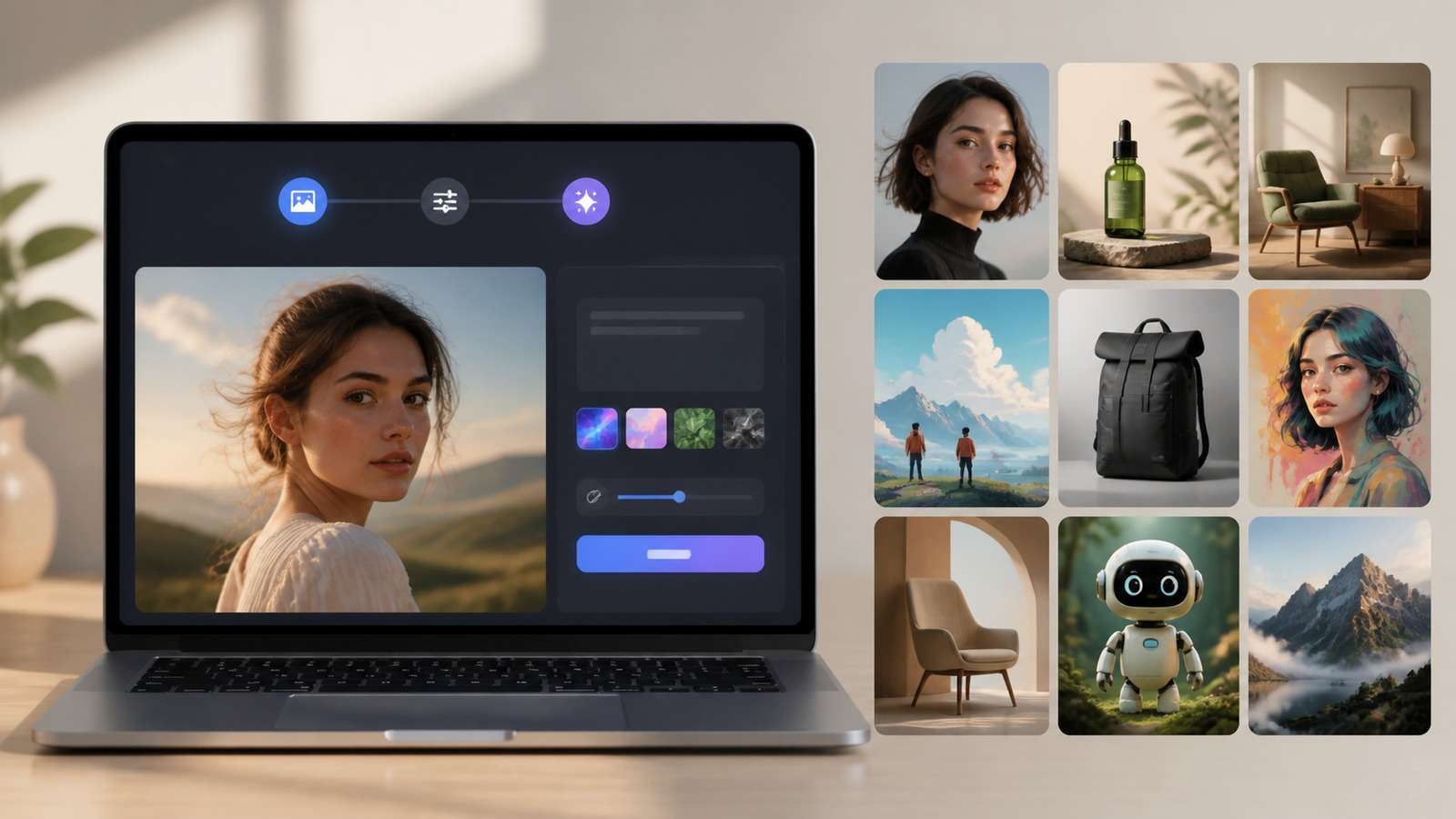
Choose it for: a lower-friction first local experience and users who care more about finished images than learning every sampling component. Trade-off: abstraction is convenient until a project requires the deeper control available in ComfyUI.
Models, LoRAs, and Licenses Matter More Than the App Name
A local interface does not include one universal visual intelligence. You must choose model weights. A realistic checkpoint, illustration model, anime model, product model, LoRA, or embedding changes the output more than many interface settings.
- Download models from a source that displays the model card, version, files, and license.
- Match LoRAs and ControlNet models to the correct base-model family.
- Keep hash or filename records so a successful workflow remains reproducible.
- Do not assume “free download” means unrestricted commercial use.
- Scan community files and isolate experimental installations when possible.
Model licenses can restrict commercial use, hosted services, certain subjects, or redistribution. Source-image rights, trademarks, real-person likenesses, and training-data concerns remain relevant even when the generation never leaves your machine.
How to Compare Offline AI Image Quality Fairly
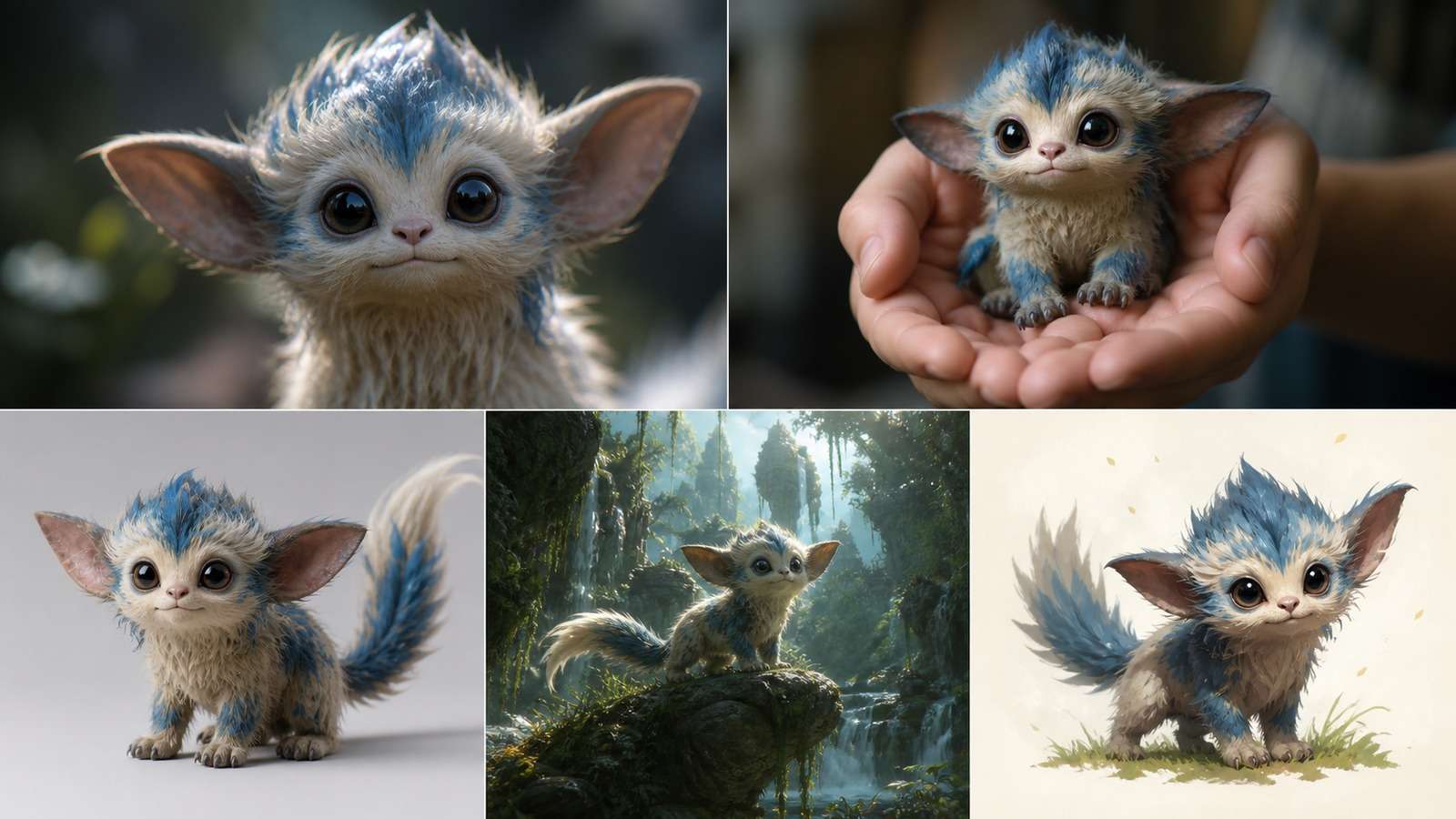
Use one benchmark pack rather than random prompts:
- A close portrait to inspect skin, hair, eyes, and identity.
- A person holding an object to expose hands and contact.
- A clean product shot to inspect shape, materials, and branding control.
- A complex environment to inspect composition and spatial logic.
- A stylized illustration to measure art-direction flexibility.
Record model, VAE, sampler, scheduler, steps, guidance, seed, dimensions, generation time, and peak VRAM. Compare usable rate, not only the best image. If final output needs more resolution, use a local upscaler or compare a sitemap-listed 4K image upscaling workflow.
Offline Generation vs Browser Tools
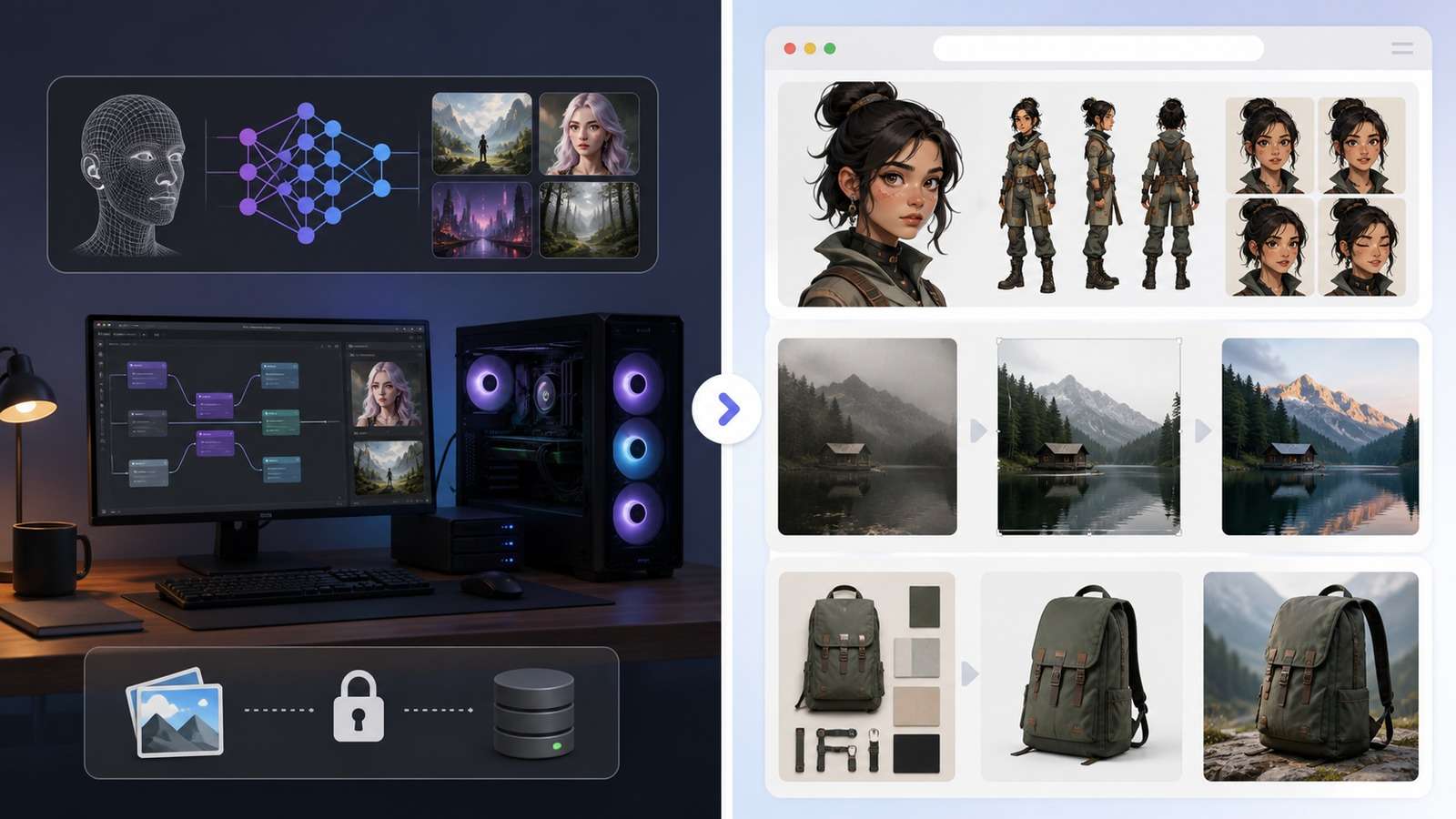
Offline tools are ideal when custom models, privacy, repeatability, automation, and high-volume generation justify the setup. Browser tools are often more efficient for occasional work, fast results, or one focused editing task.
| Need | Practical route |
| Custom checkpoints, LoRAs, private batch processing, or complex control graphs | Use a local generator |
| Generate a realistic image without downloading models | Realistic AI Image Generator |
| Create product scenes from an approved image | Product Mockup Generator |
| Create or vary fictional characters | AI Character Generator |
| Remove a background or prepare ecommerce cutouts | Online Background Removal Guide |
Create an AI Image Without Installing a Local Model
Installation, Updates, and Security Checklist
- Confirm GPU, driver, VRAM, system RAM, Python or runtime requirements, and free disk space.
- Use one maintained installation method and reproduce its default example before adding extensions.
- Download models from reputable sources and read the license and model card.
- Back up the working environment, dependency list, workflow, and model filenames.
- Update one component at a time and test the known-good workflow after every change.
- Review custom nodes and extensions before running code from unknown repositories.
- Remove sensitive metadata from final images when publishing requires it.
A local workflow is software maintenance. The safest update strategy is not “update everything”; it is preserve a working environment, test changes separately, and keep a rollback path.
Final Recommendations by User Type
| User | Recommended starting point |
| Technical creator building reusable workflows | ComfyUI |
| Stable Diffusion user wanting a familiar panel interface | Forge or maintained web UI |
| Concept artist focused on regional edits and expansion | InvokeAI |
| Beginner wanting the simplest local prompt experience | Fooocus |
| Occasional creator without a suitable GPU | Use a focused browser generator or image-editing workflow |
Start with one interface and one model. Generate the same five-image benchmark, record the working configuration, and expand only after you understand the first system. Collecting interfaces and checkpoints is not the same as building a reliable image workflow.
Frequently Asked Questions
-
What is the best free offline AI image generator?
ComfyUI is the strongest choice for maximum workflow control, Forge or another Stable Diffusion web UI is easier for a traditional interface, InvokeAI is useful for canvas-based editing, and Fooocus is approachable for simpler prompt-to-image generation. -
Can AI image generators work completely offline?
Yes after the application, models, encoders, extensions, and dependencies have been downloaded. Some model managers, plugins, telemetry, or optional APIs may still use the internet, so audit the complete setup. -
How much VRAM do I need for offline AI image generation?
Many optimized workflows can run with 6-8GB VRAM, while 12-16GB provides a more practical range for larger models, higher resolution, ControlNet, and multiple conditioning tools. Exact needs depend on model and settings. -
Are offline AI image generators really free?
The software and many model weights may be free, but hardware, electricity, storage, setup time, maintenance, and model licenses still matter. -
Is ComfyUI better than a Stable Diffusion web UI?
ComfyUI is better for reusable graphs, automation, complex conditioning, and efficiency. A conventional web UI is easier for users who prefer tabs, forms, and familiar image-generation controls. -
Can I use locally generated images commercially?
Commercial use depends on the license of the base model, LoRAs, embeddings, source images, and other assets. Running locally does not automatically grant commercial rights. -
Is local AI image generation private?
It can keep prompts and source media on your machine, but privacy depends on extensions, telemetry, update checks, cloud nodes, and external APIs. Review every component used by the workflow.


