
The best mobile AI video generator is not simply the desktop winner squeezed onto a smaller screen. A phone-first workflow depends on upload reliability, touch-friendly controls, preview speed, credit transparency, camera-roll integration and the ability to recover when a browser tab closes.
In this article
Finding the best AI video generator for phone use requires testing interruptions, uploads, previews and clean exports—not only the underlying model.
What Makes a Good Mobile AI Video Generator?
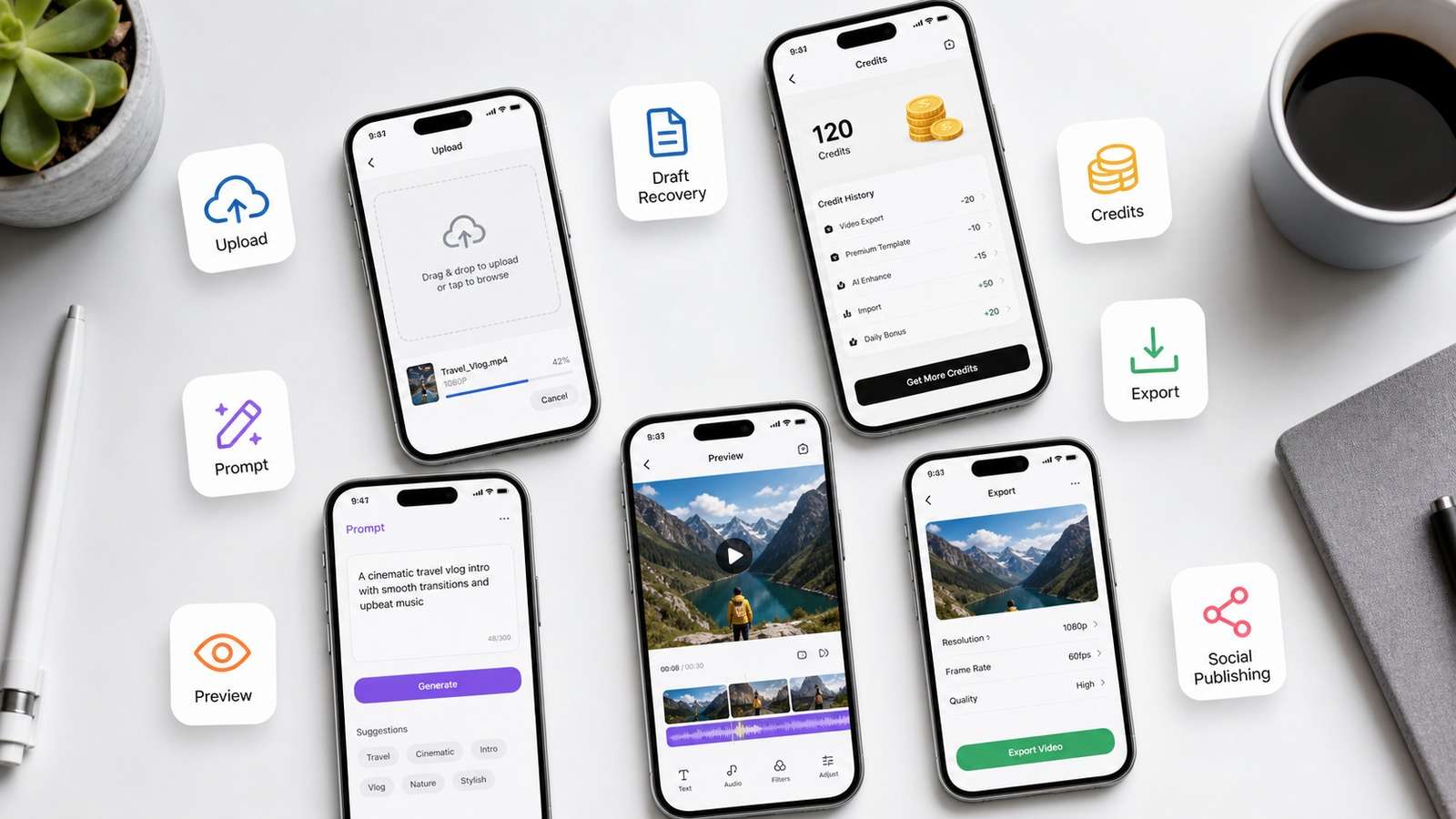
A mobile tool should minimize precision-dependent work. Look for large upload targets, saved drafts, prompt history, visible aspect-ratio presets, preview-before-render options and exports that do not disappear when the app is backgrounded. Cloud rendering matters because even flagship phones are poor places to run sustained generative workloads.
| Mobile criterion | Why it matters | Red flag |
| Draft recovery | Mobile browsers are frequently interrupted | Losing prompts after a refresh |
| Credit estimate | Prevents expensive accidental rerenders | Cost shown only after generation |
| Camera-roll input | Speeds image-to-video work | Limited formats or failed large uploads |
| Preview controls | Lets users reject bad motion early | Full-cost render required for every test |
| Export options | Supports clean masters and social versions | Forced watermark or heavy compression |
Best AI Video Generators for Phones by Use Case
Media.io: Best Browser-Based All-Rounder
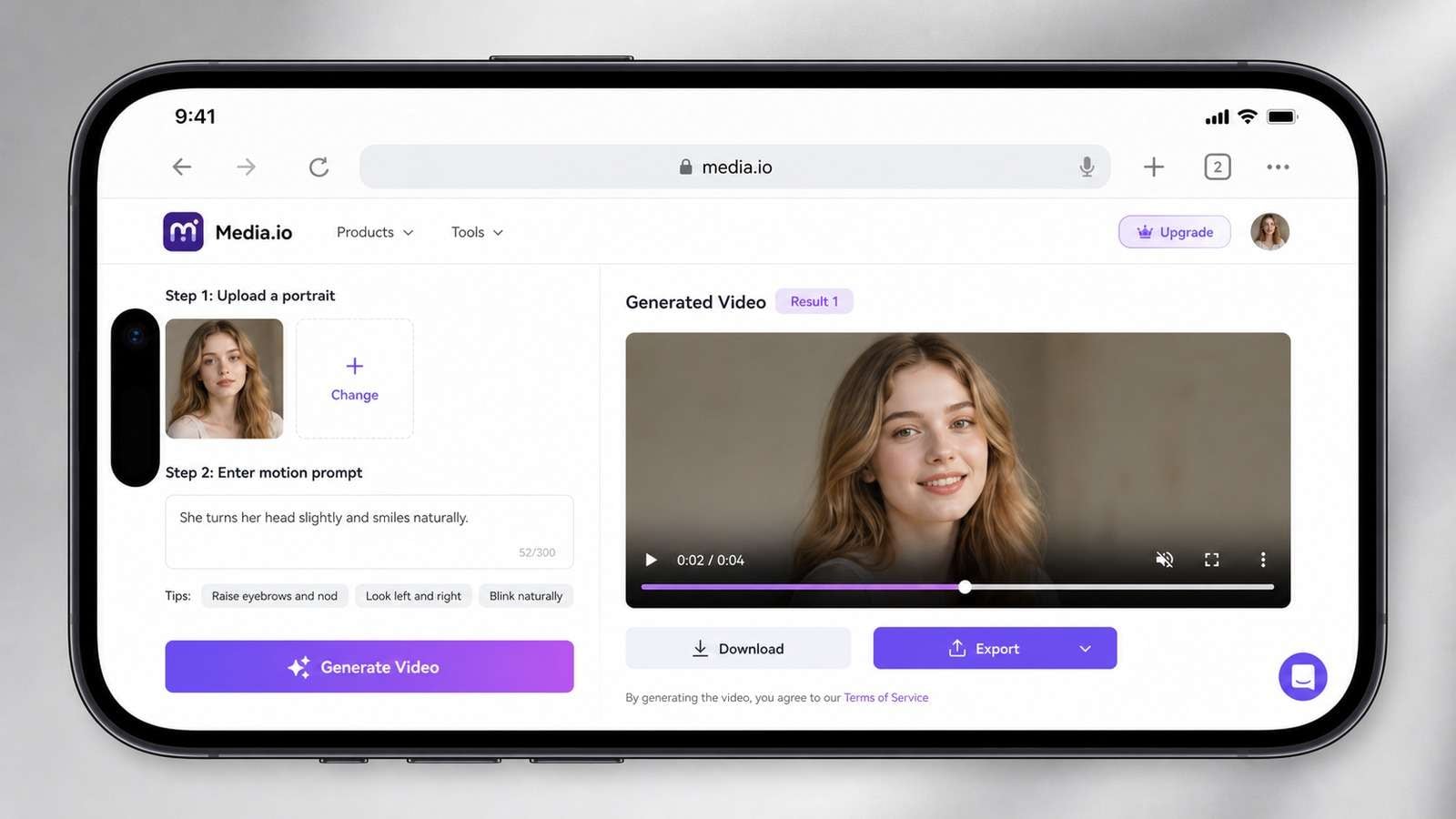
Media.io AI Video Generator is useful when a creator wants one browser workflow across phone and desktop. It supports common AI video entry points without requiring a high-end device, and the same account can continue a project on a larger screen. On mobile, its strongest use is generating short shots from text or images, then downloading approved clips for assembly.
The practical advantage is workflow continuity rather than pretending a phone replaces a full editor. Start with a vertical or landscape aspect ratio, upload a clean reference, describe one shot and one motion, preview the result and only then create variations.
CapCut: Best for Social Editing and Templates
CapCut is strong after generation: captions, beat-driven cuts, templates, effects and direct social formats. Its weakness is that template-heavy output can look interchangeable. Use it when speed and distribution matter, then replace generic stock choices and check commercial music rights.
Canva: Best for Branded Short Explainers
Canva works well for brand kits, presentation-style video, simple animation and team approval. It is less suitable for complex cinematic continuity, but convenient for marketers who need multiple sizes and consistent typography.
Kling and Pika: Best for Short Generative Shots
Model-centric services can produce compelling motion from an image, yet their mobile experience varies by region, queue and plan. Keep prompts shot-based. Asking one generation to establish a character, perform three actions and move the camera usually causes continuity failures.
Script-to-Video Tools: Best for Narrated Stories
For personal stories, explainers or faceless channels, a structured script-to-video workflow is more efficient than generating isolated spectacle shots. The script defines scenes, voiceover and pacing before visual generation consumes credits.
AI Video App for iPhone vs Android AI Video Generator
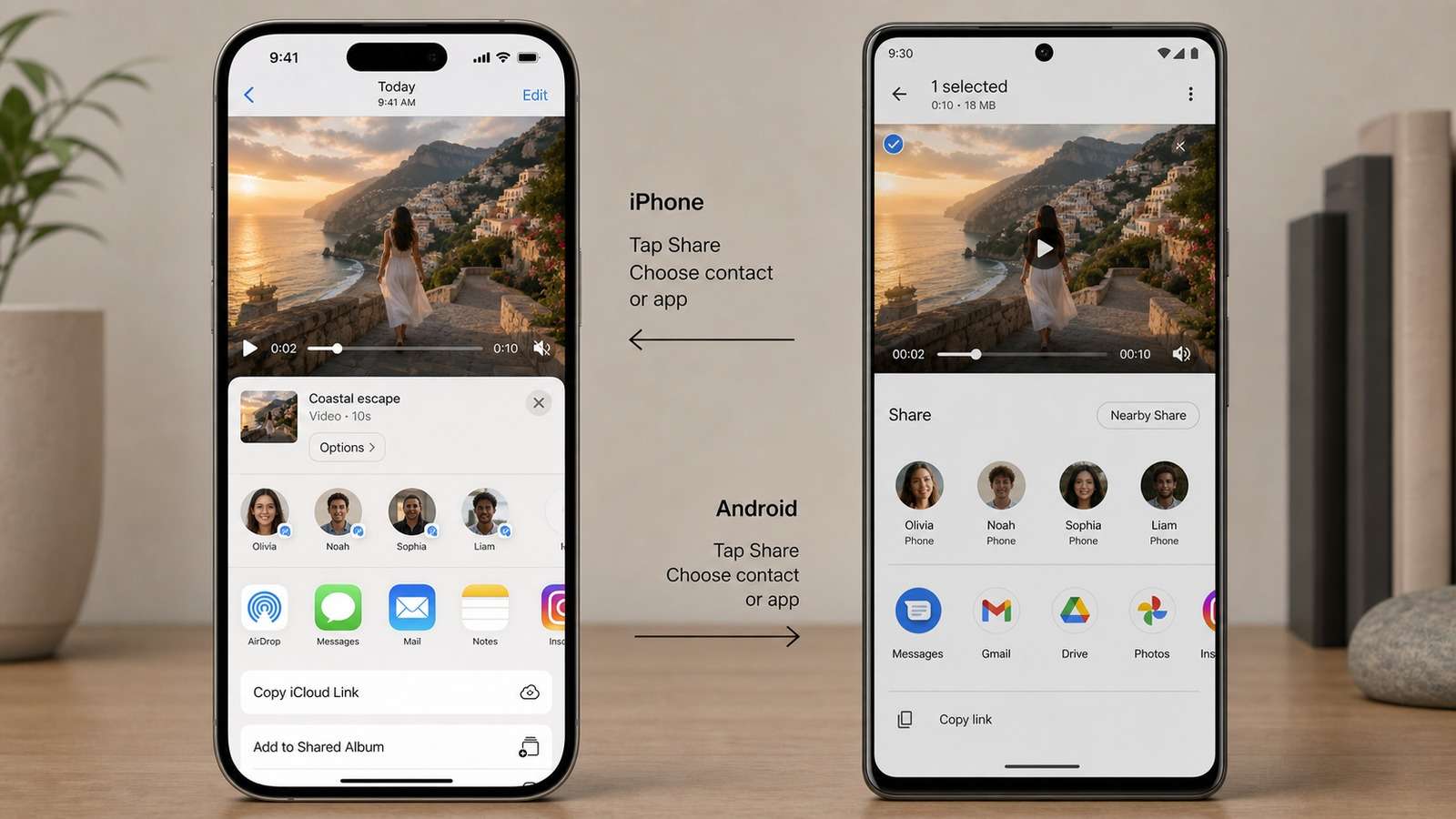
Because most generation is cloud-based, iPhone and Android can reach the same model quality. Differences appear around file handling, browser memory, background uploads, screen recording, sharing menus and app availability. Safari users should keep the generation tab open during large uploads. Android users should disable aggressive battery optimization for long transfers when an app supports it.
A Reliable Phone-First AI Video Workflow
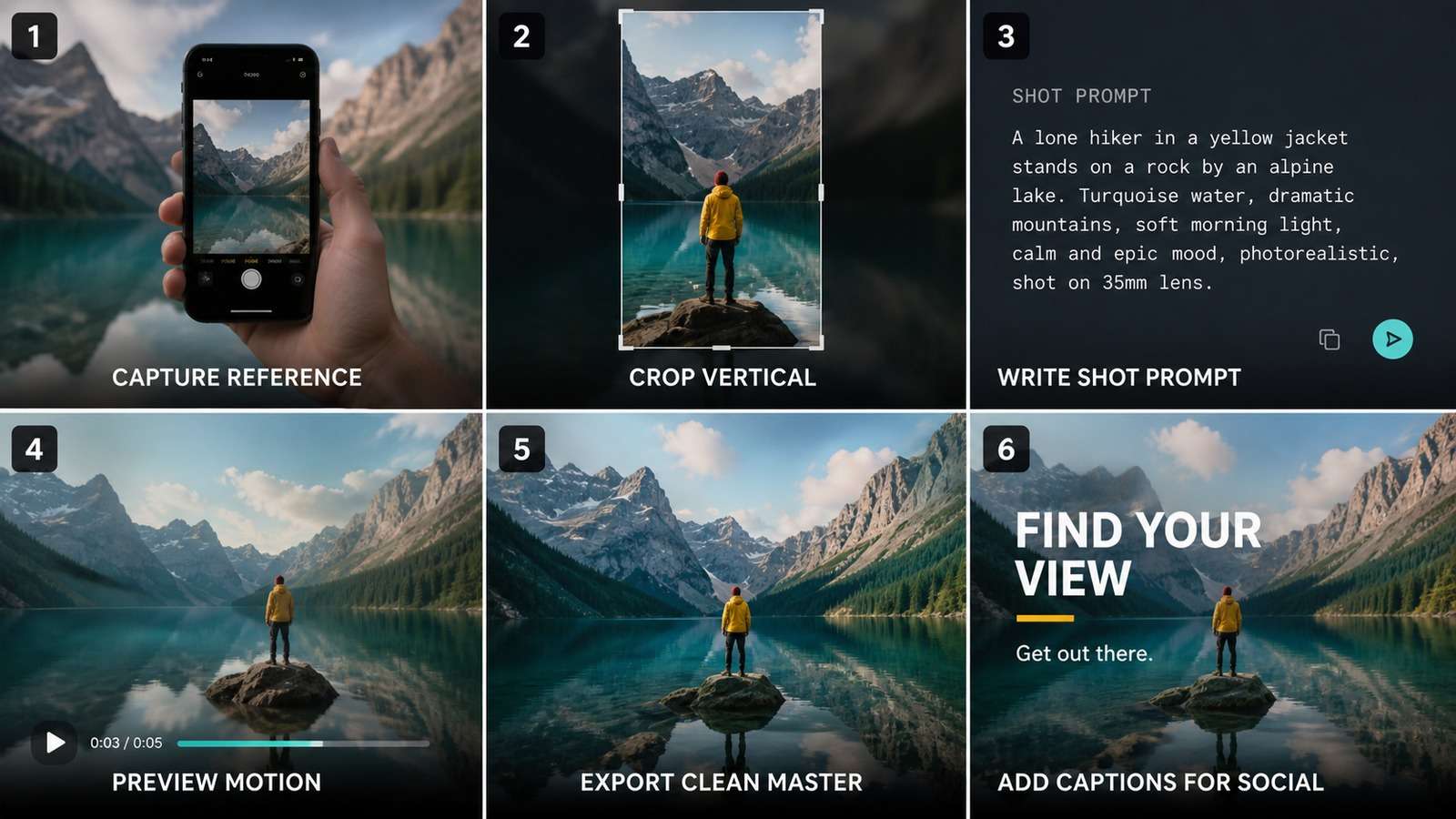
- Write a one-shot brief. Subject, action, environment, camera and duration should fit in a few lines.
- Prepare the reference. Crop it to the target ratio and remove distracting objects before upload.
- Generate a low-cost test. Validate motion direction, identity and framing.
- Change one variable per attempt. Do not rewrite the whole prompt after every failure.
- Export a clean master. Keep it separate from social-app uploads.
- Add captions and audio last. This avoids rebuilding text when the visual changes.
Image-to-video is particularly mobile-friendly because the phone already contains the source photo. Media.io's image-to-video tool can turn a selected camera-roll image into a motion test before the creator commits to a longer edit.
Quality, Cost, Privacy and Rights
Evaluate cost per accepted second, not cost per generation. Mobile users are more likely to rerender because small previews hide face drift and edge artifacts. Review important shots on a larger display before client delivery. Avoid uploading confidential products, unreleased campaigns or biometric material unless the provider's privacy terms fit the project.
Commercial use also requires checking plan licenses, music, celebrity or customer likeness, logos and model-specific restrictions. An export without a watermark is not automatically cleared for advertising.
Which Mobile AI Video Generator Should You Pick?
| Goal | Best starting category |
| Generate one cinematic shot | Cloud image-to-video model |
| Make a narrated personal story | Script-to-video |
| Create a product ad | AI ad generator |
| Publish fast social edits | Template-based mobile editor |
| Keep phone and desktop in sync | Browser-based workspace |
A phone is best treated as a capture, prompting, review and publishing device. For multi-shot continuity, audio mixing and frame-level cleanup, hand the approved assets to a larger editing workspace rather than forcing every stage onto a six-inch screen.
Mobile AI Video Generator Performance Tests
Phone-based tools should be tested under mobile conditions rather than perfect office Wi-Fi. Upload a typical camera-roll image over cellular data, switch apps during generation, lock the screen, return to the draft and export a full-resolution file. A service can use an excellent model and still be a poor mobile AI video generator if it loses prompts, restarts uploads or hides failed jobs.
| Test | What to record | Why it matters |
| Upload recovery | Whether an interrupted upload resumes | Mobile networks change frequently |
| Background behavior | Whether generation continues after switching apps | Creators often multitask |
| Preview accuracy | Difference between preview and final export | Small screens hide artifacts |
| Credit failure policy | Whether failed jobs consume credits | Directly affects cost per usable clip |
| Export integrity | Resolution, frame rate, watermark and compression | Determines whether the file can be edited elsewhere |
Prompting AI Video on a Small Screen
Long prompts are difficult to review on a phone and often contain contradictory instructions. Use a compact shot template: subject, one action, environment, camera movement, lighting and exclusions. For image-to-video, describe motion rather than repeating every visible detail. “The woman turns toward the window while the camera slowly pushes in” is more useful than rewriting her clothing and the entire room.
Save successful prompts in a notes app with clear labels for subject motion, camera motion and negative constraints. This creates a reusable mobile prompt library and reduces typing errors. It also makes it easier to rerun a shot in another service when queues, pricing or regional access change.
When a Phone Is Enough—and When It Is Not
A phone is sufficient for single-shot social content, visual experiments, product motion tests, short talking clips and quick story drafts. It becomes inefficient when a project requires consistent characters across many shots, precise audio mixing, masks, keyframes, color matching or large file management. In those cases, use the phone for capture and review, then continue on desktop.
Creators should also plan for platform recompression. Export the highest practical clean master from the AI video app for iPhone or Android AI video generator, archive it outside the social platform, and create separate versions for TikTok, Instagram, YouTube Shorts and landscape delivery. Repeatedly downloading and reuploading a compressed social copy will quickly damage fine textures and generated faces.
Mobile Cost and Battery Planning
Cloud generation does not place the full model workload on the phone, but repeated uploads, previews and downloads still consume data, battery and storage. Wi-Fi is preferable for source video, and external power is useful during long review sessions. Clear cached previews only after the clean masters and prompts are safely stored.
For cost comparison, generate the same five-second shot three times in each shortlisted tool. Record credits consumed, queue time and whether at least one output is usable. This simple test provides a realistic cost per accepted second and is more informative than a plan's advertised monthly generation allowance.
Frequently Asked Questions
-
What is the best AI video generator for a phone?
The best option is a mobile-friendly web app with reliable uploads, clear credit estimates, fast previews and export controls. Media.io, CapCut, Canva, Kling, Pika and platform-specific tools fit different needs; choose by the type of video, not app popularity alone. -
Can an iPhone generate AI videos without a computer?
Yes. Browser-based tools and iOS apps can create image-to-video, text-to-video, talking avatars and social clips. Long timelines and precise compositing are still easier on desktop. -
Do Android AI video generators produce lower quality?
No. Cloud generation happens on remote servers, so output quality depends mainly on the model and settings. The phone affects upload, preview, editing comfort and thermal or battery use. -
How much storage does mobile AI video need?
Cloud tools reduce local compute needs, but source uploads, cached previews and exports can consume several gigabytes. Keep free storage available and archive finished masters. -
Can I make commercial videos on a phone?
Yes, but review each service license, model restrictions, music rights, likeness consent and watermark policy before publishing paid work.


