
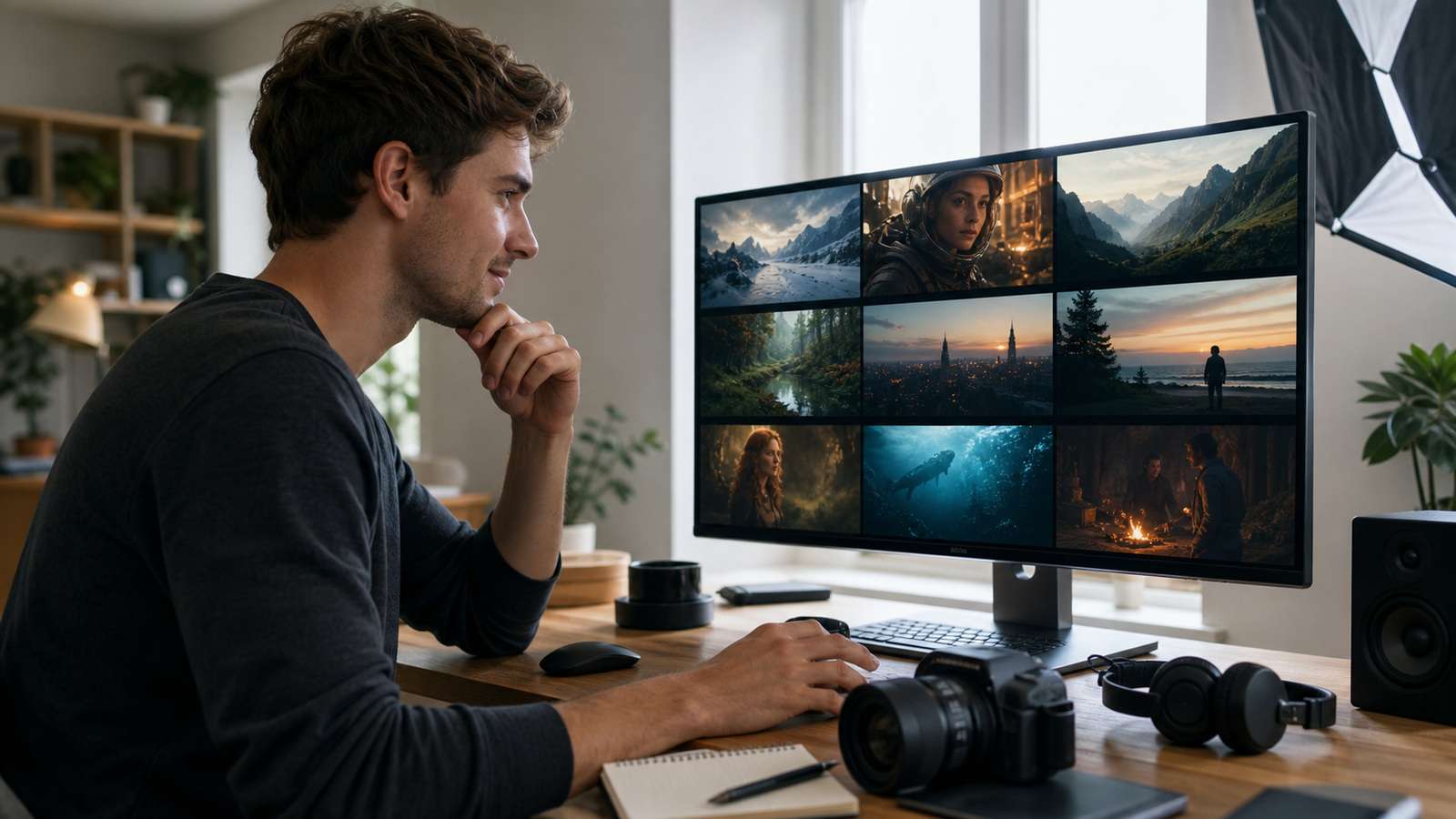
The best AI video generator for beginners is not necessarily the model that wins a cinematic demo. It is the tool that helps a new creator move from an understandable prompt or source image to a usable clip with the fewest confusing decisions. For most beginners, that means clear text-to-video and image-to-video modes, predictable controls, fast previews, manageable costs, and a practical path to trimming, audio, captions, and export. If simplicity matters most, start by comparing the easiest AI video generator for beginners across both local and browser-based workflows.
This guide combines the recurring testing methods used in high-view comparison videos from Youri van Hofwegen, Dan Kieft, Mira AI, and Skai Generated with current product information. Instead of declaring one universal winner, it recommends tools by beginner use case and explains how to run a fair test before paying.
In this article
Quick Answer: Which AI Video Generator Should a Beginner Choose?
If you want the shortest path from an idea to a first publishable clip, start with a browser-based all-in-one tool. If you already have a strong still image, prioritize image-to-video control. If your goal is professional filmmaking, choose a platform with a deeper learning path rather than the simplest first screen.
| Beginner goal | Best starting direction | Recommended option |
| Make a first clip with minimal setup | Browser-based text and image generation with simple finishing | Media.io AI Video Generator |
| Explore several models in one environment | Guided multimodel creative workspace | Luma |
| Grow into advanced generative filmmaking | More control, iteration, and production tools | Runway |
| Work inside an Adobe production pipeline | Generation connected to familiar creative apps | Adobe Firefly |
| Experiment with expressive image-to-video motion | Reference-led generation and repeated motion testing | Kling AI |
The practical recommendation is to test two tools, not ten. Choose one low-friction option and one more advanced option, generate the same three shots in both, and compare how many outputs are genuinely usable.

What Makes an AI Video Generator Beginner-Friendly?
Beginner-friendly does not mean feature-poor. It means the tool exposes the decisions a new user actually understands and postpones technical choices until they become useful.
- Clear input modes: Text-to-video and image-to-video should be visibly separate so users understand what controls the starting composition.
- Prompt tolerance: A beginner should get a recognizable result from a short, concrete prompt without learning a proprietary command language. A simple text-to-video workflow is useful for testing this quickly.
- Reference control: Uploading a source image should improve character, product, and composition stability. Review a few image-to-video converter options if this will be your main production method.
- Useful defaults: Duration, aspect ratio, camera behavior, and style settings should begin with sensible choices.
- Fast feedback: Preview speed matters because beginners learn through comparison, not through reading every model setting.
- Finishing path: The workflow should make it easy to trim unstable frames, add sound or captions, change format, and export through an accessible online video editor.
- Transparent usage rules: Credits, queues, watermarks, commercial rights, and model availability should be easy to verify before a serious project begins.
A model can produce an extraordinary showcase clip and still be a poor beginner choice if it requires repeated paid generations, hides essential controls, or produces files that need extensive repair elsewhere.
Best AI Video Generators for Beginners by Use Case
1. Media.io Review: Best for the Easiest Browser-Based Start
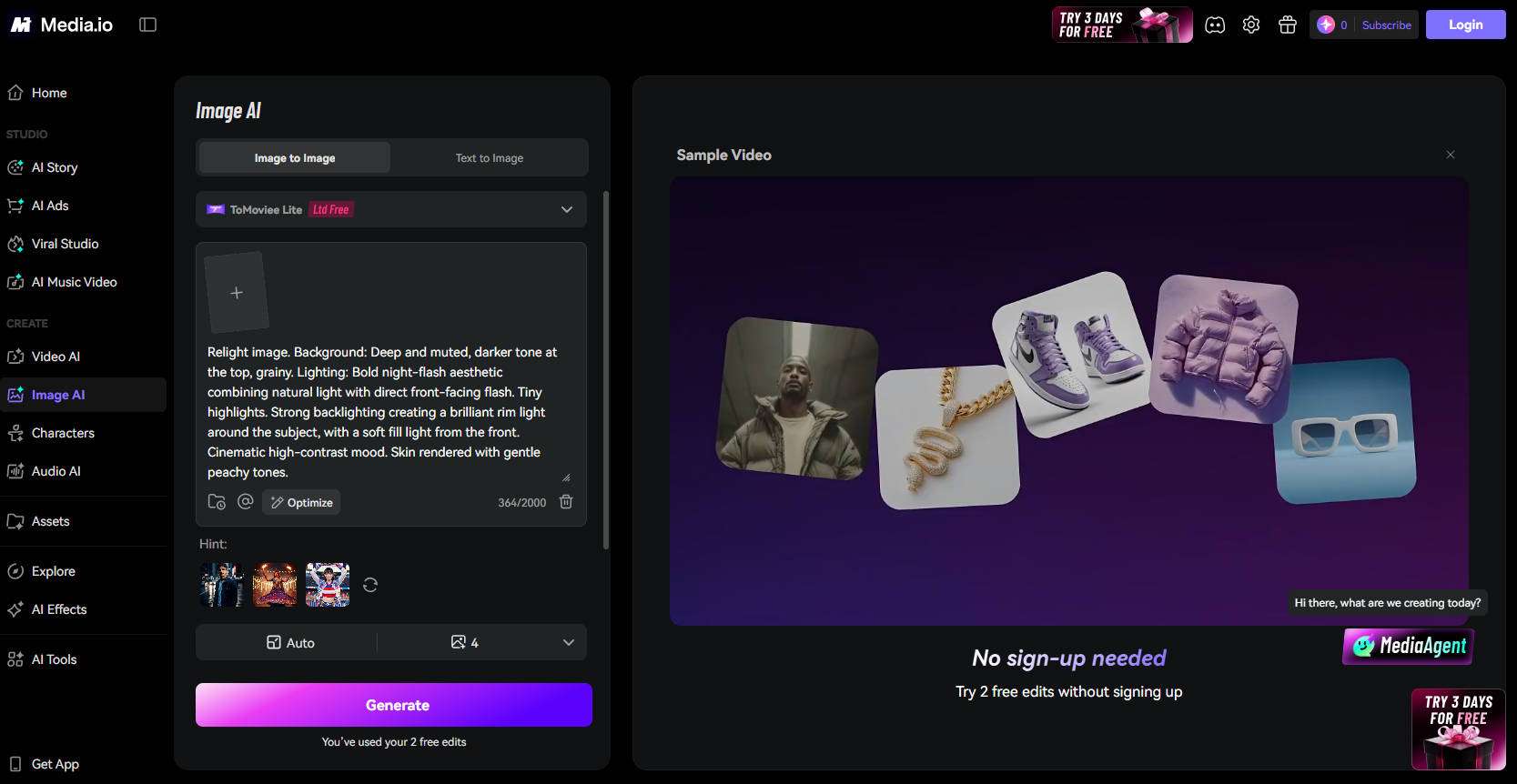
Media.io is the most approachable option in this shortlist for a creator who wants to try generative video without installing software or learning a node-based workflow. The interface presents Image to Video and Text to Video as separate modes, which immediately teaches a beginner an important production distinction: text is useful for discovering a scene, while an uploaded image gives the model an approved subject and composition.
Beginner experience: The image-to-video panel keeps the first decision simple. Upload a supported source image, choose an available model, and generate. The text mode replaces the upload step with a prompt field. This is easier to understand than a workspace that exposes advanced motion, reference, timeline, and model-routing controls before the user has created a first clip.
Workflow advantage: Media.io is more useful when judged as a creation path rather than only as a model. A beginner can move from an AI storyboard or source image into video generation, then take the selected clip into trimming, captioning, sound, aspect-ratio, and export tools. That reduces file transfers and makes it more likely that a first experiment becomes a finished video.
Output control: The safest method is to approve a strong source frame, describe one subject action and one camera move, then compare several short takes. Text-to-video works well for exploration, but image-to-video gives a beginner a clearer reference when face, product, clothing, or composition consistency matters.
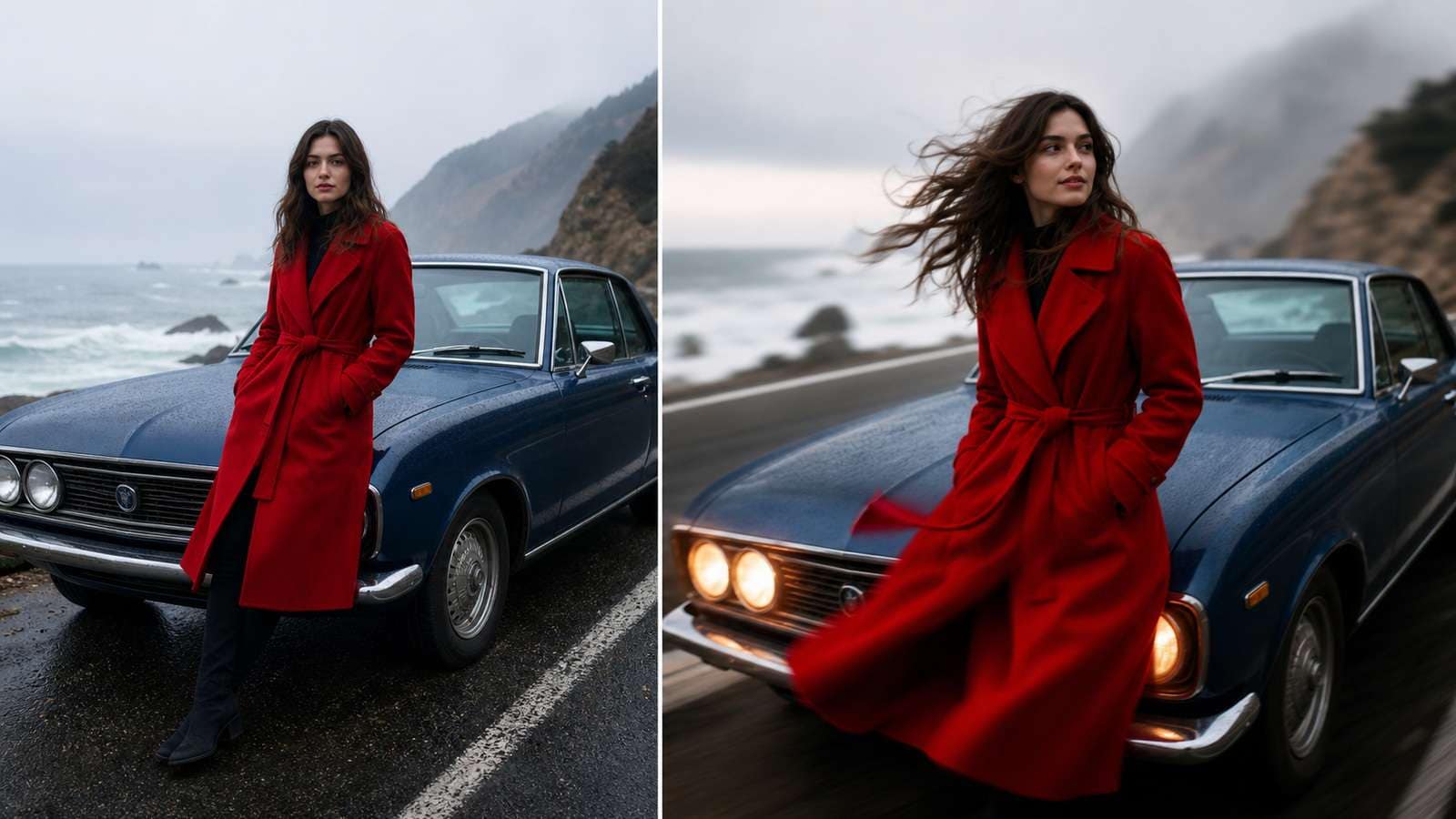
Limitations: A simple interface does not remove generative-video weaknesses. Hands, object contact, complex body motion, small background details, and long multi-action prompts can still fail. Model availability and usage rules may also change, so important projects should be tested before a larger credit commitment.

Test Media.io with one approved source image →
2. Luma: Best for Guided Multimodel Exploration
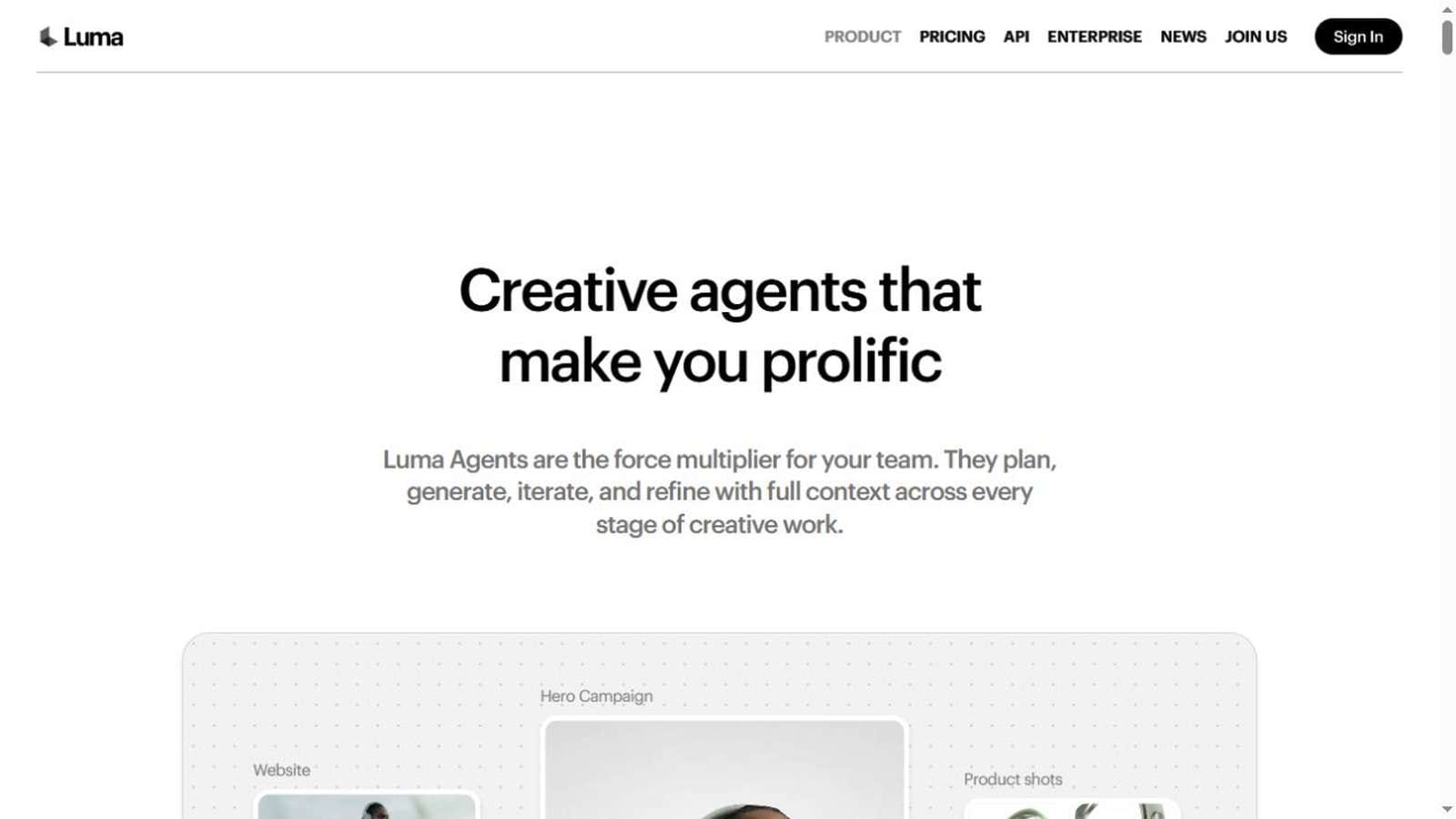
Luma has evolved beyond a single video model into a creative-agent environment that can coordinate different image, video, audio, and editing capabilities. Its current product language emphasizes shared context, collaboration, storyboards, modified keyframes, stitching, captions, and final deliverables.
Beginner experience: Luma now frames the workflow around creative agents rather than asking every user to select and coordinate individual models manually. This can make a larger project feel more guided, especially when storyboards, source assets, modified keyframes, video, music, and deliverables need to remain connected.
Strength: Shared context is the main reason to choose Luma. It is useful when the beginner wants to develop more than one isolated clip and needs visual decisions to carry across a campaign or short-film workflow.
Limitation and verdict: Breadth can create its own learning curve. A new user still needs a focused brief and budget because multiple models and agent-driven iterations can encourage expensive exploration. Choose Luma when guided multi-asset creation matters more than the simplest possible first prompt.
3. Runway: Best Long-Term Learning Path
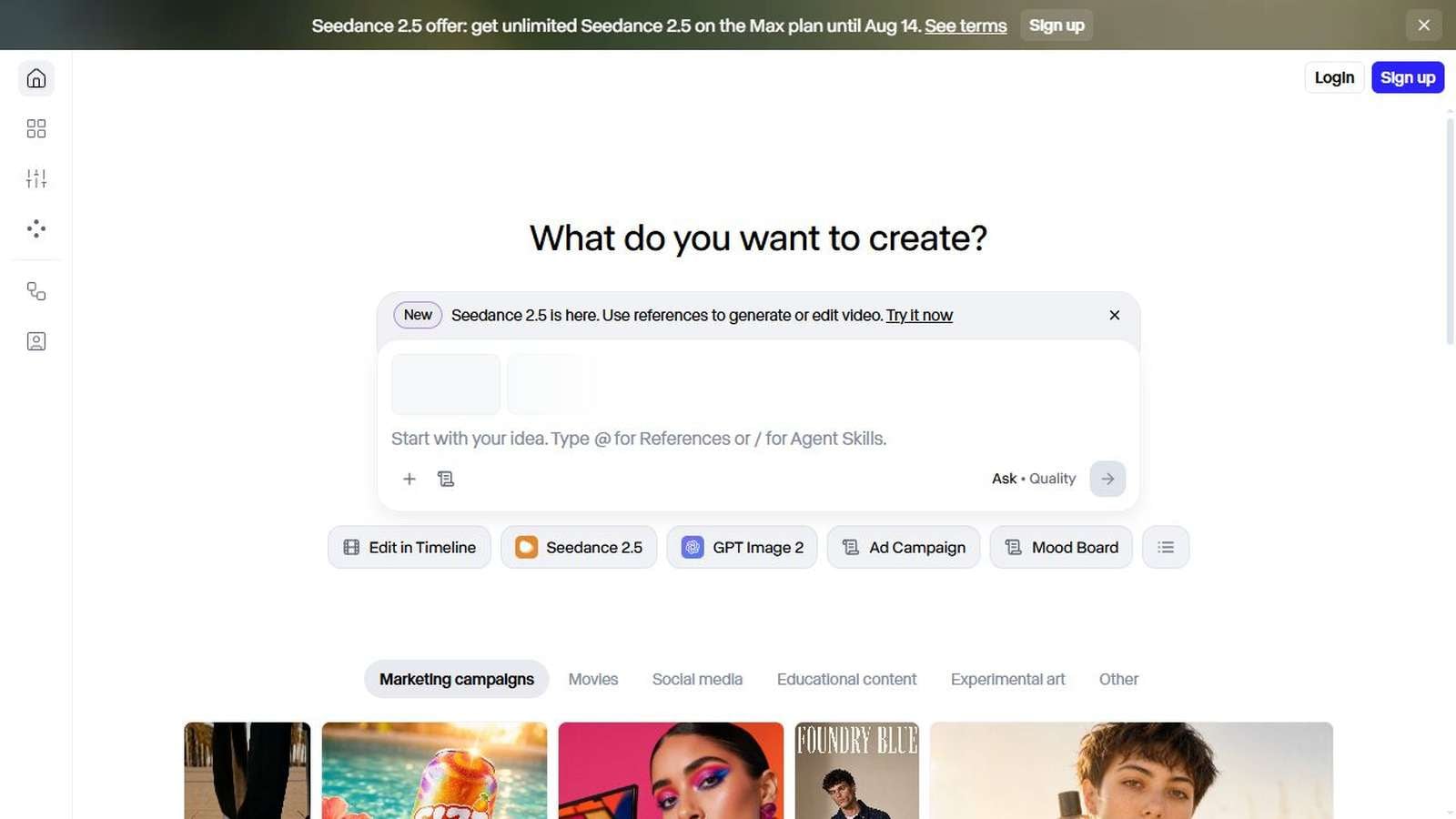
Runway remains a strong choice for creators who expect to progress from simple generations toward more deliberate AI filmmaking. Its value is not merely one prompt box; it is the surrounding culture of iterative generation, reference-driven work, shot design, and production experimentation.
Beginner experience: The current creation workspace combines an open prompt area with model and workflow shortcuts such as timeline editing, reference-led generation, campaign work, and mood boards. A first-time user can begin simply, but the interface clearly points toward a broader production system.
Strength: Runway offers a strong growth path. A beginner can start with short generation tests and gradually learn references, editing, shot iteration, and more complex project organization without immediately moving to a completely different platform.
Limitation and verdict: More choices appear earlier than in Media.io. Runway makes the most sense when the learner wants to understand why a shot works, compare generations carefully, and adopt more control rather than optimizing only for the fastest first export.
4. Adobe Firefly: Best for Existing Adobe Users
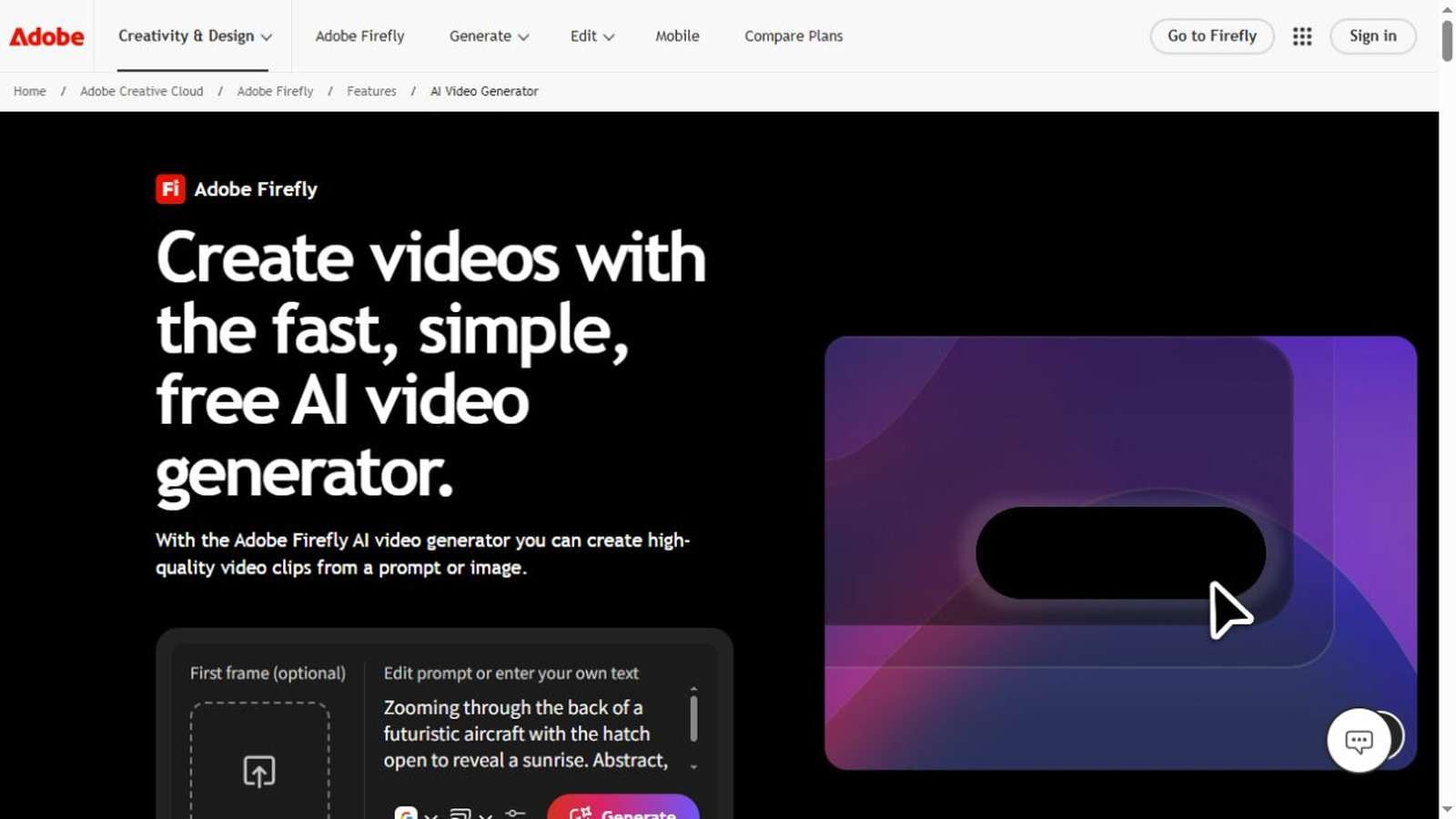
Adobe Firefly is the logical beginner choice for someone who already edits in Adobe applications and values a familiar creative ecosystem. The generated video is not the end of the workflow; it can become another asset inside an established editing, compositing, design, or review process.
Beginner experience: Firefly presents prompt-led video creation with an optional first-frame input, making the difference between open generation and reference-controlled generation relatively clear. This feels familiar to users who already understand Adobe panels and asset workflows.
Strength: Its advantage is organizational rather than purely model-based. Existing Adobe users may spend less time transferring assets and learning a disconnected interface, while generated clips can continue into established editing and design work.
Limitation and verdict: Beginners outside the Adobe ecosystem should compare the complete workflow cost and complexity, not only one generated shot. Choose Firefly when integration with existing Adobe work is a bigger priority than switching among many standalone video models.
5. Kling AI: Best for Image-to-Video Motion Experiments
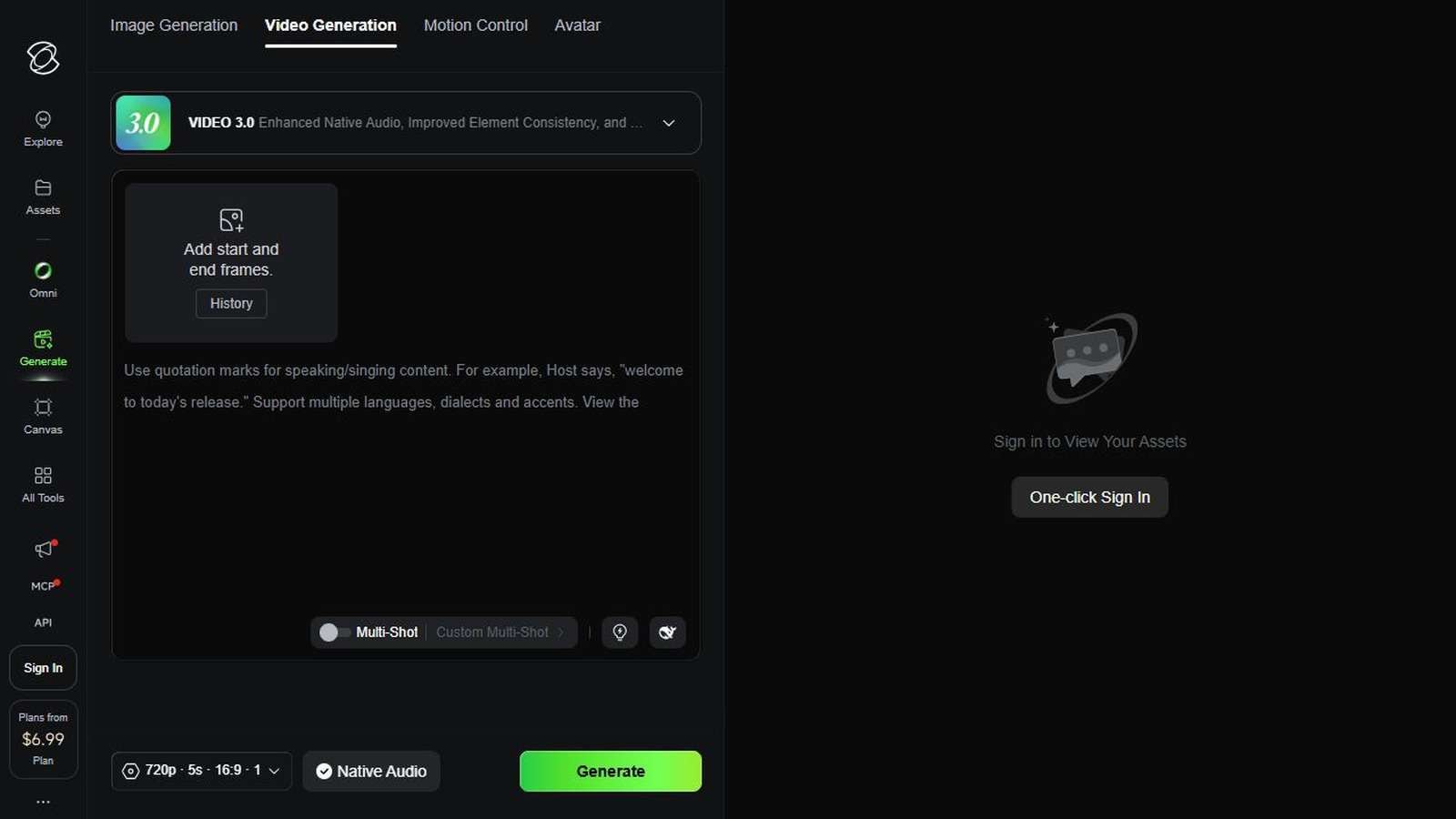
Kling AI is frequently included in creator comparisons because it can produce expressive camera and subject motion from visual references. It is a useful option when a beginner already has a keyframe and wants to test how well the model preserves the subject while creating movement.
Beginner experience: The interface exposes more generation choices directly, including the active model, start and end frames, multi-shot behavior, duration, resolution, aspect ratio, and audio. These controls are useful, but they require the beginner to understand what each one changes.
Strength: Start- and end-frame control can make motion tests more deliberate, while multi-shot and audio options support more ambitious experiments once the user understands the basics.
Limitation and verdict: Keep the request simple. One subject action plus one camera instruction is easier to judge than a long prompt containing several actions. Access, queues, model versions, and credit rules can change, so verify live conditions before committing a large project. Choose Kling when motion experimentation matters more than the shortest learning curve.

A 20-Minute Hands-On Test for Any AI Video Generator
Test 1: A Simple Text-to-Video Shot
Use one subject, one action, one environment, and one camera direction: “A cyclist in a yellow raincoat crosses an empty bridge at dawn, slow side-tracking camera, realistic movement.” Score whether the tool follows the subject, action, setting, camera, and mood.
Test 2: The Same Shot From a Reference Image
Create or choose a clean source image, then request only the motion. Compare identity stability, edge behavior, background movement, and whether the first frame remains recognizable. This reveals whether image-to-video will be easier for your intended projects.
Test 3: A Shot With Human Interaction
Try a restrained interaction such as handing over an object or turning toward another person. Hands, contact, eye direction, and object permanence expose weaknesses that a landscape shot can hide.
Test 4: The Publishing Workflow
Do not stop at generation. Trim the clip, add sound, change the aspect ratio, add a caption, and export. Record the total time and the number of separate tools required. You can use an online video editor without a watermark for this publishing test. The easiest generator is the one that produces the easiest usable video, not merely the fastest raw clip.

Costs, Limitations, and the Final Recommendation
AI video pricing changes too quickly for a static article to promise an exact free allowance. Compare the live plan on the day you test. Check whether credits are consumed by failed generations, whether premium models cost more, how long queues become at busy times, whether downloads include watermarks, and which rights apply to commercial work.
Also budget for unusable outputs. If a five-second clip requires six attempts, its real cost is six generations plus the time needed to review and edit them. A slightly less spectacular model that produces three usable takes out of five can be more economical than one that occasionally creates a masterpiece.
Sora should no longer be part of a new beginner shortlist. OpenAI states that the Sora web and app experiences were discontinued on April 26, 2026, and that the API is scheduled for discontinuation on September 24, 2026. Existing tutorials may still rank it highly, but current availability matters more than historical demos.
The final choice is therefore use-case based: choose Media.io for the lowest-friction browser start, Luma for guided multimodel creation, Runway for a deeper filmmaking path, Adobe Firefly for an Adobe-centered workflow, and Kling AI for focused image-to-video experiments. Test two options with the same shots before purchasing a larger plan.
If your goal is simply to complete a first clip today, start an AI video in Media.io and judge the result with the same motion, stability, and finishing checks used throughout this guide.
Frequently Asked Questions
-
What is the best AI video generator for a complete beginner?
The best starting tool is usually a browser-based generator that supports both text-to-video and image-to-video, makes settings understandable, and lets you preview a result without building a complex workflow. Media.io is a practical option for this type of low-friction start, while other tools become more useful when a beginner needs deeper control. -
Should beginners start with text-to-video or image-to-video?
Image-to-video is usually easier to direct because the subject and composition are already visible before motion is generated. Text-to-video is faster for exploration but can produce more visual variation between attempts. -
Are free AI video generators really free?
Free access often includes changing credit allowances, queues, output limits, watermarks, model restrictions, or noncommercial terms. Check the live plan and export conditions before starting an important project. -
Which AI video generator is easiest for social media content?
Choose a tool that combines generation with simple trimming, aspect-ratio changes, captions, audio, and export. A visually impressive generator can still be inconvenient if every clip must be moved through several other applications. -
Is Sora still a good beginner option in 2026?
No for new web or app users. OpenAI states that the Sora web and app experiences were discontinued on April 26, 2026. The API is scheduled for discontinuation on September 24, 2026, so beginners should choose an actively supported alternative. -
How should I compare AI video quality?
Use the same short prompt or source image in each tool, then compare instruction accuracy, identity stability, motion quality, unwanted artifacts, generation time, usable duration, and how much editing is required before publishing.


