
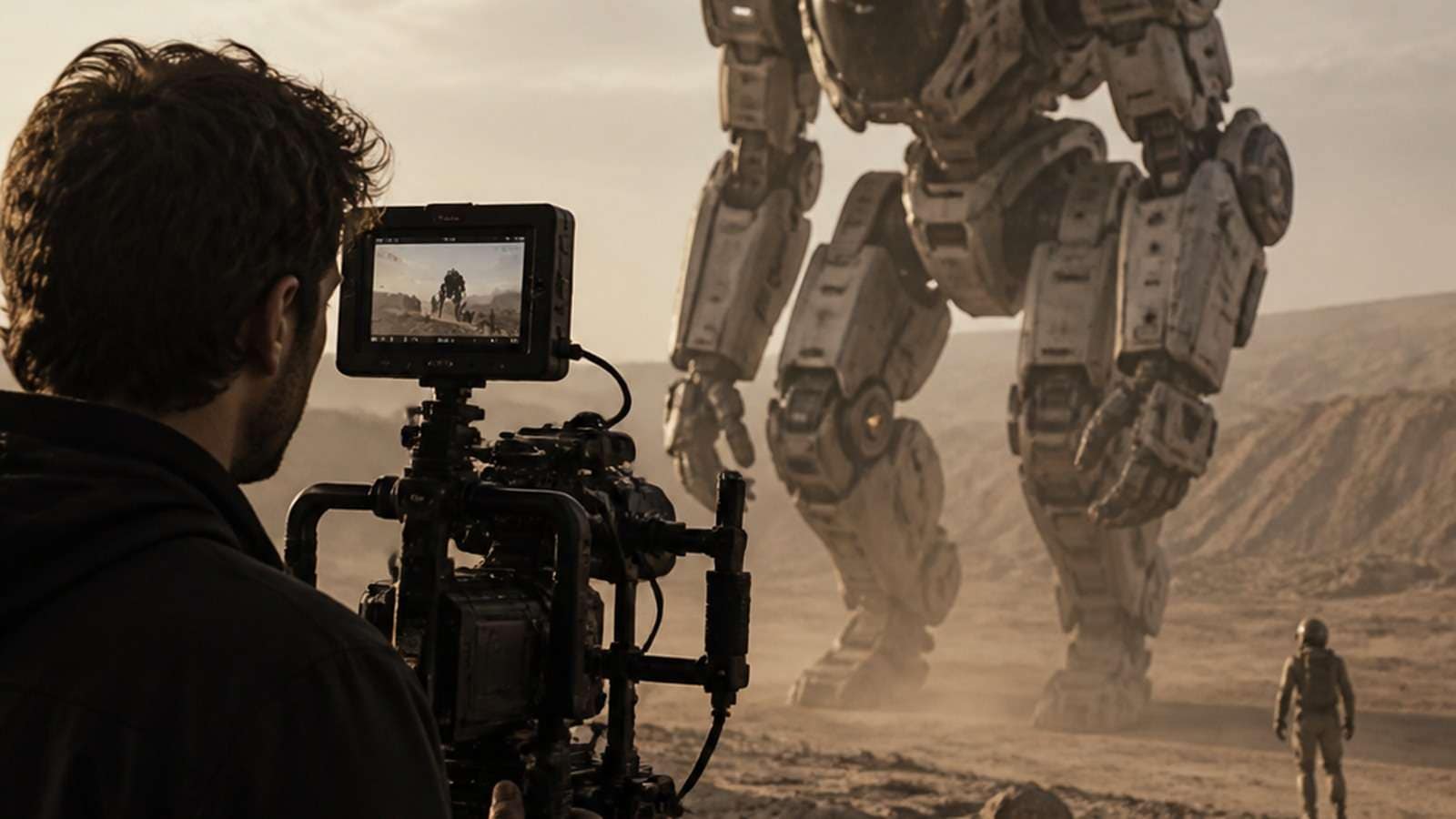
An AI video looks real when its camera, motion, light, materials, human behavior and sound all obey the same believable world. High resolution alone cannot create that agreement. A sharp clip with floating feet, rubber hands or impossible reflections still looks synthetic.
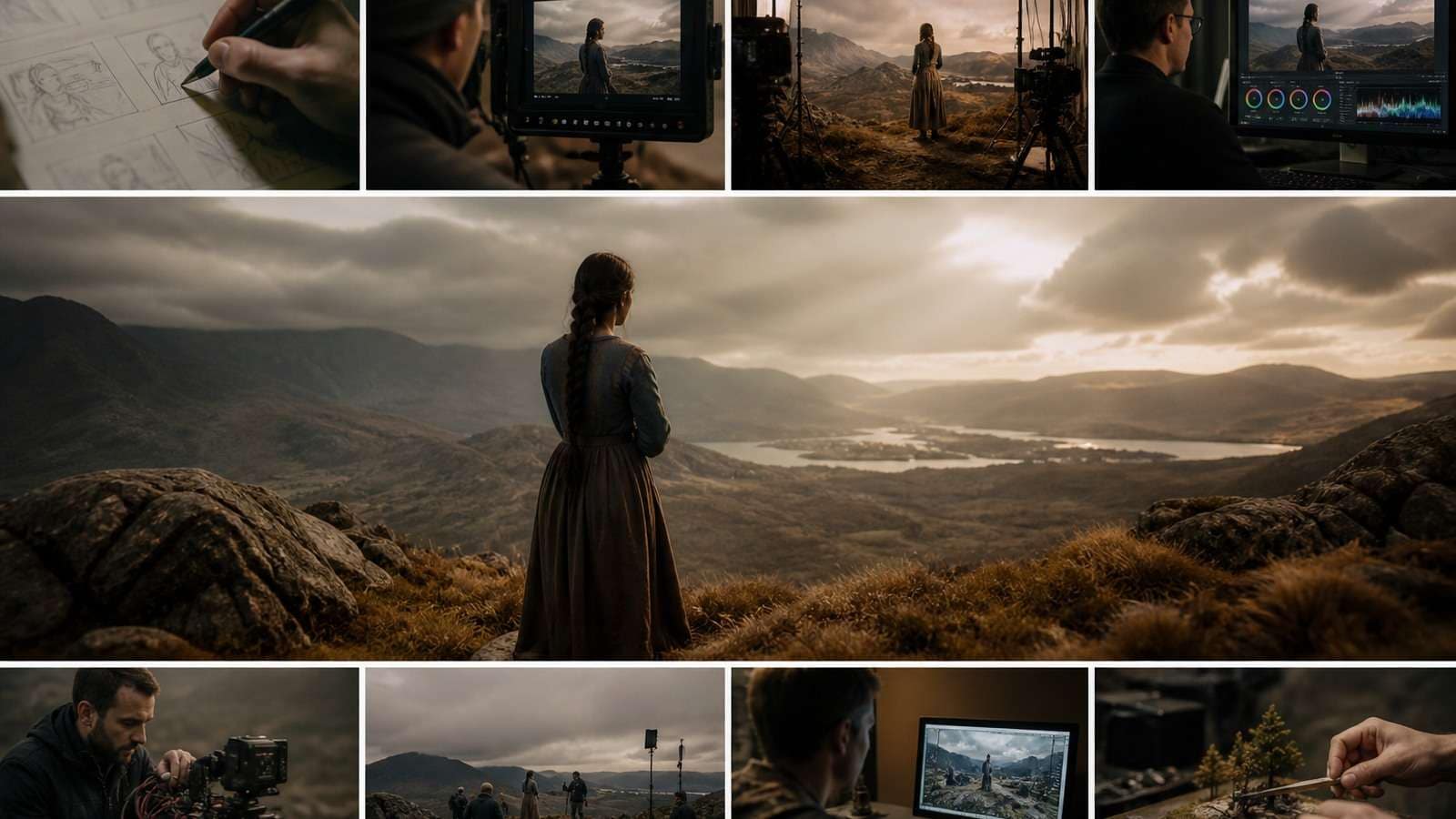
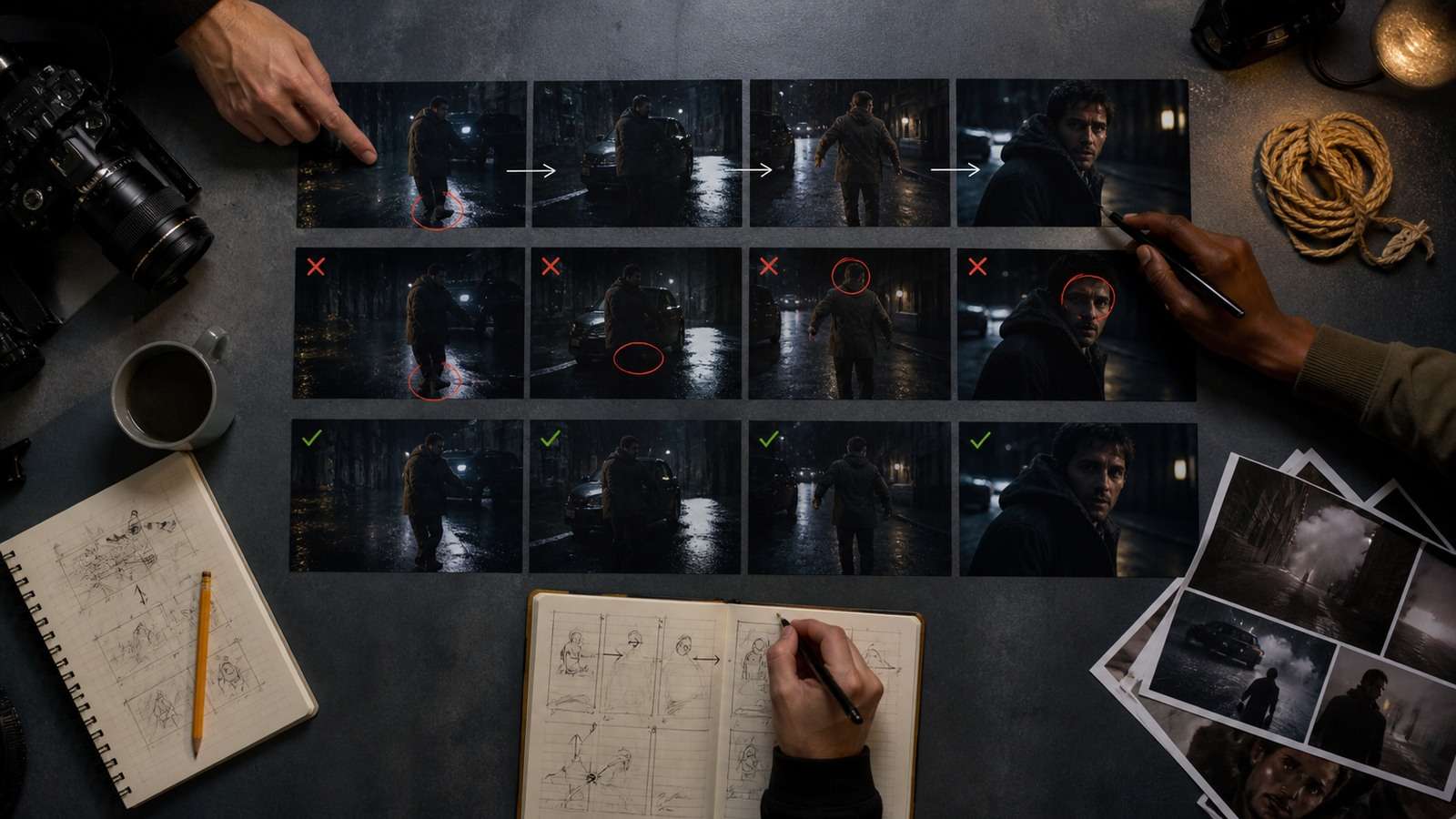
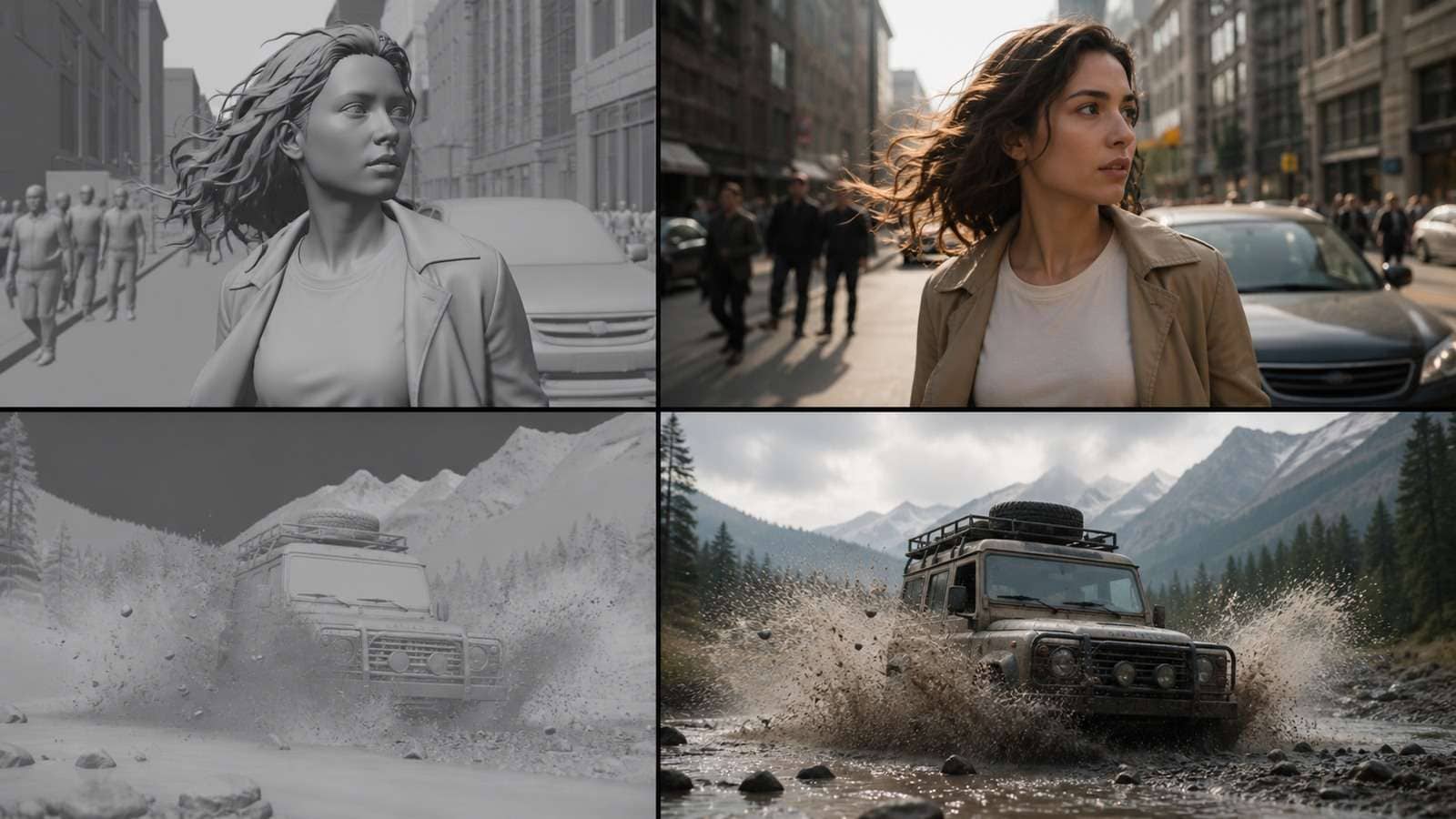
The most reliable workflow is not “add more realism words.” It is to plan a plausible shot, create a strong source frame, request restrained motion, inspect temporal defects and finish the accepted result. High-view realism tutorials increasingly follow this sequence: preparation and storyboard, cinematic still, animation, then touch-up.
In This Article
Why AI Videos Look Fake or Weird
| Artificial signal | What viewers notice | Underlying problem |
|---|---|---|
| Continuous morphing | Faces, clothes or objects subtly change | Weak temporal identity and geometry |
| Floaty motion | People have no weight or floor contact | Acceleration and contact do not follow physics |
| Perfect plastic surfaces | Skin and materials lack variation | Over-smoothed source or enhancement |
| Impossible camera | Lens moves through objects or changes perspective | Conflicting camera instructions |
| Unmotivated movement | Everything moves at once | Prompt lacks a primary action |
| Uncanny behavior | Eyes, pauses and gestures feel performed by a machine | No human timing or intention |
| Audio mismatch | Sound scale or room does not fit the image | Audio was treated as an afterthought |
People are sensitive to broken causality. A cup should react when a hand touches it; hair should respond to wind with a slight delay; a walking body should transfer weight from one foot to the other. Viewers may not name the defect, but they feel that the scene has no physical cause and effect.
Start With a Source Image That Can Become Real Video

Image-to-video inherits both the strengths and mistakes of the source frame. A hand hidden behind an object, duplicated jewelry or inconsistent reflection can become a larger moving artifact. Approve anatomy, geometry and composition before animation.
Use Photographic Specificity
Describe a plausible camera and lighting situation:
- Camera height and distance
- Lens feel or field of view
- Key-light direction and softness
- Practical light sources visible in the scene
- Material texture and signs of use
- Natural imperfections such as flyaway hair, fabric creases or uneven condensation
“Shot on 50mm at eye level in soft window light” communicates a physical image-making setup. “Ultra realistic 8K masterpiece” communicates taste but little geometry.
Keep the Frame Logically Complete
If the character will walk, show feet and floor. If a hand will pick up a product, make both hand and product readable. If the camera will orbit, understand that the model must invent hidden sides of the subject. Begin with motion compatible with the visible information.
For a recurring person, create stable multi-angle references using an AI character turnaround sheet. Identity consistency is easier when profile and full-body details are defined before video generation.
How to Prompt Realistic AI Video Motion
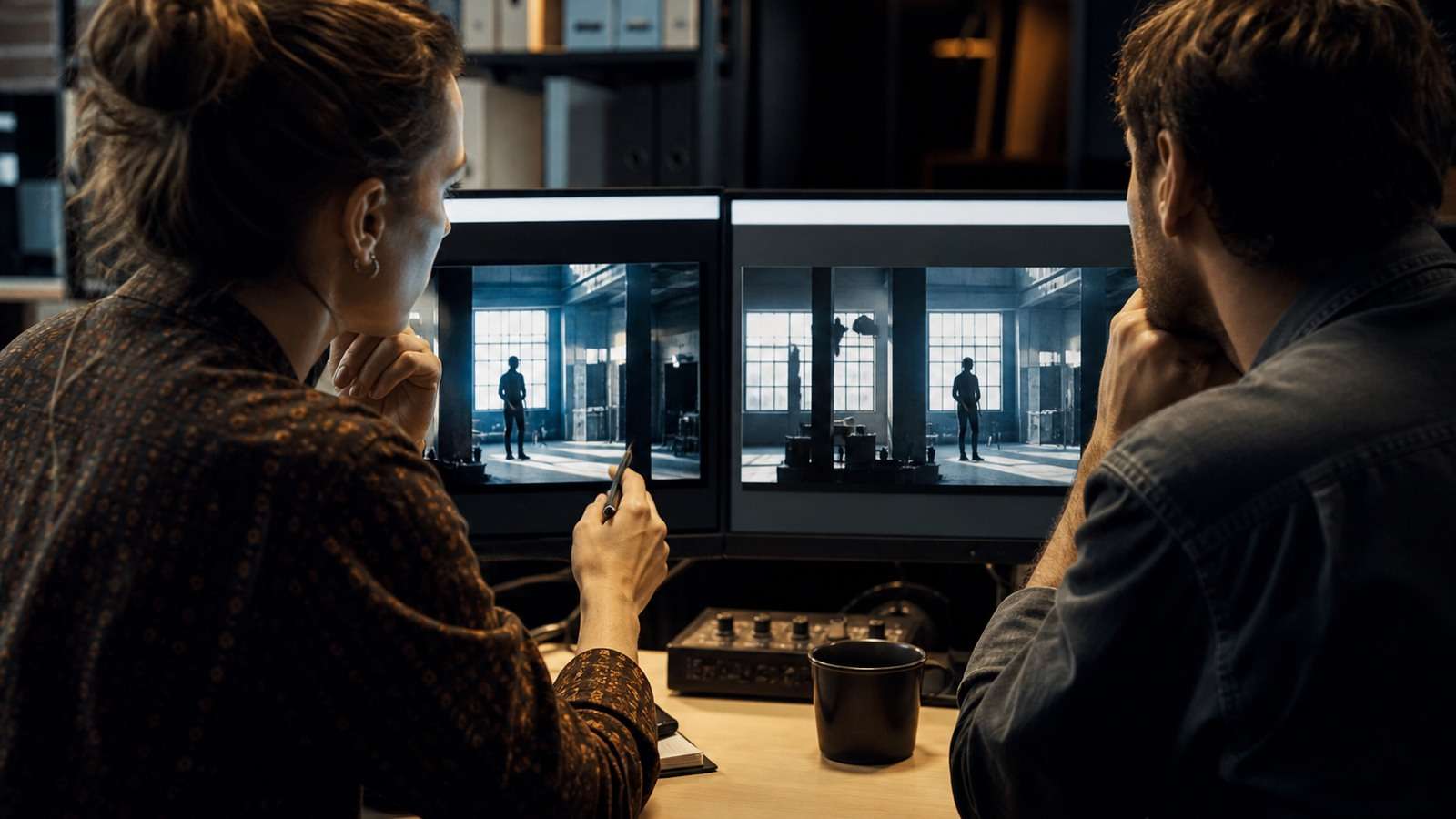
In image-to-video, the frame already contains subject, wardrobe, composition and style. Use the motion prompt to describe what changes over time.
Give the Shot One Main Action
A person stands, turns, waves, speaks, opens a door and walks away in five seconds only by violating timing or anatomy. Split complex behavior into shots. A single believable action is more cinematic than several incomplete actions.
Use Timing Language
Words such as “slowly” are vague. Describe phases: “She pauses, looks toward the window, then exhales as her shoulders relax.” This gives the action an ordered cause and emotional rhythm.
Choose One Compatible Camera Move
Combine a modest subject action with a stable camera or one simple move: slow push-in, gentle handheld drift, lateral track or locked tripod. Avoid simultaneously requesting an orbit, zoom, crane and dramatic lens change.
Animate the Approved Frame
Media.io Image to Video is relevant when the visual design is already approved and the job is to add controlled motion. Use the simplest shot that communicates the moment, then assemble multiple accepted clips later.
Realistic Humans, Physics and Character Continuity
Human Motion Needs Intention
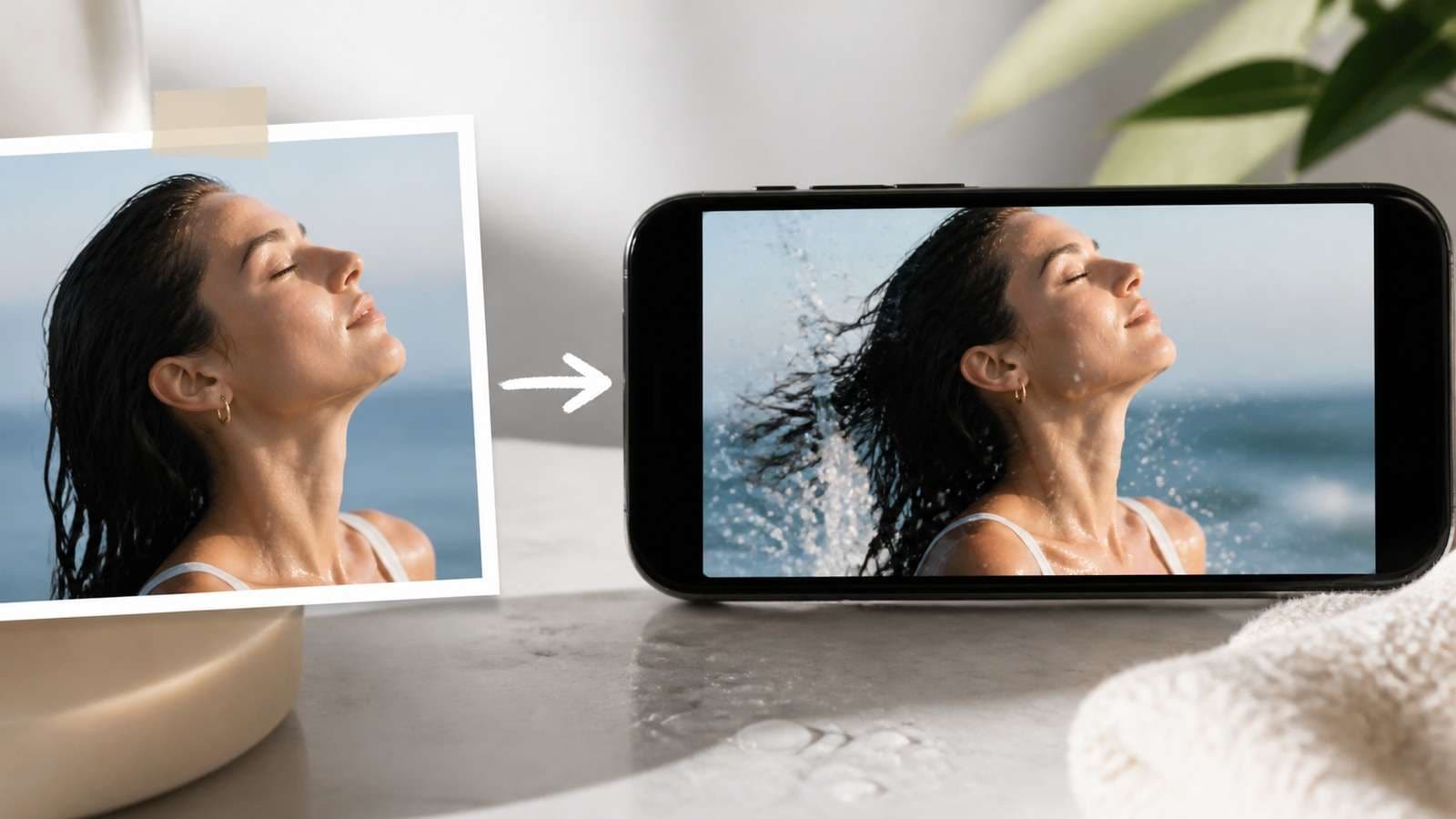
Natural movement contains anticipation, action and recovery. Before reaching for a cup, the eyes may look toward it and the shoulder may shift. After placing it down, fingers release and the hand returns. Prompting only “woman picks up cup” skips these cues.
Protect Hands Through Shot Design
Hands become difficult when they contact objects, cross the face, rotate rapidly or leave the frame. Use a source with clear fingers, reduce speed, avoid unnecessary contact and keep the hand large enough to resolve. If hands are not essential, frame the shot around the face or torso.
Match Action to Weight
A heavy metal door should accelerate slowly and affect posture. A paper bag should deform where it is gripped. Water should flow around objects rather than pass through them. Include one material clue in the prompt instead of asking for generic “realistic physics.”
Preserve Continuity Across Shots
Create a ledger for character, wardrobe, props, weather, light direction and object state. The final frame of one shot should be compatible with the next shot's starting frame. For longer projects, use Script to Video to break the story into controlled scenes before generation.
Remove the AI Look With Sound and Finishing
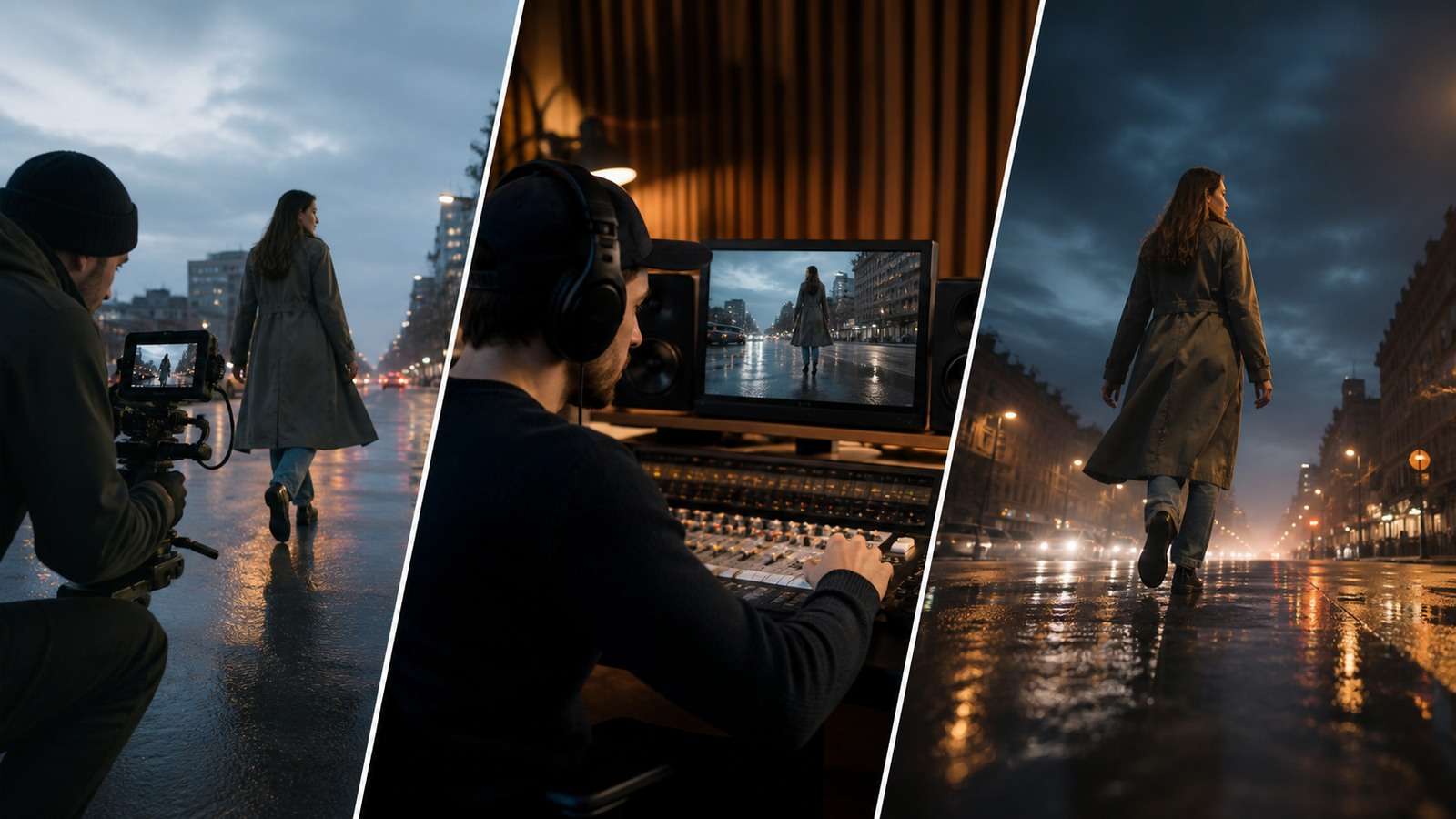
Sound makes motion feel physical. Footsteps imply weight; cloth movement supports a turn; room tone places dialogue in a space. Choose ambience based on the visible environment and perspective. A distant subject should not sound recorded inches from a studio microphone.
Use Media.io's online video editor to assemble approved shots, align sound, control pacing and add motivated cuts. Editing can hide a weak transition by cutting earlier, but it cannot make fundamentally broken anatomy believable.
Color and Texture
- Match black level, white balance and saturation across shots.
- Avoid crushing skin detail with excessive denoising.
- Add grain only after resolution and color are stable.
- Match generated footage to the camera noise of adjacent real footage.
- Use motion blur appropriate to speed rather than blurring every frame.
Artificial grain does not automatically create cinema. If a clip has unstable generated grain, follow a controlled method for reducing unwanted video grain, then apply one consistent texture layer after the edit.
Enhancement Has a Limited Role
A video enhancer can improve a stable but soft result, especially after the best generation has been selected. It cannot correct a face that changes identity, a hand with the wrong number of fingers or a camera that passes through geometry.
Realistic AI Video Prompt Examples
Natural Lifestyle Portrait
Product Interaction
Cinematic Street Scene
Dialogue Shot
Should You Repair or Regenerate a Distorted AI Video?
| Defect | Repair | Regenerate |
|---|---|---|
| Soft but stable image | Enhance after approval | Not usually necessary |
| One weak cut point | Trim or cover with B-roll | If the action itself is essential |
| Minor color mismatch | Grade and match | No |
| Temporary background distraction | Mask, crop or local cleanup | If geometry collapses |
| Face or body morphing | Only for a very short isolated frame | Usually yes |
| Incorrect hand contact | Cut before contact or composite | Yes when central to the shot |
| Impossible camera path | Rarely | Yes, simplify the camera prompt |
| Character identity drift | Replace affected shot | Yes, improve references |
Test realism at intended viewing size and at full resolution. A small social clip can hide minor background errors but makes faces and text central. A cinema or desktop frame reveals texture crawl and geometry defects. Export captions with a video caption generator when speech is present, and verify timing against final—not draft—audio.
For delivery, compress the MP4 only after reviewing the master. Excessive compression can create block edges, banding and texture instability that viewers may mistake for generation artifacts.
If the source idea still lacks a viable shot, return to an AI video generation workflow with a smaller action and more explicit camera logic. Finishing is the last layer, not a substitute for a coherent generation.
Frequently Asked Questions
-
Why do AI videos look fake?
Common causes include temporal morphing, weak contact physics, inconsistent identity, impossible camera movement, plastic materials, unnatural human timing and mismatched sound. -
How can I make an AI video look more realistic?
Plan one plausible action, begin with a clean keyframe, request restrained motion and camera behavior, then add coherent sound and local finishing. -
Do words like photorealistic and 8K improve realism?
They may influence style or detail, but they do not define anatomy, physics, timing or camera geometry. Specific photographic and motion instructions are more useful. -
Can an AI video enhancer fix distorted faces and hands?
No. Enhancement can improve a stable soft render, but structural face, hand, identity and geometry failures usually require regeneration or compositing. -
What camera movement looks most realistic in AI video?
A locked camera, restrained handheld drift, slow push-in or simple lateral track is usually safer than combining multiple complex camera moves. -
How do I remove flicker from AI video?
First determine whether the flicker is surface texture, lighting, identity or geometry. Minor texture flicker may be reduced in post, while structural flicker requires a new generation.


