

 One-tap erase on photos & videos


 ChatGPT
 Perplexity
 Gemini
 Claude
 Grok
Grok
Have you ever opened a post on Snapchat and thought:
“Why did I put that sticker there?”
Well, you’re not alone. People want to delete Snapchat stickers for various reasons. It might be an accidental emoji or sticker placement, cluttered visuals, or even privacy concerns when sharing images outside the app. What seemed funny in the moment doesn’t always age well.
Snapchat does let you remove stickers before you post, but once a photo is saved, shared, or taken as a screenshot, things get tricky. At that point, removing stickers requires a smarter, external solution.
This guide walks you through what Snapchat allows natively, and what to do when it doesn’t. Stick around to learn about a very helpful AI-powered workaround.
In this article
What Snapchat Lets You Do: How to Remove Stickers Before Sending

The first stop is to learn about Snapchat’s built-in sticker controls. Before you make your post public, check whether you like it. If you catch the mistake early enough, while you are still editing your Snap, then you’re in luck. Check out our guide to learn how.
Delete a Sticker Before Sharing
So, let’s assume that you started creating your post. You opened Snapchat, took a photo, added a sticker, and then realized you didn’t want it. Removing the sticker is easy. Just follow the steps.
Step 1: Tap and hold on the sticker you want to remove.
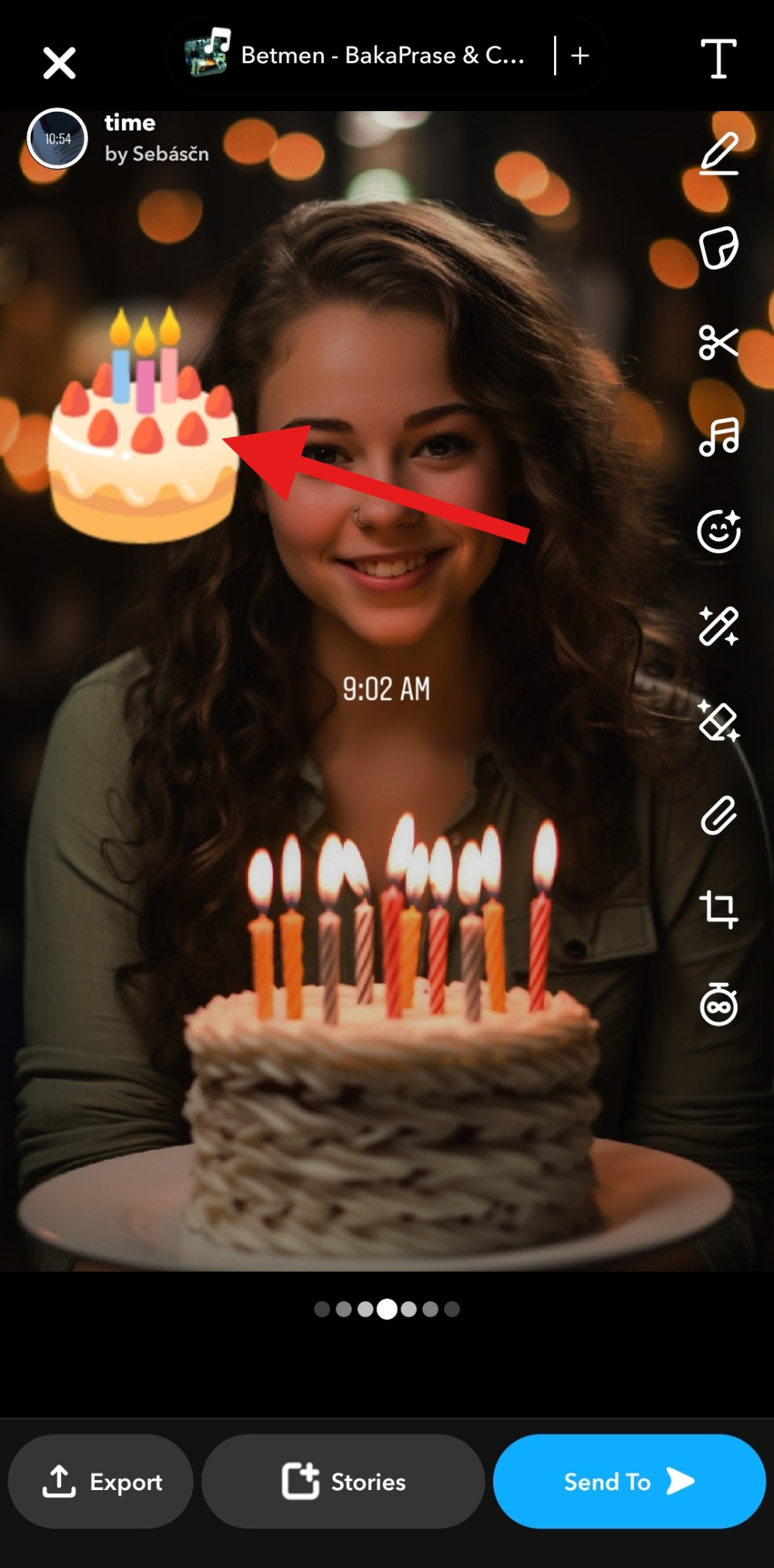
Step 2: Drag it to the trash icon before posting.
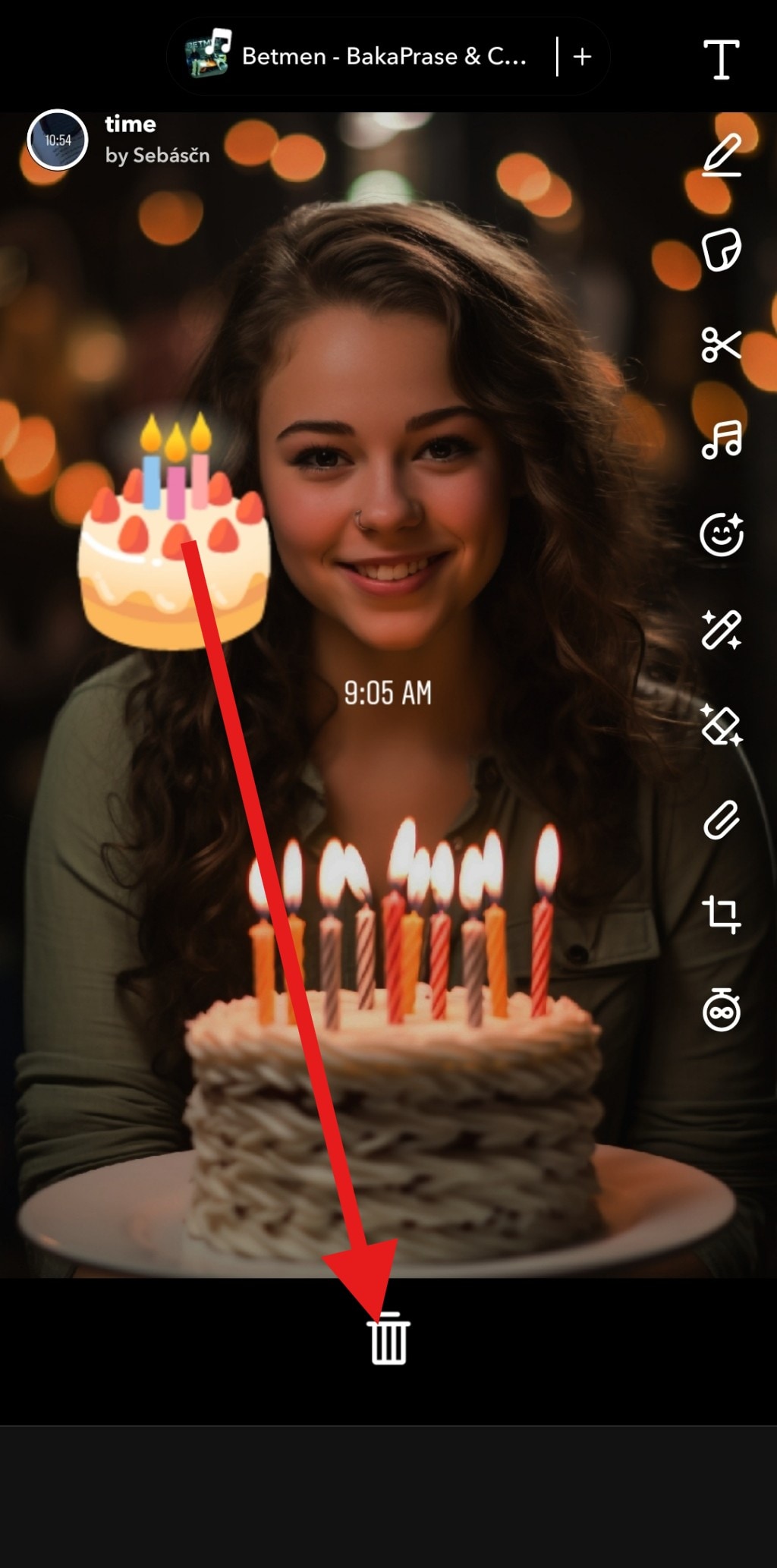
This method works only on the editing screen. Once you move forward with the process and post it as a standard post or a Story (or even save it to your device), this option disappears.
Media.io is an online AI studio for creating and editing video, image, and audio in your browser.


Clear Recent Sticker History
This is not a method to remove a sticker from a Snap, but it does help clean up your sticker experience inside Snapchat. You see, as you explore and search for stickers, those that you searched for will always appear at the top, and you might not want that, especially if your suggestions feel cluttered or irrelevant. To fix this, you can simply clear your history.
Here’s a quick guide on how to do it.
Step 1: Open Snapchat and click on your profile icon.
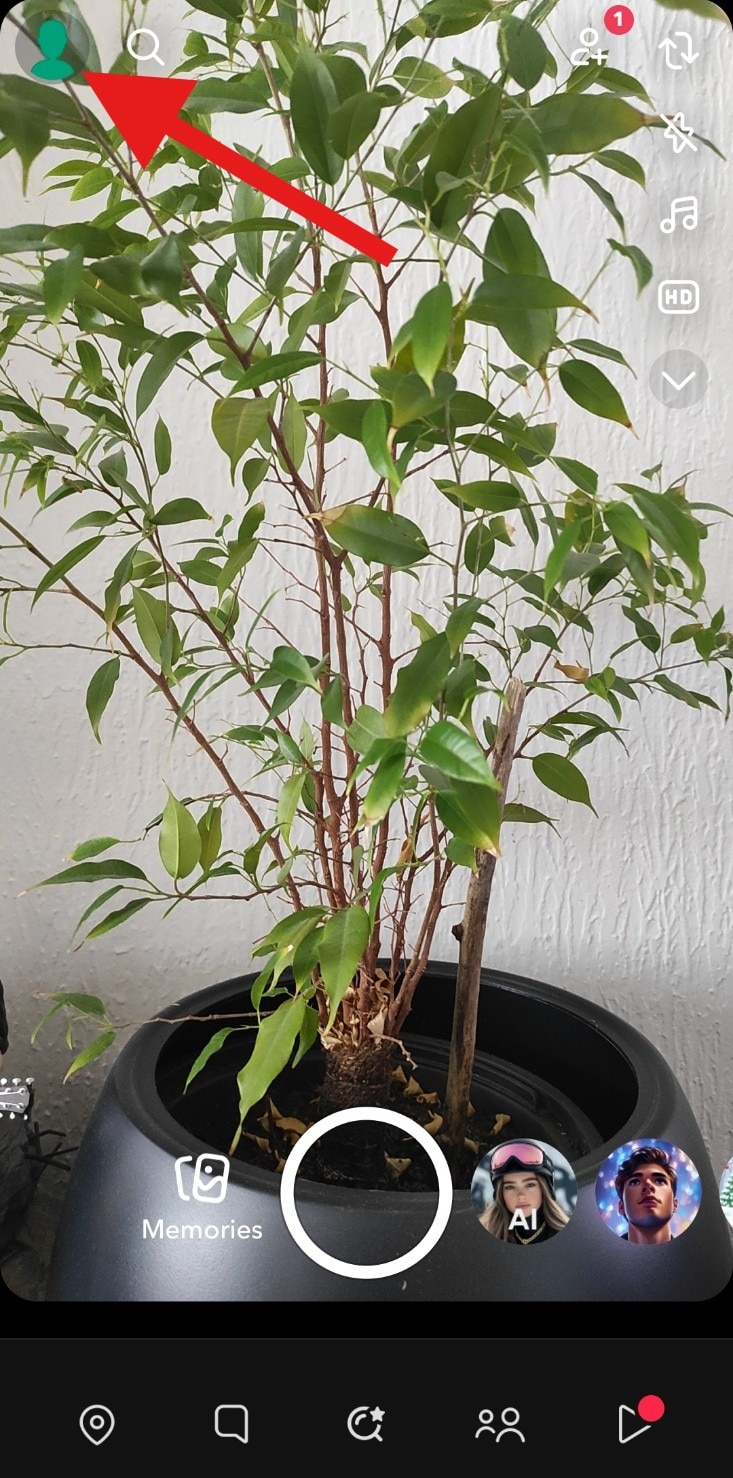
Step 2: Now, open the settings by tapping on the gear icon.

Step 3: Scroll down until you find the Delete Search History option. After that, just confirm your selection.
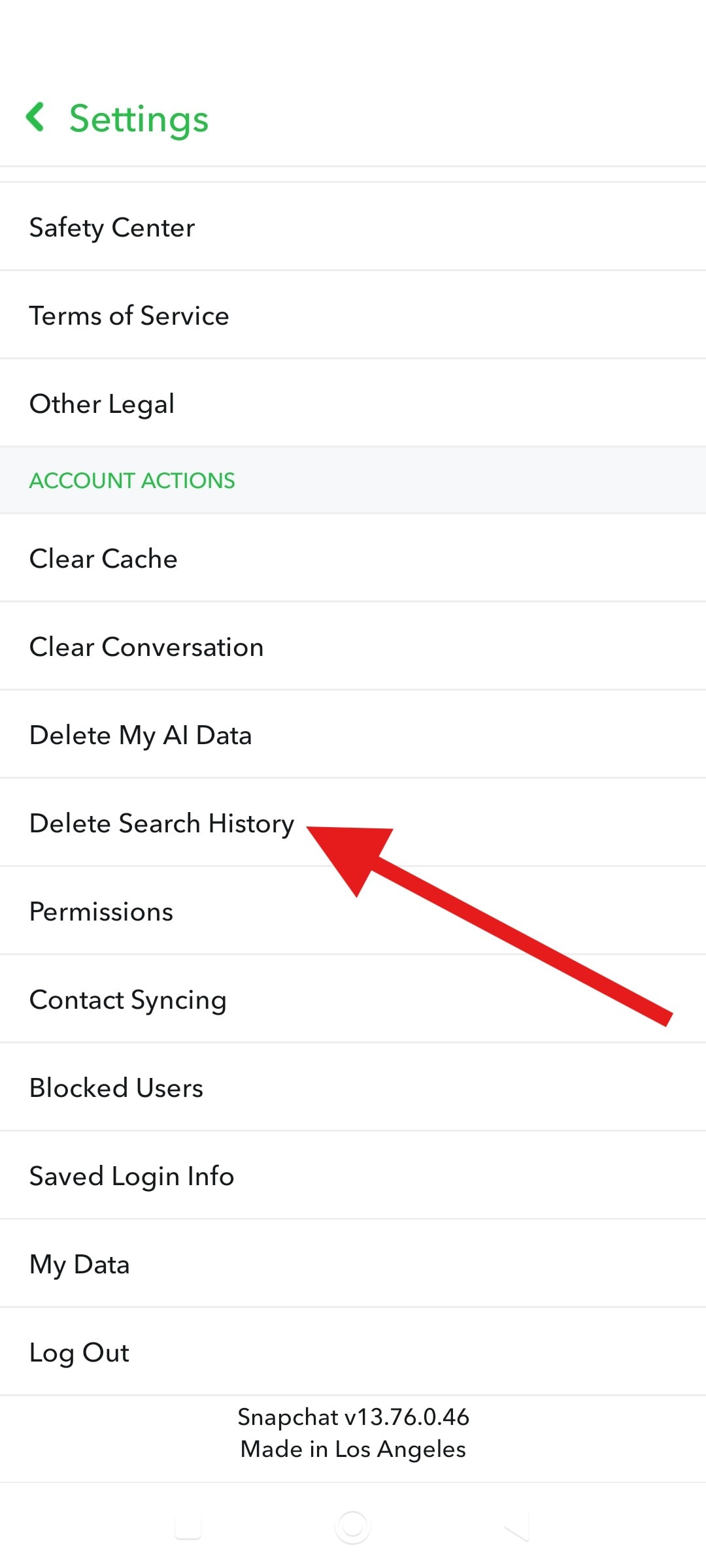
But these are not the methods you were looking for, right?
When Snapchat Doesn’t Let You Remove Stickers

Snapchat’s limitations become glaringly apparent once you move beyond the editing screen. This is where you start to become frustrated as a Snapchat user.
Once a Snap is saved to your phone, posted to a Story, sent to someone else in the DM, or captured as a screenshot, then Snapchat no longer allows you to remove stickers natively. There’s no “edit history,” no sticker layer. You cannot open the post as a project and tap an “undo” option.
This is why people frequently search for how to remove stickers on Snapchat after saving. At this stage, the sticker is baked into the image. Removing it requires an external image-editing solution, preferably one that doesn’t involve manual retouching or advanced design skills.
What is the Best Tool for Removing Snapchat Stickers From Images?

If you begin searching for tools that can do this type of task, you will run into a sea of different options, but today, we will introduce you to one of the best tools for erasing Snapchat stickers, and that’s Media.io.
It is an online tool you can access from any browser that doesn’t require manual retouching, advanced editing skills, or time-consuming workflows.
Media.io offers a simple and effective way to remove Snapchat stickers from images that are already saved or shared. It’s designed to remove unwanted visual elements while preserving the rest of the image, making it a practical choice for both everyday users and content creators.
Why Should You Use an AI Snapchat Sticker Remover?
Using an AI-powered tool like Media.io removes the need for traditional photo editing. Instead of cloning backgrounds or manually adjusting layers, the AI analyzes the image and automatically fills in the area where the sticker or emoji was placed.
Media.io’s Object Remover can effortlessly erase stickers from Snapchat screenshots or saved snaps, even when the sticker covers faces, text, or detailed backgrounds. No manual editing or heavy design skills are required, which makes the process faster and far more accessible.
Step-by-Step With Media.io Object Remover
Removing Snapchat stickers with Media.io is straightforward and works well even for first-time users. Just follow the steps below.
Step 1: Open the Media.io Object Remover tool online.
Step 2: Click on the designated area to upload a photo with a sticker.
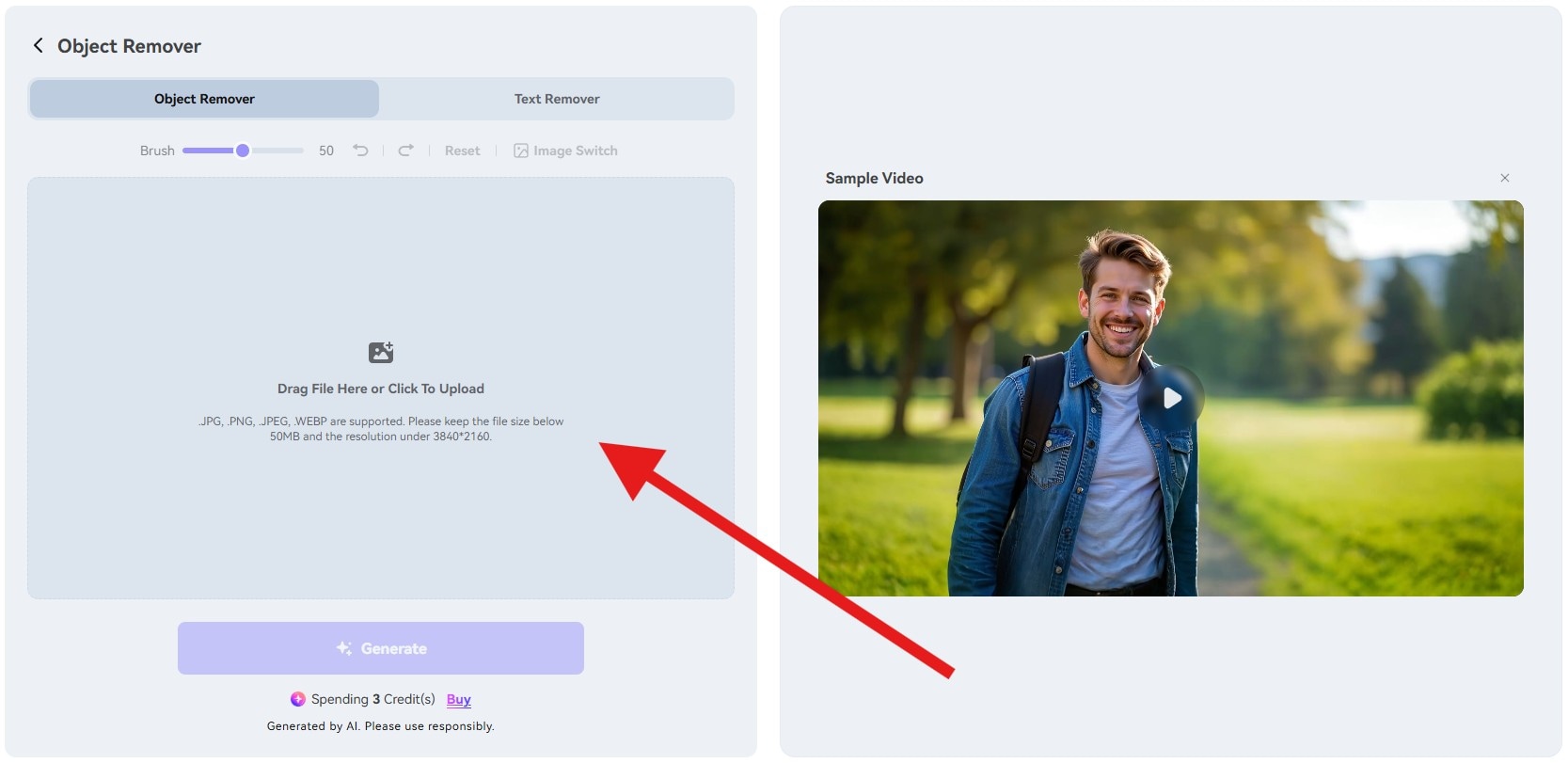
Step 3: Select the object (sticker) that you want to remove from your photo and click on Generate.
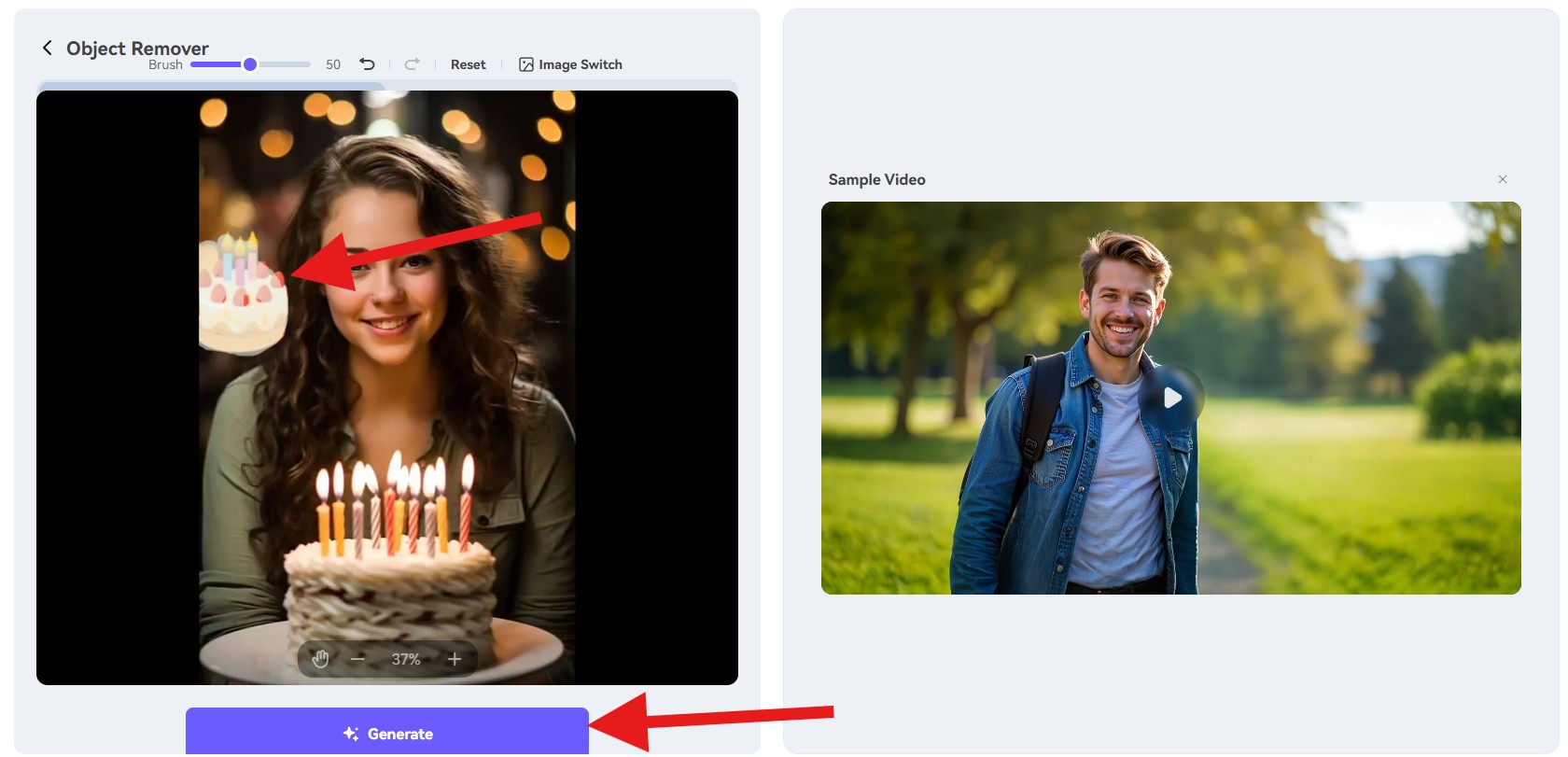
Step 4: After a few moments, you will get a new, clean photo, just as it was before you added a sticker. You only need to click on the Download button.
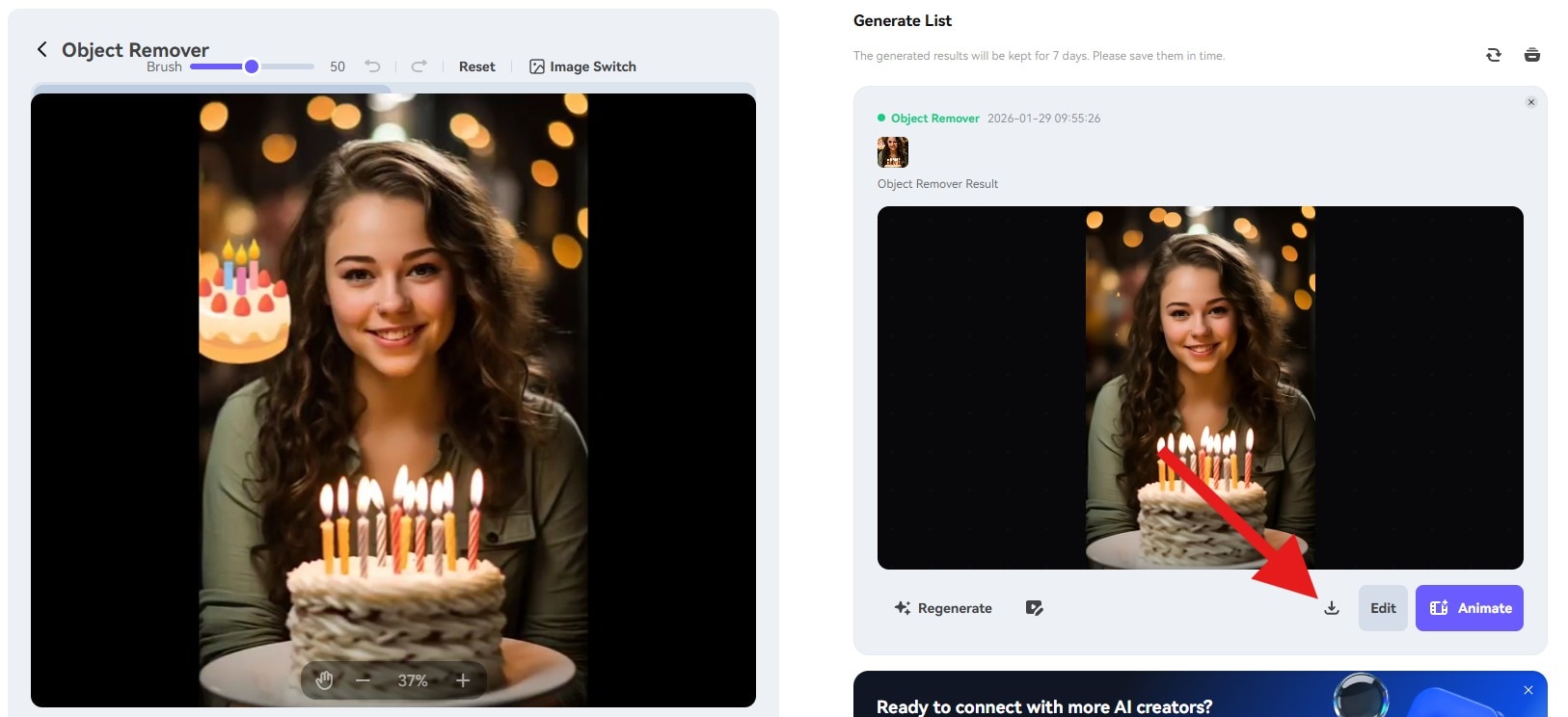
Here is a quick before-and-after photo comparison so you can see what Media.io can do.

It’s like the sticker was never there, right?
Example Use Cases
Here are some common examples of situations where you might need to use Media.io’s tool.
- Removing an emoji from Snapchat screenshots: When someone sends you a Snap with emojis or stickers already applied, and you want to reuse the image but don’t have access to the original, unedited version, an AI remover lets you clean the screenshot without asking the sender to resend it.
- Cleaning up shared images before posting on other platforms: Snapchat stickers often feel out of place on Instagram, WhatsApp, blogs, or presentations. Removing them helps make the image look more neutral, professional, or platform-appropriate before reposting or publishing.
- Fixing accidental sticker placement: Sometimes stickers end up covering faces, text, or important visual details by mistake. Removing them lets you recover the original image without cropping or reducing image quality.
- Preparing visuals for work or educational use: If you’re using Snapchat screenshots in tutorials, articles, or internal presentations, removing stickers helps keep the focus on the content instead of distracting visual elements.
Bonus: You Can Also Try the Video Eraser Feature
Media.io also offers a feature that lets you remove a sticker from a video. It works in (more or less) the same way as the object remover feature. Check out the steps.
- Open the online video remover in your browser and upload a video.
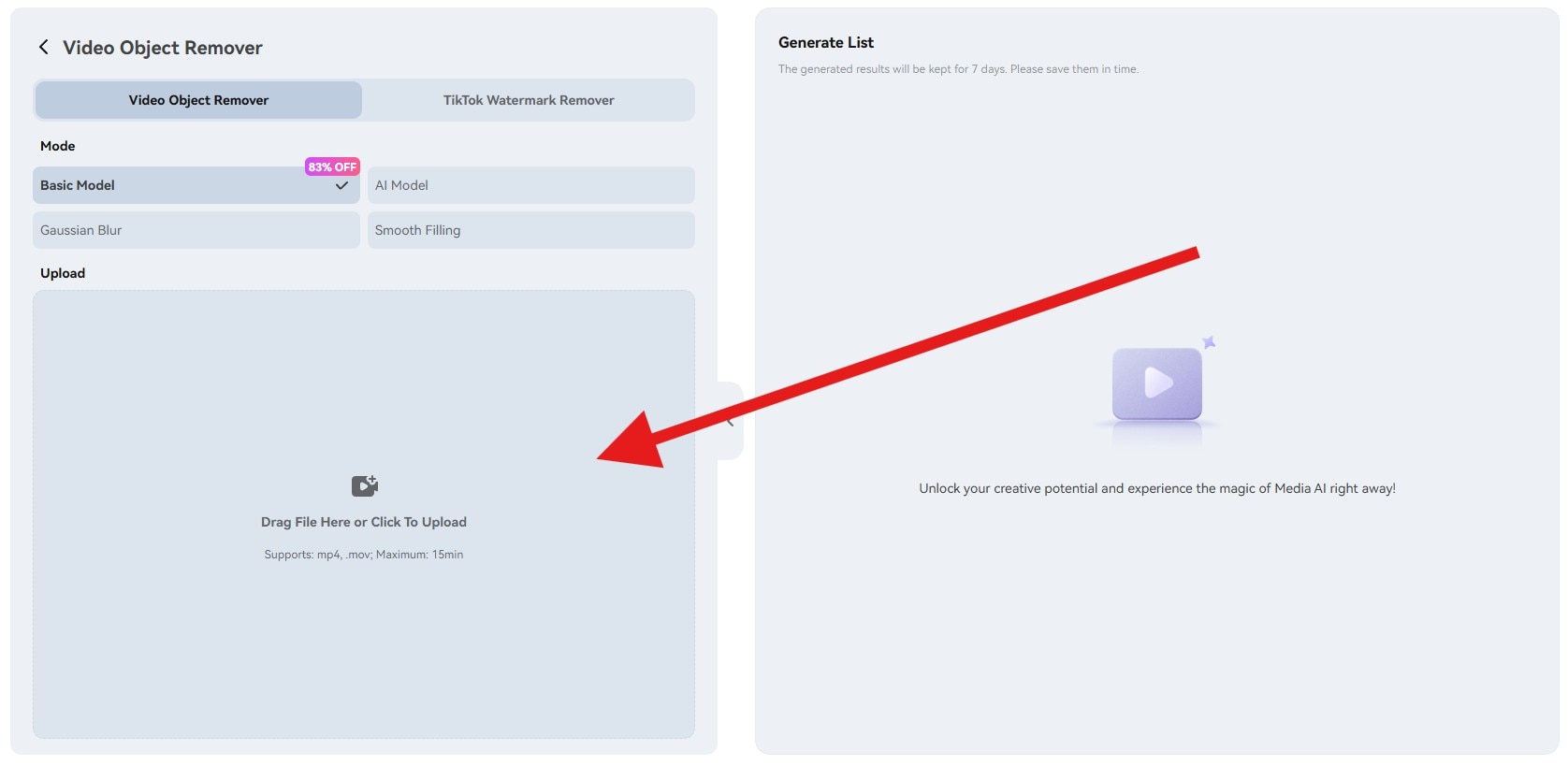
- Carefully select the sticker you want to remove, then click Generate, as you do with the Object Remover.
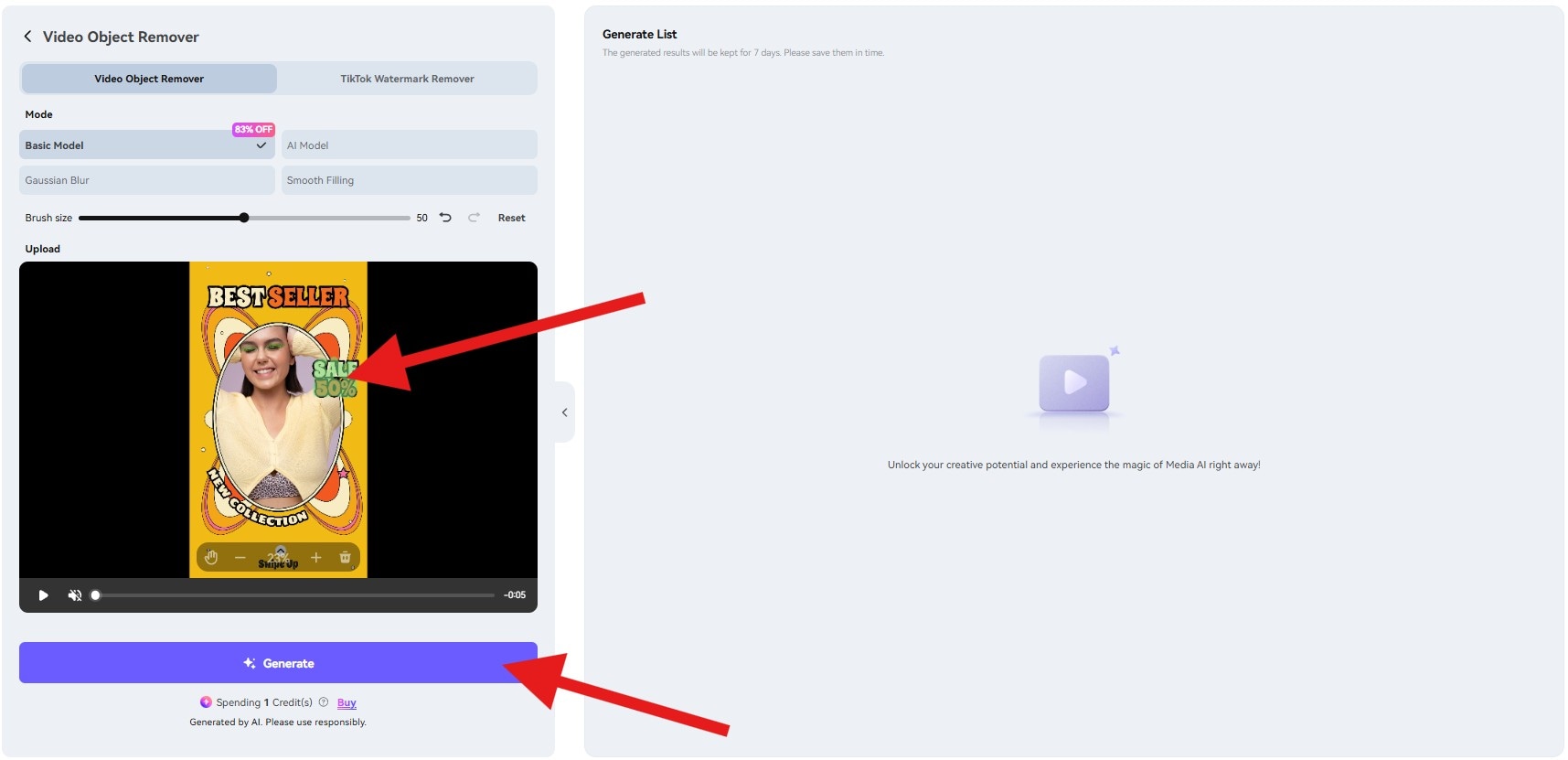
- Review the result and download the new video.
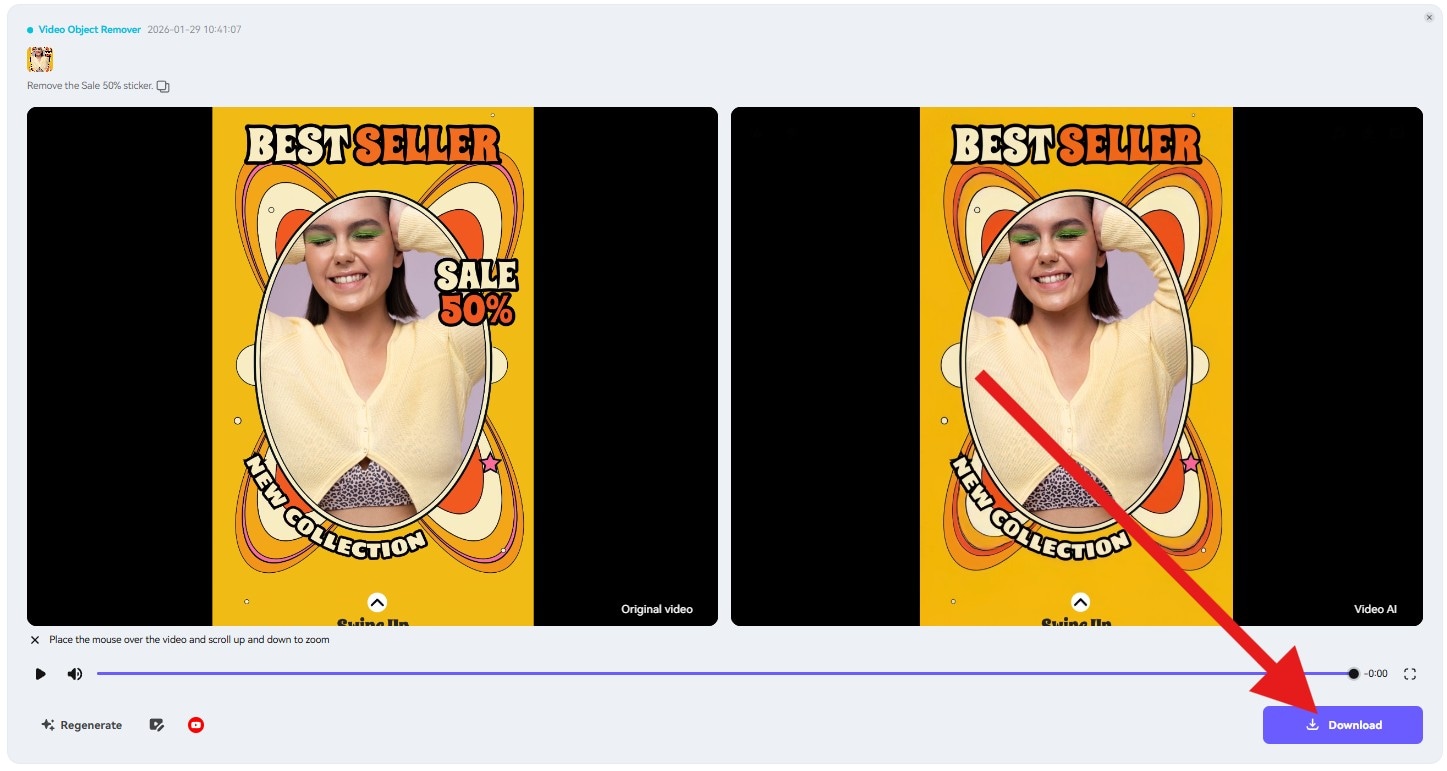
Check out the result.

Media.io is an online AI studio for creating and editing video, image, and audio in your browser.
Top Tips to Get the Best Results
AI-based sticker removal is designed to be simple, but a few small adjustments can noticeably improve the final output. Taking a moment to prepare the image and apply the tool carefully helps the AI reconstruct backgrounds more accurately and reduces the need for repeated edits.
These tips are especially useful when stickers overlap with faces, text, or detailed areas of a Snapchat image.
- Work on the highest resolution image available: Whenever possible, use the original saved image rather than a heavily compressed screenshot. Higher-resolution images give the AI more visual information to work with, resulting in smoother background reconstruction and fewer visible artifacts after the sticker is removed.
- Zoom in on fine details before erasing with AI: Before selecting the sticker or emoji, zoom in to see its exact edges and placement. More precise selection helps the AI understand what should be removed and what should be preserved, especially when stickers sit close to facial features, text, or complex textures.
- Use the undo feature and retry if needed: If the first result doesn’t look quite right, don’t hesitate to undo the action and try again with a slightly adjusted selection. Small changes in the selected area can make a noticeable difference, and repeating the process once or twice often leads to a cleaner, more natural-looking result.
Conclusion
Removing stickers in Snapchat is easy, but only before you save or send the Snap. Once an image is saved, shared, or if you take a screenshot, Snapchat no longer offers a way to edit it.
That’s where Media.io fills the gap. Its AI-powered Object Remover makes it simple to erase Snapchat stickers from saved photos and screenshots, and there is even a dedicated tool for removing objects from videos. You can use all these features without technical skills or manual editing.
So, if you need a reliable way to clean up Snaps after the fact, Media.io is the most practical solution available today.
Frequently Asked Questions
-
Can I remove all stickers at once in Snapchat?
Unfortunately, the answer is no. Snapchat requires removing stickers individually during the editing stage only.Unfortunately, the answer is no. Snapchat requires removing stickers individually during the editing stage only.Can I undo a sticker removal? -
Can I undo a sticker removal?
Only before sending. Once you send or save it, sticker removal cannot be undone using Snapchat’s native features.Only before sending. Once you send or save it, sticker removal cannot be undone using Snapchat’s native features.Does Snapchat let you delete a sticker after you send it? -
Does Snapchat let you delete a sticker after you send it?
The answer is no. After sending or saving, stickers can only be removed using external tools.The answer is no. After sending or saving, stickers can only be removed using external tools.Can I remove all stickers at once in Snapchat? Unfortunately, the answer is no. Snapchat requires removing stickers individually during the editing stage only. Can I undo a sticker removal? Only before sending. Once you send or save it, sticker removal cannot be undone using Snapchat’s native features. Does Snapchat let you delete a sticker after you send it? The answer is no. After sending or saving, stickers can only be removed using external tools.Can I remove all stickers at once in Snapchat? -
Can I remove all stickers at once in Snapchat?
Unfortunately, the answer is no. Snapchat requires removing stickers individually during the editing stage only.Unfortunately, the answer is no. Snapchat requires removing stickers individually during the editing stage only.Can I undo a sticker removal? -
Can I undo a sticker removal?
Only before sending. Once you send or save it, sticker removal cannot be undone using Snapchat’s native features.Only before sending. Once you send or save it, sticker removal cannot be undone using Snapchat’s native features.Does Snapchat let you delete a sticker after you send it? -
Does Snapchat let you delete a sticker after you send it?
The answer is no. After sending or saving, stickers can only be removed using external tools.The answer is no. After sending or saving, stickers can only be removed using external tools.