
 One-tap erase on photos & videos


 ChatGPT
 Perplexity
 Gemini
 Claude
 Grok
Grok
Have you ever finished editing a Snap and immediately regretted a drawing you added? Maybe a scribble landed in the wrong place, a pen stroke covered someone’s face, or an accidental swipe ruined an otherwise good photo. These situations are more common than most Snapchat users would like to admit.
Snapchat makes it easy to draw on photos and videos, but erasing those drawings isn’t always straightforward. While the app does offer limited editing options before you send or save a Snap, those controls disappear once the image is posted, saved, or captured as a screenshot. At that point, you need more control than Snapchat can provide.
This guide explains how to erase a drawing on Snapchat using the app’s built-in tools, what to do when those tools fall short, and how to remove Snapchat scribbles from saved images or screenshots using AI-powered external tools.
In this article
How Snapchat Lets You Edit Drawings
Snapchat does give you a few ways to undo or remove drawings, but they only work under very specific conditions.
Undo a Drawing Before Sending
If you notice a mistake while you’re still editing your Snap, the undo function is your fastest fix.
Open Snapchat on your phone, begin editing your post, and after you make a drawing mistake, look for the Undo button and tap on it.
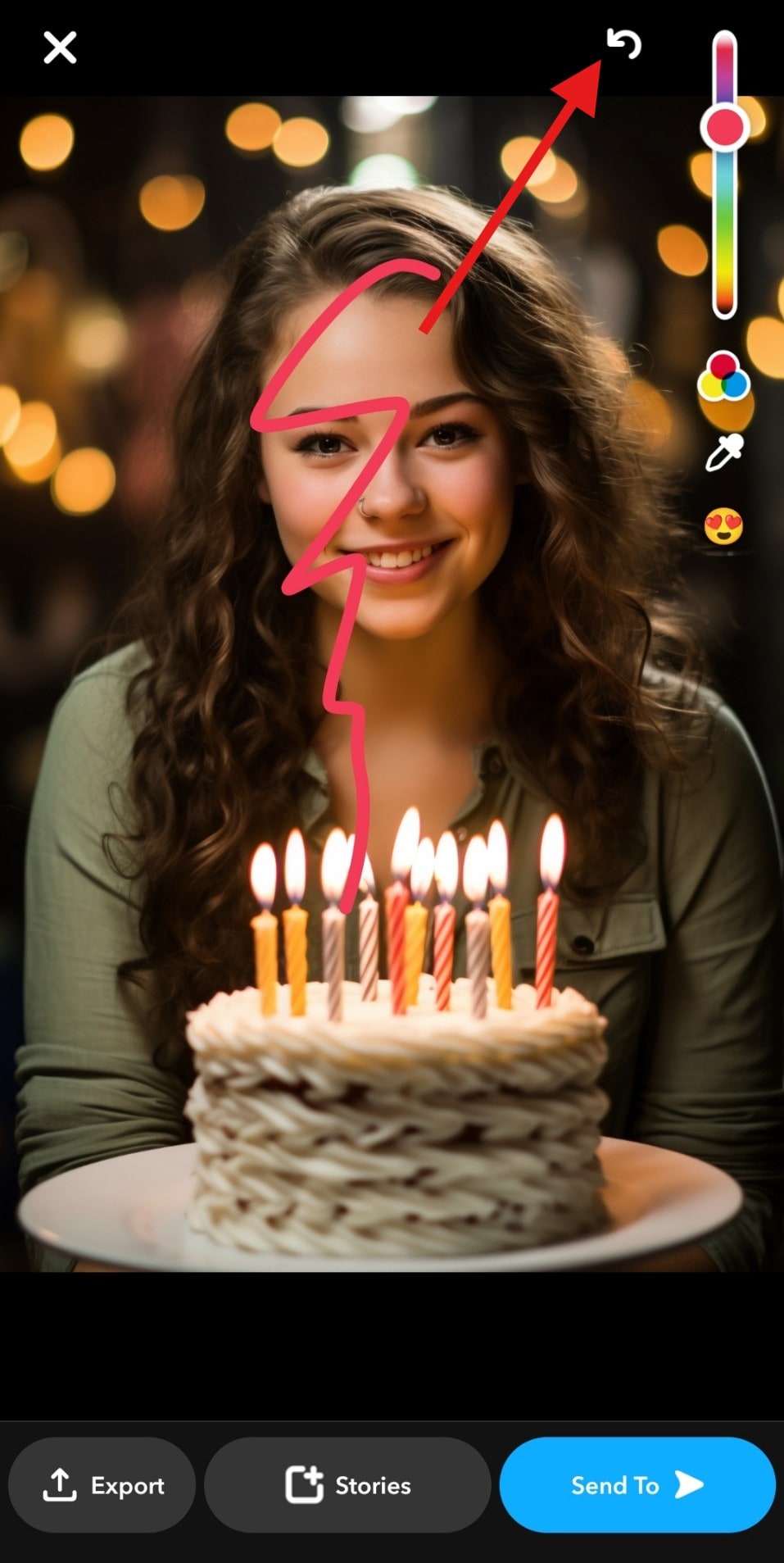
After the tap, you will notice that Snapchat removed your most recent stroke.
This works only before you send or save the Snap. Once you tap on the Send To button, the undo option is no longer available. Also, the Undo button removes actions in reverse order, so if you’ve added multiple edits after drawing, undoing may affect more than just the scribble, which is certainly not ideal.
Clear All Edits Before Sharing
If you haven’t sent the Snap yet and want to start over completely, Snapchat allows you to clear all edits at once.
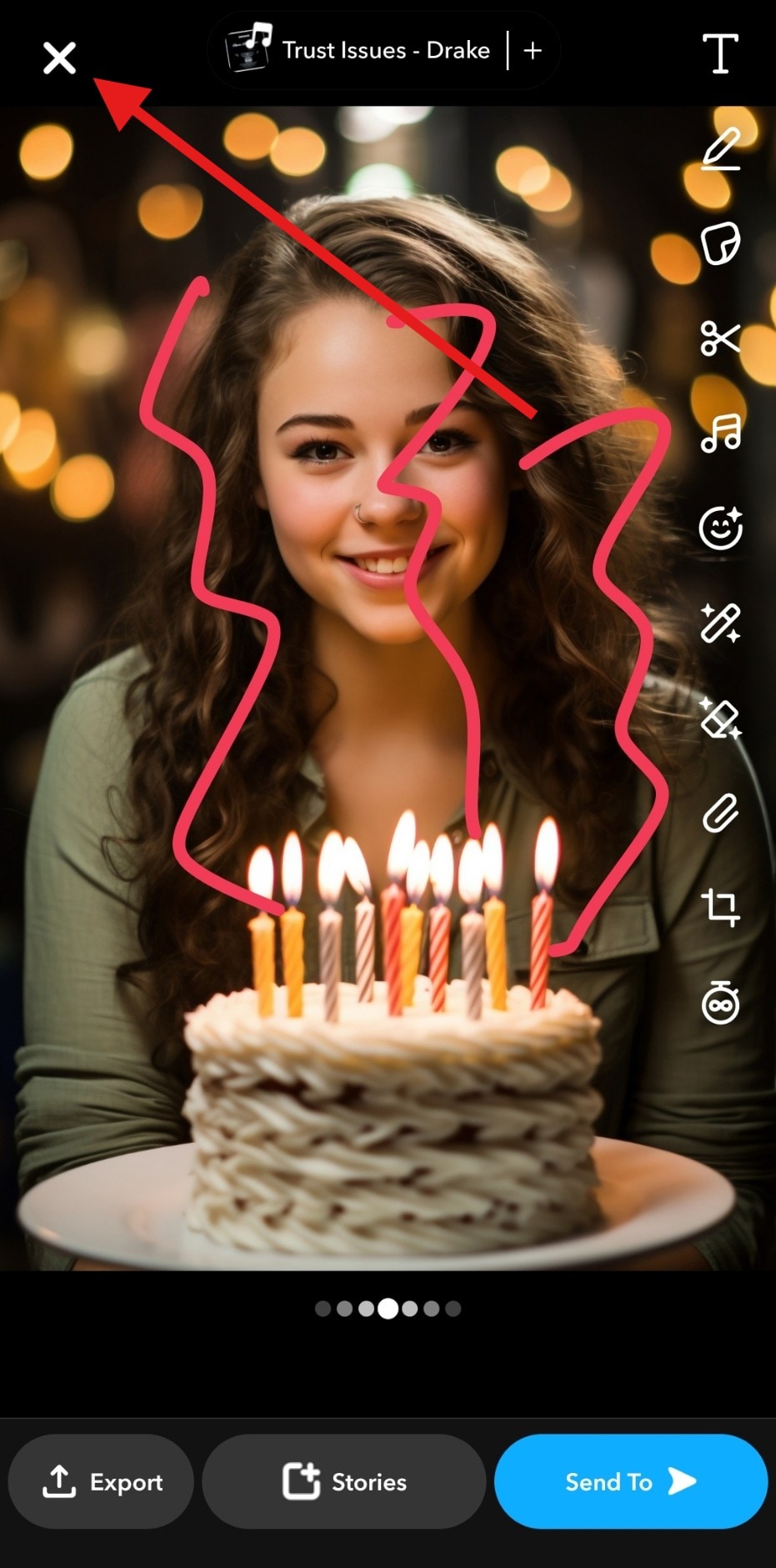
Step 1: In the main editor, tap on the X in the top-left corner.
Step 2: And now, just tap on Discard Changes.
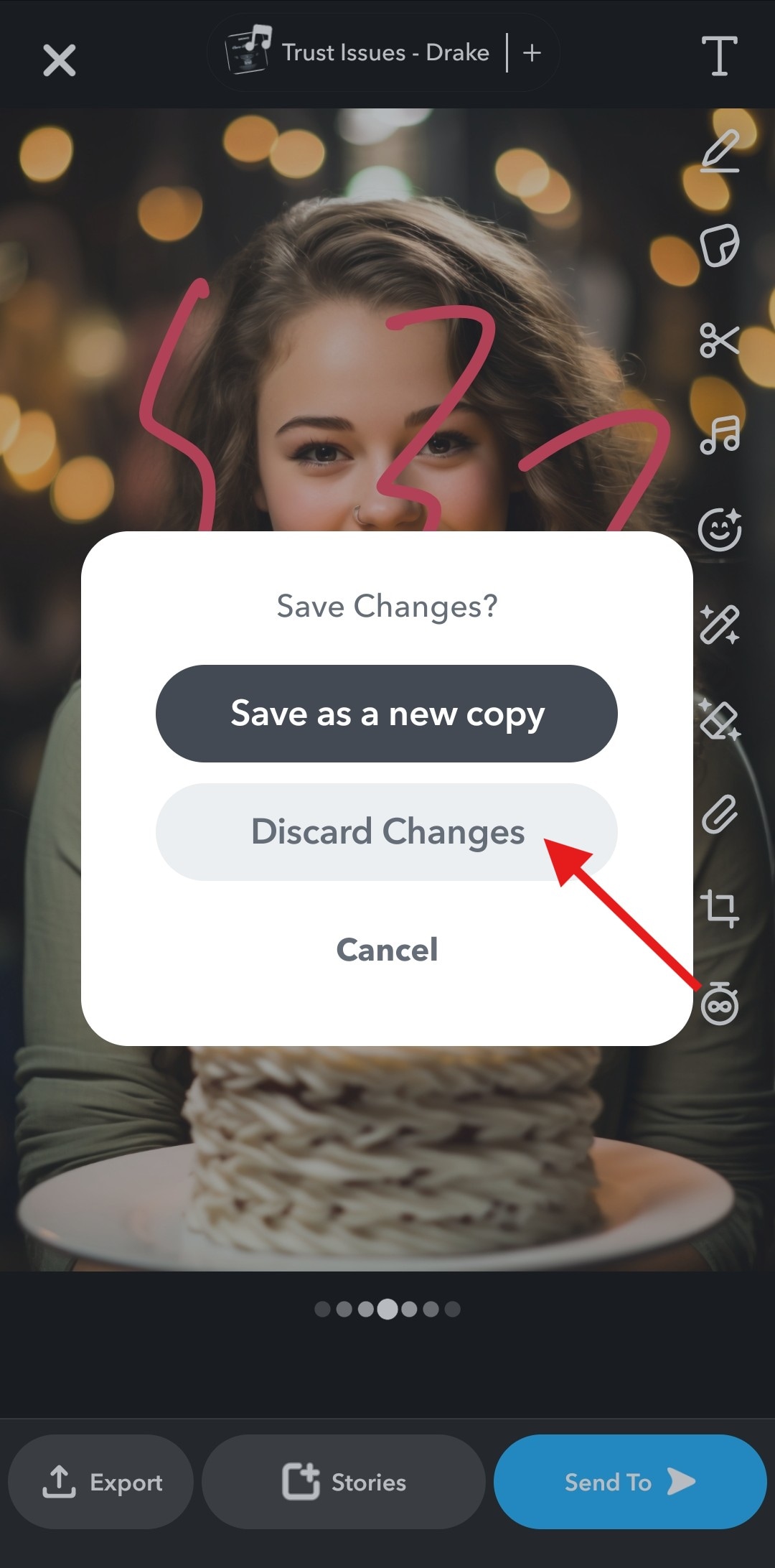
This will remove all drawings, stickers, text, and effects in one step.
This option is useful when you’ve made several drawings, but they actually turned out very badly. Instead of tapping Undo several times, here, you can get rid of everything in a few steps. But the problem is that everything is removed, and not just the pen strokes.
At this point, it’s also important to mention Snapchat’s Magic Eraser feature. While the name suggests it can erase drawings, it’s actually designed to remove objects within photos, and not Snapchat pen strokes. It doesn’t target scribbles, doodles, or freehand drawings added during editing.
However, tapping the Magic Eraser button will open the original photo for editing, and you can take a screenshot.
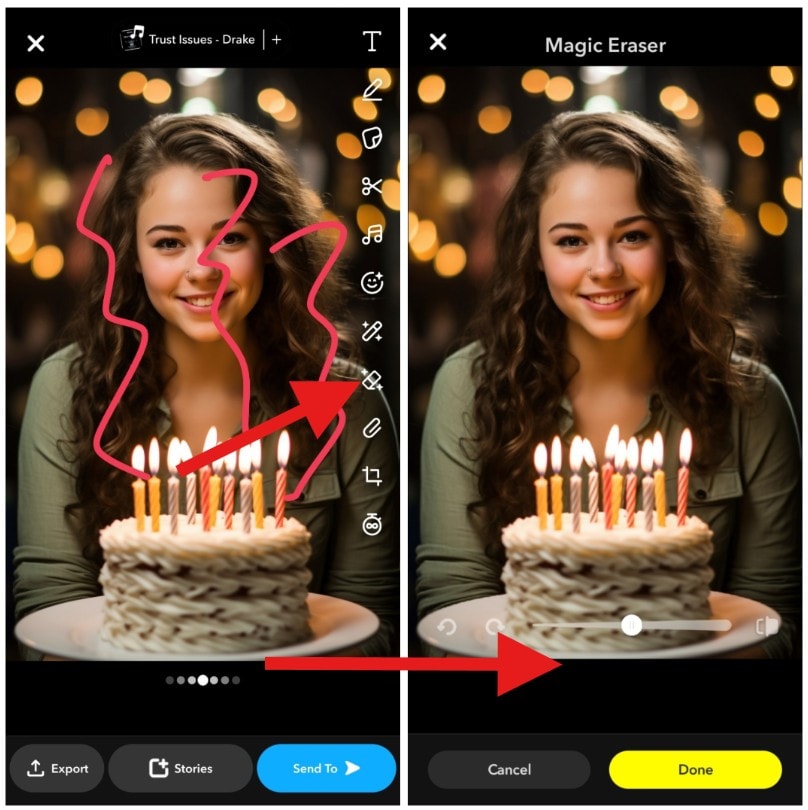
The image on the left was before tapping the Magic Eraser button. The image on the right is what you see after you tap on it.
Media.io is an online AI studio for creating and editing video, image, and audio in your browser.

What Do You Do When Snapchat Can’t Erase Drawings?
Once a Snap with drawings is saved, shared, or turned into a screenshot, Snapchat no longer offers any way to remove those scribbles.
- This is true in all the following scenarios:
- The Snap is saved to your device
- The Snap is posted to a Story
- Someone sends you a Snap with drawings
- You take a screenshot of a Snap with scribbles
At this stage, the drawing becomes part of the image itself. Snapchat treats it like a regular photo, with no editable layers or undo history.
This is why users searching for how to remove Snapchat scribbles on a screenshot quickly discover that Snapchat alone isn’t enough. To remove drawings at this point, you need a third-party solution. Specifically, you need an image-editing tool that can erase unwanted elements while preserving the background.
The most effective options today are AI-based object removers and healing tools that intelligently fill erased areas, rather than leaving visible gaps or blur marks.
What is the Best Online Tool to Remove Drawings on Snapchat Screenshots?

When it comes to removing drawings from Snapchat screenshots or saved images, Media.io is one of the most practical and accessible tools available.
Media.io works directly in your browser and doesn’t require advanced editing skills. Instead of relying on manual cloning or retouching, it uses AI to analyze the image, identify the scribbled area, and reconstruct the background underneath.
This makes it especially useful for Snapchat drawings, which often overlap faces, text, or detailed backgrounds. Media.io is designed to remove unwanted elements while keeping the image natural, making it suitable for both casual fixes and projects that require more polish.
How Media.io AI Tools Can Help Remove Drawings from Snapchat
Media.io offers two key tools for Snapchat content: AI Object Remover for images and Video Eraser for video snaps.
For the Object Remover, follow the steps below.
Step 1: Open the AI Object Remover page.
Step 2: Click to upload your photo.
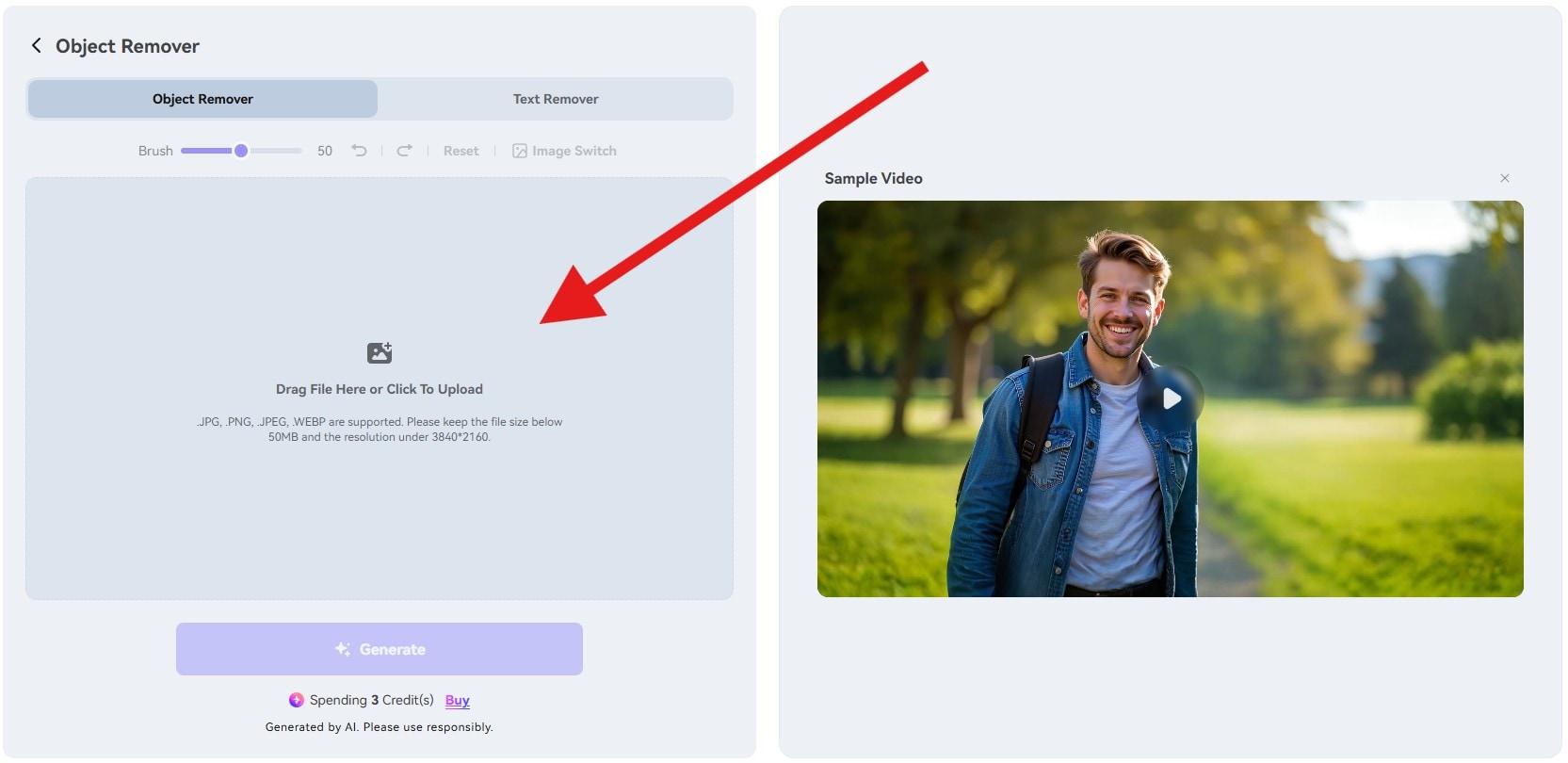
Step 3: Carefully select the Snapchat scribbles and click on Generate.
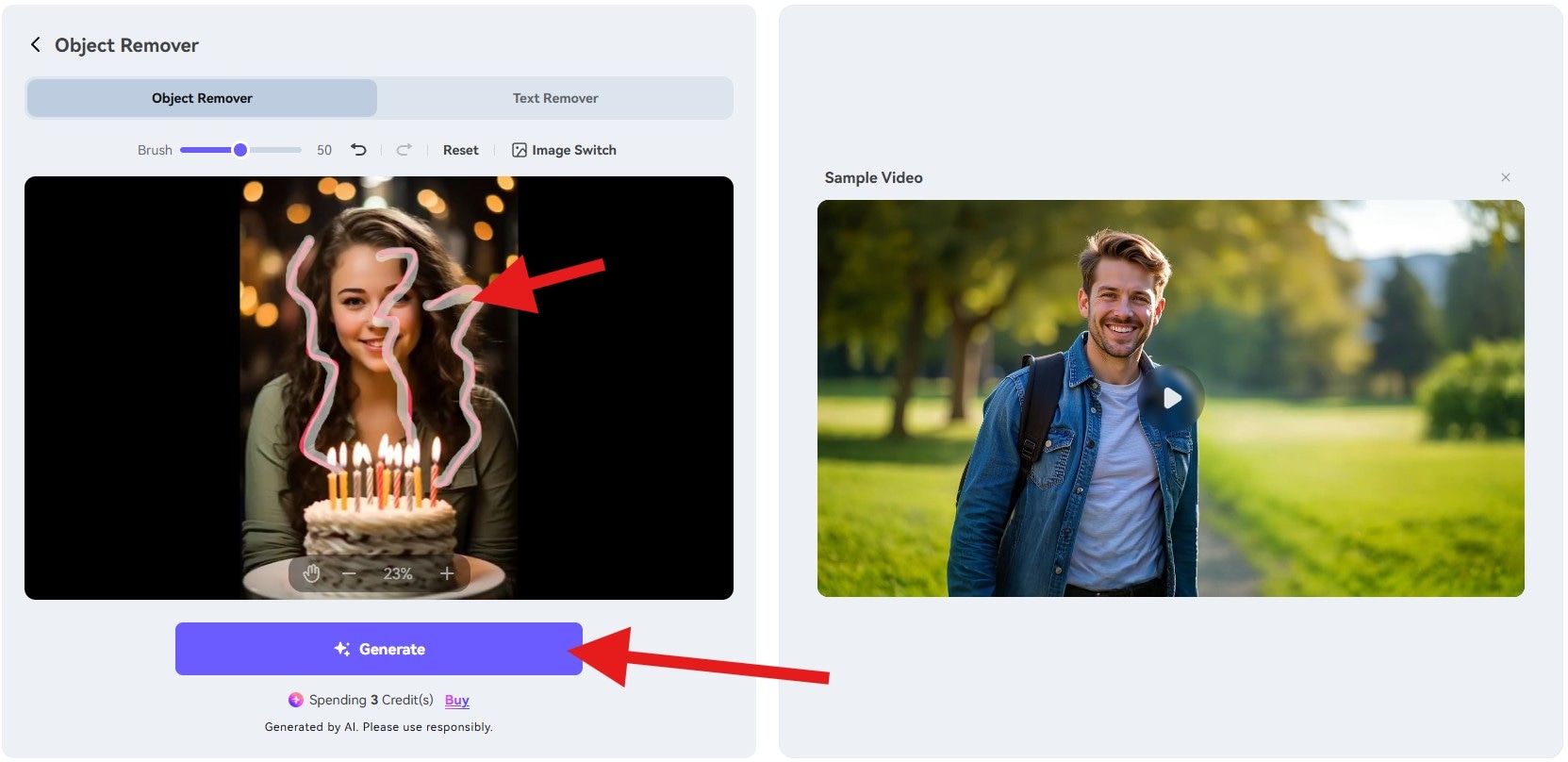
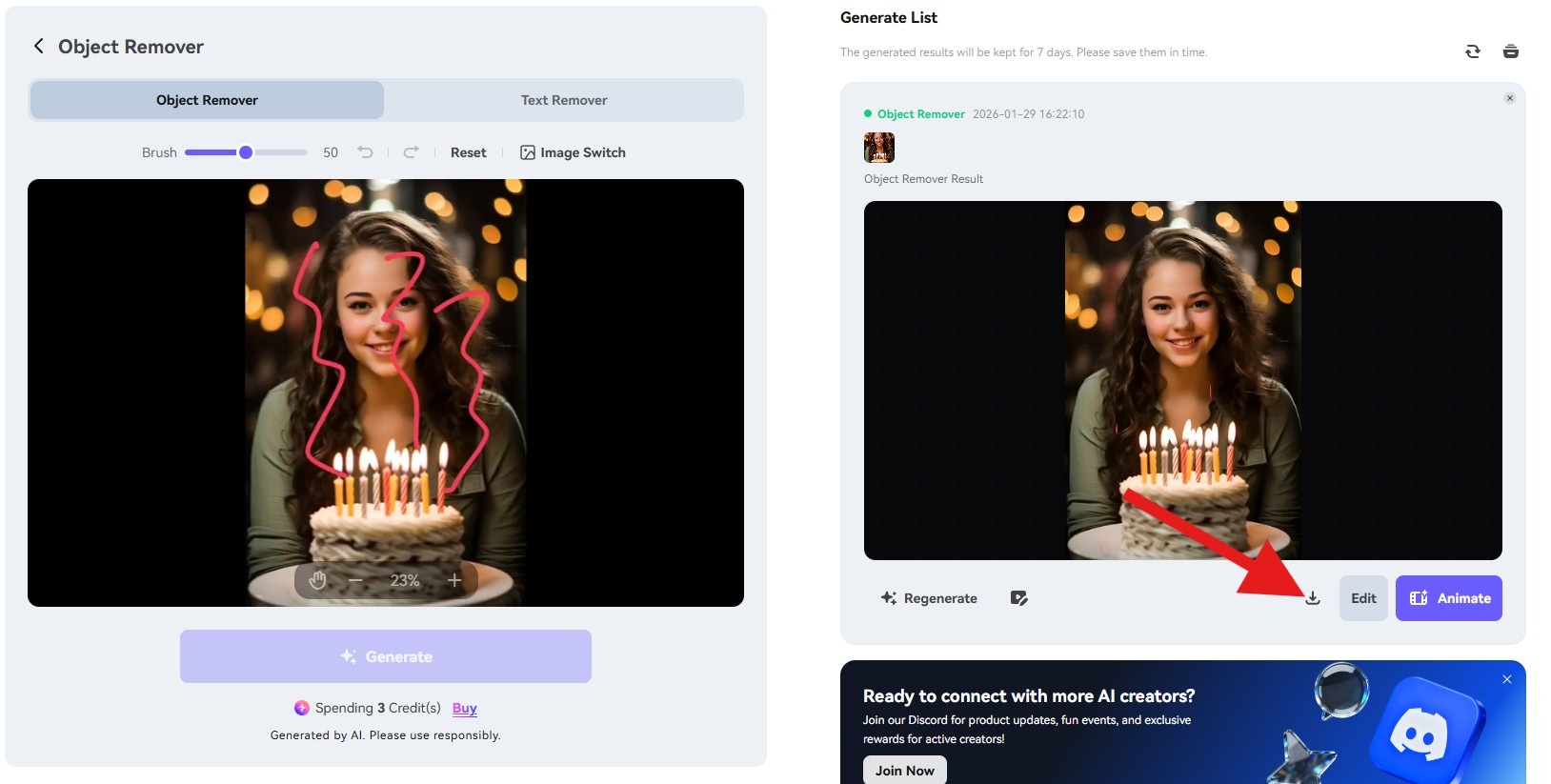
Step 4: All you need to do now is download the new photo.
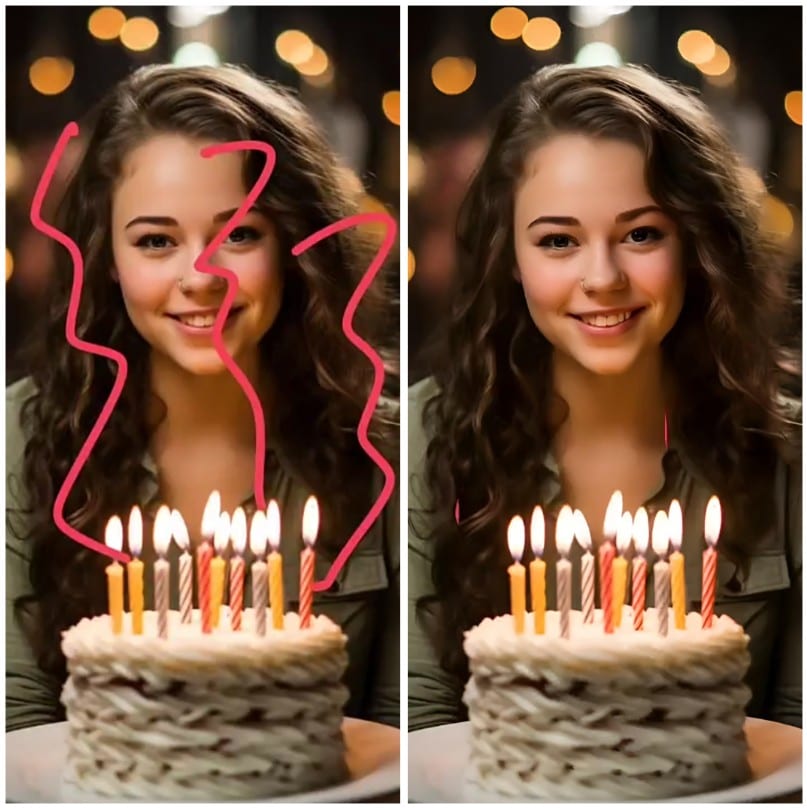
Here’s a quick comparison photo to help you see the difference.
As for the Video Eraser, the process is more or less the same.
For this, you can simply use a free online tool to convert your image to a small MP4 video. Once you are done with that, you can use the Video Eraser to remove the Snapchat scribbles, as this tool only supports MP4 and MOV files. Check it out in action.
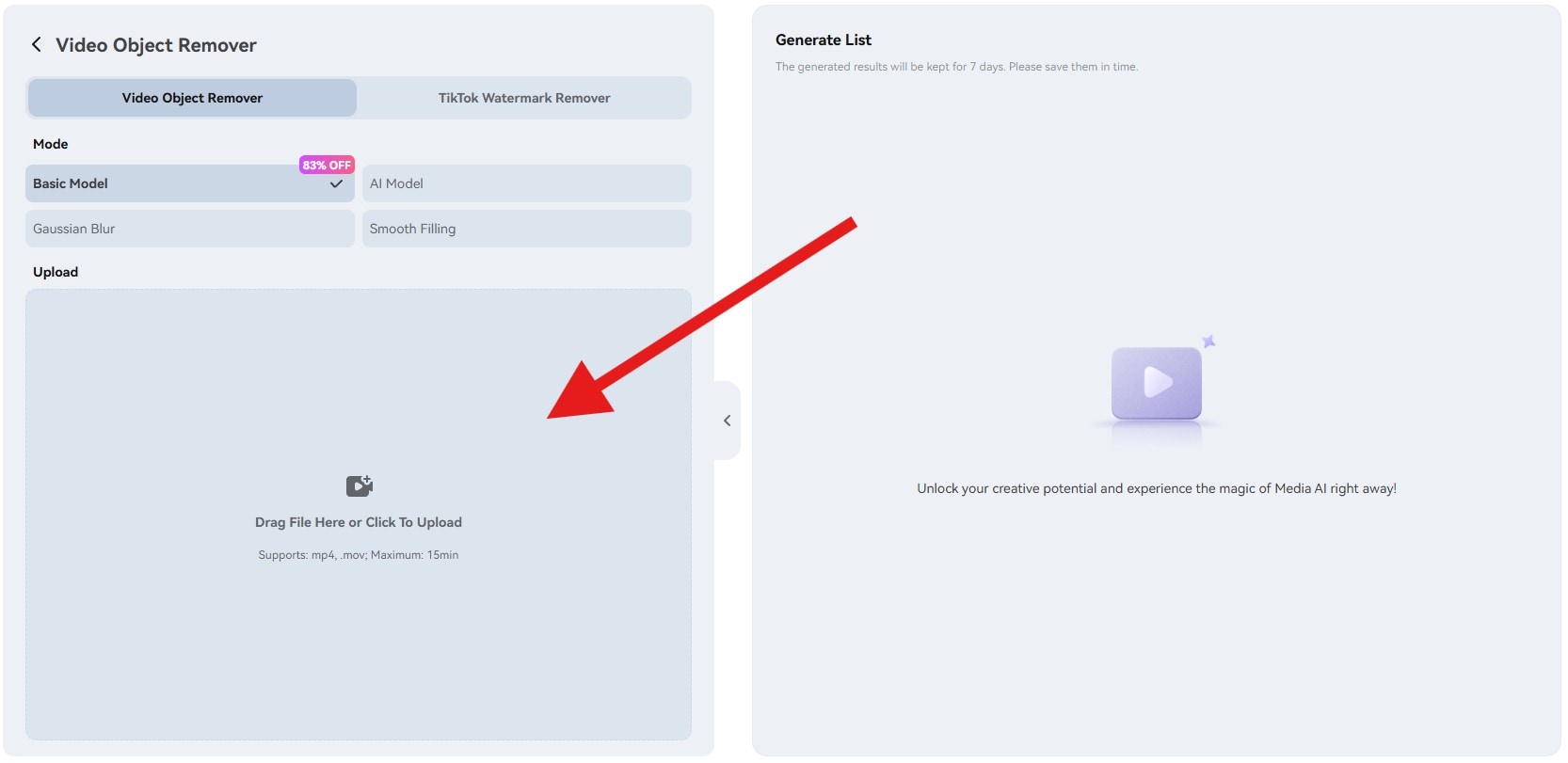
Step 1: Open the online Video Eraser tool.
Step 2: Click to upload your video.
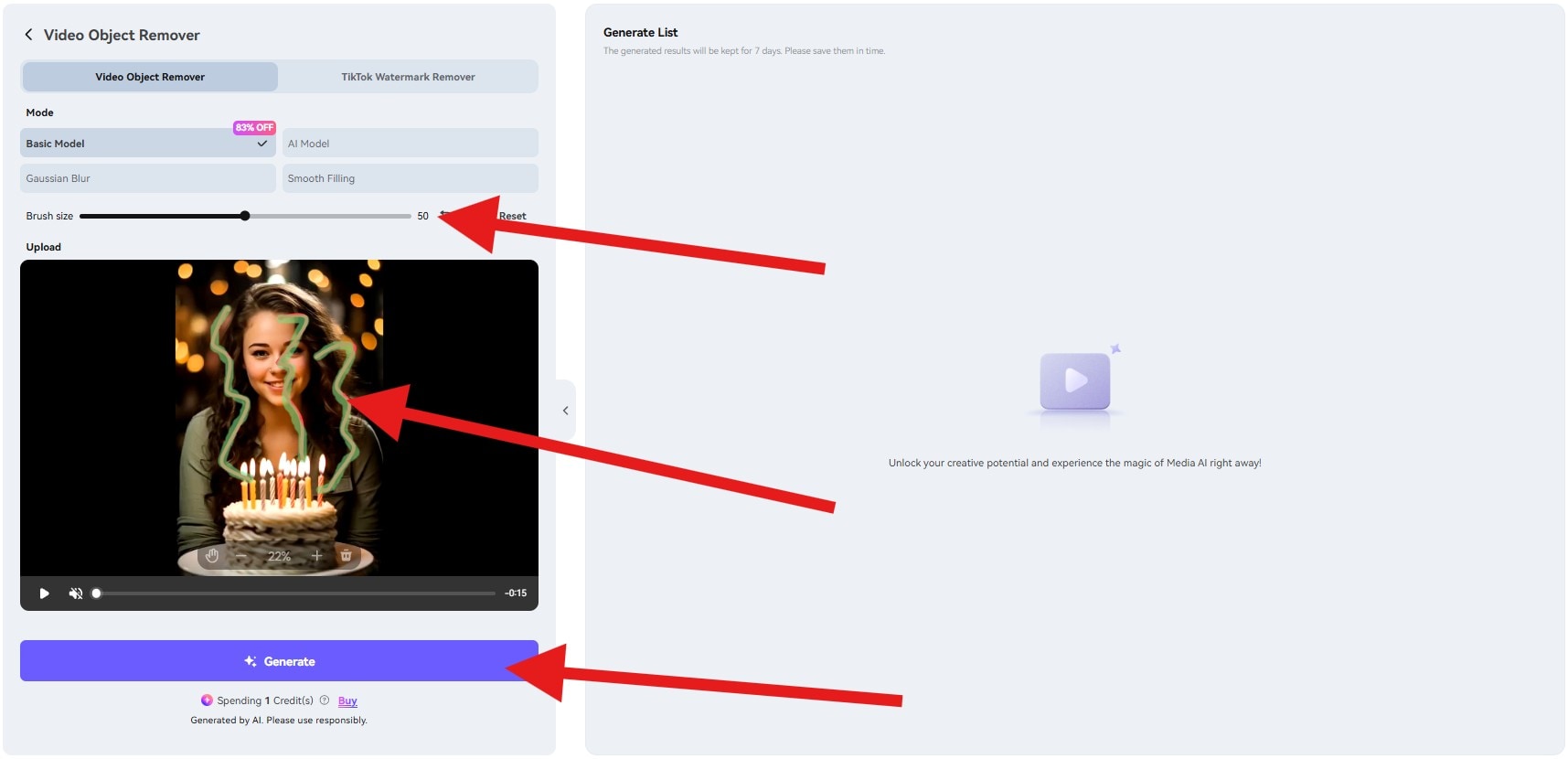
Step 3: Pick an adequate Brush Size, carefully select the scribbles in the preview, and tap on Generate.
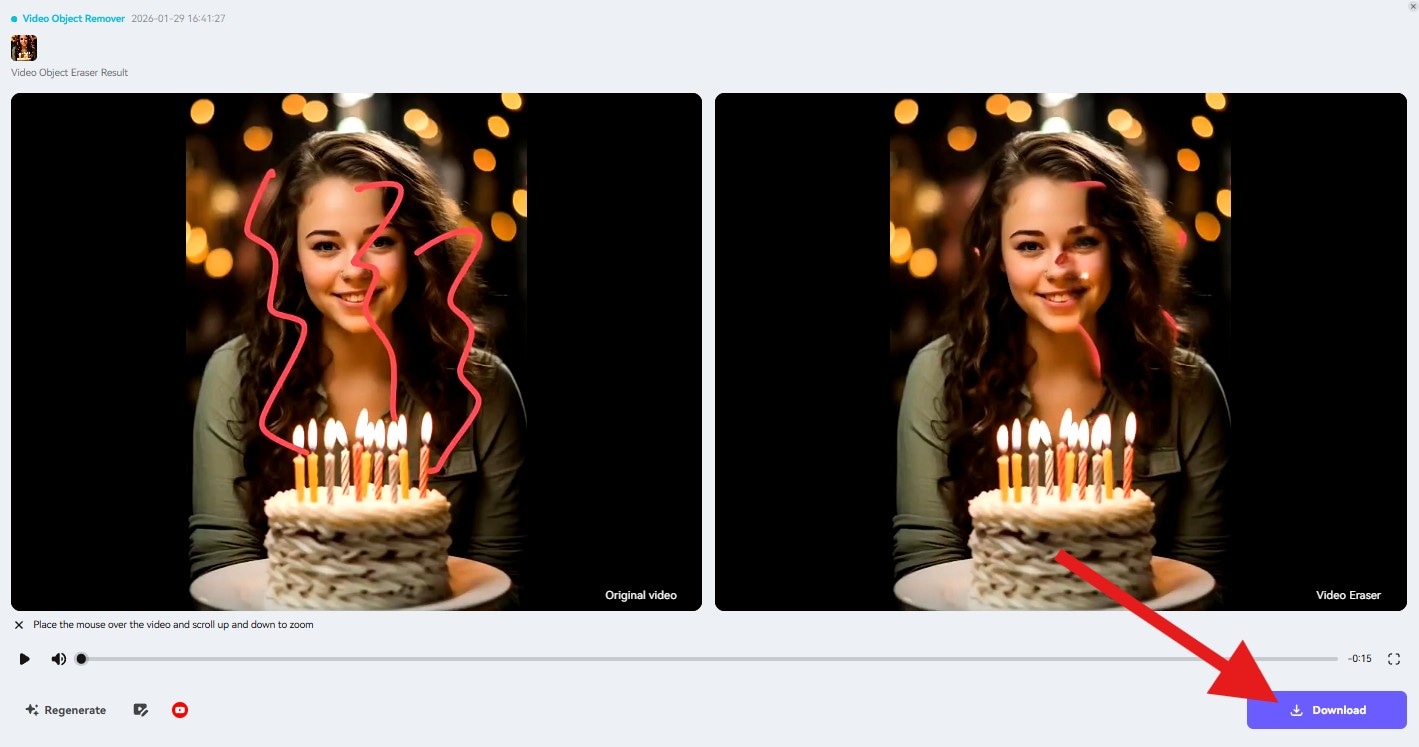
Step 4: Review the result, and if everything is in order, click the Download button.
What are the Most Common Use Cases?
Removing Snapchat drawings isn’t just about fixing mistakes. It’s often part of a larger content workflow.
- Remove Snapchat scribbles from a screenshot: When someone sends you a Snap with drawings already applied, you can’t edit it inside Snapchat. An AI tool lets you clean the image without asking the sender to resend it.
- Restore the original photo before posting elsewhere: Drawings that work on Snapchat may feel out of place on Instagram, WhatsApp, blogs, or presentations. Removing them helps create a cleaner, more neutral visual.
- Fix accidental pen strokes: A single swipe can leave an unwanted line across a face or object. Removing the scribble allows you to recover the image without cropping or lowering quality.
- Prepare visuals for professional or educational use: Snapchat screenshots are often used in tutorials, articles, or internal documentation. Removing drawings helps keep the focus on the content instead of distractions.
- Clean up old saved Snaps: If you revisit older images and want to reuse them, removing outdated drawings gives them a fresh, more timeless look.
Pro Tips & Tricks to Get Clean Results
AI tools are powerful, but a few small adjustments can significantly improve results especially with complex Snapchat drawings. Here are a few cool tips to keep in mind.
- Work with higher-quality images for better AI filling: Whenever possible, use the original saved image rather than a compressed screenshot. Higher-resolution images provide the AI with more detail to reconstruct the background accurately.
- Use small brush strokes around the edges of drawings: Instead of selecting large areas at once, focus on the exact pen strokes. This helps the AI preserve nearby details, such as facial features or text.
- Revert and retry for complex backgrounds: If the first result doesn’t look perfect, undo the action and try again with a refined selection. Slight changes often lead to cleaner output.
- Avoid overlapping multiple removals at once: Removing drawings in smaller sections rather than all at once can improve accuracy, especially on textured backgrounds.
- Review results at full size: Always zoom in before finalizing. Minor imperfections are easier to spot and fix before downloading.
Media.io is an online AI studio for creating and editing video, image, and audio in your browser.
Conclusion
Snapchat makes it easy to draw on photos and videos, but erasing those drawings is only possible while you’re still editing. That’s where Media.io becomes essential. Its AI-powered Object Remover and Video Eraser tools let you remove Snapchat drawings from images and videos after the fact, without manual editing or design experience.
If you need a reliable way to remove Snapchat scribbles from screenshots, restore original visuals, or clean up saved content, Media.io offers the most practical solution available today.
Frequently Asked Questions
-
Can I remove a drawing after posting a Story?
No. Once a Story is posted, Snapchat does not allow you to remove drawings. You’ll need to edit the saved image using an external tool.No. Once a Story is posted, Snapchat does not allow you to remove drawings. You’ll need to edit the saved image using an external tool.Does Media.io work on both images and videos? -
Does Media.io work on both images and videos?
Yes. Media.io supports both images and videos using separate AI-powered tools.Yes. Media.io supports both images and videos using separate AI-powered tools.Will the background stay realistic after erasing? -
Will the background stay realistic after erasing?
In most cases, yes. Media.io’s AI reconstructs the background based on surrounding details, helping maintain a natural look.In most cases, yes. Media.io’s AI reconstructs the background based on surrounding details, helping maintain a natural look.Can I remove a drawing after posting a Story? No. Once a Story is posted, Snapchat does not allow you to remove drawings. You’ll need to edit the saved image using an external tool. Does Media.io work on both images and videos? Yes. Media.io supports both images and videos using separate AI-powered tools. Will the background stay realistic after erasing? In most cases, yes. Media.io’s AI reconstructs the background based on surrounding details, helping maintain a natural look.Can I remove a drawing after posting a Story? -
Can I remove a drawing after posting a Story?
No. Once a Story is posted, Snapchat does not allow you to remove drawings. You’ll need to edit the saved image using an external tool.No. Once a Story is posted, Snapchat does not allow you to remove drawings. You’ll need to edit the saved image using an external tool.Does Media.io work on both images and videos? -
Does Media.io work on both images and videos?
Yes. Media.io supports both images and videos using separate AI-powered tools.Yes. Media.io supports both images and videos using separate AI-powered tools.Will the background stay realistic after erasing? -
Will the background stay realistic after erasing?
In most cases, yes. Media.io’s AI reconstructs the background based on surrounding details, helping maintain a natural look.In most cases, yes. Media.io’s AI reconstructs the background based on surrounding details, helping maintain a natural look.