
Three reference images only help when each one has a job. Veo 3.1 Ingredients to Video is less about uploading more pictures and more about separating identity, product, and environment cues so the model does not have to guess which details matter.
Google DeepMind's official demo is a useful first look at that idea. It shows multiple references guiding the characters, objects, and style of a generated scene rather than forcing one image to define everything.
| Reference | Best job |
|---|---|
| Character | Face, hair, outfit, and body identity |
| Product or object | Shape, materials, packaging, and recognizable details |
| Scene or style | Environment, lighting direction, and visual language |
In this article
- What Counts as an Ingredient in Veo 3.1
- Give Every Reference One Clear Job
- Prepare Reference Images Before You Generate
- Write an Ingredient Prompt That Separates Invariants From Action
- Use Multiple References for Character and Product Consistency
- Build Native 9:16 Video Instead of Cropping Landscape Later
- Plan Dialogue and Audio as Part of the Scene
- Use 1080p and 4K Upscaling for Finishing, Not for Fixing Bad Identity
- Know When to Use Ingredients, First and Last Frames, or a Single Image
- Fix Common Veo Ingredients Failures
- Create and Finish an Ingredient-Led Video With Media.io
- Veo 3.1 Ingredients QA Checklist
- FAQs About Veo 3.1 Ingredients to Video
What Counts as an Ingredient in Veo 3.1
An ingredient is a reference image that tells the model what an important visual element should look like. It is different from a starting image that becomes the first frame. A reference image can guide content without forcing the entire generated frame to copy its composition.
A practical ingredient set might include:
- A character reference with a clear face and outfit.
- A product reference with readable shape, packaging, and materials.
- A location or style reference that defines the environment or visual language.
You can also use several images of the same subject when identity is the main challenge, but remember that the API currently allows up to three reference images. The set should be intentionally curated.
If your goal is simple animation from one still rather than multi-reference control, a standard image to video workflow may be faster. Ingredients become valuable when several visual elements need to survive the generation together.
Give Every Reference One Clear Job
The easiest way to create a confusing reference pack is to upload three beautiful images that each imply a different scene. Instead, write down the job of each image before you upload it.
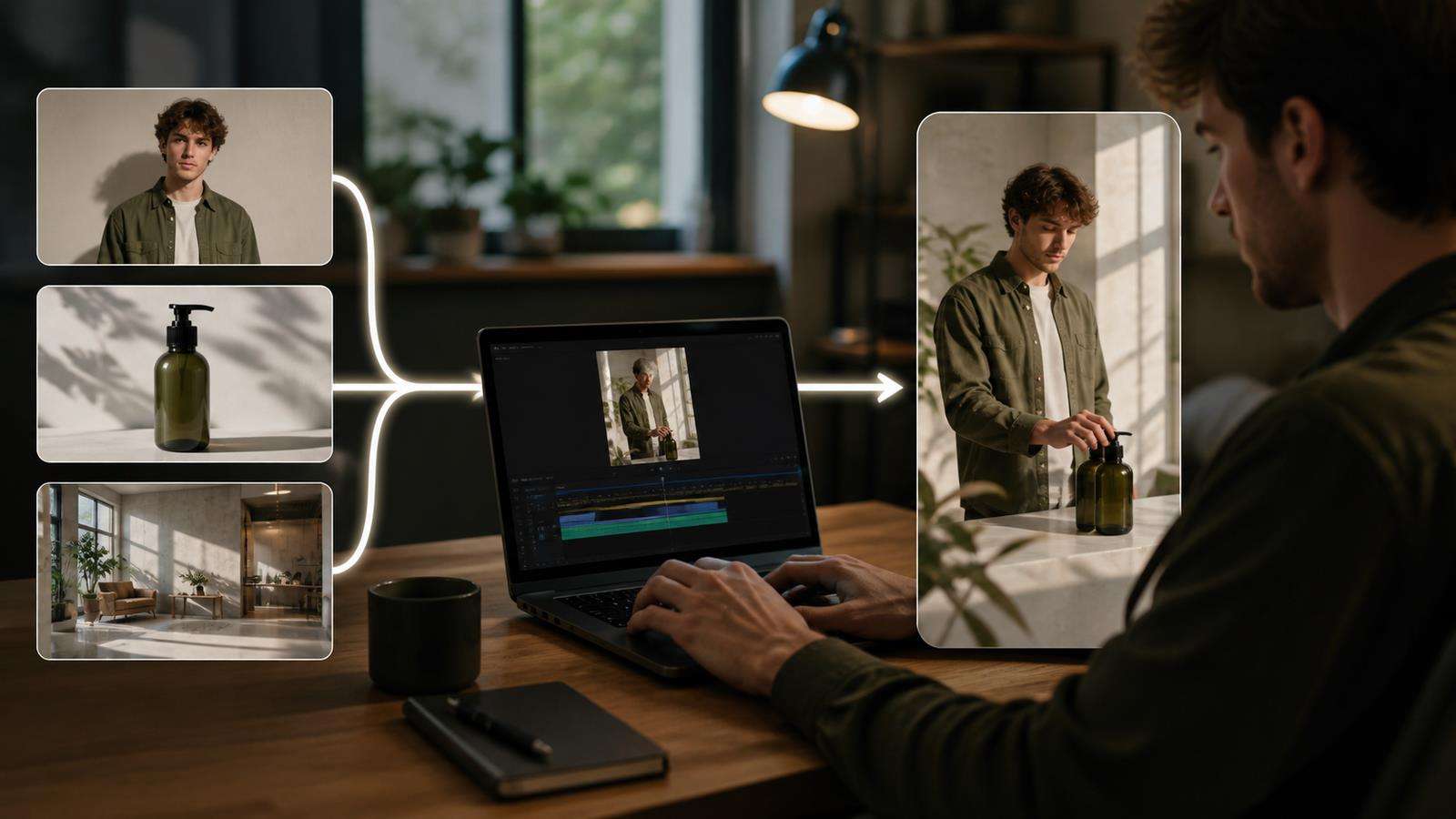
For a fashion product video, the roles might be:
- Character identity: the model's face, hair, and body proportions.
- Product identity: the exact handbag, including shape, handles, hardware, and color.
- Environment: a sunlit Mediterranean hotel terrace with pale stone and sea in the background.
Now the text prompt can focus on action: the character walks across the terrace carrying the bag, turns toward camera, rests one hand on the railing, and the camera moves from a medium tracking shot to a closer product-led view.
That is cleaner than using three lifestyle photos where the person, bag, background, and lighting all change from image to image.
Prepare Reference Images Before You Generate
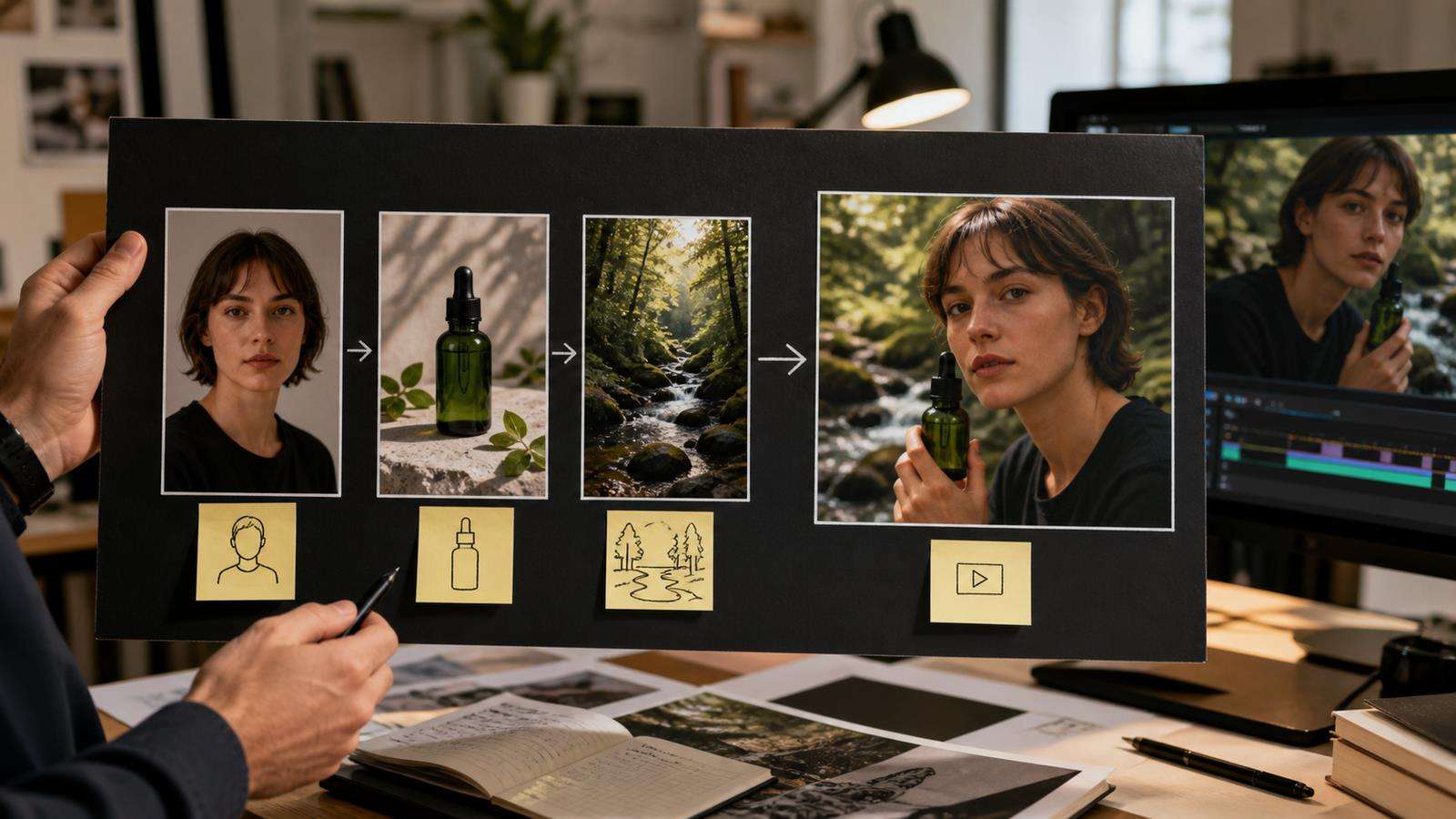
Reference quality affects what the model has to infer. Use images where the important subject is large enough to inspect and not hidden behind heavy effects.
For people, choose a face that is sharp, evenly lit, and not distorted by an extreme lens. If wardrobe matters, include enough of the body to show it. For products, use a clean packshot or realistic product photo where the logo, label, closures, texture, and overall proportions are readable. For a location, avoid an image that is so cluttered that the intended architectural cues are unclear.
Do not mix a cartoon character reference with a photorealistic product and a highly stylized oil-paint environment unless that contrast is intentional. The prompt should not have to resolve an accidental style conflict.
You can also prepare references in Media.io before generation. For example, use Image AI to create or refine a consistent reference image, then bring the approved asset into the video workflow.
Write an Ingredient Prompt That Separates Invariants From Action
A strong Veo Ingredients prompt distinguishes between what must stay stable and what should happen during the clip.
Start with identity and scene invariants:
"Use the supplied woman as the same character, the supplied red leather shoulder bag as the exact product, and the supplied hotel terrace as the environment. Preserve the bag shape, color, gold hardware, handle length, and visible logo placement."
Then describe action and camera:
"The woman walks slowly along the terrace, holding the bag naturally at her side. She stops near the railing and turns the bag toward camera. The camera tracks beside her at waist height, then makes a slow push-in to a medium product-focused frame. Warm late-afternoon sunlight, natural fabric and hair motion."
Finally, add audio cues only when needed. Veo 3.1 can generate native audio, so a prompt can include ambience, dialogue, or sound details. For a product shot, simple ambience may be better than a crowded soundscape.
Use Multiple References for Character and Product Consistency
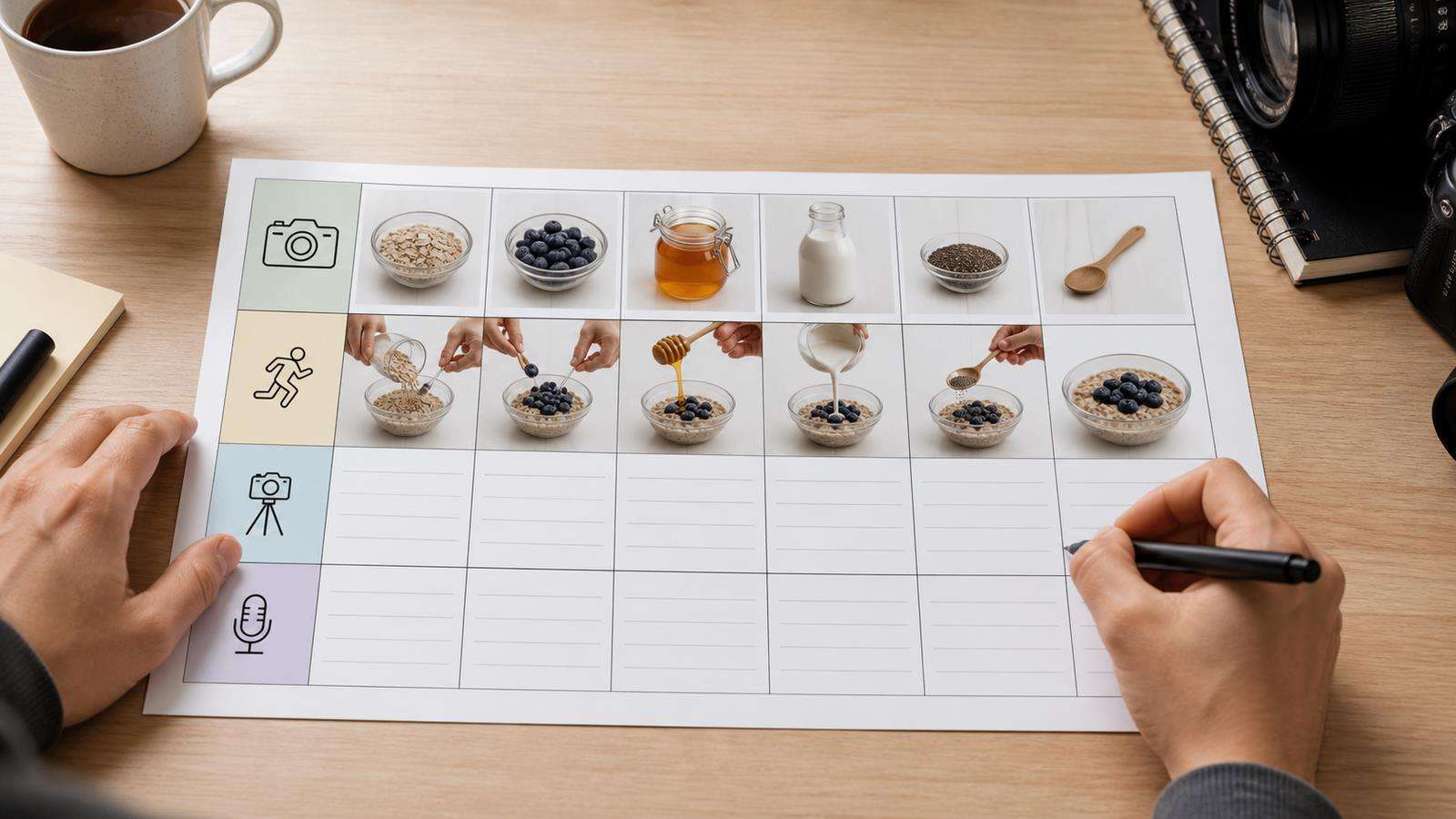
Multi-reference generation is particularly useful when the video needs both a recognizable person and a recognizable product. A text-only prompt may produce the right category of object while changing small commercial details. An ingredient image gives the model a more concrete target.
Still, reference guidance is not a legal guarantee of exact reproduction. Treat generated branded content as a draft that requires visual QA. Check labels, logos, packaging geometry, and product color at full resolution. If a logo becomes unreadable when the product rotates, either reduce the rotation, show the label in a separate shot, or use a clean product still during the most brand-sensitive moment.
For recurring characters, combine ingredient references with the broader planning ideas in Media.io's AI video consistency guide. Consistency improves when you reuse approved references, camera logic, wardrobe definitions, and lighting rules rather than creating a new visual specification for each clip.
Build Native 9:16 Video Instead of Cropping Landscape Later
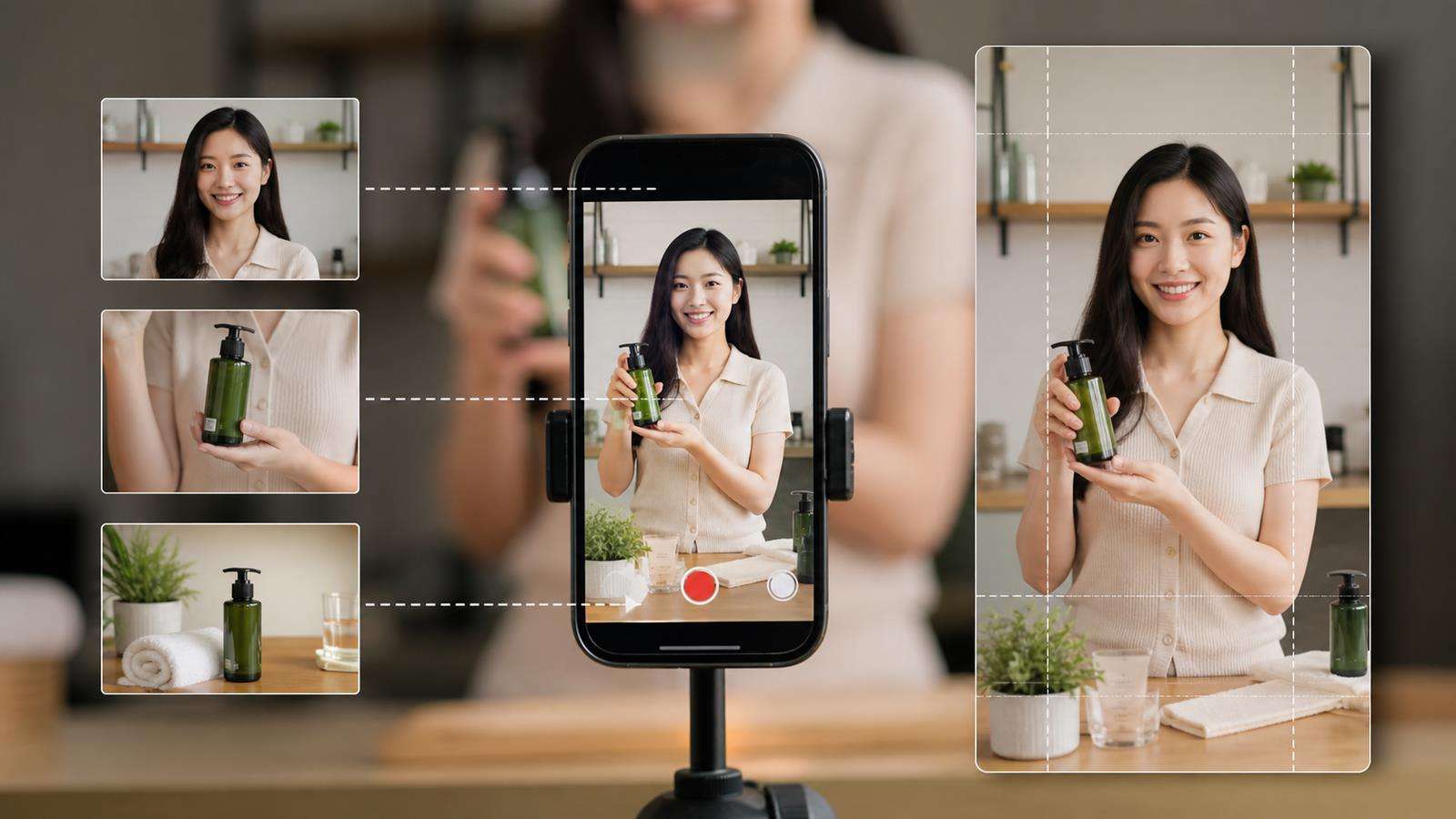
One of the useful Veo 3.1 Ingredients updates is native 9:16 generation. This matters because vertical composition is not just a landscape crop. A character framed correctly for 16:9 may become too small or lose important hand and product actions after cropping.
When generating for Shorts, Reels, or TikTok, design the ingredients and prompt for vertical space:
- Keep the face and product inside the center-safe area.
- Leave enough headroom for movement without creating an empty top half.
- Avoid wide horizontal blocking between two people unless both can stay readable.
- Reserve lower-screen space if captions or CTA text will be added later.
- Use forward, upward, or depth-based motion that reads well on a tall screen.
Media.io also has Veo prompt examples that can help you see how camera and scene language is expressed in model prompts.
Plan Dialogue and Audio as Part of the Scene
Veo 3.1 supports natively generated audio, and Google has brought audio to Ingredients to Video workflows. That means visual reference planning and audio planning can happen in the same generation.
For dialogue, keep the spoken line compatible with the clip duration. Specify who speaks and when. If the character says one sentence while handling a product, avoid also asking for several dramatic camera moves. The more simultaneous constraints you add, the more failure modes you create.
For ambience, describe sounds that belong to visible events: soft ocean surf on the terrace, a cup placed on a table, distant city traffic, fabric movement, or room tone. Avoid adding sound effects simply because the system can generate them.
When audio matters to the final edit, listen separately from the picture. Check speech clarity, background continuity, unwanted musical changes, and whether sound begins or ends unnaturally at the clip boundaries.
Use 1080p and 4K Upscaling for Finishing, Not for Fixing Bad Identity

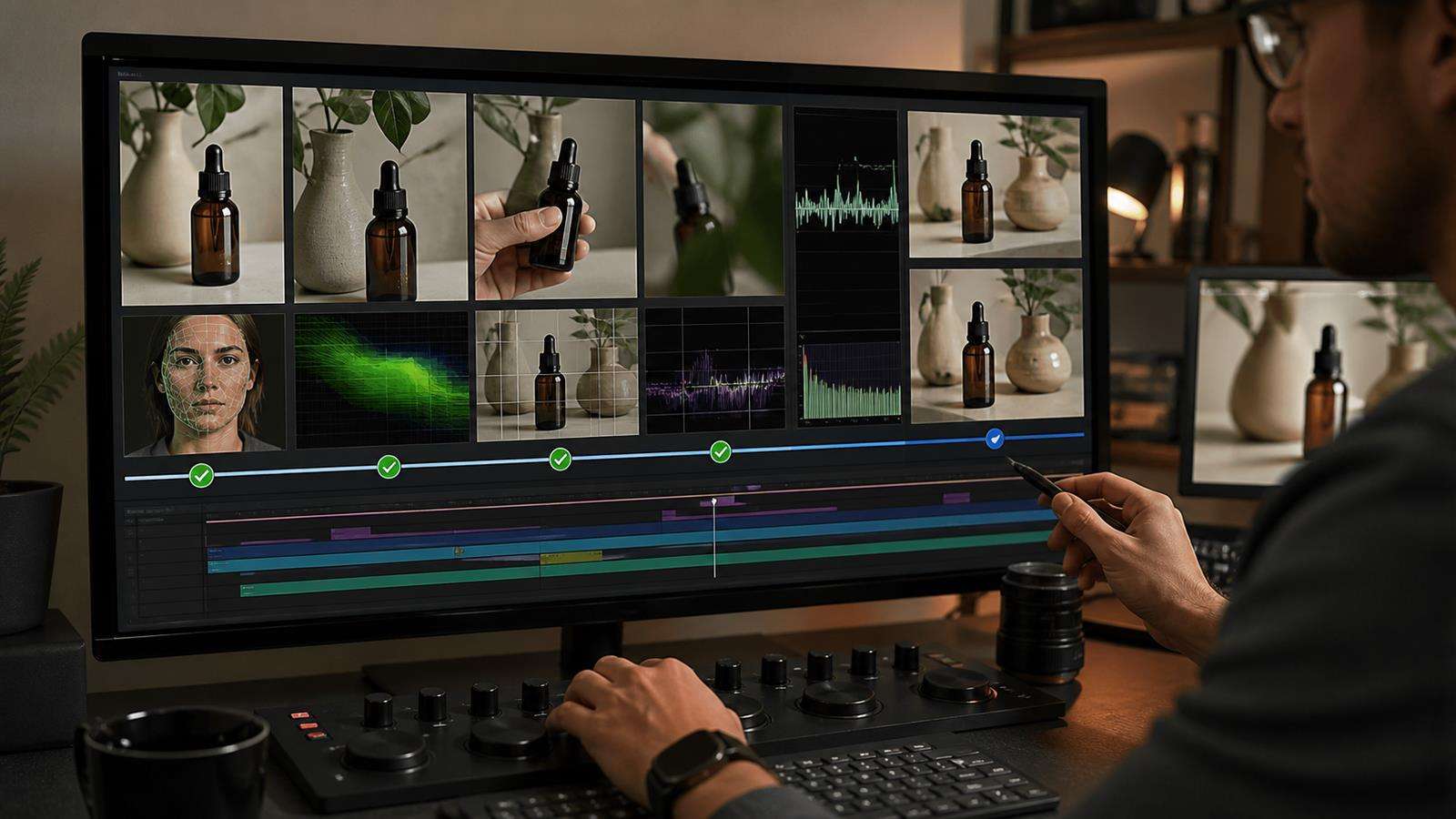
Resolve creative problems before upscaling. If the product shape is wrong, regenerate with better references or simpler motion. If the face changes, reduce conflicting inputs. If the composition is weak, fix the framing. Upscaling should be the finishing step after you have selected a structurally correct generation.
A useful review order is identity first, motion second, composition third, audio fourth, then resolution and finishing. This prevents teams from spending time polishing a clip that should have been rejected earlier.
Know When to Use Ingredients, First and Last Frames, or a Single Image
These controls solve different problems.
Use Ingredients to Video when you need several visual references to define characters, objects, products, textures, or environments. Use first and last frames when the opening and ending states must be fixed. Use one initial image when you want strong starting composition with more creative freedom afterward.
Veo 3.1 supports both reference images and frame-specific generation, but that does not mean every project should use every control at once. Choose the constraint that targets the biggest risk.
If product identity is the risk, prioritize product reference ingredients. If the ending must land on a precise packshot, prioritize the final frame. If you need a simple living portrait from one still, a single image may be enough.
Fix Common Veo Ingredients Failures
The character looks close but not identical
Use a sharper identity reference, remove style conflicts, and avoid references that show very different ages, makeup, hairstyles, or facial angles. Reuse the same approved reference set across related clips.
The product is correct in one frame and wrong in another
Simplify the interaction, reduce extreme rotation and occlusion, and give the product enough screen size to remain readable. Separate product detail from complex character action when necessary.
The location dominates the subject
Your environment reference may be too visually strong or the prompt may overemphasize it. Make the subject and action more explicit, and use framing language that gives the character or product priority.
The result looks like a collage of the references
Stop describing each reference as a separate object list. Describe one coherent scene and explain how the ingredients belong together spatially.
The vertical video feels cramped
Plan for 9:16 before generation. Reduce wide side-by-side staging and move important interactions toward the center of the frame.
Create and Finish an Ingredient-Led Video With Media.io
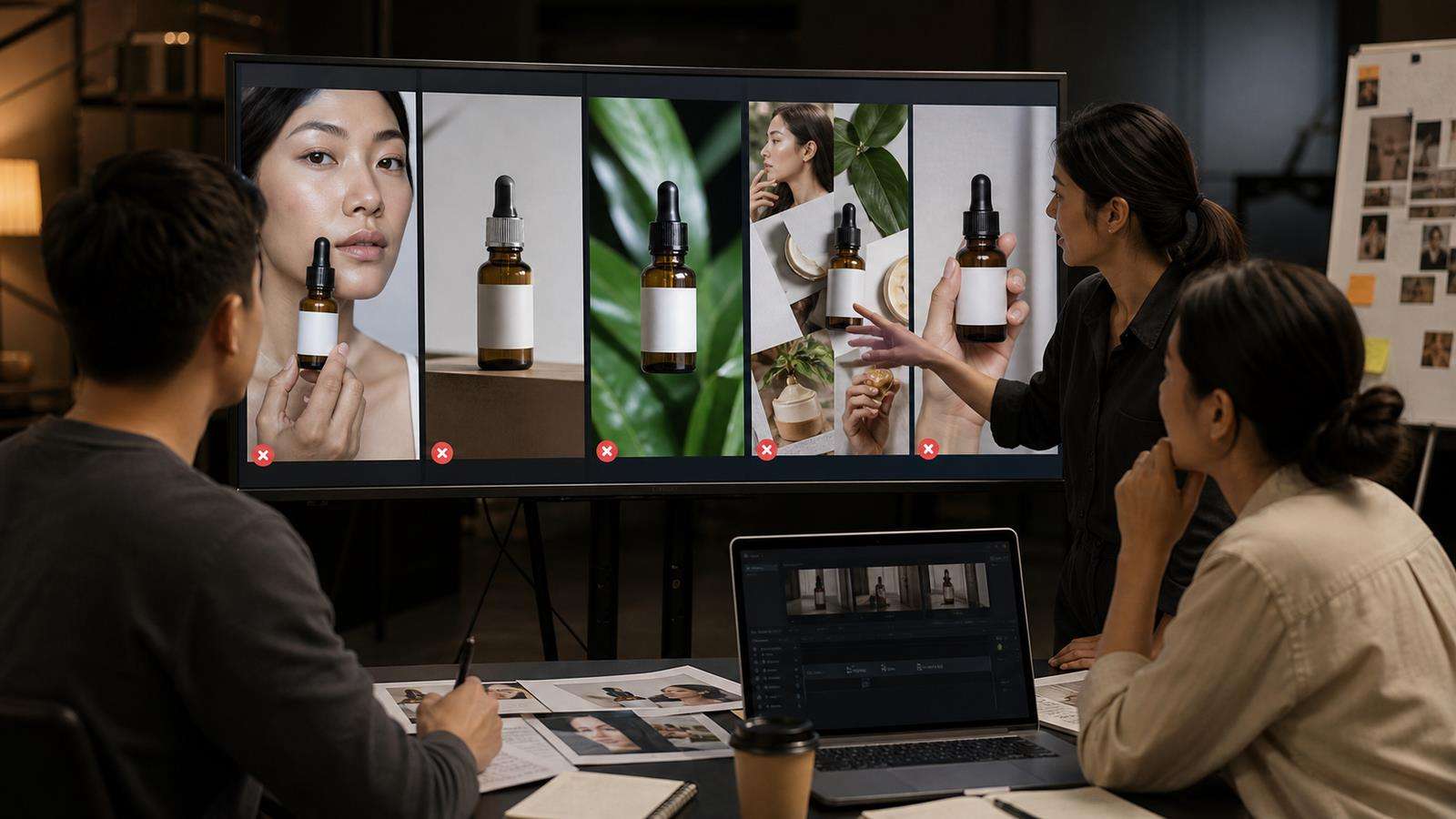
Media.io can support the surrounding workflow even when the generation model changes. Prepare your approved person, product, and scene images first. Then use the relevant Veo model page or Video AI to test the visual concept. Keep a record of which reference set produced the approved result so future clips do not start from a different identity package by accident.
After you select the best video, continue with normal editing, captions, resizing, or additional scenes. For production teams, the reference set should be treated like reusable creative assets, not disposable prompt attachments.
Veo 3.1 Ingredients QA Checklist
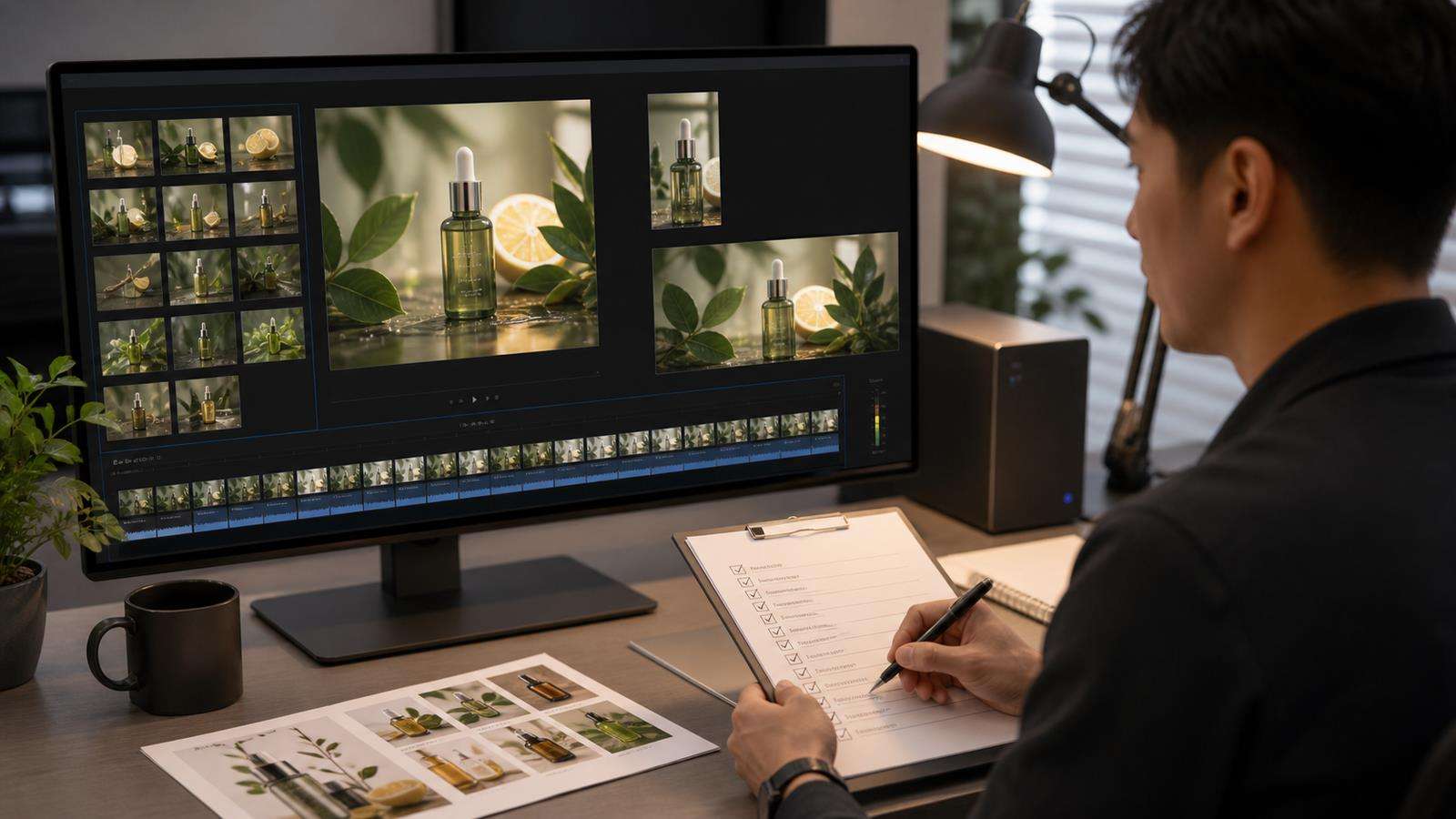
Before export, confirm that:
- Every reference image has a defined role.
- The character identity stays stable through the clip.
- Product shape, packaging, colors, and important details remain correct.
- The environment supports rather than overwhelms the subject.
- The prompt separates fixed visual facts from action and camera movement.
- 9:16 compositions are designed vertically rather than cropped afterward.
- Dialogue fits the clip length and the correct character appears to speak.
- Audio ambience matches visible events.
- Upscaling is applied only after the creative result passes QA.
FAQs About Veo 3.1 Ingredients to Video
-
What is Veo 3.1 Ingredients to Video?
It is a reference-image workflow that lets you guide a Veo video with images of important visual elements such as a person, character, product, object, texture, or scene.
-
How many reference images can Veo 3.1 use?
Google's current Gemini API documentation says Veo 3.1 accepts up to three reference images for guiding generated video content.
-
Can Veo 3.1 keep a product consistent?
Reference images can help preserve product appearance, but generated content should still be inspected for logos, labels, geometry, colors, and materials. Commercial exactness requires QA.
-
Does Ingredients to Video support vertical video?
Yes. Google has added native 9:16 output for Veo 3.1 Ingredients to Video, which is useful for Shorts and other mobile-first formats.
-
Can Veo 3.1 generate audio with reference-image video?
Yes. Google has added generated audio to Ingredients to Video and other Veo 3.1 image-based workflows. Keep audio prompts focused on dialogue and sounds that support the visible scene.
-
Should I use Ingredients to Video or first and last frames?
Use Ingredients when several visual elements must remain recognizable. Use first and last frames when the exact start and ending states matter most. The right control depends on the main source of uncertainty in the shot.


