
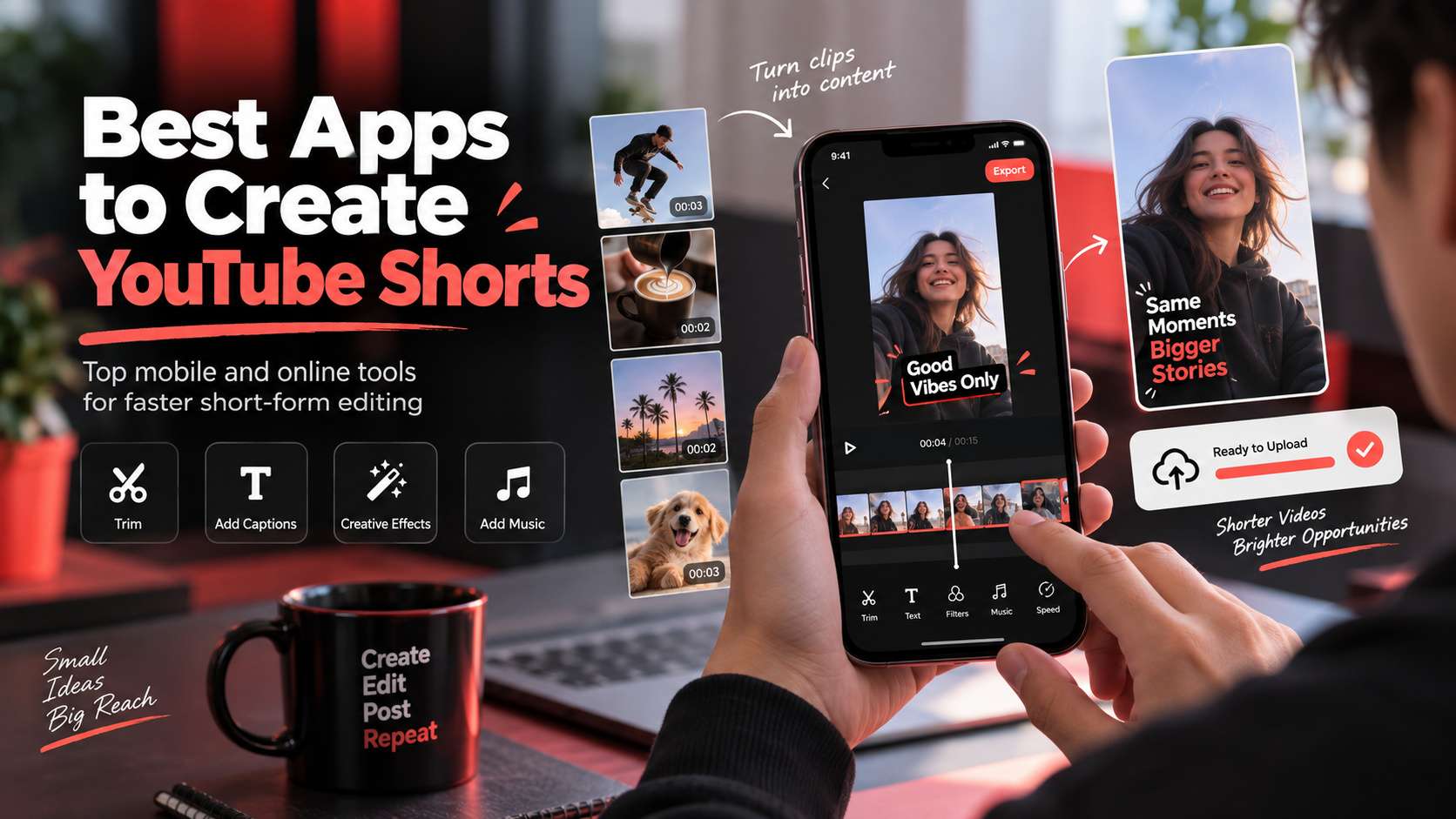
The most efficient way to make a Short depends on what you already have. A podcaster needs highlight detection; a travel creator may only need quick mobile cuts; a faceless channel may want a script converted into a vertical draft. The best apps to create youtube shorts are not interchangeable because those starting points demand very different editing workflows.
We therefore split this list by job rather than by feature count. The comparison looks at how each app handles 9:16 framing, captions, pacing, AI assistance, manual editing, and the handoff to YouTube. We also flag where a tool is better at repurposing existing footage than inventing a Short from scratch.
In this article
YouTube Shorts Maker Comparison for Clips, Scripts, and Mobile Editing
| Tool | Best for | Free / access | Main trade-off |
|---|---|---|---|
| Media.io | Creators switching between existing footage, templates, and AI-generated Shorts | Browser tools include free creation paths; export limits and AI credit use depend on the feature/model selected. | It is less optimized for "edit everything on the phone with gestures" than a mobile-native app such as InShot or CapCut. Its advantage is cross-device browser access and multiple starting points. |
| CapCut | Creators who want AI Shorts plus a deep social editing ecosystem | CapCut advertises free Shorts workflows; some AI and advanced editing features are region/plan dependent. | The downside is feature sprawl. New creators can spend more time exploring templates and effects than tightening the hook and pacing. |
| Filmora | Desktop creators who want full timeline control around short-form video | Paid desktop software with trial access; export restrictions depend on the current license/trial. | It is heavier than a browser generator and less convenient for quick phone-only edits, but stronger when precision matters. |
| InShot | Phone-first creators editing their own clips manually | Freemium mobile app; ad/watermark and premium-feature behavior depends on the current app version and purchase state. | If you need automatic script-to-video or sophisticated long-video highlight extraction, choose a more AI-centric tool. |
| Canva | Template-led Shorts, branded explainers, and simple social campaigns | Broad free design access with plan-dependent AI and premium asset limits. | It is less comfortable than a dedicated video editor for frame-accurate cuts, complex audio, or long raw footage. |
| Adobe Express | Quick branded vertical videos inside the Adobe ecosystem | Free plan available; premium templates, assets, and advanced features require paid access. | Creators who need aggressive jump cuts, advanced caption timing, or detailed audio treatment will hit the ceiling sooner than in CapCut or Filmora. |
| VEED | Browser-based talking-head Shorts and caption-heavy edits | Free plan available with export/feature limits; paid plans expand quality and AI access. | The workflow is efficient for speech-led content, but it is not as effect-heavy or touch-native as CapCut, and free export constraints should be checked before committing to a large batch. |
Shorts Workflow Test: Start With the Asset You Already Have
Existing long video: A good repurposing app should find highlight candidates, reframe the speaker, produce readable captions, and still let you override the cut.
Raw phone clips: Timeline speed, trim controls, music, text, and vertical canvas handling matter more than generative AI.
Script or idea: AI should create a usable first draft with scenes, captions, and voice-not just a storyboard that requires rebuilding.
Final polish: We prefer tools that keep caption correction, pacing, sound, thumbnail/cover, and export settings accessible before publishing.
Hands-On App Breakdown: From Raw Clip to Published Short
1. Media.io - Best for Creators switching between existing footage, templates, and AI-generated Shorts
Media.io earns the first slot because the Shorts workflow is broader than a single "clip this podcast" feature. The dedicated YouTube Shorts maker can work from templates and uploaded footage, while its AI tools cover script/idea generation and long-video repurposing. Auto captions and the surrounding browser editor make it practical when you need to fix the AI draft instead of accepting every cut.
Browser tools include free creation paths; export limits and AI credit use depend on the feature/model selected.
For existing video, upload the source and create a vertical version with highlights, captions, and edits. For an idea-first workflow, move through AI generation and then finish the result in the editor. A creator building very short promos can also use the 30-second video maker.
It is less optimized for "edit everything on the phone with gestures" than a mobile-native app such as InShot or CapCut. Its advantage is cross-device browser access and multiple starting points.
2. CapCut - Best for Creators who want AI Shorts plus a deep social editing ecosystem
CapCut is the strongest choice when you want one app to do both AI assistance and detailed social editing. Its current Shorts tools can generate a draft from a script, turn long video into short highlights, add captions, match stock media, and then open the result in the full editor. On desktop, export controls include resolution, frame rate, and common video formats; on mobile, the interface is optimized for fast vertical editing.
CapCut advertises free Shorts workflows; some AI and advanced editing features are region/plan dependent.
That two-stage flow-AI first draft, then "Edit more"-is the reason to choose it over a simpler generator. You can fix scene timing, captions, filters, effects, audio, and framing rather than regenerating the entire Short.
The downside is feature sprawl. New creators can spend more time exploring templates and effects than tightening the hook and pacing.
3. Filmora - Best for Desktop creators who want full timeline control around short-form video
Filmora is a better fit when a Short begins as real footage and needs deliberate editing rather than automatic assembly. A desktop timeline gives more control over cut points, speed ramps, overlays, audio cleanup, motion tracking, color work, and caption styling. That matters for creators who publish Shorts but also produce longer videos and do not want a separate lightweight app for every vertical clip.
Paid desktop software with trial access; export restrictions depend on the current license/trial.
Import the footage, switch the project to a vertical format, cut the hook tightly, add captions and sound, then export a social-ready master. AI tools can accelerate parts of that workflow without replacing the timeline.
It is heavier than a browser generator and less convenient for quick phone-only edits, but stronger when precision matters.
4. InShot - Best for Phone-first creators editing their own clips manually
InShot is the opposite of an autonomous AI Shorts generator: it is fast because the manual controls are simple. For a travel clip, product demo, fitness tip, or talking-head Short, you can trim, split, change canvas ratio, add text, music, filters, transitions, and basic effects without opening a desktop timeline. That makes it a strong daily-driver app when the footage already exists and the creator knows what the story should be.
Freemium mobile app; ad/watermark and premium-feature behavior depends on the current app version and purchase state.
The workflow is direct: import phone footage, set 9:16, tighten the first seconds, add readable captions or text, balance audio, and export.
Trade-off: If you need automatic script-to-video or sophisticated long-video highlight extraction, choose a more AI-centric tool.
5. Canva - Best for Template-led Shorts, branded explainers, and simple social campaigns
Canva works best when a Short is closer to a motion graphic, listicle, promo, announcement, or branded explainer than a heavily edited vlog. You can start from vertical video templates, combine stock clips and graphics, animate text, record or add audio, and keep colors and fonts aligned with the rest of a campaign.
Broad free design access with plan-dependent AI and premium asset limits.
Choose a 9:16 template, replace the assets, build the text hierarchy, add simple motion and audio, then export. Teams already using Canva gain an approval and collaboration advantage.
It is less comfortable than a dedicated video editor for frame-accurate cuts, complex audio, or long raw footage.
6. Adobe Express - Best for Quick branded vertical videos inside the Adobe ecosystem
Adobe Express is a solid choice for marketers who need simple vertical videos with strong brand consistency. It combines social templates, text animation, Adobe Stock assets, resizing, and quick edits without requiring the learning curve of Premiere Pro. If the Short is a campaign adaptation rather than a creator-style vlog, that can be the right level of control.
Free plan available; premium templates, assets, and advanced features require paid access.
Start with a vertical video template or footage, apply brand styles and text, trim scenes, add audio, then export or resize for other channels.
Creators who need aggressive jump cuts, advanced caption timing, or detailed audio treatment will hit the ceiling sooner than in CapCut or Filmora.
7. VEED - Best for Browser-based talking-head Shorts and caption-heavy edits
VEED is strongest for talking-head, interview, and explainer Shorts where subtitles are central. Its browser editor puts captions, text, basic cuts, audio, and AI features in one place, so a creator can turn a rough recording into a cleaner vertical clip without installing software. It is also useful when a team needs shared browser access rather than a local mobile project.
Free plan available with export/feature limits; paid plans expand quality and AI access.
Upload or record the video, trim around the core idea, generate captions, correct the transcript, format the vertical frame, and export.
The workflow is efficient for speech-led content, but it is not as effect-heavy or touch-native as CapCut, and free export constraints should be checked before committing to a large batch.
Start With the Asset You Have, Not the App You Know
If you already have a long video, prioritize clip detection, caption correction, reframing, and the ability to move the cut point by a few frames. The best Shorts workflow should surface usable moments without trapping you in an automatic edit. Podcast, webinar, and talking-head creators usually save more time here than with prompt-to-video generation. When comparing the best youtube shorts maker, the deciding factor is whether the workflow still gives you control after the first automatic result.
If you are recording on a phone, mobile editing speed matters more than AI generation. CapCut and InShot are stronger when you want gesture-friendly trimming, music, text, transitions, and quick camera-roll access. A browser tool is more useful when you switch devices, work with shared files, or need AI and utility tools around the edit. When comparing the best app for youtube shorts, the useful comparison is the number of corrections required before the file is ready to publish.
If you start from a script or idea, look for scene assembly, voice, captions, stock or generated visuals, and a clean handoff into manual editing. AI can create a useful first cut, but a Short still lives or dies on the opening seconds. You need to be able to tighten the hook without regenerating the whole video. With a youtube shorts maker app, judge the export and revision path, not only the preview shown on the generation screen.
Publishing cadence changes the economics. One-off creators can tolerate manual setup, while channel teams benefit from reusable caption styles, brand elements, project duplication, and reliable export presets. The most efficient app is the one that removes repeated work across ten Shorts, not the one that produces one demo the most efficient. With an ai youtube shorts maker, the strongest option is the one that matches the real input and the next production step.
For YouTube Shorts, the Starting Asset Decides the App
Choose Media.io when you want to move between uploaded footage, AI-assisted generation, captions, and browser finishing. Choose CapCut when the Short will receive heavy creator-style editing, or InShot when phone-first manual editing is the whole workflow. Filmora is a better fit when Shorts are cut from larger desktop projects and you want full timeline control.
Before moving a channel to any app, make three Shorts from the same source: one automatic clip, one manually tightened edit, and one export with your normal caption style. That small test exposes whether the app saves production time or simply moves the work to a different screen.
FAQ
-
Should I use a mobile app or a browser tool for YouTube Shorts?
Use mobile when capture and editing happen on the same phone and speed is the priority. Use a browser or desktop workflow when you work with longer source files, shared assets, scripted content, or repeated brand templates. Many creators use both: a larger-screen tool for structure and captions, then a phone for platform-specific audio, stickers, or final publishing checks. When comparing the best ai youtube shorts generator, check the real free limits and the correction workflow before you commit. -
What makes a good YouTube Shorts maker for long videos?
Look for accurate transcript-based clipping, automatic 9:16 reframing, editable captions, and control over the beginning and end of each extracted segment. The AI should suggest moments, not lock the edit. Also check how it handles multiple speakers and whether it keeps the active face or key visual inside the vertical frame without constant manual repositioning. With a youtube shorts video maker, test the hardest input you expect to publish rather than a clean demo sample. -
Can an AI app create a Short from only a script?
Yes, some tools can turn a script into scenes, narration, captions, stock or generated visuals, and music. That is useful for explainers, promos, and faceless content, but the first draft often needs stronger visual specificity and a tighter hook. Treat script-to-Short generation as an assembly shortcut, then revise the pacing and visuals before publishing. For a free youtube shorts maker, make sure the result can move into your normal editing and export process without rebuilding it. -
Do free Shorts apps add watermarks?
Some do and some do not, and policies can differ between standard editing and AI features. Before committing to a workflow, export a real sample and check watermarking, resolution, frame rate, caption access, and any AI credit limits. A free editor can still be perfectly workable if the export is clean and the features you need are not locked behind a paid tier. Across apps for making youtube shorts, verify current plan limits, rights, and export behavior when the project moves from testing to production.


