
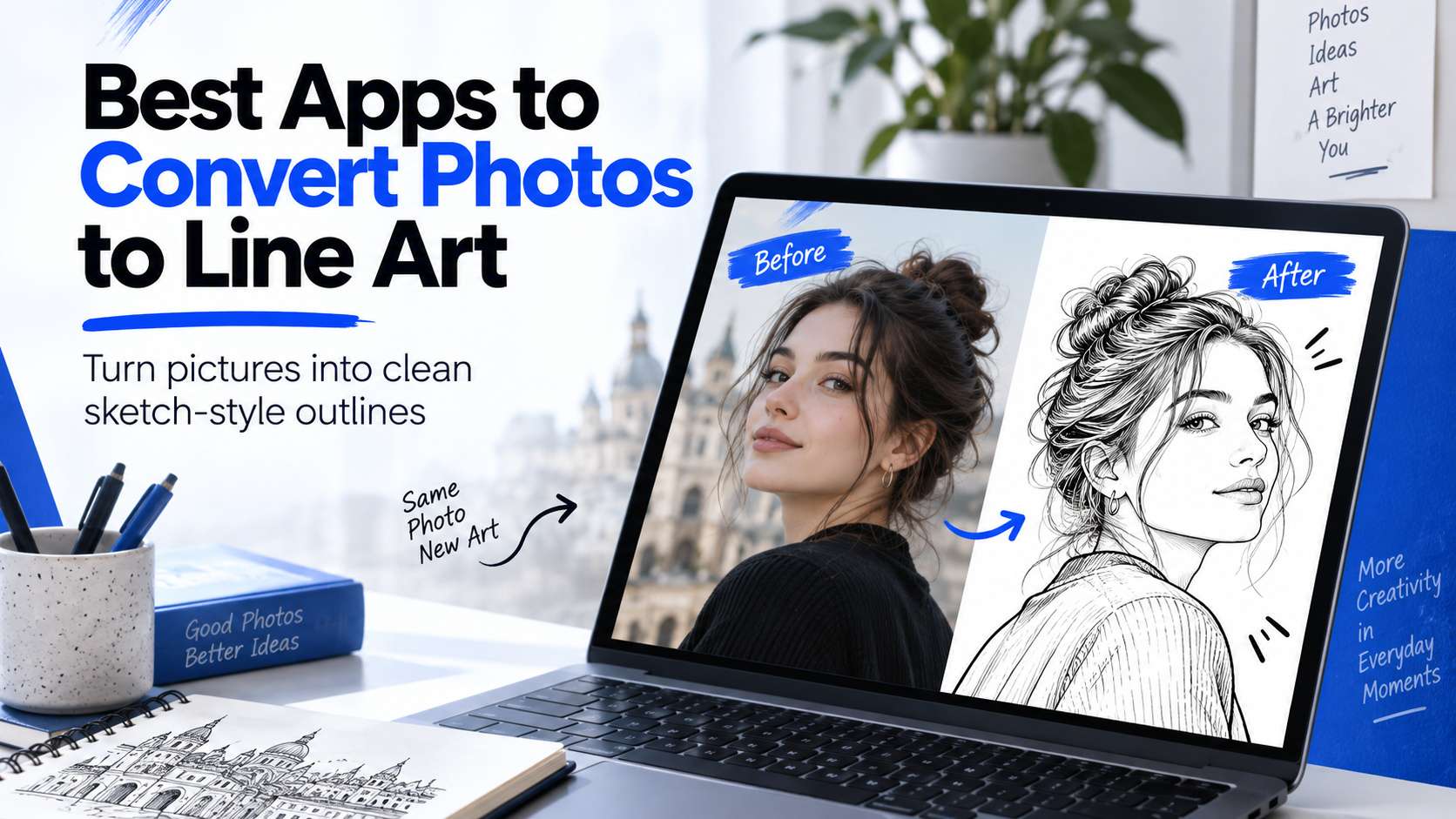
Line art is not the same as a pencil sketch. For logos, coloring pages, tattoo references, product outlines, and portrait studies, the useful result often needs clean edges with less texture and less gray shading. The best apps to convert photos to line art therefore need to control how much detail survives-not merely apply a monochrome filter.
We tested the category around four inputs that expose different weaknesses: a face with hair detail, a product with hard edges, a pet with textured fur, and a busy street photo. We also separate mobile apps from browser tools because touch editing and quick sharing can matter more than advanced controls for casual use.
In this article
- Photo to Line Art App Comparison for Clean Outlines and Sketch Detail
- Outline Quality Test: Edges, Clutter, and the Right Amount of Detail
- Line-Art App Reviews: Clean Contours vs Artistic Effects
- Decide Whether You Need Clean Contours or an Artistic Drawing
- Choose Line Art by the Destination, Not the Filter Preview
- FAQ
Photo to Line Art App Comparison for Clean Outlines and Sketch Detail
| Tool | Best for | Free / access | Main trade-off |
|---|---|---|---|
| Media.io | Quick browser line drawings from portraits, pets, landscapes, and objects | The current line-drawing tool is browser based and advertises free conversion; normal usage limits may depend on the active account/workflow. | The browser effect is fast, but it is not a vector-tracing application. If you need editable SVG paths for CAD, logos, or laser cutting, use a vectorization tool instead. |
| Fotor | Users who want several outline, stencil, ink, and sketch variants | Fotor advertises free line-drawing effects and downloadable JPG/PNG results; some broader AI features are credit based. | The number of similar filters can make selection trial-and-error. Start by deciding whether you need "clean contour" or "artistic sketch," because those are different goals even when both are black and white. |
| Picsart | Mobile creators who want line art inside a larger social edit | Freemium; AI and premium effect availability varies by plan. | Because the platform is designed for expressive edits, the result can look more "effect-like" than a clean drafting outline. Use a simpler source and lower visual clutter when clarity matters. |
| PhotoDirector | AI illustration effects and stylized portrait outlines on mobile/desktop | Freemium with plan-dependent AI credits/features. | If your goal is a coloring-page contour with almost no shading, a simpler dedicated line converter can be more predictable. |
| Clip2Comic | iPhone/iPad users who want a fast photo-to-drawing/cartoon effect | Mobile app with free and in-app purchase options depending on current version. | The trade-off is platform scope and control. It is not the best option if you need browser access, advanced compositing, or consistent batch processing across many images. |
| Adobe Express | Designed line-art compositions with text and layout | Free plan available; premium assets/features require paid access. | If you only need "photo in, black outline out," Express adds unnecessary design overhead. Choose it when the line drawing is part of a larger graphic. |
| Prisma | Art-filter fans who want expressive drawing-like results on mobile | Freemium mobile app with premium style access. | For tattoo references, coloring pages, technical objects, or clean outlines, Prisma is the wrong tool because painterly texture is part of the aesthetic. |
Outline Quality Test: Edges, Clutter, and the Right Amount of Detail
Edge clarity: Important contours should be continuous enough to read without turning every texture into visual noise.
Detail suppression: Skin pores, fabric texture, foliage, and background clutter often need simplification so the main subject remains legible.
Shading control: Some workflows need pure outlines; others benefit from cross-hatching or tonal sketch detail. The tool should make that difference obvious.
Cleanup path: A useful converter should make it easy to crop, erase distracting marks, adjust contrast, or continue editing after conversion.
Line-Art App Reviews: Clean Contours vs Artistic Effects
1. Media.io - Best for Quick browser line drawings from portraits, pets, landscapes, and objects
Media.io is the most straightforward option when you want a line-drawing result without installing an app. Its Photo to Line Drawing workflow is built for portraits, landscapes, pets, and other images and can branch into several stylized looks, including sketch, comic, cartoon, and watercolor directions. For a clean outline, the key is starting with a photo whose subject is well separated from the background.
The current line-drawing tool is browser based and advertises free conversion; normal usage limits may depend on the active account/workflow.
Upload the photo, choose the line/sketch-style effect, review whether hair and background texture have become too busy, then download. For a more shaded drawing, Media.io Image to Sketch is the better sibling workflow.
The browser effect is fast, but it is not a vector-tracing application. If you need editable SVG paths for CAD, logos, or laser cutting, use a vectorization tool instead.
2. Fotor - Best for Users who want several outline, stencil, ink, and sketch variants
Fotor is useful when you are unsure whether the final look should be a thin outline, stencil, ink drawing, or pencil-style image. Its current line-drawing tool exposes multiple sketch effects and lets you continue editing the result in a full photo editor. That makes it easier to compare a clean product outline against a more illustrative portrait treatment without leaving the site.
Fotor advertises free line-drawing effects and downloadable JPG/PNG results; some broader AI features are credit based.
Upload the image, test a few line/sketch effects, then adjust the surrounding image before downloading JPG or PNG.
The number of similar filters can make selection trial-and-error. Start by deciding whether you need "clean contour" or "artistic sketch," because those are different goals even when both are black and white.
3. Picsart - Best for Mobile creators who want line art inside a larger social edit
Picsart is strongest as a mobile creative workflow rather than a pure conversion utility. After applying a sketch or outline effect, you can remove the background, add color blocks, combine the drawing with photos, place text, or build a social composition. That is ideal for profile art, stickers, posters, and quick content rather than technical line extraction.
Freemium; AI and premium effect availability varies by plan.
Import the photo, apply the closest line/sketch effect, reduce background clutter with cutout or erase tools, then style and export.
Because the platform is designed for expressive edits, the result can look more "effect-like" than a clean drafting outline. Use a simpler source and lower visual clutter when clarity matters.
4. PhotoDirector - Best for AI illustration effects and stylized portrait outlines on mobile/desktop
PhotoDirector makes more sense when line art is a creative look rather than a strict black outline. Its AI and art effects can push portraits and objects toward illustration, sketch, and drawing styles while keeping a normal photo-editing environment around the result. That is useful for avatars, posters, and stylized portraits.
Freemium with plan-dependent AI credits/features.
Choose a clear photo, apply an illustration or sketch-style effect, compare how facial detail and hair survive, then use retouching and background tools to clean the result.
Trade-off: If your goal is a coloring-page contour with almost no shading, a simpler dedicated line converter can be more predictable.
5. Clip2Comic - Best for iPhone/iPad users who want a fast photo-to-drawing/cartoon effect
Clip2Comic is a natural fit for iOS users who want a one-purpose transformation workflow on photos already in the camera roll. It emphasizes drawing, cartoon, and sketch looks and can be faster than navigating a large all-in-one editor. That simplicity is useful for travel shots, portraits, pets, and social images.
Mobile app with free and in-app purchase options depending on current version.
Open a photo, choose a line/drawing effect, adjust the look, then save or share from the device.
The trade-off is platform scope and control. It is not the best option if you need browser access, advanced compositing, or consistent batch processing across many images.
6. Adobe Express - Best for Designed line-art compositions with text and layout
Adobe Express belongs here for a different reason: once you have an outline or drawing-style image, it is easy to build a polished poster, card, social post, or classroom visual around it. Adobe's effects and AI editing can support the transformation, but the bigger advantage is layout and typography.
Free plan available; premium assets/features require paid access.
Apply or import the line-art result, simplify the background, add text or color, and resize the design for the final channel.
If you only need "photo in, black outline out," Express adds unnecessary design overhead. Choose it when the line drawing is part of a larger graphic.
7. Prisma - Best for Art-filter fans who want expressive drawing-like results on mobile
Prisma is better described as an art-style app than a precise line converter, but it can be useful when the desired result is expressive and illustrative. It suits portraits, city photos, and travel images where the artistic character matters more than a faithful contour.
Freemium mobile app with premium style access.
Import a photo, compare drawing-like styles, control effect strength, then export the most readable version.
For tattoo references, coloring pages, technical objects, or clean outlines, Prisma is the wrong tool because painterly texture is part of the aesthetic.
Decide Whether You Need Clean Contours or an Artistic Drawing
Clean line art begins with edge selection. Portraits need facial contours without every skin texture becoming a mark; products need straight edges and readable geometry; buildings need detail without turning windows and brick into noise. Evaluate whether the app knows which edges define the subject and which details should disappear. For app to convert photo to line art, the deciding factor is whether the workflow still gives you control after the first automatic result.
Background complexity changes the result dramatically. A simple wall can convert cleanly, while foliage, patterned clothing, and clutter create thousands of competing lines. If the app offers background removal or detail controls, use them before judging the style. Sometimes the most efficient route to better line art is simplifying the source image first. With a photo to line art app, the useful comparison is the number of corrections required before the file is ready to publish.
Artistic sketch effects and line art are not the same output. Pencil shading, charcoal texture, and crosshatching can look attractive but are harder to color, trace, print, or reuse as a clean outline. Choose an effect based on the destination: profile art and posters can tolerate texture, while coloring pages, decals, and design references need cleaner contours. With an image to line art app, judge the export and revision path, not only the preview shown on the generation screen.
Vector-ready output is another category again. Most AI and filter apps create raster images even when the result looks like an outline. If you need scalable SVG paths for logos, cutting machines, or technical illustration, plan a vector-tracing step after conversion or choose software designed for vectorization rather than a photo-effect app. With a line art converter app, the strongest option is the one that matches the real input and the next production step.
Choose Line Art by the Destination, Not the Filter Preview
Media.io is a convenient browser option for quick outline-style transformations. Fotor offers a broad mix of outline, stencil, ink, and sketch looks, while Picsart and PhotoDirector make more sense when the drawing is part of a mobile editing workflow. Clip2Comic and Prisma lean more toward stylized illustration than clean production outlines.
Before converting a whole batch, test one difficult image with hair, fabric, and background detail. Zoom in on the edges, not just the overall style. If the contours are clean enough for the next step - printing, coloring, tracing, or design - you have the right app even if another filter looks more dramatic at first glance.
FAQ
-
What kind of photo converts to clean line art most easily?
High-contrast images with one clear subject and a simple background are easiest. Soft lighting, busy hair, foliage, patterned clothing, and low-contrast edges create extra marks. Before converting, crop tightly and simplify the background if possible. A cleaner source often improves the outline more than switching between several filters on the same cluttered image. With an ai line art generator from photo, check the real free limits and the correction workflow before you commit. -
Is line art the same as a pencil sketch?
No. Line art emphasizes contours and usually minimizes shading, while a pencil sketch can include texture, tonal gradients, hatching, and soft shadows. That difference matters for coloring pages, logos, craft projects, or tracing. If you need crisp outlines, avoid effects that add attractive but unnecessary pencil grain across the whole image. With a convert photo to line drawing, test the hardest input you expect to publish rather than a clean demo sample. -
Can I turn a line-art result into SVG?
Usually the initial output from photo-effect apps is still a raster image such as JPG or PNG. You can vectorize it afterward with a tracing tool, but the quality depends on how clean the contours are. Remove background noise and reduce unnecessary detail before tracing; cleaner source lines produce fewer unwanted vector nodes and are easier to edit. With a photo to outline app, make sure the result can move into your normal editing and export process without rebuilding it. -
Which app is best for line-art portraits?
Choose based on how much identity and facial detail you want to preserve. Some apps create minimal contour drawings, while others keep hair texture, lashes, and shading. For profile art, test whether the eyes, jawline, hairstyle, and expression remain recognizable. A more detailed effect is not automatically better if it introduces noisy or broken lines around the face. With a picture to line art converter, verify current plan limits, rights, and export behavior when the project moves from testing to production.


