
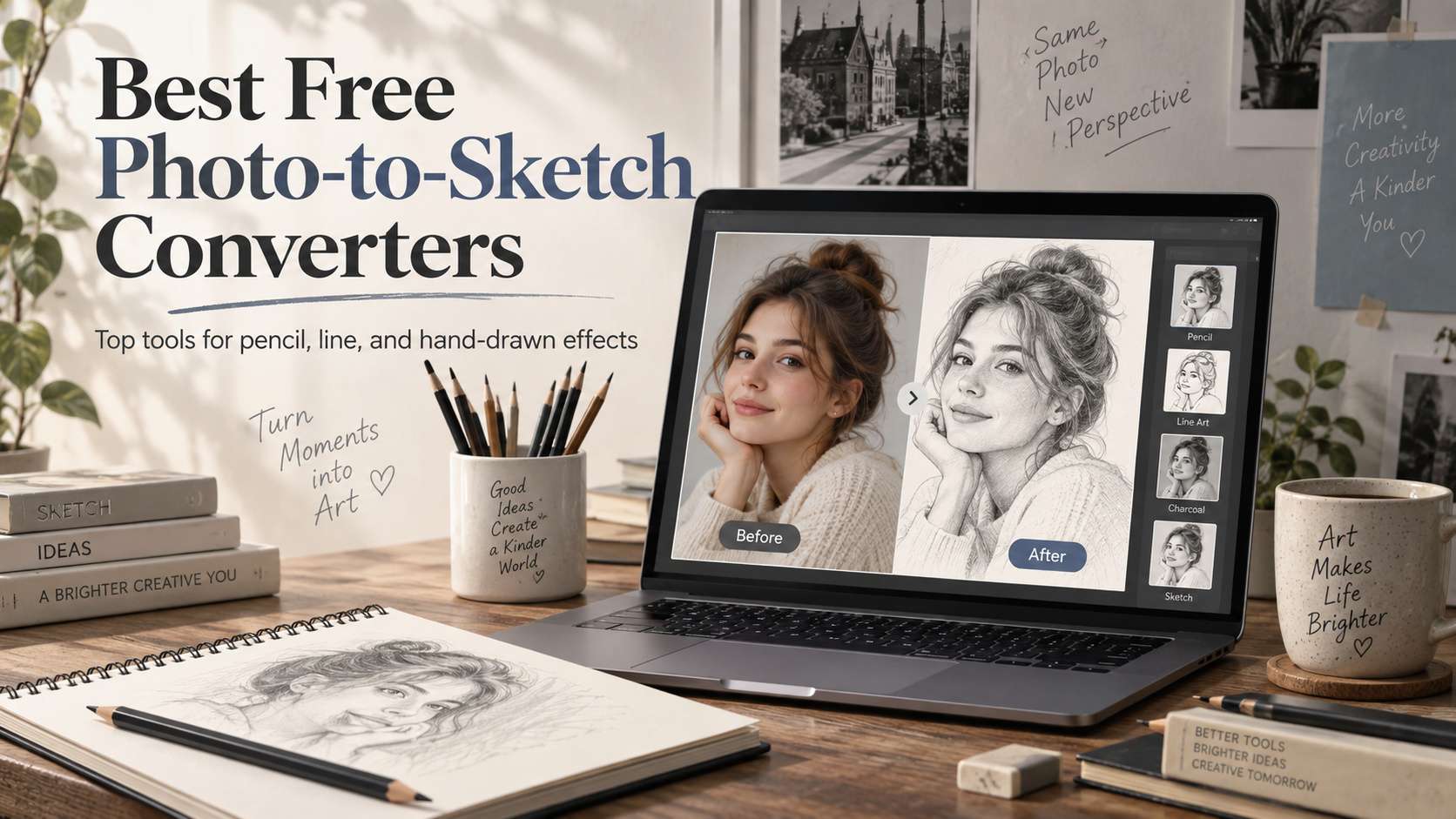
A convincing sketch is not just a grayscale photo with stronger edges. Pencil direction, shading density, line weight, and the way highlights are left open all affect whether the result reads as a drawing. The best free photo to sketch converters preserve important facial and object detail while simplifying texture in a believable way.
This list focuses on raster sketch effects for portraits, pets, travel, products, and social art. It does not rank vector tracing tools. We also pay attention to the free export path, because a converter that looks free until download is less useful for quick creative work.
In this article
- Photo Sketch Converter Comparison for Pencil, Ink, and Shading
- Sketch Realism Test: Texture Should Support the Subject, Not Cover It
- Sketch Converter Reviews: Pencil Texture, Detail, and Cleanup
- Pencil, Ink, and Shading Need Different Source Photos
- A Good Sketch Converter Preserves Structure Before Adding Texture
- FAQ
Photo Sketch Converter Comparison for Pencil, Ink, and Shading
Start with the drawing style you actually need. Soft pencil shading, hard ink lines, and cross-hatching respond differently to faces, products, and busy backgrounds, so compare tools against that target rather than a generic sketch label.
| Tool | Best for | Free / access | Main trade-off |
|---|---|---|---|
| Media.io | Fast online sketches with several drawing styles | The Image to Sketch tool advertises free online conversion with multiple sketch directions. | Preset conversion is intentionally fast, so there is less manual control over stroke direction and local shading than in a dedicated illustration editor. |
| Fotor | Users who want many pencil, line, ink, and sketch variants | Fotor offers free sketch effects; some AI and premium effects use credits or subscriptions. | The downside is overlap: many effects look similar in the thumbnail but react differently to hair, skin, and clutter. Expect a short comparison pass before choosing the right one. |
| BeFunky | Users who want adjustable sketch detail rather than a fixed filter | Sketcher effects are part of BeFunky Plus; the editor can be tested before committing to a paid workflow. | The important limitation is access: the more capable sketch effects are subscriber features. Treat BeFunky as the upgrade pick after you know one-click free filters are not giving enough control. |
| Picsart | Mobile sketches that need extra social editing | Freemium; premium effects and AI features vary by plan. | If your only goal is a natural pencil drawing, the abundance of effects can be distracting. Keep the workflow simple and avoid stacking filters that destroy tonal structure. |
| Canva | Sketch-style images that will be used inside layouts | Free plan with plan-dependent AI/effect access. | For users judging only pencil realism, Canva is not as specialized as Media.io, Fotor, or BeFunky. Choose it for production convenience rather than the deepest sketch controls. |
| LunaPic | Simple browser experiments with classic image effects | Free web editor with no subscription required for core effects. | The trade-off is visual polish and modern AI control. It behaves more like an online effects editor than a context-aware generative model, so difficult backgrounds and faces may need more cleanup. |
| PhotoDirector | Stylized sketch and illustration looks with normal photo editing | Freemium with plan-dependent AI features. | It is less compelling for someone who needs one free conversion and nothing else. The strength is the surrounding editing environment. |
Sketch Realism Test: Texture Should Support the Subject, Not Cover It
Pencil behavior: We look for directional strokes and tonal transitions that feel like drawing rather than a high-pass filter.
Face and eye detail: Portrait tools should keep the eyes, nose, mouth, and hair structure recognizable without adding harsh contour noise.
Background simplification: A good sketch often reduces the background so the subject remains the focus.
Control vs speed: One-click filters are useful for casual work; adjustable effects matter when a specific pen/pencil look is required.
Sketch Converter Reviews: Pencil Texture, Detail, and Cleanup
1. Media.io - Best for Fast online sketches with several drawing styles
Media.io is a low-friction starting point for a photo that needs to become a drawing without installing software. The tool supports several sketch aesthetics-line drawing, cross-hatching, pencil, pen, and related stylized looks-so you can choose whether the result should be clean and graphic or more textured and hand-drawn.
The Image to Sketch tool advertises free online conversion with multiple sketch directions.
Upload the image, select a sketch effect, and compare the detail around eyes, hair, fur, and background textures before downloading. If you actually need a cleaner contour with less shading, switch to Photo to Line Drawing.
Preset conversion is intentionally fast, so there is less manual control over stroke direction and local shading than in a dedicated illustration editor.
2. Fotor - Best for Users who want many pencil, line, ink, and sketch variants
Fotor has one of the broader sketch effect libraries in a general photo editor. Its current sketch tools advertise more than a dozen styles, including pencil, line, ink, and related drawing treatments. That variety is useful because a face often looks better with soft tonal pencil work while architecture or products benefit from stronger line structure.
Fotor offers free sketch effects; some AI and premium effects use credits or subscriptions.
Upload a photo, compare a few sketch categories rather than just intensity levels, then use normal Fotor editing to crop or adjust the finished image.
The downside is overlap: many effects look similar in the thumbnail but react differently to hair, skin, and clutter. Expect a short comparison pass before choosing the right one.
3. BeFunky - Best for Users who want adjustable sketch detail rather than a fixed filter
BeFunky is less "free" than the first two picks, but it deserves inclusion because the sketch controls are unusually practical. Its Sketcher effects expose settings such as Amount, Clutter Cleaner, Sketch Detail, and background/sketch colors. Those controls solve a common problem: a portrait can keep face detail while a noisy wall or patterned shirt is simplified instead of converted into a tangle of lines.
Sketcher effects are part of BeFunky Plus; the editor can be tested before committing to a paid workflow.
Apply a Sketcher effect, reduce clutter first, then tune detail and color until the subject reads clearly.
The important limitation is access: the more capable sketch effects are subscriber features. Treat BeFunky as the upgrade pick after you know one-click free filters are not giving enough control.
4. Picsart - Best for Mobile sketches that need extra social editing
Picsart works best when the sketch is not the final asset. Apply a drawing-style effect, then use mobile tools to cut out the subject, color part of the sketch, add text, place it on a background, or combine it with stickers and overlays. That makes it useful for profile images, posters, scrapbook-style posts, and creative before/after content.
Freemium; premium effects and AI features vary by plan.
Import the photo, test a restrained sketch effect, then clean the background or add design elements after the conversion.
Trade-off: If your only goal is a natural pencil drawing, the abundance of effects can be distracting. Keep the workflow simple and avoid stacking filters that destroy tonal structure.
5. Canva - Best for Sketch-style images that will be used inside layouts
Canva is useful when the drawing is a component inside a presentation, poster, invitation, worksheet, or social graphic. The conversion itself may come from an effect or integrated app, but the real value is immediate layout, typography, frames, background removal, and team collaboration.
Free plan with plan-dependent AI/effect access.
Create or import the sketch result, place it into the target design, then add text and brand elements without leaving the canvas.
For users judging only pencil realism, Canva is not as specialized as Media.io, Fotor, or BeFunky. Choose it for production convenience rather than the deepest sketch controls.
6. LunaPic - Best for Simple browser experiments with classic image effects
LunaPic is the lightweight utility choice. Its interface is old-fashioned, but it remains useful for quick browser-based image effects without a large account or creative suite. For someone who wants to test a drawing/sketch treatment on a disposable image, that simplicity can be more valuable than polished UI.
Free web editor with no subscription required for core effects.
Upload the photo, apply a sketch/drawing-style effect, adjust as needed, and download the result.
The trade-off is visual polish and modern AI control. It behaves more like an online effects editor than a context-aware generative model, so difficult backgrounds and faces may need more cleanup.
7. PhotoDirector - Best for Stylized sketch and illustration looks with normal photo editing
PhotoDirector is a better fit when you want the final drawing to sit somewhere between pencil sketch and AI illustration. Portrait users can combine artistic effects with retouching, color, and background tools, which helps when the source photo needs cleanup before or after stylization.
Freemium with plan-dependent AI features.
Prepare the portrait, apply the drawing/sketch effect, then use local editing to correct areas where facial detail becomes too harsh or soft.
It is less compelling for someone who needs one free conversion and nothing else. The strength is the surrounding editing environment.
Pencil, Ink, and Shading Need Different Source Photos
Pencil effects work best when the source already has readable light and shadow. Faces, architecture, and still life can look convincing when the converter keeps major tonal transitions while reducing color. If every dark area becomes the same graphite texture, the result feels like a filter rather than a drawing. For a free photo to sketch converter, the deciding factor is whether the workflow still gives you control after the first automatic result.
Ink and pen styles depend more on edge hierarchy than on shading. Look for clean outlines around the subject and selective interior detail. Busy backgrounds can overwhelm the drawing, so crop or simplify them first. These styles are useful for posters, editorial illustrations, craft references, and images that need a stronger graphic silhouette. For a free online photo to sketch converter, the useful comparison is the number of corrections required before the file is ready to publish.
Portrait sketches should preserve identity before adding texture. Check the shape of the eyes, mouth, hairline, and jaw rather than being distracted by realistic paper grain. Some effects beautify or stylize the face aggressively; that can be attractive, but it is a different goal from turning the original person into a recognizable pencil drawing. With a photo sketch converter online, judge the export and revision path, not only the preview shown on the generation screen.
Free converters should also be judged by export quality and editability. A convincing preview is less useful if the downloaded file is tiny, heavily compressed, or covered with branding. Test whether you can adjust intensity, crop the image, and export at a size suitable for the intended social, print, or design workflow. With a picture to sketch converter, the strongest option is the one that matches the real input and the next production step.
A Good Sketch Converter Preserves Structure Before Adding Texture
Media.io works well for fast browser conversions across several sketch looks. Fotor is useful when you want many pencil, ink, and line variants, while BeFunky gives more adjustment control over classic effects. Picsart and PhotoDirector suit mobile creators who expect to keep editing the result, and Canva is best when the sketch immediately enters a layout.
Judge the output at 100% zoom. Look at eyes, hair, thin edges, and tonal transitions, then compare the background noise. The strongest converter is the one that makes the image feel intentionally drawn without letting paper texture or automated shading erase the subject.
FAQ
-
What makes a photo look realistic as a pencil sketch?
A convincing sketch keeps the subject structure and uses texture selectively. The darkest lines should define important edges, while shading should follow the original light rather than covering the whole image with the same grain. High-resolution source photos with clear contrast usually convert better because the tool has enough information to separate features, shadows, and background detail. With an image to pencil sketch converter, check the real free limits and the correction workflow before you commit. -
Should I remove the background before making a sketch?
Not always, but it helps when the background contains foliage, shelves, crowds, patterned walls, or other high-frequency detail. Those textures can turn into distracting pencil marks. If the subject is the priority, simplify or blur the background first, then apply the sketch effect. For landscapes and architecture, keep the background because it is part of the drawing. With a photo to drawing converter, test the hardest input you expect to publish rather than a clean demo sample. -
What is the difference between a sketch filter and AI restyling?
A traditional filter derives lines and shading directly from the photo, so composition and identity usually stay stable. AI restyling can redraw the scene more freely, producing a more illustrative result but also changing facial details, objects, or geometry. Use filters for fidelity and AI restyling when you want a more interpretive drawing rather than a strict conversion. With an ai sketch converter, make sure the result can move into your normal editing and export process without rebuilding it. -
Can I print a sketch made with a free online tool?
Yes if the export resolution is high enough for the intended print size and the tool allows that usage. Check pixel dimensions before printing; a sketch that looks sharp on a phone may soften when enlarged. Also inspect compression around fine lines. If the file is small, upscale carefully or choose a converter that provides a larger clean export. With a photo to pencil drawing online, verify current plan limits, rights, and export behavior when the project moves from testing to production.


