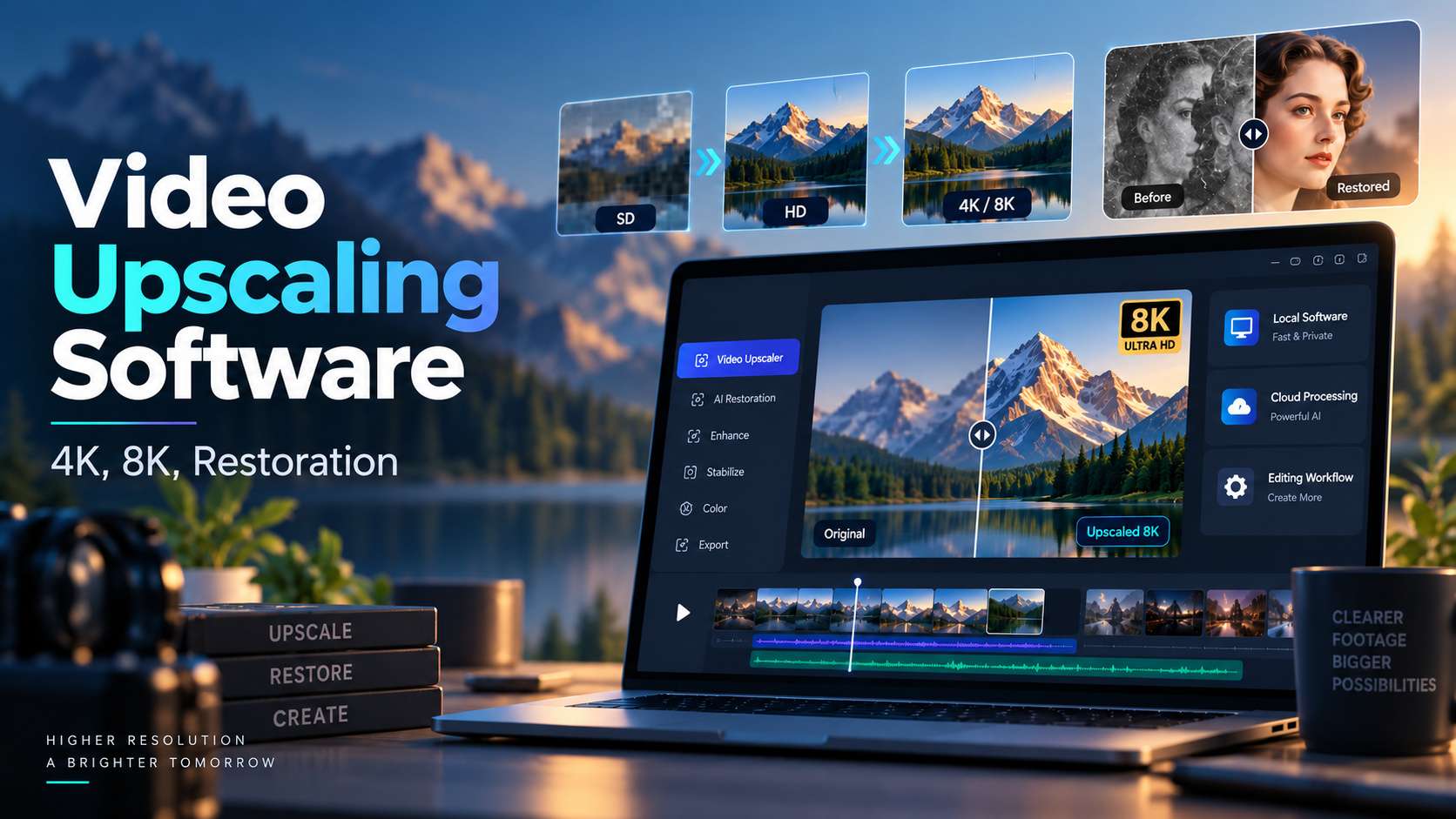
A 480p family clip, a soft 720p product video, and a 1080p AI-generated shot may all look like the same problem at first: they need more resolution. In practice, the right video upscaling software depends on what is actually missing - clean edges, facial detail, temporal consistency, or simply enough pixels for a 4K delivery. This guide separates browser, desktop, and editor-based upscalers by the jobs they handle best, then looks at the limits that affect real projects: source quality, output ceiling, hardware, processing model, price, and whether you can test the result before committing.
In this article
- The 2026 video upscaler landscape: three workflows, three very different costs
- Which video upscaling software fits your source footage?
- 1. Media.io: the best video upscaler for a no-install browser workflow
- 2. Topaz Video: the specialist for restoration, not the casual 30-second fix
- 3. HitPaw VikPea: the easier 8K-oriented desktop upscaler
- 4. Aiarty Video Enhancer: strong value for batch 4K cleanup
- 5. VideoProc Converter AI: best when upscaling is only one step in a larger media job
- 6. AVCLabs Video Enhancer AI: broad format support for legacy footage
- 7. CapCut AI Video Upscaler: the convenient choice when enhancement ends in a social edit
- A practical 4K decision model: resolution, defect severity, and minutes processed
- What actually changes when you move from 1080p to 4K or 8K
- Free video upscaler vs. paid software: where the limits usually appear
- FAQs
The 2026 video upscaler landscape: three workflows, three very different costs
AI upscaling has split into three practical camps. Browser tools remove the hardware problem but usually trade that convenience for upload limits, clip-length caps, or credits. Desktop enhancers let you process locally and often give you finer model control, but a powerful GPU can matter more than the price of the software. Editor-integrated upscalers are attractive when enhancement is only one step in a bigger editing job.
Which video upscaling software fits your source footage?
| Tool | Best fit | Output / positioning | Workflow reality |
|---|---|---|---|
| Media.io | Short social clips, product videos, talking heads | Up to 4K; browser workflow | MP4/MOV; current enhancer page lists clips up to 5 minutes |
| Topaz Video | Archive restoration, paid client work, difficult footage | Professional enhancement and upscaling | Desktop; strong hardware recommended; unlimited local rendering |
| HitPaw VikPea | Creators who want guided models and broad format support | Up to 8K positioning | Desktop + cloud export; free license is preview-only |
| Aiarty Video Enhancer | Batch denoise/deblur/upscale | 4K batch upscaling | Desktop; annual or lifetime license |
| VideoProc Converter AI | Users who also convert/compress/edit | Up to 4K video super resolution | Desktop; GPU acceleration; trial limits processing length |
| AVCLabs Video Enhancer AI | Legacy footage and format-heavy workflows | Up to 8K settings | Desktop; many input formats; model/preset controls |
| CapCut | Short social clips already inside an editor | Up to 4K positioning | Editor-based; easiest when CapCut is already your workspace |
1. Media.io: the best video upscaler for a no-install browser workflow
Media.io makes the most sense when the job is short, online, and time-sensitive. Its current AI Video Enhancer accepts MP4 and MOV and lists a 5-minute maximum duration. That makes it a creator-first option for product demos, talking-head clips, social ads, anime excerpts, and older phone footage rather than a long-form archive-restoration system.
The useful part is that upscaling is only one mode. Media.io also exposes Video Denoise, Portrait Enhancer, Anime Enhancer, and Smart Color Correction. That matters because a clip that looks "low resolution" may actually be suffering from compression noise, weak facial detail, muddy color, or low-light grain. A resolution-only pass can enlarge those defects; choosing the mode that matches the defect usually gives a cleaner result.
There is no local GPU requirement because processing happens online, and the workflow is straightforward: upload, choose an enhancement mode, preview, and export. The trade-off is narrower format support and a shorter duration ceiling than desktop software. Free use is best treated as a test path, while paid plans are more suitable when you need clean exports and repeat use.
Best fit: short-form creators, marketers, educators, and small teams that want an AI video upscaling software experience without installation. Less suitable for: long archive reels, unusual codecs, very large batches, or projects that need frame-by-frame model tuning.
2. Topaz Video: the specialist for restoration, not the casual 30-second fix
Topaz Video is the quality-first option for footage that is valuable enough to justify experimentation, rendering time, and stronger hardware. Its current desktop tool includes specialist enhancement models such as Proteus, Iris, Nyx, Rhea, Artemis, Gaia, Theia, and Starlight, plus stabilization, frame interpolation, and SDR-to-HDR tools. That depth is why it is often chosen for VHS transfers, compressed archive clips, documentary material, and paid finishing work.
The model choice changes the workflow. Proteus is a flexible general cleanup model with tunable controls, Iris is useful for faces and compressed footage, Nyx targets noise and grain, and Rhea is better suited to lower-motion, texture-heavy material. Starlight goes further into diffusion-based restoration, but the extra detail can come with dramatically longer processing. A difficult clip may need several short previews before you find the right model and settings.
Hardware is a real cost, not a footnote. Topaz recommends a modern system with at least 16GB RAM, and Windows users benefit from a capable dedicated GPU. Local processing avoids upload limits and gives you more privacy, but render times vary heavily with resolution, model, frame rate, and GPU. Current personal pricing also places it firmly above casual browser tools.
Best fit: restoration specialists, filmmakers, archivists, and editors working on irreplaceable footage. Less suitable for: quick Reels, low-spec laptops, or users who want a one-click result without learning which model matches which defect.
3. HitPaw VikPea: the easier 8K-oriented desktop upscaler
HitPaw VikPea sits between lightweight browser tools and deeper restoration software. Its strength is a guided library of models for UHD restoration, denoise, sharpen, portrait restoration, animation, AI color, stabilization, and an AI Pilot workflow that helps users choose a processing direction. The 2026 releases also added faster UHD restoration, split previews, portrait-focused improvements, smarter import, and stronger cloud options.
Format support is broad enough for mixed creator libraries. HitPaw lists common camera and web containers such as MP4, MOV, MKV, AVI, FLV, WEBM, MTS, and TS, with several mainstream export containers. It is positioned for up to 8K output, and users can process locally or use cloud workflows when their machine is weaker. That gives it more flexibility than a browser-only tool while keeping the interface less technical than Topaz.
The main trade-off is cost structure. The free experience is largely for previewing rather than normal production export, and paid desktop licensing may sit alongside optional cloud-credit consumption. In practice, short occasional jobs are easy to budget, while frequent long-form cloud processing can make total cost less predictable. Processing speed also depends on whether you stay local or offload the job.
Best fit: creators who want guided repair models, broad format support, and a desktop-plus-cloud path. Less suitable for: users who dislike credit add-ons or professionals who want the deepest manual restoration controls.
4. Aiarty Video Enhancer: strong value for batch 4K cleanup
Aiarty Video Enhancer is a strong value choice when you need to process a folder of footage rather than rescue one irreplaceable clip. Its desktop workflow combines denoise, deblur, texture recovery, frame interpolation, color/HDR adjustment, audio denoise, and upscaling to 4K. Because the core processing happens locally, you avoid per-upload duration caps and can queue longer jobs without repeatedly sending media to a cloud service.
Its format support is unusually broad for the price tier. Aiarty lists inputs including AVI, FLV, MP4, MKV, MOV, WEBM, WMV, TS, M2TS, MTS, M4V, 3GP, MXF, VOB and more, while export is focused on MP4 and MOV with H.264, H.265, ProRes, or AV1. On Windows, the minimum is 8GB RAM with 16GB recommended; GPU acceleration supports modern NVIDIA, AMD, and Intel hardware. Mac support includes Intel and Apple Silicon systems.
Pricing is another reason it stands out. Aiarty currently offers an annual license and a lifetime license, so users who run repeated batches can avoid an endless subscription. The trade-off is that it has a smaller specialist model ecosystem than Topaz, and the interface is still a desktop workflow that benefits from a capable GPU.
Best fit: batch cleanup, creator archives, AI-generated clips, and users who prefer a local lifetime-license option. Less suitable for: browser-only users or difficult restoration jobs that need highly specialized model tuning.
5. VideoProc Converter AI: best when upscaling is only one step in a larger media job
VideoProc Converter AI is most useful when enhancement is only one step in a larger media pipeline. Its Super Resolution tool can upscale SD, old, compressed, screen-recorded, and AI-generated video by 2x, 3x, or 4x up to 4K while reducing blur and noise. The same application also handles conversion, compression, stabilization, frame interpolation, recording, downloading, and audio cleanup, so you do not need to render an intermediate file and move it into another utility for every next step.
That workflow consolidation is the main reason to choose it over a specialist-only upscaler. A creator can upscale an old 720p clip, stabilize it, convert it to a delivery codec, reduce file size, and export from one desktop application. GPU acceleration is built around NVIDIA, Intel, and AMD hardware, and the product is designed for repeated local use rather than credit-based cloud processing.
The free version is good for compatibility testing, but it has feature restrictions that make it unsuitable as a permanent production workflow. The paid plans are comparatively straightforward: current pricing starts around $34.95 for the annual plan, with a lifetime license also available, and paid exports are watermark-free. That predictability is valuable if you process media frequently.
Best fit: creators who upscale, transcode, compress, stabilize, or convert in the same session. Less suitable for: users seeking the most advanced restoration models for severely damaged archival footage.
6. AVCLabs Video Enhancer AI: broad format support for legacy footage
AVCLabs Video Enhancer AI is particularly useful for legacy footage because it accepts a very wide range of containers. Its official guide lists formats such as MP4, MOV, AVI, MKV, M2TS, MTS, VOB, WMV, WEBM, DV, FLV, MPEG, and many others. That reduces the need to pre-convert older transfers before enhancement. The software can upscale toward 4K or 8K and also includes denoise, face enhancement, colorization, motion compensation, stabilization, and SDR-to-HDR workflows.
The current model set goes beyond one generic enhancer. AVCLabs offers Standard, Ultra, Anime, Multi-Frame, Denoise, Face Enhancement, Colorize, Motion Compensation, and HDR-related options, with controls such as Detail Balance designed to reduce over-sharpening. For old family video or DVD-era footage, that combination of face recovery, color work, and broad format support is often more relevant than headline resolution alone.
This is still desktop AI, so performance is hardware-dependent. AVCLabs recommends a dedicated GPU and around 16GB RAM for a smoother experience. The trial can process unlimited videos but limits export to 30 seconds and adds a watermark, which is enough to judge quality before paying. Current plans include monthly, yearly, and perpetual licenses.
Best fit: old containers, family archives, DVD/camcorder transfers, and users who need restoration plus color or face tools. Less suitable for: quick browser-only jobs or users with weak hardware who do not want long local renders.
7. CapCut AI Video Upscaler: the convenient choice when enhancement ends in a social edit
CapCut's AI Video Upscaler is the workflow-first choice for creators who are already editing inside CapCut. The current tool sharpens, deblurs, and upscales footage toward 4K, but its real advantage is what happens after enhancement: the same project can continue into trimming, captions, reframing, music, templates, transitions, speed changes, and social export without leaving the editor.
That makes CapCut very different from restoration-first software. A 20-second product clip or Reel rarely needs ten enhancement models; it needs enough cleanup to look better on a phone screen, followed by fast editing and publishing. CapCut's one-click upscaling fits that job well. The downside is that the official upscaler page does not expose the same model-level controls, legacy-format depth, or restoration diagnostics you get from Topaz, AVCLabs, or HitPaw.
Free access is part of CapCut's appeal, but plan and export behavior can vary by platform and feature, so creators should verify the exact export path they use rather than assuming every AI workflow is unlimited. Processing is generally simpler than a desktop restoration suite because the user makes fewer technical decisions.
Best fit: TikTok, Reels, Shorts, creator ads, and social clips that will be edited immediately after enhancement. Less suitable for: archival restoration, unusual codecs, long-form batch work, or users who need detailed control over reconstruction.
A practical 4K decision model: resolution, defect severity, and minutes processed
Before you buy anything, classify the project on three axes:
- Resolution gap: 1080p to 4K is much easier than 360p to 4K. If the source is tiny, expect invented detail rather than recovered truth.
- Defect severity: clean but small footage needs upscaling; noisy, compressed, interlaced, or face-damaged footage needs restoration first.
- Minutes processed: cloud tools feel cheap on 20-second clips and expensive on hours of footage. Local tools reverse that equation if your hardware is strong enough.
For occasional creator clips, browser tools usually win on convenience. For dozens of minutes per week, local software starts to make more economic sense. For irreplaceable footage, pick the tool with the strongest restoration controls even if it is slower.
What actually changes when you move from 1080p to 4K or 8K
Resolution numbers are easy to compare, but they do not tell you whether the result will look better. A 4K export created from weak 480p footage can still look artificial if the software invents hard halos around edges, smears faces between frames, or sharpens compression blocks. The practical test is temporal consistency: pause on a face, logo, railing, leaf, or subtitle, then scrub several frames forward. Good upscaling should keep those details stable instead of making them shimmer or change shape.
For 8K, the bar is even higher. Most users do not need an 8K delivery file. The useful reason to upscale further is often to create room for cropping, reframing, or large displays. If the final destination is YouTube, Instagram, a product page, or a 1080p presentation, a cleaner 1080p/4K result may look better and process faster than an aggressive 8K pass.
Use a short representative test before processing the full video
Pick 10 to 20 seconds containing the hardest material: a moving face, textured clothing, text, foliage, or a noisy dark area. Run the same segment through your shortlisted tools. Compare edge stability, face identity, noise, color, and render time. This gives you a much more useful answer than comparing marketing resolution claims.
Free video upscaler vs. paid software: where the limits usually appear
A free video upscaler is useful for proving that the workflow can help your footage, but free access is rarely the whole production workflow. Browser products may limit clip length, export resolution, watermark-free output, or daily credits. Desktop trials may cap export duration or restrict models. Professional products often remove those restrictions but shift the cost to a subscription, local GPU time, or cloud credits.
Estimate cost by the amount of footage you actually process each month. A creator enhancing six 30-second ads has a very different cost profile from an archivist processing 20 hours of family video. For short clips, browser tools can be cheaper because there is no hardware investment. For frequent long-form work, unlimited local rendering can become more valuable even when the software license costs more.
FAQs
-
What is the best video upscaling software for 4K?
For short online clips, Media.io is the easiest starting point. For difficult restoration and professional finishing, Topaz Video offers deeper model control. HitPaw, Aiarty, VideoProc, AVCLabs, and CapCut each fit different workflow and budget needs. -
Can AI video upscalers really turn 480p into 4K?
They can output a 4K frame size and reconstruct plausible detail, but they cannot recover information that was never captured. Extremely soft or compressed 480p footage may look cleaner and more detailed without becoming equivalent to native 4K. -
What is the best free video upscaler?
Free access usually comes with limits such as preview-only export, short clips, watermarks, or capped processing. Media.io and CapCut are practical places to test online enhancement, while desktop trials are better for checking whether your hardware and source footage respond well. -
Is desktop video upscaling better than online upscaling?
Desktop tools usually offer more model control and are better for long or sensitive footage. Online tools are easier for short clips and do not require a powerful GPU. The better choice depends on clip length, privacy needs, and processing volume. -
How long does AI video upscaling take?
Processing time varies widely. Browser tools depend on queue and cloud resources; desktop tools depend on resolution, frame rate, model complexity, and GPU. Diffusion-based restoration models can take much longer than standard upscalers.