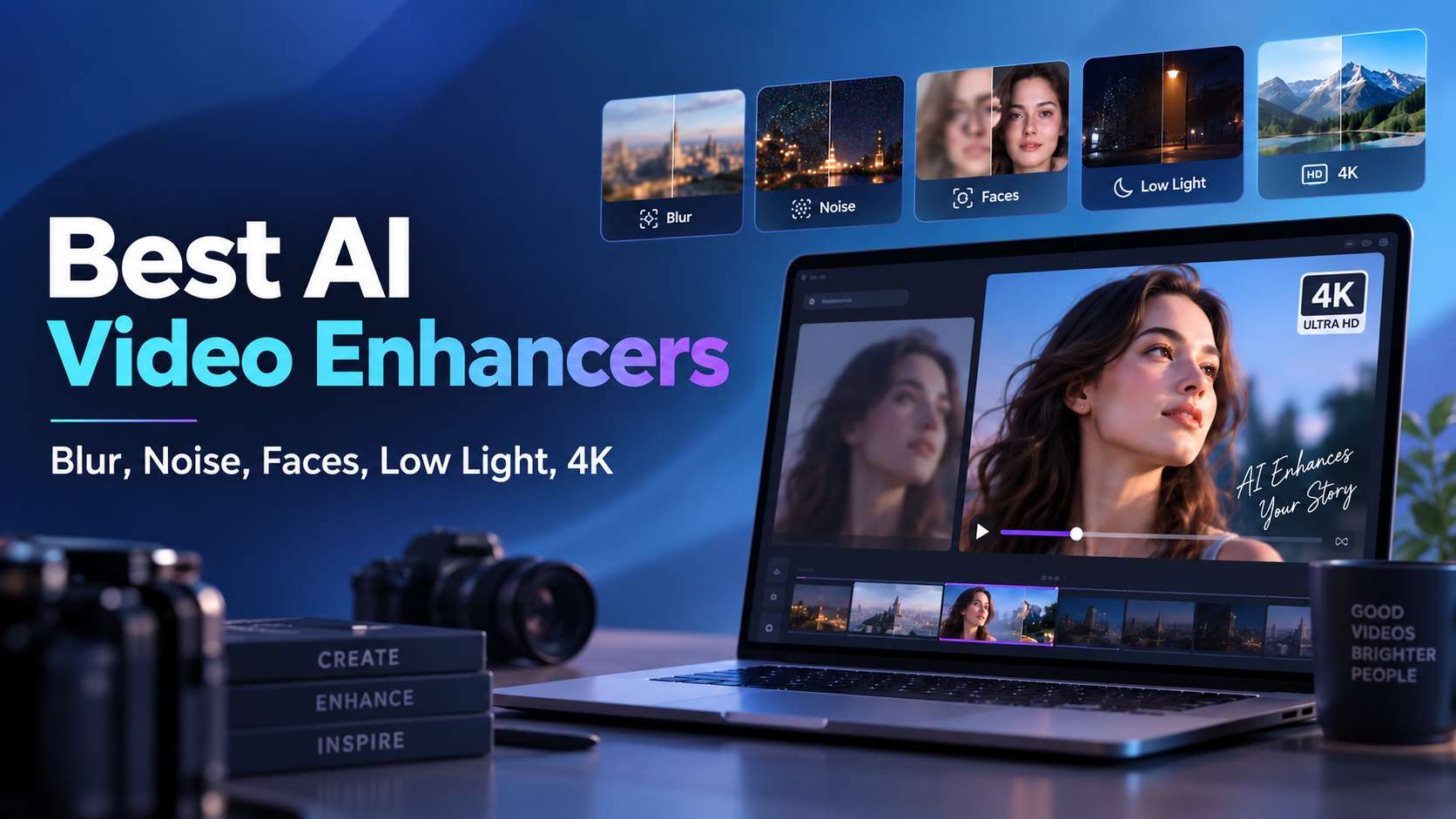
A low-quality video can fail in several different ways: grain from a dark room, compression blocks after reposting, soft faces, dull color, juddery motion, or simply not enough resolution. That is why the best AI video enhancer is not automatically the tool with the biggest "8K" badge. The better choice is the one whose enhancement model matches your actual defect and your editing environment. This guide compares online, desktop, and app-friendly options by the problems they solve best rather than treating every enhancer as the same kind of upscaler.
In this article
- Start with the defect, not the brand
- Seven tools compared by the problem they solve
- 1. Media.io: best free online AI video enhancer to test without installing anything
- 2. Wink: portrait-first cleanup for concerts and social video
- 3. Remini: best for an automatic consumer workflow on old or blurry video
- 4. PowerDirector 365: best when enhancement must continue into a full edit
- 5. HitPaw VikPea: best for guided repair models and cross-platform flexibility
- 6. Topaz Video: best when "enhance" really means restore
- 7. CapCut: convenient enhancement inside a social editor
- Choose by defect: a faster way to get better results
- A five-defect test for choosing an AI video enhancer
- What free-tier users should check before exporting
- Which enhancer fits common creator workflows?
- How processing time changes the recommendation
- FAQs
Start with the defect, not the brand
Before comparing products, identify what you dislike about the clip. If the footage is noisy, choose a tool with a dedicated denoise model. If faces are weak, look for portrait restoration. If the problem is low light, color and exposure enhancement matter more than 8K output. If you are posting directly from a phone, an app with a fast one-tap workflow may beat a technically stronger desktop tool.
Seven tools compared by the problem they solve
| Tool | Blur / noise | Faces | Low light / color | App / online fit |
|---|---|---|---|---|
| Media.io | Dedicated denoise + general enhancer | Portrait Enhancer | Smart Color Correction | Browser; short-form creator friendly |
| Wink | Regular + scenario enhancement | Strong portrait/retouch focus | Concert/scenery scenario modes | Web, desktop, mobile |
| Remini | Automatic clarity restoration | Known for face-oriented restoration | General color/clarity improvement | Very simple consumer workflow |
| PowerDirector 365 | Upscale + denoise | Within editor workflow | Lighting + broader editing controls | Desktop editor |
| HitPaw VikPea | Multiple repair/denoise/sharpen models | Portrait restoration/generation | Low-light, color enhancement, SDR to HDR | Desktop + cloud + mobile presence |
| Topaz Video | Deep restoration model library | Iris/Starlight options | Specialized enhancement pipeline | Desktop + Topaz web products |
| CapCut | Sharpen/deblur/upscale | General creator enhancement | Editor adjustments | Desktop/mobile/social workflow |
1. Media.io: best free online AI video enhancer to test without installing anything
Media.io is the most balanced choice when you want a browser workflow and the clip is short enough to fit the online limits. Media.io is among the best AI video enhancer options for quick online improvements, supporting MP4 and MOV uploads with dedicated modes for denoising, portrait enhancement, anime enhancement, color correction, and upscaling.
That structure is useful for mixed creator footage. A noisy indoor vlog, a low-light talking head, an anime clip, and a compressed product ad need different fixes. Choosing a dedicated mode reduces the risk of simply sharpening noise or making faces look artificial. Because processing happens online, there is no local GPU requirement, and the basic workflow is easy enough for non-editors: upload, choose a mode, preview, and export.
The trade-offs are equally clear. Format support is narrower than desktop editors, the duration cap makes it a short-form tool, and the free path is better for testing than for repeated watermark-free production. It is also less suited to users who want frame-by-frame model tuning or large unattended batches.
Best fit: marketers, educators, social creators, and teams looking for a free online AI video enhancer starting point. Skip it when: your source is long, unusually encoded, or damaged enough to require professional restoration controls.
2. Wink: portrait-first cleanup for concerts and social video
Wink is strongest when the subject is a person and the final video is headed to social media. Its enhancer focuses on blur removal, 1080p/4K upscaling, color improvement, portrait restoration, night enhancement, denoise, frame interpolation, and retouching. That makes it particularly relevant for concert clips, dance videos, selfies, beauty content, and handheld creator footage where faces matter more than landscape texture.
Platform flexibility is a major advantage. Wink works across mobile, tablet, desktop, and web. On the web it supports common image formats plus video formats such as MP4, MOV, 3GP, M4V, FLV, and AVI; desktop support is broader. The mobile and desktop membership tiers also expose batch and cloud-processing limits, while the web version uses its own credit-based Creative Plan. Depending on tier, cloud clips can range from short 10-minute segments to much longer 60-minute segments.
The free plan is useful for trying the workflow, but exports include a watermark. Paid web tiers remove watermarks and include monthly credits, with higher tiers getting more credits and faster priority processing. That makes Wink easy to start but less predictable for users processing many long clips.
Best fit: portrait-heavy social content and users who want a mobile-friendly video enhancer app. Skip it when: you need archival restoration, local privacy-first processing, or a simple flat-cost workflow.
3. Remini: best for an automatic consumer workflow on old or blurry video
Remini is built for users who want the AI to make most of the decisions. Its video enhancer focuses on enlarging low-quality footage by up to 2x while improving blur, grain, pixelation, color, and facial detail. That simplicity is why it is popular for old family clips, phone videos, social reposts, and footage where the goal is a quick visible improvement rather than technical control.
The workflow is intentionally narrow: upload a video, let Remini process it, review the result, and export. There is no long list of restoration models to choose from, so a beginner can get to a result faster than with Topaz or HitPaw. The trade-off is that you have less control over how aggressively faces are reconstructed or how detail is synthesized. For identity-sensitive work, historical archives, or client footage, that automatic behavior deserves a close before-and-after check.
Remini's public website does not maintain one stable, universal price table for every platform, because subscriptions and app-store offers can vary. Free access and ad-supported usage may also differ by device and region. In practical terms, treat it as a consumer subscription app rather than a predictable high-volume production tool.
Best fit: old personal clips, casual mobile users, and anyone who values one-tap simplicity. Skip it when: you need exact model tuning, broad codec support, transparent batch economics, or strict preservation of original facial detail.
4. PowerDirector 365: best when enhancement must continue into a full edit
PowerDirector 365 is the best fit when enhancement is only one step in a full editing project. Its AI Video Enhancement workflow combines lighting correction, denoise, upscaling, and frame interpolation inside the timeline, so you can improve a clip and immediately continue trimming, reframing, captioning, mixing audio, adding effects, and exporting without creating an intermediate file.
The broader format support is much stronger than a single-purpose web enhancer. PowerDirector can import mainstream containers plus professional formats such as MOV ProRes and MXF on supported systems, and it handles 4K/8K workflows, high-frame-rate footage, HDR, and hardware-accelerated encoding. The downside is complexity: you are opening a full editor, not a one-button utility, so the learning curve is higher for someone who only wants to clean one clip.
CyberLink currently offers a free Essential version with limited features, while PowerDirector 365 is sold as a subscription and includes premium AI tools plus monthly AI credits for generative features. The annual Windows plan is currently promoted around $59.99, while a perpetual 2026 edition is also available with a different feature set. Enhancement speed depends on hardware and project settings.
Best fit: YouTubers, course creators, marketers, and editors who will keep working on the video after enhancement. Skip it when: you only need a fast one-off cleanup in the browser.
5. HitPaw VikPea: best for guided repair models and cross-platform flexibility
HitPaw VikPea is designed for users who want more choice than a one-click app without stepping into a deeply technical restoration suite. Current versions include general restoration, UHD restoration, AI Pilot, portrait restoration and generation, decompression, denoise, sharpen, AI color tools, and stabilization. The model library is presented in a guided way, so beginners can usually understand which option matches the problem.
Portrait handling is especially nuanced in the 2026 line. HitPaw distinguishes between generative portrait repair for very low-resolution faces and detail-oriented portrait restoration for higher-resolution footage. That matters because a tiny face may need reconstruction, while a 1080p face usually benefits more from texture recovery than identity-changing synthesis. The product also spans desktop, web, and mobile environments and supports a broad range of common video containers.
The cost model is the main caveat. Free use is primarily for previewing, paid desktop licenses unlock normal export, and cloud acceleration or cloud export can consume additional credits. Local processing avoids some of that variable cost but depends on your machine. For frequent long-form work, calculate whether credits or local render time become the bigger constraint.
Best fit: creators who want guided repair models, broad platform support, and stronger controls than a basic app. Skip it when: you want the simplest flat-cost workflow or the deepest professional restoration controls.
6. Topaz Video: best when "enhance" really means restore
Topaz Video is the strongest fit when the footage is technically difficult rather than merely dull. Think VHS transfers, interlaced television recordings, severe compression, heavy noise, poor faces, or commercially valuable shots that cannot be replaced. Its model library is deeper than the average consumer enhancer, with Proteus for general cleanup, Iris for face-heavy compressed footage, Nyx for noise and grain, Rhea for lower-motion texture work, and Starlight for heavier diffusion-based restoration.
That depth creates a different workflow. Instead of clicking one Enhance button, you normally test short sections, compare models, adjust settings, and only then commit to a long render. Topaz can also handle stabilization, frame interpolation, and HDR-related finishing. The benefit is a higher quality ceiling; the cost is time, learning effort, and hardware demand. Starlight processing in particular can be dramatically slower than ordinary enhancement.
The desktop product is intended for local rendering and benefits from a modern dedicated GPU and at least 16GB RAM. Current pricing is in the professional tier, so it is harder to justify for occasional social clips. There is no five-minute-style online cap, but your practical limit becomes hardware and render time.
Best fit: archivists, filmmakers, restoration specialists, and editors working on irreplaceable footage. Skip it when: your typical job is a short Reel that only needs light denoise or sharpening.
7. CapCut: convenient enhancement inside a social editor
CapCut is the convenience pick for creators whose enhancement job ends in a social edit. Its AI video upscaler sharpens, deblurs, and pushes footage toward 4K, but the bigger advantage is that the clip remains inside the same editing environment for captions, templates, music, reframing, speed changes, transitions, and platform-ready export.
That makes CapCut a practical answer to searches for the best video enhancer app, even though it is not a dedicated restoration suite. A creator working on a 15-second TikTok or product ad may gain more from staying in one timeline than from exporting to a specialist desktop tool and re-importing the result. The interface is also much easier for non-technical users because there are fewer model-level decisions.
The limitations appear on difficult footage. CapCut does not expose the same restoration depth, broad legacy-format support, or detailed model controls as Topaz, HitPaw, or AVCLabs. Free and paid export behavior can also vary by platform and feature, so users should confirm the exact workflow they plan to use rather than assuming every AI option is unlimited.
Best fit: Reels, Shorts, TikTok, creator ads, and mobile-first publishing. Skip it when: the source is archival, technically damaged, long-form, or requires precise restoration control.
Choose by defect: a faster way to get better results
- Grainy low-light phone video: start with denoise/low-light correction, not aggressive upscaling.
- Soft talking-head footage: use a portrait model and inspect eyes, teeth, hair, and skin for hallucinated detail.
- Old family video: prioritize artifact cleanup, face recovery, and temporal stability over maximum resolution.
- Anime or game footage: use a model designed for synthetic edges; generic face restoration can damage line art.
- Social clip already in an editor: an integrated app can save more time than a specialist with marginally better output.
The easiest mistake is to apply every enhancement at maximum strength. A more restrained pass often looks more natural, especially on faces and compressed text.
A five-defect test for choosing an AI video enhancer
Before paying for any enhancer, test the same short clip against five failure modes instead of judging only a polished demo. First, check noise in shadows and flat walls. Second, check motion blur around hands, hair, and camera movement. Third, inspect faces for identity drift, waxy skin, or changing teeth and eyes. Fourth, look at fine text and edges, where over-sharpening quickly becomes obvious. Fifth, scrub through several frames to judge temporal stability.
This is why the tools above are not interchangeable. Media.io is convenient when a short clip needs a targeted online mode. Wink is stronger when portrait/social retouching is part of the job. PowerDirector makes sense when enhancement belongs inside a complete edit. HitPaw and Topaz give you more model choice when the source itself needs deeper repair.
What free-tier users should check before exporting
The word "free" can describe very different products. Some tools let you process and export a short clip for free; some only let you preview; others reserve 4K, watermark removal, longer duration, or faster processing for paid plans. Always test the exact export path, not just the upload screen.
- Watermark: confirm whether the downloaded file carries branding.
- Resolution: make sure the free tier actually exports at the resolution you need.
- Duration: a tool that works perfectly on a 10-second sample may cap a longer clip.
- Credits: check whether enhancement is charged by seconds, model, resolution, or cloud processing.
- Queue speed: free tiers may process more slowly, which matters when you have several versions to test.
Which enhancer fits common creator workflows?
Talking-head and course videos
Prioritize face detail, low-light cleanup, and stable skin texture. Media.io Portrait Enhancer, Wink portrait modes, HitPaw portrait restoration, and Topaz Iris are more relevant than a generic resolution-only upscaler.
Anime, game capture, and AI-generated video
Look for edge-aware or synthetic-content models. Anime line art can be damaged by face-oriented restoration, while AI-generated video often benefits from texture cleanup and motion stabilization rather than aggressive face reconstruction.
Old family footage
Noise reduction, compression repair, frame stability, and conservative face recovery matter more than chasing the highest output number. Topaz and HitPaw offer deeper restoration options; Media.io is easier when the source is short and you want a browser workflow.
Reels, Shorts, and product ads
Turnaround time and editing integration usually matter most. Media.io, CapCut, and Wink make more sense here than a slow restoration stack unless the source is unusually poor.
How processing time changes the recommendation
Processing time is not a side issue when enhancement becomes part of a weekly content workflow. Browser tools remove the need for a local GPU, but upload time and server queues become part of the turnaround. Desktop tools can be faster on a strong NVIDIA or Apple Silicon machine, yet the same model can feel painfully slow on entry-level hardware. Cloud acceleration can bridge that gap, but it may introduce credits or separate usage costs.
For a creator producing several short ads, the most efficient practical workflow is often the one with the fewest handoffs: upload, enhance, review, export. For a studio restoring long-form footage, local batch processing and predictable rendering economics matter more. This is why a technically stronger model can still be the wrong business choice if it adds too much waiting or manual review.
FAQs
-
What is the best AI video enhancer online?
Media.io is a strong browser-first option for short clips because it separates denoise, portrait, anime, color correction, and upscaling into dedicated modes. Wink is another strong online/app-oriented choice for portrait and social scenarios. -
What is the best AI video enhancer app for Android or iPhone?
Wink, Remini, HitPaw, and CapCut all make sense for mobile-oriented users. The best choice depends on whether you prioritize portrait restoration, one-tap cleanup, deeper AI models, or editing and publishing in the same app. -
Can AI video enhancement remove blur completely?
No tool can guarantee full recovery of detail that was never captured. AI can reduce the appearance of blur and reconstruct plausible detail, but results vary with motion, compression, focus error, and source resolution. -
Do free AI video enhancers add a watermark?
Many free tiers use watermarking, preview-only export, length caps, or limited credits. Check the export rules of the exact tool before processing a long clip. -
Should I upscale before or after denoising?
If the source is noisy or heavily compressed, cleaning artifacts before or during upscaling usually produces a more natural result than enlarging the defects first.