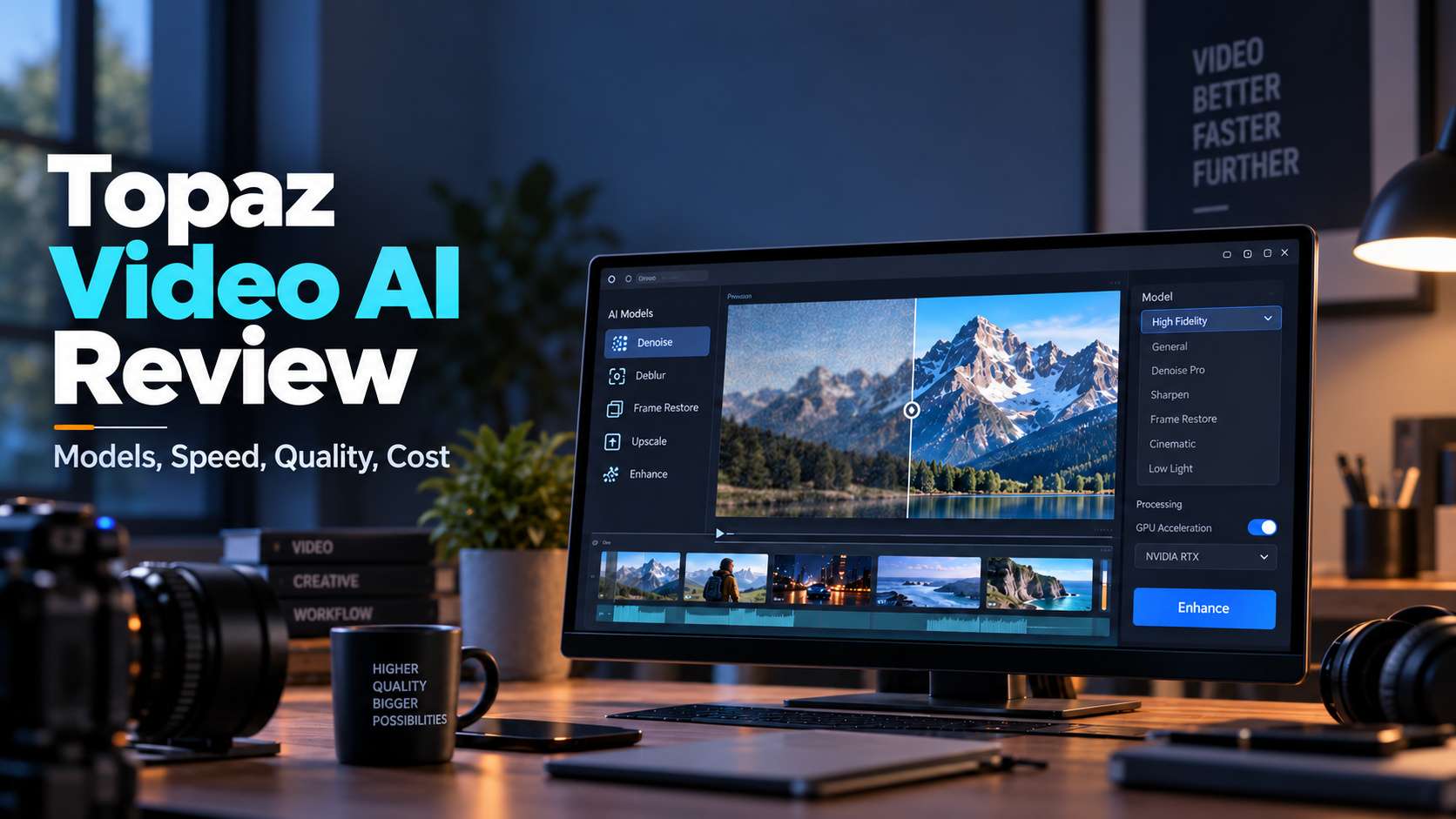
Topaz Video is easy to recommend in a sentence and harder to recommend responsibly. It can rescue footage that lightweight enhancers barely touch, but its strongest models can also be slow, hardware-hungry, and expensive for occasional use. This Topaz Video Enhancer AI review focuses on the questions that matter before you subscribe: which models are actually useful, what hardware changes the experience, where Starlight helps, what local vs. cloud rendering means, how much it costs in 2026, and when a simpler online tool is the better decision.
In this article
- Review verdict: excellent specialist, poor impulse buy
- What the 2026 product actually does
- Topaz Video models: the decision that changes the result more than resolution
- Starlight is the reason to buy Topaz - and the reason to check your hardware first
- Hardware requirements: the part many reviews understate
- Pricing in 2026: when the subscription makes sense
- How I would use it on three common projects
- A safer workflow that avoids wasting hours on the wrong render
- Pros and cons after the 2026 subscription shift
- Topaz Video vs. Media.io: specialist restoration vs. fast online enhancement
- Final Verdict
- FAQs
Review verdict: excellent specialist, poor impulse buy
Decision: Topaz Video is a strong buy for restoration-heavy editors, filmmakers, archivists, and creators who repeatedly work with footage that is noisy, compressed, low-resolution, interlaced, or otherwise difficult. It is a weak buy for users who enhance a few short social clips per month and mainly want speed.
The reason is not just price. Topaz gives you a model ecosystem, not a single enhancer button. That flexibility is valuable only if you have footage that benefits from it and a machine capable of processing it at a reasonable pace.
What the 2026 product actually does
Topaz Video now covers several distinct jobs: upscaling, denoising, sharpening, face recovery, stabilization, frame interpolation, deinterlacing, and SDR-to-HDR conversion. Its progressive enhancement models include Proteus, Iris, Nyx, Rhea, Artemis, Gaia, and Theia, while the Starlight family handles more demanding generative restoration.
That breadth is useful because different defects respond to different models. Proteus is a reliable general-purpose starting point. Iris is especially relevant to face-heavy or compressed footage. Nyx is designed around noise and grain. Rhea is better suited to low-motion scenes such as interviews and product shots. Gaia is aimed at already-good or computer-generated sources. Starlight models are for cases where conventional enhancement hits a ceiling.
Topaz Video models: the decision that changes the result more than resolution
Most first-time users obsess over 4K or 8K output. Model choice is usually more important. If the model invents the wrong texture, a higher output resolution only makes the error easier to see.
| Model family | Use it for | Main risk |
|---|---|---|
| Proteus | General enhancement, compression cleanup, sharpening | Over-tuning can create crunchy edges |
| Iris | Faces, compressed or low-quality people footage | Can alter facial micro-detail if pushed too hard |
| Nyx | Noise and grain reduction | Can remove desirable texture |
| Rhea | Interviews, product shots, low-motion texture | Not the natural first choice for chaotic motion |
| Starlight | Severely degraded footage and difficult restoration | Much slower rendering and higher system demands |
A good workflow is to preview short representative sections first: a face close-up, a motion-heavy shot, a dark scene, and any frame containing text. The same setting rarely wins on all four.
Starlight is the reason to buy Topaz - and the reason to check your hardware first
The Starlight family is Topaz's headline restoration technology. Current options include Starlight Mini, Sharp, Fast 2, HQ, and Precise variants. The quality ceiling is impressive, but Topaz's own documentation is unusually clear about the trade-off: diffusion-based Starlight processing can take from several minutes to multiple days depending on video length, resolution, frame rate, and hardware.
That warning should be part of any serious buying decision. If you are on a light laptop and expect real-time 4K restoration, you will be disappointed. If you have a modern workstation and can queue long renders, Starlight becomes much more attractive.
Hardware requirements: the part many reviews understate
On Windows, Topaz lists 16GB RAM as the minimum and expects modern hardware; a dedicated GPU with around 6GB VRAM is the practical baseline for supported local workflows, while some advanced models require more. The desktop install also needs significant storage because model files accumulate. On Mac, Apple Silicon is the supported direction for the current app.
This has two consequences. First, the software price is not the full cost if your computer is underpowered. Second, local rendering becomes a genuine advantage when your machine is strong: there is no per-minute local meter, and sensitive client footage does not need to leave your system.
Pricing in 2026: when the subscription makes sense
Topaz currently lists the personal desktop plan at $59 per month or $299 billed annually. The plan includes the desktop model set and unlimited local rendering, plus a small allocation of monthly cloud video credits. Topaz also sells browser-based video enhancement separately.
This subscription model changes the value calculation compared with older one-time-license reviews still ranking in search. For someone restoring footage every month, the annual cost can be reasonable. For a user with one short project, it can be hard to justify.
How I would use it on three common projects
Old family or VHS footage
Start by correcting interlacing and noise before chasing resolution. Test Iris if faces are central, Nyx for grain/noise, and a Starlight model only on the sections that remain too damaged after conventional enhancement.
Compressed talking-head video
Preview Iris and Proteus on a close-up. Watch teeth, eyes, eyelashes, hairlines, and text in the background. If identity begins to drift, reduce strength rather than pushing resolution higher.
AI-generated video that looks soft
Start with models aimed at preserving existing structure. You usually need edge/detail recovery more than generative face reconstruction. A 2x or 4K delivery pass may be enough.
A safer workflow that avoids wasting hours on the wrong render
- Import the cleanest source file available. Avoid a social-media download if you still have the original export.
- Choose a representative 5 - 15 second section. Include movement, faces, texture, and any text.
- Test one model change at a time. Do not change model, scale, noise, sharpening, and frame rate all at once.
- Inspect at 100%. Look for skin plasticity, doubled edges, flicker, text deformation, and invented detail.
- Render the full clip only after the short test is stable. This single habit saves the most time in Topaz.
Pros and cons after the 2026 subscription shift
Pros
- One of the deepest enhancement-model libraries available to consumers and small studios.
- Local rendering is valuable for privacy and high-volume use.
- Strong options for faces, noise, compression, interlacing, motion, and restoration.
- Starlight gives difficult footage a higher restoration ceiling than basic upscalers.
Cons
- Subscription pricing is hard to justify for occasional users.
- Advanced models can be very slow.
- Hardware requirements are materially higher than browser tools.
- More model choice also means more testing and more ways to over-process a clip.
Topaz Video vs. Media.io: specialist restoration vs. fast online enhancement
These two tools solve different versions of the same problem. Topaz Video is for footage worth spending time on. Media.io is for footage worth improving quickly.
Use Topaz when you need model control, local rendering, interlace/restoration tools, or have long-form professional work. Use Media.io's AI video enhancer when you need quick online enhancement without installing software, with options for denoising, portrait enhancement, anime enhancement, color correction, and upscaling.
For a creator with a 40-second product video, Media.io is usually the more efficient path. For a filmmaker restoring a damaged 1990s tape, Topaz is the more appropriate tool.
| Capability | Topaz Video | Media.io AI Video Enhancer |
|---|---|---|
| Best-fit workflow | Professional restoration, archive work, difficult footage, and repeat desktop processing | Fast browser enhancement for short creator, marketing, portrait, anime, and social clips |
| Enhancement approach | Deep model library including Proteus, Iris, Nyx, Rhea, Starlight, stabilization, interpolation, and SDR-to-HDR tools | Task-focused modes for Video Enhancer, Denoise, Portrait Enhancer, Anime Enhancer, Smart Color Correction, and upscaling |
| Processing location | Desktop local rendering, with cloud rendering available for supported workflows | Browser-based online processing with no desktop installation |
| Hardware requirement | Minimum 16GB RAM; current Windows guidance lists 6GB VRAM, with heavier Starlight models requiring substantially more | No dedicated local GPU requirement for the browser workflow |
| Video limits | Better suited to longer and heavier projects; practical speed depends strongly on model, resolution, and GPU | MP4 and MOV; current online enhancer lists up to 5 minutes per clip and up to 4K output |
| Cost model | Personal plan currently listed at $59/month or $299/year; cloud/video credits apply to some cloud workflows | Complimentary credits are available for trying the online enhancer; usage varies by enhancement type and output settings |
| Choose it when... | You need model-level control, local processing, deinterlacing, advanced restoration, or repeated client work | You want the shortest path from upload to a cleaner short video without installing or tuning a complex desktop app |
Bottom line: Topaz has the higher restoration ceiling, but Media.io has the lower workflow cost for short, common enhancement jobs. The better choice depends less on the advertised output resolution and more on how damaged the source is, how much manual testing you can tolerate, and whether your computer is part of the processing pipeline.
Final Verdict
Topaz Video remains one of the most capable choices for serious enhancement, but it should be bought for a recurring restoration workflow, not for the promise of a magical 8K button. The strongest case for it is difficult footage plus capable hardware plus enough time to test models. If any of those three are missing, a simpler enhancer may deliver a better overall experience.
FAQs
-
Is Topaz Video worth it in 2026?
It is worth it for users who regularly restore or upscale difficult footage and have hardware suited to local AI processing. It is harder to justify for occasional short-form use. -
How much does Topaz Video cost?
At the time of research, Topaz lists the personal desktop plan at $59 per month or $299 billed annually. Pricing can change, so check the official pricing page before purchase. -
Does Topaz Video work offline?
The desktop application supports local rendering after installation and model setup, although internet access is still needed for activation, model downloads, updates, and cloud features. -
What is the best Topaz Video model for faces?
Iris is a common starting point for face-heavy compressed footage, while Starlight Precise models can be useful for more demanding restoration. Always preview because stronger generative recovery can alter identity details. -
What is a simpler alternative to Topaz Video?
Media.io is a simpler browser-based alternative for short clips and everyday enhancement tasks. HitPaw VikPea is another desktop option with a more guided model interface.