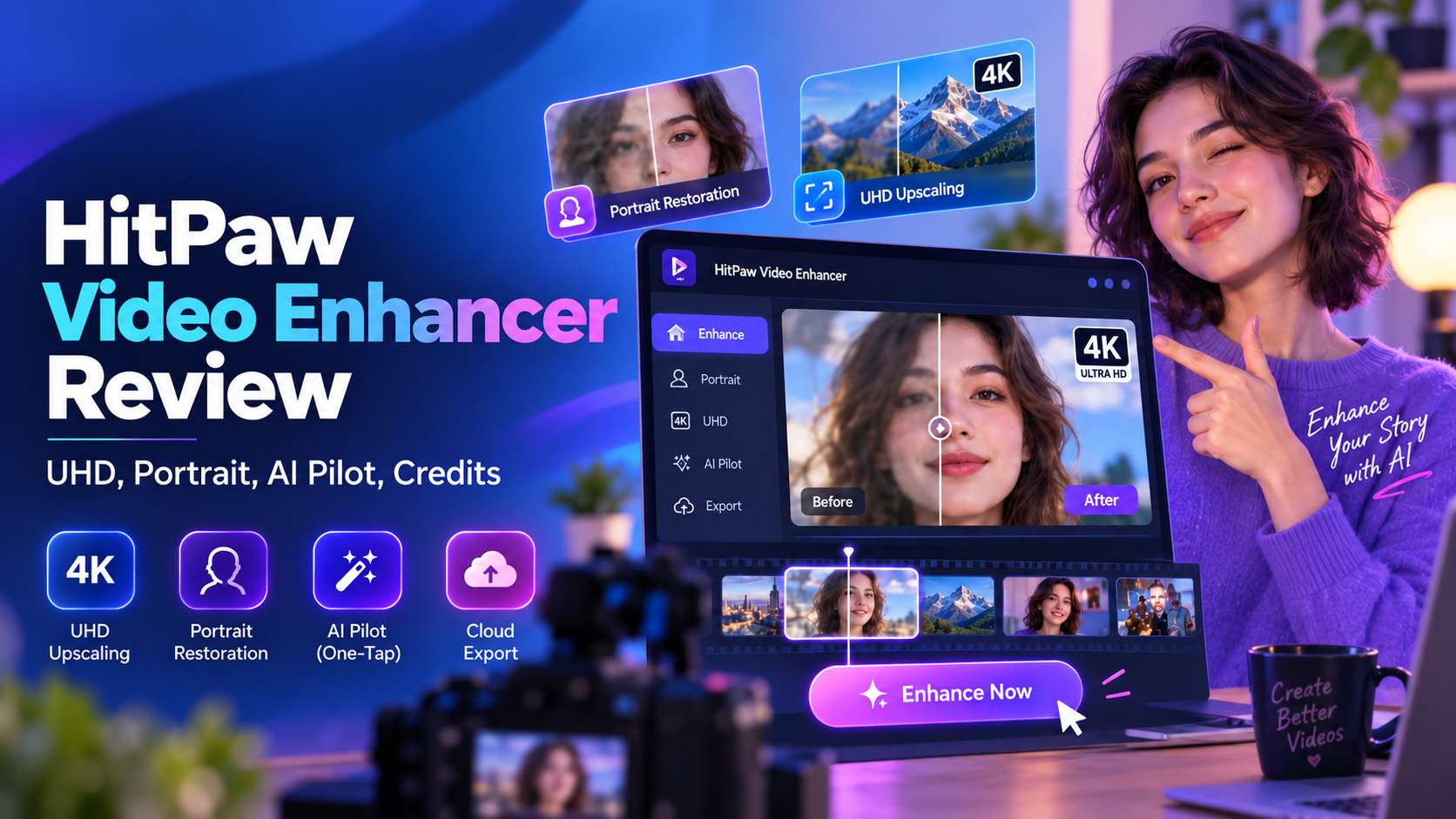
HitPaw Video Enhancer has changed more than its name. The current product, HitPaw VikPea, is no longer just a simple "general denoise + face model" desktop app; the 2026 versions add UHD restoration, portrait-specific generative models, AI Pilot, cloud export, HDR/color tools, stabilization, smart import, and faster RTX-assisted processing. This HitPaw Video Enhancer review looks at whether those additions make it a better buy - and where the pricing and credit system still complicate the decision.
In this article
- HitPaw VikPea review verdict: easier than Topaz, more complicated than the marketing looks
- What changed in HitPaw VikPea 5.5 and why old reviews are outdated
- The enhancement models that matter most
- Formats, system requirements, and whether your PC is strong enough
- HitPaw VikPea pricing: license cost vs. cloud-credit cost
- How HitPaw performs by scenario
- How to use HitPaw Video Enhancer efficiently
- HitPaw Video Enhancer pros and cons
- HitPaw VikPea vs. Media.io: desktop flexibility or online simplicity?
- Final Verdict
- FAQs
HitPaw VikPea review verdict: easier than Topaz, more complicated than the marketing looks
Decision: HitPaw VikPea is a good fit for creators who want desktop-quality enhancement without learning a highly technical restoration suite. Its model selection is broad, the interface is guided, and current versions cover portraits, general repair, UHD restoration, color, stabilization, and cloud processing. The weak point is cost transparency: a license unlocks the app, but some cloud/professional workflows still use credits.
What changed in HitPaw VikPea 5.5 and why old reviews are outdated
VikPea's 2026 updates materially changed the product. Version 5.2 expanded portrait restoration with different models for sub-720p and 1080p+ face footage. Version 5.3 added video beauty and upgraded generative enhancement. Version 5.4 introduced smart import and face-tracking beauty. Version 5.5 added faster UHD restoration on supported hardware, a real-time split preview, improved timeline precision, RTX acceleration, and an upgraded AI Colorist.
That means older reviews that describe only General Denoise, Animation, and Face Model no longer represent the current product.
The enhancement models that matter most
| Model / group | Best for | What to check |
|---|---|---|
| AI Pilot | Beginners who want automatic model guidance | Confirm the recommendation on a short preview |
| General / Quality Repair | Compression, soft detail, everyday footage | Avoid excessive sharpening on text and edges |
| UHD Restoration | 720p+ footage that needs higher-quality finishing | Processing cost and hardware load |
| Portrait Generation | Very low-resolution faces below 720p | Identity drift and synthetic facial detail |
| Portrait Restoration (Detail) | 1080p+ faces that need texture recovery | Skin and hair should stay natural |
| Professional Denoise / Sharpen / Decompression | Targeted technical defects | Some exports depend on credits/cloud workflows |
The portrait split is the most useful change. A blurry 360p face and a slightly soft 1080p interview should not use the same recovery strategy, and VikPea now reflects that.
Formats, system requirements, and whether your PC is strong enough
HitPaw supports a much wider input range than most browser enhancers. Its tech-spec page lists MP4, MOV, MKV, AVI, FLV, WEBM, MTS, TS, VOB, MXF, WMV and many other containers, with MP4, MOV, MKV, M4V, AVI, and GIF among output options.
The official minimum is relatively accessible: Windows 10/11 or macOS 13+, around 8GB RAM, and modest disk space. For a better experience, HitPaw recommends 16GB RAM and stronger graphics such as an RTX 3060-class GPU on Windows. Cloud export can reduce the pressure on weaker local hardware, but that leads to the next issue: credits.
HitPaw VikPea pricing: license cost vs. cloud-credit cost
At the time of research, HitPaw's direct Windows purchase page lists a promotional $99.99 one-year license, $43.19 monthly license, and a $350.39 perpetual license. The free license is preview-only for normal enhancement export.
The important detail is that certain professional models, cloud acceleration, cloud export, AI Colorist exports, and other cloud features can require separate credits. HitPaw sells those credits in recurring or one-time packs. So if you plan to rely heavily on cloud processing, budget for more than the desktop license.
This is also where some user criticism comes from. Current Capterra feedback is mixed: many users praise ease of use and visible improvement, while some recent reviewers complain about crashes or the feeling that additional credits make pricing less predictable. Those are user reports rather than universal outcomes, but they are relevant if you are buying for production work.
How HitPaw performs by scenario
Old VHS or sub-720p portrait footage
The Portrait Generation model is the obvious test because HitPaw specifically designed it for very low-resolution faces. Use a short preview and compare identity details carefully.
1080p talking-head video
Portrait Restoration (Detail) is the better first choice. The goal is to restore eyes, hair, and skin texture without making the face look regenerated.
Downloaded or over-compressed social clip
Start with decompression/general restoration before pushing resolution. Compression blocks can become more obvious if you upscale first.
Dark concert or nightlife video
Use low-light/color enhancement before aggressive sharpening. Lifting exposure often reveals noise, so combine corrections carefully.
AI-generated video
Use UHD or generative enhancement when the shot looks plasticky or lacks micro-detail, but keep text and faces under close review because synthetic footage is already an AI interpretation.
How to use HitPaw Video Enhancer efficiently
- Import the highest-quality source you have. Avoid a recompressed download if an original export exists.
- Choose the model by defect. Use AI Pilot if you are unsure, but do not accept the recommendation blindly.
- Preview a representative section. VikPea's split preview is useful for judging faces, text, and fine edges.
- Decide local vs. cloud. Local processing saves credits; cloud export can save time or compensate for weak hardware.
- Export one test before batching. Confirm the model, resolution, and credit impact before processing many clips.
HitPaw Video Enhancer pros and cons
Pros
- Large model library without requiring advanced restoration expertise.
- Strong portrait segmentation between low-res generative recovery and higher-res detail restoration.
- Wide format support and batch processing.
- Cloud export offers an escape hatch for weaker computers.
- Available across desktop, web, and mobile product ecosystems.
Cons
- Free license is primarily a preview path.
- Credits make total cost less predictable for cloud-heavy workflows.
- Some recent user reviews mention stability and billing frustration.
- Professional users may still prefer Topaz for deeper model control.
HitPaw VikPea vs. Media.io: desktop flexibility or online simplicity?
HitPaw is the better fit if you want broad format support, batch processing, multiple portrait/restoration models, and the option to switch between local and cloud processing. Media.io's video quality enhancer is ideal for improving short MP4/MOV clips online, with AI-powered denoising, portrait enhancement, anime enhancement, color correction, and upscaling—all without installing desktop software.
For a team polishing many mixed-format source files, HitPaw is more flexible. For a creator fixing a short online video, Media.io is faster to start and easier to budget.
| Capability | HitPaw VikPea | Media.io AI Video Enhancer |
|---|---|---|
| Platform | Windows, Mac, online, iPhone/iPad, and Android options | 100% browser-based workflow across desktop, tablet, and mobile browsers |
| Upscaling ceiling | Marketed for 4K/8K upscaling with 10+ AI enhancement models | Up to 4K output, with frame-by-frame enhancement and up to 8x source-resolution scaling positioning |
| Specialized enhancement | UHD Restoration, Portrait Generation/Restoration, Video Quality Repair, denoise/sharpen, AI Colorist, stabilization, SDR-to-HDR, and AI Pilot | Video Enhancer, Video Denoise, Portrait Enhancer, Anime Enhancer, Smart Color Correction, and Video Upscale |
| Local vs. cloud | Desktop processing plus cloud acceleration/export for supported workflows | Online cloud workflow; no desktop installation or local-GPU setup |
| Free/export behavior | Free version supports preview; normal export requires a paid license, and some cloud workflows use separate credits | Browser entry point with complimentary credits; credit consumption varies by mode and output |
| Video limits | Better suited to broader desktop/batch workflows; processing time varies with model, source, and hardware | MP4/MOV, up to 5 minutes per clip on the current enhancer page |
| Cost predictability | Desktop license plus optional/separate cloud-credit costs can make heavy cloud use harder to forecast | Simpler for occasional short jobs because there is no desktop license to install before testing the workflow |
| Choose it when... | You want many guided repair models, batch-oriented desktop work, 8K positioning, and local/cloud flexibility | You mainly need fast enhancement of short clips and prefer a simpler online workflow |
Bottom line: HitPaw gives you more platform and model breadth, while Media.io removes more setup friction. If you enhance videos every week and want a desktop tool you can grow into, VikPea has the broader toolbox. If you enhance shorter clips occasionally, Media.io is easier to test and operate.
Final Verdict
HitPaw VikPea has become a much more capable product in 2026, especially for portraits and guided restoration. I would recommend it to users who want more depth than a browser enhancer but do not want to spend the time learning Topaz's larger model ecosystem. The main reason to hesitate is not quality; it is the licensing-plus-credits structure. If you expect to use cloud features often, calculate that cost before committing.
FAQs
-
Is HitPaw Video Enhancer free?
The free license mainly supports preview. Normal exporting requires a paid license, and some cloud or professional workflows can also consume credits. -
Can HitPaw VikPea upscale video to 8K?
Yes. HitPaw currently markets VikPea with up to 8K upscaling support, depending on source, model, and workflow. -
What is the best HitPaw model for faces?
For very low-resolution portrait footage, HitPaw now offers a generative portrait model. For 1080p-and-above faces, Portrait Restoration (Detail) is the more appropriate starting point. -
Does HitPaw need a powerful GPU?
It can run on modest supported systems, but 16GB RAM and a stronger GPU improve local processing. Cloud export is available for some workflows when local hardware is limited. -
What is the best HitPaw Video Enhancer alternative?
Media.io is a simpler online alternative for short clips. Topaz Video is a more advanced alternative for demanding restoration and deeper model control.