
SnapEdit sits in an interesting middle ground: it is simpler than a full desktop editor, but broader than a one-purpose eraser. This snapedit review focuses on the part most people actually notice first - removing tourists, text, wires, clutter, and other distractions - then checks whether the enhancer, background tools, mobile apps, credits, and paid tiers make it a better everyday photo editor or just a convenient object remover.
In this article
- SnapEdit verdict: strong mobile-first cleanup, with free export trade-offs
- What SnapEdit includes beyond object removal
- How SnapEdit object cleanup selects distractions
- How well should SnapEdit handle different removal scenes?
- Free, Standard, and PRO: what changes between plans
- How to think about credits before you pay
- Basic removal vs Super Remove: when quality tiers matter
- What the editor feels like across web and mobile
- What users say about SnapEdit on mobile
- SnapEdit pros and cons
- When a browser-first alternative makes more sense
- Browser workflow comparison: SnapEdit and Media.io
- Final verdict: who gets the most value from SnapEdit?
- FAQs about SnapEdit
SnapEdit verdict: strong mobile-first cleanup, with free export trade-offs
As a snapedit ai review, the key is not counting how many AI buttons exist. The useful question is whether the editor can get from a phone photo to a clean, shareable result with fewer corrections than a manual retouching app. SnapEdit's strongest answer is its object-removal flow, because the automatic detection can save time on obvious people or objects while a brush remains available when the first mask is not precise enough.

What SnapEdit includes beyond object removal
A full snapedit photo editor review should not stop at the eraser. The current site exposes Remove Object, Remove Background, Enhance, Remove Text, watermark tools, image conversion, compression, and blur-background features. The developer platform goes further, showing production APIs for background removal, enhancement, object removal, text, wires, reflections, and other editing tasks.
That breadth makes SnapEdit more useful than a single-task cleanup page, but it is still more streamlined than Fotor or Photoshop. It feels oriented toward quick AI transformations rather than layered composition, complex typography, or detailed manual color workflows.
How SnapEdit object cleanup selects distractions
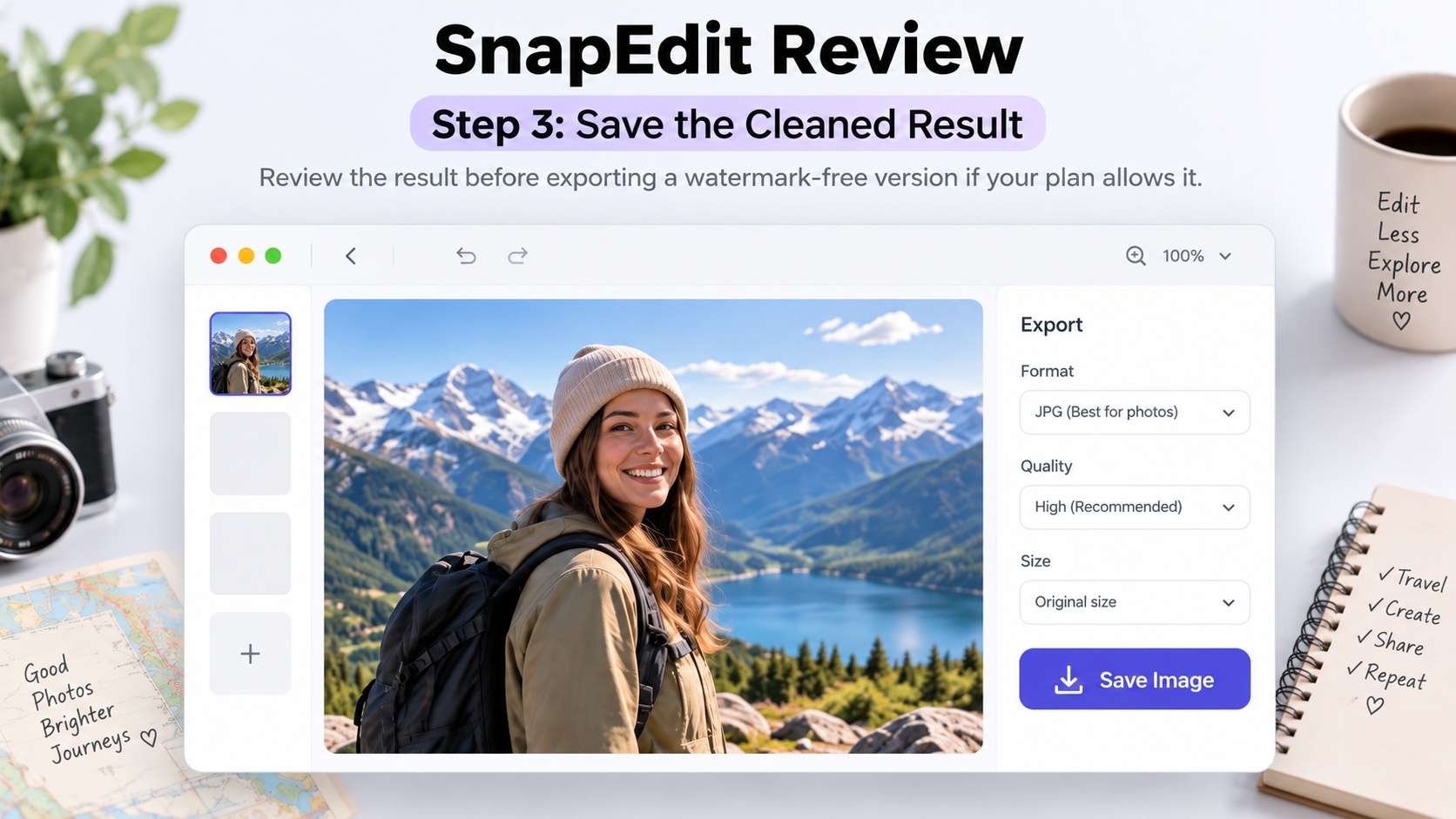
The official snapedit object remover page uses four steps. First, upload or drag in a photo. Second, let AI highlight likely objects and choose what should go. Third, preview the result and refine with the manual brush. Fourth, download or share. This hybrid approach is important: automatic selection is fast on obvious subjects, while the brush gives you a fallback when the model catches the wrong region.
- Upload. Use the web editor or open the iOS/Android app.
- Select. Accept the automatically highlighted object or identify a different one.
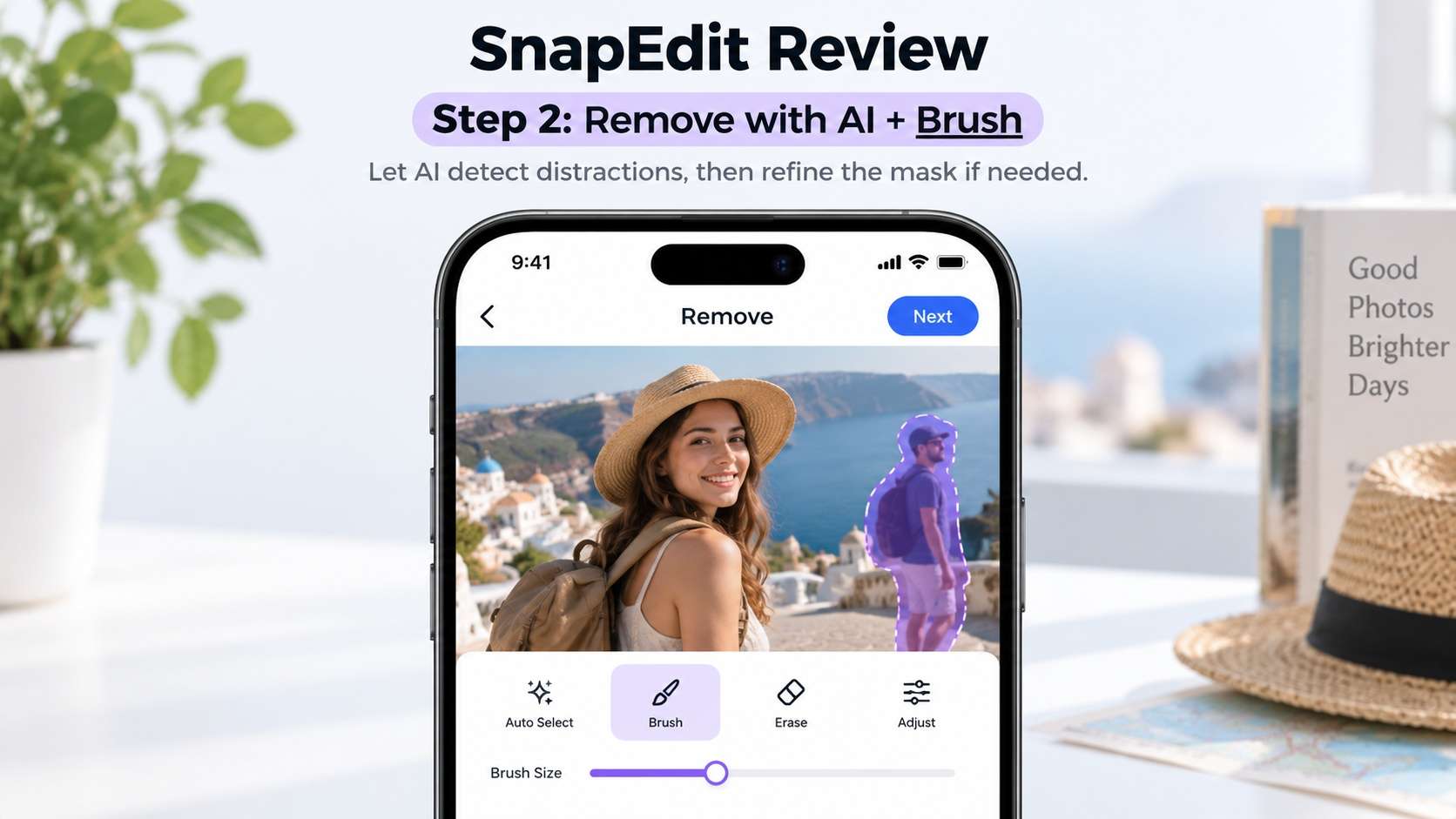
- Refine and Export. Zoom in and use the brush around edges, shadows, or missed fragments. Check resolution, watermark status, and credit use before saving.
How well should SnapEdit handle different removal scenes?
Searches for snapedit remove object often assume one quality score, but object removal quality depends heavily on scene structure. A person against sky gives the model obvious context. A person blocking railings or lettering forces it to invent geometry. A wire crossing a tree mixes two thin structures. Product photography adds reflections and precise edges that reveal subtle reconstruction errors.
| Scene | Why SnapEdit fits | What can still go wrong |
|---|---|---|
| Tourist in open background | Automatic detection can speed up the initial selection. | Large masks can produce repeated texture or soft areas. |
| Text or caption | Dedicated remove-text tooling is available in addition to general object removal. | Complex text over faces or detailed graphics can damage underlying detail. |
| Power lines / wires | SnapEdit exposes specialized wire-removal capabilities in its broader AI stack. | Lines crossing branches, buildings, or cables need careful edge review. |
| Product clutter | Good for quickly clearing small props or distracting items. | Reflections, shadows, labels, and precise product contours may need a tighter mask. |
| Portrait blemish / small object | Small-area edits are generally easier to reconstruct. | Over-brushing can soften nearby skin or hair detail. |
Free, Standard, and PRO: what changes between plans
The phrase snapedit free needs a clear qualifier in 2026. SnapEdit does offer a free plan, but the current pricing page lists 10 credits each month, standard-quality export capped at 1600px, limited AI services, ads, and unlimited exports with a watermark. That makes Free suitable for trying the workflow and occasional casual edits, not for a clean professional delivery pipeline.
Current snapedit pricing shows Standard at $6 per month and PRO at $12 per month when the yearly selector is active. Standard includes 4,800 credits per year, all AI services, up to 8x image upscaling, no watermark, higher-quality export up to 5600px, batch processing, and ad removal. PRO lists 18,000 credits per year plus AI Super Remove, AI Magic Enhance, 2K video enhancement, and mobile app PRO access.
| Plan | Object removal allowance shown | Export / experience | Best for |
|---|---|---|---|
| Free | 10 monthly credits; limited AI features | Max 1600px, watermark, ads | Trying the editor and light personal use. |
| Standard | Pricing table equates Remove Objects at 1 credit and shows a larger annual pool | No watermark, best-quality export up to 5600px, batch processing | Frequent image editing without the highest-tier AI modes. |
| PRO | Larger credit pool plus AI Super Remove | No watermark, higher-end AI features, mobile app PRO access | Heavy users who want advanced removal/enhancement and cross-device access. |
How to think about credits before you pay
Credits matter most when SnapEdit becomes a routine rather than an occasional fix. A traveler who removes one photobomber every few weeks can live with a small allowance. A reseller cleaning dozens of product images, a real-estate agent removing clutter, or a social team processing a campaign can burn through AI actions much faster. Before choosing a tier, estimate the number of images you edit in an average month, then multiply by the AI steps you typically use on each image.
Do not count only object removal. Enhancement, background work, and advanced modes can add more consumption depending on the tool and plan. The published pricing table is useful because it makes the free watermark, resolution ceiling, and annual credit pools visible before checkout. For frequent work, the no-watermark export and higher resolution can be as important as the larger pool itself.
Basic removal vs Super Remove: when quality tiers matter
A snapedit remove object from photo decision becomes more interesting once you look at the product's different removal tiers. The consumer pricing page reserves AI Super Remove for PRO. SnapEdit's developer documentation separately exposes Normal, Super, and Ultra object-removal API models with different per-run credit costs. Those developer modes should not be treated as identical to the consumer UI, but they show that SnapEdit actively differentiates reconstruction quality rather than offering only one inpainting model.
For a normal travel or social photo, start with the basic remover and tighten the mask before spending more credits. A higher-quality mode is more defensible when the object is large, the background is detailed, or the output is going to be viewed at higher resolution.
What the editor feels like across web and mobile
SnapEdit's cross-device story is one of its clearest advantages. The web version is convenient when the source file already lives on a laptop, while the phone apps reduce friction for camera-roll edits that need to be posted immediately. The main workflow stays recognizable: choose an AI task, let the model create or suggest a selection, refine the result where necessary, and export under the limits of your plan.
For someone searching for a snapedit ai photo editor, that consistency matters more than having every professional editing control. It is built for fast corrections, not for complex layer masks, local color grading, or pixel-level compositing. That makes it a good fit for travel photos, marketplace images, profile shots, and everyday social content where a clean result in a few steps matters more than building a reusable layered project.
Mobile use also changes what "fast" means. Automatic selection is valuable on a small screen because tracing a person precisely with a finger can be tedious. On the other hand, a difficult edge is easier to inspect on a larger monitor. If an edit contains hair, architecture, product labels, or detailed reflections, starting on mobile and doing the final quality check on the web can be a more reliable workflow than accepting the first phone preview.
What users say about SnapEdit on mobile
The public mobile feedback is useful because SnapEdit is not only a web tool. Apple's App Store currently shows a 4.8 rating from about 14K ratings for SnapEdit: Photo Editor AI. Positive reviews repeatedly mention how quickly the eraser removes people and objects. The recurring negatives are more practical: ads in free use, occasional freezing, gallery-loading problems, and frustration when free usage limits get in the way. This is not proof that every user will have the same experience, but it is a good reminder that app stability and monetization can matter as much as the AI result.
SnapEdit pros and cons
When a browser-first alternative makes more sense
A snapedit alternative is worth considering when you prefer a browser-first workflow and do not want your decision to revolve around mobile app access. Media.io's AI Object Remover is designed for upload, brush, generate, and download in a web browser. Current Media.io product pages document JPG, PNG, JPEG, and WebP images under 50 MB and up to 3840 x 2160 for the object-removal workflow.
Media.io also becomes attractive when the cleaned image is part of a wider content job. You can continue into the AI Image Enhancer or other AI image/video tools in the same platform. SnapEdit has the stronger case for users who specifically like its mobile apps, auto-selection flow, and published Standard/PRO credit structure.
Browser workflow comparison: SnapEdit and Media.io
| Decision factor | SnapEdit | Media.io |
|---|---|---|
| Selection workflow | Automatic detection plus manual brush refinement. | Manual brush selection inside a focused browser object-removal workflow. |
| Platforms | Web, iOS, Android. | Browser workflow across desktop and mobile devices. |
| Free-plan constraint | 10 monthly credits, 1600px max standard export, watermark on free exports. | Free credits / availability can vary; current pages emphasize online use and high-quality export. |
| Advanced modes | Standard and PRO tiers; AI Super Remove named on PRO. | Object removal plus adjacent image enhancement and broader media workflows. |
| Best fit | Mobile-first users who want auto-detection and clear paid tiers. | Users who want a browser-first AI media workspace beyond one photo editor. |
Final verdict: who gets the most value from SnapEdit?
Is snapedit good if object removal is your main need? Yes, especially for phone-first users who value automatic detection and want the option to refine the mask manually. It is less convincing as a "free professional" tool because the free plan's watermark, credit count, and export cap are meaningful. Standard is the more balanced tier for frequent image cleanup, while PRO makes sense only if you need the higher-end removal and enhancement features often enough to justify the larger credit pool.
FAQs about SnapEdit
-
Is SnapEdit free?
Yes, but the current Free plan has 10 monthly credits, limited AI features, standard-quality export up to 1600px, ads, and watermark-bearing exports. -
Does SnapEdit work on iPhone and Android?
Yes. SnapEdit offers iOS and Android apps in addition to its web editor. -
How many credits does object removal use?
The current consumer pricing table lists Remove Objects at 1 credit for the paid-plan allowance table. Advanced developer API modes have separate per-run costs. -
Does SnapEdit remove watermarks?
SnapEdit can remove text and visible overlays, but you should only edit watermarks on media you own or are authorized to modify. -
What is AI Super Remove?
SnapEdit lists AI Super Remove as a PRO feature. It is intended as a higher-end removal option than the basic workflow; the exact consumer behavior can change as models are updated. -
Is SnapEdit better than a built-in iPhone cleanup tool?
It can be more flexible if you want the same editor on Android and web or prefer SnapEdit automatic selection. Apple Photos Clean Up is simpler when you already have a compatible iPhone and only need an occasional edit.