
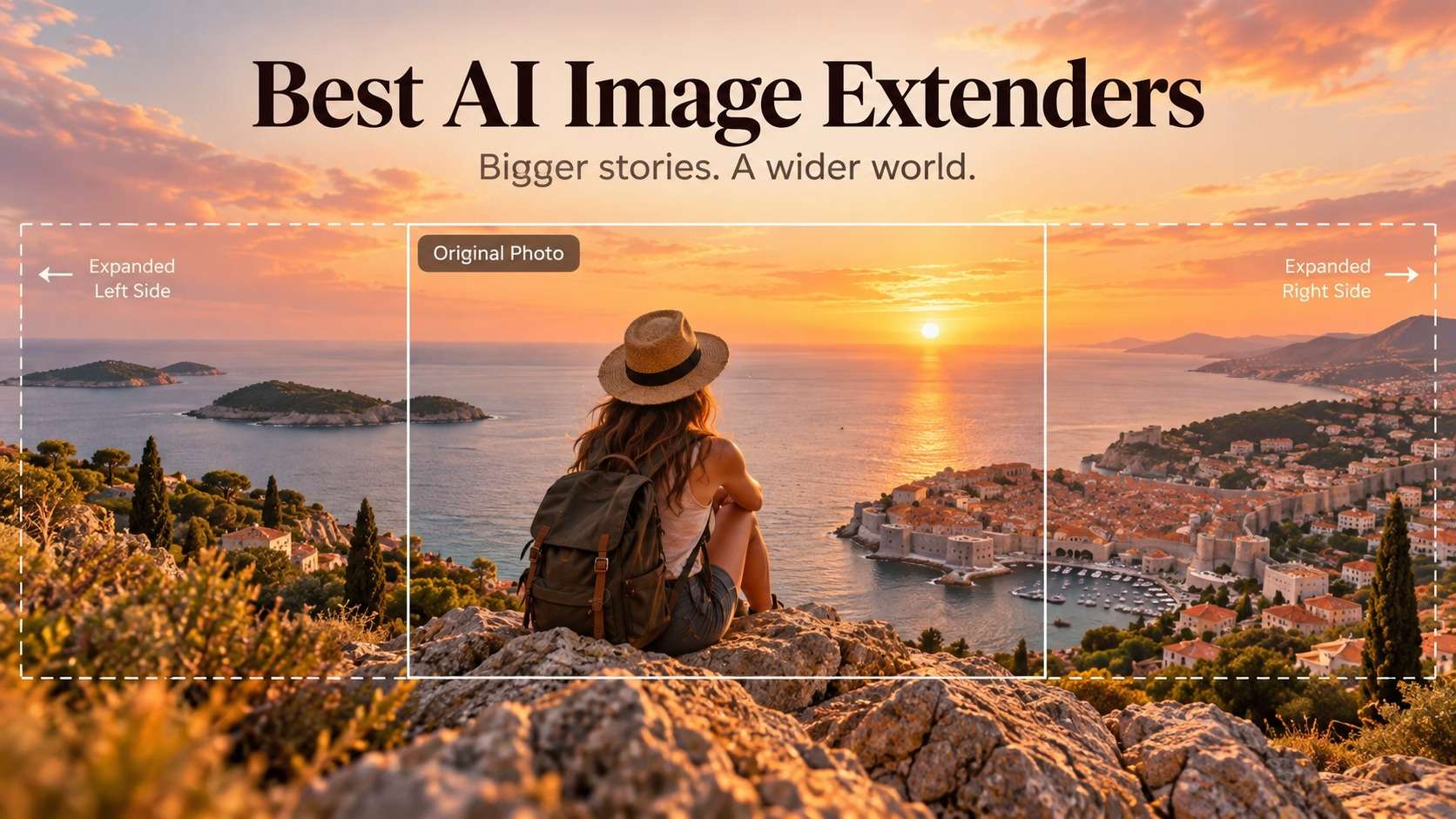
A tight crop is easy to notice after the photo has already been approved: the subject has no breathing room, the product cannot fit a marketplace ratio, or a vertical shot needs to become a banner. The best ai image extenders solve that problem by generating new pixels outside the original frame instead of stretching what is already there. I compared the tools around the jobs that actually expose outpainting quality: preserving a person or product near the edge, continuing structured backgrounds, creating believable negative space, and reaching a target aspect ratio without making the extension look like a second image pasted onto the first.
This shortlist deliberately separates true generative expansion from ordinary resize tools. A good extender should keep the untouched center stable, make the seam hard to spot at normal viewing size, and give you a practical way to regenerate when the first continuation invents an unwanted object. Free access also matters, but a generous trial is less useful if the export is too small for the intended banner, listing, or presentation.
In this article
What Makes an AI Image Extender Worth Using?
Outpainting has a different job from upscaling. Upscaling increases resolution inside the existing frame; extension increases the canvas and asks a generative model to imagine what continues beyond an edge. That difference changes what should be evaluated. A landscape can tolerate invented trees or sky, but a product shot cannot tolerate a second zipper, a changed logo, or a warped package corner. A portrait can accept extra wall texture, but an extra arm or altered hairstyle immediately breaks the result.
For that reason, I favor control over spectacle. The best ai image expander for day-to-day work is the one that lets you pick a target ratio or direction, preview alternatives, and regenerate the new region without forcing a full image rewrite. Prompt guidance is helpful for creative scenes, while predictable no-prompt expansion is usually safer for e-commerce and branded assets.
Quick Comparison of AI Image Extender Tools
| Tool | Best fit | Expansion control | Free access | Main trade-off |
|---|---|---|---|---|
| Media.io | Fast browser outpainting for social, banners, products | Direction, size, common ratios | Free credits after sign-in | Credit use varies with generation |
| Adobe Firefly | Prompt-guided creative expansion and Adobe workflows | Freeform plus preset ratios | Free daily generations | Generative credits and model choices add complexity |
| Pixelcut | Quick uncrop for product and social images | Canvas resize plus regenerate | Limited daily uncrops | Less manual compositing control than a full editor |
| Fotor | Casual uncrop with simple presets | Preset and manual expansion | Small free allowance | Repeated attempts can move you toward paid credits |
| Photoroom | E-commerce catalog compositions | Product-centered expansion | Limited free space | Most valuable when your workflow is already product-centric |
| Picsart | Creator edits that continue into a broader design | Preset ratios and editor workflow | Free-to-try | Many adjacent tools can make a simple job feel busy |
The comparison is less about a single winner than about the source image. A clean product on a simple backdrop has different failure points from a street scene full of repeating windows. The next reviews focus on what each tool does when expansion is the actual task rather than treating every photo editor feature as equally relevant.
6 AI Outpainting Tools for Different Expansion Jobs
1. Media.io AI Image Extender - best for fast online uncropping
Media.io is the most direct fit when the job is simply to create more canvas around an existing asset. Its browser workflow starts with the photo, lets you expand left, right, top, or bottom, and supports common target shapes such as 1:1, 4:5, and 16:9. That makes it practical when a portrait has to become a YouTube cover, an ad needs room for copy, or a product shot needs a wider layout without opening a desktop editor.
The useful detail is that the original subject is treated as an anchor while the surrounding region is generated. For a product or portrait near the center, this is safer than asking a text-to-image model to recreate the entire scene. I would still inspect fine boundaries such as hair, furniture legs, reflections, and repeated architecture because those are the places any outpainting model can invent inconsistent geometry.
It also works as a free ai image extender for initial testing because new users receive free credits after signing in. That is enough to check whether the visual language of the continuation matches your asset before you commit more credits. If the same image also needs resolution work afterward, keep expansion and upscaling as separate decisions: first fix the frame, then use the Media.io AI Image Enhancer only if the final pixel dimensions need improvement.
- Workflow: Upload -> choose direction/size -> generate -> preview -> download
- Best scenes: Portrait backgrounds, product backdrops, social crops, banners
- Current free model: Free credits on sign-up/login; check the interface for live consumption
2. Adobe Firefly Generative Expand - best for prompt-directed creative outpainting
Firefly is stronger when the extra canvas needs creative direction rather than only visual continuation. Generative Expand can work freeform or with preset ratios including 1:1, 4:3, 16:9, and 3:4, and you can leave the prompt blank for contextual expansion or describe what should appear in the new region. That extra instruction layer is useful for editorial artwork, campaign concepts, and composites where "continue the wall" is not specific enough.
Adobe currently documents JPEG/JPG, PNG, and WebP inputs up to 100 MB for its web expansion workflow. The free tier includes daily generations, while paid Firefly plans use generative credits and may include unlimited access to selected image models under current promotions. That makes Firefly more configurable than a one-click uncrop tool, but it also means the cost and result can depend on the chosen model and plan.
Among the best ai image expanders, Firefly is the one I would favor when a designer wants to iterate on a concept and then continue refining inside the Adobe ecosystem. I would not choose it just because it has more controls; for ten simple marketplace crops, the extra decisions may be unnecessary.
- Input: JPEG/JPG, PNG, WebP; up to 100 MB on the documented web workflow
- Free access: Limited daily generations
- Best scenes: Creative composites, campaign visuals, complex scene continuation
3. Pixelcut Uncrop - best for quick product and creator reframing
Pixelcut keeps the workflow compact: upload, increase the canvas, let the model fill the blank area, and regenerate if the continuation is not usable. Its Uncrop page documents JPG, PNG, and HEIC inputs up to 100 MB and 8000 by 8000 pixels, which is generous for browser work. The service also positions the feature inside a broader product-content workflow, so it feels natural for storefront images and social variations.
The free allowance is practical for testing rather than bulk production: Pixelcut documents up to three free uncrops per day, with HD downloads and no watermark for those free results. That matters more than a vague "free" badge because outpainting often takes more than one generation to get clean geometry. Three attempts can disappear quickly when the source contains furniture, text, hands, or a complex horizon.
If you are comparing ai image extender tools for e-commerce, Pixelcut deserves attention because its surrounding editor is optimized for commercial creative work rather than only art experiments. For a high-volume catalog, however, confirm the current paid allowance before assuming the free daily count will scale.
4. Fotor AI Image Extender - best for beginners who want preset ratios
Fotor presents expansion as a beginner-friendly operation: choose a common ratio such as square, landscape, or vertical, or adjust the canvas manually, then let AI fill the new space. It is convenient for users who already edit portraits, collages, and social graphics in Fotor and do not want to move the asset between services.
The current product page allows a guest to try one image and offers additional attempts after a free account, while paid trial allowances are tied to Fotor Pro or Pro+. That makes it a useful low-friction check for one-off work, but the effective free capacity is smaller than the interface may initially suggest. For difficult expansion, budget for retries because a single generation is not a quality guarantee.
Fotor belongs on a list of best free ai image extenders mainly for occasional use, not because it provides unlimited outpainting. Its strength is the transition from expansion into routine photo edits, text overlays, and design cleanup in the same environment.
5. Photoroom AI Expand - best for product-photo composition
Photoroom is the specialist choice when the image is a product rather than a general photograph. Its broader platform is built around e-commerce visual production: background removal, product staging, resizing, batch workflows, marketplace output, and AI shadows. AI Expand fits that system by creating more believable space around an item so the same product can sit in different listing or campaign formats.
That product focus changes what "good" means. A dramatic creative continuation is less useful than preserving the bottle, shoe, handbag, or package exactly while extending the studio surface and background. Photoroom is therefore a better fit when consistency across a catalog matters more than artistic exploration. Its free workspace is limited, while paid plans provide larger AI-credit and export allowances.
For people evaluating image expansion ai specifically for commerce, I would test Photoroom with a reflective product and a product that already touches the frame. Those cases reveal whether the generated floor, shadow transition, and negative space remain believable without modifying the sellable object.
6. Picsart AI Image Extender - best for social creators who want to keep designing
Picsart makes sense when uncropping is one step inside a finished social design. After extending the canvas, the same environment can handle text, templates, background/object edits, image enhancement, and publishing-oriented creative work. That reduces app switching for creators who know they will add graphic elements after the AI generates the missing edges.
Its extender is free to try with limited free generations, and the broader Pro plan adds photo/video editing features, advanced background and object removal, bulk editing, storage, and more AI capacity. The trade-off is focus: a user who only wants a neutral 16:9 expansion may face more surrounding choices than in a single-purpose interface.
Among tools to extend images with ai, Picsart is most attractive when the output is not the final image yet. Think of an Instagram campaign where the portrait must be widened, branded text added, and several sizes exported. If all you need is a clean outpaint, compare its regeneration cost with a simpler tool before paying for the full creative suite.
Which Outpainting Workflow Fits Your Image?
Start with the part of the picture that cannot change. For a product, that is the product silhouette, label, color, and relative size. For a portrait, it is identity, hairline, clothing, and body anatomy. For a landscape, you have more freedom because the new content can be plausible without being historically exact. That is why I would route a catalog image toward Media.io, Pixelcut, or Photoroom before reaching for a heavily prompt-driven workflow, while Firefly is more attractive for art direction.
If you are comparing ai outpainting tools for a banner, create the empty composition before generating. Decide where the headline and CTA will live, then expand toward that side. Asking AI to produce "more image" without a layout plan often creates interesting details exactly where your copy needs quiet negative space.
The Edge Continuity Test: Where Outpainting Usually Breaks
A pretty preview at 25% zoom can hide the mistakes that matter. My practical check is to inspect a narrow band on both sides of every original edge. Look for duplicated objects, straight lines that bend at the seam, shadows that change direction, texture scale that suddenly changes, and faces or hands that appear in the generated area without a reason. Repeating architecture is especially revealing because the model must continue perspective and spacing rather than invent generic texture.
The best ai outpainting tools should also tolerate a second or third generation without pushing you into a totally different composition. If one side fails, regenerate that region instead of accepting it and trying to hide the mistake with blur. For product work, zoom into the contact area between object and background; an AI may preserve the product itself while inventing a false reflection or extra shadow that still changes how the item looks.
Finally, compare the generated area at the final delivery size. A tiny artifact that is invisible in a web thumbnail can become obvious on a presentation slide or print. Conversely, a slightly soft background may be completely acceptable behind headline text. The right standard is not microscopic perfection; it is whether the extension survives the intended use without distracting the viewer or changing the subject.
Free Image Expansion: What the Label Really Means
"Free" usually means one of four things: a small number of daily generations, signup credits, lower-priority processing, or a trial that leads into a paid plan. That is why I do not rank a tool higher solely for a free button. An extender is genuinely useful at no cost only if you can generate enough alternatives to judge quality and export at a size that fits your project.
For a one-off task, a free ai image extender allowance can be sufficient. Media.io gives new-user credits; Pixelcut documents a limited daily uncrop allowance; Firefly offers limited daily generations; Fotor gives a small number of trials. If you are processing dozens of campaign assets, compare paid credit economics instead of creating a workflow around free quotas that may reset or change.
Also separate "free to generate" from "free for commercial use." Licensing can vary by platform, model, plan, and source image. If the result is going into a paid campaign or client deliverable, check the live usage terms for the exact model and plan at export time rather than assuming a no-cost preview grants every commercial right.
A Cleaner Way to Extend a Photo Without Wasting Generations
- Crop only after you define the destination. Write down the final aspect ratio and pixel target first. A 16:9 video thumbnail and a 1200 x 628 ad may share a shape but need different negative space.
- Protect the subject. Keep the important person or product comfortably inside the original pixels when possible. Expansion is safer when AI generates background rather than anatomy or branded packaging.
- Expand in the direction that solves the layout. Add space where text, logos, or UI overlays will sit instead of growing all four sides equally.
- Regenerate the weakest edge. Check perspective, shadows, repeated lines, and unexpected objects. Do not spend time retouching a fundamentally wrong continuation when another generation can fix it.
- Upscale only after the composition is approved. If the final dimensions are too small, use a dedicated upscaler after outpainting. This avoids paying to enhance pixels that may be discarded in another crop.
This order matters because image expansion ai is a composition tool first. Treating it as a quality enhancer creates unnecessary work: it can add plausible space, but it does not automatically make the original center sharper, restore clipped highlights, or correct a soft face.
Final Recommendations by Real-World Need
FAQ About AI Image Extenders
-
What is the difference between an AI image extender and an image upscaler?
An extender generates new content outside the original borders to change composition or aspect ratio. An upscaler increases pixel resolution inside the existing frame. Use expansion first when the crop is wrong, then upscale later if the approved composition still needs more resolution. -
Can an AI image extender turn a portrait photo into a landscape image?
Yes. A tool such as Media.io AI Image Extender can add generated content to the left and right of a portrait so it fits a wider ratio. Check hair, shoulders, background lines, and any newly created objects before export. -
Which type of image is hardest to outpaint?
Busy scenes with people at the edge, repeating architecture, readable text, reflections, and branded product details are harder than sky, walls, foliage, or soft studio backgrounds because the generated region must preserve geometry and semantics. -
Should I use a prompt when extending an image?
Use a prompt when you need a specific new element or setting. For a neutral product or portrait background, leaving the tool to continue visual context can be safer because extra prompt instructions may introduce objects you did not want. -
Are AI image extenders free?
Many offer free credits or limited daily generations rather than unlimited use. Check the live allowance, output size, watermark behavior, and commercial-use terms before building a repeatable production workflow around a free tier.


