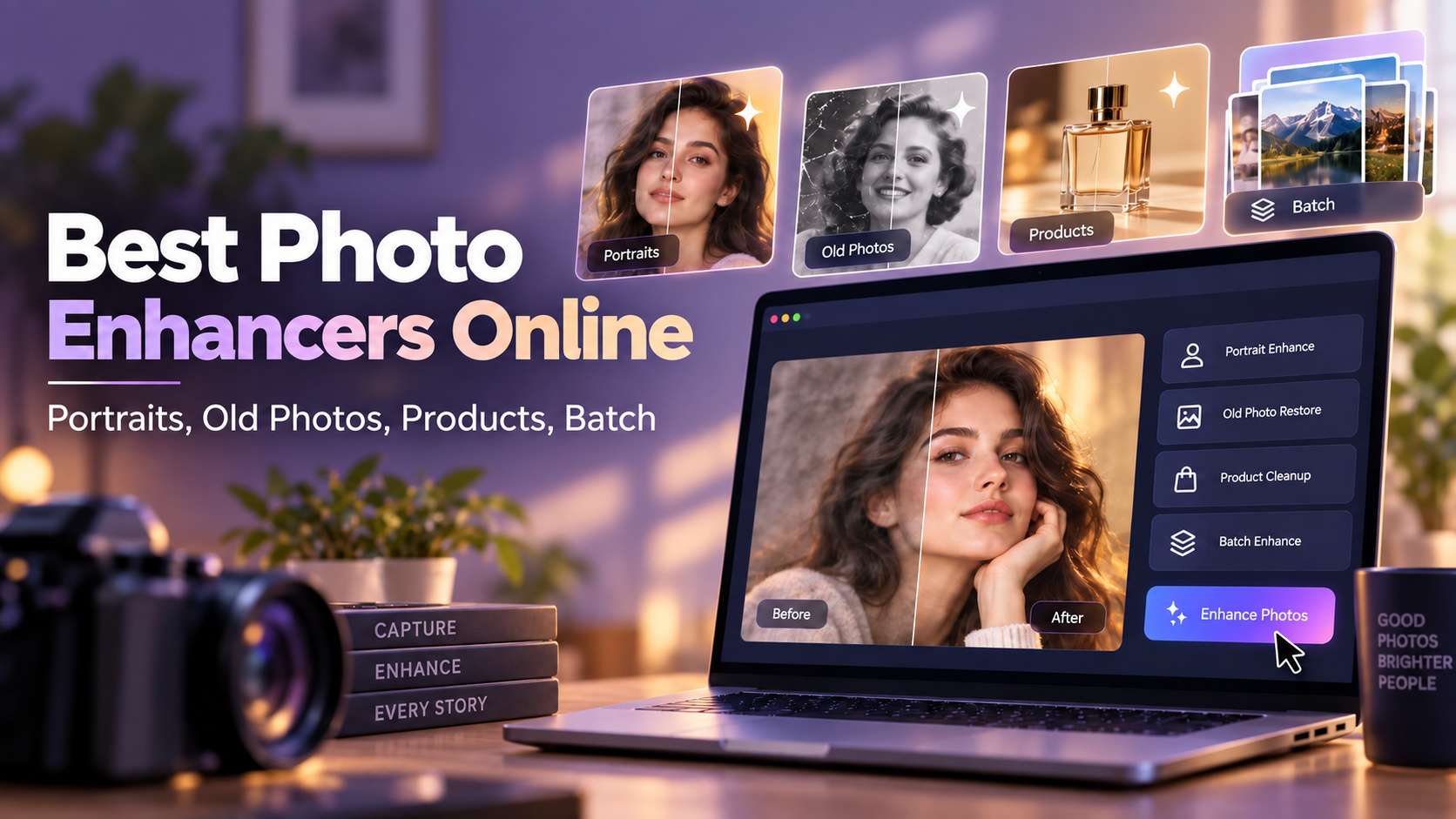
An online photo enhancer is useful only if it fixes the problem you actually have. A slightly soft product photo needs a different treatment from a scratched family scan, a dark phone picture, a tiny logo, or an AI image that falls apart when enlarged. The best photo enhancer online therefore depends on whether you need one-click cleanup, face recovery, old-photo restoration, upscaling, batch processing, or a full design editor after the enhancement. The tools below are compared by image type and workflow, not by generic AI claims.
In this article
- Choose an online photo enhancer by image type
- Seven browser tools compared by workflow
- 1. Media.io: best all-around online photo enhancer for mixed image problems
- 2. Fotor: one-click fixes plus a useful 50-image batch workflow
- 3. Canva: best if the enhanced image immediately becomes a post, deck, or thumbnail
- 4. Picsart: best for social creators and batch enhancement
- 5. Adobe Express: best for controlled manual enhancement plus AI editing
- 6. Cutout.pro Photo Enhancer Pro: best when you want prompt-controlled reconstruction
- 7. VanceAI: best for fast correction with a desktop batch path
- The image-quality test that matters: fidelity vs. prettiness
- What limits matter more than an AI enhancer's demo image
- Which tool fits portraits, products, old photos, and design assets?
- Free vs. paid: when export limits start to matter
- How to judge enhancement quality before you download
- When an online enhancer is not the right tool
- FAQs
Choose an online photo enhancer by image type
Seven browser tools compared by workflow
| Tool | Best for | Useful limits / features | Free-use reality |
|---|---|---|---|
| Media.io | Portraits, products, old photos, color, upscaling | JPG/PNG/JPEG/WebP/BMP; 5 enhancement modes | Free credits; browser workflow |
| Fotor | One-click fixes and batches | JPG/JPEG/PNG/HEIF/HEIC/WebP; up to 50-image batch | Free tools available; Basic exports can be watermarked |
| Canva | Social/design workflow | Upscale + Auto-adjust + filters + design tools | Free enhancer features; some Magic Studio tools are Pro |
| Picsart | Creator edits and bulk work | Noise/blur/contrast correction; batch up to 50 | Lower-resolution saves available free |
| Adobe Express | Manual + AI enhancement | JPEG/JPG/PNG/WebP under 40MB | Free plan; some generative AI uses credits |
| Cutout.pro | Prompt-guided reconstruction | JPG/PNG/WebP; generative Pro model uses points | Credits for Pro generation |
| VanceAI | Fast HD/4K enhancement | One-pass resolution/color/sharpness correction | Free to start; paid for full-quality/bulk workflows |
1. Media.io: best all-around online photo enhancer for mixed image problems
Media.io is the most balanced choice when your image problems vary from file to file. Its online photo enhancer offers five dedicated modes: Smart Enhancer, Portrait Enhancer, Restore Old Photos, Color Correction, and Image Upscaler, supporting JPG, JPEG, PNG, WebP, and BMP images. The upscaler supports 2x, 4x, and 8x enlargement, so you can treat a small clean image differently from a damaged portrait or faded scan.
That mode-based workflow is useful for mixed production. A product photo can go through Smart Enhancer, a headshot through Portrait Enhancer, an old family scan through Restore Old Photos, and a clean AI illustration through the upscaler. Because the processing is browser-based, there is no desktop setup or GPU requirement, and the learning curve is low enough for marketers or non-designers.
The trade-off is throughput. Media.io is designed around individual online tasks rather than a 50-image batch editor, so Fotor or Picsart may be faster for large catalogs. It also gives you less manual retouching control than Adobe Express or Canva once the AI pass is finished.
Best fit: users who want one online tool for several image-quality problems and a strong best free AI photo enhancer starting point. Skip it when: you need large batch editing or a full design workspace after enhancement.
2. Fotor: one-click fixes plus a useful 50-image batch workflow
Fotor is the strongest all-round alternative for users who want one-click enhancement plus a broader photo editor. Its AI Photo Enhancer supports common web and phone formats including JPG/JPEG, PNG, HEIF/HEIC, and WebP, and it improves clarity, lighting, color, and detail automatically. A separate upscaler can enlarge images by 2x or 4x, while dedicated face and old-photo tools cover more specific cases.
The standout production feature is batch processing. Fotor can enhance up to 50 images at once, which matters for e-commerce catalogs, social campaigns, property listings, and content teams that would otherwise repeat the same correction manually. The batch workflow can combine quality enhancement with resolution, unblur, sharpening, and basic color or brightness changes. That makes Fotor more scalable than single-image browser enhancers.
Export rules deserve a careful read. Fotor promotes some enhancer workflows as free or watermark-free, while its broader Basic plan can apply different export restrictions. Paid plans are more predictable for HD, watermark-free production. Processing is usually fast because the workflow is cloud-based, but the user gives up some manual control over exactly how the AI reconstructs detail.
Best fit: social teams, small e-commerce sellers, and users processing many similar photos. Skip it when: you need highly controlled restoration or want several clearly separated enhancement modes for very different source problems.
3. Canva: best if the enhanced image immediately becomes a post, deck, or thumbnail
Canva is the best choice when the enhanced image is not the final deliverable. Its AI Photo Enhancer and Upscale tool can clean blur, low light, and weak detail, then hand the result directly into Canva's design environment for posts, presentations, thumbnails, ads, flyers, or brand templates. That end-to-end workflow is the reason it belongs on this list rather than because it is the strongest restoration engine.
The enhancement path is beginner-friendly: upload an image, open Upscale, apply the AI improvement, then refine brightness, contrast, saturation, filters, Auto-adjust, or manual sharpness. Canva can export JPG, PNG, or PDF, and its mobile apps make the same workflow practical for social teams. Face smoothing and other lightweight retouching tools are also available if the photo is portrait-led.
Canva markets its core enhancer as free, but some adjacent AI features such as Magic Expand sit behind Pro. It also does not position itself as a damaged-photo restoration specialist or a high-scale batch enhancer. The quality ceiling is therefore best on everyday web images that are already usable and simply need polish.
Best fit: social posts, marketing assets, presentations, thumbnails, and teams already working in Canva. Skip it when: the source is badly damaged, historically important, or requires specialist face reconstruction and restoration.
4. Picsart: best for social creators and batch enhancement
Picsart combines AI enhancement with one of the more complete creator-focused editing environments. Its tools cover blur reduction, sharpening, noise cleanup, background work, filters, effects, and AI enhancement, so the user can clean an image and immediately continue into a social or branded design workflow. The key advantage over many browser enhancers is scale: Picsart's Batch Editor can AI-enhance, resize, crop, remove backgrounds, and apply other edits to up to 50 JPG or PNG images in one pass.
That batch workflow is useful for e-commerce sellers, property managers, social teams, and creators maintaining a consistent look across a campaign. Each image can still be selected individually inside the batch, so you are not forced to apply every correction to every file. The enhancer also previews before-and-after results before export, which helps catch over-processing.
Paid access matters if you plan to use the workflow heavily. Picsart Pro currently includes the one-tap enhancer and bulk editing up to 50 images, while Ultra raises batch capacity further and adds more AI usage. The broader creative platform is powerful, but users who only want a single photo fixed may find the interface busier than a dedicated enhancer.
Best fit: social creators, e-commerce batches, and teams that want enhancement plus design tools. Skip it when: you want a minimalist one-image workflow or fidelity-focused restoration of archival photos.
5. Adobe Express: best for controlled manual enhancement plus AI editing
Adobe Express is the strongest option for users who want AI assistance without surrendering every decision to a black-box enhancer. Its online image enhancer accepts JPEG/JPG, PNG, and WebP files under 40MB, while the broader editor supports additional formats and large images on desktop. The workflow combines automatic enhancement with familiar controls for brightness, contrast, saturation, warmth, highlights, shadows, and sharpening.
That manual control is the real differentiator. If a product photo only needs slightly more contrast and sharpness, you can make a restrained correction instead of allowing a generative model to invent detail. After enhancement, the same file can move into Adobe Express for resizing, text, templates, background removal, filters, and Firefly-powered edits. That makes it more suitable than a one-button enhancer for brand-conscious teams that need repeatable visual treatment.
Adobe Express has a free plan with standard photo-editing tools and no credit card requirement. Some AI-powered generative features consume credits, but basic enhancement does not require the same paid commitment as a specialist restoration app. The downside is that Express is not designed for deep old-photo reconstruction or large batch upscaling.
Best fit: marketers, brand teams, educators, and users who prefer controlled correction. Skip it when: you need heavy reconstruction, old-photo restoration, or high-volume batch enhancement.
6. Cutout.pro Photo Enhancer Pro: best when you want prompt-controlled reconstruction
Cutout.pro Photo Enhancer Pro is different from a normal sharpener because it can use generative reconstruction to rebuild missing detail. That makes it useful when the source is extremely soft, compressed, or too small for conventional upscaling to recover much. The workflow can be guided with prompts, so users can ask for characteristics such as realistic skin texture, cleaner lighting, or a more natural reconstruction rather than accepting one fixed enhancement style.
This power comes with an important fidelity trade-off. Generative enhancement can create plausible texture that was never present in the source. That may be desirable for creative portraits or damaged personal photos, but it is risky for historical records, product documentation, evidence, or any workflow where exact preservation matters more than visual appeal. Previewing fine details such as faces, logos, and text is essential before export.
Cutout.pro uses a credit model. Free accounts receive preview access and a small amount of free credit, while Photo Enhancer processing consumes credits; current pricing starts with low-cost monthly credit packs and pay-as-you-go options. The web workflow is fast to access, but repeated large-scale use can become more expensive than a flat local license.
Best fit: creative restoration, portrait rescue, and severely degraded images where reconstruction is acceptable. Skip it when: factual fidelity, exact text, or product geometry must remain unchanged.
7. VanceAI: best for fast correction with a desktop batch path
VanceAI is a practical choice for users who want quick enhancement now and a local batch path later. Its online workflow combines resolution improvement, sharpening, denoise, color, contrast, and exposure correction, while separate tools handle higher-scale upscaling, old-photo restoration, and other specialized tasks. The web experience is deliberately simple: upload, choose the enhancement direction, process, preview, and download.
The paid web plans are credit-based, which makes costs easy to estimate for occasional work but less attractive for constant high-volume use. Current paid tiers begin around $9 per month, and image upscaling consumes credits according to scale: 2x, 4x, and 8x cost progressively more. Paid web plans support clean watermark-free results and list upload limits around 10MB and 34MP. A free account starts with a small credit allowance for testing.
For regular production, VanceAI for PC changes the economics. The desktop plans allow unlimited local processing without consuming web credits and support images beyond the web upload cap. That makes the ecosystem more flexible than a browser-only enhancer, especially for users who process batches repeatedly.
Best fit: fast online correction, predictable credit use, and Windows users who may graduate to local batch processing. Skip it when: you want an entirely free high-volume workflow or deeper design and layout tools after enhancement.
The image-quality test that matters: fidelity vs. prettiness
A photo enhancer can make an image look more impressive while making it less faithful. That is not always bad, but you should know which outcome you need.
- Portraits: zoom into eyes, teeth, glasses, jewelry, hairlines, and skin texture.
- Product photos: check logos, printed text, seams, material texture, and true product color.
- Old photos: separate scratch removal from invented facial detail. Historical fidelity may matter more than "HD" appearance.
- AI art: inspect small repeated patterns, fingers, text, and edge geometry after upscaling.
- Documents/screenshots: do not use a generative enhancer if text accuracy matters; prefer controlled sharpening or dedicated OCR/document tools.
The best online enhancer is the one that improves the defect without changing what matters in the image.
What limits matter more than an AI enhancer's demo image
A strong before-and-after sample can hide the limits that affect your actual workflow. Check the supported input formats first, especially if you shoot HEIC/HEIF on a phone or work with WebP assets from a website. Next, check whether the tool can process a batch, whether high-resolution downloads require credits, and whether free exports carry a watermark. For product and catalog work, batch consistency can matter more than the quality of one hero image.
Also separate enhancement from upscaling. A portrait with enough pixels may need face detail and color correction, not 4x enlargement. A tiny product crop may need real upscaling before sharpening. An old scan may need scratch/fade restoration first. Choosing the wrong operation is one of the main reasons AI-enhanced images look unnatural.
Which tool fits portraits, products, old photos, and design assets?
Portraits and profile photos
Use a tool that recognizes faces but lets you inspect identity carefully. Media.io has a dedicated Portrait Enhancer; Fotor and Picsart also offer face-oriented tools. Avoid maximum-strength generative recovery on already-clear faces.
E-commerce product images
Consistency, edge fidelity, and batch speed matter. Fotor's 50-image batch workflow and Picsart's batch tools are useful when the catalog is large. Media.io is stronger when individual product shots need different modes rather than one bulk recipe.
Old family photos
Restoration is different from ordinary sharpening. Look for scratch, fade, color, and face-recovery features. Media.io separates Restore Old Photos from Color Correction, while Fotor also offers a dedicated restoration workflow.
Thumbnails, posts, and design assets
Canva and Adobe Express are compelling because enhancement happens inside the same design environment. The AI result may not be the most specialized, but avoiding an export/import round trip can be more valuable for fast content production.
Very small or badly damaged images
Generative reconstruction tools such as Cutout.pro can create plausible missing detail, but that detail is may not match the original. Use them for creative recovery, not evidence-sensitive restoration.
Free vs. paid: when export limits start to matter
Free plans are useful for checking whether an enhancer understands your image, but the practical restrictions vary widely. Fotor's Basic plan has limited credits and its general pricing table distinguishes watermark-free HD exports on paid plans. Adobe Express provides a free editing tier but some generative functions consume credits. Picsart reserves some higher-resolution and premium workflows for paid access. Media.io also separates free and paid export allowances in its broader plan structure.
For occasional images, start free and pay only when export quality or volume becomes a bottleneck. For a recurring catalog, social calendar, or content operation, compare the cost per batch and the number of manual corrections you still make after AI enhancement. The cheapest subscription is not the cheapest workflow if you spend extra time fixing faces, text, or product edges.
How to judge enhancement quality before you download
Do not judge the result only in a zoomed-out before-and-after slider. Open the enhanced image at 100% and inspect the parts AI tools most often get wrong: eyelashes, teeth, hair strands, product logos, small text, jewelry, fabric patterns, and repeating textures such as brick or grass. Then zoom back out to the size people will actually see. A result can look impressive at 300% yet feel over-sharpened in a normal web layout.
For portraits, compare identity rather than just sharpness. For products, verify that labels, colors, proportions, and edges did not change. For old photos, decide whether you want faithful restoration or a cleaner, more interpretive reconstruction. For AI art, invented detail may be acceptable, while for historical or commercial source images it may not be.
A simple three-file test
Before choosing a paid plan, upload three images that represent your real workload: one easy file, one average file, and one difficult file. Record how many clicks it takes, whether the tool chooses the right correction automatically, how long processing takes, what the free export looks like, and how much manual fixing remains. That small test is more useful than choosing from a single marketing demo.
When an online enhancer is not the right tool
An online enhancer is not always the best answer. If the image contains legally important text, scientific detail, evidence, or a product label that must remain exact, strong generative reconstruction can create plausible but incorrect detail. In those cases, use conservative sharpening/upscaling and keep the original file for comparison. The same caution applies to identity-sensitive portraits: a cleaner face is not useful if the model changes the person's features.
Desktop software also becomes more attractive when you process large confidential files, need a repeatable color-managed print workflow, or work with hundreds of images every day. Browser tools win on speed of access and low setup cost; desktop tools can win on local privacy, automation, and high-volume economics. The right choice depends less on whether a tool says "AI" and more on whether its workflow matches the images you actually deliver.
FAQs
-
What is the best photo enhancer online for free?
Media.io, Fotor, Canva, Picsart, and Adobe Express all offer useful free entry points. The exact limits differ by export quality, credits, watermark behavior, and batch processing. -
What is the best AI photo enhancer for portraits?
Media.io offers a dedicated Portrait Enhancer, while Fotor and Picsart also include face-focused tools. For severely degraded faces, generative tools can recover more detail but require closer identity checks. -
Which online photo enhancer is best for batch processing?
Fotor and Picsart both advertise batch enhancement of up to 50 images, making them better suited to catalog or campaign workflows than single-image-only tools. -
Can online photo enhancers improve images for printing?
Yes, especially when the source is reasonably clean. Use an upscaler that increases resolution and inspect the file at print size before ordering. Very small sources cannot become truly native high-resolution photos. -
Do AI photo enhancers change faces?
They can. Strong face-recovery or generative models may reconstruct facial detail. For identity-sensitive work, compare the result with the original and reduce enhancement strength if features drift.