
A good application to remove objects from photo files should do more than make a distraction disappear. The harder job is rebuilding the missing background without bending straight lines, repeating textures, softening a face, or turning grass and brick into obvious AI smears. The best choice also changes with device: an iPhone user may already have a capable cleanup tool in Photos, while a creator working across desktop and mobile may prefer a browser editor that does not require another install.
In this article
- How to choose a photo editor that removes objects by scene and device
- 1. Media.io: best browser-based option when you do not want another app
- 2. Apple Photos Clean Up: best for supported iPhones
- 3. SnapEdit: best when automatic detection and manual cleanup work together
- 4. TouchRetouch: best for people who remove distractions often
- 5. Fotor: best if removal is only one step in a larger edit
- 6. YouCam Perfect: best for portraits and social photos
- 7. Cleanup.pictures: best minimalist browser inpainting
- Removing people from iPhone photos: built-in Clean Up or a separate tool?
- A simple object-removal stress test you can use with any app
- Before you upload: device, privacy, and export checks
- Which option should you pick?
- FAQs
How to choose a photo editor that removes objects by scene and device
Start with the part of the image that will be hardest to rebuild. A person standing against open sky is a much easier edit than a person covering railings, hair, text, or a patterned wall. The better editors let you zoom, refine the mask, undo a bad fill, and try a smaller selection. Export rules matter just as much. A tool can look free until the final save is watermarked, capped at a smaller resolution, or locked behind credits.
If you want one fast snapshot before reading the detailed reviews, the table below compares the seven options by workflow, platform, and the trade-off most likely to affect your final choice.
| Tool | Best for | Platform | Main advantage | Main trade-off |
|---|---|---|---|---|
| Media.io | Cross-device browser editing | Web | No installation, simple object-removal workflow, and support for common image formats. | Large masked areas and detailed backgrounds may need multiple attempts. |
| Apple Photos Clean Up | Quick cleanup on a supported iPhone | Built into Photos | Fastest route when the edit can stay inside your photo library. | Limited by Apple Intelligence device, language, and region availability. |
| SnapEdit | Mobile-first AI object removal | Web, iOS, Android | Automatic object detection plus manual brushing. | Free exports are limited by credits, 1600px output, and watermark rules. |
| TouchRetouch | Frequent retouching on mobile | iOS, Android | Purpose-built tools for object, line, and distraction removal. | Less useful if you also need design, enhancement, or batch-editing features. |
| Fotor | Editing beyond object removal | Web and apps | Combines remover, enhancer, retouching, design, and batch tools. | Basic exports are watermarked and the broader editor adds more upgrade friction. |
| YouCam Perfect | Portraits and social photos | Mobile-first editor | Strong companion features for face, body, and beauty editing. | Less specialized for product images or structure-heavy background repair. |
| Cleanup.pictures | Minimalist browser inpainting | Web | Very focused brush-and-inpaint workflow with little setup. | Free output is capped at 720p and there are fewer follow-up editing tools. |
1. Media.io: best browser-based option when you do not want another app
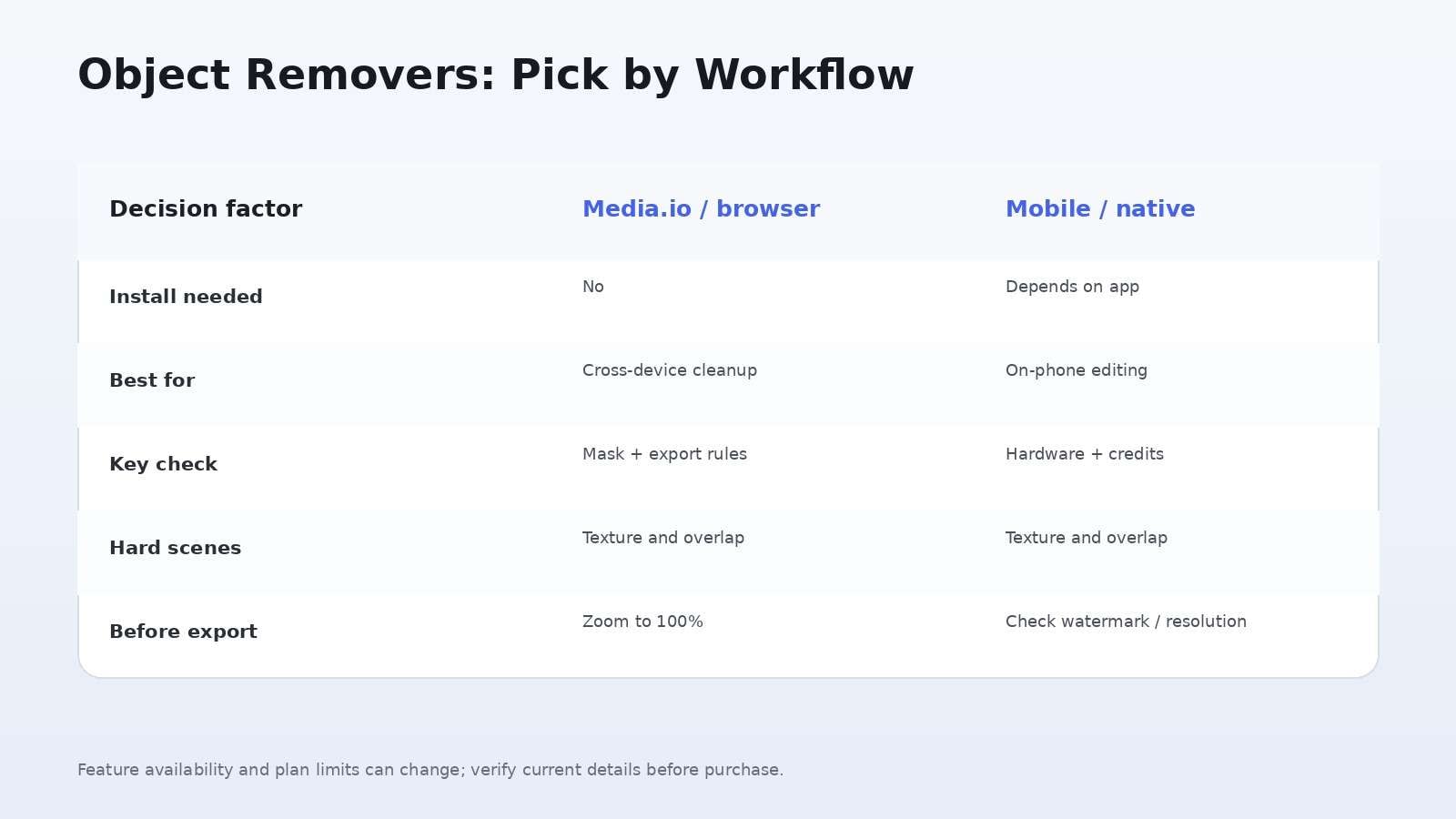
Media.io is a convenient browser-based object remover for pictures, allowing users to erase unwanted elements without installing a desktop editor or mobile app. The Object Remover runs in a browser, so the same basic process works on desktop, tablet, iPhone, and Android: upload, brush the unwanted area, generate, then review the reconstruction. Current Media.io product pages list JPG, PNG, JPEG, and WebP support, files under 50 MB, and resolution up to 3840 x 2160.
The main strength is focus. If a tourist, sign, logo, sticker, date stamp, or small background object needs to disappear, you do not need to build layers or learn a clone stamp. The main trade-off is the same one that applies to every inpainting tool: the AI is rebuilding hidden pixels, not recovering the original background. Large foreground objects, faces, repeated architecture, and fine text can expose the limits quickly.
2. Apple Photos Clean Up: best for supported iPhones
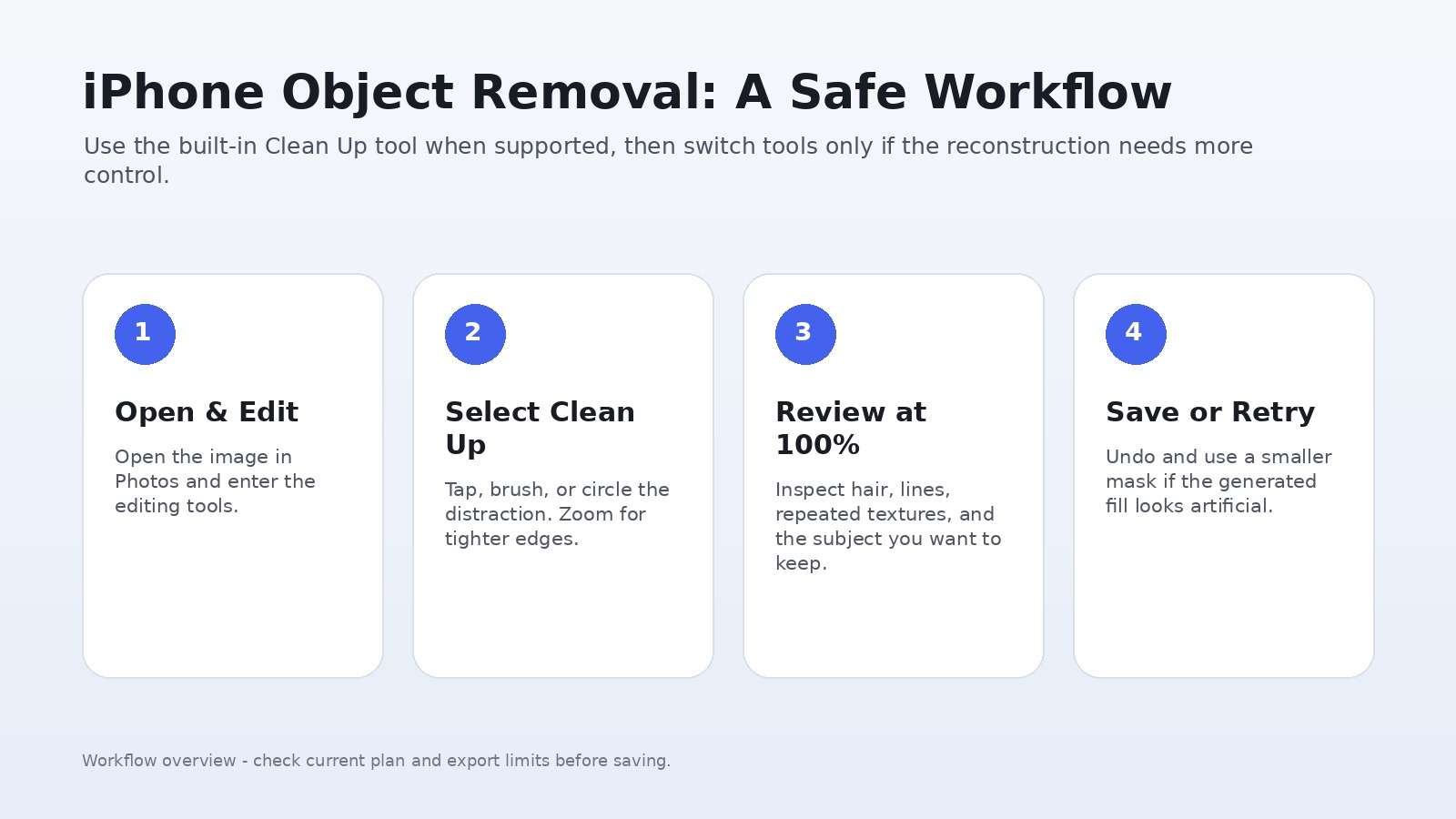
If the goal is to remove object from photo iPhone without installing anything, Apple Photos is now a serious first stop on supported Apple Intelligence hardware. In the current Photos workflow, open an image, tap Edit, choose Tools, then Clean Up. You can tap, brush, or circle the distraction, and Apple also highlights some removable items automatically. iOS 27 adds Auto, Fast, and High Quality processing choices on supported devices.
The obvious advantage is convenience and reversibility inside your existing photo library. The limitation is device and region availability: Apple states that Clean Up depends on Apple Intelligence support and is not available in every language or region. That makes it excellent for compatible iPhone owners but a poor universal recommendation for mixed-device teams.
3. SnapEdit: best when automatic detection and manual cleanup work together
SnapEdit is a practical photo editor with object remover for users who want AI to identify likely distractions before they start brushing. Its published flow is upload, pick the objects to remove, adjust the result with a manual brush, then download or share. The company offers web, iOS, and Android versions, so it is easier to keep the same editor across phone and browser than with Apple-only Clean Up.
Free use has real limits. SnapEdit's current pricing page lists 10 credits per month, standard-quality export up to 1600px, limited AI features, and watermark-bearing exports on Free. Standard is displayed at $6 per month on the yearly selector and adds no-watermark export, higher output limits, batch processing, and broader AI access. PRO is displayed at $12 per month on the yearly selector and adds features such as AI Super Remove and mobile app PRO access.
4. TouchRetouch: best for people who remove distractions often
TouchRetouch is a photo editor for removing objects rather than a design platform that happens to include an eraser. That specialization matters when the recurring jobs are power lines, people, blemishes, fences, small objects, glare, or edge distractions. ADVA Soft's current documentation also shows device requirements for newer AI features and confirms that the app is photo-only, not a video retouching tool.
For mobile users, the most useful feature is control. Instead of relying on one automatic pass, you can make a tighter selection and work around the thing you want to keep. The downside is that the strongest newer AI features require newer iPhone or iPad hardware, and some tools are unavailable through the Photos extension. Choose TouchRetouch when object cleanup is frequent enough to justify a specialist app, not when you also need templates, batch design, and a broader AI creation suite.
5. Fotor: best if removal is only one step in a larger edit
Fotor is more useful than a single-purpose app to remove objects from photos when the cleaned image still needs enhancement, portrait retouching, background work, text, effects, resizing, or design. Its object remover uses a brush-based selection and generative inpainting. The same ecosystem also includes AI Enhance, upscaling, old-photo restoration, batch editing, and mobile apps.
Fotor supports a broader production workflow but has a more complicated free-to-paid boundary. The current Basic plan offers limited free credits and watermarked JPG, PNG, and PDF exports. Pro and Pro+ add HD and transparent PNG exports without the Fotor watermark. The batch editor can process up to 50 images per upload, which is useful for catalogs or social sets but unnecessary for a one-off tourist removal.
6. YouCam Perfect: best for portraits and social photos
YouCam Perfect earns a place because a photo object remover app is often used on selfies, group shots, travel photos, and social images rather than product photography. Its object-removal flow supports tapping, brushing, or automatic removal, while the wider app includes face retouch, body editing, background tools, image generation, collages, and video enhancement. The separate YouCam object remover page lists JPG, PNG, and HEIF support for its web workflow.
This is a strong fit when you want to remove a photobomber and then continue into portrait or social editing. It is less compelling for a photographer who wants a narrow, precision-first cleanup utility with minimal beauty or creative tools around it.
7. Cleanup.pictures: best minimalist browser inpainting
Cleanup.pictures keeps the interface intentionally simple: upload an image, brush the unwanted region, and let inpainting rebuild the background. That makes it useful when you do not need a full editor. The official site says the free tier allows unlimited images but limits export to 720p, while Pro unlocks original-resolution output and a high-quality refiner. The site lists $5 monthly or $36 yearly in its FAQ, with annual billing equivalent to $3 per month.
The minimal interface is the attraction and the limitation. It is quick for isolated objects, small people, date stamps, and defects, but there are fewer surrounding tools if the reconstruction needs enhancement, resizing, or a second editing mode afterward.
Removing people from iPhone photos: built-in Clean Up or a separate tool?
The search remove people from photos iPhone covers two different jobs. If you have a supported Apple Intelligence device and the person is a small distraction, start with Photos Clean Up because there is no upload, account, or app switch. If the person overlaps patterned architecture, another face, clothing, or detailed scenery, a browser or specialist editor can be easier to retry because you can compare multiple reconstruction attempts and use a tighter brush.
For images you plan to publish, inspect edges at 100 percent zoom before saving. Hair, fingers, railings, repeated tiles, pavement lines, and reflections reveal bad fills earlier than the center of the reconstructed area.
A simple object-removal stress test you can use with any app
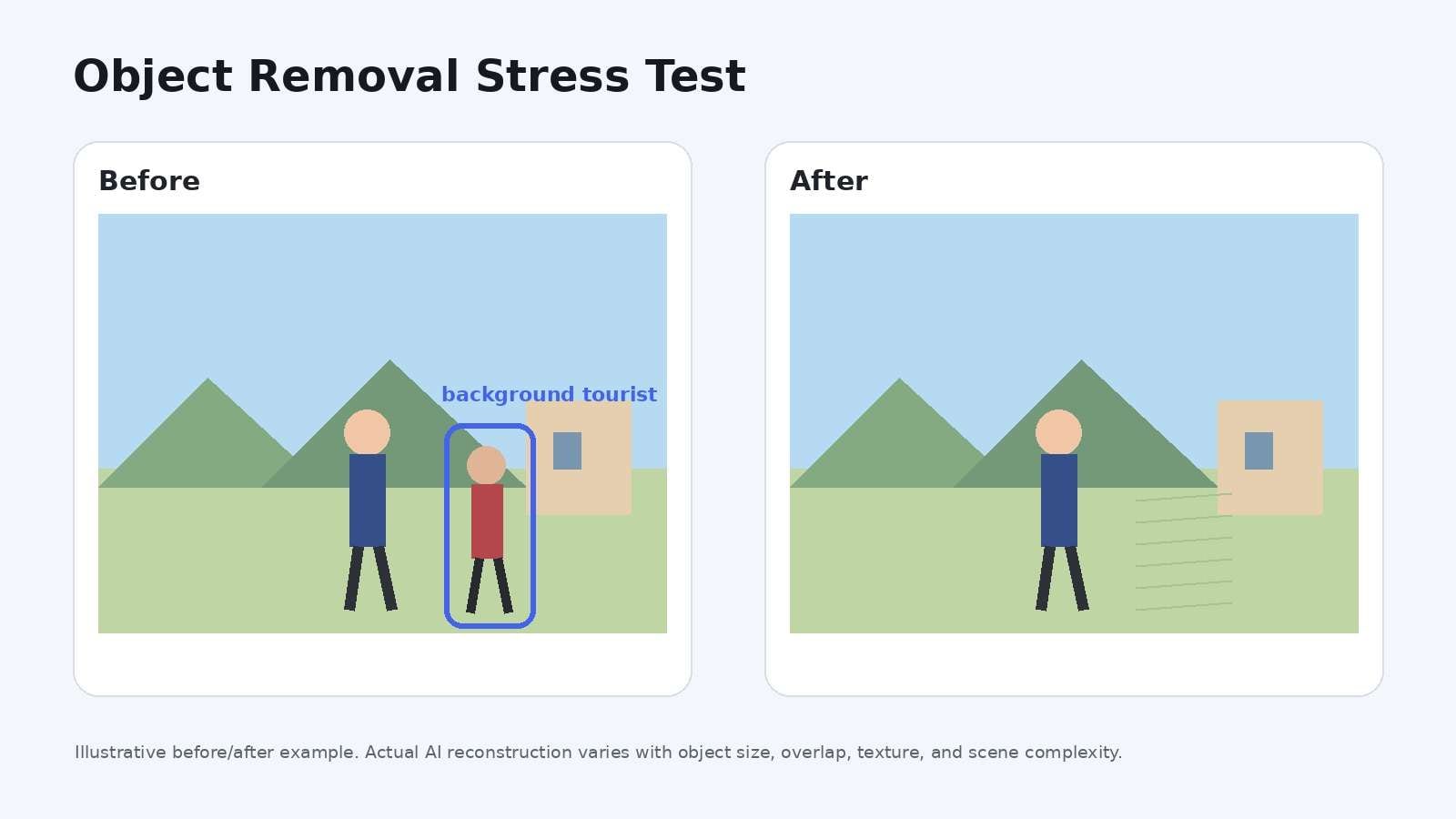
Do not judge a remover from one demo image. Use three files that represent different failure modes. First, remove a small isolated object on sky or wall to establish the easy baseline. Second, remove a person who overlaps a textured surface such as brick, grass, or shelves. Third, erase a narrow line or sign that crosses another edge. The best tool is the one that needs the least correction across your real scenes, not the one with the most dramatic marketing example.
Run the test at the resolution you actually plan to publish. A result can look convincing in a phone preview and fall apart on a product page, presentation, or large monitor. Pay special attention to repeated geometry such as windows, tiles, fence bars, text baselines, horizon lines, and patterned clothing. These structures give you a clearer signal than a smooth wall because even a small reconstruction error becomes visible.
Also separate removal quality from export quality. A tool may generate a clean fill but still be the wrong choice if the free tier adds a watermark, reduces resolution, limits monthly credits, or requires a newer device. For a one-off personal image, that may not matter. For client work, e-commerce, or a batch of travel photos, the export rule can be just as important as the AI result.
| Test | What it reveals | Pass condition |
|---|---|---|
| Small object on simple background | Basic inpainting quality and color continuity | No obvious blur patch, repeated texture, or halo. |
| Person on textured background | Ability to rebuild structure and preserve nearby subjects | Background lines continue naturally and the kept subject is unchanged. |
| Thin line, wire, or sign | Mask precision and edge handling | Removal does not soften adjacent detail or leave fragments. |
| Export at full size | Whether free output rules change the result you can actually use | Resolution and watermark status match the intended destination. |
Before you upload: device, privacy, and export checks
Object removal often involves personal photos, client assets, or product images, so the quickest editor is not automatically the best workflow. Before uploading, check whether a built-in device tool can handle the job locally, whether the service requires an account, and whether the finished file can be exported at the resolution you need. If the image contains sensitive client or identity information, review the service's current privacy and retention terms rather than assuming every browser editor handles uploads the same way.
For repeat work, keep an untouched original and compare the generated edit at 100 percent zoom. AI inpainting does not reveal the real pixels that were hidden by an object; it synthesizes a plausible replacement. That distinction matters around faces, documents, products, architecture, and any image where factual accuracy is important. If your first pass leaves a broken edge, undo it and try a smaller mask instead of repeatedly painting a larger area.
Which option should you pick?
FAQs
-
What is the easiest app to remove objects from a photo?
For a supported iPhone, Apple Photos Clean Up is the easiest because it is built in. For cross-device browser use, Media.io is a simple upload, brush, generate, and download workflow. -
Can I remove a person from a photo without Photoshop?
Yes. Modern inpainting tools can remove a person and reconstruct the surrounding background. Results are usually strongest when the person is relatively small and does not cover unique details. -
Which object remover is best for iPhone?
Use Apple Photos Clean Up first on compatible devices. SnapEdit, TouchRetouch, Fotor, YouCam Perfect, and browser tools are useful when you need a different reconstruction method or extra editing controls. -
Do free object remover apps add watermarks?
It depends on the product. SnapEdit and Fotor currently place watermark or export restrictions on their free tiers, while other tools use resolution limits, credits, or device restrictions instead. -
Why does AI object removal sometimes look blurry?
AI must invent the pixels hidden behind the object. Large masks, repeating patterns, motion blur, faces, text, and overlapping subjects provide less reliable context, so a smaller selection or another generation can help. -
Can I remove watermarks with an object remover?
Technically many tools can erase visible overlays, but only remove watermarks from media you own or have permission to edit. Copyright and licensing restrictions still apply after the mark is removed.