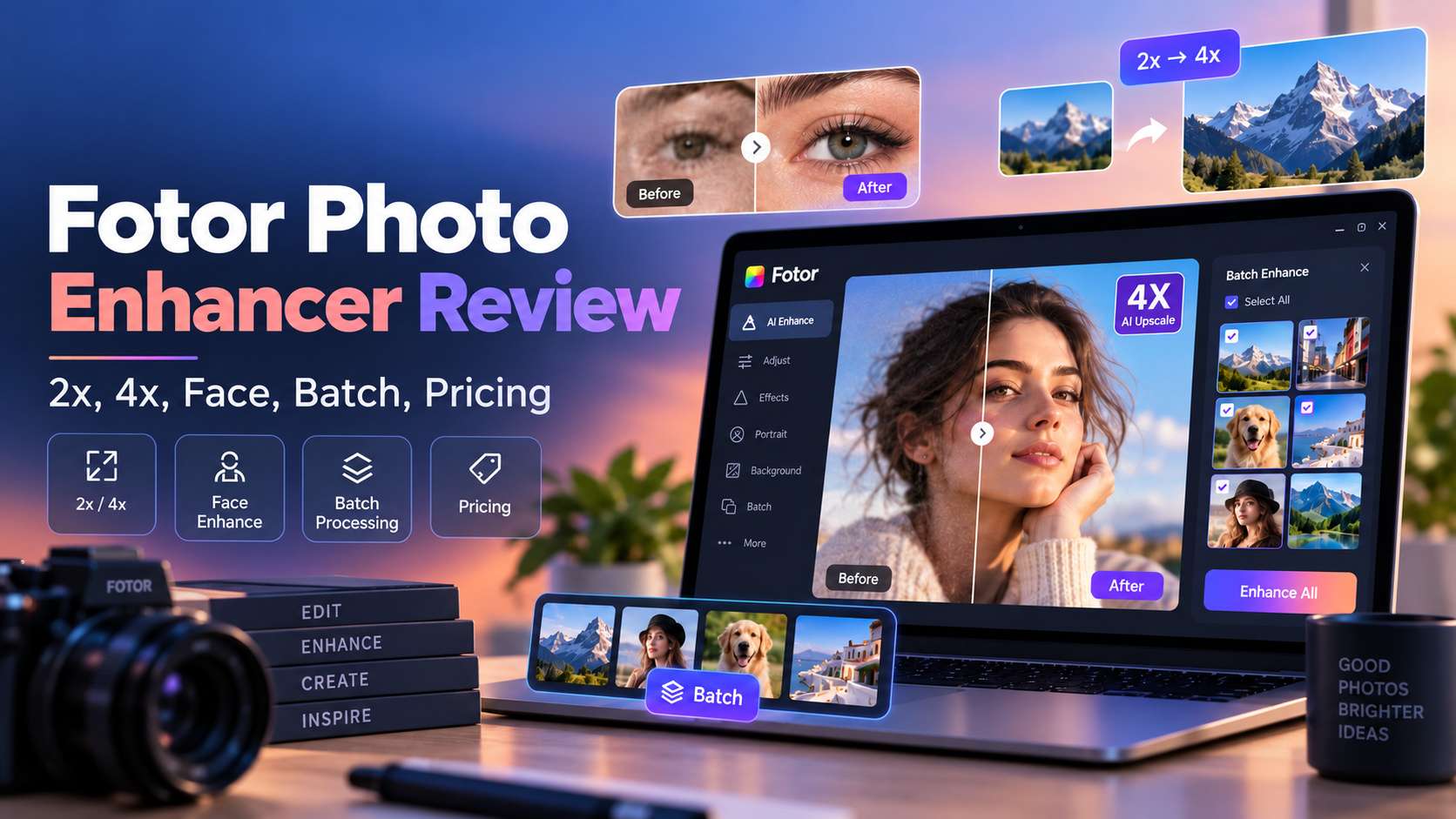
Fotor's enhancer is easy to like when you test one image: upload, wait a few seconds, and the photo usually looks cleaner. The harder question is whether that convenience holds up across portraits, products, old photos, batches, and paid exports. This Fotor Photo Enhancer review separates Fotor's one-tap enhancer from its upscaler, face enhancer, old-photo restorer, sharpener, and batch tools so you can see which workflow fits which image - and where a more specialized alternative makes more sense.
In this article
- Fotor Photo Enhancer review verdict: excellent for fast cleanup, not a replacement for serious retouching
- Fotor has several enhancement paths - do not treat them as one tool
- Fotor AI Image Enhancer: best for everyday one-click correction
- Fotor Image Upscaler: choose 2x or 4x when size is the real problem
- Fotor Face Enhancer: useful for portraits, but watch identity detail
- Old-photo restoration and sharpening are better as separate decisions
- Batch enhancement is where Fotor becomes more than a casual web tool
- Free plan, watermark behavior, and why Fotor's pricing needs careful reading
- What current Fotor users like - and what they complain about
- How to use Fotor Photo Enhancer without over-processing
- Fotor vs. Media.io: batch efficiency or mode-specific enhancement?
- Final Verdict
- FAQs
Fotor Photo Enhancer review verdict: excellent for fast cleanup, not a replacement for serious retouching
Decision: Fotor is one of the better browser-first choices for users who value speed, broad format support, and batch processing. It is especially good for marketing images, social content, product photos, and everyday portraits. It is less suitable when you need pixel-level retouching, exact color-managed photo finishing, or a restoration workflow where every reconstructed detail must be controlled.
Fotor has several enhancement paths - do not treat them as one tool
Fotor's image-quality workflow now spans several tools:
- AI Image Enhancer: one-tap clarity, color, lighting, and detail improvement.
- Image Upscaler: dedicated 2x/4x enlargement.
- AI Face Enhancer: portrait and face-specific clarity recovery.
- Sharpen Image: a more targeted blur/edge cleanup tool.
- Photo Restoration: old-photo scratch, fade, damage, and color recovery.
- Batch Enhancer: process up to 50 images in one workflow.
The best result often comes from choosing the narrowest tool that matches the defect instead of sending everything through the generic enhancer.
Fotor AI Image Enhancer: best for everyday one-click correction
The core Fotor enhancer accepts JPG/JPEG, PNG, HEIF/HEIC, and WebP. It analyzes the image and adjusts clarity, color, lighting, and detail with minimal input from the user. It is a practical choice for a photo that is basically usable but looks dull, soft, or slightly low-resolution.
Use it for social photos, quick client previews, basic product images, and website graphics. If the image has one specific problem - a badly blurred face, deep scratches, or a need for large-format enlargement - move to the dedicated tool instead.
Fotor Image Upscaler: choose 2x or 4x when size is the real problem
Fotor's dedicated upscaler exports 2x or 4x enlarged versions and is a better fit than the generic enhancer when the source already looks clean but is too small. The practical use cases are print preparation, product-image requirements, presentation assets, and social graphics that need a higher pixel count.
Upscaling cannot make a tiny source equivalent to a native high-resolution photo. Inspect edges, typography, and fine product texture before using a 4x result commercially.
Fotor Face Enhancer: useful for portraits, but watch identity detail
Fotor's face enhancer is designed specifically to remove blur, sharpen facial detail, repair imperfections, and increase resolution. It can work well on selfies, group shots, ID-style photos, and older portraits.
As with every face-recovery model, the closer the source gets to "missing information," the more you should treat the result as reconstruction rather than objective recovery. Compare eye shape, teeth, glasses, jewelry, and hairline with the original before using the output for identity-sensitive purposes.
Old-photo restoration and sharpening are better as separate decisions
Fotor's old-photo restoration tool handles scratches, tears, stains, fading, discoloration, and optional colorization. That is a broader problem than simple sharpness. If your scan is only a little soft, the dedicated sharpener may be the safer choice because it targets edges and clarity without trying to rebuild the whole image.
For family archives, I would first create a high-quality scan, repair physical damage, then decide whether colorization or face enhancement is appropriate. Do not stack every AI effect automatically.
Batch enhancement is where Fotor becomes more than a casual web tool
Fotor's batch enhancer can process up to 50 images and apply enhancement, upscaling, sharpening, unpixelation, brightness/color improvement, and basic restoration. That materially changes who should consider the product.
An e-commerce seller with 40 product images, a social manager preparing a campaign, or a photographer creating client previews can save much more time here than by enhancing one file at a time. Fotor also supports batch editing for resize, crop, format conversion, compression, and other repetitive work.
Free plan, watermark behavior, and why Fotor's pricing needs careful reading
Fotor's general Basic plan is free forever but currently lists limited free credits, 512MB cloud storage, and watermarked JPG/PNG/PDF exports. Pro plans add HD, transparent PNG, and watermark-free export. At the same time, several individual Fotor enhancer pages advertise watermark-free use for those specific tools.
The safest interpretation is that export rules can vary by feature and entry point. Do not assume the behavior of one tool applies to the whole platform. Before a production batch, run one complete test from upload through download while logged into the plan you intend to use.
What current Fotor users like - and what they complain about
Capterra lists Fotor at 4.5/5 across more than a thousand reviews as of late August 2026. Recent positive reviews commonly mention quick edits, ease of use, and the convenience of having many features in one platform. Critical reviews often focus on subscription/refund expectations, ads or limits in the free experience, and the fact that Fotor is not as deep as Lightroom-style professional editing.
That pattern matches the product itself: Fotor is strongest when you want a fast result, not when you want a fully manual post-production environment.
How to use Fotor Photo Enhancer without over-processing
- Start with the specific problem. Generic enhancer for overall polish; upscaler for size; face enhancer for portraits; restoration for damaged scans.
- Use the original file. Avoid screenshots or messaging-app copies if a higher-quality source exists.
- Preview at 100%. Check faces, product logos, text, and repeating textures.
- Do not automatically stack tools. A sharpened image does not always need another generative enhancement pass.
- Test export rules before batching. Confirm watermark, output resolution, credits, and batch limits with one image first.
Fotor vs. Media.io: batch efficiency or mode-specific enhancement?
Fotor is the better choice when you want to process many images at once or continue into a broad photo/design platform. Media.io offers a simpler browser-based way to enhance images with AI, with five dedicated modes: Smart Enhancer, Portrait Enhancer, Restore Old Photos, Color Correction, and Image Upscaler.
For a 50-image e-commerce batch, Fotor's batch tool is a meaningful advantage. For a user switching between a portrait, an old photo, and an AI-art upscale, Media.io's mode separation is easier to reason about.
| Capability | Fotor AI Image Enhancer | Media.io AI Image Enhancer |
|---|---|---|
| Main workflow | One-click enhancement plus separate upscaler, face enhancer, old-photo, sharpen, and broader editing tools | Five clearly separated modes in one enhancer: Smart Enhancer, Portrait Enhancer, Restore Old Photos, Color Correction, and Image Upscaler |
| Supported formats | JPG/JPEG, PNG, HEIF/HEIC, WebP, and other common formats listed by Fotor | JPG, JPEG, PNG, WebP, and BMP |
| Upscaling | 2x or 4x through the dedicated image upscaler | 2x, 4x, or 8x upscaling, with output positioned up to 8K |
| Portrait handling | Separate Face Enhancer and portrait-retouch ecosystem | Dedicated Portrait Enhancer focused on eyes, hair, facial contours, and natural skin texture |
| Old-photo workflow | Dedicated old-photo restoration tools plus sharpening/color options | Restore Old Photos for scratches, creases, dust, and fading, with Color Correction available as a separate follow-up mode |
| Batch processing | Strong advantage: batch enhancer supports up to 50 images at once | The current enhancer page emphasizes an individual-image workflow rather than a 50-image batch pipeline |
| Free/export notes | Fotor's enhancer pages advertise free/no-watermark enhancement, while its general Basic plan lists watermarked JPG/PNG/PDF exports; verify the exact tool and export path you plan to use | Complimentary credits are available; credit use varies by enhancement type and output settings |
| Best fit | High-volume batches and users who want enhancement inside a larger editing/design ecosystem | Mixed image-quality tasks where choosing the right enhancement mode is more important than batch volume |
Bottom line: Fotor wins on batch throughput and ecosystem breadth. Media.io is easier to reason about when the problem changes from image to image because the enhancement modes are separated by task. For a seller processing 50 product images, Fotor is more efficient; for a portrait, an old family photo, and an AI-art upscale in the same session, Media.io gives the clearer decision path.
Final Verdict
Fotor is easy to recommend for quick enhancement and especially strong when batch processing matters. Its weakness is not that the AI is poor; it is that the platform has many overlapping tools and plan rules, so users should pick the right module and verify export behavior before building a workflow around it.
FAQs
-
Is Fotor Photo Enhancer free?
Fotor offers free enhancement entry points and a free Basic plan, but credits, export quality, watermark behavior, and advanced tools vary by feature. Test the exact workflow you plan to use. -
Does Fotor support HEIC photos?
Yes. The main AI Image Enhancer lists HEIF/HEIC support alongside JPG/JPEG, PNG, and WebP. -
Can Fotor enhance multiple photos at once?
Yes. Fotor's batch enhancer supports up to 50 images per batch. -
Does Fotor add a watermark?
Fotor's general Basic plan lists watermarked exports, while some individual enhancer pages advertise watermark-free downloads. Export behavior can vary by tool and plan. -
What is the best Fotor alternative for image enhancement?
Media.io is a strong browser alternative when you want distinct modes for smart enhancement, portraits, old-photo restoration, color correction, and image upscaling.