
If you only need to erase a person, sign, defect, date stamp, or stray object, a giant editor can feel like too much software. This cleanup pictures review looks at the opposite idea: a deliberately narrow browser tool built around inpainting. Cleanup.pictures is fast to understand, but the real buying decision comes down to export resolution, how much control you need around difficult textures, and whether its low-cost Pro tier is enough for the work you actually publish.
In this article
- Cleanup.pictures verdict: excellent for quick inpainting, limited as a full editor
- What Cleanup.pictures actually does
- How the brush-and-inpaint workflow works
- Object removal test: three scenes that reveal its strengths and limits
- What a good inpainting result should look like at full size
- Free vs Pro: what the upgrade actually changes
- Pros and cons after looking at the full workflow
- Who should use Cleanup.pictures, and who should skip it?
- When a broader editing workflow makes more sense
- Object remover comparison: specialist vs broader toolkit
- Final verdict: the right fit for a narrow cleanup job
- FAQs about Cleanup.pictures
Cleanup.pictures verdict: excellent for quick inpainting, limited as a full editor
The cleanup pictures object remover is strongest when the hidden background can be inferred from nearby pixels: sky, walls, grass, roads, simple product surfaces, or a person standing in front of a reasonably consistent scene. It becomes less predictable when the mask covers text, faces, repeating architecture, transparent material, or another subject that needs to remain untouched.
What Cleanup.pictures actually does
Cleanup.pictures is a web application for AI inpainting. You upload a photo, paint over the unwanted region, and the model generates a replacement based on the surrounding scene. The official site positions the tool for photographers, creative agencies, real estate, e-commerce, text and logo cleanup, and API use. It also links into the broader ClipDrop ecosystem.
The cleanup pictures AI workflow is intentionally smaller than Fotor, Photoshop, or a general-purpose AI photo editor. There is no need to build a layer stack or choose from dozens of effects before you remove something. That simplicity is useful for a single cleanup task, but it also means you may need another editor when the fill needs color correction, enhancement, resizing, or creative replacement afterward.
How the brush-and-inpaint workflow works
- Upload the image. Drop a photo onto the Cleanup.pictures page. The site says it can import images of any size, although free output is limited.
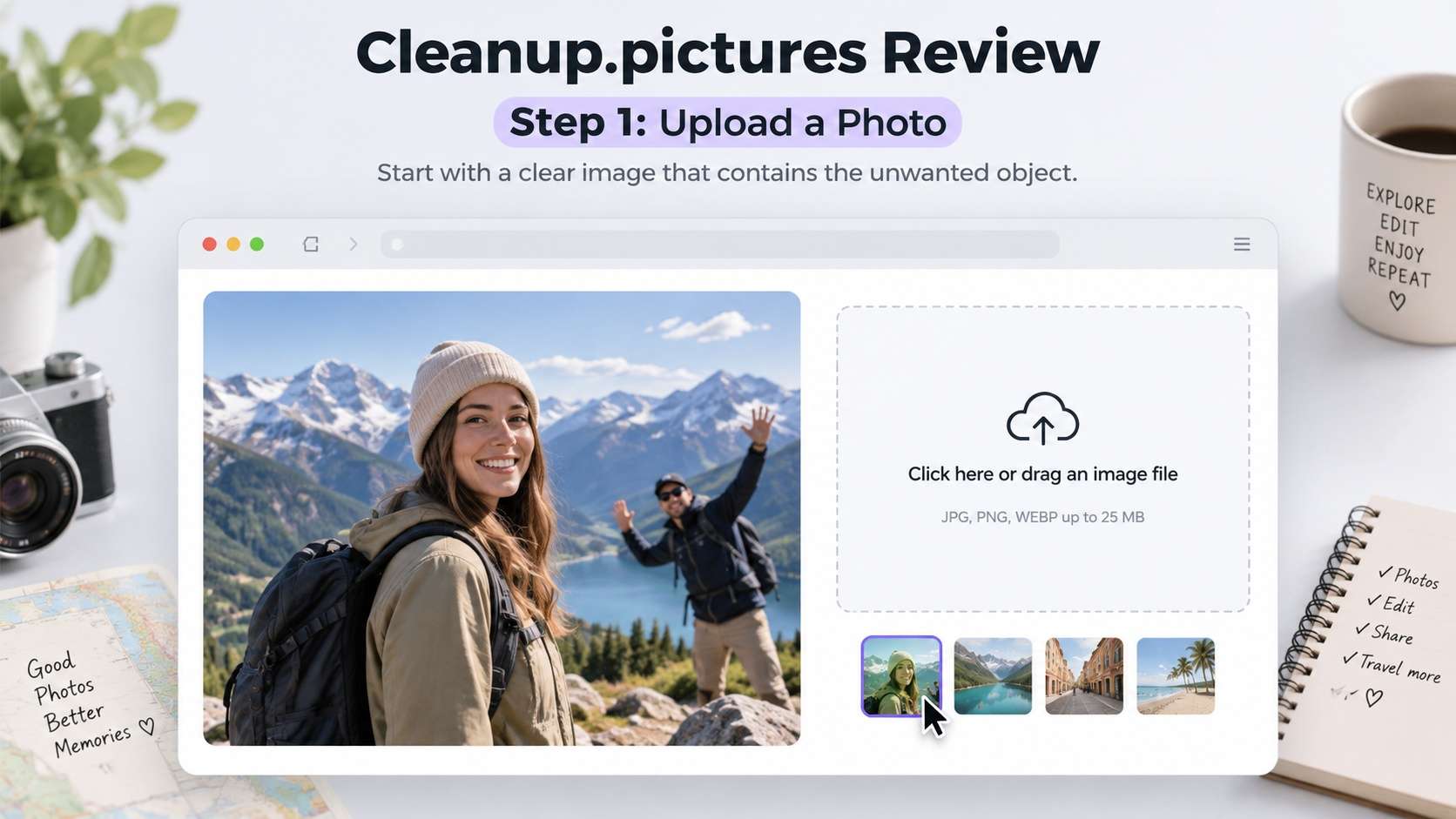
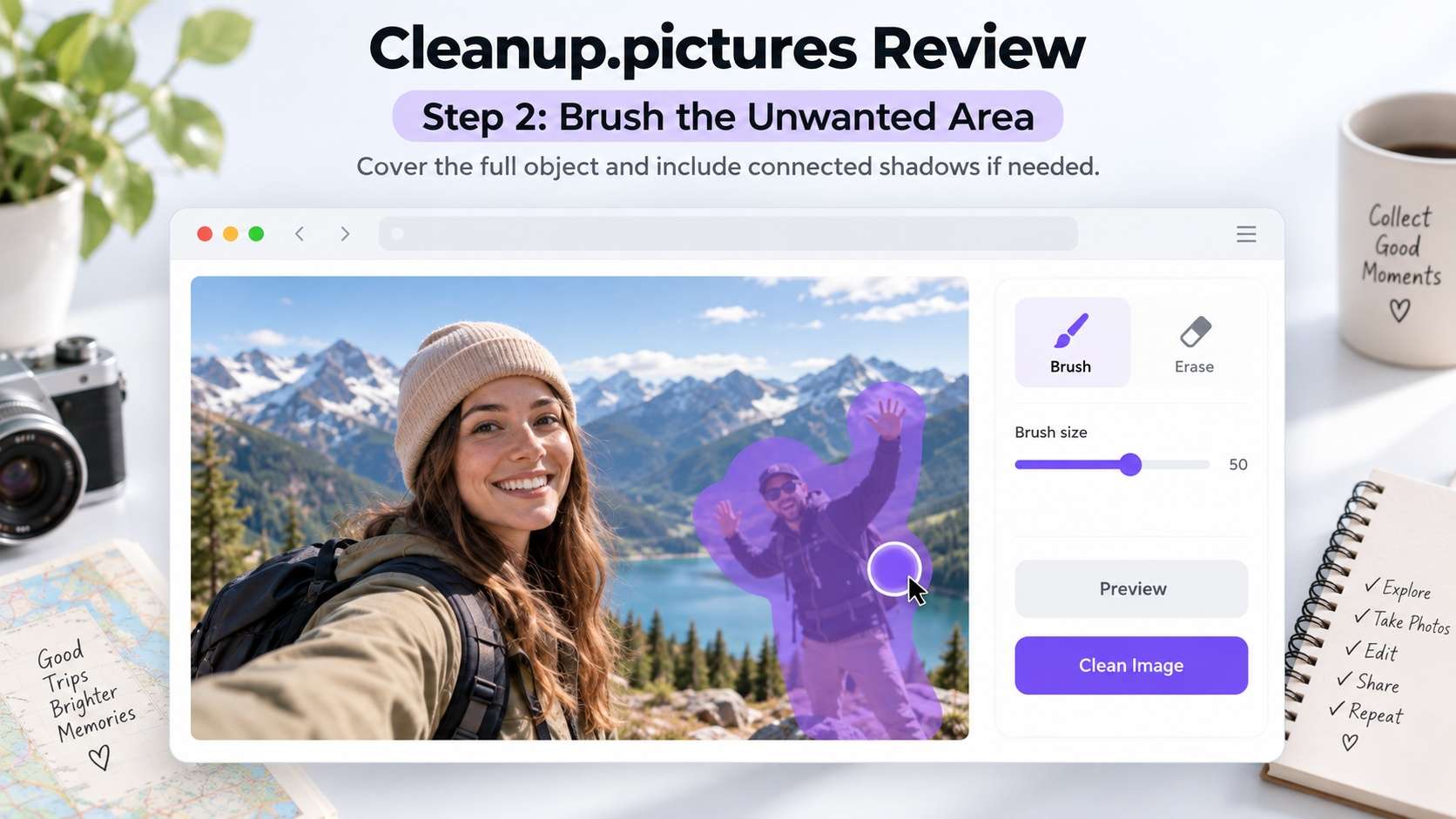
- Brush beyond the full object. Cleanup specifically recommends covering the entire unwanted element and slightly overflowing the mask. For people, include shadows or connected details that should disappear.
- Download at the plan's available resolution. Free output is capped at 720p; Pro removes that resolution ceiling.
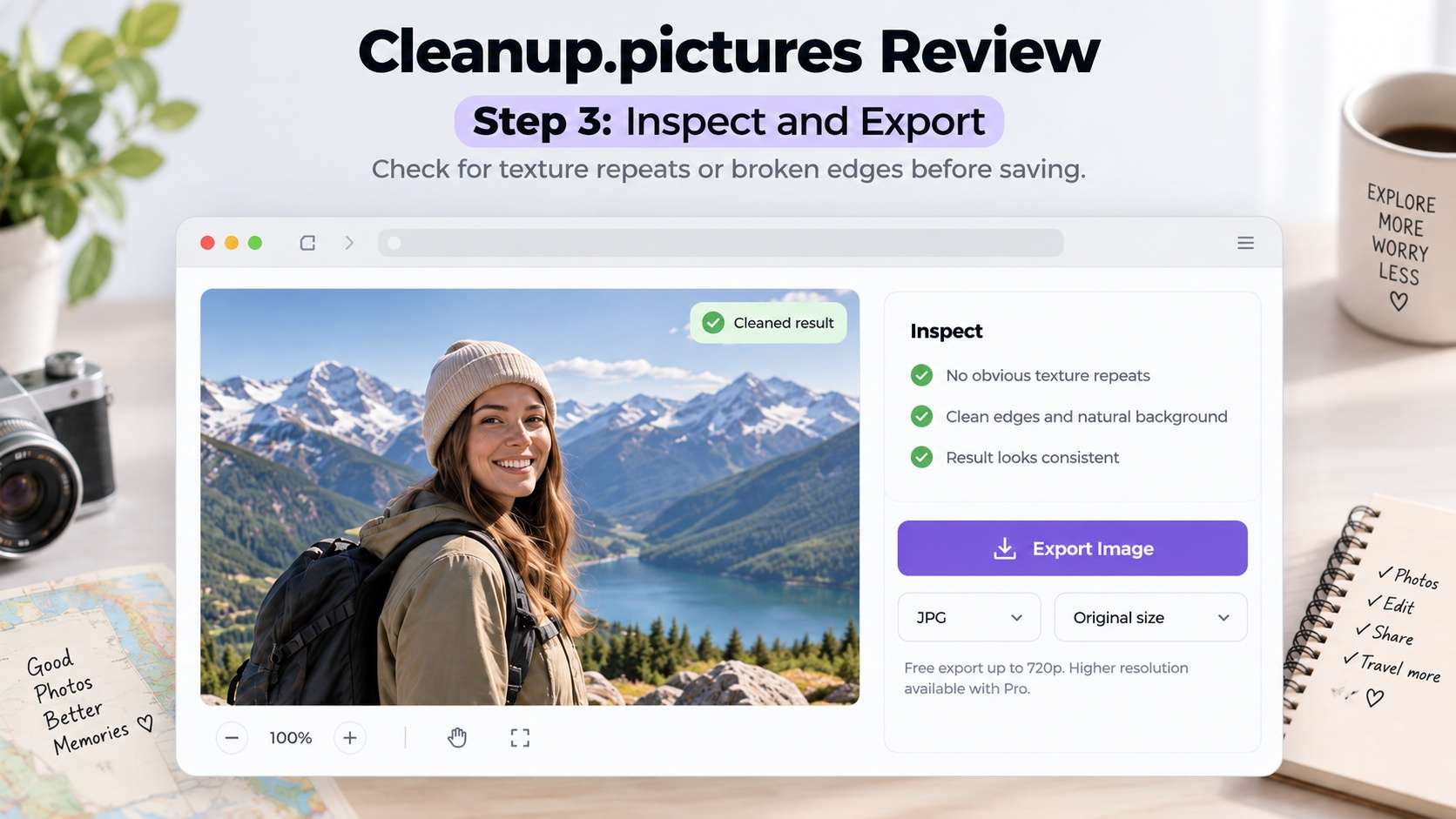
This is why the awkward search phrase cleanup pictures remove object still points to a useful workflow: the tool is not trying to be a full editor first. It is trying to make selection and inpainting as short as possible.
The most important technique is restraint. Start with a mask that covers the distraction and its connected shadow, then review the edge before making the selection larger. Bigger masks give the model more space to invent, which can be helpful on a plain wall but risky around a face, railing, product label, or patterned floor. If a first attempt leaves a fragment, undo and correct the specific area instead of brushing across a much wider region.
Object removal test: three scenes that reveal its strengths and limits
A fair cleanup pictures object removal check should use more than a tiny object on a blank wall. The first scene should be easy: remove a sign or person against sky, pavement, or a plain surface. The second should include texture such as brick, foliage, shelves, or waves. The third should involve overlap, where the object touches hair, clothing, furniture edges, or another person. This exposes whether the fill merely looks clean at thumbnail size or still makes sense when enlarged.
| Scene | What to expect | What to inspect |
|---|---|---|
| Small isolated object | Usually the easiest case because nearby context is plentiful. | Halo around the mask, repeated patches, color mismatch. |
| Person on textured background | Can work well if enough background remains visible, but large masks raise reconstruction risk. | Straight lines, repeated bricks, grass texture, shadows. |
| Object touching another subject | Most demanding because the model must preserve an edge while inventing hidden content. | Hair, fingers, product contours, fabric, facial features. |
| Text or logo | Often easy on simple backgrounds and harder over detailed imagery. | Letter fragments, blur blocks, broken patterns. |
What a good inpainting result should look like at full size
For a specialist remover, quality is less about dramatic before-and-after marketing and more about whether the repaired region survives normal viewing. Zoom into the boundary first. Hair, thin branches, furniture legs, wires, and lettering are useful stress points because a soft halo or missing edge is immediately visible. Then look inside the generated area for cloned texture, repeated bricks, duplicated leaves, or a patch that is sharper or blurrier than the rest of the photo.
Large removals deserve a second check at the final destination size. A 720p preview may hide flaws that become obvious in a high-resolution listing or print. For product photos, also inspect shadows and reflections: removing an object while leaving its reflection or cast shadow behind makes the edit feel artificial even when the central fill is clean. For real-estate scenes, straight lines and repeating floor patterns are the clearest way to spot a reconstruction that does not understand the room geometry.
Free vs Pro: what the upgrade actually changes
The cleanup pictures free tier is unusually generous in one way: the official page says it allows unlimited images. The catch is output resolution, which is limited to 720p. That is enough for quick social posts, low-resolution previews, or deciding whether the inpainting itself looks acceptable, but it is restrictive for print, product listings, photography delivery, and high-resolution web assets.
Current cleanup pictures pricing information on the official site says Pro costs $5 per month or $36 per year, which is presented as $3 per month when paid annually. Pro adds unlimited resolution and a high-quality refiner. The broader ClipDrop Pro tier bundles Cleanup with other tools, so it only makes sense if you also need background removal, uncrop, generative fill, and related utilities.
The practical upgrade question is therefore not simply "do I like the remover?" Try the hardest image you routinely edit on the free tier first. If the fill itself is not convincing, higher output resolution will not fix the scene. If the reconstruction is good but the 720p file is too small for your website, marketplace, print, or client delivery, Pro solves a very specific bottleneck. That makes the paid decision easier to justify than a plan that mainly unlocks unrelated features.
| Plan | Best for | Key limit / benefit |
|---|---|---|
| Free | Trying the remover, social previews, occasional small exports | Unlimited images, but export limited to 720p. |
| Cleanup Pro | Photographers, listings, client work, higher-resolution publishing | Original-resolution processing and high-quality refiner. |
| ClipDrop Pro | Users who also want adjacent AI image tools | Bundles Cleanup with a wider ClipDrop toolset. |
| API | Apps and automated workflows | Usage-based integration rather than manual browser editing. |
Pros and cons after looking at the full workflow
Who should use Cleanup.pictures, and who should skip it?
When a broader editing workflow makes more sense
A cleanup pictures alternative becomes useful when removal is only the first stage. Media.io's Object Remover keeps the same basic idea - upload, brush, generate - but sits inside a broader AI media platform. Current Media.io object-removal pages list JPG, PNG, JPEG, and WebP inputs under 50 MB and up to 3840 x 2160. After cleanup, you can move into image enhancement or related image and video workflows without changing ecosystems.
The important distinction is not that one tool can erase and the other cannot. Cleanup.pictures is the more minimalist specialist. Media.io makes more sense if you routinely clean an image and then enhance, resize, repurpose, or continue into other AI content tasks. For example, after removing a distraction you can continue to the Media.io AI Image Enhancer when the remaining photo also needs clarity, portrait, color, restoration, or upscaling work.
Object remover comparison: specialist vs broader toolkit
For a cleanup pictures vs Media.io decision, compare what happens after the first successful erase. If the job ends at "remove this thing," Cleanup.pictures is pleasantly direct. If cleanup is one step inside a larger browser production flow, Media.io reduces tool switching.
| Capability | Cleanup.pictures | Media.io AI Object Remover |
|---|---|---|
| Primary workflow | Focused brush-based inpainting. | Browser-based object removal inside a broader AI media toolkit. |
| Free-use boundary | Unlimited images, but 720p free export. | Free credits / usage availability can vary; current product pages emphasize online removal and HD watermark-free output. |
| Documented image limits | Imports images of any size; Pro removes output resolution limit. | JPG, PNG, JPEG, WebP; under 50 MB; up to 3840 x 2160 on current object-remover pages. |
| Best fit | Users who want a minimalist object eraser. | Users who want object cleanup plus adjacent enhancement and creation tools. |
| Complex scenes | Depends heavily on available background context. | Also depends on context; large masks and detailed overlaps should be reviewed carefully. |
Final verdict: the right fit for a narrow cleanup job
Is cleanup pictures good for object removal? Yes, especially if your priority is speed, simplicity, and a focused inpainting brush. The free tier is genuinely useful for checking whether a difficult removal works, but 720p output is the point where serious publishing usually pushes you toward Pro. It is not the best choice for someone who wants a complete photo editor. It is a good specialist for the moment when one unwanted thing is standing between you and a usable image.
FAQs about Cleanup.pictures
-
Is Cleanup.pictures free?
Yes. The official site says the free tier supports unlimited images, with exported resolution limited to 720p. -
How much does Cleanup.pictures Pro cost?
The official FAQ currently lists $5 per month or $36 per year, with the annual plan equivalent to $3 per month. -
Does Cleanup.pictures remove people?
Yes. Brush over the person and include connected shadows or details that should disappear. The AI then reconstructs the selected area from surrounding context. -
Does Cleanup.pictures have a mobile app?
The Cleanup subscription works across mobile and desktop, and the product can be used through the browser. The broader ClipDrop ecosystem also offers mobile apps. -
Can Cleanup.pictures remove a watermark?
The tool can erase visible text or logos, but only remove watermarks from images you own or have permission to edit. -
What is the biggest limitation of Cleanup.pictures?
For free users, the clearest limitation is 720p export. For difficult images, the broader limitation is generative inpainting itself: hidden detail is invented, not recovered.