

 ChatGPT
 Perplexity
 Gemini
 Claude
 Grok
Grok
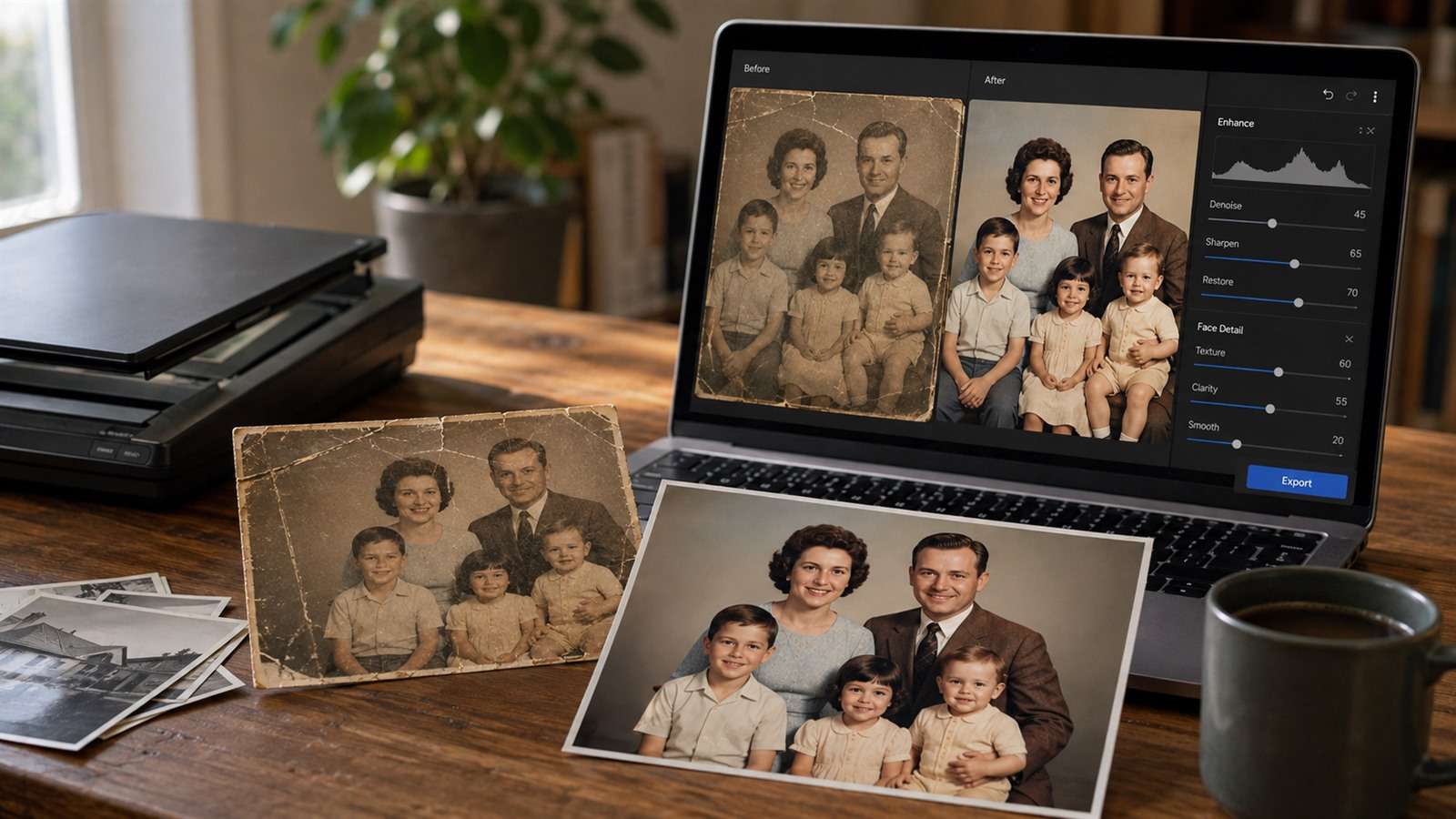
Remini is excellent at producing a dramatic improvement from a weak portrait with almost no setup. That strength is also the reason many people eventually look elsewhere: a face can become impressively crisp while eyelashes, pores, teeth, or age lines drift away from the source. The best Remini alternative is therefore not simply the app with the sharpest preview. It is the tool that matches the kind of evidence you need to preserve.
In this article
Why a Sharper Face Can Still Be a Worse Restoration
Photo enhancement is an inference problem. When the source contains no recoverable eyelash or fabric weave, an AI system cannot uncover that exact detail; it must estimate what a plausible detail would look like. That estimate may be attractive and still be historically wrong. The risk is low for a disposable social post and much higher for the only photograph of a grandparent.
Judge an enhancer on three separate outcomes. Clarity asks whether the image is easier to see. fidelity asks whether identity, age, expression, clothing, and background remain believable. usability asks whether the result works at the final export size. A face that looks spectacular at phone size may reveal waxy skin and invented eyes at 200% zoom.
This distinction explains why there is no single best Remini alternative. A one-tap web enhancer, a local desktop app, an album scanner, and a manual retouching tool solve different portions of the problem.
Start with the Defect, Not the Brand
| What is wrong with the photo? | Most useful tool type | What to inspect |
|---|---|---|
| Soft modern portrait | Automatic face and image enhancer | Eye shape, teeth, hairline, skin texture |
| Small but otherwise clean image | Dedicated upscaler | Edge halos, repeated texture, text accuracy |
| High-ISO or dark photograph | Denoise plus sharpening controls | Fine texture after noise removal |
| Faded album print | Scanning and color-restoration workflow | Skin tone, paper damage, original crop |
| Torn or missing region | Manual repair with layers and masks | Whether reconstructed detail is documented |
| Hundreds of confidential images | Local desktop processing | Batch control and upload policy |
If your source is a low-resolution screenshot, enlarging it will not recreate lost letters or logos reliably. If the subject is badly motion-blurred, an enhancer may produce a plausible face rather than the same face. Those are source limitations, not settings you can fully solve by buying a different subscription.
Six Remini Alternatives for Different Restoration Jobs
1. Media.io — fast enhancement in a browser
Media.io AI Image Enhancer is the practical first test when you want to sharpen a blurry portrait, improve a product photo, or enlarge a small image without installing an app. It accepts common image formats and offers Lite and Pro enhancement modes. The workflow is intentionally short: upload, choose an enhancement type, generate, and compare.
Its advantage over a mobile-only flow is accessibility: you can work from a desktop browser and continue into background removal or image-to-image editing on the same platform. It is not a substitute for layer-based archival repair, and it currently does not offer batch enhancement. Treat it as a quick clarity tool, not a forensic restoration system.
2. Topaz Photo — controlled finishing for photographers
Topaz Photo is built around separate enhancement jobs such as denoising, sharpening, face recovery, lighting correction, color balance, dust and scratch removal, and enlargement. That separation matters when a single aggressive "enhance" pass damages texture. You can reduce noise without asking the software to redesign the face, then add sharpening only where the file can support it.
Choose it when you routinely prepare wedding, wildlife, event, archival, or print images and want a desktop application or plugin. The trade-off is cost and a more deliberate workflow. For a single casual selfie, the additional controls may be unnecessary.
3. MyHeritage Reimagine — scanning albums before enhancement
Reimagine solves a step Remini alternatives lists often ignore: capturing printed photos well. Its mobile scanner can detect and crop multiple photos or album pages, then organize them with family context. Colorization, faded-color recovery, enhancement, and repair sit inside that archive workflow, while the original remains stored separately from improved versions.
It is the strongest fit here when the project starts with a box of prints rather than a folder of JPG files. It is less compelling when you only want to rescue one modern image and do not need scanning or family-history organization.
4. Upscayl — free, open-source enlargement on your computer
Upscayl uses local GPU processing and focuses on enlargement. There is no need to upload personal photographs, no recurring subscription for the desktop app, and no attempt to turn the workflow into a beauty editor. That makes it useful for pixelated illustrations, web images, and clean photos that mainly need more dimensions.
It does not replace scratch repair, color restoration, or manual retouching. If a source is damaged rather than merely small, Upscayl can make the damage larger and clearer too.
5. Adobe Photoshop — severe damage and accountable reconstruction
Photoshop is the choice for a tear crossing an eye, a missing corner, a stain over clothing, or any case where you must decide exactly what to reconstruct. Healing, cloning, masks, adjustment layers, and generative tools can be combined while preserving an editable record of each intervention.
This is slower than Remini and depends on skill. The payoff is control. For culturally or personally important photos, a careful human retoucher can distinguish "remove damage" from "invent a prettier person."
6. YouCam Enhance — mobile enhancement with creative extras
YouCam Enhance suits users who want photo and video enhancement, generation, and quick mobile editing in one app. It is closer to Remini's casual workflow than Topaz or Photoshop. Test it with the same portrait and export size because the balance between smoothing and texture can change with the selected mode and source quality.
Use a Five-Crop Fidelity Test Before You Pay
Do not compare tools with unrelated showcase images. Use one representative file and save the original separately. After processing, inspect five crops at 100–200%:
- Eyes and catchlights: check that direction, iris shape, and asymmetry have not changed.
- Mouth and teeth: look for new teeth, merged lips, or a different expression.
- Hairline and ears: these often expose painterly reconstruction and edge halos.
- Clothing or jewelry: repeated patterns and small objects show whether texture was invented.
- Background text and architecture: distorted letters or geometry reveal excessive generative rebuilding.
Then zoom back out to the intended use size. A print needs stable fine detail; a profile picture needs a recognizable face; an archive needs conservative changes. Pick the least aggressive result that solves the real delivery problem.
For Old Family Photos, Preserve the Evidence Chain
Scan or photograph the print before editing, retain an untouched master, and make restoration copies. Record which app and settings produced each version. Avoid repeatedly enhancing an already enhanced JPEG because every pass introduces another layer of guesses and compression.
- Capture the full border so the original crop is documented.
- Use indirect light and keep the camera parallel to the print.
- Correct rotation and exposure before aggressive face recovery.
- Export a high-quality master as well as a share-ready copy.
- Label colorized or reconstructed versions so relatives do not mistake them for originals.
For fast browser cleanup, Media.io is a sensible first pass. For a full album, Reimagine handles capture and organization. For exact repairs, use Photoshop or a professional retoucher. That division of labor is more reliable than forcing one app to do everything.
Remini Alternatives FAQ
-
What is the best free alternative to Remini?
Upscayl is a strong free desktop option when enlargement is the main goal. Media.io also lets new users test browser-based AI enhancement with signup credits. Free limits and export rules can change, so confirm them before a large project. -
Which Remini alternative gives the most natural faces?
Naturalness depends on the source and settings. Topaz Photo offers more control over face recovery and sharpening, while Photoshop allows manual intervention. Always compare eyes, teeth, hair, and skin against the original rather than trusting an overall "wow" effect. -
Can AI restore the real detail in a blurry photo?
AI can clarify edges and infer plausible detail, but it cannot guarantee that missing information is historically accurate. The worse the blur or resolution, the more cautiously you should interpret the result. -
What should I use for hundreds of old photos?
Use a scanning-first workflow such as MyHeritage Reimagine for capture and organization, then enhance only selected images. A local tool may be preferable when privacy or batch processing is important. -
Is a web enhancer enough for print?
It can be if the source is reasonably clean and the target print is modest. Check the exported pixel dimensions, inspect artifacts at 100%, and make a small proof print before committing to a large format.


