
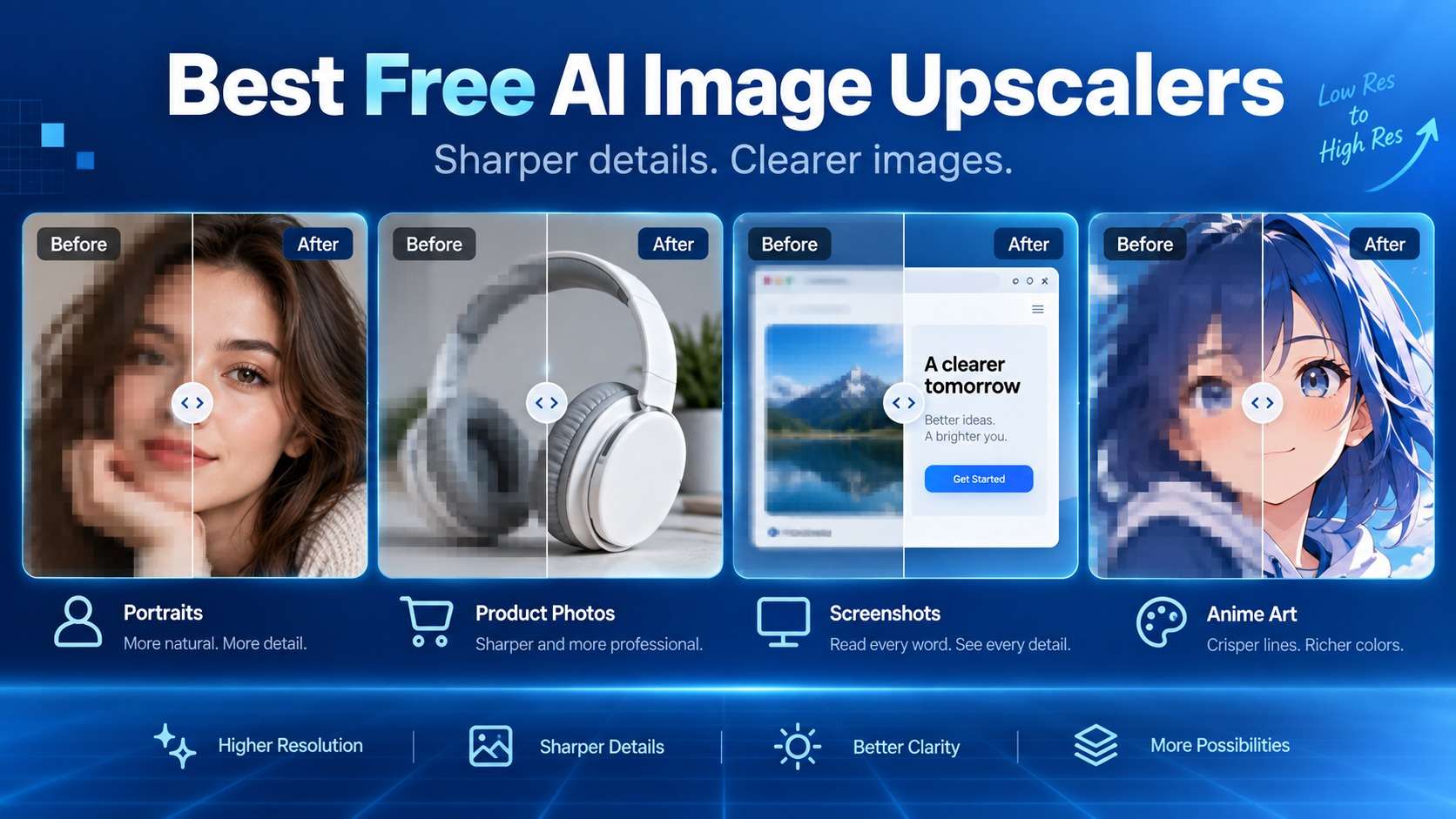
A small image can look acceptable on a phone and fall apart the moment you crop it, zoom into a product listing, or place it on a large slide. The best free ai image upscalers do more than increase pixel dimensions: they reconstruct edges and texture while avoiding fake facial detail, warped text, halos, and plastic-looking surfaces. I compared the free options by image type, because the model that looks good on anime line art is not automatically the safest choice for a face, product label, or screenshot.
The other issue is what "free" means. Some tools are genuinely free and local, while browser services use daily or monthly credits. That distinction matters when you need one photo versus a folder of 200 marketplace images.
In this article
What Makes an AI Upscaler Better Than Ordinary Resize?
Traditional enlargement interpolates between existing pixels. AI upscaling can also infer likely high-frequency detail, which can make hair, foliage, fabric, and edges look sharper. That inference is both the benefit and the risk. A model can produce convincing texture that was never present in the source, and it can "improve" a face, logo, or letter into something factually wrong.
The best free image upscaler should therefore be judged on fidelity, not only sharpness. I look at whether the original proportions remain stable, whether small text changes, whether skin becomes waxy, whether line art develops halos, and whether repeated texture becomes artificial. Scale factor is secondary if the extra pixels are not trustworthy.
Free AI Image Upscaler Comparison
| Tool | Best for | Scale | Free model | Install? |
|---|---|---|---|---|
| Media.io Image Upscaler | General photos and AI art in browser | 2x / 4x / 8x | Complimentary credits/current free allowance | No |
| Upscayl | Unlimited local batch work and privacy | Up to 16x via multi-pass workflow | Free/open source | Yes |
| Upscale.media | One-off browser photos and large inputs | 1x / 2x / 4x / 8x by input limits | 1 free image/day guest; 3 monthly credits after sign-up | No |
| Fotor AI Image Upscaler | Casual photos and creator edits | 2x / 4x | Limited free use | No/app available |
| waifu2x | Anime, illustrations, line art | 1.6x / 2x / 4x options | Free web tool | No |
| Pixelcut Upscaler | Product and social images | Up to current available scale/model | Limited free use | No/app available |
6 Free AI Image Upscalers for Different Source Images
1. Media.io Image Upscaler - best all-around browser option for photos and AI art
The Media.io Image Enhancer includes a dedicated Image Upscaler mode with 2x, 4x, and 8x enlargement and output positioned up to 8K depending on the source. The same tool supports JPG, JPEG, PNG, WebP, and BMP, so it is convenient for portraits, products, AI-generated artwork, thumbnails, and old images without installing desktop software.
The key advantage is that upscaling is only one of five modes. If your source image is blurry or lacks detail, Media.io AI Image Enhancer can help you increase image quality with Smart Enhancer or Portrait Enhancer before upscaling. That prevents the common mistake of using more pixels to solve a blur or restoration problem. For AI art, the 8x option can be useful when the composition is already good and the goal is larger display or print.
As a free ai image upscaler, Media.io uses complimentary credits rather than promising unlimited cloud processing. That is suitable for evaluating a few images, but batch-heavy users should compare current credit usage with a local tool. The browser flow is strongest when you want speed, common formats, and no software setup.
2. Upscayl - best genuinely free desktop upscaler for privacy and batches
Upscayl is the outlier in this list because the core desktop application is free and open source and processes images locally on Windows, macOS, and Linux. It includes multiple upscaling models, batch processing, and a double-upscale workflow that can reach higher factors such as 8x or 16x. You are not paying a cloud service every time you retry an image.
The cost moves to your own hardware. The project notes that a Vulkan-compatible GPU is required for its normal workflow, and results/process time depend on the machine. Upscayl also warns that it does not magically fix out-of-focus or motion-blurred images; that honesty is important because upscaling and deblurring are different tasks.
If your priority is free online ai image upscalers, Upscayl is not the answer because it requires installation. If "free" and "private" matter more than browser convenience, however, it is one of the strongest options for repeated folders and client assets that should stay on-device.
3. Upscale.media - best for fast browser upscaling with clearly documented limits
Upscale.media does a good job of publishing practical input limits. Guests can use different scale factors with maximum input resolutions that shrink as the requested factor increases: for example, 8x input is capped lower than 2x input. It supports PNG, JPEG/JPG, WebP, and HEIC. The site also now supports short video upscaling, but the image workflow is the relevant part here.
The current free plan gives three free credits and three free downloads per month after sign-up, while guests can upscale one image per day without signing up. Each image upscale generally uses one credit, though the company notes usage can vary with transformation complexity. That clarity makes it a practical ai image upscaler online free option for occasional photos.
I would use Upscale.media when you need a predictable one-off browser workflow and do not want a desktop install. For high-volume work, the free monthly allowance is too small, and paid credit economics should be compared with batch/local tools.
4. Fotor AI Image Upscaler - best for casual photo enhancement inside a broader editor
Fotor's upscaler supports common formats including JPG/JPEG, PNG, HEIF/HEIC, and WebP and offers 2x and 4x enlargement. It fits users who want to upscale and then continue with color, portrait, retouching, AI effects, or design work without switching services. For a soft social photo, that broader editing environment can be more useful than a specialized super-resolution interface.
Fotor is a strong free photo upscaler ai candidate for light use, but free AI access is limited rather than unlimited. That means it is better to test the image type you use most before deciding whether the surrounding editor justifies a plan. A user who only needs bulk enlargement will get less value from the other features.
I would choose Fotor over waifu2x for ordinary photography and over Upscayl when you want mobile/browser convenience rather than local processing. For logos and screenshots, inspect small text carefully because photo-oriented enhancement can overinterpret crisp graphic edges.
5. waifu2x - best for anime, manga, and illustration line art
waifu2x remains valuable because it is specialized. Its web interface lets you choose artwork or photo mode, apply noise reduction, and upscale with options such as 1.6x, 2x, or 4x. The documented upload limits are modest compared with commercial cloud tools, but the model's historical strength is clean illustrated line work rather than photorealistic facial reconstruction.
That specialization makes waifu2x more useful than a generic best ai photo upscaler recommendation when the source is anime, manga, game art, or a flat illustration. It tends to prioritize clean edges and denoising in a way that suits drawn content. On real photos, newer general-purpose models may preserve texture more naturally.
The free site is ideal for small illustration assets, but check the current file-size and pixel limits before relying on it for large art. A designer preparing print may need a local implementation or another tool if the web limits become the bottleneck.
6. Pixelcut Image Upscaler - best for product and social images that continue into creator editing
Pixelcut is most compelling when the source image is commercial content rather than an archival photo. Its broader platform focuses on product and creator workflows, so upscaling can sit next to background removal, retouching, uncropping, and content creation. That matters if the resized image still needs to become a listing, ad, or social asset.
The product currently offers high-factor upscaling options across its AI ecosystem, while free usage is limited by the live plan/tool allowance. I would treat Pixelcut as a best online image upscaler candidate for storefront and clean-background images, then compare its edge/text preservation against a general-purpose model on your actual product set.
For a client archive with thousands of files, a local batch tool is more economical. For ten product images that also need background and composition changes, keeping the work in one creator environment can save more time than optimizing the cost of the upscale alone.
Photos, Anime, Product Images, and Screenshots Need Different Upscaling
Portraits are the most sensitive because humans notice tiny identity changes. Look for altered eye shape, invented eyelashes, skin pores that become a repeating texture, and teeth that are too regular. Product photos have a different failure mode: the model may sharpen a logo into the wrong letters or invent seams and material texture. A cleaner image is not acceptable if the product stops being accurate.
Anime and illustrations reward edge-aware denoising and line preservation, which is why waifu2x remains relevant even when other image upscaling tools advertise much larger factors. Screenshots are another special case: text and UI icons should remain exact. If letters are already only a few pixels tall, AI may hallucinate plausible-looking but incorrect glyphs. For text-heavy images, sometimes a fresh screenshot or vector source is safer than any enhancement model.
AI-generated art can tolerate more inferred detail because the original scene is itself synthetic, but even there you should protect character identity and typography. Run the upscale after you have finalized composition; otherwise you pay or wait to enhance pixels that may be cropped away later.
The Upscale Reality Check: Use Four Source Images, Not One
I would test an upscaler with four small files before committing to a batch: a 512-pixel portrait, a product photo with a label, a compressed illustration with clean line art, and a screenshot containing small text. The portrait reveals identity hallucination, the product reveals edge/logo errors, the illustration reveals ringing and line cleanup, and the screenshot reveals whether the model respects literal information.
The best online ai image upscaler for your workflow is the one that passes the source type you actually publish. A model can win a portrait comparison and lose badly on typography. Record the output dimensions, processing time, free credit cost, whether the download is watermarked, and whether the visual improvement survives when viewed at the final display size.
Do not use sharpness alone as the score. Over-sharpened output often looks impressive in a side-by-side thumbnail while producing halos and invented detail at 100%. Fidelity comes first.
How the Free Limits Differ in Practice
Upscayl is the clearest "free" option because its desktop application is open source and local; your constraints are hardware and time. waifu2x is a free web tool but has relatively small file/pixel limits. Upscale.media explicitly offers one free guest upscale per day or three monthly credits/downloads after sign-up. Media.io, Fotor, and Pixelcut use complimentary or limited cloud access that is more appropriate for evaluation and occasional tasks.
If your priority is a free ai image upscaler for hundreds of files, install a local tool first. If you only need to fix one image for a deck, a browser credit is often more convenient than downloading software and models. Free economics should follow volume, not ideology.
Also consider output rights and privacy. Local processing keeps images on your device. Cloud tools require upload, so teams with confidential client materials should verify the current privacy and retention terms of the chosen service before using them.
A Safer Workflow for Upscaling Without Inventing Too Much Detail
- Use the best original you can find. Search backups, camera originals, design exports, or source screenshots before trying to reconstruct a tiny copy.
- Fix composition and major defects first. Crop, remove unwanted objects, and choose the final framing before spending resources on resolution.
- Start at 2x or 4x. A moderate enlargement often preserves fidelity better than jumping straight to the maximum factor.
- Inspect identity and literal information. Check faces, text, logos, product labels, jewelry, patterns, and thin lines at 100%.
- Compare the final display size. A small artifact may not matter in a social post but can be unacceptable in print.
- Only use 8x/16x when the delivery needs it. Higher pixel count is not a quality score.
This is particularly important when using a best ai photo upscaler on old family photos. If the model invents facial detail, the result may look sharper but become less faithful to the person. Preserve the original file alongside the enhanced version.
Final Recommendations by Image Type and Volume
FAQ About Free AI Image Upscalers
-
What is the difference between an image upscaler and an image enhancer?
An upscaler mainly increases pixel resolution. An enhancer can also address blur, portraits, color, old-photo damage, noise, or other quality problems. Some platforms, including Media.io, place upscaling as one mode inside a broader enhancer. -
Can a free AI upscaler make a tiny photo truly high resolution?
It can create a larger and often sharper-looking file, but it cannot recover every detail that was never captured. Very small faces, text, logos, and fine patterns may be reconstructed inaccurately. -
Which free image upscaler is best for batch processing?
Upscayl is a strong option because it is free/open source, runs locally, and includes batch processing. Browser free tiers are usually better for occasional images because they meter cloud compute. -
Which upscaler is best for anime or illustration?
waifu2x remains a practical choice for anime, manga, and line art because its controls and model history are oriented toward illustrated content rather than only natural photos. -
Should I upscale 2x, 4x, or 8x?
Use the smallest factor that reaches your final delivery dimensions. Larger factors create more opportunities for invented texture and artifacts, especially when the source is tiny or blurry. -
Will AI upscaling change text or logos?
It can. If lettering is very small or compressed, an AI model may generate plausible but incorrect shapes. Always verify literal text, brand marks, product labels, and UI elements after upscaling.


