
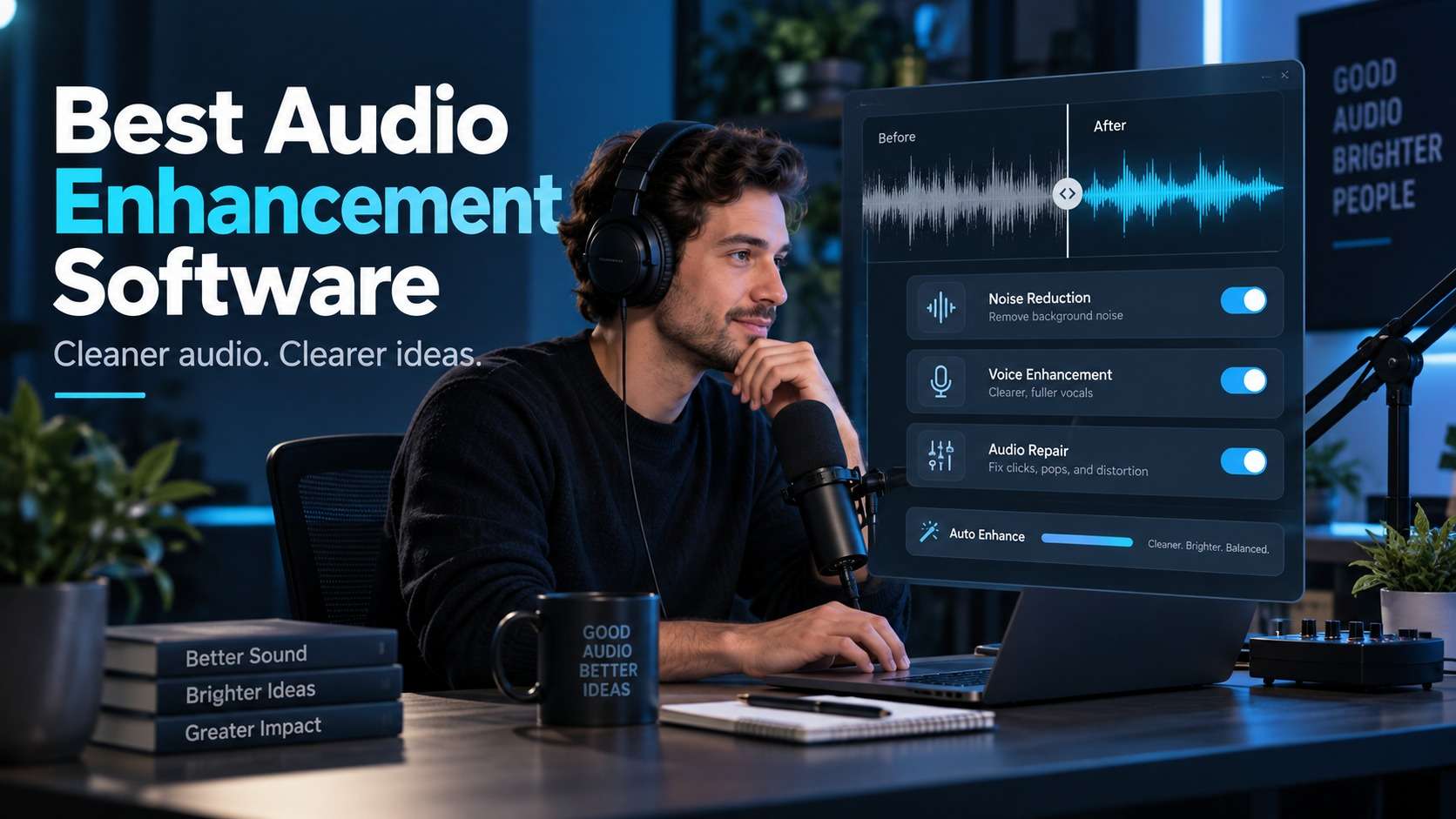
"Enhance my audio" can mean at least four different jobs: clean noise from a recorded interview, repair damaged production sound, level a podcast for publishing, or make everything playing through a Windows PC sound fuller. The best audio enhancement software depends on which of those jobs you mean. I separated the list by signal path instead of treating a system-wide equalizer, an AI speech cleaner, and forensic restoration software as interchangeable.
That distinction saves money. A browser tool can be ideal for a noisy voice memo but useless for real-time gaming audio. A professional spectral editor can rescue clicks and clipped dialogue but is excessive for laptop speakers. The reviews below focus on the actual audio problem, supported workflow, processing depth, learning curve, free access, and current pricing where it is clearly published.
In this article
First, Identify Which Audio Problem You Actually Have
Recorded-file enhancement and live playback enhancement happen in different places. Media.io, Descript, Auphonic, Adobe Audition, and iZotope RX process files that you can export. FxSound and SteelSeries Sonar sit closer to the Windows listening/streaming path, changing EQ, dynamics, routing, spatial sound, or microphone behavior while applications are running.
The best audio enhancer software for an interview should therefore be judged on speech intelligibility, noise/reverb reduction, format support, previewing, and artifact control. For a gaming setup, app routing and microphone noise cancellation matter more. For film post, spectral editing, dialogue isolation, de-clicking, de-hum, and repair modules justify a much steeper price.
Audio Enhancer Software Comparison
| Tool | Best for | Runs where? | Free option | Pricing/limit note |
|---|---|---|---|---|
| Media.io AI Audio Enhancer | Fast speech cleanup in audio or video | Browser, file processing | Try online; current allowance can vary | Uploads up to 1 hour; common audio/video formats |
| iZotope RX 12 | Professional restoration and post | Windows/macOS desktop + plugins | Free trial | Elements $99; Standard $399; Advanced $1,399 |
| Adobe Audition | Manual + spectral editing in Adobe workflow | Windows/macOS desktop | Trial via Adobe | Subscription-based Creative Cloud product |
| Descript Studio Sound | Podcast/video speech cleanup inside transcript editing | Desktop/web workflow | Free plan with limited AI use | Hobbyist from $16/mo annual billing; Creator $24/mo annual |
| Auphonic | Automatic podcast leveling and delivery | Cloud service | 2 hours/month | Free output includes an Auphonic jingle |
| FxSound | System-wide Windows EQ, volume and bass | Windows desktop | Free/open source | No subscription |
| SteelSeries Sonar | Gaming, streaming, app routing and mic cleanup | Windows desktop | Free | Windows 10 RS5+; works with any headset |
7 Audio Enhancement Tools, Reviewed by the Job They Solve
1. Media.io AI Audio Enhancer - best for quick online speech cleanup
The Media.io AI Audio Enhancer is the most direct choice when the file already exists and the problem is audible noise around speech. It is built primarily for voice clarity and offers cleanup for background noise, hiss, wind, reverb, and clicks. It accepts common audio formats including MP3, WAV, and M4A plus video formats such as MP4, MOV, WebM, and AVI, so you can fix dialogue without first extracting an audio track.
The workflow is deliberately simple: upload, choose the problem category, process, preview, and download. Media.io currently documents audio uploads up to one hour. That makes it useful for interviews, meetings, podcasts, tutorials, and creator videos where the recording is usable but distracting. It is less appropriate for surgical music restoration or a complex film mix because you do not get a spectral paintbrush, multitrack repair chain, or plugin environment.
For anyone searching for audio enhancer software but not wanting a desktop install, this is the baseline I would test first. The key quality check is to preview sibilants, breaths, room tone, and word endings after aggressive noise removal; a cleaner background is not an improvement if speech starts sounding watery or gated.
- Formats: MP3, WAV, M4A; MP4, MOV, WebM, AVI among current supported formats
- Length: Current online workflow supports audio uploads up to 1 hour
- Best use: Podcasts, interviews, voiceovers, meetings, tutorials, social video
2. iZotope RX 12 - best for difficult restoration and post-production
RX 12 is the opposite end of the spectrum from one-click cleanup. The Standard edition provides an intelligent restoration suite, while Advanced expands into a 50+ tool environment for post-production. RX is built for problems such as clipping, hum, sibilance, crackle, dialogue contamination, breaths, and other defects where the editor needs both automatic assistance and the ability to inspect sound in a spectrogram.
The current lineup is unusually clear on price: RX 12 Elements is $99, Standard is $399, and Advanced is $1,399. Standard supports Windows 10/11 and current macOS versions and can run standalone or as AU/AAX/VST3-style plugins in supported hosts. The cost is high if you just want to clean Zoom audio, but it becomes rational when one difficult production recording can save a reshoot.
If your definition of audio quality enhancer software includes repairing specific defects rather than merely making a voice brighter, RX is the specialist here. Repair Assistant can create a starting point, but the real value is being able to move from automated suggestions into targeted modules instead of accepting one opaque AI result.
- Current price: $99 Elements / $399 Standard / $1,399 Advanced
- Platforms: Windows 10/11 and current macOS; 64-bit
- Best use: Film/post, archival repair, clipped or contaminated dialogue, difficult music cleanup
3. Adobe Audition - best for editors who want manual control in Creative Cloud
Audition remains valuable when enhancement has to sit inside a conventional audio-editing workflow. Its spectral frequency display, noise-print reduction, DeNoise, DeReverb, click/pop removal, DeHummer, EQ, compression, and waveform/multitrack tools let an editor diagnose the recording instead of applying a single black-box model. That is especially useful when the "noise" changes over time or only affects certain passages.
I would pick Audition over a one-click AI cleaner when you need to combine repair with editing, fades, level automation, multitrack assembly, or round trips from Premiere. Adobe continues to update Audition in 2026, and RX 12 itself lists Adobe Audition 2026 as a supported host for its plugin suite, which shows how the two can complement each other rather than being strict substitutes.
For users looking for audio enhancer software for windows that also works as a full editor, Audition provides more control than Media.io, Descript, or Auphonic. The downside is subscription cost and a longer learning curve; if your only action is "remove room noise from a 10-minute voice recording," much of the application will sit unused.
4. Descript Studio Sound - best for spoken content edited from a transcript
Studio Sound is designed around a creator problem rather than an audio-engineering one: make a recorded voice sound cleaner while editing the podcast or video as text. It reduces background noise and echo and can regenerate speech characteristics to create a more controlled studio-like result. Because the effect lives inside Descript, the same project can handle transcript editing, filler-word removal, clips, captions, and video delivery.
The current Free plan includes one media hour per month, 100 AI credits, 720p watermark-free export, and limited AI-tool use. The annual-billing Hobbyist price is listed at $16 per person per month and Creator at $24, with larger media-hour and AI-credit allowances. Those details make Descript easier to budget than tools that expose only a vague "free trial."
Descript is not the windows audio enhancer I would use to improve Spotify, games, or system sound; Studio Sound processes project media. It is a strong choice for podcasters, talking-head creators, and remote interviews where speech is central and transcript-based editing is already valuable.
5. Auphonic - best for automatic podcast leveling and delivery consistency
Auphonic is less about repairing one spectacularly bad noise event and more about getting spoken programs to consistent, publishable loudness. Its automation includes adaptive leveling, AutoEQ, noise/reverb reduction, loudness normalization, and delivery-oriented processing. For recurring podcasts, that repeatability can be more valuable than a deep manual editor because every episode gets the same finishing logic.
The free tier processes two hours of audio per month and includes Auphonic's AI-based algorithms, but free productions contain an Auphonic jingle. Paid recurring or one-time credits remove that constraint and scale to larger monthly volumes. This makes the free plan useful for testing quality but less suitable for a public client deliverable unless the jingle is acceptable.
As sound enhancer software, Auphonic fits a narrow but important job: automatic spoken-word finishing. It is not a real-time equalizer and not a spectral restoration workstation. Choose it when publishing consistency, loudness, and hands-off processing matter more than manually sculpting every noise event.
6. FxSound - best free Windows enhancer for everyday playback
FxSound solves a completely different problem from the first five tools. It processes system-wide Windows playback to improve perceived volume, bass, tonal balance, spatial balance, and dynamics. Its equalizer, effects, presets, routing, and volume controls are useful when laptop speakers, budget headphones, or a particular headset sound thin or quiet across many applications.
The software is Windows-only, free, and open source. FxSound says it made the product free in 2022 and open source in 2023. There is no rendered-file cleanup step; you install it and tune how the computer sounds. That makes it a natural audio enhancer for pc if the complaint is "everything I listen to sounds weak," not "this recording has reverb that I need to remove before publishing."
The main caution is that an EQ cannot restore missing information. It can make playback more pleasant, improve bass balance, or compensate for hardware, but it does not repair clipped speech, remove a siren from an interview, or reconstruct damaged audio in the way RX or an AI cleaner can.
- Platform: Windows PC only
- Price: Free/open source
- Best use: Laptop speakers, headphones, music listening, general PC playback
7. SteelSeries Sonar - best for gaming, streaming, routing, and microphone control
Sonar is another live Windows tool, but its center of gravity is gaming and streaming. It provides app routing so game audio, Spotify, Discord, and other sources can sit on separate streams with their own effects and levels. It also adds AI noise cancellation for microphone communication and spatial audio for game playback. SteelSeries states that Sonar works with any headset and runs on Windows 10 RS5 or later.
That makes it a more workflow-oriented pc audio enhancer than a simple EQ. A streamer can manage game, chat, music, and mic paths without forcing one sound profile across everything. The cost is attractive because Sonar is free, although its gaming-centric interface and features are unnecessary for users who only need to clean exported speech recordings.
If your search is really for the best audio enhancer for windows 11 to improve games and calls in real time, Sonar and FxSound belong near the top of the test list. If you are editing a podcast file, they are the wrong category entirely.
Speech Cleanup vs Professional Restoration: Do Not Pay for the Wrong Depth
For clean speech with a steady noise bed, one-click tools often win on time. Uploading a 20-minute interview to Media.io or applying Studio Sound in Descript can be faster than building a manual chain. The trade-off is transparency: you get fewer controls over exactly what the model removes. Always preview words with strong S, T, and F sounds, breath transitions, and quiet room tone because those are common places where overprocessing becomes audible.
Professional restoration earns its price when the defect is localized or changes during the recording. A cable click at 03:14, a siren under one sentence, clipping on only the loudest syllables, or a hum with harmonics is better served by a spectral or module-based editor. That is where RX 12 and Audition separate themselves from lightweight audio enhancer app for pc options.
For long-form recurring content, Auphonic adds a third category: standardization. It can be more valuable to make 40 episodes consistently leveled and normalized than to perform perfect manual repair on one. Decide whether your bottleneck is defect removal, editing time, or delivery consistency.
Windows Audio Enhancement: File Export or Live System Sound?
A Windows user searching "enhance audio" may never intend to export anything. If the goal is to make speakers louder, headphones fuller, game footsteps clearer, or Discord cleaner, use a system-level tool. FxSound is the simpler option for global EQ, effects, volume, and tonal shaping. Sonar is better when you need separate game/chat/media routing, microphone processing, and gaming-specific spatial controls.
That is why audio enhancer software for windows should be split into two buying paths. Use Media.io, Audition, RX, Descript, or Auphonic when the output is a new media file. Use FxSound or Sonar when the output is what you hear in real time. Mixing these categories leads to misleading "top 10" lists where a free equalizer appears to compete with $1,399 restoration software even though they solve different problems.
If you need both, there is no problem using two tools. A creator might record with Sonar microphone cleanup, edit the final dialogue in Descript, and run a difficult clip through RX only when needed. The smallest tool chain that solves the real defects is usually better than forcing every stage into one application.
Free Plans, Pricing, and Processing Limits That Matter
Price should be considered against frequency and correction value. FxSound and Sonar are free for live Windows audio. Auphonic gives two processing hours per month but adds a jingle to free productions. Descript's free plan provides one media hour and limited AI use. Media.io can be tried online with usage shown in the live workflow. iZotope RX 12 ranges from $99 to $1,399 depending on edition, while Audition is subscription software.
For audio enhancer software for windows, also account for hardware and workflow cost. A free app that runs continuously is valuable if it solves playback; a $399 repair suite is cheap if it saves a paid interview or film take; a browser tool is efficient when installing software on a work PC is impossible. "Best value" changes with the consequence of bad audio.
Cloud tools also have upload and privacy considerations. Media.io states that uploaded audio files in its enhancement workflow are deleted within an hour. For confidential material, verify the current service policy and organizational requirements. Local desktop restoration can be preferable when files must remain on-device.
A Practical Audio Enhancer Selection Workflow
- Listen before processing. Identify whether the problem is steady noise, room reverb, clipping, hum, clicks, inconsistent loudness, or simply poor playback EQ.
- Choose the correct signal path. Exported media needs file processing; games and system audio need a live Windows layer.
- Use the lightest tool that can solve it. Try Media.io or Descript for straightforward speech before opening a forensic restoration suite.
- Run one short test segment. Pick a passage with quiet speech, consonants, breaths, and the worst noise. Compare before/after on headphones.
- Watch for artifacts. Metallic speech, pumping room tone, missing transients, or smeared consonants mean the process is too aggressive.
- Only then process the full file. This avoids spending credits or waiting on a one-hour file when the chosen setting is wrong.
This process is more reliable than choosing audio quality enhancer software based on marketing words such as "studio" or "HD." Enhancement is problem-specific, and a tool that excels at reverb may be weaker at clipping or system EQ.
Final Recommendations by Audio Problem
FAQ About Audio Enhancement Software
-
What is the best audio enhancement software for noisy speech?
For straightforward voice cleanup, start with an online speech-focused tool such as Media.io or Descript Studio Sound. For clipping, hum, crackle, or difficult localized defects, iZotope RX 12 or Adobe Audition provides deeper repair control. -
What is the difference between audio enhancement and audio restoration?
Enhancement is a broad goal that can include EQ, loudness, noise reduction, and clarity. Restoration focuses on repairing defects such as clipping, clicks, hum, crackle, reverb, or contaminated dialogue while minimizing damage to the wanted signal. -
Is there a free Windows audio enhancer?
Yes. FxSound is free and open source for system-wide Windows EQ, volume, bass, effects, and presets. SteelSeries Sonar is also free and adds gaming/streaming routing, microphone noise cancellation, and spatial audio. -
Can Media.io enhance audio inside a video file?
Yes. The current Media.io workflow accepts common video formats including MP4, MOV, WebM, and AVI so you can clean the audio track without extracting it first. -
Does audio enhancement always improve a bad recording?
No. Severe clipping, extremely low bitrate, overlapping voices, or noise that masks the same frequencies as speech may leave artifacts or missing information. Preview a difficult segment before processing the whole file. -
Should I enhance audio before or after editing?
Do enough cleanup early to make editing comfortable, but keep destructive or aggressive restoration conservative until you know which takes will be used. Final loudness and delivery processing usually belongs near the end of the workflow.


