Remove Visible Veo Watermarks Frame by Frame
Erase the visible watermark that appears on Veo 3, Veo 3.1, and Google Flow video exports. The AI tracks the mark across moving frames instead of covering it with a static patch.
Clean visible watermarks from Veo, Gemini, and Google Flow videos without cropping or covering the frame. Upload your clip to Media.io’s Veo Watermark Remover, mark the unwanted overlay, and let AI restore the covered area across frames while preserving the original motion and scene as naturally as possible.
Free credits on signup.
For videos you own or are authorized to edit. This tool cleans visible overlays; it does not remove invisible provenance such as SynthID.







Erase the visible watermark that appears on Veo 3, Veo 3.1, and Google Flow video exports. The AI tracks the mark across moving frames instead of covering it with a static patch.
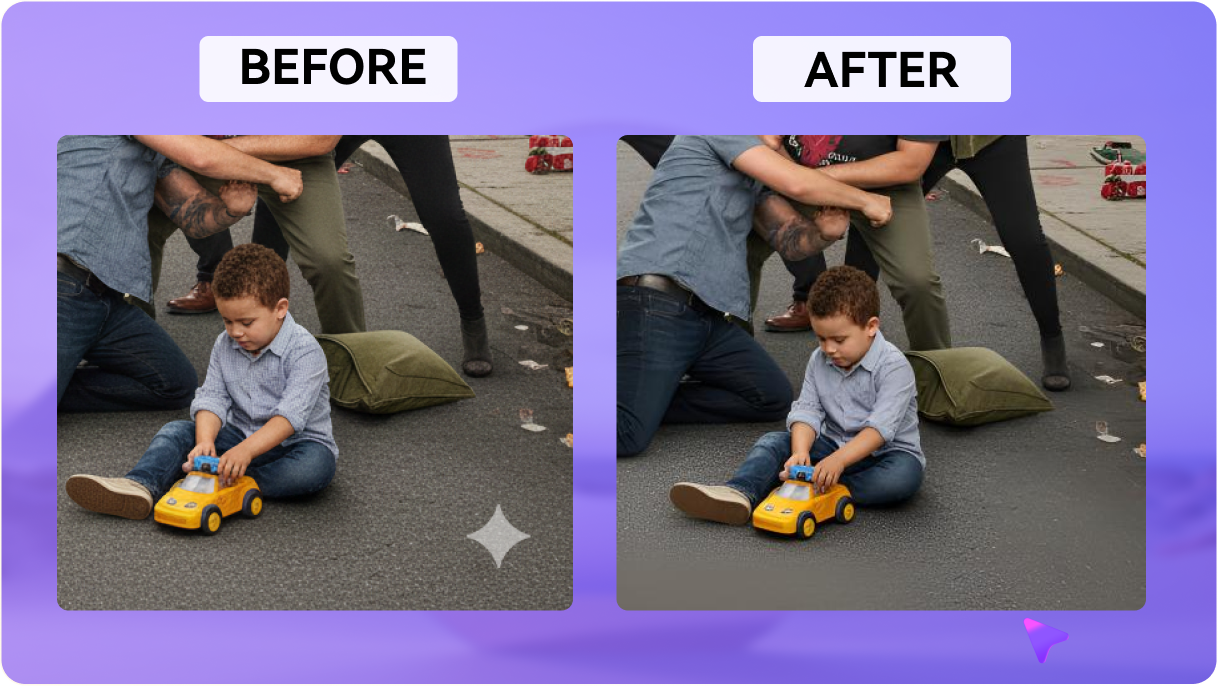
Media.io reconstructs the covered region with surrounding texture, lighting, and motion, so your Veo video stays clean and consistent — without cropping the frame or pasting a visible blur box over the mark.
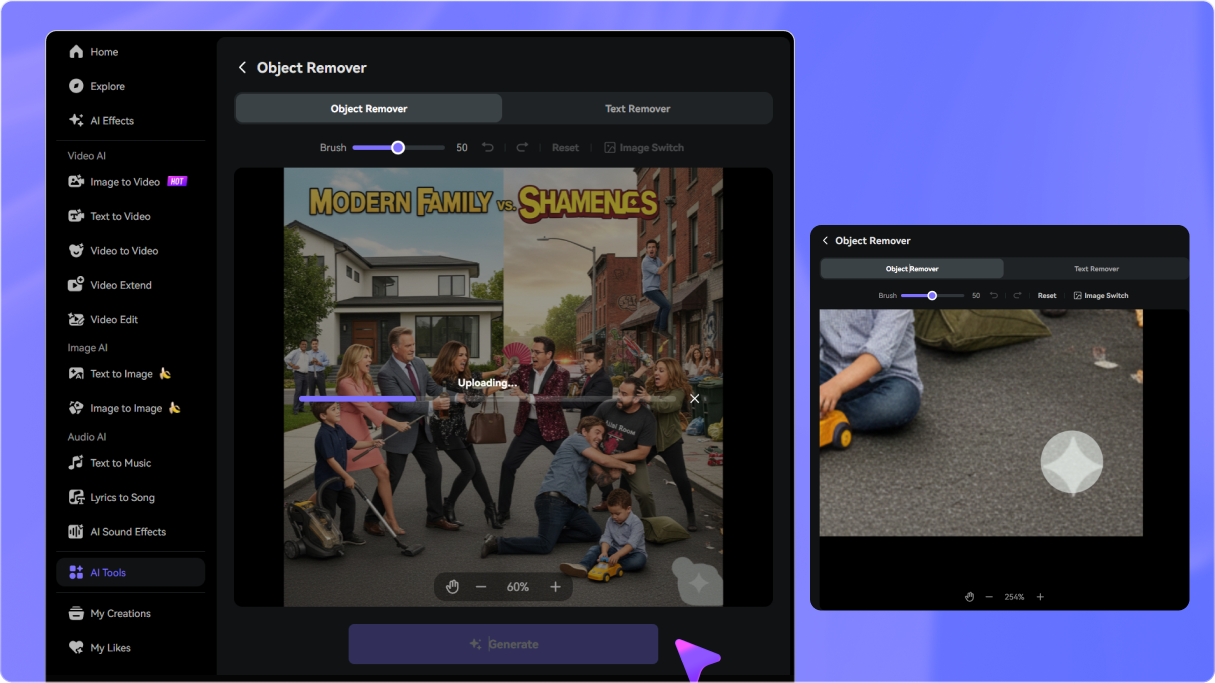
Beyond the Veo watermark, brush over small text, captions, logos, stickers, and unwanted overlays in the same clip. Zoom in for tighter edges, then generate a clean version in one pass.
No desktop editor needed. Clean your Veo clips directly in a browser and download the result. New users can start with free credits after signup or login before upgrading.
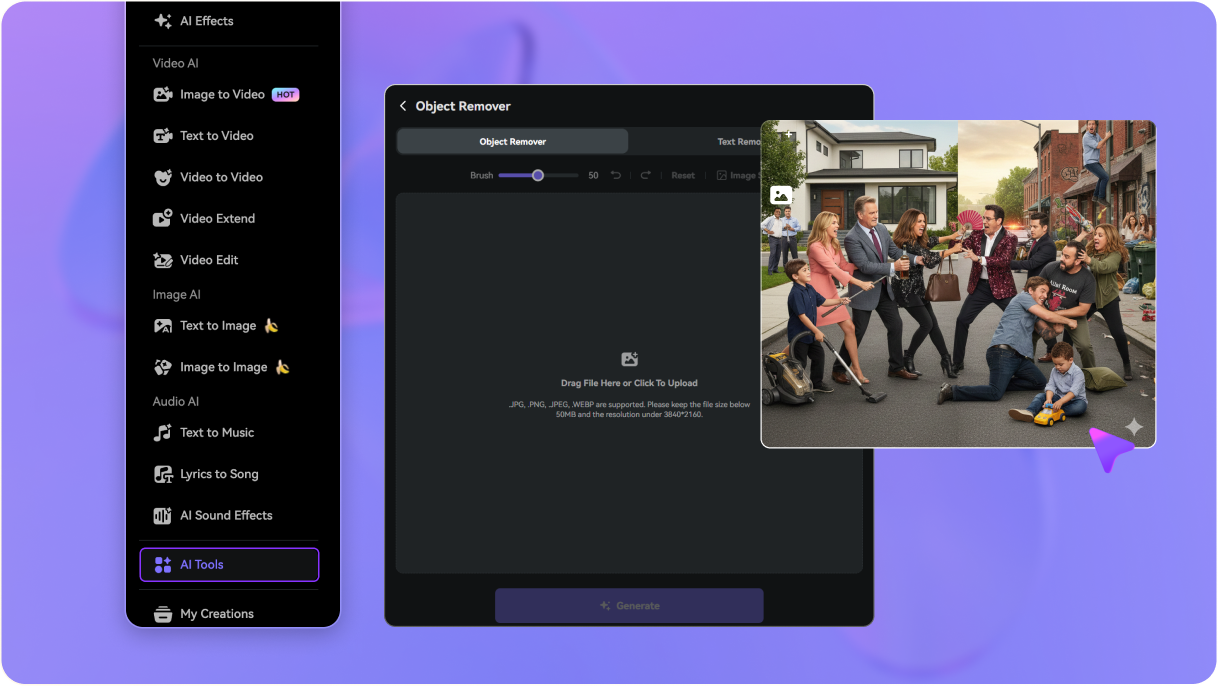
Go to media.io/ai/ai-tools. Under the Video category, find and open Video Eraser to start removing the visible mark from your Veo or Flow clip.
Upload the MP4 or MOV video generated by Veo 3, Veo 3.1, or Google Flow, then brush over the visible watermark. Adjust the timeline so the selection covers the mark as it moves across frames.
Click Generate to let the AI restore the covered area frame by frame. Preview the result, refine the brush or regenerate if needed, then download your watermark-free video.

Short-Form Video Creator

“Finally, a Veo watermark remover that handles motion.” The visible Veo 3 watermark was sitting right on a moving subject in my clip. Media.io tracked it across frames and restored the area — no blur box, no crop. My Flow export finally looks clean enough to post.

Freelance Video Editor
“Saves me from frame-by-frame retouching.” I used to manually patch each frame to clean a Google Flow watermark. This tool does the tracking and fill in one pass. The surrounding motion stayed consistent and the edges blended naturally.

Digital Marketer
“Clean clips without cropping the frame.” Needed to remove the Veo watermark for a client mockup without losing the composition. Brush, generate, download — the result kept the original framing and looked far better than a blurred logo patch.

Independent Filmmaker
“Easy to test with free credits.” Best Veo video watermark remover I've tried. It handled the moving mark in my Veo 3.1 clip without obvious smudging. The free credits let me verify the result before committing to a plan.


 4.7 (162,357 Votes)






