

Clean a Visible CapCut Logo Without Cropping
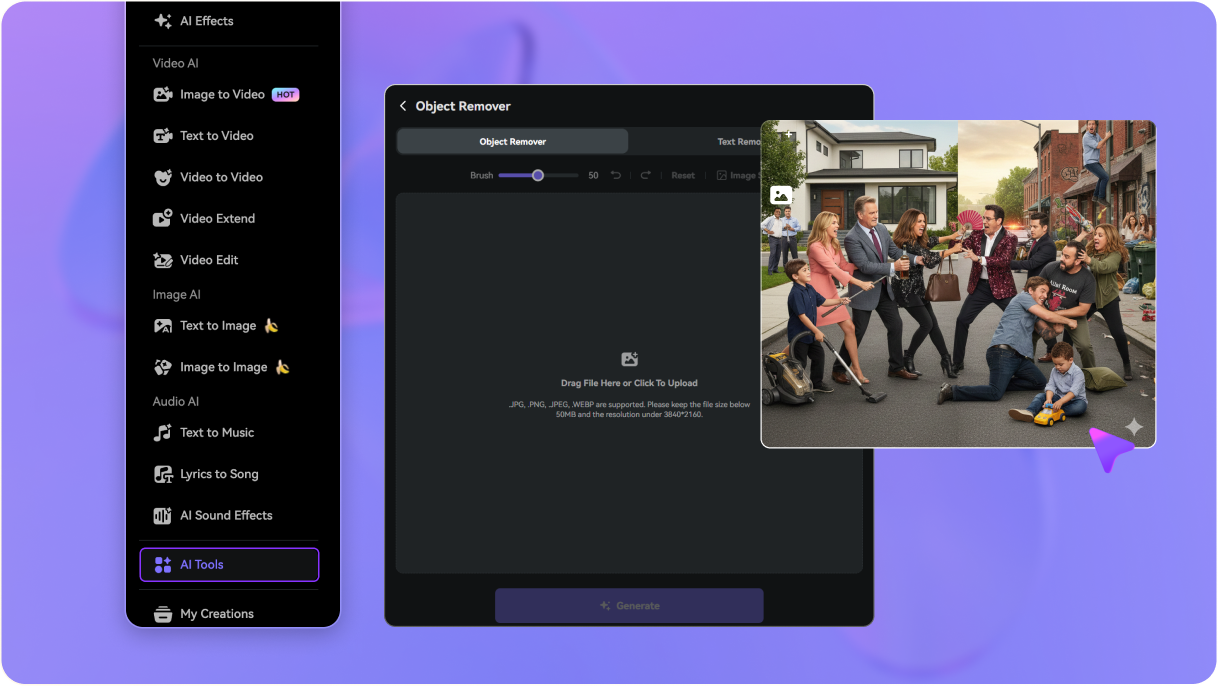
Upload an authorized exported clip and brush over a visible CapCut logo or embedded mark. The video eraser is designed to restore the selected area rather than force you to cut away the original frame.
Already exported a CapCut video with a visible logo, ending mark, template label, or embedded overlay? Upload the clip to Media.io's CapCut Watermark Remover, choose a removal mode, brush over the visible mark, and let AI reconstruct the selected area across frames. Keep the original framing where possible instead of reopening or rebuilding the CapCut project.
Free credits on signup.
For videos you own or are authorized to edit. This tool cleans visible overlays in the uploaded video and does not alter project settings or invisible provenance data.







Upload an authorized exported clip and brush over a visible CapCut logo or embedded mark. The video eraser is designed to restore the selected area rather than force you to cut away the original frame.
Clean a visible CapCut ending watermark, outro screen, or template label when it appears in the supplied video. You can target a short end section without reopening the original project.
The same workflow can target other visible overlays in a CapCut export, including captions, stickers, timestamps, labels, and small logos. Use a tight selection for cleaner edges around detailed backgrounds. For still images, Media.io AI Object Remover can also help you erase unwanted objects in pictures, such as stickers, logos, and distracting elements.
Generate the cleanup, inspect the logo area and surrounding motion, then refine the brush or timeline and regenerate if needed. Results can vary with movement, blur, occlusion, and background detail.
Go to media.io/ai/ai-tools. Under the Video category, find and open Video Eraser to start removing the visible mark from your exported CapCut clip.
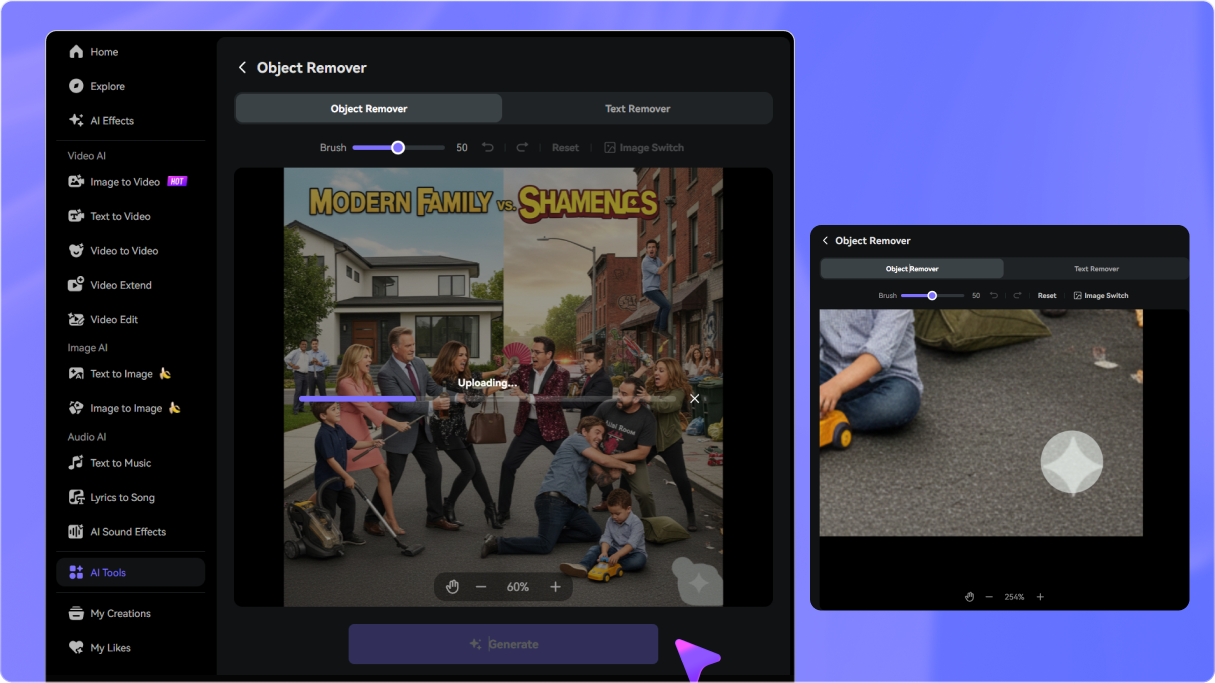
Choose a removal mode, then brush over the visible CapCut logo, ending mark, or template overlay. Set the timeline to cover every frame where the mark appears, especially when cleaning a moving in-frame logo.
Click Generate, review the reconstructed area and the surrounding motion, and refine the brush or timeline if necessary. Download the cleaned video when the result fits your intended use.


Short-Form Video Creator

“A practical way to clean a finished CapCut export.” I had an authorized CapCut export with a small logo crossing a moving background. Media.io let me brush the visible mark, cover its timeline, and preview the reconstructed area without cutting down the frame.

Freelance Video Editor
“I did not need to rebuild the original edit.” The original CapCut project was no longer available, so I uploaded the exported video instead. The brush and timeline workflow gave me a focused way to clean a visible template label and check the result before downloading.

Digital Marketer
“The original composition stayed intact.” I needed to remove a CapCut logo from an exported video for a brand-owned mockup. Keeping the full frame was important, so I previewed the generated area and adjusted the selection before delivery.

Independent Filmmaker
“Previewing helped me choose the right cleanup.” I tested a CapCut template watermark remover workflow on an authorized clip. Tight brush placement and timeline coverage mattered most, and previewing let me refine the result before I downloaded it.


 4.7 (162,357 Votes)






