







Home>AI Tools>Seedance Watermark Remover

Clean Seedance AI Video Watermarks and Overlays

Already exported a Seedance video with a visible corner mark, AI-generated badge, or platform overlay? Upload the clip to Media.io's Seedance Watermark Remover, choose a removal mode, brush over the visible mark, and let AI reconstruct the selected area across frames. Keep the exact generated video instead of regenerating it.

Remove Seedance Watermark Free

Free credits on signup.

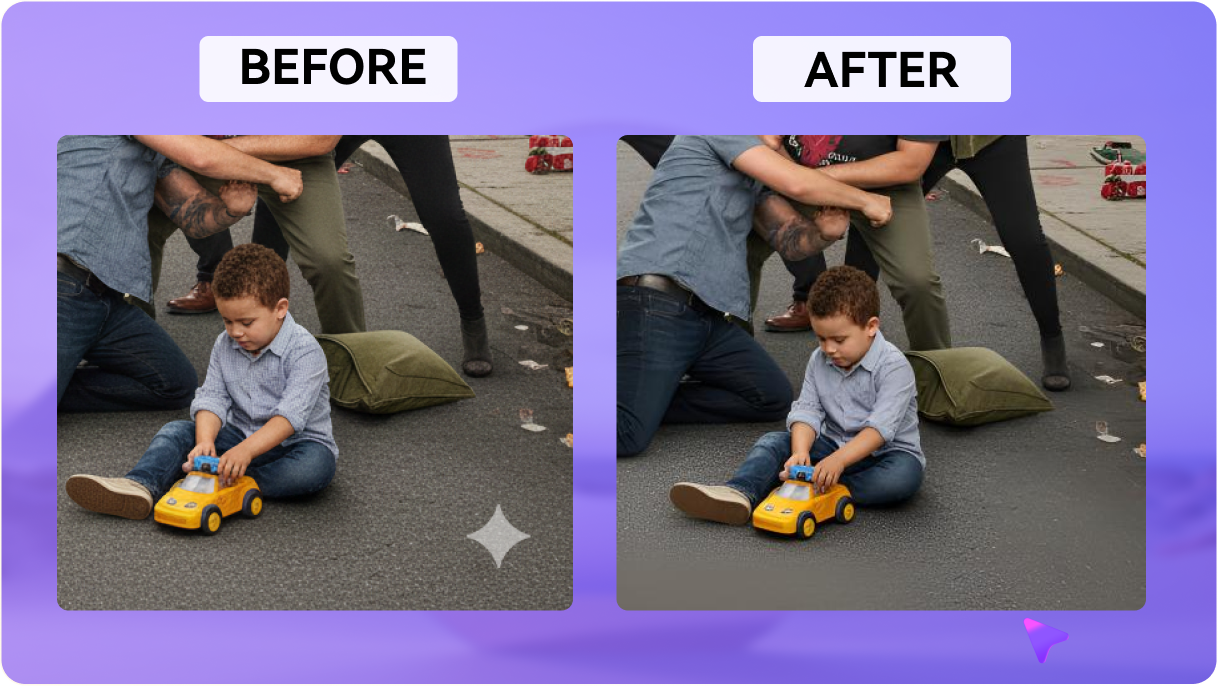
Before
After

For videos you own or are authorized to edit. This tool cleans visible overlays in the uploaded video and does not alter project settings or invisible provenance data.

Key Features of Media.io's Seedance Video Watermark Remover

Remove Visible Seedance Marks Without Cropping

Upload an authorized exported clip and brush over a visible Seedance corner mark, AI-generated badge, or platform overlay. The video eraser is designed to restore the selected area rather than force you to cut away the original frame.
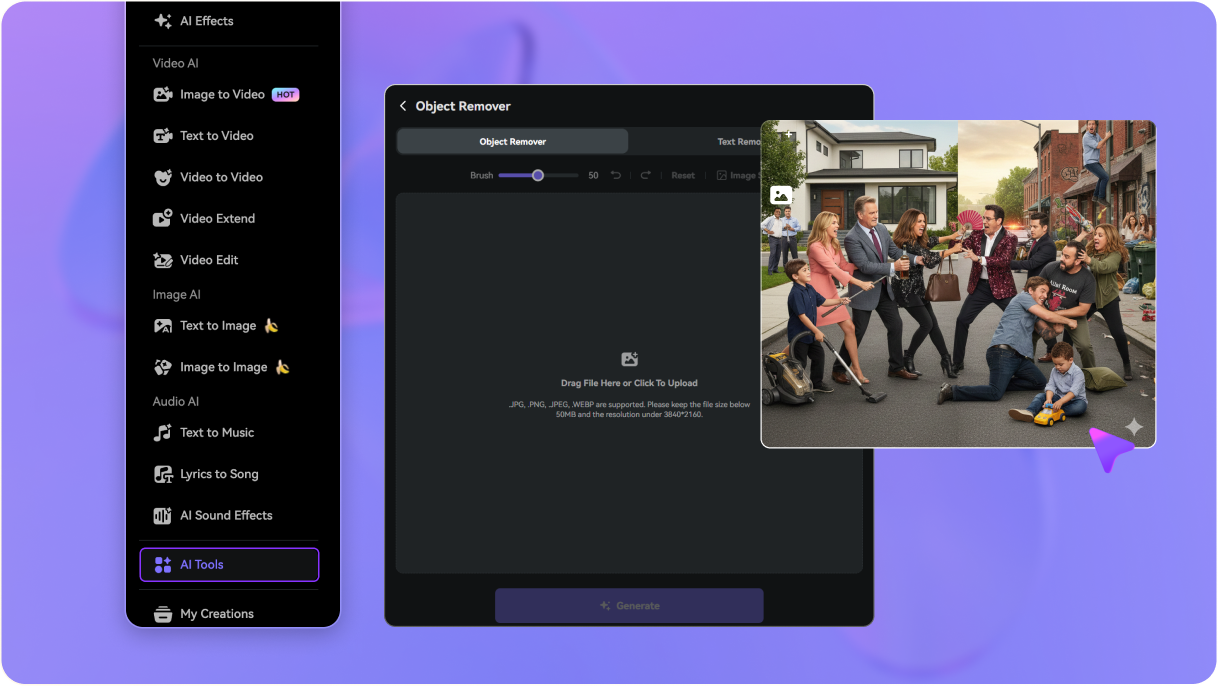
Cover Badges, Corner Labels, and Overlays

Clean a visible AI-generated badge, corner label, or third-party platform overlay when it appears in the uploaded Seedance clip. Not every Seedance export contains the same mark; this targets visible pixels only.

Restore the Area Across Frames

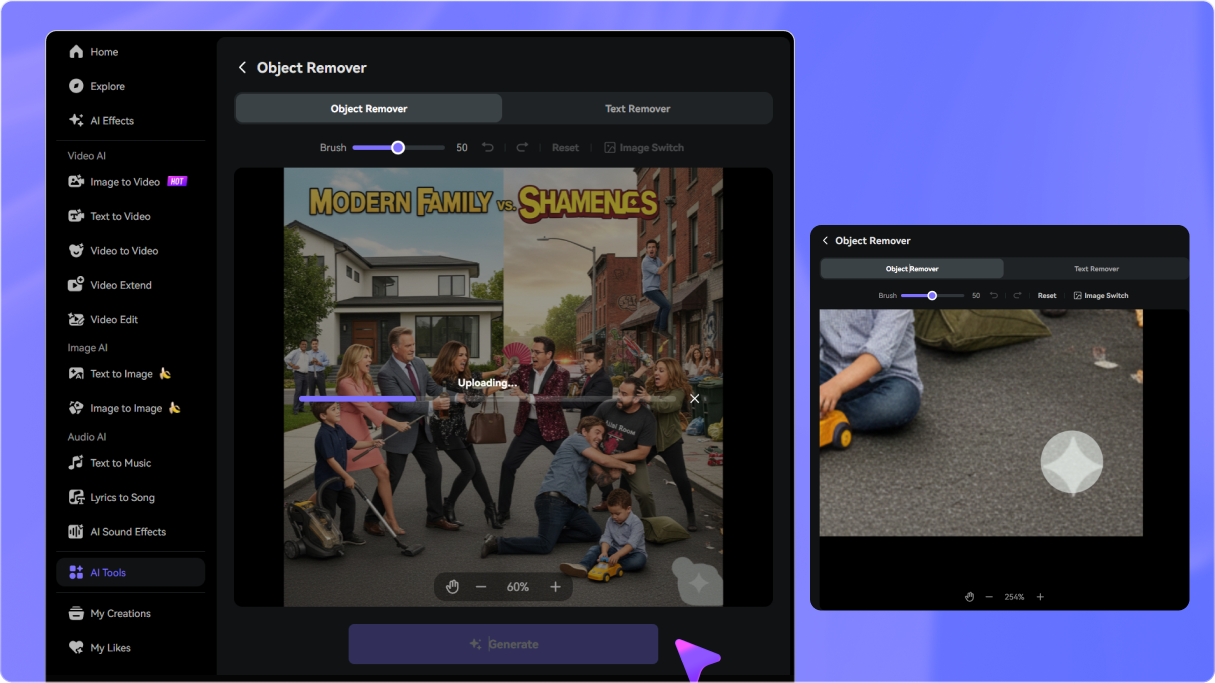
For a mark that stays fixed or shifts slightly across frames, set the timeline to cover its full appearance. The AI reconstructs the covered region frame by frame instead of pasting a static blur box over the mark.

Preview Before You Download

Generate the cleanup, inspect the mark area and surrounding motion, then refine the brush or timeline and regenerate if needed. Results can vary with movement, blur, occlusion, and background detail.

How to Remove a Seedance Watermark from an Exported Video in 3 Steps

1
2
3
1
Step 1: Open Video Eraser and Upload Your Seedance Clip

Go to media.io/ai/ai-tools. Under the Video category, find and open Video Eraser to start removing the visible mark from your exported Seedance clip.

2
Step 2: Choose a Mode, Brush the Mark, and Set the Timeline

Choose a removal mode, then brush over the visible Seedance mark, badge, or overlay. Set the timeline to cover every frame where the mark appears, especially when cleaning a fixed corner badge.

3
Step 3: Generate, Preview, Refine, and Download

Click Generate, review the reconstructed area and the surrounding motion, and refine the brush or timeline if necessary. Download the cleaned video when the result fits your intended use.

Step 1 — Open Media.io Video Eraser to remove a Seedance watermark
Step 2 — Upload the exported Seedance video and brush over the visible watermark
Step 3 — Generate and download the cleaned Seedance video

Trusted by Creators for Cleaning Exported Seedance Videos

user
@MotionCreator_K

Short-Form Video Creator

star star star star star

“A practical way to clean a finished Seedance export.” I had an authorized Seedance 2.5 export with a small corner badge over a moving background. Media.io let me brush the visible mark, cover its timeline, and preview the reconstructed area without cutting down the frame.

user
@StudioMara

Freelance Video Editor

star star star star star

“I did not need to regenerate the clip.” The original clean export wasn’t available, so I uploaded the exported Seedance video instead. The brush and timeline workflow gave me a focused way to clean a visible platform overlay and check the result before downloading.

user
@AdCreator_Dev

Digital Marketer

star star star star star

“The original composition stayed intact.” I needed to remove a Seedance watermark from an exported video for a brand-owned mockup. Keeping the full frame was important, so I previewed the generated area and adjusted the selection before delivery.

user
@IndieFilmer_J

Independent Filmmaker

star star star star star

“Previewing helped me choose the right cleanup.” I tested a Seedance 2.5 watermark remover workflow on an authorized clip. Tight brush placement and timeline coverage mattered most, and previewing let me refine the result before I downloaded it.

bg bg

FAQs About Seedance Watermark Remover

A Seedance watermark can refer to a visible corner mark, AI-generated badge, platform label, or third-party overlay that appears on an exported Seedance video. Not every Seedance export necessarily contains the same kind of mark; some access points can already provide watermark-free downloads, while third-party wrappers or preview and export paths may add visible marks. This page is for cleaning visible pixels in a video you are authorized to edit.
Go to Media.ioAI ToolsVideo Eraser. Upload the exported Seedance video, choose a removal mode, brush over the visible mark or overlay, set the timeline, click Generate, preview the result, and download the cleaned clip.
Yes. The tool works on the exported video file itself, so the same brush-and-restore workflow applies whether the clip was generated by Seedance 2.5, Seedance 2.0, Seedance 2.0 Mini, or older Seedance 1.5 Pro, 1.0 Pro, or 1.0 Lite generations. It cleans visible marks when they appear in the uploaded video.
Media.io is designed to reconstruct the selected visible area instead of requiring a crop, but results vary with motion, blur, occlusion, camera movement, and background detail. Brush tightly, preview the result, and regenerate if the first pass needs refinement.
The workflow supports MP4 and MOV uploads up to 15 minutes. For the most predictable cleanup, use a clear exported clip and select only the visible area that needs removal.
Only edit a Seedance video you own or are authorized to modify, and follow any applicable platform, client, copyright, and privacy terms. Media.io edits the uploaded visible overlay; it does not change Seedance export settings or grant rights to someone else's content.
Media.io Online Tools Quality Rating:
vote 4.7 (162,357 Votes)
media.io

AI Video Generator star

Easily generate videos from text or images

Generate