25+ Gemini AI Remove Object Prompts to Clean Up Photos Fast
Refine your shot with Gemini AI remove object prompts so the distraction disappears but you still look like you. Keep the same face and outfit, protect lighting and background details, and dial the cleanup subtle to strong depending on how obvious the object is. You'll get 25 prompts that tell the model exactly what to remove, what to rebuild, and what not to touch. Upload your photo, paste one line, generate, and pick the cleanest result without weird smears.
Go to Media.io and open the AI photo generator/editor for image-to-image edits. Choose a photo where the unwanted object is clearly visible, and aim for a high-resolution upload so the rebuilt area keeps realistic texture and edges.
2
Upload and paste a prompt
Upload your photo, then paste one prompt card as-is and adjust the object description if needed. For tricky scenes, use the wording from Gemini AI object removal prompt for photos to specify what to remove and what must stay identical.
3
Generate, review, download
Generate a few variations, then inspect the removed area at 100% zoom for repeating patterns, softened edges, or lighting mismatches. Pick the most natural-looking result, regenerate with a stronger or gentler instruction, and download the final image.
Best Gemini AI Remove Object Prompts Ideas & Examples
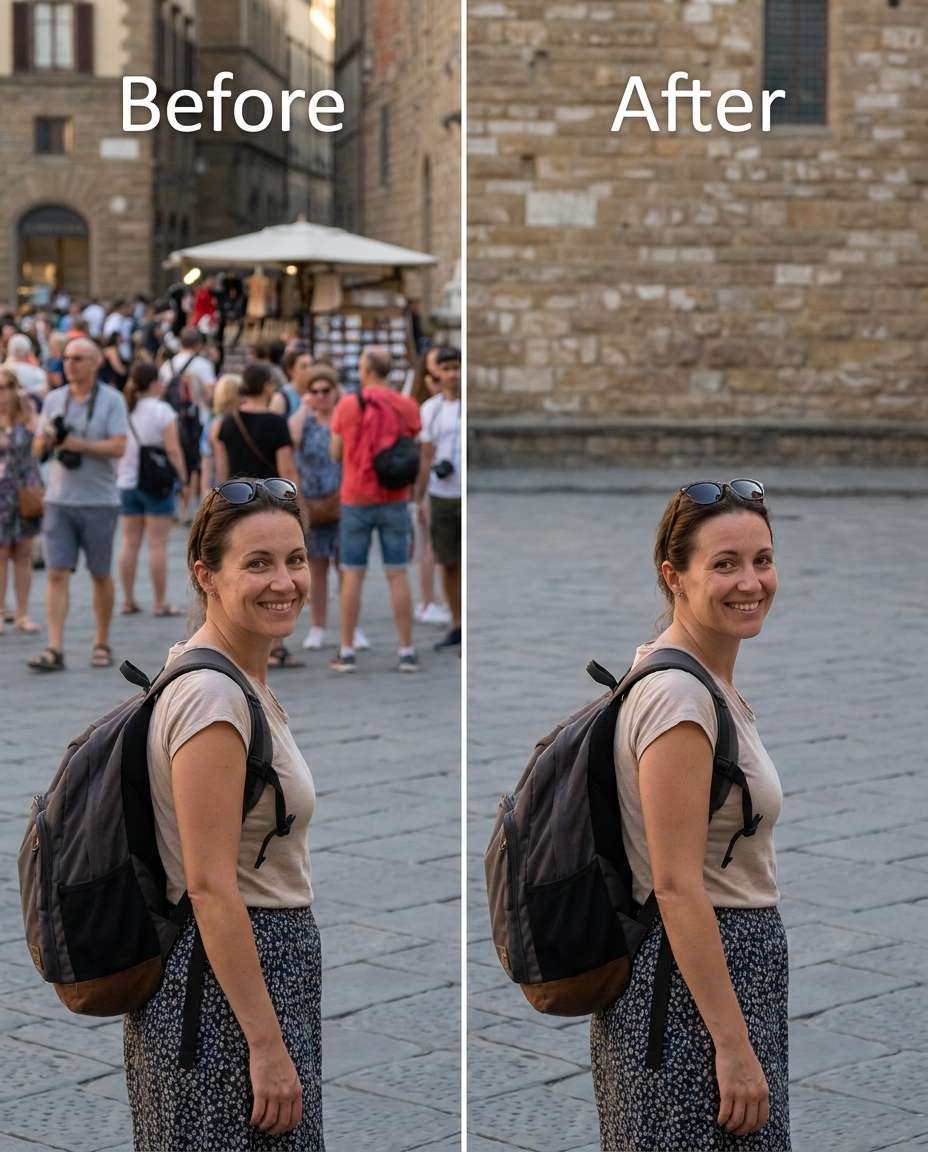
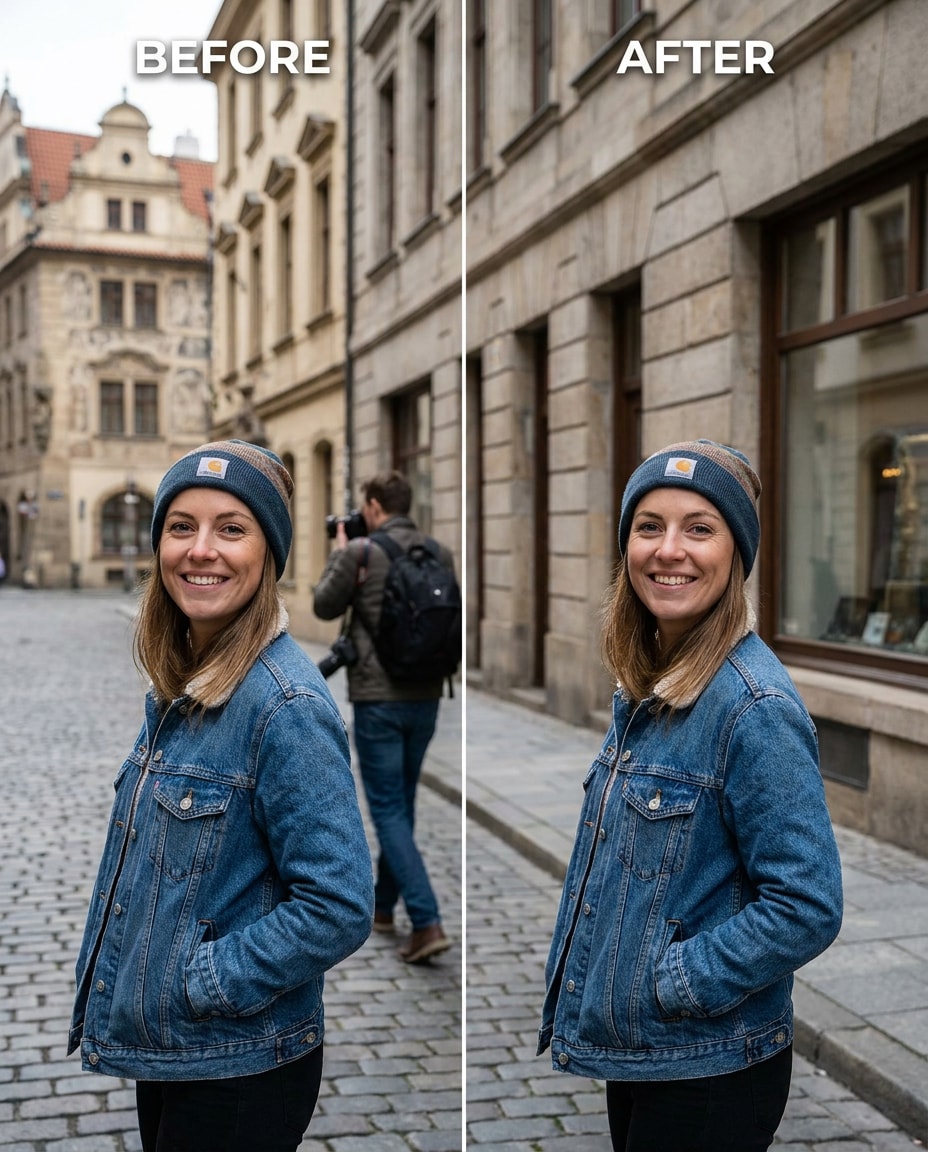
Tourist in Background
Slim the distraction by removing the random tourist behind me, keeping the same face and pose, the same hairstyle, and the same outfit details, preserving original lighting and background architecture so the scene looks naturally empty --ar 4:5
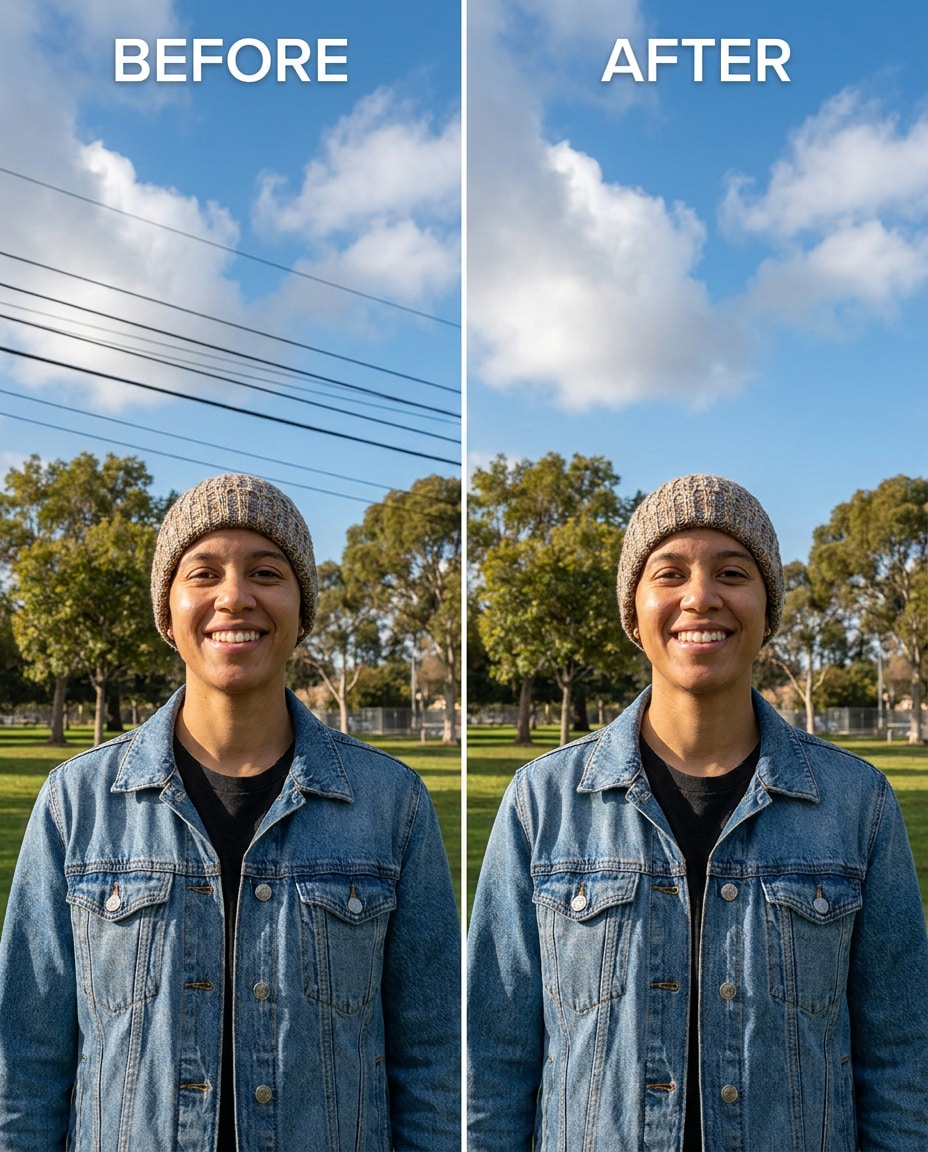
Power Lines Cleanup
Refine the sky by removing visible power lines above and behind me, keeping the same face and skin tone and the same outfit details, preserving original lighting and cloud texture so the skyline stays believable --ar 4:5
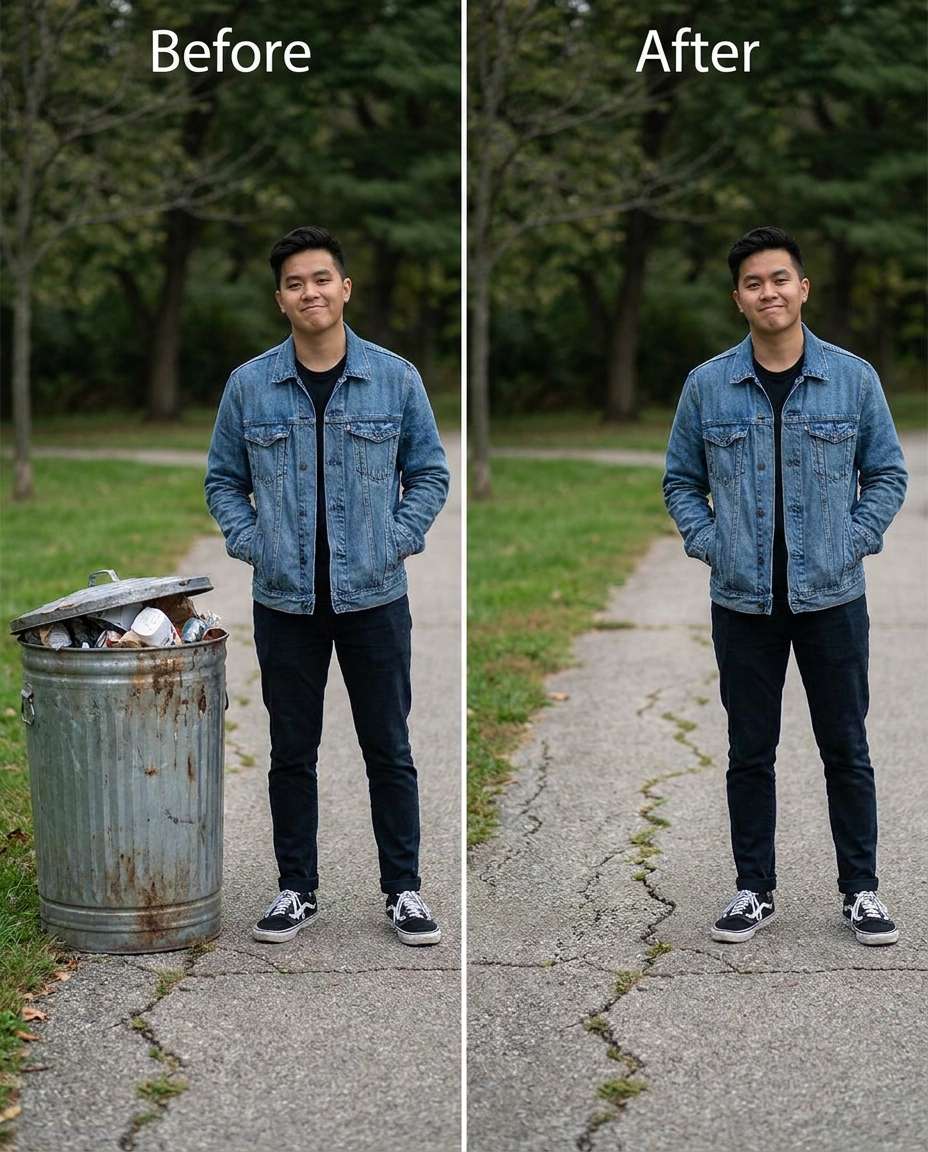
Trash Can Removal
Sculpt a cleaner scene by removing the trash can near my legs, keeping the same face and pose and the same outfit seams, preserving ground texture and shadow direction so the sidewalk still looks real --ar 4:5
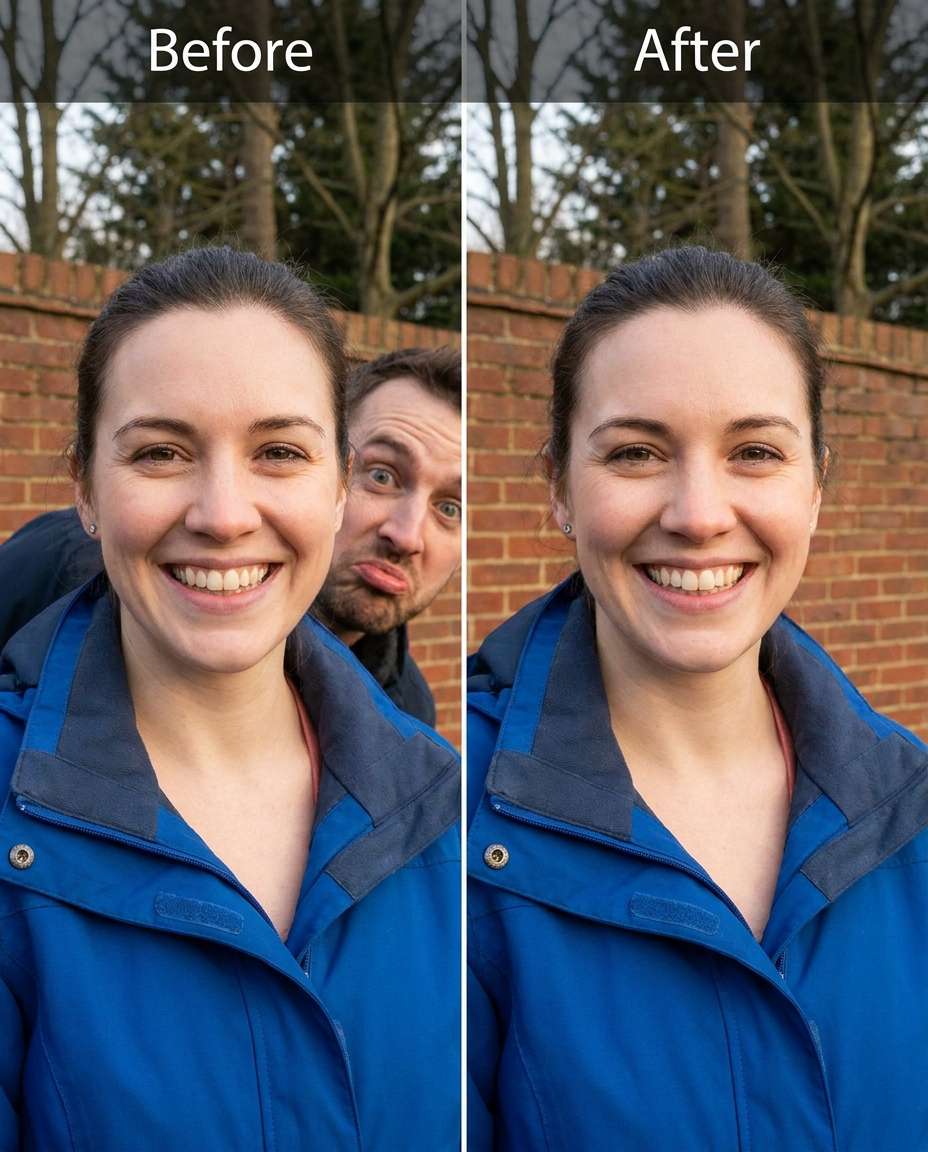
Photobomber Delete
Smooth the background by removing the photobomber standing close behind me, keeping the same face and expression and the same hairstyle, preserving background depth and lighting so there's no blur smear where the person was --ar 4:5
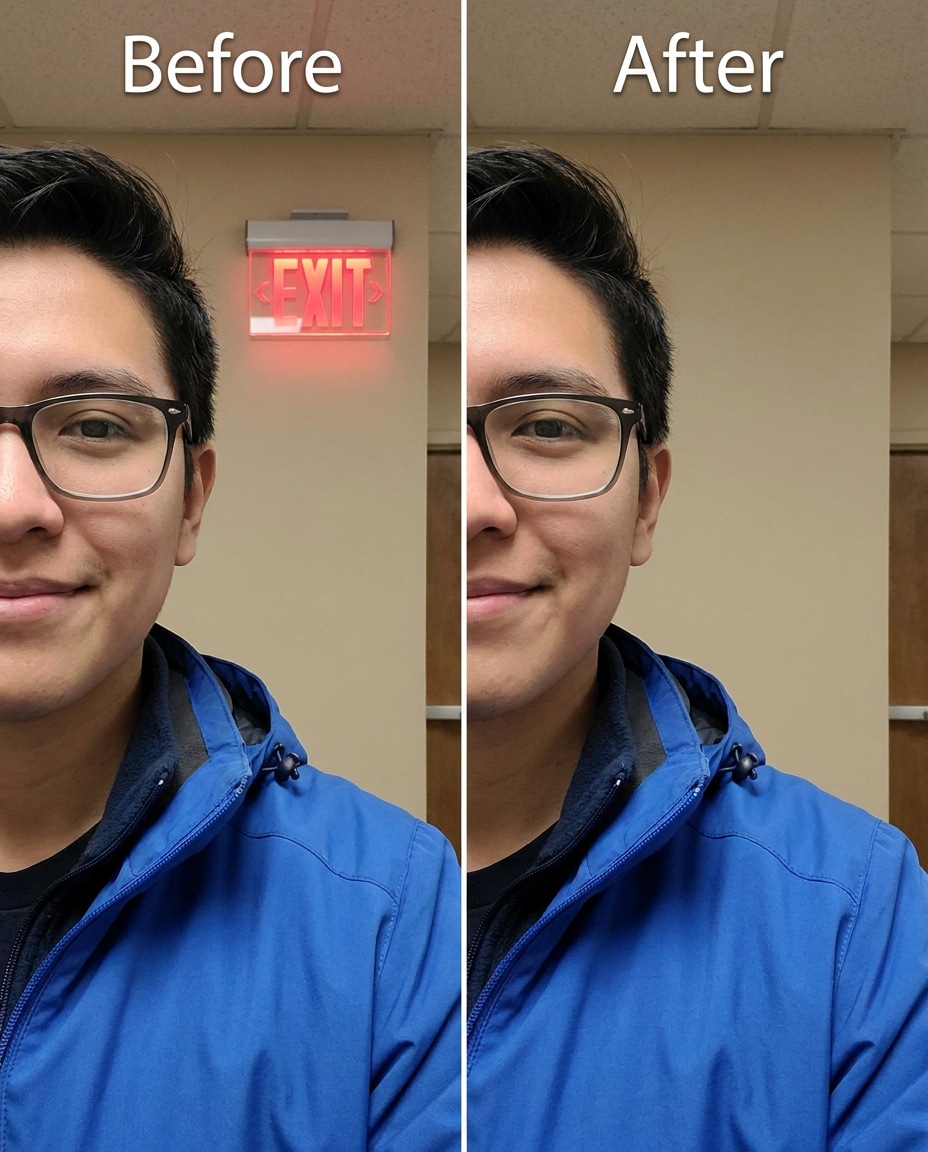
Exit Sign Gone
Cinch the composition by removing the bright exit sign in the background, keeping the same face and skin tone and the same outfit details, preserving wall texture and original lighting so the room still feels authentic --ar 4:5
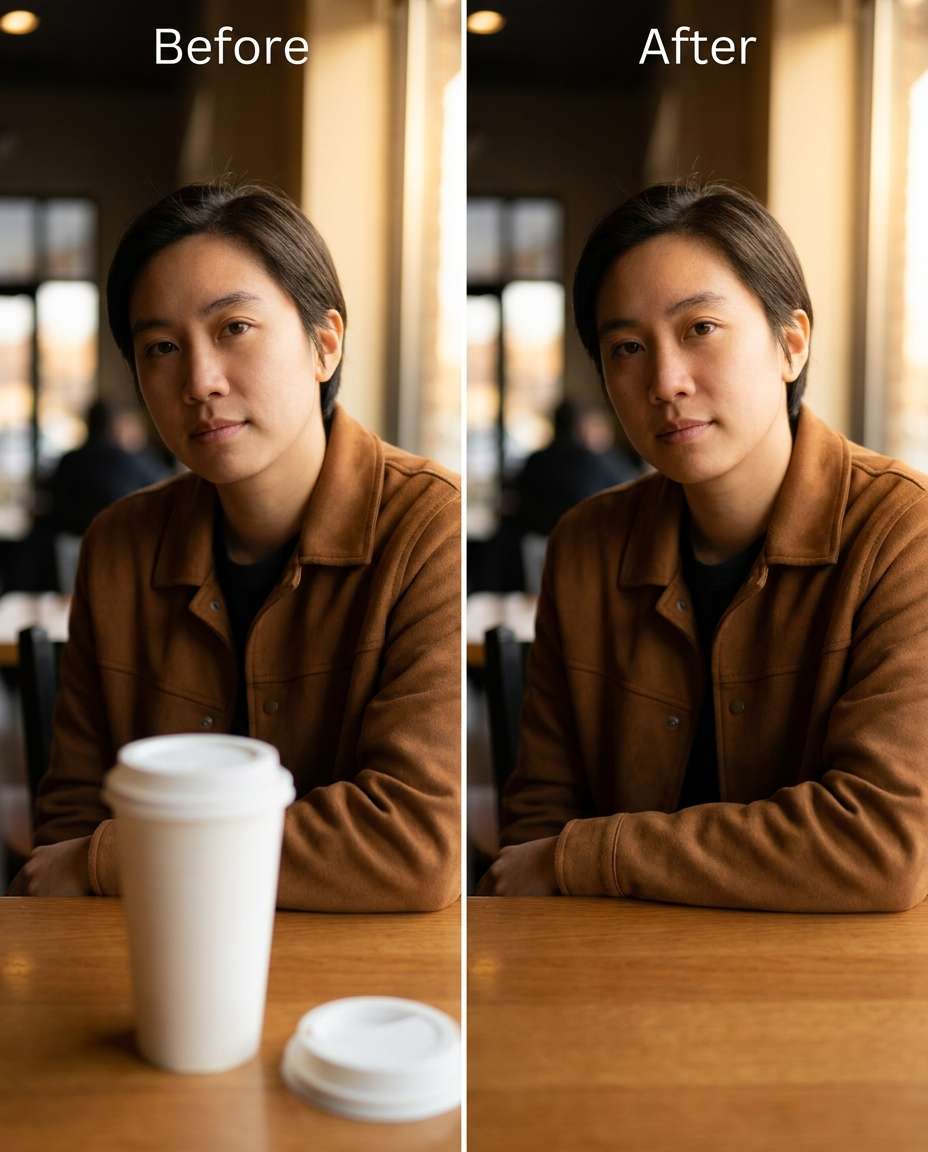
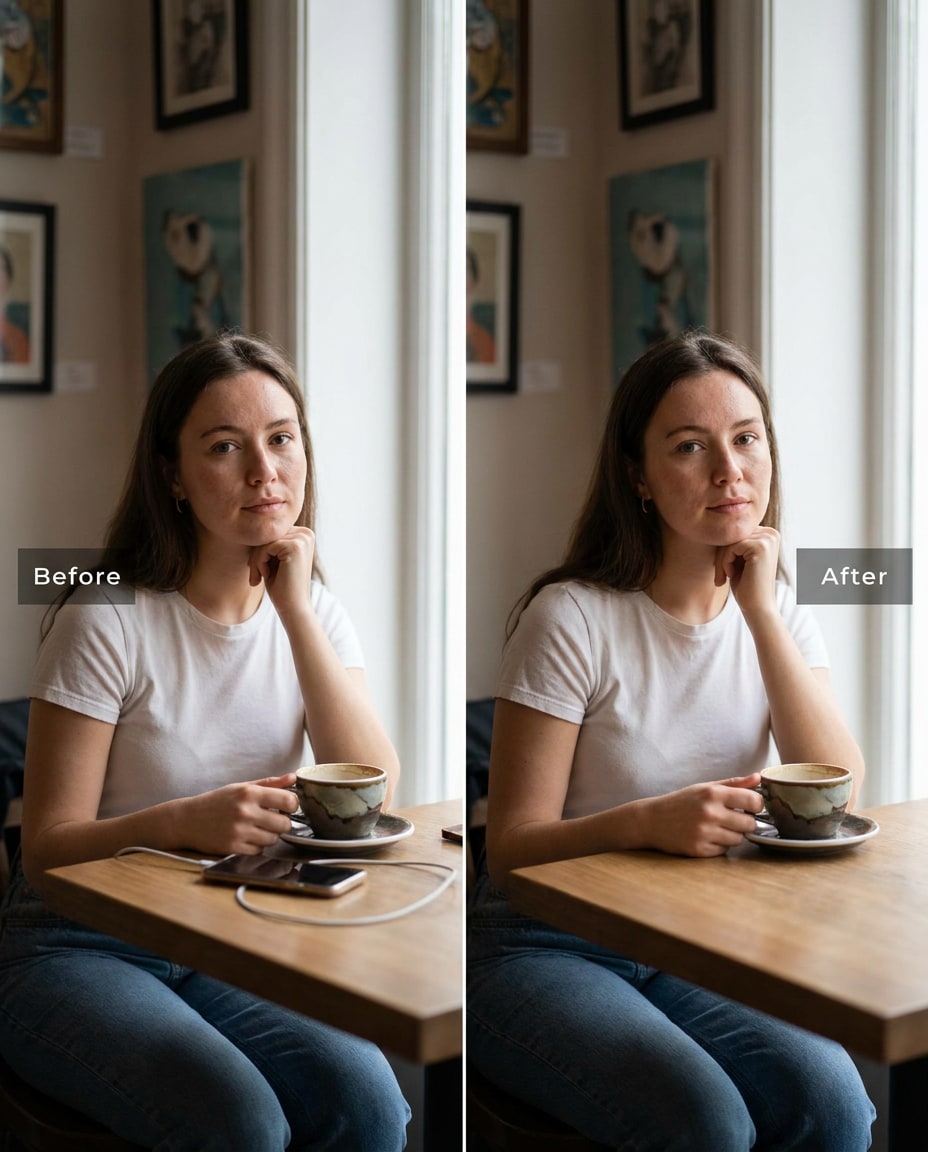
Coffee Cup on Table
Reshape the tabletop by removing the disposable coffee cup near my hands, keeping the same face and pose and the same outfit fabric texture, preserving table grain and reflections so the surface looks untouched --ar 4:5
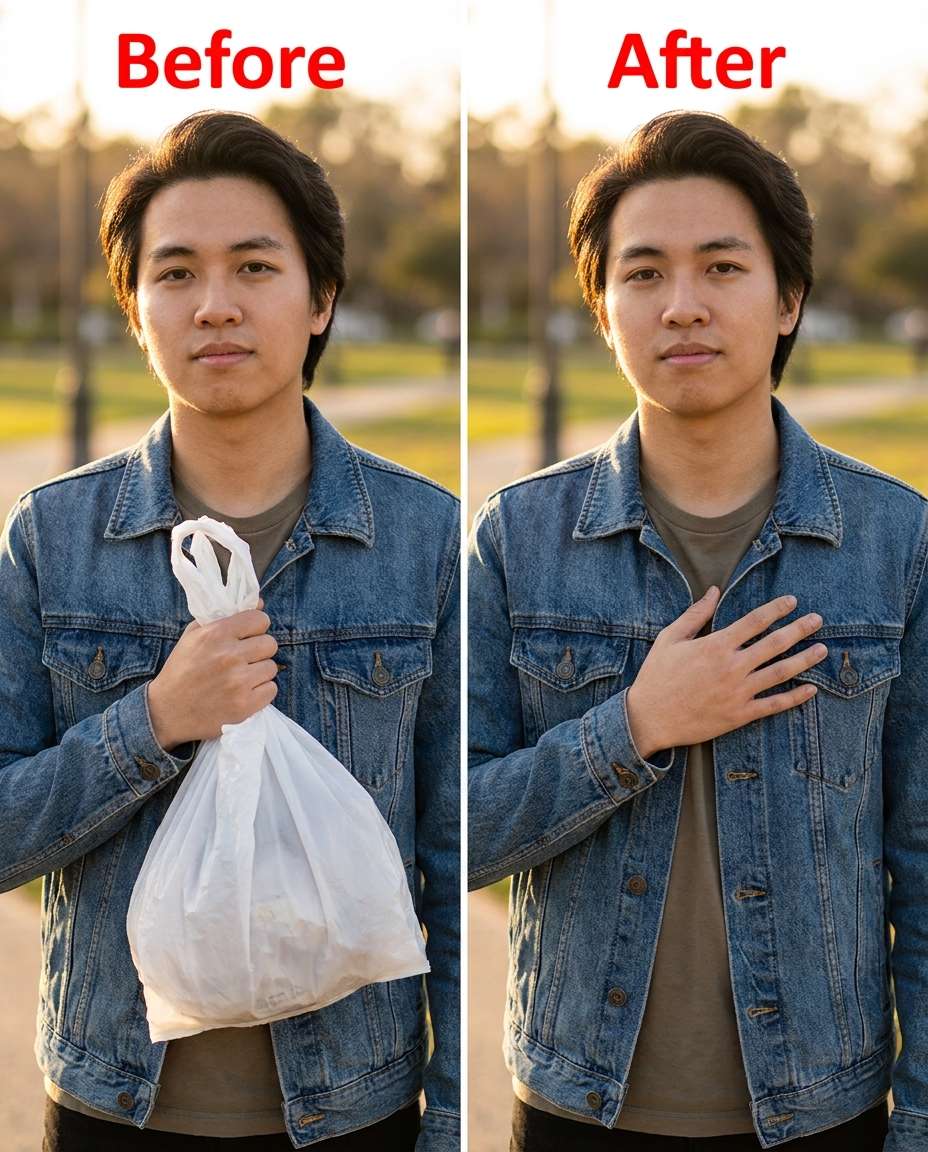
Stray Object in Hand
Adjust the moment by removing the plastic bag I'm accidentally holding, keeping the same face and expression and the same hairstyle, preserving hand shape, skin tone, and natural shadows so my hand doesn't look warped --ar 4:5
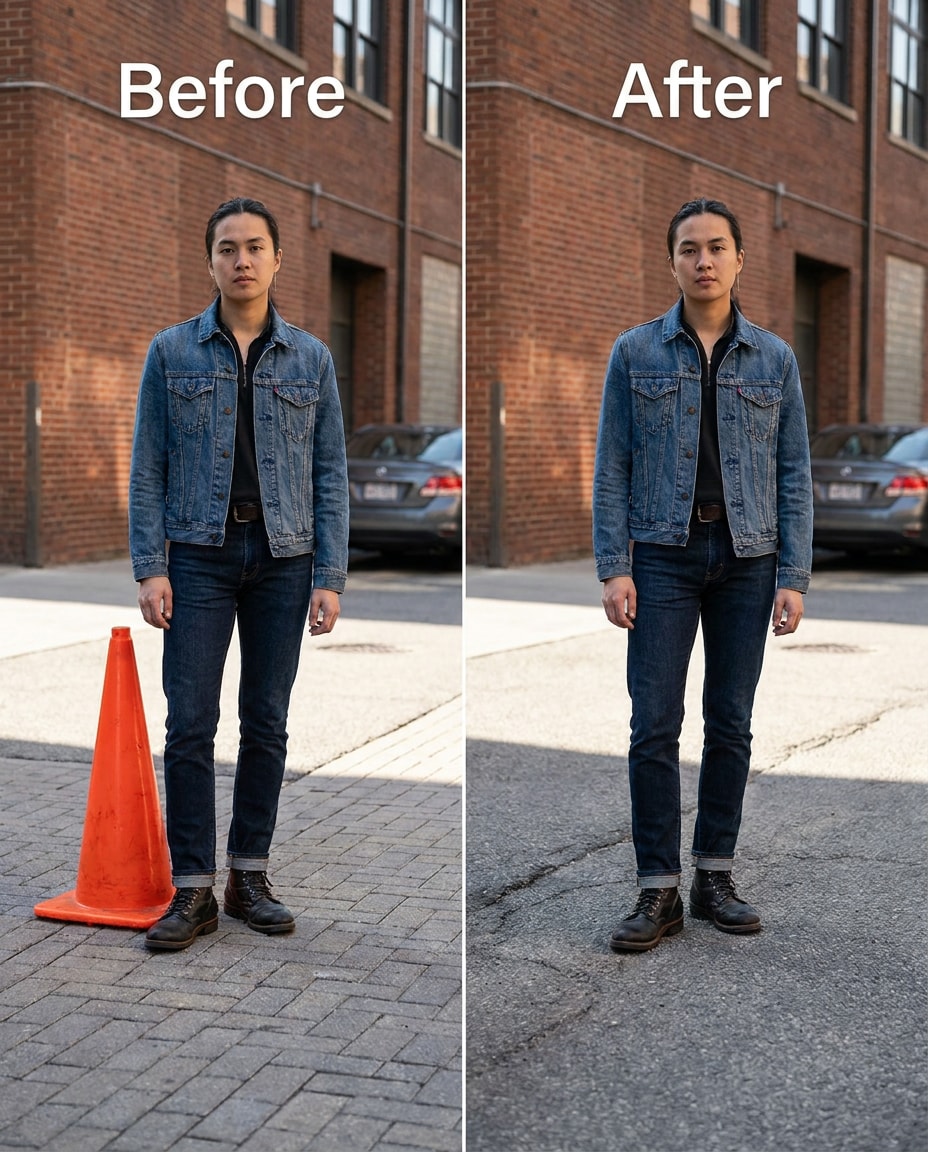
Road Cone Removal
Tighten the scene by removing the orange traffic cone near my feet, keeping the same face and pose and the same outfit details, preserving pavement cracks, shoe edges, and shadow direction so the ground stays realistic --ar 4:5
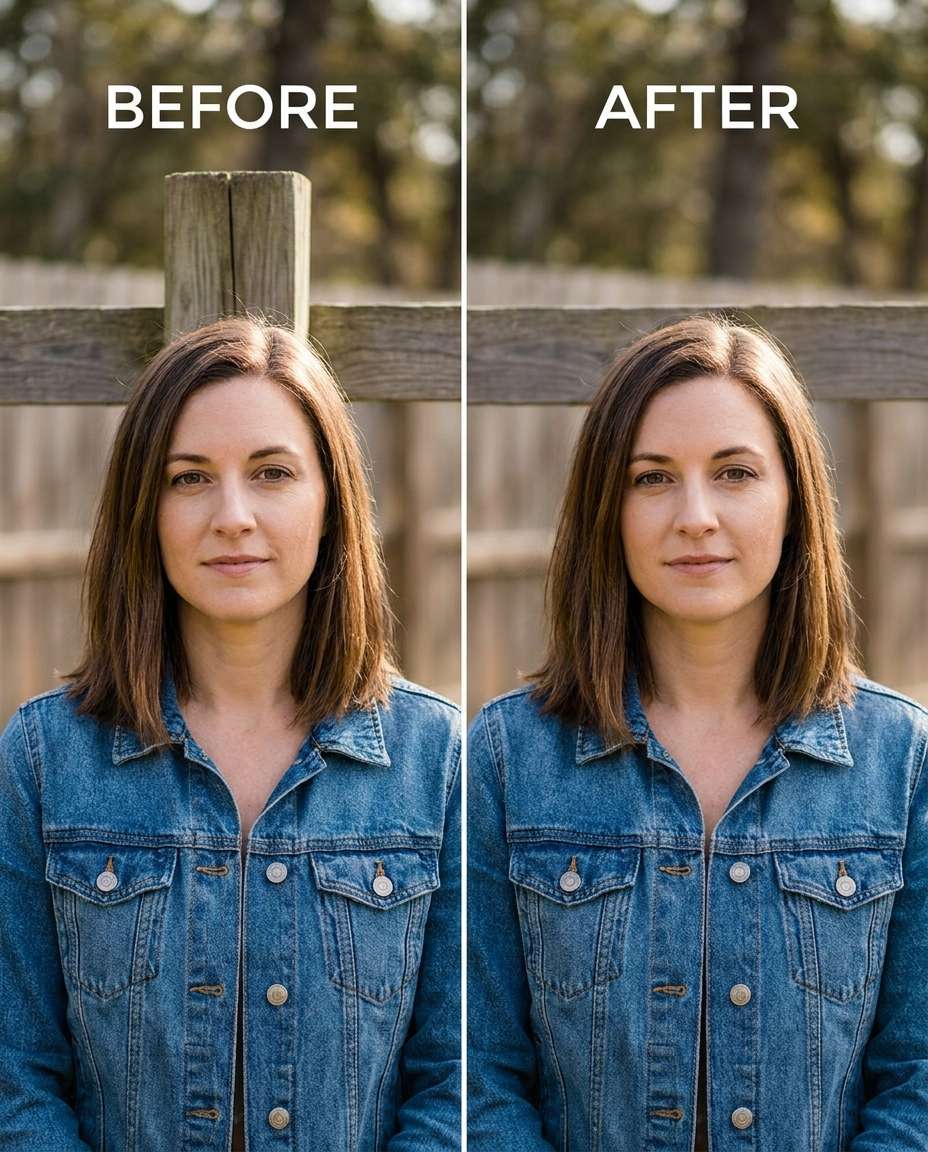
Fence Post Distraction
Tune the background by removing the fence post that looks like it's coming out of my head, keeping the same face and hairstyle and the same pose, preserving background depth and original lighting so edges stay clean --ar 4:5
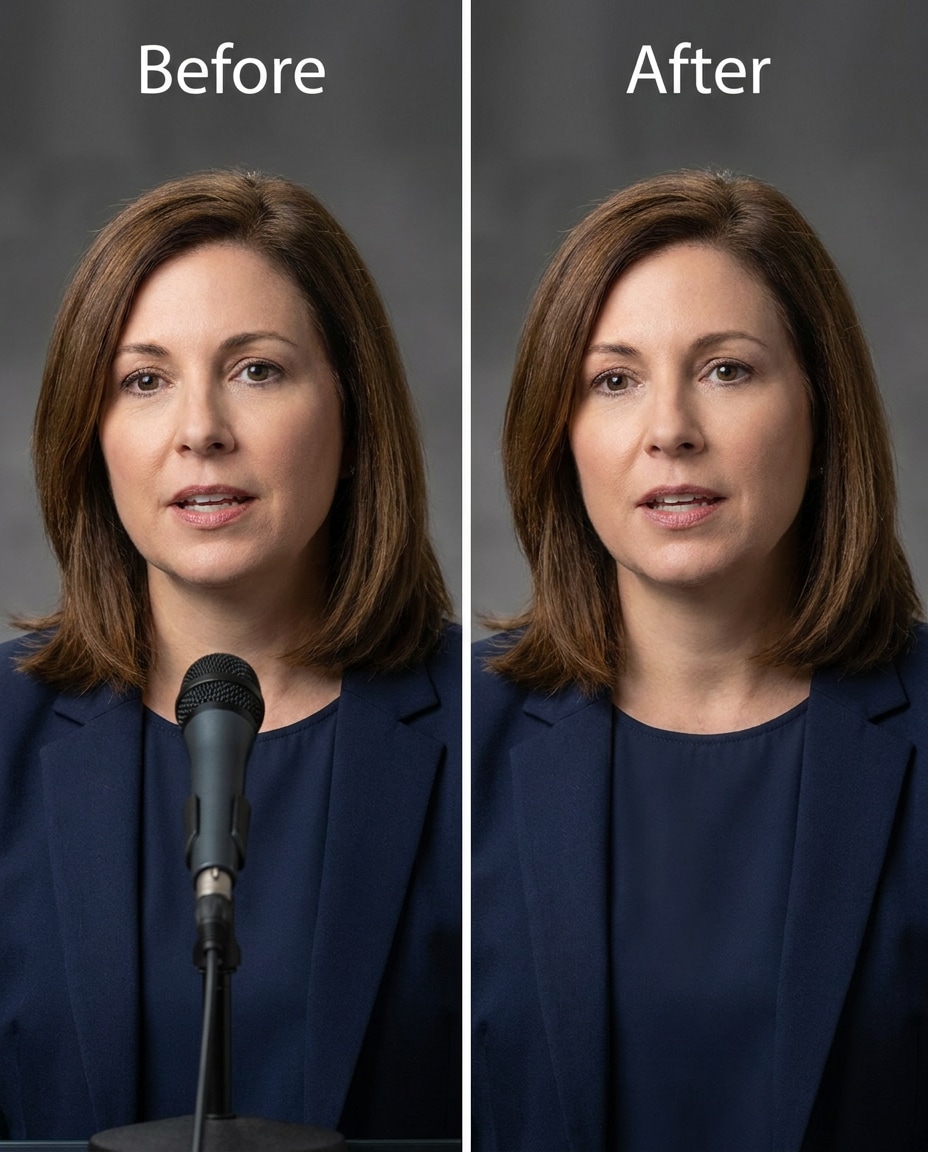
Microphone in Frame
Soften the frame by removing the visible microphone at the bottom edge, keeping the same face and expression and the same outfit details, preserving edge sharpness, lighting, and background texture so it looks like it was never there --ar 4:5
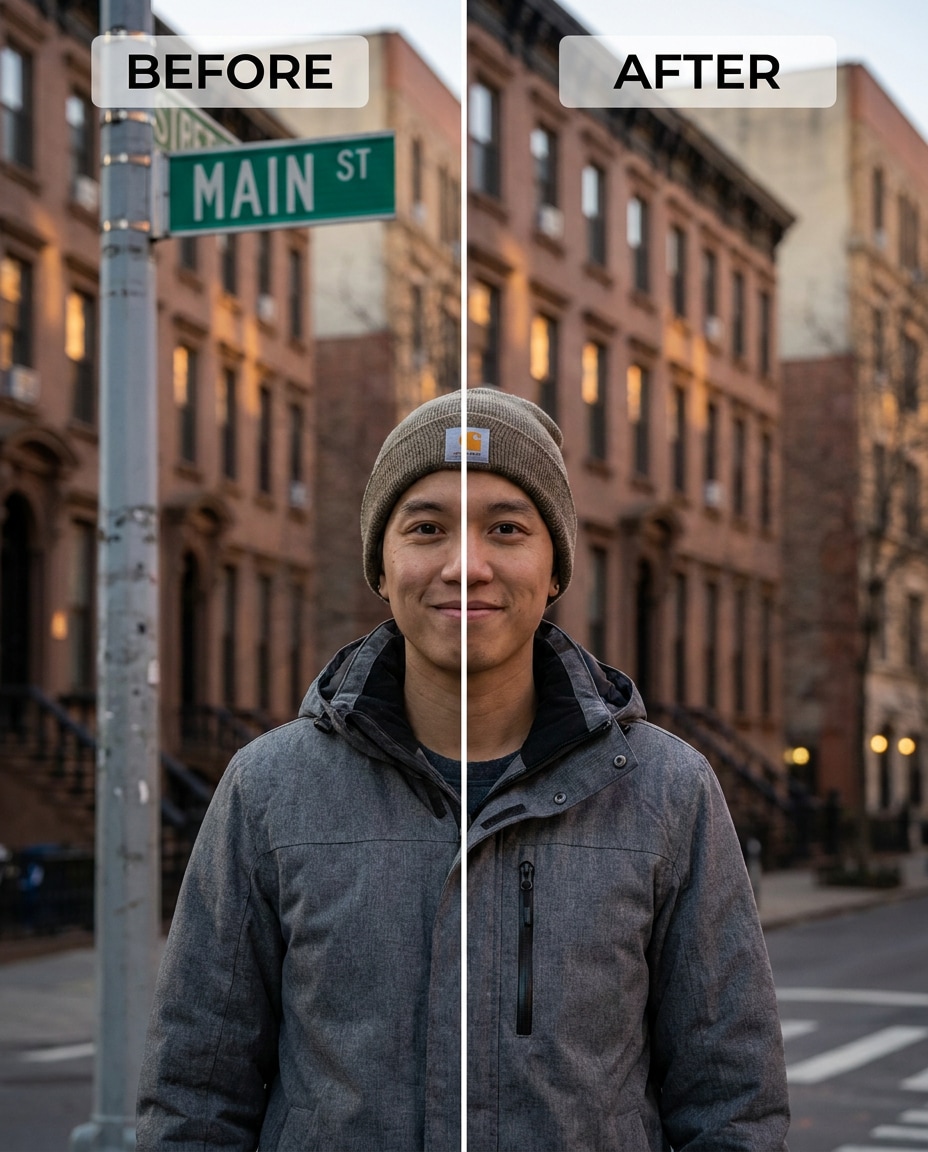
Street Sign Removal
Slim the clutter by removing the street sign behind my shoulder, keeping the same face and skin tone and the same hairstyle, preserving original lighting and background building lines so nothing bends or melts --ar 4:5
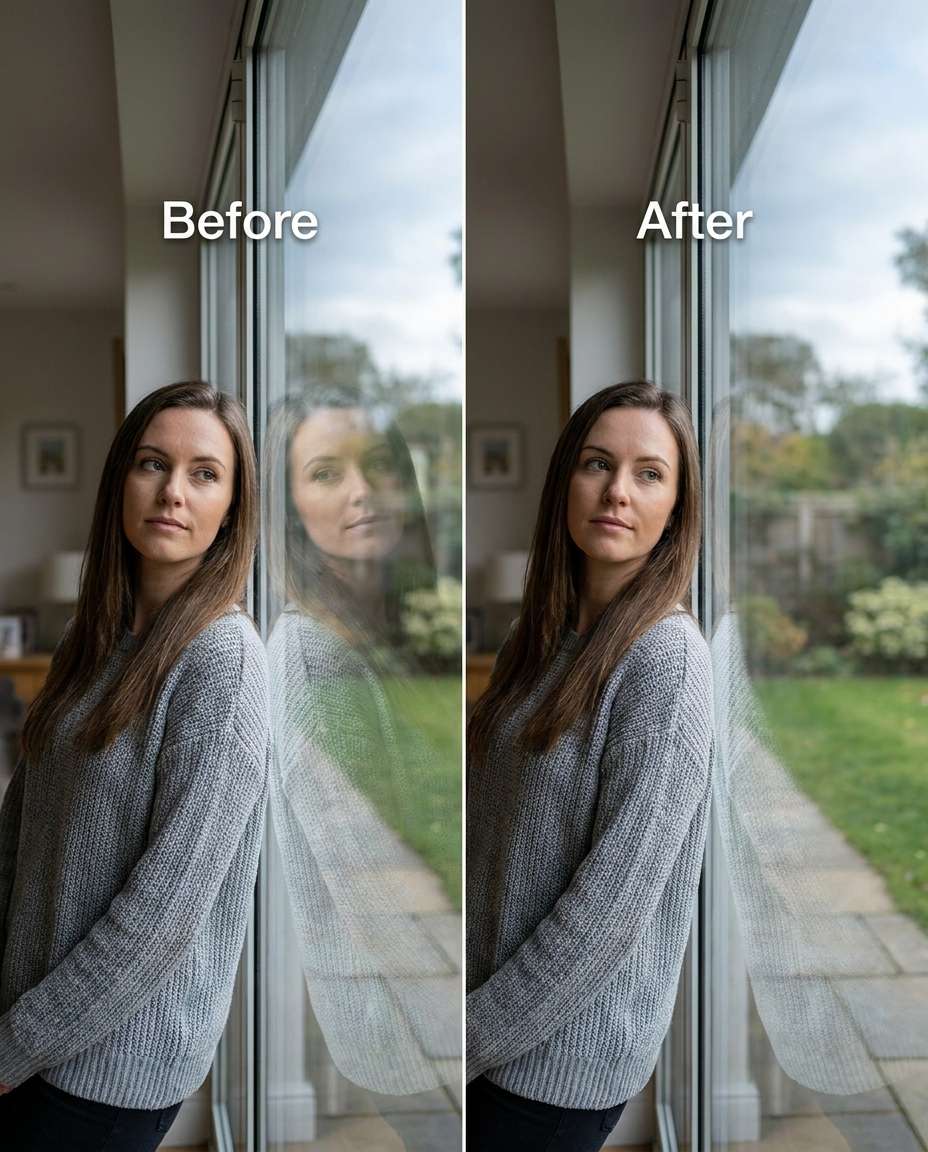
Window Reflection Fix
Refine the glass by removing my unwanted reflection in the window, keeping the same face and pose and the same outfit details, preserving reflections of the environment and original lighting so the window still reads as real glass --ar 4:5
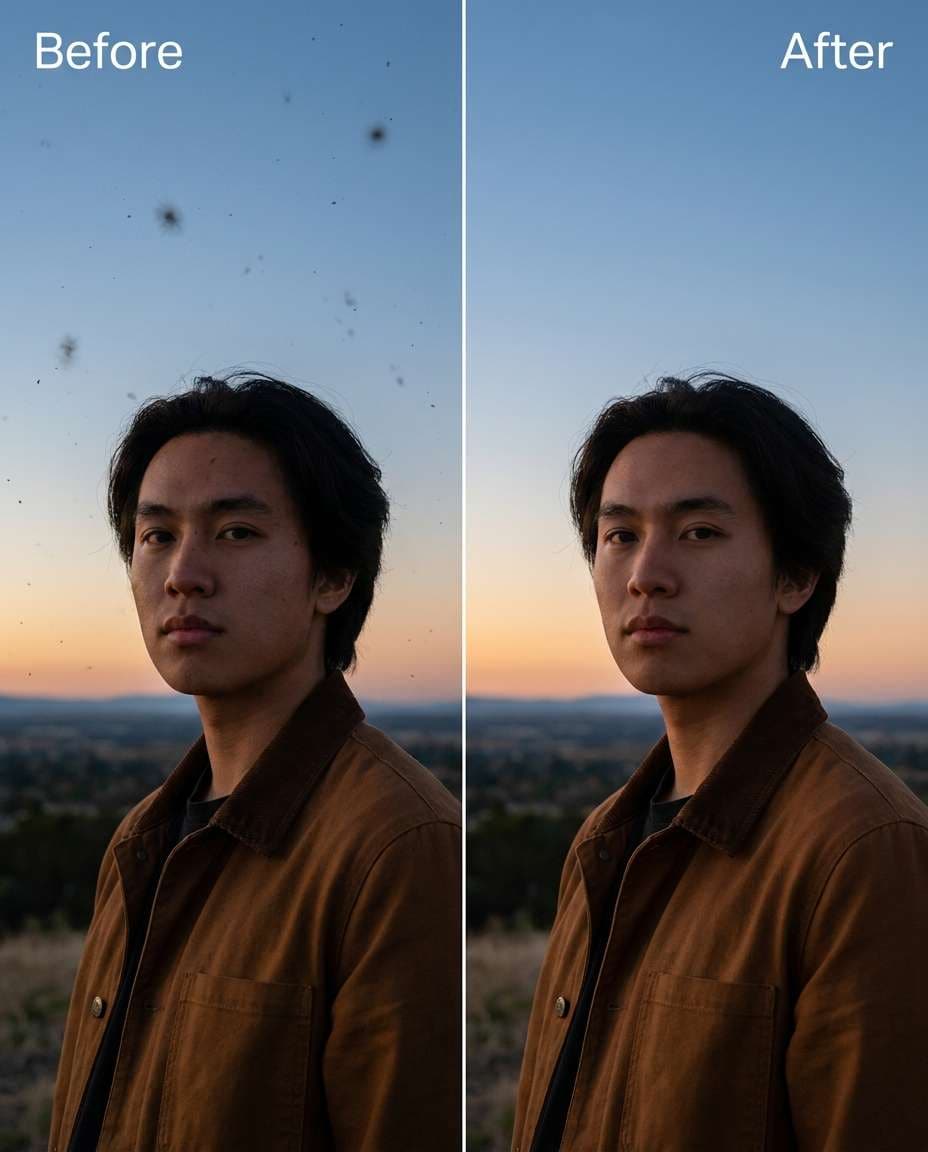
Dust Spot Removal
Sculpt a clean sky by removing small sensor dust spots, keeping the same face and skin tone and the same outfit details, preserving sky gradient and grain so the edit doesn't look airbrushed --ar 4:5
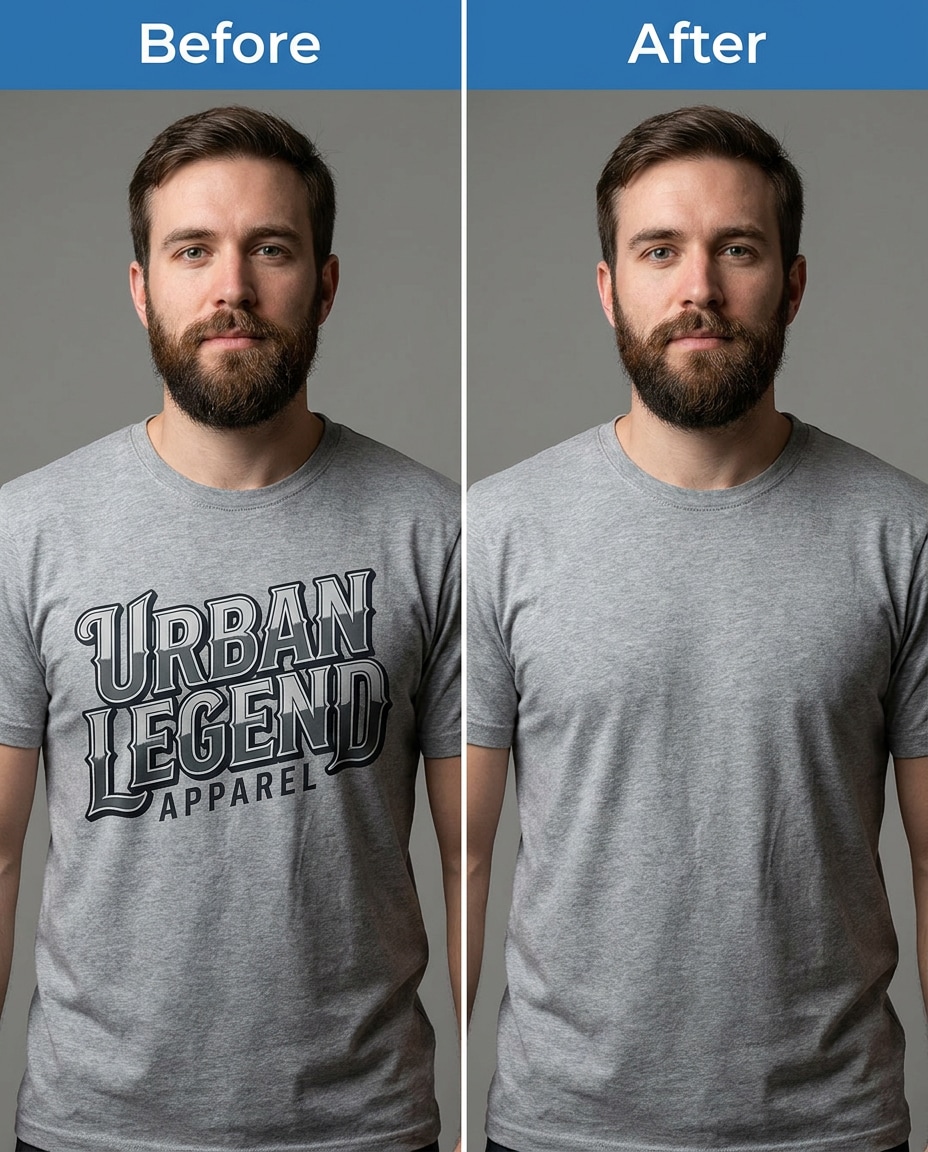
Logo on Shirt
Smooth the look by removing the large logo printed on my shirt, keeping the same face and hairstyle and the same pose, preserving fabric texture, folds, and seam lines so the shirt still looks natural --ar 4:5
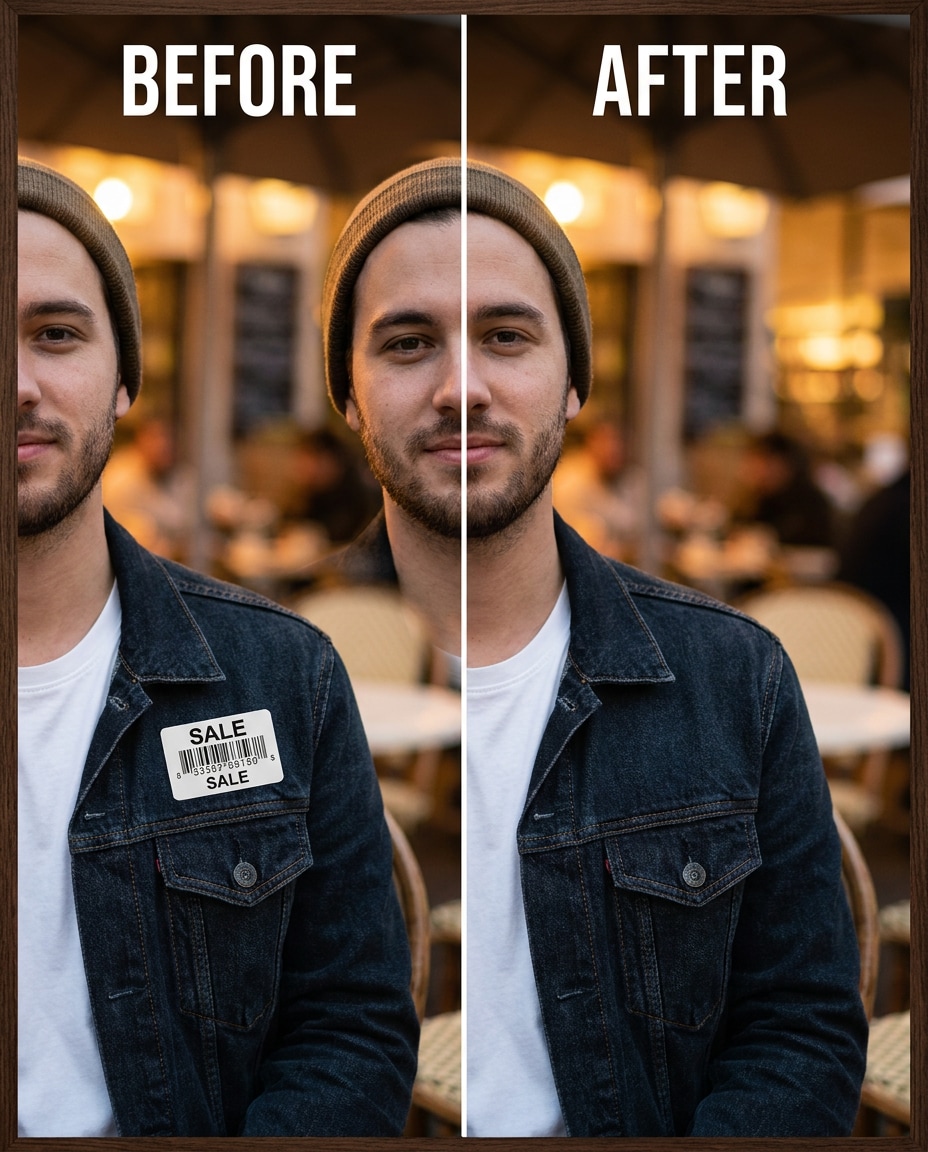
Sticker on Jacket
Cinch the styling by removing the sticker tag on my jacket, keeping the same face and skin tone and the same outfit details, preserving jacket fabric texture and highlights so it doesn't look patched --ar 4:5
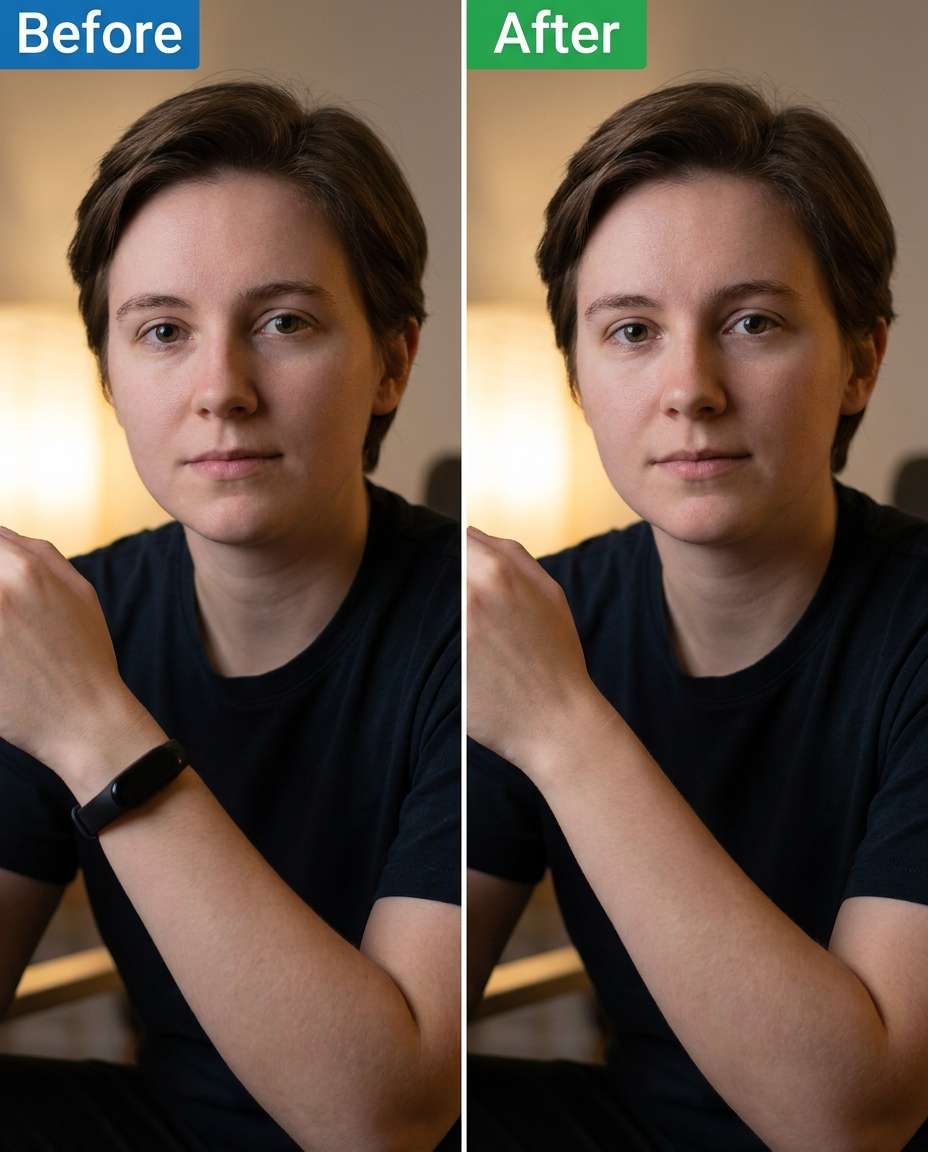
Bracelet Tan Line
Reshape the wrist area by removing the visible fitness band and its shadow, keeping the same face and pose and the same skin tone, preserving natural arm texture and lighting so the wrist looks consistent --ar 4:5
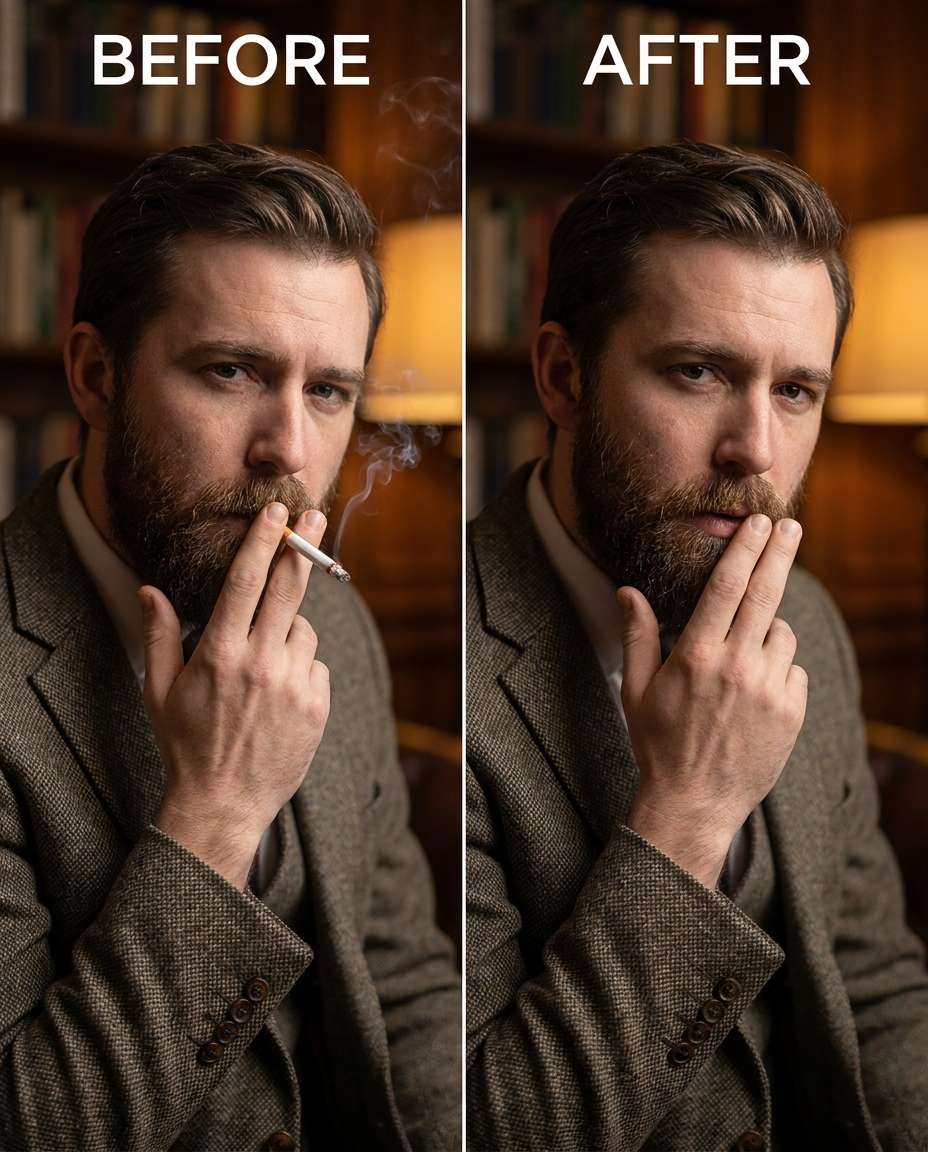
Cigarette Removal
Adjust the vibe by removing the cigarette from my fingers, keeping the same face and expression and the same hairstyle, preserving finger shape, skin tone, and natural shadows so the hand looks untouched --ar 4:5
Crowd Thinning
Tighten the background by removing a small group of people behind me, keeping the same face and pose and the same outfit details, preserving original lighting and background storefront details so the scene looks naturally less crowded --ar 4:5
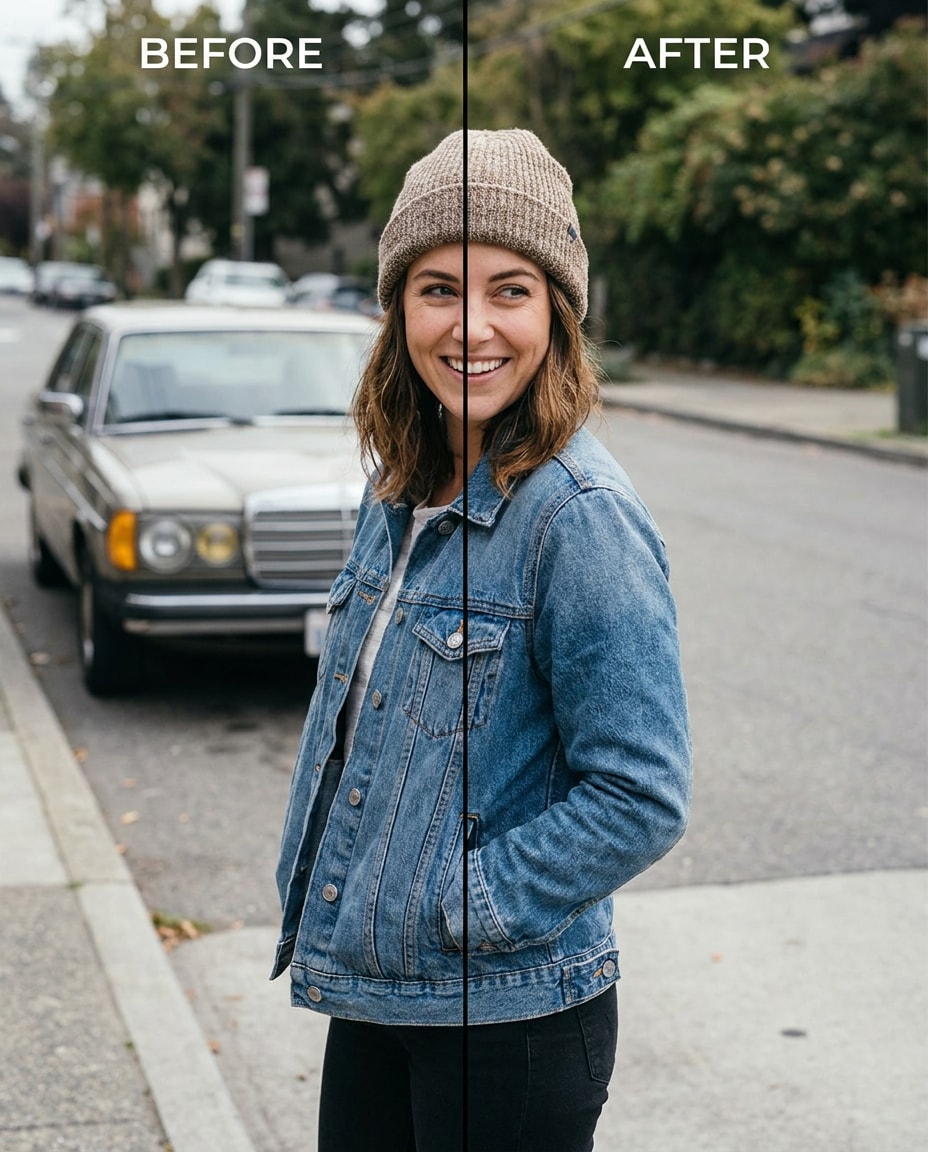
Parked Car Removed
Tune the street by removing the parked car behind me, keeping the same face and skin tone and the same hairstyle, preserving road markings, building lines, and original lighting so the background remains coherent --ar 4:5
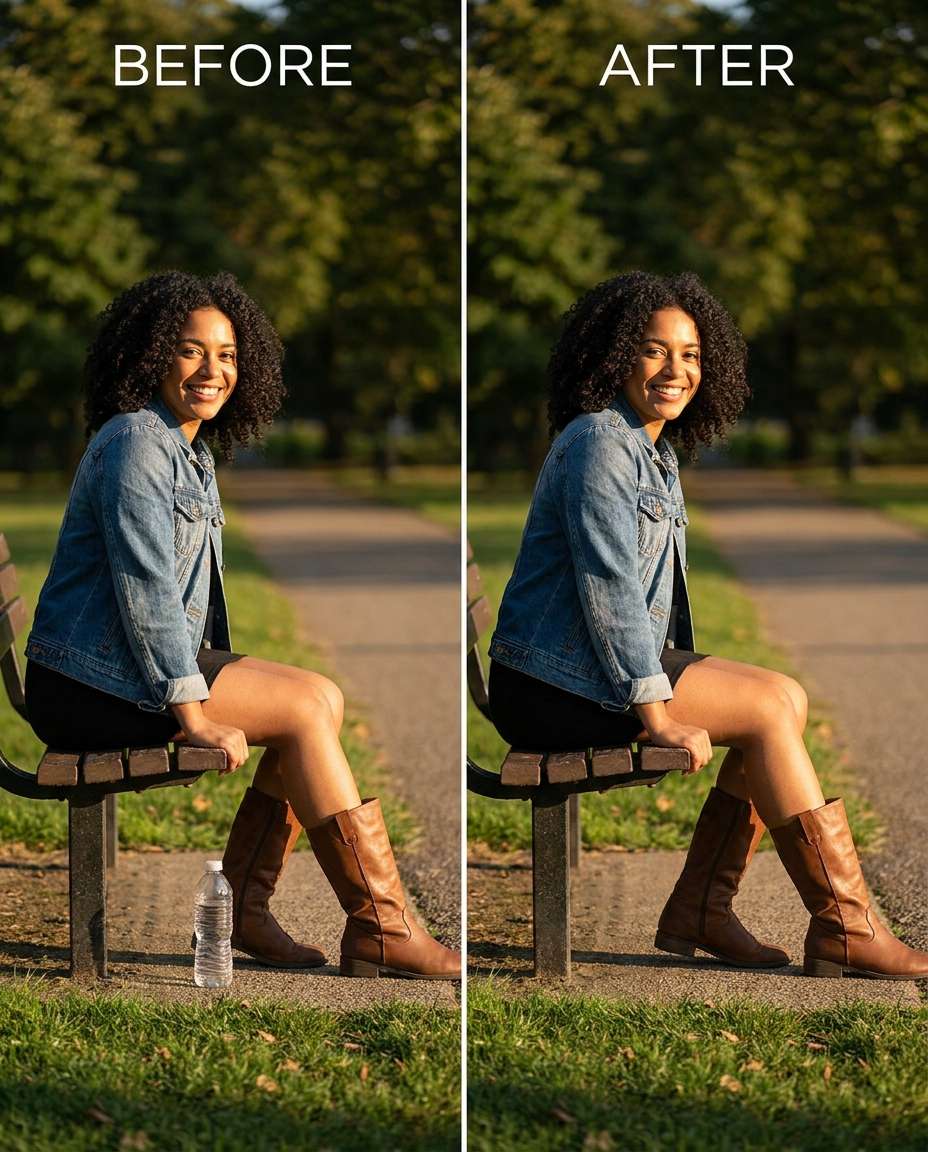
Water Bottle Removal
Soften the clutter by removing the water bottle on the ground next to me, keeping the same face and pose and the same outfit details, preserving grass texture, ground shadows, and lighting so the spot looks natural --ar 4:5
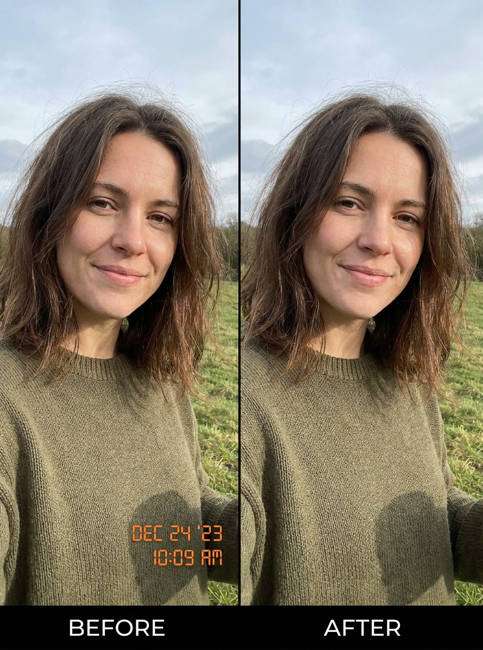
Date Stamp Cleanup
Remove the date stamp and timestamp from the uploaded portrait photo while preserving the original facial details, skin texture, lighting, background, and image quality. Reconstruct the removed area naturally so it blends seamlessly with the surrounding image without visible editing marks, blurry patches, or artificial textures. Maintain the original pose, hairstyle, clothing, shadows, colors, composition, and realistic smartphone photo aesthetic. The final result should look clean, photorealistic, and naturally restored.
Wrinkle on Backdrop
Refine the backdrop by removing the visible wrinkle/crease behind me, keeping the same face and hairstyle and the same pose, preserving original lighting falloff and background texture so it stays realistic --ar 4:5
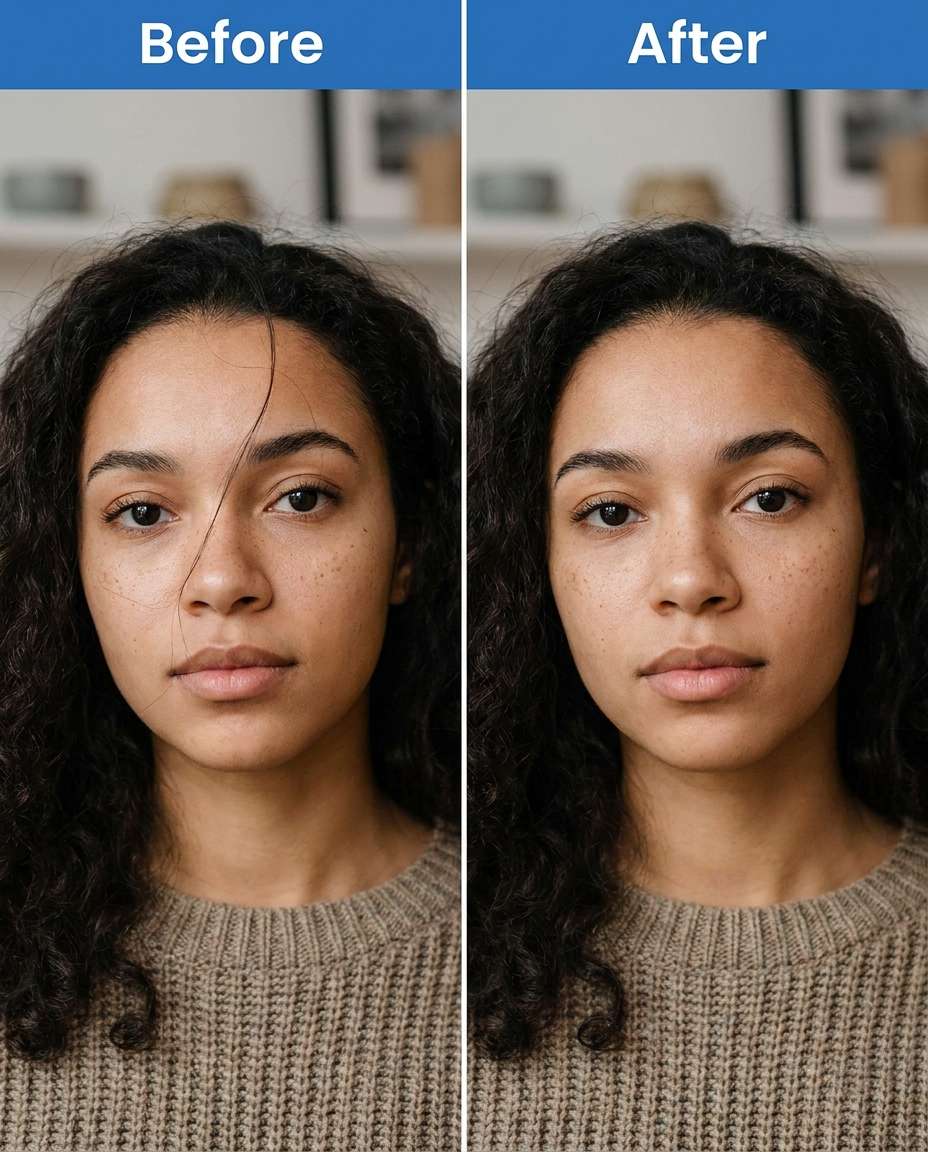
Stray Hair on Face
Sculpt a cleaner portrait by removing the single stray hair crossing my face, keeping the same face shape and the same hairstyle overall, preserving skin texture, pores, and original lighting so it doesn't look airbrushed --ar 4:5
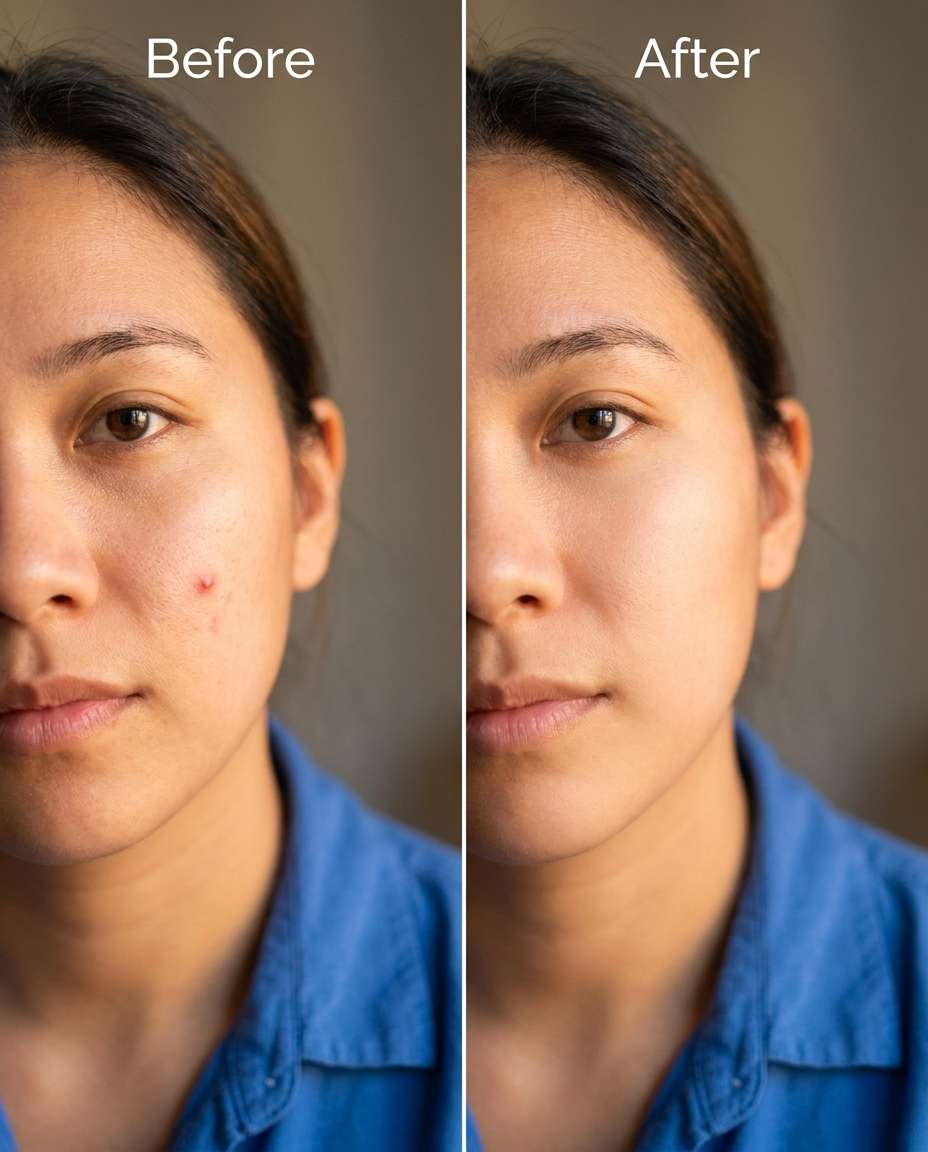
Blemish Spot Removal
Smooth the skin by removing a small temporary blemish on my cheek, keeping the same face and skin tone and the same expression, preserving natural skin texture and shadow direction so it still looks like real skin --ar 4:5
How to Write Better Gemini AI Remove Object Prompts
Object removal works best when you describe what to delete, what should replace it, and what must remain untouched. Keep your instructions specific to the area, texture, and lighting so the filled-in region matches the rest of the photo.
Prompt Formula (Fast)
Target: name the exact object to remove and where it is in the frame
Identity anchors: keep the same face, hairstyle, skin tone, outfit details, and pose
Preservation: protect lighting direction, shadows, fabric seams, and background lines
Rebuild guidance: describe what should appear instead (wall texture, sky, grass, pavement, water)
Edge quality: ask for clean edges with no smears, doubling, or warped geometry
Intensity: specify subtle cleanup vs aggressive removal for complex areas
Better Removal Results
Call out the object's size and proximity to the subject (e.g., "behind shoulder," "near feet," "crossing the cheek").
Ask to preserve hard lines (railings, bricks, window frames) to avoid melted edges.
For hands and hair, explicitly preserve finger shape, strand direction, and natural shadows.
If the model leaves a soft patch, request matching grain/texture and consistent color grading in the rebuilt area.
Generate multiple variations and pick the one that keeps perspective and repeating patterns (tiles, wood grain) consistent.
When removal creates a gap, describe what should replace it using the existing scene elements (continuation of wall, extended sky, continued pavement).
Why Choose Media.io for Gemini AI Remove Object Prompts
Natural-looking edits that protect your identity and outfit, letting you tune the cleanup from subtle to strong without distortion.
Identity stays consistent
Media.io helps you remove distractions while keeping the same face, hairstyle, skin tone, and pose. That means the edit looks like a clean retouch, not a new person or a rewritten outfit, even when the removed object sits close to the subject.
Background details preserved
When you delete something, the hard part is rebuilding what's behind it. Media.io makes it easy to request intact architecture lines, believable textures (brick, wood, pavement), and consistent depth so the filled area blends naturally with the original scene.
Lighting and shadows match
Good removals respect the existing light direction and shadow softness. With Media.io, you can explicitly preserve original lighting, reflections, and shadow falloff so the reconstructed area doesn't look brighter, flatter, or disconnected from the rest of the photo.
Quick iterate and download
Generate a few options, compare them, and refine your prompt without restarting your workflow. Media.io makes it simple to iterate from a gentle cleanup to a stronger removal, then download the version that keeps edges crisp and textures believable.
FAQs About
Gemini AI Remove Object Prompts
1. Why does the removed area sometimes look blurry or smeared?
That usually happens when the prompt removes the object but doesn't specify what texture should replace it, or when edges and lighting aren't protected. Add a rebuild instruction (e.g., "continue the brick wall pattern"), plus preservation notes like "keep original lighting and shadow direction" and "no warped lines or soft patches."
2. How do I remove an object that overlaps hair or hands without weird artifacts?
Be explicit about preserving fine detail: "keep individual hair strands," "preserve finger shape and knuckle shadows," and "no melted edges." Also describe the object's exact position (e.g., "touching the fingertips") so the model prioritizes a careful boundary. Generating a few variations often helps for complex overlaps.
3. Can I use Gemini AI remove object prompts to delete a photobomber in the background?
Yes. The most reliable approach is to name the person to remove and describe what should appear instead (street, wall, trees), while insisting the subject stays identical (same face, pose, outfit). Ask to preserve background perspective and lighting so the empty area doesn't look pasted or stretched.
4. What's the best wording for removing a person: Gemini AI remove person from photo prompt?
Use plain, location-based language: "remove the person standing behind my left shoulder" and "rebuild the background naturally." Then add constraints: keep the same face, hair, outfit seams, and original lighting. If there are multiple people, specify count and placement so the model doesn't remove the wrong subject.
5. How many generations should I try for a clean result?
Three to six is a practical range. Start with a conservative removal, then increase strength only if the object is still visible. Each time, zoom in on edges, repeating textures, and shadow consistency. If something looks off, adjust one variable in the prompt (texture, lighting, or exact location) and regenerate.
Why Creators Love Media.io's Gemini AI Remove Object Prompts?
Alex M.
Photographer
Ultra Realistic Results.
I used these remove object prompts to create visuals that looked like real photography. The lighting, textures, and colors felt incredibly natural.
Maya J.
Designer
Perfect Lighting & Detail.
The prompts produced cinematic compositions and soft lighting, making every image feel like a professional shoot.
Jordan P.
Creator
Perfect for Social Media.
I used these prompts to create viral content. It's fast, easy, and consistently produces stunning visuals.