
Clean Visible Galaxy AI Watermarks
Easily erase the visible Galaxy AI watermark that Samsung’s Generative Edit adds to edited photos. Brush over the corner mark and generate a clean version for sharing, wallpapers, or design reuse.
Keep your Galaxy AI edit without cropping the photo. Upload your image and use Media.io’s Samsung AI watermark remover to brush over the visible Galaxy AI watermark and preview the reconstructed background in seconds. Get natural-looking results without cropping the edge — perfect for sharing, wallpapers, or design reuse.
No downloads. Free credits on signup.







Easily erase the visible Galaxy AI watermark that Samsung’s Generative Edit adds to edited photos. Brush over the corner mark and generate a clean version for sharing, wallpapers, or design reuse.
Remove the corner watermark without cropping the edge. Region-based cleanup treats only the selected mark, so your framing, subjects, and background keep their original positions.
Zoom in and select only the watermark. Keep nearby faces, text, and important details outside the brush so the reconstruction stays focused on the marked area. Beyond watermarks, you can also use Media.io’s AI image object eraser to remove small objects and stickers.
Generate the cleanup and inspect the result before downloading. AI reconstructs the selected region from the surrounding context; refine the brush and regenerate if the patch needs work. New users can start with free credits after signup.
Samsung’s Generative Edit can add a visible Galaxy AI watermark to mark that an image was edited with AI. Samsung’s official documentation confirms the watermark, and one support article identifies its position in the bottom-left corner. Its appearance can vary by device and software version, so not every Samsung photo or every AI editing feature adds the same mark. This page helps you clean the visible logo within the photo using AI background reconstruction — it does not remove AI provenance or change platform AI labels.
Source: Samsung’s official documentation.
Open Media.io Image Object Remover and upload the saved photo containing the visible Galaxy AI watermark. You can use any image you own or are authorized to edit.
Zoom in and select the watermark closely. Keep nearby faces, text, and important details outside the selected area so the reconstruction stays focused on the corner mark.
Click Generate to reconstruct the selected region and inspect the background. Refine your selection if needed, then download your watermark-free photo.
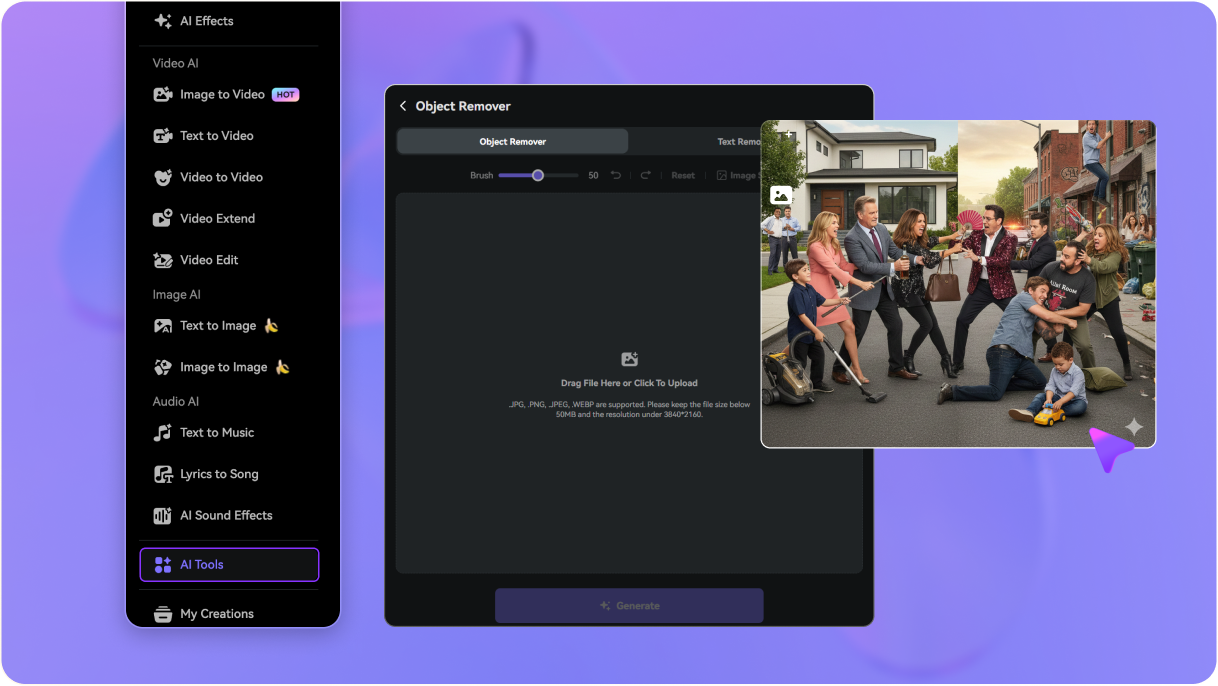
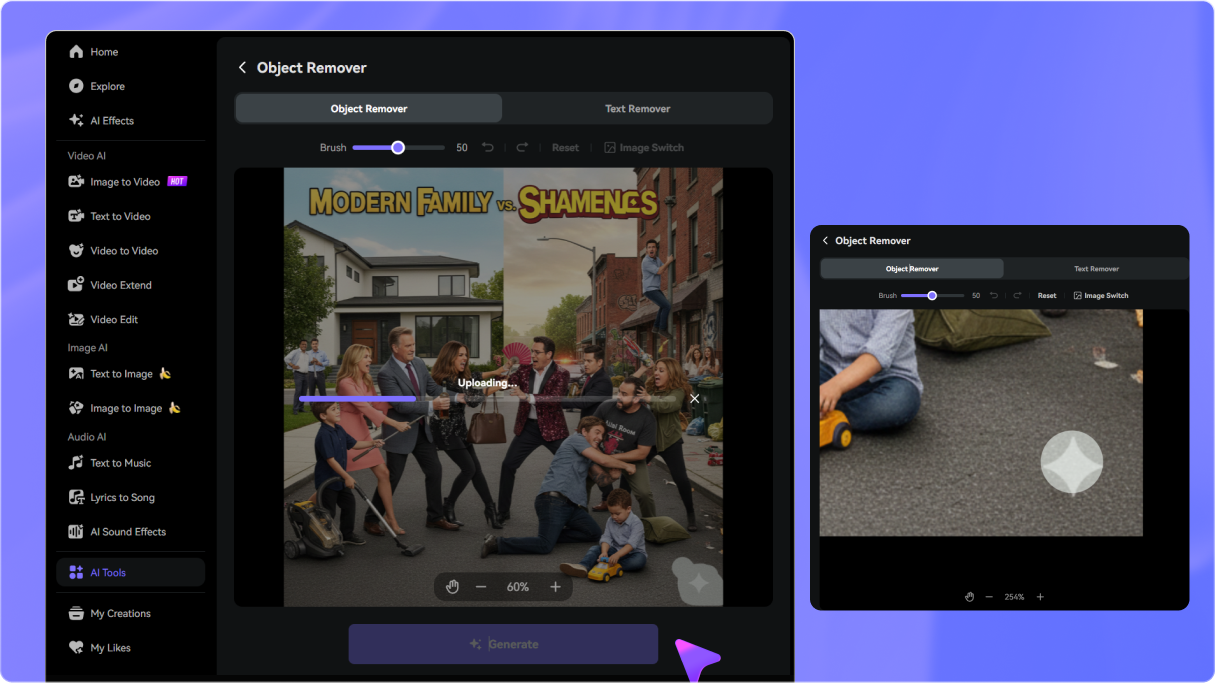
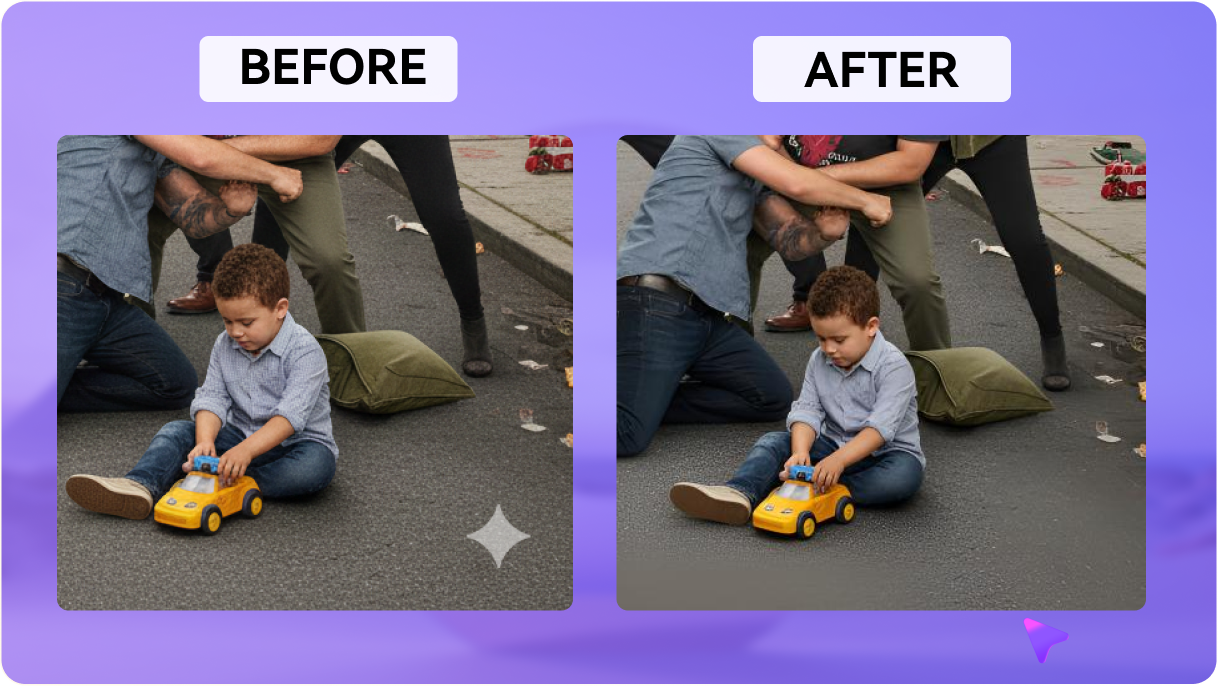
Cropping the edge is one way to hide a corner watermark, but it changes your framing. Region-based cleanup lets you treat only the visible mark, so the full photo stays intact. Select a small area around the Galaxy AI logo, generate the reconstruction, and review the result at full size before downloading. The cleanup works best when you match your approach to the background behind the mark:

Graphic Designer

“Finally, a way to remove Galaxy AI photo watermarks cleanly.” The Galaxy AI watermark was ruining my edits, but this tool erased it without smudging the background. Highly recommended!

Content Creator
“The best Samsung AI watermark remover online.” I love Generative Edit, but the Galaxy AI corner watermark is annoying. This tool removes it instantly so I can share clean photos on social media.

Digital Marketer
“Perfect for reusing AI-edited photos.” Needed to remove the Galaxy AI watermark for a campaign. Media.io did it cleanly. The background restore is impressive—no blur blocks at all.

Student
“Super easy to use.” Best Galaxy AI watermark remover I've tried. It handles the corner mark easily. Plus, the free credits let me test it out instantly.


 4.7 (162,357 Votes)