





Home>Comparison>TensorPix AI

TensorPix AI Review: Can It Rescue Low-Quality Footage?

Blurry recordings, noisy night shots and jerky frame rates are different problems, even when they appear in the same clip. TensorPix AI tackles them through cloud-based video enhancement filters, plus newer image and video generation tools. The question is not simply whether a clip can be upscaled to 4K: it is which defects can be improved, how many credits each job consumes and whether the source material is worth saving. Here is how its filters, free access and paid plans compare with more task-specific Media.io workflows.

Primary Features of TensorPix AI Video Enhancer

TensorPix AI is a cloud-based video enhancement platform that improves existing footage through AI upscaling, denoising, frame interpolation, stabilization and configurable enhancement filters, with separate services for AI image and video creation and API-based workflows.

Core Feature Overview

TensorPix Video Enhancer and Cloud 4K Upscaling

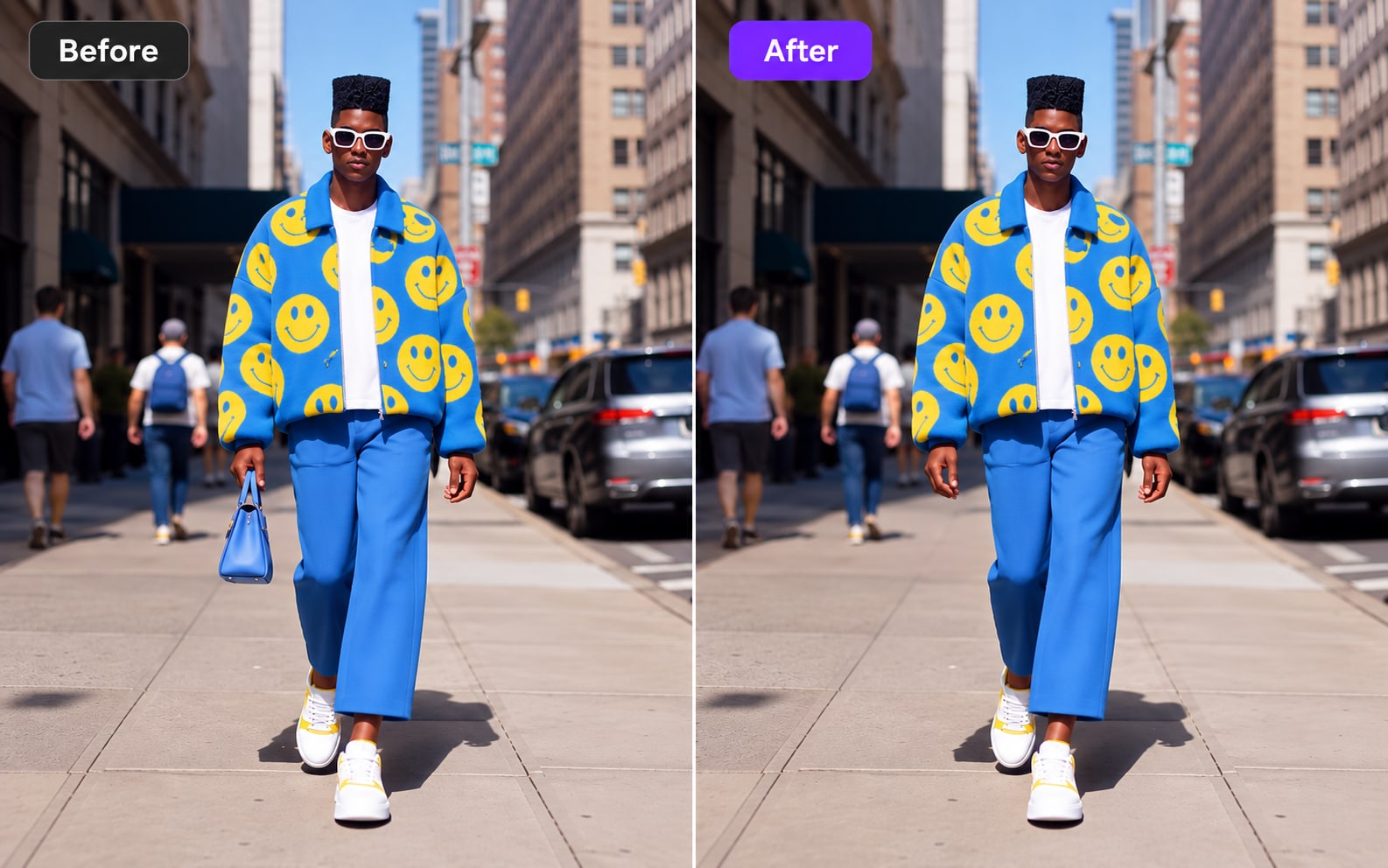
The TensorPix AI video upscaler offers online enhancement for low-resolution video, with paid plans accepting up to 4K inputs. Output resolution alone does not prove recovered detail: compare fine text, faces, moving edges and compression artifacts against the original. A short test scene can show whether sharpening creates a natural result or an artificial halo.

Illustrative Media.io creation workflow graphic, not a TensorPix AI product screenshot

Denoising and Low-Light Cleanup

TensorPix AI video restoration starts with correcting defects rather than inventing new scenes. Separate noise and quality filters can make grainy night recordings more watchable, particularly in skies and dark walls. Heavy denoising may erase texture along with noise, so evaluate facial detail and hair against a modestly enhanced version. This matters when restoring archival footage rather than making a new stylized video.

Illustrative Media.io creation workflow graphic, not a TensorPix AI product screenshot

TensorPix Frame Interpolation

TensorPix promotes frame-rate enhancement for smoother playback and slow-motion work. Synthesized intermediate frames can improve perceived motion but may stumble on overlapping objects, fast gestures or abrupt cuts. Inspect a short segment at the target frame rate before processing an entire event recording.

Illustrative Media.io creation workflow graphic, not a TensorPix AI product screenshot

Video Stabilization for Handheld Clips

TensorPix AI denoise video and stabilizer workflows address different flaws. Stabilization is presented as an automated filter that reduces camera wobble from phones, action cameras and walking shots. Its success depends on the original motion and available framing: strong movement can require cropping or produce visible edge distortions. It is most relevant to existing footage, not to newly prompted scenes.

Illustrative Media.io creation workflow graphic, not a TensorPix AI product screenshot

Enhancement Filters and Cloud Queues

Plans vary in how many filters can run together and how many videos can be enhanced concurrently. This can change delivery time for a library of old clips more than a headline model specification. Check the chosen filter stack, queue priority and export codec before processing important source material.

Illustrative Media.io creation workflow graphic, not a TensorPix AI product screenshot

Shared Credits, TensorShots and API

TensorPix now markets image creation, video generation, property-video production and developer APIs alongside enhancement. Its pricing page describes credits shared across products, with different costs for different operations. API access is tier-dependent, so a creator who wants occasional fixes has a different buying decision from a team integrating restoration into software.
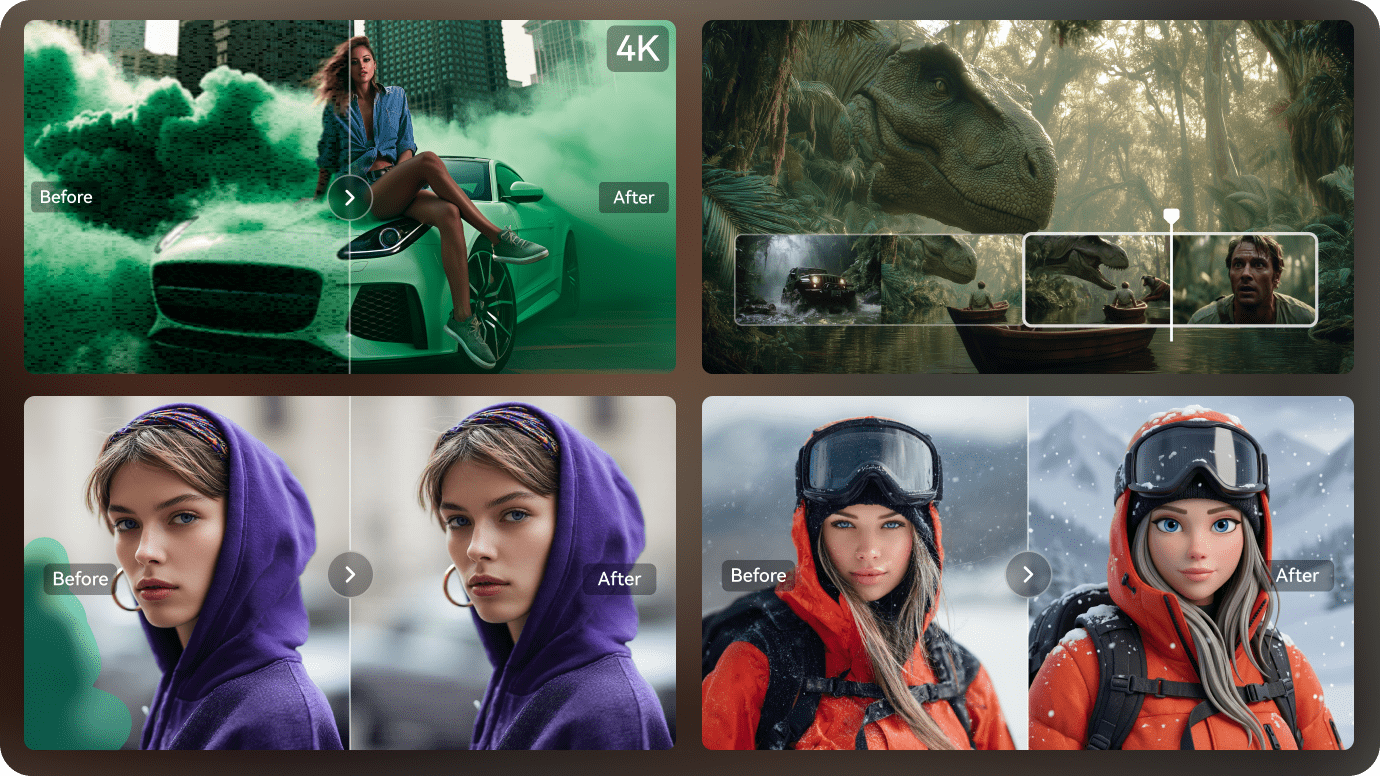
Illustrative Media.io creation workflow graphic, not a TensorPix AI product screenshot

How to Improve Video Quality Online with Media.io

1
2
3
1
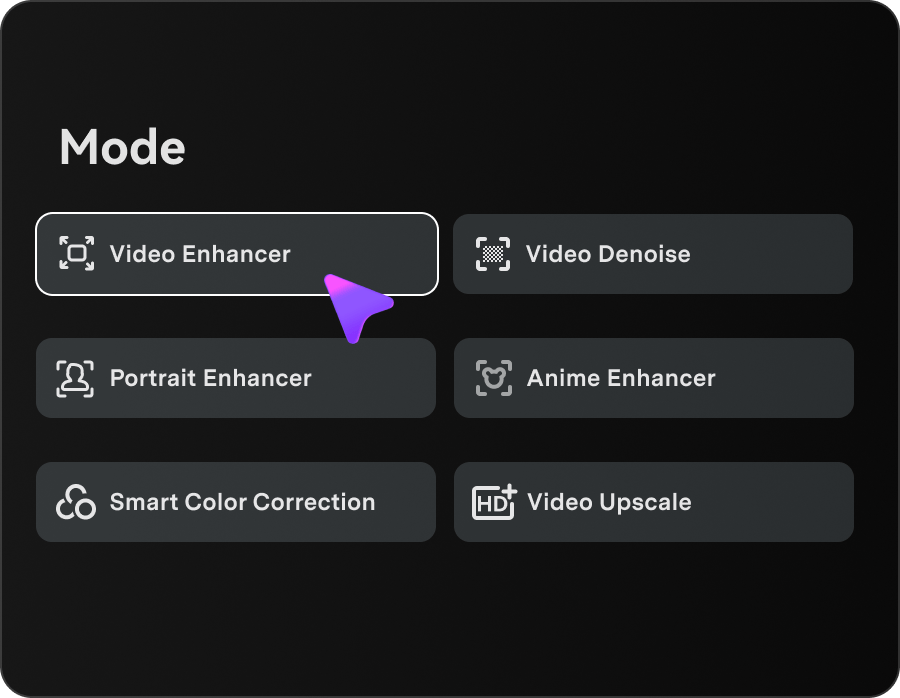
Step 1: Open Video Enhancer

Upload a short, representative sample containing the exact blur, grain or compression issue you want to improve.

2
Step 2: Choose the enhancement task

Select the available enhancement or quality settings and check the preview rather than assuming 4K will repair every flaw.

3
Step 3: Review and export

Inspect motion, faces and fine detail against the source, then export the improved video if the result is useful.

Illustrative Media.io creation workflow graphic, not a TensorPix AI product screenshot

When Is TensorPix AI the Right Choice?

The strongest TensorPix use cases begin with imperfect footage that already exists. Each example below requires a different quality check.

Family VHS Transfer

Enhance a short tape transfer first and compare skin texture with the original. Excessive sharpening can make nostalgic footage look synthetic, so prioritize watchability over an inflated pixel count. For still photographs accompanying the restored video, compare a separate AI image sharpening.

Low-Light Concert Footage

Try denoising on a dark crowd scene with moving spotlights. Preserve smoke and stage atmosphere, and verify that lights do not leave smears after processing.

Real Estate Walkthrough Repair

Stabilize a handheld property tour before asking for higher resolution. Straight edges, window frames and doorways provide useful clues about unwanted geometric distortion.

Phone Footage for a Campaign

Test whether a soft mobile clip becomes usable in a vertical advertisement. Export dimensions and compression matter as much as the nominal 4K setting.

Archive Reframing

If a documentary clip will be cropped, compare interpolation and upscale filters on the section that contains faces or fast movement. A one-minute evaluation can avoid a costly batch mistake.

Automated Enhancement Pipeline

For a software product ingesting many clips, check TensorPix API eligibility, concurrency and total credit cost. Developer access is a separate purchasing criterion from a casual web account.

TensorPix AI Limitations Worth Checking

These tradeoffs come from its documented tier structure and the inherent uncertainty of reconstructing low-quality footage, not from claimed firsthand benchmark results.

Free Input Resolution Is Capped

The free plan lists video enhancement for inputs up to 720p, while paid tiers permit 4K inputs. A creator starting with existing 4K material should check eligibility before uploading large files.

Credits Are Not a Fixed Per-Video Price

TensorPix suggests that one credit roughly equals two minutes of enhanced video, but additional products and chosen processing settings have different costs. Check the displayed estimate for the actual job.

Free Files Have a Retention Window

The published Free tier says videos and images are deleted 30 days after creation. Download finished assets and maintain separate archival backups rather than relying on the cloud workspace.

Not All Tiers Include API Access

The comparison table places Video Enhancer API on higher plans. Teams considering software integration should confirm subscription eligibility, limits and contract terms before development.

Visual Recovery Cannot Recreate Every Detail

Denoising, upscaling and stabilization can improve perceptual quality but cannot guarantee that unreadable text or missing facial detail becomes accurate. Use an original source whenever possible.

Queue and Batch Throughput Vary

The free plan processes one video at a time, while paid plans allow more concurrent enhancements and different queue priority. Batch restoration needs a throughput calculation, not just a per-credit estimate.

TensorPix AI vs Media.io: Restore First or Create Next?

The fairest comparison distinguishes an enhancement service focused on existing footage from a wider set of AI creation and finishing tasks.

Decision Factor TensorPix AI Media.io
Main job Restore and upscale uploaded video Enhance existing video and build new short creative assets
4K input Paid plans list up to 4K input Verify the active Video Enhancer upload and output settings
Frame rate Interpolation tools for smoother motion Dedicated video frame interpolation utility
Shaky footage Stabilization is a named TensorPix filter Choose appropriate finishing or stabilization workflow if offered
Cloud operation Browser processing with queues by tier Browser-based enhancement and creative workflows
Image generation TensorShots offers AI image generation Image creation and image-to-image editing tools
Video generationSeparate AI video generator inside shared creditsText and image to video with task-oriented entry points
API Developer integration with plan restrictions API availability not assumed for a Media.io web workflow
Purchase metric Shared credits, filter limits and storage Choose tools and confirm current credit cost by task
Best for TensorPix AI Projects

Choose TensorPix AI If You Need:

Choose TensorPix when your primary problem is footage quality and you want a dedicated cloud restoration queue for denoising, stabilization, interpolation and upscaling.

  • Already have soft or noisy video that needs repair rather than a newly generated scene.
  • Want to choose denoising, stabilizing, interpolation and upscaling as separate filters.
  • Need paid-tier support for higher-resolution source files, not only an upscale label.
  • Process many archive clips in cloud queues with a documented concurrency allowance.
  • Plan to integrate video quality improvement through a subscription-dependent API.
Visit TensorPix AI
Best for Connected Creation

Choose Media.io If You Need:

Choose Media.io when the footage is only one part of a broader project: create a new scene, animate a still, enhance a clip and prepare a short-format deliverable with relevant specialized tools.

  • Need a dedicated enhancement step before a new creative edit or clip.
  • Want to animate an approved still image instead of rebuilding poor-quality footage.
    • Prefer separate quality, frame-rate and video creation tools for each stage.
  • Produce short social assets whose concept and motion matter as much as pixel count.
  • Can review model output and export settings rather than relying on bulk-restoration queues.
Enhance Video with AI

TensorPix AI Verdict: Who Should Subscribe?

Our Take

TensorPix is strongest as a cloud repair station for material you already have. Its filters, cloud concurrency and API appeal to archivists, videographers and automation teams who repeatedly process source clips.

The purchasing trap is equating a 4K option with guaranteed detail. Run a representative short sample and compare fine textures and motion. Pricing depends on plan, credits, input resolution and workload; Free also has a documented 30-day retention limit. For a second browser-versus-enhancer decision, see the HitPaw video enhancer review.

Choose TensorPix for recurring restoration jobs and controlled batch processing. Choose Media.io when you need to move between enhancement, image creation and short video production. The decisive test is whether your own imperfect source looks convincingly better, not the largest export setting.

TensorPix AI Frequently Asked Questions

What does TensorPix AI actually do?
faq faq

It is an online suite for enhancing and upscaling existing videos, with filters for denoising, stabilization and frame interpolation. Its site also offers AI image and video creation and real estate video workflows.

Yes. Its pricing page lists a free tier with weekly login credits, up to 720p video inputs and 1 GB of storage. Check the active account before estimating how many full-length videos you can process.

Paid plans list enhancement for input videos up to 4K, and the service promotes 4K results. Whether the footage looks better depends heavily on original resolution, compression and chosen filters.

On its published annual-billing view, Standard starts at $5.50 per month, Premium at $12.42 and Elite at $30.25. It also offers a free tier and additional credits; confirm live checkout for current amounts.

TensorPix says credits are shared across its products, with roughly two enhanced-video minutes per credit used as an indicative comparison. Image and generative-video tasks have different costs; review the estimate before each job.

Yes. TensorPix advertises APIs for enhancement and related creative operations, but plan-level access differs. Developers should verify endpoint coverage, quotas and required subscription tier.

Its enhancement and denoise tools are designed to improve the appearance of weak footage. They do not guarantee factual recovery of genuinely missing detail, so test faces and text before processing a long archive.

The tradeoff is workflow: TensorPix runs in a browser with cloud processing, while desktop-oriented tools may provide different local controls. Neither should be declared universally better without the same controlled source test.

Media.io is worth considering when you want video enhancement alongside image-to-video, text-to-video and other finishing tasks. For exclusively restoration-heavy workloads, compare the specific filters and pricing before switching.

What Media.io Creators Say About Their Workflow

Media.io AI video generator user
Sarah L.

Content Creator

star star star star half star

Media.io makes it much easier to test different AI video styles without jumping between several platforms. I can start with a text prompt or image, compare model results, and then resize or polish the clip for social media in the same workspace.

Media.io AI video creator
John D.

Social Media Marketer

star star star star half star

I use Media.io to create quick product clips, ad concepts, and short-form videos from images. The biggest advantage is that generation does not feel like the final step - I can continue with music, captions, enhancement, and format conversion before publishing.

Media.io AI video editing user
Emily T.

Freelance Designer

star star star star half star

The workflow is approachable even when I am experimenting with unfamiliar AI models. I can animate artwork, try different motion prompts, preview the output, and prepare a cleaner final version without needing advanced video-editing experience.

Media.io Online Tools Quality Rating:
vote 4.7 (162,357 Votes)
media.io

AI Video Generator star

Easily generate videos from text or images

Generate