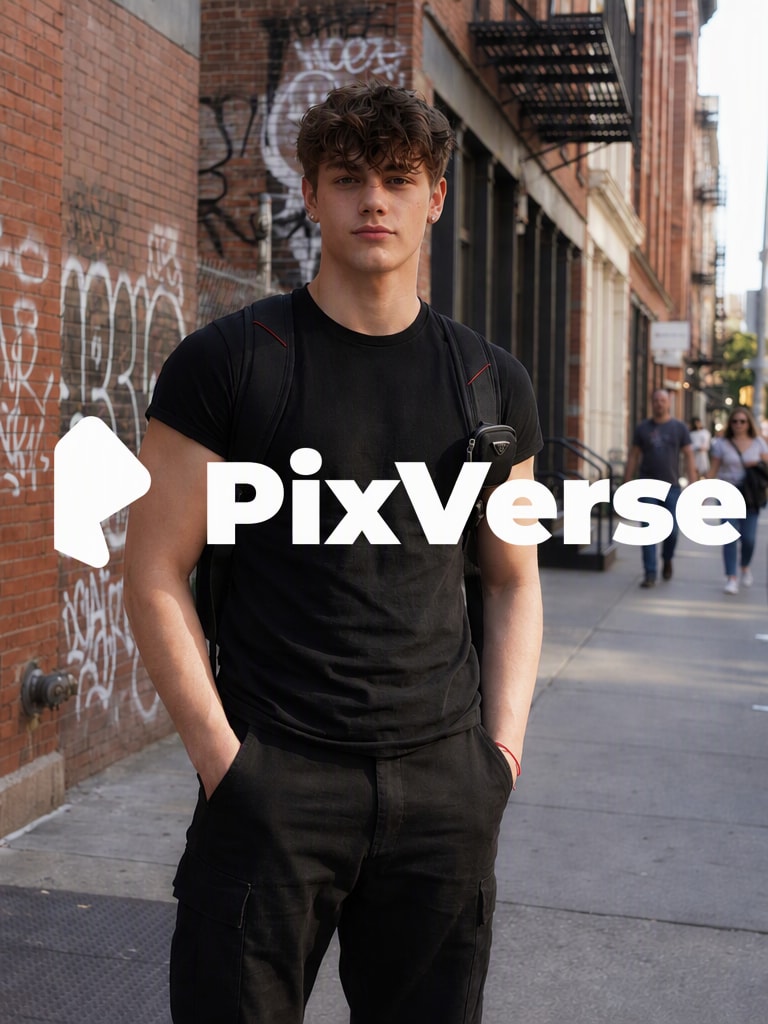
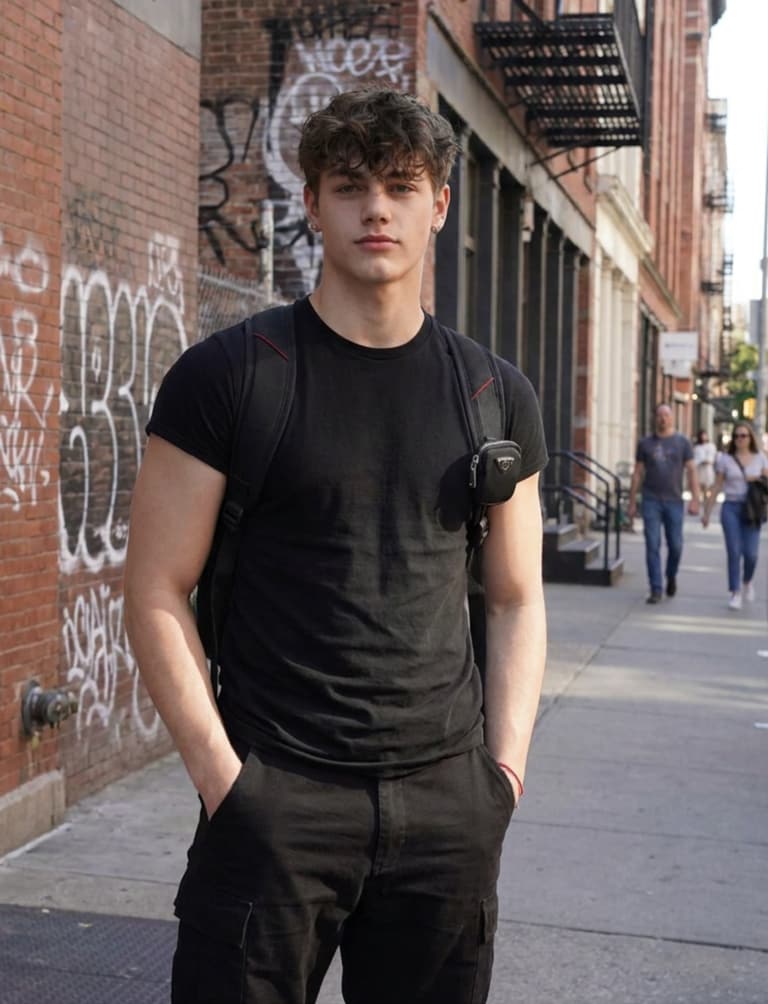
AI Video Inpainting
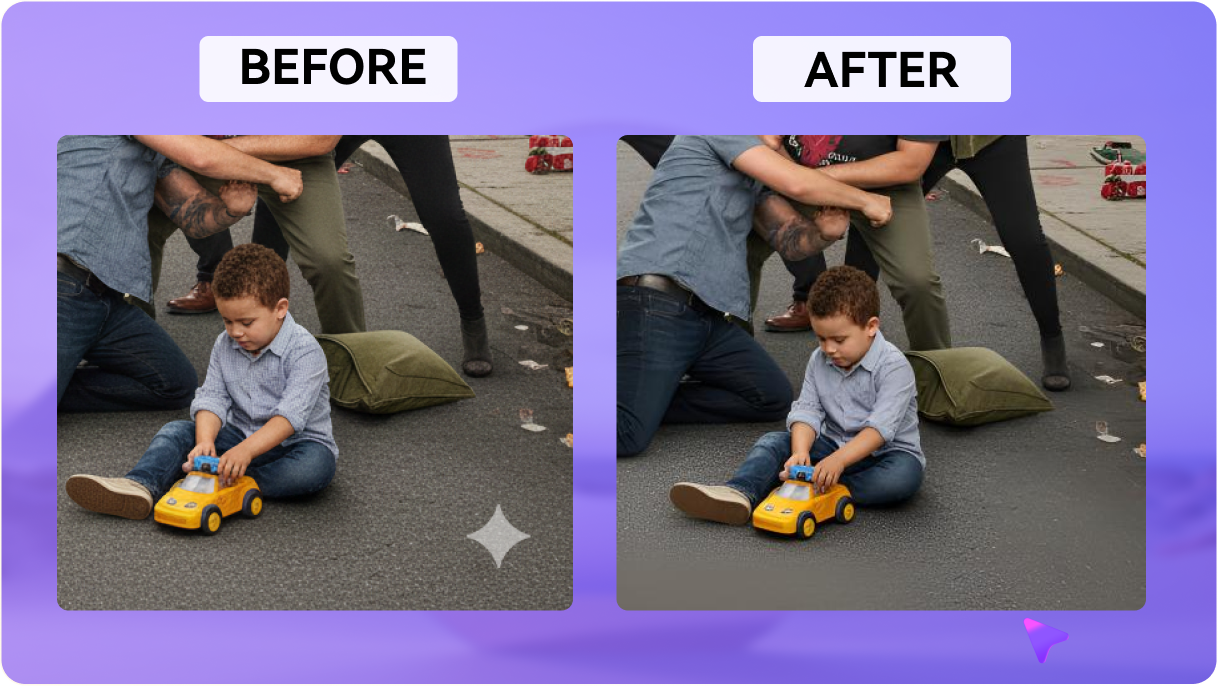
Instead of covering the mark with blur or mosaic, Media.io analyzes surrounding frames and reconstructs the selected PixVerse watermark area across the video.
Already downloaded a PixVerse video with a visible logo or corner watermark? Upload your authorized clip to Media.io's PixVerse Watermark Remover , brush over the visible mark, and let AI reconstruct the selected area across frames without cropping your original composition.
Free credits on signup. No installation required.
For videos you own or are authorized to edit. This tool removes visible on-frame logos and overlays only.







Instead of covering the mark with blur or mosaic, Media.io analyzes surrounding frames and reconstructs the selected PixVerse watermark area across the video.
Upload your already downloaded PixVerse MP4 directly in the browser. No Chrome extension, GitHub script, developer tools, or local setup required.
Remove the visible corner logo without sacrificing your composition. Keep the original 16:9, 9:16, or 1:1 framing instead of cropping away part of the video.
Inspect the reconstructed area and surrounding motion before exporting. Refine the brush or timeline if needed, then download the cleaned PixVerse video.
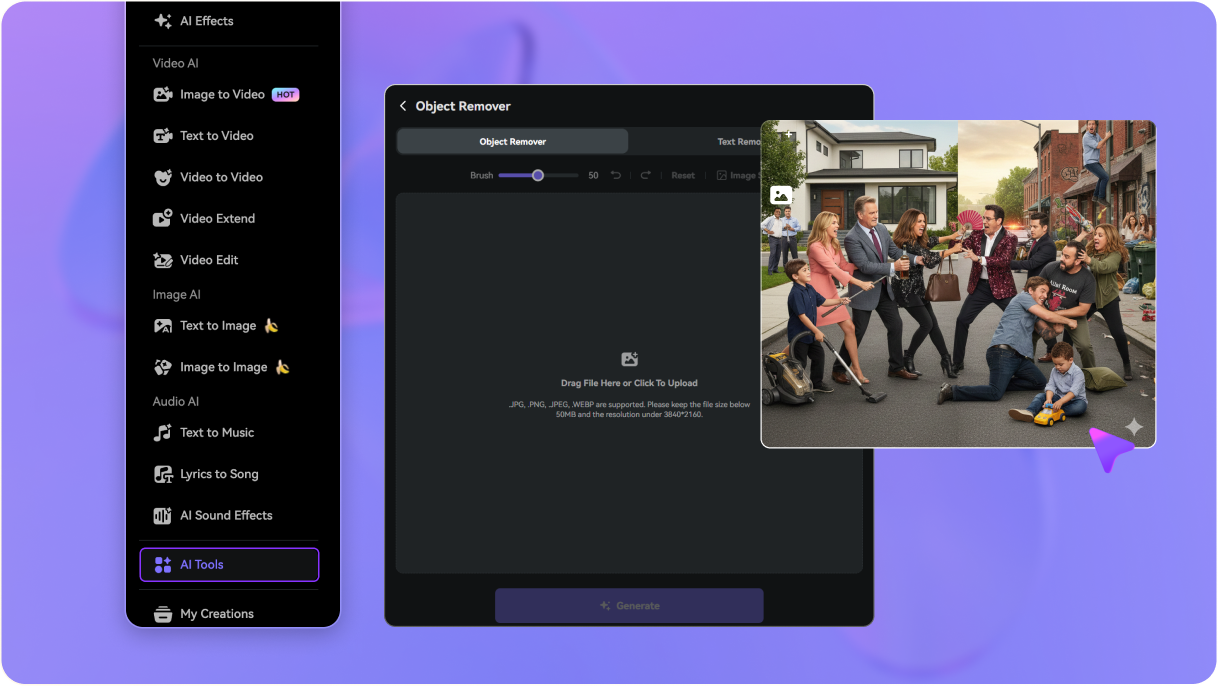
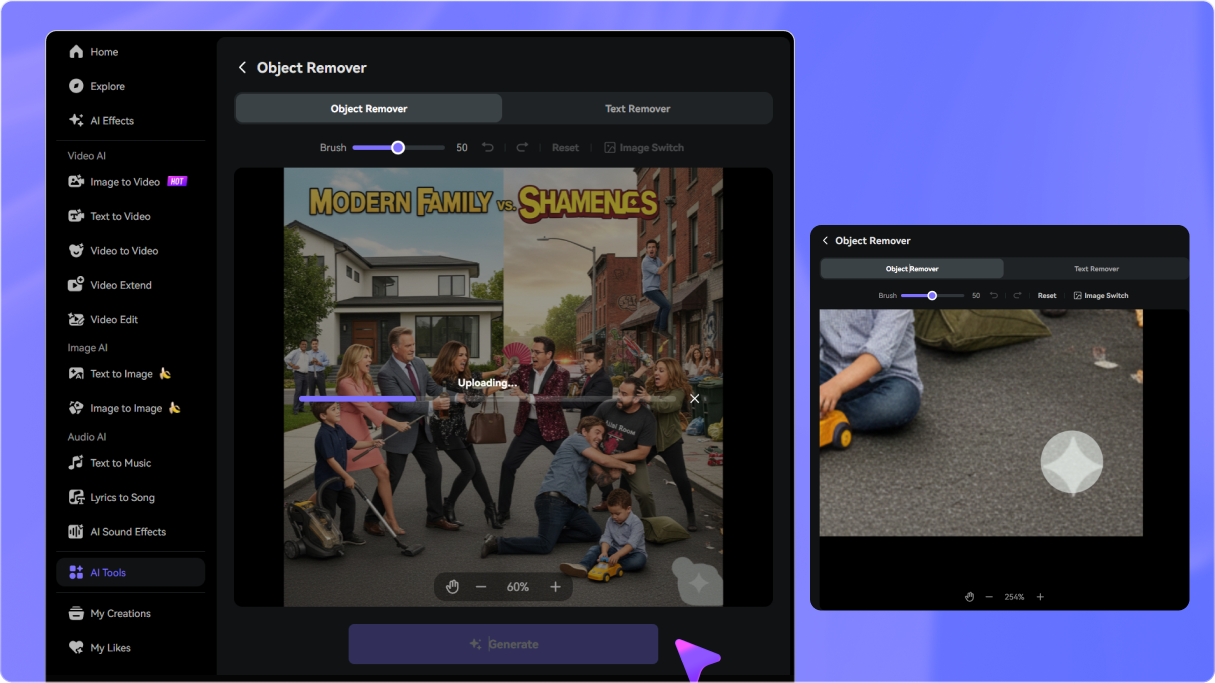
Open Media.io Video Eraser and upload the PixVerse video you already downloaded. Start directly from your browser without installing extra software.
Choose a removal mode and select the visible PixVerse logo. Set the timeline to cover all frames where the watermark remains visible.
Click Generate and inspect the reconstructed area. Adjust your selection if necessary, then download your cleaned PixVerse video when the result looks right.

AI Filmmaker

“I could keep the full composition.” Cropping the corner would have ruined the framing of my PixVerse clip. Cleaning only the visible logo area helped me preserve the original shot.

Social Media Strategist
“No downloader extension needed.” I already had the PixVerse MP4 on my computer, so uploading it directly to Media.io was much simpler than testing random extensions or scripts.

Motion Designer
“Previewing the repaired area was useful.” My video had smoke and moving textures behind the watermark, so I checked the result carefully and adjusted the selection before exporting.

Content Creator
“Works well for different aspect ratios.” I had both vertical social clips and wider PixVerse scenes. Cleaning the visible overlay without cropping meant I could keep each video's intended framing.


 4.7 (162,357 Votes)






