Home > AI Generator > Skeleton AI Video Generator

Create Viral Skeleton AI Videos for Education, Storytelling and Shorts

Start from one skeleton reference image, turn it into a story-driven skeleton scene, generate multiple animated shots, then finish the final short in Media.io Studio. Perfect for health explainers, science facts, “what if” content, and dark-cute skeleton storytelling.

Create Skeleton AI Video Free

Free credits on signup/login.

✓ One consistent skeleton host ✓ Educational and “what if” friendly ✓ Five-scene short workflow ✓ Ready for editing in Studio

How to Make a Skeleton AI Short Video

Use one reference skeleton, generate a story keyframe, turn it into multiple clips, then finish the final short in Media.io Studio.

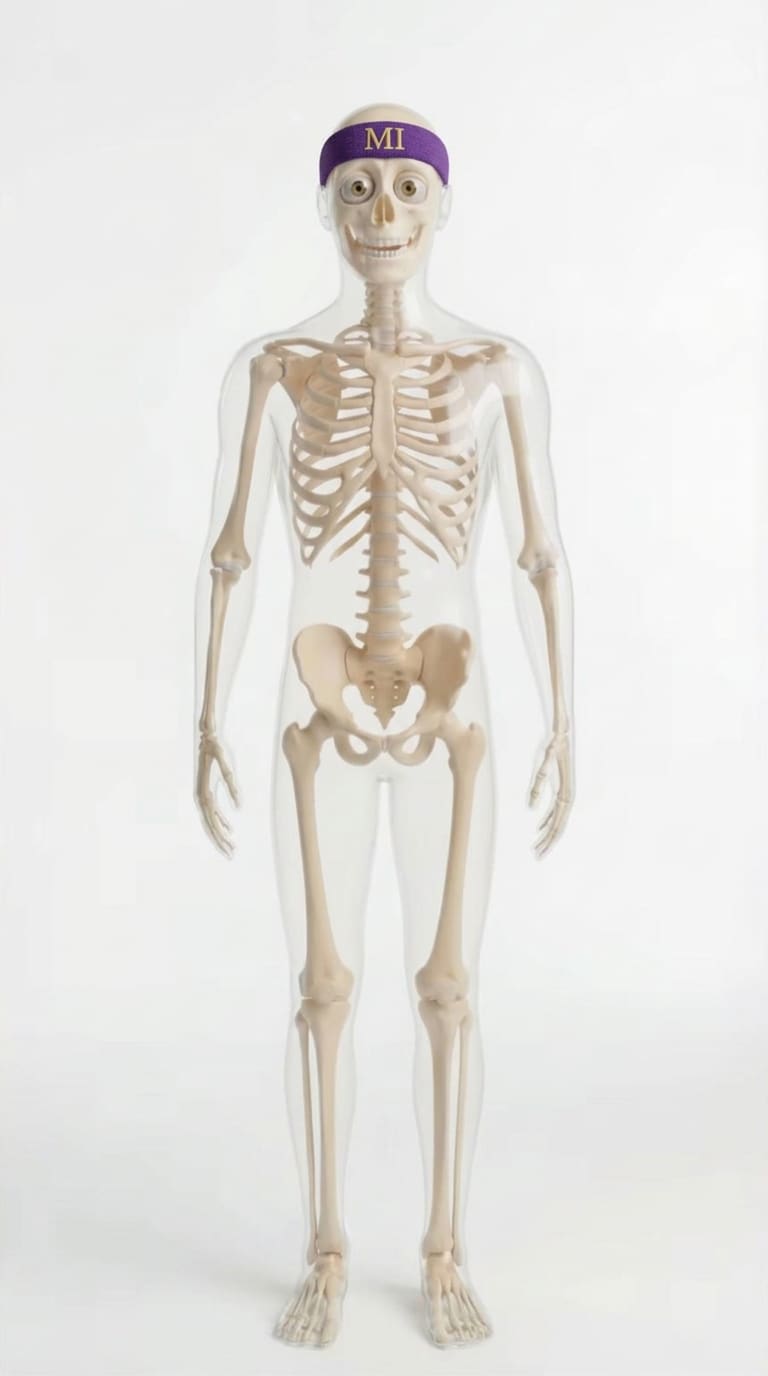
Original skeleton reference image

Original Reference

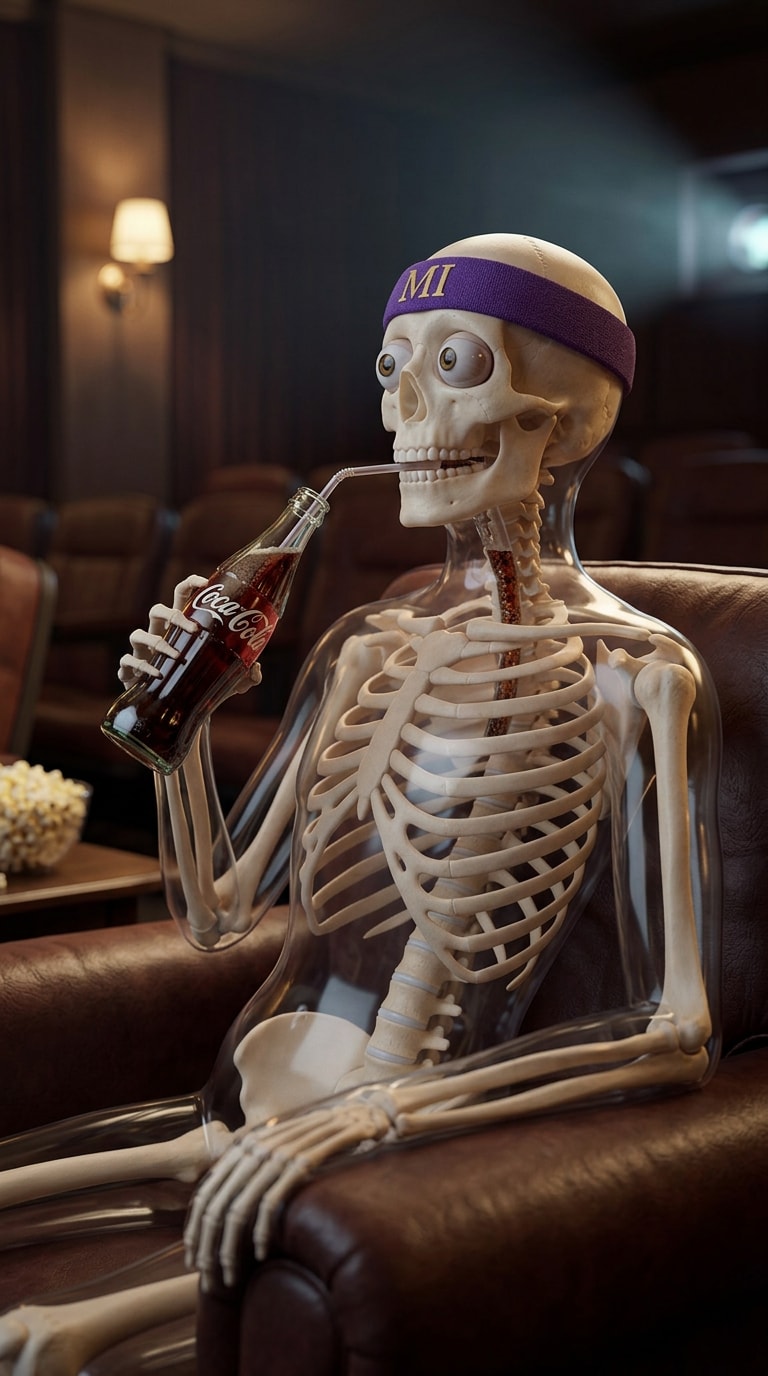
Story-driven skeleton image generated from the reference

Story Image Output

Step 1

Generate a Story-Driven Skeleton Image

  1. Open Media.io Image to Image and upload your original skeleton reference.
  2. Keep the same 3D skeleton identity and turn it into a more story-ready shot that can serve as the visual foundation of your short.
  3. This story keyframe can then be used as the base for multiple follow-up scene clips.
Story Image Prompt
Place the skeleton character leaning back while sipping Coke with a relaxed posture. Keep the same 3D style. Use soft ambient lighting and a medium side camera angle. Add subtle background blur for depth. Rendered in clean cinematic 3D, highly detailed.
Generate Story Image Tip: Keep the same skeleton identity throughout the whole series for better recognition.

Scene Clip Example

Step 2

Generate Five Skeleton Video Clips

  1. Use your story image as the visual base, then generate multiple short video shots from different prompts.
  2. Each clip should cover one beat of the final short: hook, setup, explanation, reaction, and ending.
  3. The five video templates below are ready to use and already matched with real example outputs.
Create Skeleton Video Clips Now Generate each scene separately, then combine them into one final short.

Step 3: After generating all scene clips, continue in Media.io Studio to combine the scenes, add subtitles, voiceover, sound effects, music and final pacing edits.

Five Skeleton Scene Templates

Start from one skeleton reference image, turn it into a story-style skeleton scene, then generate short clips for education, science facts, or character storytelling. Each template below keeps the same skeleton identity while changing the action and context.

Video 1: Skeleton Drinking Coke

Use This Template

Video 2: Skeleton Tooth Pain

Use This Template

Video 3: Skeleton Stomach Pain

Use This Template

Video 4: Ancient Greece Story Scene

Use This Template

Video 5: Skeleton Barista

Use This Template

Why Choose Media.io for Skeleton AI Shorts

Consistent Skeleton Character

Use one recurring skeleton host across every short to make the channel format more recognizable and easier to scale.

Perfect for Educational Topics

Health facts, anatomy reactions, hydration, sleep and “what if” science topics work especially well with skeleton visuals.

Five-Shot Short Workflow

Generate individual clips for hook, setup, explanation, reaction and ending, then stitch them into one complete short.

Generation + Editing in One Flow

Generate images, create scene clips, and then move directly into Media.io Studio for voiceover, subtitles, music and final export.

bg bg

Frequently Asked Questions About Skeleton AI Videos

A Skeleton AI Video is a short-form video built around a recurring skeleton host, usually rendered in a polished 3D or X-ray-inspired style. It is especially effective for science explainers, body-reaction stories, and curiosity-driven educational content.
They combine novelty, repeatability and strong hooks. A skeleton host can explain health and science in a way that feels visual, weird and instantly clickable, which helps creators grow channels quickly.
The strongest topics are “what if” body questions, strange health reactions, hydration, sleep, anatomy and light storytelling setups such as ancient jobs or alternate scenarios.
Start with one fixed skeleton reference and reuse it as the base for every generated image and clip. This keeps the skull shape, proportions and character feel stable across the whole series.
Five clips make it easier to control pacing. You can structure the short as hook, setup, explanation, reaction and ending, which usually performs better than one long flat shot.
Move into Media.io Studio to combine the clips, add subtitles, voiceover, music, sound effects and final pacing edits before exporting the finished short.
Use Image to Image for the skeleton reference and story image, Image to Video for each scene clip, and Media.io Studio for final editing and export.
Media.io Online Tools Quality Rating:
vote 4.7 (162,357 Votes)
media.io

AI Video Generator star

Easily generate videos from text or images

Generate