





Home>Comparison>InShot AI

InShot AI Video Editor Review

InShot AI should be reviewed as a mobile editing app first: it is practical when creators already have footage or photos and need effects, trims, captions, filters, background cleanup, templates, and social-ready exports on a phone. The Media.io comparison is different: Media.io is more useful when the same workflow needs browser-based AI video editing, subtitles, enhancement, background or object cleanup, translation, or a generated source asset before the mobile edit begins.

Core Features of InShot AI

InShot AI is a mobile-first video and photo editing workflow focused on social video edits, AI effects, captions, filters, background cleanup, templates, and fast exports. It is especially relevant to creators editing existing clips for TikTok, Reels, Shorts, Stories, product posts, and everyday brand content.

Core Feature Overview

  • AI Video Editor: Edits existing footage, captions, overlays, audio, or layout details for browser-based publishing and social delivery.
  • Mobile Social Editing: Edits existing footage, captions, overlays, audio, or layout details for browser-based publishing and social delivery.
  • AI Video Effects: Applies stylized looks, preset effects, and trend-style visual treatments for creator hooks and quick campaign variations.
  • Subtitles and Captions: Translates, captions, transcribes, or dubs existing videos for multilingual publishing, training, tutorials, and global marketing.
  • Background and Object Cleanup: Removes or replaces distracting backgrounds and objects so product shots, portraits, and campaign visuals look cleaner.
  • Template-Led Creation: Provides reusable layouts, scenes, and preset structures for explainers, training videos, presentations, and repeatable social formats.
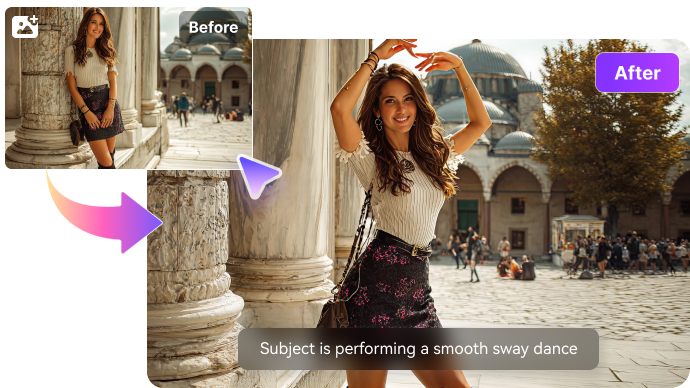
AI Video Editor in InShot AI

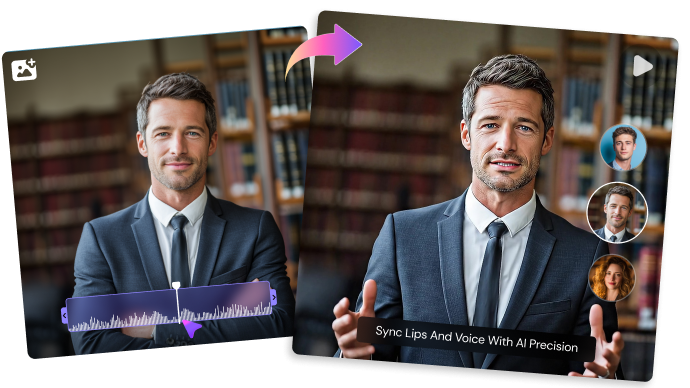
InShot AI's AI Video Editor edits existing footage by adjusting cuts, captions, overlays, layout, audio, or timeline structure. It fits social editors, marketing teams, educators, and creators who already have raw clips or brand assets to assemble. The feature reduces manual editing steps, while generation tools are only helpful when the edit is missing source visuals or support assets. Media.io is adjacent for lighter browser edits, while the competitor remains the better focus when timeline control or mobile editing is the main job.

InShot AI AI Video Editor

Mobile Social Editing in InShot AI

InShot AI's Mobile Social Editing shapes phone-first clips, vertical assets, captions, effects, and exports for social platforms. It fits creators who record on mobile and need a fast path to Reels, Shorts, TikTok, Stories, or product posts without moving into a heavy desktop editor. The workflow focuses on speed, format fit, and simple polish rather than deep timeline production. Media.io is adjacent rather than mobile-first; it helps when a social clip needs browser cleanup, subtitles, enhancement, or generated support assets after the format is chosen.

InShot AI Mobile Social Editing

AI Video Effects in InShot AI

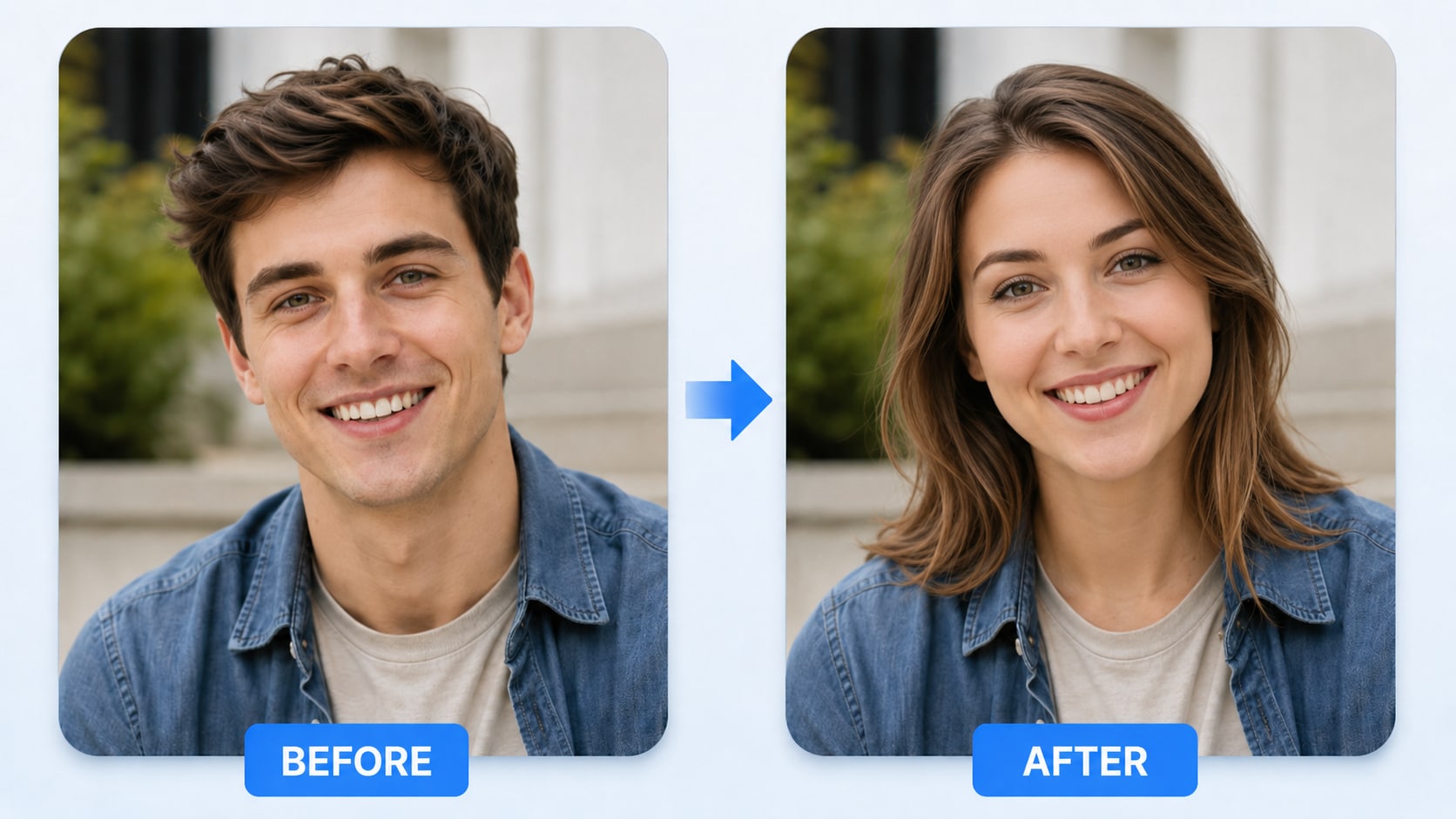
InShot AI's AI Video Effects applies stylized looks, motion treatments, filters, or preset visual plays to a generated or uploaded asset. Creators use it for social hooks, campaign variations, mood tests, creator trends, and quick visual experiments that need a recognizable style. The feature works best when the effect supports the message rather than covering a weak concept. Media.io AI Effects is more preset-led, giving creators ready-made video and image effects for social hooks, trend plays, and quick visual variations.

InShot AI AI Video Effects

Subtitles and Captions in InShot AI

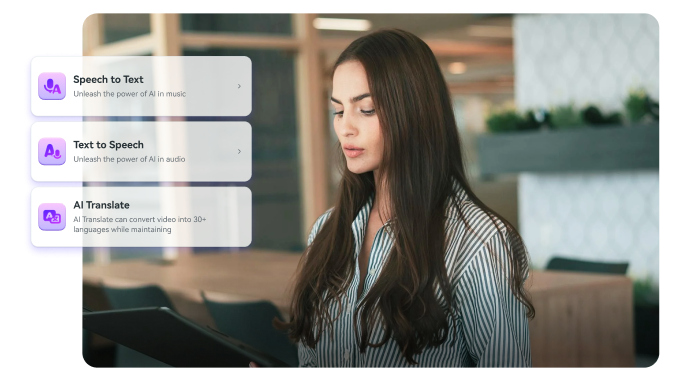
InShot AI's Subtitles and Captions adapts an existing video for new languages through subtitles, transcripts, translation, dubbing, or timing support. It fits tutorials, demos, training clips, webinars, and global marketing videos where the original footage already works. The workflow should preserve speaker intent, caption readability, timing, and brand tone across each language version. Media.io AI Video Translator fits lighter localization work where a near-finished clip needs translated messaging, subtitles, or dubbed variants.

InShot AI Subtitles and Captions

Background and Object Cleanup in InShot AI

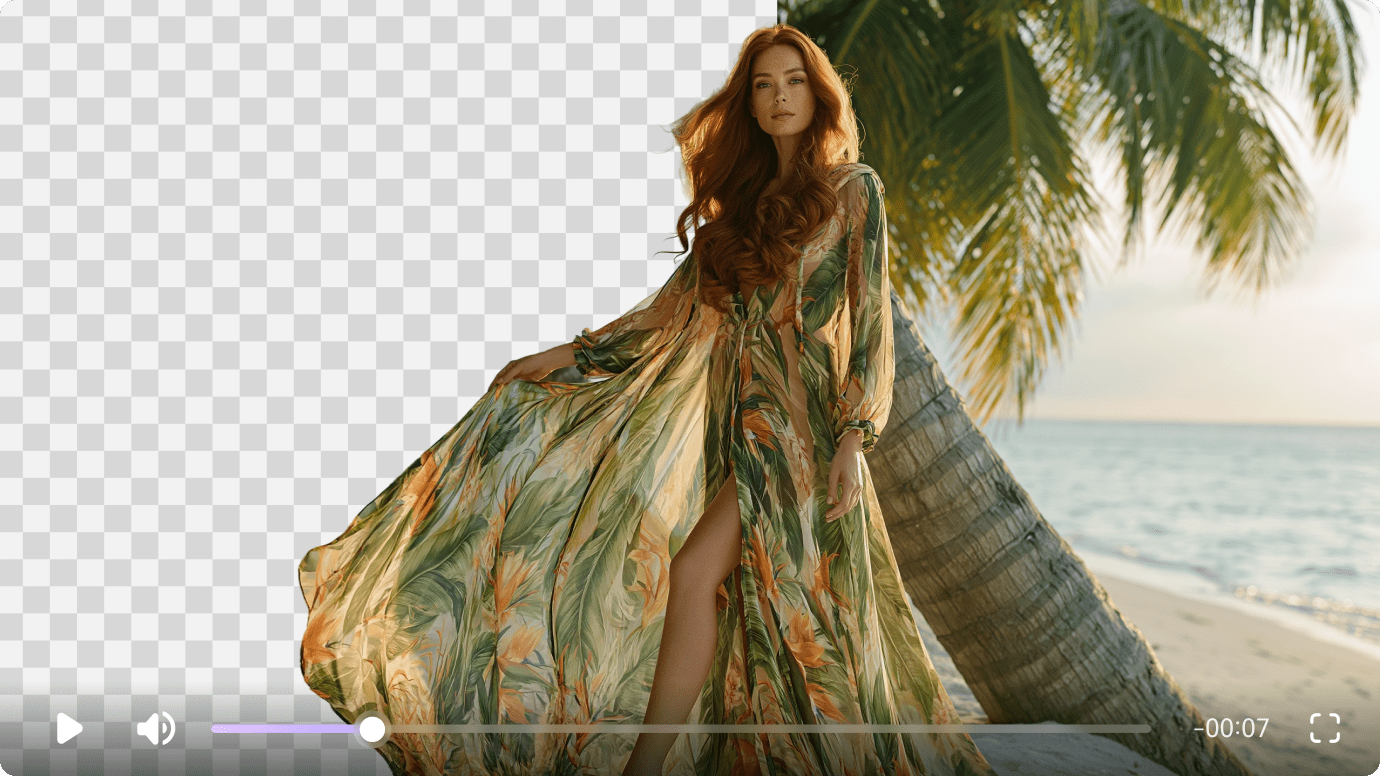
InShot AI's Background and Object Cleanup changes or removes distracting scene elements so a product, subject, or design asset looks cleaner. It fits ecommerce images, thumbnails, ad mockups, creator visuals, and campaign frames that need a better backdrop before publishing. The edit should preserve the main subject and avoid making edges, shadows, or reflections look artificial. Media.io can support cleanup through Media.io Video Background Remover and Media.io Object Remover, which remove distracting backgrounds or objects before a visual becomes a campaign asset.

InShot AI Background and Object Cleanup

Template-Led Creation in InShot AI

InShot AI's Template-Led Creation gives creators reusable layouts, scene structures, characters, or design formats instead of a blank timeline. It fits explainers, presentations, training videos, announcements, and repeatable social posts where structure matters more than cinematic control. The main difference between template tools is how much users can customize pacing, brand assets, text, and visual style. Media.io is adjacent here: generated source assets, effects, subtitles, or cleanup can support a template-led idea after the layout is selected.

InShot AI Template-Led Creation

How to Use Media.io AI Video Generator

1
2
3
1
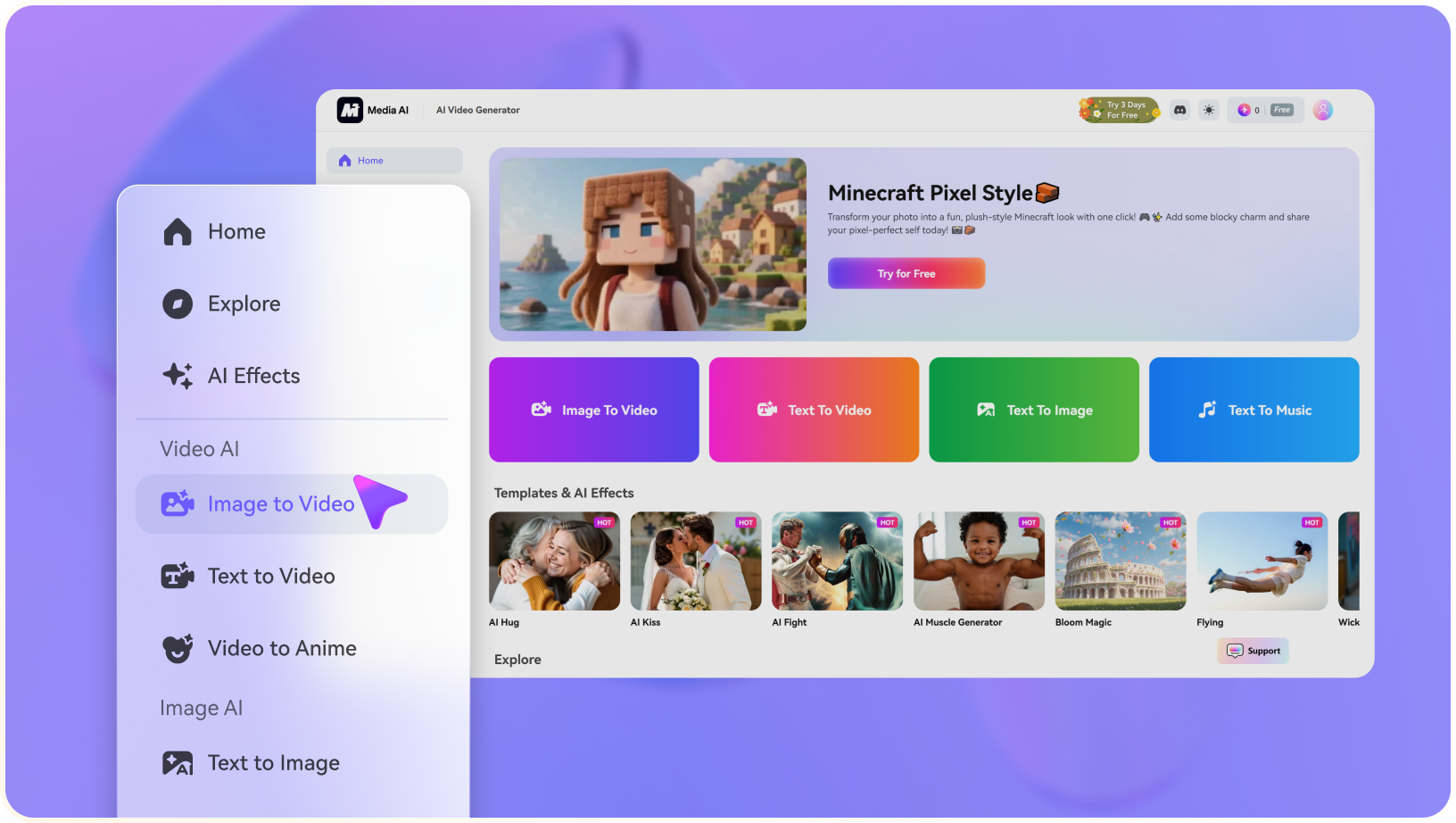
Step 1: Open Media.io and Choose Your Input

Launch Media.io AI Video Generator and choose whether to start from text or an image.

2
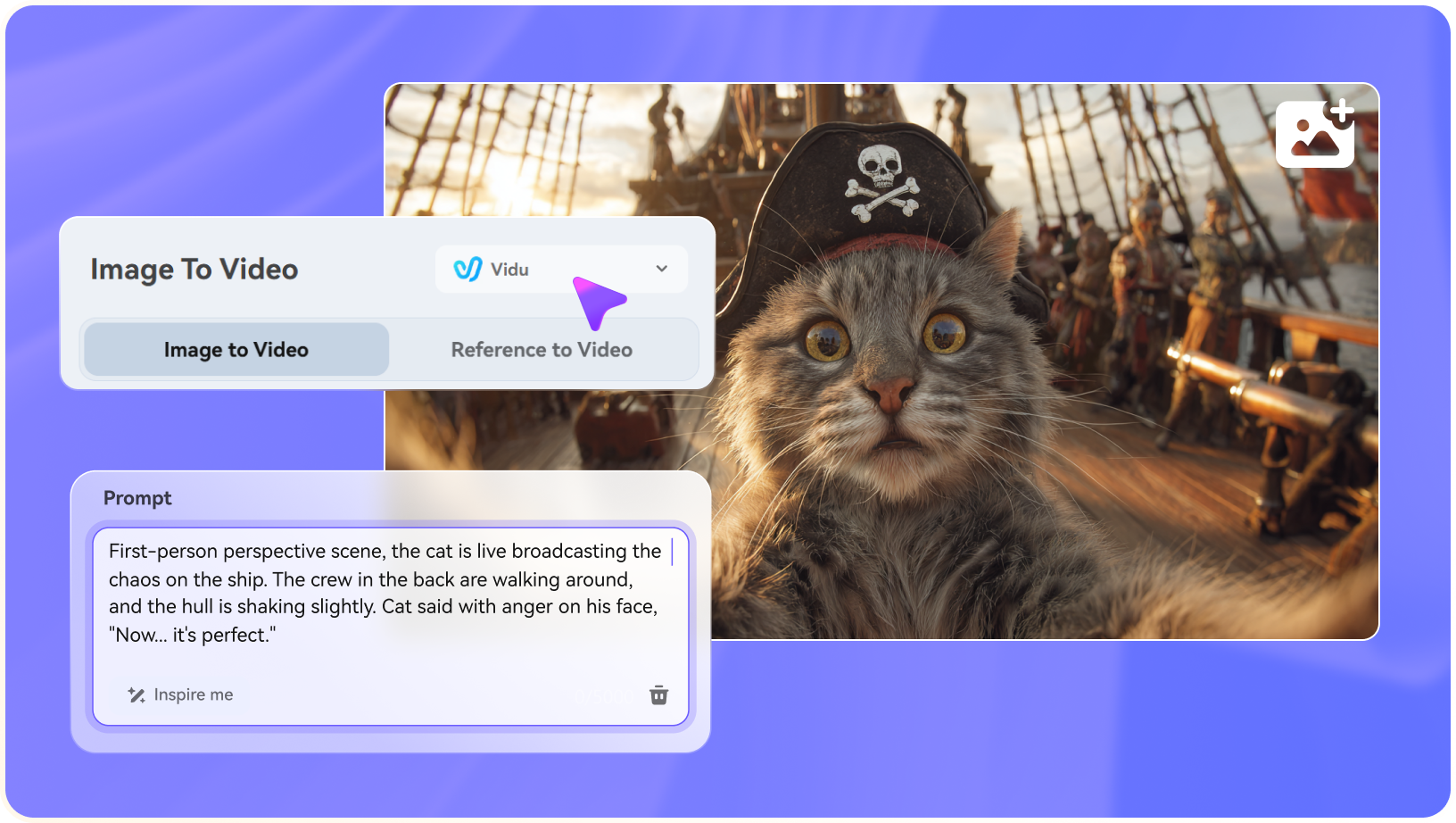
Step 2: Describe the Video or Upload a Reference

Enter a concise prompt, upload a source image when needed, and specify the motion, camera style, mood, or output goal.

3
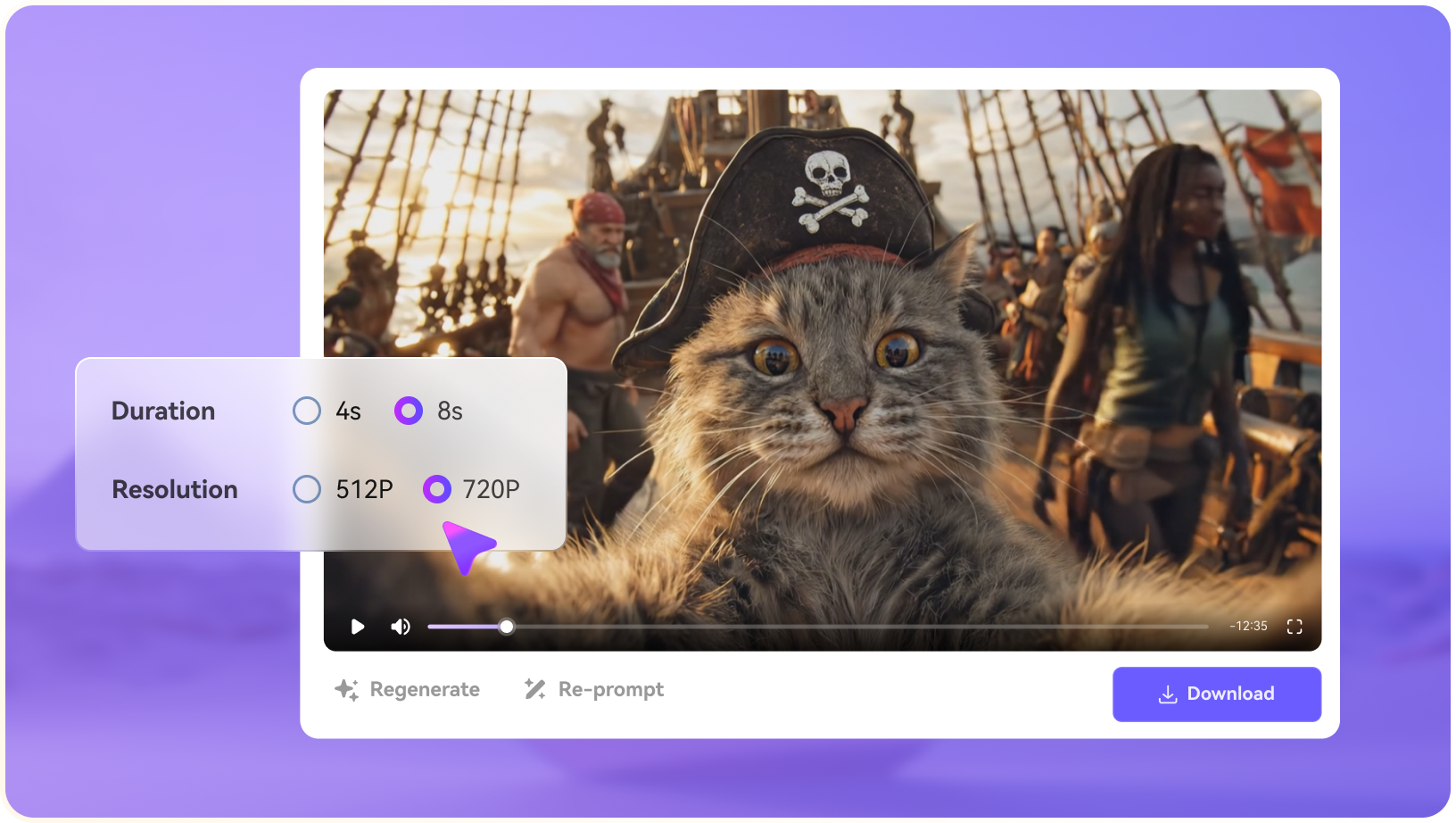
Step 3: Generate, Preview, and Continue Editing

Generate the clip, preview the result, then use light polish tools such as enhancement, subtitles, music, resizing, or export when the asset needs them.

step1 visit media.io
step2 choose a model and upload an image
step3 generate video from photo

Real-World Use Cases: Where InShot AI Fits

InShot AI is most useful when its strongest capabilities match a specific production job, such as mobile-first video and photo editing with AI effects, captions, cleanup tools, templates, and social-ready exports, rather than when users expect every generation, editing, rights, and export task to be solved automatically.

Social Video and Ad Variants

Creators can use InShot AI to turn prompts, product shots, portraits, or style frames into short clips for TikTok, Reels, Shorts, paid ads, and landing-page tests. The workflow is strongest when the team needs several visual directions quickly before deciding which version deserves full editing.

Product Visuals and Campaign Concepts

Marketing teams can test product motion, lifestyle scenes, seasonal offers, and concept ads without booking a shoot. The generated output still needs review for brand accuracy, offer clarity, aspect ratio, captions, and platform-specific export requirements.

Story, Explainer, and Moodboard Drafts

Writers, educators, and creative teams can use InShot AI to turn a short idea into visual material for storyboards, explainers, moodboards, or presentation openers. This is useful for early alignment, but final storytelling often needs pacing, music, subtitles, and continuity work.

Template-Led Creator Workflows

Teams can use templates, effects, and editing controls in InShot AI to create repeatable formats for hooks, promos, announcements, comparison clips, and channel-specific content. The value is speed, but the output still benefits from cleanup, subtitles, music, enhancement, and export checks.

Repurposing Existing Long-Form Video

Teams with webinars, lessons, podcasts, demos, or livestreams can use InShot AI to find highlights, add captions, summarize content, reframe for mobile, and create shorter derivatives. This fits content operations more than pure prompt-based generation.

Model and Style Exploration

Creators comparing AI tools can use InShot AI to understand its visual style, prompt behavior, motion limits, and export quality before committing to a production workflow. Test with real campaign assets instead of only demo prompts so the result reflects likely production conditions.

Where InShot AI Falls Short

The strongest limitations are practical workflow boundaries, source-rights concerns, and production-readiness checks around InShot AI's actual feature set.

Generation Is Not the Whole Workflow

InShot AI may help create clips, but teams still need editing, captions, resizing, asset cleanup, and final export.

Results Can Vary by Input Quality

Prompt clarity, image quality, face visibility, scene complexity, and model behavior can change the output quality significantly.

Policies and Credits Can Change

Credits, commercial usage terms, model access, and refund policies should be checked against the current official source before publishing.

Brand Control Needs Review

Teams with strict brand guidelines may need manual review before using generated scenes in production materials.

Advanced Editing May Require Another Tool

Timeline editing, subtitle styling, enhancement, conversion, and multi-format exports may sit outside the competitor's main workflow.

Source Rights Still Matter

Users remain responsible for uploaded images, voices, trademarks, likeness rights, and any third-party assets used in generated content.

InShot AI vs Media.io: Which One Fits Your Workflow?

This table compares InShot AI with Media.io by real workflow decisions instead of forcing a generic feature checklist. For this topic, Media.io is most relevant around AI Video Editor, AI Video Effects, Video Background Remover, and Auto Subtitle Generator, with light editing or export only as supporting steps when the generated asset needs them.

Workflow Need InShot AI Media.io
Primary WorkflowInShot AI is strongest when the brief matches mobile-first video and photo editing for social clips, AI effects, captions, templates, cleanup, and quick exports.Media.io is stronger when the project needs browser-based AI generation plus light editing, subtitle, enhancement, translation, and cleanup support.
Text-to-VideoUseful when the product supports prompt-led generation and model selection for short clips.Strong Fit best fit
Useful for creators who want lightweight prompt-to-video generation for story, social, product, or campaign scenes.
Image-to-VideoUseful when motion effects, camera movement, or reference-image animation are central.Strong Fit best fit
Useful when users want to animate a source image into a short scenario-based video rather than open a complex editing workflow.
Avatar or Presenter VideoStrong Fit best fit
A better fit when avatar, translation, lip-sync, or presenter workflows are the main reason to buy.
A better fit when avatar output is only one asset inside a wider video workflow.
Light Polish After GenerationMay require additional tools for captions, enhancement, resizing, conversion, or final formatting.Strong Fit best fit
Covers practical polish after generation, but is best framed as lightweight support rather than a heavy editing suite.
Ease for BeginnersCan be effective but may require learning credits, models, settings, or product-specific controls.Strong Fit best fit
Designed for creators who want a simpler path from idea to a usable generated asset.
Developer or API NeedsStrong Fit best fit
Can be a stronger choice when API access or automated pipelines are the core requirement.
Better for no-code creators and teams that prefer a ready-to-use interface.
Best FitChoose InShot AI when mobile-first video and photo editing for social clips, AI effects, captions, templates, cleanup, and quick exports is the main reason for the project.Choose Media.io when the bottleneck is browser-based AI generation plus light editing, subtitle, enhancement, translation, and cleanup support.
Best for Core Workflow

Choose InShot AI When You Need:

InShot AI is better suited when the main objective is mobile-first video and photo editing for social clips, AI effects, captions, templates, cleanup, and quick exports.

  • A project centered on mobile-first video and photo editing for social clips, AI effects, captions, templates, cleanup, and quick exports
  • Direct experimentation with the product's own modes, effects, editor, or presentation style
  • A workflow where the competitor's interface, templates, team features, or API are already preferred
  • Fast first drafts where downstream enhancement, cleanup, and format conversion are secondary
  • A focused evaluation of the competitor's core creation path before adding extra finishing tools
Explore InShot AI
Best for Scenario Generation

Choose Media.io When You Need:

Media.io is better suited when the brief needs browser-based AI generation plus light editing, subtitle, enhancement, translation, and cleanup support, especially for lightweight content generation rather than complex editing.

  • AI Video Editor: supports browser-based AI video editing and finishing
  • AI Video Effects: provides AI effects and preset-style creative video plays
  • Video Background Remover: removes or changes video backgrounds for cleaner creator and product clips
  • Auto Subtitle Generator: generates subtitles or captions for videos
  • Object Remover: removes unwanted elements from media when cleanup is part of the final production task
Try AI Video Now

Final Verdict

Our Take

InShot AI can be a strong choice when the brief depends on mobile-first video and photo editing with AI effects, captions, cleanup tools, templates, and social-ready exports. Its value should be judged by the exact asset the user needs, the quality of the source material, and the amount of review required before publishing.

The main tradeoff is workflow fit. InShot AI may be useful for its specialized creation task, but teams often still need a clearer way to create scenario-based video, image, audio, music, or character assets without moving into a heavy editing workflow. Media.io is a better fit when the project aligns with AI Video Editor, AI Video Effects, Video Background Remover, and Auto Subtitle Generator and needs light polish such as cleanup, captions, resizing, conversion, or export after generation.

Bottom line: Choose InShot AI when its specialized workflow is the center of the brief. Choose Media.io when the project needs lightweight, scenario-based AI media generation with practical support tools around it.

InShot AI FAQ

What is InShot AI best used for?
faqfaq

InShot AI is most relevant when its strengths around mobile-first video and photo editing with AI effects, captions, cleanup tools, templates, and social-ready exports match the user's production task.

Consider InShot AI if you need mobile-first video and photo editing with AI effects, captions, cleanup tools, templates, and social-ready exports and are prepared to verify current source rights, pricing, output limits, and export requirements.

It depends on the job. A specialized competitor can be better for its narrow strongest workflow, while Media.io is more practical when lightweight AI video, image, audio, music, and character generation need to stay connected.

Not completely in most production workflows. AI-generated clips often still need trimming, captions, enhancement, music, conversion, brand review, and platform-specific exports.

Check the current official terms for commercial use, input ownership, likeness rights, watermark behavior, and plan restrictions before publishing or selling generated work.

Support varies by product, model, plan, and release date. Verify current official documentation before relying on image-to-video for production work.

Some AI video platforms provide APIs or developer workflows, but availability can change. Treat API access as a volatile fact unless official documentation confirms it.

Media.io is a practical alternative when you need lightweight AI video generation plus image-to-video, text-to-video, AI music video, sound effects, enhancement, object removal, subtitles, music, resizing, conversion, and browser-based export.

Choose Media.io when the bottleneck is not only testing media, but creating a specific scenario asset from generated or existing video, image, audio, music, character, or product materials.

What Creators Say About Media.io AI Video Generator

Media.io user
Sarah L.

Content Creator

starstarstarstarstar

Media.io makes it easier to test different AI video styles without jumping between platforms.

I usually start with a product photo or a short prompt, generate a few motion directions, and then keep the stronger version for social posts. Having image-to-video, sound, basic polish, subtitles, and export options in the same browser workspace saves a lot of cleanup time.

Media.io user
John D.

Social Media Marketer

starstarstarstarstar

I can start with a prompt or image, then resize, caption, and polish the result before publishing.

For campaign tests, the useful part is speed: our team can turn one concept into multiple short video drafts, compare hooks, add captions, and prepare different aspect ratios without rebuilding the whole asset from scratch.

Media.io user
Emily T.

Freelance Designer

starstarstarstarstar

The browser workflow is approachable when experimenting with unfamiliar AI video models.

When a client needs a quick visual direction, I can create motion samples from reference images, refine the mood, and send a cleaner preview before committing to a full edit. It works well for concept boards, ads, and lightweight story videos.

Media.io Online Tools Quality Rating:
vote 4.7 (162,357 Votes)
media.io

AI Video Generator star

Easily generate videos from text or images

Generate