






Home > AI Video Effects > AI Princess Dress Transformation Video Generator

Turn Any Girl into a Royal Princess with AI Dress Transformation Video

Upload a back-view photo, generate a royal princess gown with AI Image-to-Image, then animate her walking forward with Kling to create your final viral princess reel — two steps, no editing skills needed.

Create Princess Transformation Video Free

Free credits on signup/login.

✓ Pose and Background Lock ✓ Custom Dress Colour ✓ Kling-Powered Gown Animation ✓ 9:16 Reel-Ready Export

How to Make an AI Princess Dress Transformation Video

Upload one back-view photo → generate a royal princess gown with Nano Banana Pro → animate her walking forward with Kling Image-to-Video → your viral princess reel is ready to post.

Original back-view photo of a girl near a doorway — input for AI princess dress transformation

Original Photo

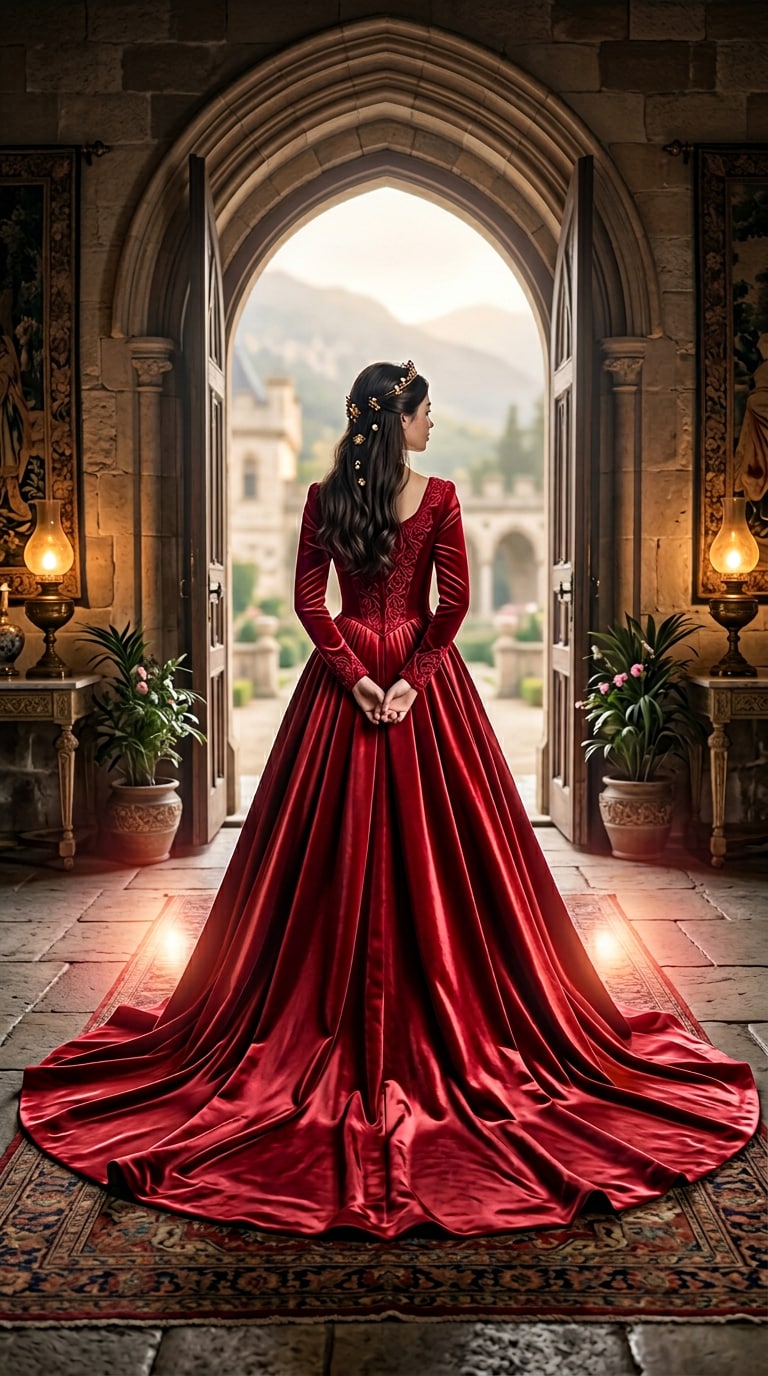
AI-generated royal princess gown portrait with same pose and background preserved

AI Princess Portrait

Step 1

Generate AI Princess Dress Image

  1. Open Media.io Image to Image and select Nano Banana Pro.
  2. Upload a back-view photo of a girl standing near a doorway or bright entrance. Make sure her full silhouette is visible and the background is clean.
  3. Paste the prompt below and replace [COLOR] with your target dress colour — rose gold, royal blue, champagne, deep red, or lavender.
  4. Click Generate and download your princess portrait. The AI preserves the original pose, background, and lighting — only the outfit changes.
Image-to-Image Prompt
Turn the girl in the image into a royal princess seen from the back. Keep the same pose and the same place near the doorway looking outside. Change the outfit into a long, elegant royal princess gown or lehenga with a flowing trail. The dress must be [COLOR] only, with a silky, luxurious and slightly shiny look. Add a soft glowing light from both sides of the dress to create a gentle glow. Keep the surroundings natural and cinematic, with soft daylight coming from outside the doorway for a dreamy atmosphere. Ensure realistic proportions, natural shadows, detailed fabric texture, and cinematic lighting for a high-quality photorealistic image.
Generate Princess Dress Image Now Tip: Replace [COLOR] with a specific shade — e.g. "rose gold", "deep royal blue", "champagne ivory".

Final Princess Video

Step 2

Animate the Princess and Download Your Final Video

  1. Open Media.io AI Image-to-Video and select Kling.
  2. Upload the AI princess portrait generated in Step 1 as the starting frame.
  3. Paste the video prompt below → click Generate. Kling animates the princess gracefully walking toward the doorway with a flowing gown in natural slow motion — this is your final video.
  4. Download the result in 9:16 vertical format and post directly to Instagram Reels, TikTok, or YouTube Shorts. Add trending audio and hashtags like #aiprincess, #princessdress, #dresstransformation.
Image-to-Video Prompt
Create a cinematic video of the same girl as a royal princess from the back view. Keep the camera angle and framing exactly the same as the original image. Do not change the background — the hallway, doorway, walls, lighting and environment must remain identical. The girl wears a long elegant royal princess gown with a flowing trail and a delicate crown. She gracefully walks forward toward the doorway. Her movement should be smooth and natural, with slight slow motion while the gown gently flows. Style: cinematic look, realistic lighting, dreamy royal aesthetic, smooth motion.
Create Princess Video Now Pro tip: Use Kling 2.1 or Kling 3.0 for the smoothest gown-flow and best slow-motion results.

Social Media Showcase

Watch real examples on Instagram: Sky Fall Trend, Walk Transition, and Minecraft Background.

Why Choose Media.io for AI Princess Dress Transformation

Pose and Background Preserved

Nano Banana Pro locks onto the original doorway framing, body pose, and natural lighting. Only the outfit changes — the scene stays pixel-perfect, making the before-and-after comparison seamless and convincing across both the image and video steps.


Photorealistic Gown in Any Colour

Replace [COLOR] in the prompt with any shade — rose gold, royal blue, champagne, deep red, or lavender. The AI renders silky fabric texture, a long trailing hem, and soft directional lighting with photorealistic precision every time.

Natural Gown Animation with Kling

Kling's physics-aware engine renders the train flowing, fabric rippling, and movement natural — all in dreamy slow motion. The hallway, doorway, and lighting stay unchanged, ensuring full scene continuity between your portrait and the final video.

Two Steps to a Viral Reel

No video editing required. The entire workflow is just two AI generations — one Image-to-Image for the princess portrait, one Image-to-Video for the animation. Download the final 9:16 video and post it directly to Instagram Reels, TikTok, or YouTube Shorts.

bg bg

Frequently Asked Questions About the AI Princess Dress Transformation Trend

The trend works because it combines a universal fantasy — becoming a royal princess — with a satisfying cinematic reveal. The back-view angle keeps the subject's identity partially hidden, building suspense, and the moment the gown appears delivers a powerful wow moment perfectly designed for looping short-form video. It resonates across all age groups and cultures, driving high completion rates and shares.
For best results, use a portrait (9:16) photo of a person standing with their back to the camera, near a doorway or brightly lit entrance. The full body silhouette should be clearly visible, the background should be relatively uncluttered, and natural daylight or soft indoor lighting produces the most realistic gown transformation. Avoid photos where the back is obscured or the frame is too tightly cropped.
Yes. Simply replace [COLOR] in the Image-to-Image prompt with your choice — rose gold, royal blue, champagne, deep red, lavender, and more. You can also specify the gown style: ballgown, A-line, lehenga, or mermaid silhouette, and add details like embroidery or a sheer overlay for a fully personalised result.
No. The prompts explicitly instruct both the Image-to-Image and Image-to-Video models to preserve the doorway, hallway, walls, and natural lighting without change. Since the subject is shown from the back, the face is not visible — so there are no identity concerns. Only the outfit changes, creating a clean and believable transformation in both the portrait and the animated video.
No. The Image-to-Video output from Step 2 is your final video — ready to download and post. There is no need for a separate editing step. The 9:16 vertical format, cinematic look, and slow-motion movement are all generated directly by Kling. Simply add trending audio and hashtags in your social media app before publishing.
For Step 1, Nano Banana Pro delivers the best Image-to-Image results — preserving the original scene while generating highly detailed, photorealistic gown textures. For Step 2, Kling 2.1 or Kling 3.0 produce the smoothest gown-flow physics and most natural slow-motion movement. Both models are available directly inside Media.io with no additional setup.
Yes. Media.io offers daily free credits covering both AI Image-to-Image and Kling Image-to-Video. No credit card is required to start. Upgrade to a paid plan for 4K exports, faster processing, Kling 3.0 access, and unlimited daily generations.
Media.io Online Tools Quality Rating:
vote 4.7 (162,357 Votes)
media.io

AI Video Generator star

Easily generate videos from text or images

Generate
