Turn an Image into a Video Online for Free
Turning a static image into a video is one of the easiest ways to make visual content more engaging. This guide explains what image-to-video creation means, when to use it, and how to create short video content online with Media.io AI tools for social media, product marketing, storytelling, and everyday creative work.
What You Need to Know
Overview
- What it is: A workflow that turns still photos into moving video content.
- Why people use it: Video usually captures more attention than static visuals.
- Who it helps: Creators, marketers, ecommerce sellers, educators, and beginners.
- How to do it: Select an image, upload a reference image, enter your prompt, then generate and export.
- Where to start: If you want an easy browser-based workflow, try Media.io AI video tools.
What Does It Mean to Turn an Image into a Video?
Understand the basics before choosing the workflow that fits your content goal.
Definition: Turning an image into a video means using an online tool to transform a static photo into dynamic visual content. The result may include camera-style movement, transitions, music, text overlays, or AI-generated animation. With tools like Media.io, users can create this kind of content quickly in the browser without needing advanced editing software.
In practical terms, this workflow is useful when you already have strong visual assets but need video content fast. Instead of filming from scratch, you can turn portraits, product photos, promotional images, or story-driven visuals into short clips that are easier to publish across social media, landing pages, and marketing campaigns.
Common Inputs
- Portrait photos
- Product images
- Travel or landscape photos
- Marketing banners
- Storytelling visuals
Common Outputs
- Short promotional clips
- Social media visuals
- Animated storytelling posts
- Product showcase videos
- Presentation-ready motion content
If you want to understand the AI side of this process in more detail, start with What Is AI Image to Video?.
Why Use an Online Image-to-Video Tool?
For many users, the biggest advantage is turning existing visual assets into something more dynamic without extra production work.
1. Faster Content Production
Online workflows reduce the time needed to turn a still image into something usable for social content, ads, or campaigns.
2. Lower Editing Complexity
Users can create motion content without learning timeline editing, keyframes, or professional desktop tools.
3. Better Visual Engagement
Motion-based content often attracts more attention than static imagery, especially on mobile-first platforms.
Who should use this workflow?
- Creators: for Reels, Shorts, TikTok, and visual storytelling
- Marketers: for ad creatives, product promotions, and landing-page media
- Ecommerce teams: for turning product images into richer shopping content
- Educators: for more visual explainers and lesson materials
- Beginners: for making videos without advanced editing experience
How to Turn an Image into a Video with Media.io
Follow this updated 3-step workflow to create an AI video from your image faster and more clearly.
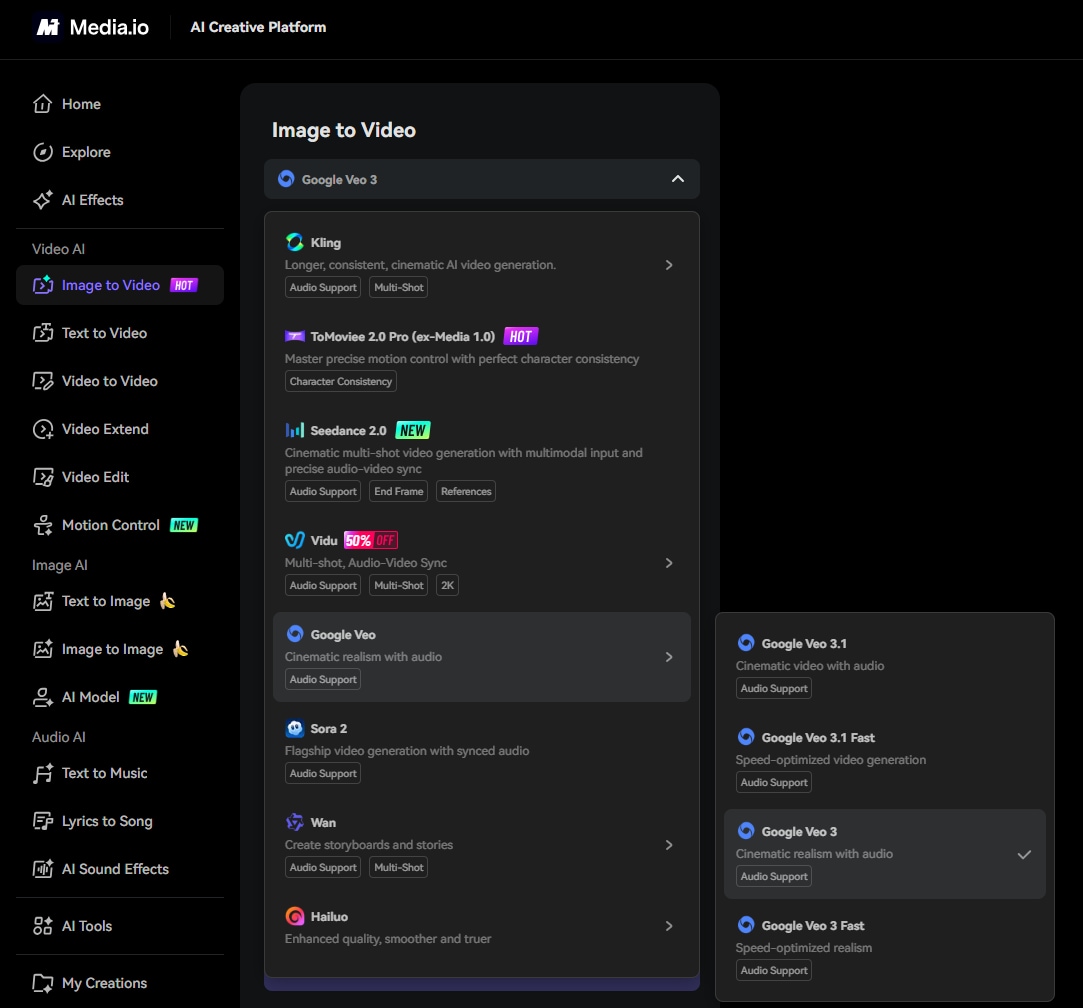
Choose the image you want to use for Image to Video
Start by selecting the picture you want to turn into a video. Mainstream models all support this workflow, so you can begin with portraits, product visuals, illustrations, or other high-quality images.
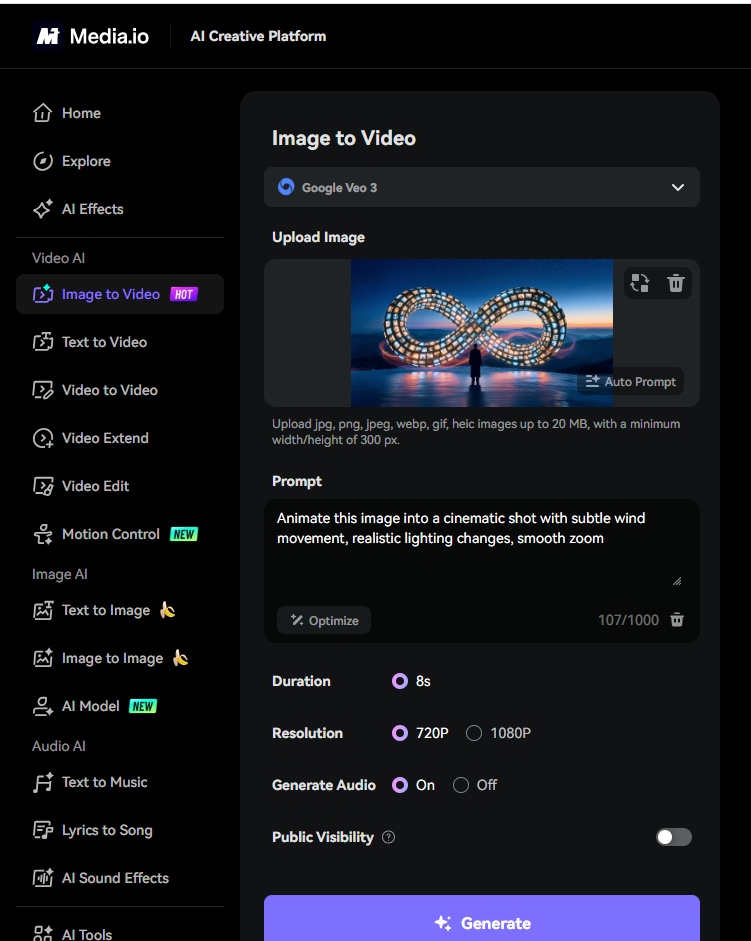
Upload a Reference Image and describe the video you want to generate
Upload your Reference Image, then enter a clear prompt describing the motion, scene, mood, or camera behavior you want. A more specific prompt usually gives you a more controllable final result.
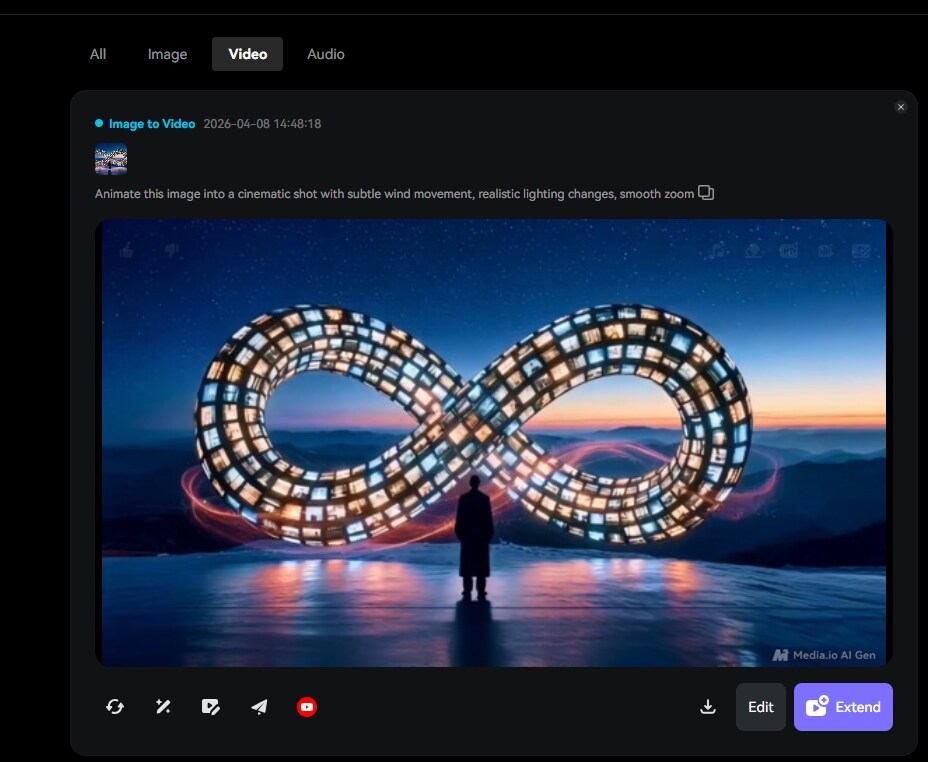
Generate, download, and share
Click generate to create the video, preview the output, then download it for use or share it directly once you are satisfied with the result.
Practical workflow notes
- If your source image needs improvement first, use AI photo enhancement.
- If you want a cleaner subject, try background removal before animation.
- If you want face motion or voice-style effects, see talking photo workflows.
- If you want broader motion from a still image, see How to Animate a Photo with AI.
- If you want to start directly with an online AI workflow, go to Media.io.
Tips for Better Results
Use a clear source image
The better the source photo, the cleaner and more convincing the final motion result usually looks.
Keep the subject obvious
Images with a clear focal point tend to translate better into short video content.
Match the clip to the platform
Short, focused clips are usually a better fit for TikTok, Reels, Shorts, and ad placements.
Use motion with purpose
Motion should support the message, product, or story rather than distract from it.
Best one-sentence recommendation
For better image-to-video results, start with a clear image, choose motion that supports the message, and use a simple online workflow like Media.io to create short clips that fit the platform where they will be published.
Common Mistakes to Avoid
Using low-quality input
A low-resolution or cluttered image makes the final video look less polished.
Overusing effects
Too much motion or too many overlays can reduce clarity and make the result feel less professional.
Making the video too long
Short videos are usually easier to watch and perform better across most online platforms.
Skipping related workflows
In some cases, talking photos, photo animation, or video enhancement may be a better fit for your goal.
Image-to-Video vs Related Workflows
If you are deciding between similar tools, this quick comparison can help.
| Workflow | Best For | Main Goal | Related Page |
|---|---|---|---|
| Image to Video | General motion content | Turn static visuals into short dynamic clips | Current Guide |
| AI Image to Video | AI-assisted motion generation | Create motion with AI-driven effects | What Is AI Image to Video? |
| Animate a Photo | Portraits and storytelling visuals | Add motion to still images | Animate a Photo with AI |
| Talking Photo | Speaking portraits | Simulate face movement and speech | Talking Photo Online |
Frequently Asked Questions
Here are the most common questions users ask before trying this workflow.