ChatGPT
 Perplexity
 Gemini
 Claude
 Grok
Grok
The need for removing the audio from the video files may arise in several situations. For instance, video having unwanted noise, background audio distraction, creating slideshows, and others. In all the above and other situations, a mute video on the Windows system can be created using different tools and programs. To remove audio from video on Windows 10/8/7, you can read the following parts to learn more details.
Part 1. Using Windows Movie Maker to Mute Videos in Windows 10
Developed by Microsoft, Windows Movie Maker is a video editing tool that supports different editing functions in a quick and hassle-free manner. Among the list of supported features, the software facilitates removing the audio from the video file to create a mute video.
How to mute video in Movie Maker:
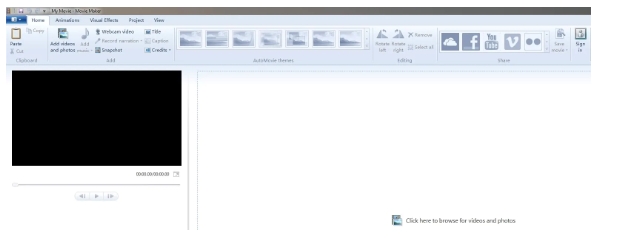
Step 1: Launch the Windows Movie Maker program on your computer and click on the Add Videos and Photos icon from the Home tab on the program interface. Browse and select the file that you want to mute.
Step 2: Once the video is added, you can preview it to decide if you want to mute the entire file or remove audio from the selected parts. If you want to remove audio from only a portion of the file, place the playhead on the storyline at the location from where you want to delete and then hit on the Split button. Click on the Edit menu to have access to the editing tools of the software
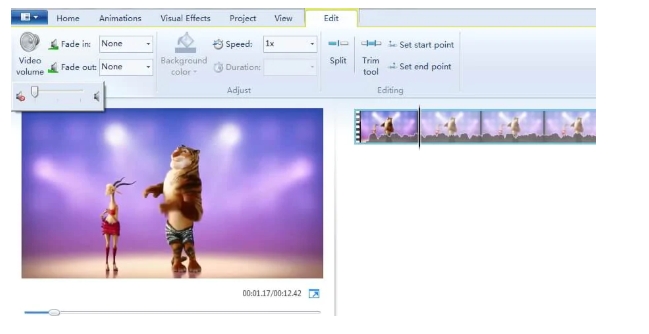
Step 3: Select the video clip to be processed and then hit on the Video Volume icon present on the left-hand side of the Edit tab
Step 4: To remove the audio, move the volume slider to the complete left to keep the volume nill. With this Windows Movie Maker mute video and you can click on the Play button to preview and check if the audio has been removed.
Part 2. Using VLC to Remove Sound from Video in Windows 10/8/7
VLC is a powerful media playing app that additionally supports video conversion, file parameter customization, removing audio and several other functions. If VLC is already installed on your system, you do not need to download any additional program to create mute videos. The process of creating a mute video file is simple and can be used by amateurs as well as professionals.
How to remove audio from video Windows 10 using VLC
Step 1: Launch the VLC app and select Convert/Save...option from the Media drop-down menu.
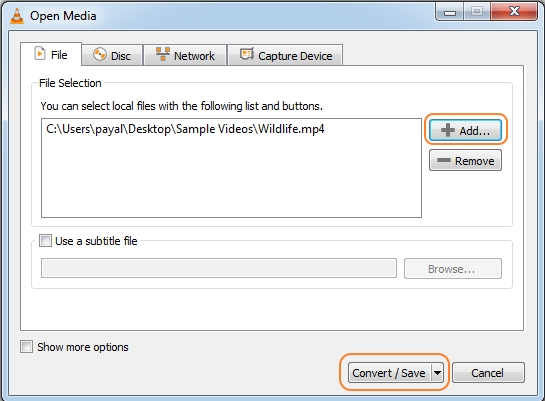
Step 2: At the Open media window click on the +Add button to load the locally saved file for which the mute version has to be selected. Again at the bottom-right corner click on the Convert/Save button.
Step 3: A Convert window will now open from where select the target format of the file from the Profile section under the Settings. Next click on the Edit Selected profile button.
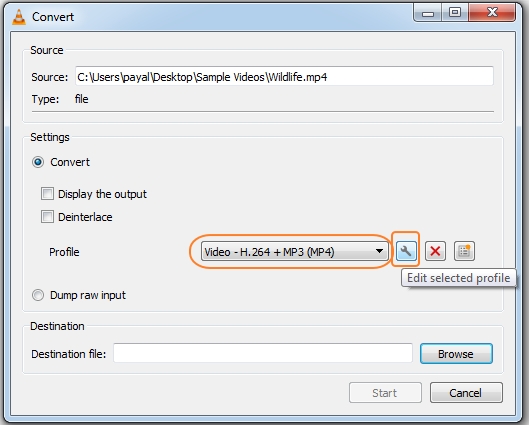
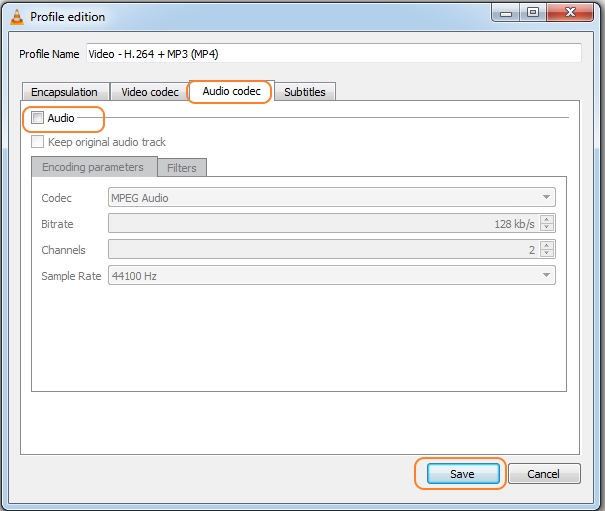
Step 4: At the pop-up Profile edition window select the Audio Codec tab. Uncheck the box next to the Audio option to remove the audio content of the file. Click on the Save button.
Step 5: Clicking on the Browse button under the Destination section will help you to choose the processed file name and the destination on your system. Finally, hit on the Start button that will remove audio from video Windows using VLC.
Part 3. Online and Free Method to Mute Video with One-Click
Above we have discussed three different methods to remove sound from video Windows. VLC and Windows Movie Maker can be used if you already have the programs installed on your system. To create mute files without any additional tool, Online UniConverter works as a great tool. This program works directly from the browser and in addition to the local system, it allows converting YouTube mute videos as well. All major video formats like MP4, MOV, AVI, and others are supported by the program and after the process, the mute video can be downloaded from the interface.
Steps on how to remove sound from video Windows 10 using Online UniConverter
Step 1: Click on the + icon to browse a video from your system.
Step 2: The video mute process will start and after a while you can download the video directly or save to Dropbox.
So selecting between Windows Movie Maker, VLC, and Online UniConverter depends on your requirements. If you do not have any program installed on your system, going with the online tool is a quick and simple solution. Not only the local, but you can also even add a YouTube link to create its mute version using the Online UniConverter tool.