ChatGPT
 Perplexity
 Gemini
 Claude
 Grok
Grok
Gone are the days when your smartphone used to be a communication device only. Today, these devices double up as excellent video editors. However, finding a great video cutter and merger app on the crowded Play Store and App Store can be challenging. But fret not because you can choose a cut and join video app from the list below. You'll also know the best online and desktop video cutter and joiner. Let's learn!
Part 1. 3 Best video cutter and joiner app for Android/iPhone
VEdit Video Cutter and Merger (Android)
VEdit Video Cutter and Merger is a lightweight Android app launched in 2016. It boasts 5+ million downloads with a 4.3-star rating on Play Store. That aside, this free-to-use app allows users to trim, join, and mute videos before exporting without any distracting watermarks or logos. It supports most video file formats and enables users to encode any video format to MP3. However, this app is ad-supported, although you can upgrade to remove the adverts.
Key features:
- It supports most video formats.
- Join an unlimited number of clips.
- Convert video to MP3.
- It leaves no watermarks on the final output.
Below is how to use this join two videos app:
Step 1. Install and launch VEdit Video Cutter and Merger on your phone and then choose a tool to use. For example, let's say you select the Cut tool.
Step 2. Drag the trimming handles on both ends of the video timeline to set a new playback duration.

Step 3. Click play to preview the video and then tap Next. Finally, tap Cut & Save to export your video file.
Video Cutter and Merger(Android)
Video Cutter and Merger is a straightforward video editing and merging app for Android. This app is free to use, and the output is watermark-free. With it, you can cut and combine more than two videos into one beautiful clip. After that, you can rename the edited video before saving it to local storage, Twitter, Instagram, Facebook, and more. But just like most free video editing apps, Video Cutter and Merger is ad-supported.
Key features:
- Free to use.
- It cuts and joins most video formats.
- Directly share to social media and email.
- Rename the edited video.
Follow these steps:
Step 1. Install and run Video Cutter and Merger before clicking either the Video Cutter or Video Merger tool. For instance, choose Video Cutter.
Step 2. Now drag the green trimming handles on both ends to erase the unwanted sections of the video.

Step 3. Click play to preview the clip and then click the Save button at the top-right corner. That's it!
Splice- iOS
Splice is a beautiful iOS video editing app that's also available for Android users. Apart from cutting and merging videos, this app also has multiple motion effects for speeding up (4x) and slowing down (0.25x). In addition to that, users can add text overlays, titles, and music from Splice's 400+ songs. And above all, you can export high-quality videos in 4K Ultra HD.
Key features:
- Free to use.
- 4K Ultra UHD exports.
- Excellent motion effects.
- Directly share to social media.
How to cut and merge videos on Splice?
Step 1. Install and run Splice and then click the plus (+) icon to create a new project.
Step 2. Select the clips you wish to merge and then click the Next button.
Step 3. Now select the first clip and then trim it by dragging the handles. Do the same on the second video clip.
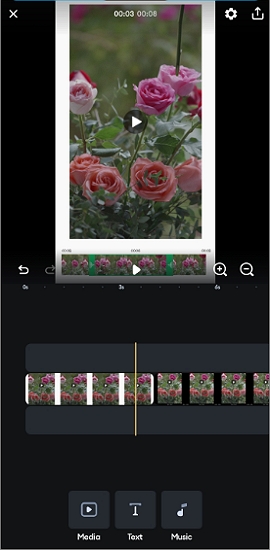
Step 4. Click the Upload button on the top-right corner and then choose the output quality. Lastly, click Save to export your video.
Part 2. 2 Bonus video Trimmer and Mergers for PC/Mac [Including online solution]
Two Proven third-party software:
Wondershare UniConverter - Mac/Windows
Wondershare UniConverter is arguably the best combine two videos app for computers. That's because this program packs enough features to convert your clip into an award-winning video. Apart from trimming and merging with precision, UniConverter comes with tools for compressing, cropping, adding watermarks, apply filters, and so on. Also, users can export the edited videos to MP4, MP2, MOV, FLV, MTS, and other digital formats.
Key features:
- It supports 1000+ digital formats, including MOV, MP4, FLV, MTS, etc.
- It outputs video resolutions up to 4K UHD.
- Trim, split, and merge videos with precision.
- Edits videos by cropping, flipping, rotating, adding watermarks, applying effects, etc.
- Best video cutter and merger app for Mac OS X 10.9+ and Windows 10/8.1/8/7.
Steps to cut and merge videos with Wondershare UniConverter on Mac or Windows PC:
Step 1. Upload your video clip (s).
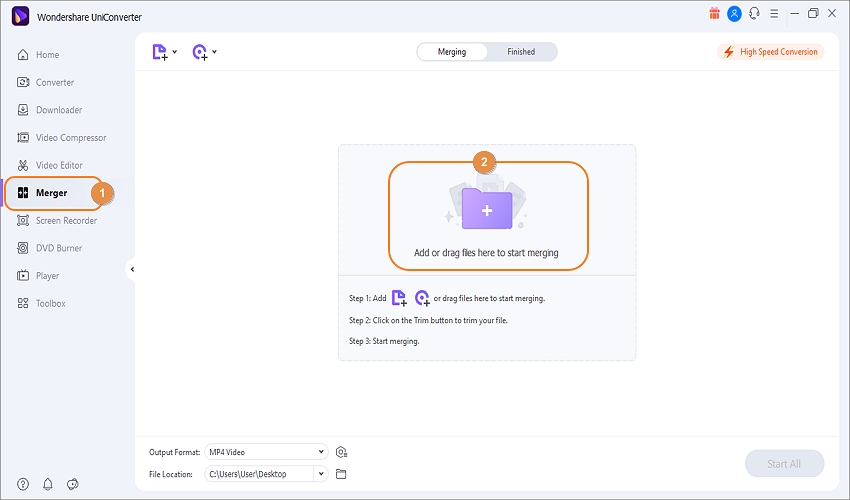
Visit Wondershare's official website and install UniConverter 13 on your PC. After that, click the Merger tab and then click the Add Files button. Now choose the videos to split and merge from your local storage. Alternatively, just drag and drop your video on the Merger window.
Step 2. Trim the video with precision.
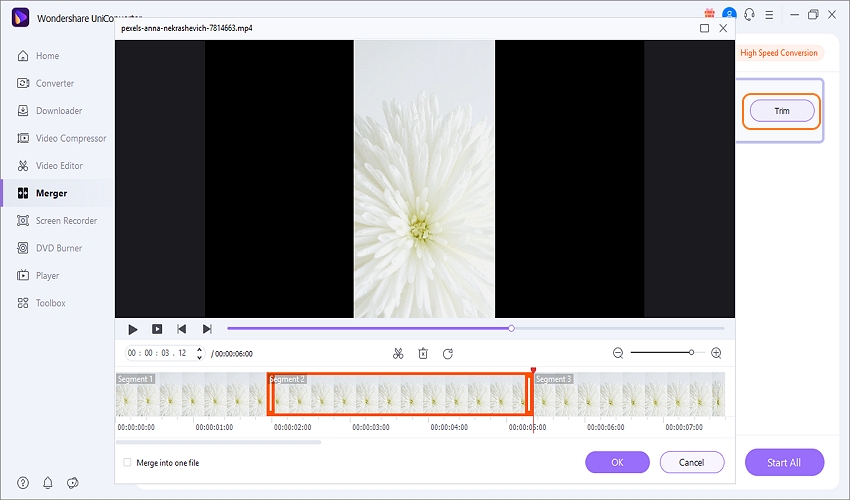
If you want to remove unwanted sections at the start and stop ends of the video, click the Trim button beside your added video and then drag the cuttings handles inwards. To cut with more precision, tap the point you want to begin trimming and click Cut. Then, repeat the process on the point you wish to stop trimming. After this, you can rearrange the video sections and merge them or delete trimmed parts.
Step 3. Convert and save the trimmed video.
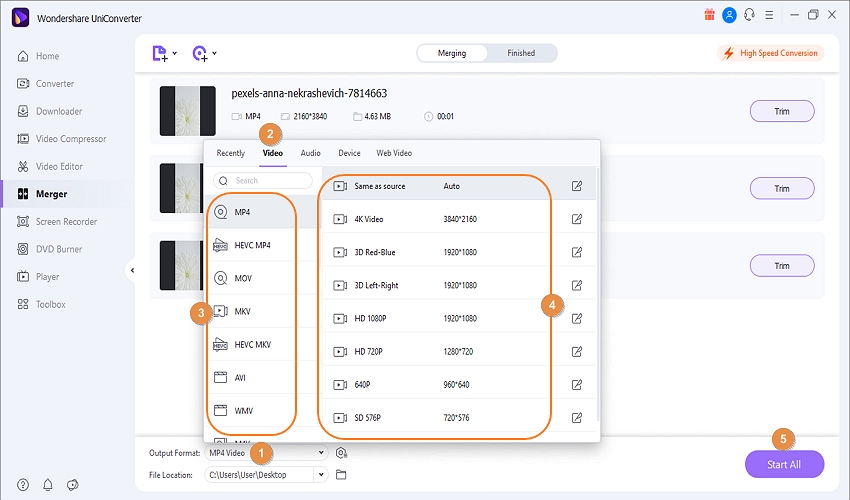
Let's say you want to convert the edited clips into a different file format. If that's the situation, click Output Format, tap Video and then choose a file format. Or, tap the Device tab and select a device-optimized file format. You can even convert video into multiple audio formats if you want. Finally, press Start All to encode and save your brand-new video clip. And there it that!
Pro tip: You must be wondering how to use Wondershare UniConverter on your Android or iPhone. If that's your worry, then use Online UniConverter. This website is simple to use, ad-free, and supports 1000+ file formats. Besides cutting and joining videos, UniConverter can also compress, crop, rotate, convert, and so on. And yes, it's free to use.
Follow these simple steps:
Step 1. Launch the Merge Video function and upload your clips.
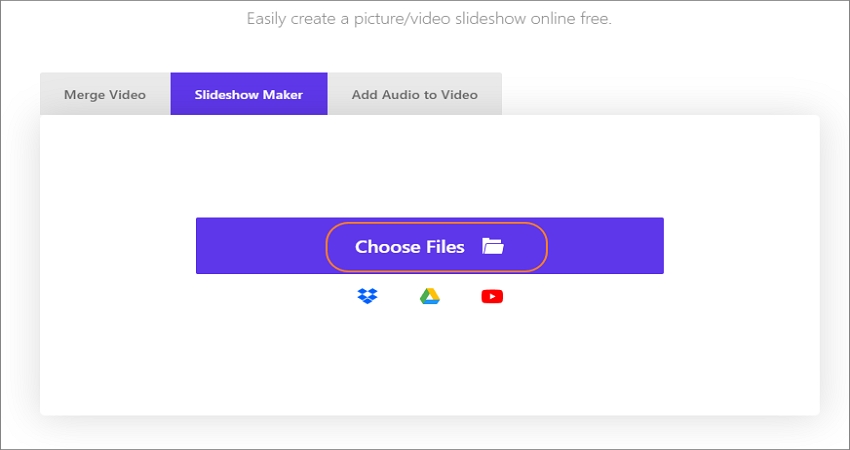
Use an updated browser to launch Online UniConverter and then tap Online Tools. Then, press the Merge Video tab. Now drag-n-drop your videos on the interface or click Choose Files to add local videos.
Step 2. Configure the aspect ratio and add background audio (option).
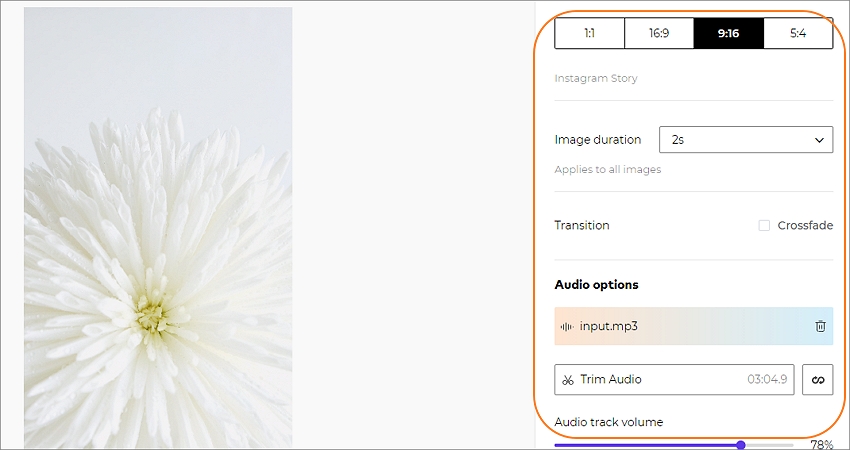
Do you want to create a landscape or portrait video? First, select the aspect ratio to fit YouTube, Instagram, or Facebook. After choosing the video mode, tap Add audio to upload a music file to embed as the background audio. Finally, you can retouch the audio file by trimming and adjusting the volume.
Step 3. Choose the output format and stitch your videos.
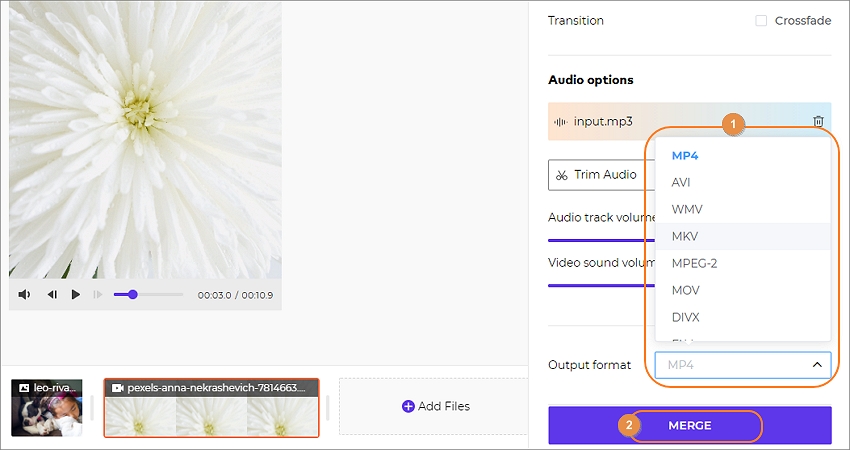
Click the Output format drop-down list and select a video format. Now preview the video and then tap Merge to start combining your videos.
Free Video Cutter Joiner (Windows PC)
Free Video Cutter Joiner is precisely that - an open-source app to join two videos together. In other words, you won't pay anything to use this app. Having said that, this video trim and merge app can split videos precisely by entering the start and stop times. Also, users can join an unlimited number of video clips. However, Free Video Cutter Joiner doesn't feature additional editing tools.
Key features:
- Free, open-source app.
- It supports most video formats,
- Well-arranged and simple-to-understand UI.
- Available in multiple languages.
Step 1. Install and run Free Video Cutter Joiner on your PC and click the Video Cutter or Video Joiner tool.
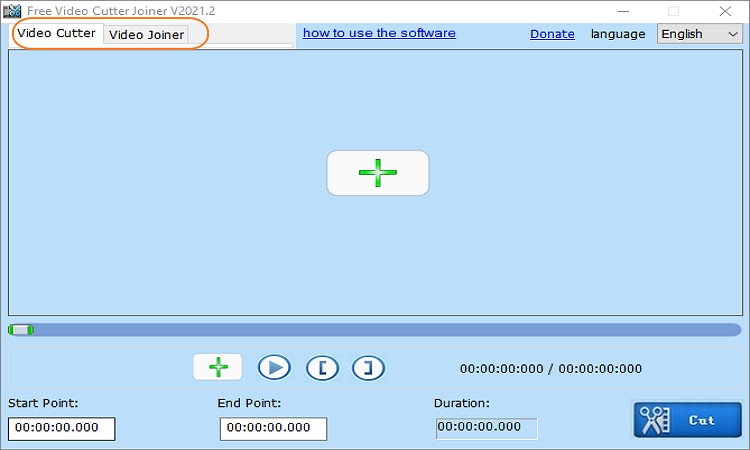
Step 2. If you've chosen the Video Cutter tool, upload your video clip and then select an area to start trimming before clicking Set Start Point. Then, tap a section to stop cutting and tap Set Stop Point.
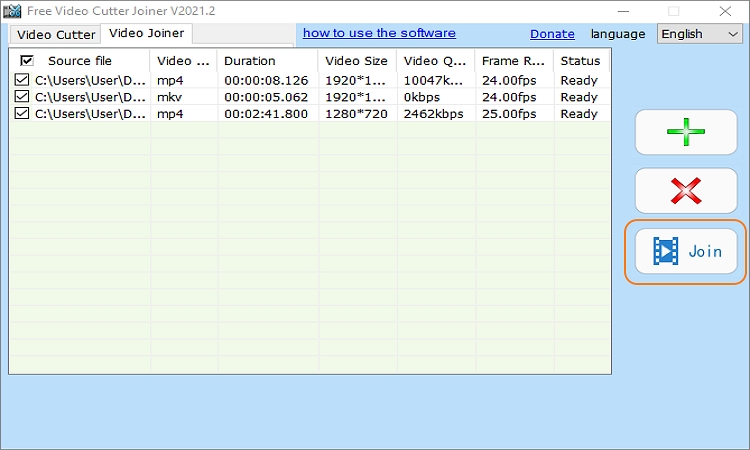
On the other hand, click the Add Video File button to upload several video clips on the Video Joiner tool.
Step 3. Lastly, click the Cut button to trim your video or the Join button to merge your videos.
Conclusion
See, finding the best video editing app to combine videos isn't as complicated as you may have thought. Just choose one from the options above and enjoy creating engaging videos for your offline and social media following. Remember, Wondershare UniConverter is the ultimate video editing app for desktops. Have fun!