ChatGPT
 Perplexity
 Gemini
 Claude
 Grok
Grok
Learning how to make a video with photos and music might seem easy on paper until you try it. That's because you have to get everything right, from the software you use to the type of background music. But don't panic because creating a music video is a cakewalk with proper guidance. This guidepost will walk you through how to make a photo music video online for free. You'll also learn some helpful tips for creating a killer music video.
Part 1: How to make a video with photos and music using Online UniConverter
Online UniConverter is the best online software to help you generate top-quality music videos in a snap. The drag-and-drop UI is easy to navigate and supports 1000+ video, image, and audio formats. With it, you can upload a video file before customizing it with an entertaining music track. But that's not all. Users can also edit the uploaded soundtrack by trimming it with precision and adjusting the volume level. And best of all, Online UniConverter comes with a slideshow maker for creating videos from any image format of your choice.
Key features:
- Free, open-source app with non-watermarked outputs.
- It supports 1000+ video, audio, and image formats.
- Exports high-quality photo music video in 1080p resolution.
- Add audio to video before trimming, adjusting the volume, and merging.
- Intuitive video editor for cropping, cutting, splitting, joining, rotating, etc.
- 30x faster than other online video editing apps.
Below is how to make a video with photos and music for free using Online UniConverter:
Step 1: Launch Online UniConverter.
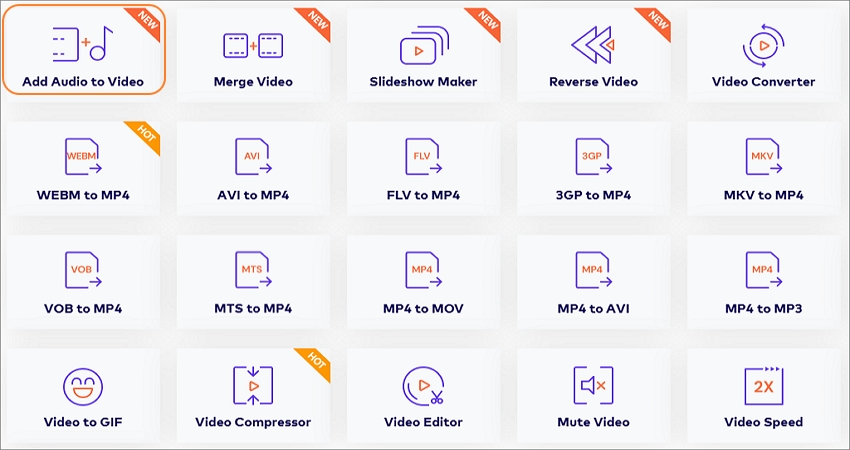
To launch Online UniConverter on your mobile phone or computer, use an updated web browser to visit the website. Then, continue to click Online Tools before clicking the Add Audio to Video function. The program will launch immediately. If you want to design a photo collage with background music, click the Slideshow Maker tab on the Add Audio to Video window.
Step 2: Add a video to the workspace.
Suppose you're using a computer to create your music video, drag and drop your video file on the editing space. Another excellent way is to click Choose Files to open your local folders and upload a video file. Remember, you can click the Dropbox or Google Drive icons to upload media files from the respective cloud storage.
Step 3: Add a soundtrack to the video.
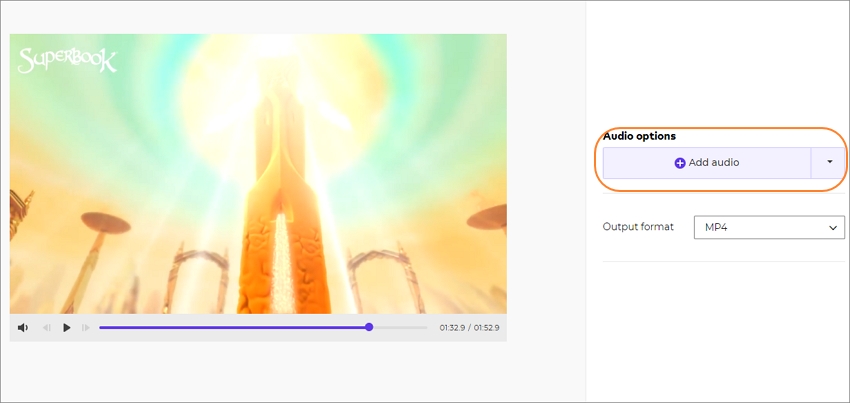
Now it's time to add a music file to your video clip. To do that, navigate to the right pane and then click the Add audio button. Your local media folders and files will open, where you can select a music file to use as the background audio.
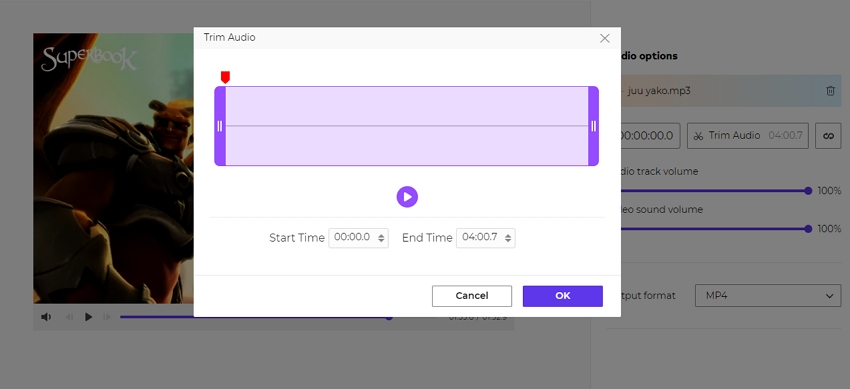
Next, proceed to trim the audio file to match the video length or remove unwanted sections. To do this, click the Trim icon before dragging the trimming handles. You can even enter the exact audio duration to trim with precision. After that, proceed to adjust the volume level of your video and audio file.
Step 4: Save your video.
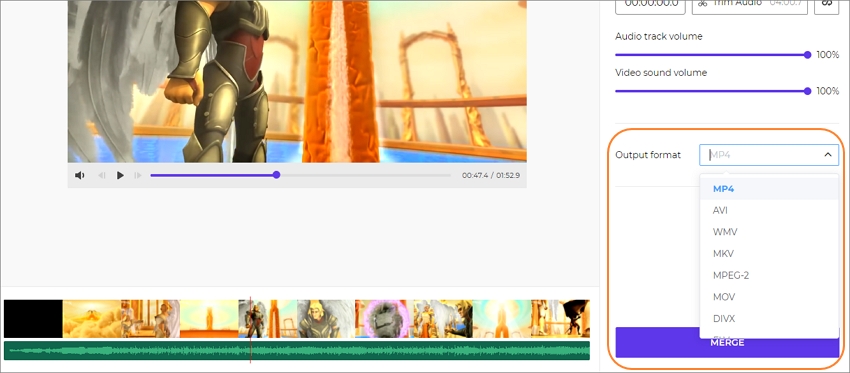
When you're done uploading and customizing audio, click the play button on the preview screen to see if your video file needs further editing. If not, choose a target video format before clicking the Merge button. Online UniConverter will create your music video file with lossless quality in seconds. You see, it's that easy!
Part 2: Top 3 photo music video editors recommended
In addition to Online UniConverter, you can also use these three excellent apps to make a video with photos and music:
Adobe Spark
Key features:
- Thousands of free icons and images for your designs.
- Hundreds of exclusive premium templates.
- Personalize projects with texts, logos, fonts, and colors.
- Cross-platform support.
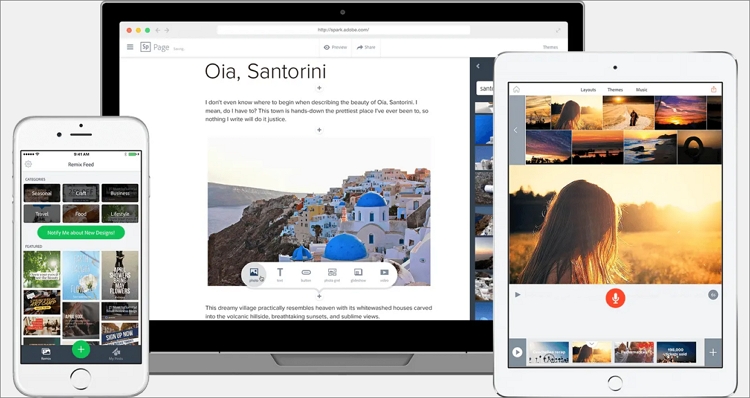
Adobe Spark is an online software from the famous Adobe team. This app lets users make creative video stories and web pages with a single click. For example, when creating a photo music video, you upload your photo, add audio, and choose the design filters. As expected, Adobe Spark also provides users with multiple professional-grade cinematic motions and soundtracks. Like that's not even enough, you don't need to pay anything to use the Creative Cloud feature, unlike other Adobe products. Just remember that the best video templates available aren't for free.
Wondershare FilmoraGo
Key features:
- 1000+ royalty-free music to download and use.
- 200+ emojis and stickers to customize videos.
- High-quality HD 1080p video outputs.
- Directly export videos to Instagram, Facebook, YouTube, and more.
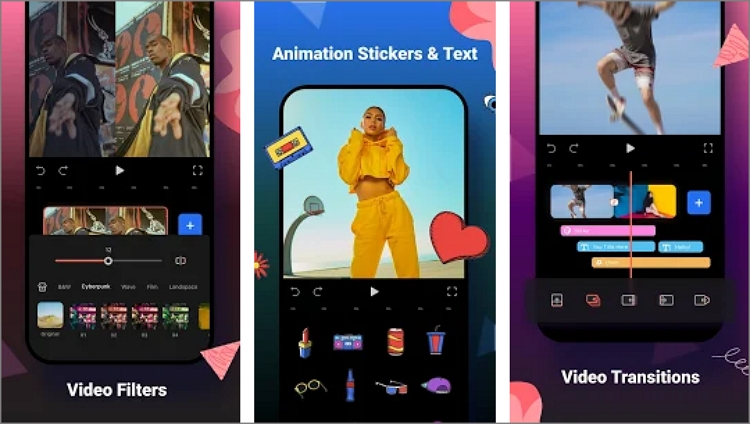
Whether you're a beginner or expert video editor looking to create music videos on Android or iOS, FilmoraGo should be your best bet. This app comes with an easy-to-understand UI that's packed with a myriad of powerful features. Here, you can record clips or import them from your local storage before customizing them with unique effects, stickers, filters, background music, and more. There are also no annoying watermarks on video outputs for paid users, and users can create unlimited video lengths. But on the downside, you'll have to part with a few bucks via in-app purchases like themes and filters.
Clideo
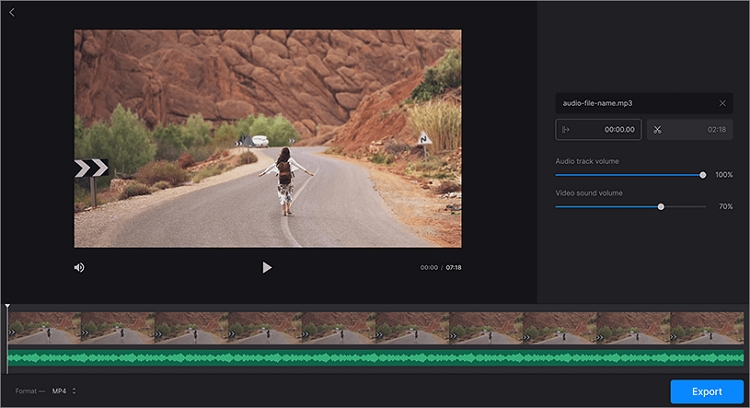
Key features:
- Create videos and photo slideshows with ease.
- Excellent video editor for trimming, cropping, merging, etc.
- Add songs to video with lossless quality.
- It supports all standard video and audio formats.
Lastly, you can use this all-purpose video editor to create incredible videos online for free. It packs all the necessary features for trimming, merging, converting, cropping, and so much more. You can upload and edit typical video and audio formats like MP4, MOV, MTS, VOB, MP3, M4A, and more on a straightforward platform. In addition, users can edit their uploaded video files by trimming and splitting them before exporting to any format. But sadly, the file upload and processing speed are painfully slow.
Part 3: Tips&Tricks for making a video with photos and music
Now that you already know how to make a music video with photos using several apps, it's time to discuss some free tips to improve the video quality. Below are a few:
1.Select high-quality videos and pictures.
There are no two ways about it. If you want to make the best music video, you must use crisp, clear footage and photos. In other words, avoid using images and videos with blurry backgrounds or shaky video clips. To ensure this, use a tripod stand for your camera or place it on a sturdy surface when shooting photos or taking videos. You can also get video stabilization software to edit your shaky videos. Overall, the video and image quality is of utmost importance.
2.Choose top-quality background audio.
That is like a continuation of the first point above. Your audio quality is more vital than the photo or video quality. Know that most viewers are willing to watch videos shot using a 'budget' phone as long as it's watchable. However, few can withstand fuzzy and noisy background audio. Therefore, the audio is crucial. For instance, if you're creating a video about wedding anniversaries, graduations, or those happy moments, make sure the background audio sums up the situation perfectly.
3.Keep video editing simple.
Another area where creators, especially those on social media, get it wrong is overdoing their videos. Although trying different effects and emojis can be fun, don't go overboard. Remember, your audience is likely to find a clean and straightforward video more professional. Besides, make sure you don't use different transitions on your music photo video. Just choose one and stick to it till the end of the clip.
4.Use your phone or tablet properly.
The chances are that you don't have a $1000 DSLR camera. Fortunately, your smartphone or tablet should get the job done with minimal fuss. However, there're several factors to keep in mind if you want to shoot the best videos and photos. First, always use the back camera system, as it offers more megapixels to capture quality videos and pictures. Second, record videos in landscape mode (horizontally) to make your footage look professional on a computer or TV screen. And as said, avoid taking tilted footage.
5.What about the video editing software?
If you get an excellent video editing tool, you can turn a somewhat average video or audio into world-class footage. Of course, a good program should possess basic features for trimming, cropping, compressing, adding watermarks, and so on. Also, choose a program that can convert your raw footage into standard digital formats like MP4, MOV, JPG, PNG, MP3, and more. In that case, use Online UniConverter to create, edit, and share music videos easily. This app even lets you choose the perfect video aspect ratio for YouTube, Instagram Stories, TikTok, etc.
Final Words
I hope you've learned something valuable up to this point. As much as the video and photo files in your clip are essential, it's the background audio that breathes some life into it. So, make sure you trim, remove the background noise, and adjust the audio volume before adding it to your photo video. In the end, you'll have one of the most-watched photo slideshow or video on Instagram, YouTube, or any social media channel you wish to share.